

Turn recordings into transcripts and summaries in minutes
Upload audio or video for multilingual transcription, AI notes, and action items
Can Google Meet Share Your Screen? Here's the Short Answer
"Can I actually share my screen?" This is the question that pops up fastest when many people first present data on Google Meet.
The answer is yes. But the real question isn't "can you"—it's "what do you want to share?"
Entire screen, single window, or one browser tab—these three choices directly determine whether you accidentally broadcast private messages, other tabs, or desktop file shortcuts to everyone in the meeting.
This guide first walks you through the key decisions before sharing, then covers the actual steps for desktop and mobile, and finally addresses the part most people overlook—what to do with meeting notes after screen sharing ends.
4 Key Things to Understand Before Sharing
1. Sharing Scope: Tab, Window, or Entire Screen?
This is the option with the biggest impact, and the one most often clicked without thinking.
Sharing your "entire screen" is the most intuitive, but it means exposing everything on your desktop—including pop-up notifications from chat apps, tabs you haven't closed, and file names on your desktop.
Sharing a "single tab" is the safest, because viewers only see that one webpage. To share audio from YouTube or an online presentation video, you must use this option.
Sharing a "single window" is suitable for demonstrating local software, design mockups, or Excel—viewers won't see anything behind that window.
Simply put: if you can share just a tab, don't share your entire screen.
2. Audio: Only Tab Sharing Carries Sound
Google Meet screen sharing only transmits video by default.
If you want to play a video or audio from a presentation, you must choose to share "a tab" and check "Share tab audio" in the pop-up options.
Choosing entire screen or single window cannot include audio. Many people spend ages trying to figure this out during a meeting, when the real issue is they chose the wrong mode from the start.
3. Permissions: You'll Be Asked the First Time
The first time you share your screen on Google Meet, the browser will prompt you to allow screen and system audio access—remember to click Allow.
If you dismiss it or accidentally click Deny, it won't pop up again automatically. You'll need to go into system settings and manually grant screen recording and system audio permissions to the browser. Mac users especially tend to get stuck here.
Also, it's recommended to use the latest version of Chrome for sharing—stability is noticeably better.
4. Device: Desktop and Mobile Work Differently
On desktop, you click "Share screen" in the meeting toolbar. On mobile, it's hidden in the "More" menu, and you need to grant screen recording or broadcast permissions separately.
If you need to share your phone screen while on the go, set up permissions in advance—don't wait until the meeting starts to look for the button.
Desktop: Three Steps to Share
After joining or starting a meeting on your computer, the process is quick:
- Go to the toolbar at the bottom center of the screen and click "Share screen" (called Present Now in older versions).
- In the pop-up menu, choose what to share: a tab, a window, or your entire screen.
- Check the preview to make sure it's correct, then click "Share."
During sharing, your screen becomes the main view of the meeting. A "Stop sharing" button appears in the top right—click it to end.
If you're using Google Docs or Google Sheets, you can also join the meeting and share the current tab directly from the document's side panel—especially handy for discussing document content line by line.
How to Share Your Screen on Mobile and Tablet
The mobile process is completely different from desktop:
- Join the meeting first.
- Tap the screen to bring up meeting controls.
- Tap "More" (the three-dot icon).
- Select "Share screen," then tap "Start sharing."
The first time, the system will ask for screen recording or broadcast permission—you must allow it to continue.
Keep in mind that mobile sharing stability depends heavily on your network. If you just need to show someone a single page of information, sending a screenshot to the meeting chat is sometimes easier than sharing your entire phone screen.
Host and Meeting-Level Restrictions
Here are a few rules worth knowing in advance to avoid scrambling during the meeting:
Stop organizing recordings by hand
Upload audio or video and automatically get a transcript, summary, and action items
- By default, any participant can share their screen. Some hosts disable this and allow only specific people to share—in that case, the share button won't appear in your toolbar.
- A maximum of 10 simultaneous screen shares can be active in a single meeting.
- During sharing, you can still see participants' video feeds, and you can use picture-in-picture mode to share and watch everyone's expressions at the same time.
If you're the one asked to "give a quick progress update later," join the meeting 2 minutes early to test sharing—don't wait until you're called on to start looking for the button.
After Screen Sharing Ends, the Real Work Begins
Screen sharing solves the "let everyone see it now" problem, but the real time sink in meetings is usually afterward: who said what, what was decided, and who needs to deliver what by when.
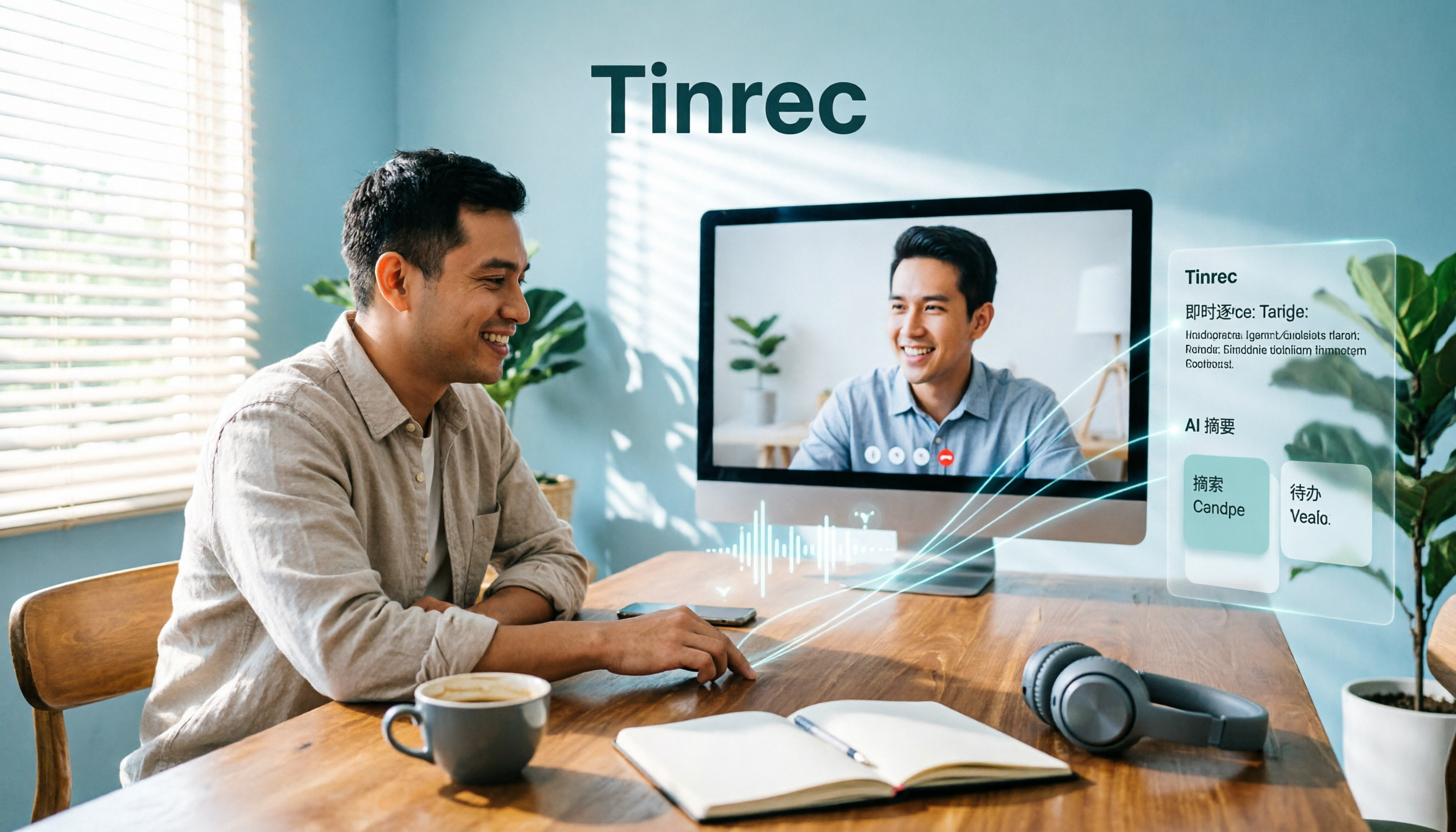
This is where Tinrec (Miao Ting Lu Yin) can help. It's an AI meeting notes and collaboration tool for individuals and teams. It doesn't replace Google Meet—it preserves the meeting content.
Tinrec's desktop version captures your computer's system audio directly, so you don't need to invite a meeting bot to join Google Meet as an extra participant. Just open Tinrec and start recording before you begin presenting; it generates a transcript in real time during the meeting and automatically produces summaries, chapters, and action items when you're done.
The most noticeable benefit in practice is post-meeting follow-up. Transcripts are complete, but manually paging through a 40-minute conversation to find "which spec the client actually cares about" is time-consuming. Tinrec supports AI Q&A about meeting content—you can directly ask it for meeting conclusions or numbers someone mentioned, without manually Ctrl+F-ing one by one.
Output also fits into your workflow: transcripts, summaries, and action items can be exported, or further processed into meeting minutes, reports, and tables to continue using in Notion, Google Docs, OneNote, and other tools.
Note: Tinrec requires you to actively start recording—it's not a tool that automatically joins all calendar meetings. Transcription quality is also affected by recording environment, accents, multiple people talking over each other, and technical jargon. For important content, we recommend cross-checking with playback—don't treat it as a 100% error-free record.
If your meetings are shared across a team, the Team version lets you centralize this data: create team spaces, invite members via link, assign roles like Owner/Admin/Member, and control who can record, upload, edit, and export via seats. Members without a seat can still view and play team data but cannot edit.
The Team version currently offers a 7-day trial (1 free seat, 300 minutes of shared team import quota). Monthly billing is USD 29.80 per paid seat; annual billing is USD 199 per paid seat (about USD 16.58/month), with 2,000 minutes of shared team import quota per paid seat per month. Under an active plan and seat, live recording is currently not deducted by the minute. Actual pricing and benefits are subject to the official purchase page.
Who it's for: People who frequently present on Google Meet, hold client meetings, need to produce minutes and action items afterward, and want data to stay with the team rather than on someone's individual computer.
Pitfall Guide: The 4 Most Common Google Meet Screen Sharing Mistakes
Pitfall 1: Sharing your entire screen by default. This is the most common and most dangerous mistake. Before sharing, ask yourself: is there anything on my desktop I don't want seen? If you can share just one tab, don't share your whole desktop.
Pitfall 2: Forgetting to close notifications and chat windows. Turn on Do Not Disturb and close private chat windows before sharing. You don't want a private message popping up mid-presentation for everyone to see.
Pitfall 3: Choosing entire screen when you need audio. Remember one rule: for audio, choose a tab and check "Share tab audio." Choose the wrong mode and viewers will only see a silent screen.
Pitfall 4: Thinking sharing is the end. The moment you stop sharing, most people's memory of the meeting content starts fading. Rather than trying to recall later, let a tool capture the transcript and action items while the meeting is happening.
Summary: Choose Your Approach Based on Your Situation
- Just need to show someone a document or spreadsheet → Sharing a single tab is safest—clean view, no leaking other content.
- Need to play a video or presentation audio → Must choose a tab and enable "Share tab audio."
- Need to demonstrate local software or design mockups → Share a single window—viewers can't see behind it.
- Sharing temporarily from your phone → First confirm screen recording permission is granted, then select Share screen from "More."
- Meeting needs a record and post-meeting minutes → Start Tinrec desktop recording before sharing, so transcripts, summaries, and action items are ready when the meeting ends.
- Team needs to share meeting data → Consider Tinrec Team version—use team spaces and seat management to turn each meeting into searchable, queryable team knowledge.
Google Meet screen sharing itself isn't hard—the challenge is choosing the right sharing scope and figuring out how to turn meeting content into something you can keep using afterward. Start by sharing just one tab in your next meeting—you'll find the whole process is much quieter.
References
Turn every recording into actionable outcomes
Get 60 free transcription minutes when you sign in. No credit card required.
Related Reading
You might also like

Google Meet Plans in 2026: Free vs Paid Options Explained
Struggling to buy a Google Meet plan? This guide breaks down the 2026 plan structure: Google Meet has no standalone subscription; paid features are tied to Google One and Google Workspace. It covers free version limits, plan names and storage tiers to confirm before purchase, team plan seats and pricing, and adds a post-meeting workflow layer so recordings become searchable, trackable data.

Google Meet Down? 3 Steps to Check Outages in 2026 (With Backup Meeting Options Compared)
When your meeting freezes mid-call, you search "is google meet down" because you need to know: should you wait or switch? This guide breaks down three steps to distinguish between the official status page, third-party monitors, and user reports, then compares Google Meet's built-in transcription with Tinrec desktop's bot-free recording—so you won't waste time when service goes down.

Google Meet Buying Guide 2026: 5 Real-World Options Compared for Individuals, Teams, Hardware, and Post-Meeting Workflows
Google Meet isn't sold separately—paid features are tied to Google One or Google Workspace. This guide covers 5 real purchase paths: personal upgrades, team governance, meeting room hardware licenses, and the free version. Plus, it addresses what most people only think about after buying: how to turn meeting recordings and transcripts into usable data.
3 Ways to Take Google Meet Notes in 2026: Tested Comparison — Can You Get a Transcript Without an Extension?
We tested and compared three ways to capture meeting notes in Google Meet, breaking down the most common inefficient habits and pitfalls, and demonstrating how Tinrec desktop records without a bot, provides live transcripts, AI summaries, and action items, turning meetings into searchable, queryable data.

2026 Video Conferencing Tools Comparison: Is Google Meet Really Like Skype?
Is Google Meet like Skype? The answer is "half alike": calls and screen sharing are similar, but one is a meeting room and the other is a messaging app—and Skype has officially retired. This article compares Google Meet, Skype, and Microsoft Teams from a real office worker's perspective, and tests how Tinrec fills the often-overlooked gap of post-meeting notes and organization.

Google Meet vs WhatsApp in 2026: 3 Communication Tools Tested and Compared – Are They Really Alike?
Google Meet and WhatsApp both let you talk and video chat, but one is built for meetings and the other for conversations. This article breaks down the differences across four dimensions: purpose, how to join, participant limits, and post-meeting data, plus covers the often-overlooked post-meeting organization step.

How to Buy a Google Meet Subscription in 2026: Personal vs. Team Plans and How to Avoid Buying the Wrong One
Google Meet doesn't have a standalone subscription—paid features are bundled under Google One AI Premium and Google Workspace. This guide helps you decide which one to buy based on account type, plan name, and feature requirements, walks you through the purchase process, and covers the post-meeting step most people miss so your meeting content becomes searchable, queryable data.

Google Meet vs WhatsApp 2026: 5-Dimension Comparison — They Can't Replace Each Other
Google Meet and WhatsApp both offer video calling, but one is a video conferencing platform designed for group meetings, while the other is a messaging app centered on chat. This article compares them across 5 dimensions—positioning, account requirements, meeting features, participant capacity, and post-meeting organization—to help you decide which to use for different scenarios and how to supplement with transcripts and meeting notes when needed.

2026 Comparison of 3 Online Meeting Transcription Tools: Teams, Google Meet, and Tinrec — How to Choose?
Teams and Google Meet can both host meetings, but what happens after the meeting is recorded? This article starts from real-world usage scenarios, compares the positioning and limitations of Microsoft Teams and Google Meet, and tests Tinrec's performance in transcription, AI summaries, action item extraction, and team data retention, helping you determine which combination best fits your workflow.