

Turn recordings into transcripts and summaries in minutes
Upload audio or video for multilingual transcription, AI notes, and action items
Most people get stuck before the payment page when buying Google Meet
Many people stop at the payment page the first time they try to buy a Google Meet plan. It's not that they can't find the button—it's that they discover there's no standalone subscription. What you're actually buying is Google One or Google Workspace.
The second situation is even more common: assuming that buying Google One will automatically unlock Meet's advanced features. That's not the case. Only specific tiers (the Premium plan with 2TB of storage) qualify. If you buy a smaller storage plan, recording and transcription features still won't appear.
This article outlines the current 2026 plan structure, who each option is for, and what to confirm before purchasing. At the end, we'll discuss something often overlooked: once you can record, how do you actually make use of those recordings?
4 key points to understand before purchasing
1. Is this for personal use or team use? For personal use, you want storage plus Meet advanced features—that points to Google One. For team use, you need account management, shared data, and permissions—that points to Google Workspace. The two paths are not interchangeable.
2. Do you need "meetings" or "after the meeting"? The free version lets you meet. What you're paying for is recording, transcription, Gemini, and other post-meeting tools. Figure out which you need first so you don't overspend.
3. Are the participant and time limits enough? The free version supports up to 100 participants, group meetings of 3+ people are capped at 60 minutes, and one-on-one calls can last up to 24 hours. That's fine for casual chats, but formal meetings often hit that 60-minute limit.
4. Read plan names carefully—bigger storage isn't always right. This is the easiest place to go wrong. Google Meet's official documentation clearly states: only the Google One Premium plan with 2TB of storage qualifies for Meet advanced features.
Google Meet paid plans actually split into two paths
Personal and small needs: Google One
If it's just for you, Google One is the more direct route.
Note that not all Google One plans are the same. Some articles mention that plans with "AI Premium" in the name are required to unlock AI features, and plan names and contents may vary by country. The safer approach: go to the Google One plan page, check whether the plan's benefits list includes Meet advanced features, and then proceed to payment.
The purchase flow is roughly: select a plan → complete payment → return to Google Meet and refresh the page → start a meeting and confirm whether recording or transcription actually appears.
Prices vary by country, currency, and current promotions. Before checkout, refer to the amount shown on the official page.
Teams and organizations: Google Workspace
If a team needs centralized account management and shared data, you'll need Google Workspace.
Paid plans start at around USD 7 per user per month. Business Starter, Standard, and Plus support up to 300 users; beyond that, you'll need to discuss Enterprise.
There's also a Flexible plan with no commitment—you can add or remove users at any time, but the per-user cost is about 20% higher. If your headcount is still changing, this option is worth calculating.
Two more things to know upfront: to use Gemini's generative features (like studio look and studio lighting), you need to purchase Gemini for Google Workspace separately; advanced features like watermarks also require an eligible Workspace subscription.
Is the free version enough?
The free version supports meetings with up to 100 people, one-on-one calls up to 24 hours, and group meetings capped at 60 minutes.
What you don't get: recording, transcription, and Gemini features in Meet.
Simply put: if you meet occasionally and don't need records, the free version is completely sufficient. As soon as you have one "I didn't catch that—can we replay it?" moment, it's time to consider paying.
After you can record: Tinrec covers the second half of meetings
Google Meet paid plans solve "can I record?" But the part after recording—organizing transcripts, extracting conclusions, assigning action items, and being able to find it all again next time—that's where the real time goes.
Tinrec is an AI meeting notes and collaboration tool for individuals and teams, available on web, desktop, and mobile. It handles exactly that post-meeting work.
Bot-free recording of online meetings. The desktop version captures your computer's system audio directly, so it works with Zoom, Google Meet, Microsoft Teams, Webex, and other online meetings without adding an extra bot as a participant. During client presentations or external calls, no unfamiliar attendee appears on screen.
Transcribe while recording, with cross-language viewing. Live recording is transcribed in sync and supports real-time translation—switch between original text, translation, or bilingual view. Especially useful for mixed Chinese-English meetings.
Stop organizing recordings by hand
Upload audio or video and automatically get a transcript, summary, and action items
Automatic post-meeting organization. After the meeting, it generates summaries, chapters, key points, and action items, so you don't have to re-listen to long meetings. You can see what each participant said and who's responsible for what.
Ask questions directly about the meeting. This is where it differs most from ordinary transcription tools. You can ask "Who mentioned the budget in the last meeting?" or "What was the conclusion?" and it answers based on meaning, not just keyword matching—saving you from manually scrolling through transcripts.
Export and further processing. Supports multi-format export to Notion, Google Docs, OneNote, Dropbox, and other common tools. You can also use Agent post-processing to generate reports, tables, and documents, directly connecting to reporting or archiving workflows.
Team plan is a separate collaboration space. It's not multiple people sharing a personal account—it's an independent team space where meeting data belongs to the team. Roles (who can manage the team and audit) and seats (who can record, upload, edit) are separate; it also provides usage analytics, audit logs, an audio recycle bin (30-day retention), and team hotwords. When a member leaves or loses their seat, their team resources can be transferred to other active members—they don't disappear with the person.
Pricing: team monthly is USD 29.80 per paid seat per month, annual is USD 199 per paid seat per year (about USD 16.58 per month). Eligible teams can try 7 days free with 1 free seat and 300 minutes of shared team import quota; paid seats include 2,000 minutes of shared import quota per month, and under an active team plan, live recording currently does not deduct minutes.
Limitations, clearly stated. The free version has a basic quota; heavy users need to pay. Transcription quality is affected by recording quality, ambient noise, accents, overlapping speakers, and technical terminology—don't expect 100% accuracy. For important content, cross-check with transcript timestamps and the recording.
Who is it for? If you have meetings every week, need Chinese or mixed Chinese-English transcripts, want to use AI to find key points right after recording, and need team meeting data stored centrally rather than scattered across personal accounts, Tinrec gets you closer to the result you actually want than buying a recording feature alone. It works alongside your existing Google Meet plan—no need to choose one or the other.
Besides Tinrec, what other post-meeting options are there?
Otter.ai: A mature English meeting assistant. Basic free plan offers 300 minutes per month; Pro annual is about USD 8.49 per user per month, including 1,200 minutes per month and 10 file imports. It has the deepest experience with English business meetings, but Chinese meetings and mixed Chinese-English organization are not its focus. If 90% of your meetings are in English, it's a cost-effective choice.
Notta: Good multilingual transcription. Free plan offers 120 minutes per month with a 3-minute limit per recording; Pro annual is about USD 8.17 per month for 1,800 minutes per month. Note the free version's 3-minute per-recording limit—in practice, it's hard to handle a full meeting; also, its public plan page doesn't list team governance features like an audio recycle bin and audit logs.
Granola: Also takes the bot-free desktop route. Basic is free; Business is USD 14 per user per month. Its specialty is combining user-written notes with AI. However, it doesn't support uploading existing pre-recorded audio files and doesn't save meeting audio files—if you need to keep recordings or organize existing interview files, that's a real difference.
Pitfall guide: 3 most common mistakes when buying Google Meet plans
Pitfall 1: Assuming Google Meet has a standalone subscription. It's not sold separately—you're buying Google One or Google Workspace. Figure out which path you need so you don't go in circles on the payment page.
Pitfall 2: Looking only at storage, not the plan name. "Buying Google One gives you Meet advanced features" is wrong. Only specific tiers qualify, and plan names may differ by country. Before paying, make sure you personally see Meet advanced features listed in the plan's benefits.
Pitfall 3: Buying recording only, without handling the workflow afterward. Recorded files don't turn into meeting notes by themselves. Without summaries, action items, and a searchable organization layer, you'll find you've recorded lots of meetings but still have to listen from the beginning when you need to find a specific conclusion.
Pitfall 4: Using a personal account for team data. Recording team meetings with a personal account and storing them in personal cloud storage means data leaves when someone leaves. In this case, consider a solution with an independent team space and handover mechanisms, rather than forcing it with a personal version.
Conclusion: Which one should you buy?
In one sentence: first confirm whether you need "meetings" or "after the meeting"—the answer will be completely different.
- Occasional meetings, no need for records → Use the free version, don't spend money.
- Personal recording, transcription, plus extra storage → Choose Google One Premium with 2TB, confirm benefits list before paying.
- Team needs centralized account and data management → Google Workspace; over 300 users requires Enterprise discussion.
- Need Chinese meetings, bot-free recording, post-meeting summaries and AI Q&A → Tinrec, works alongside existing Google Meet plans.
- Team meeting data needs centralized storage and handover capability → Tinrec team plan; note roles and seats are separate: members without seats can view and play data, but need a seat to record, upload, and edit.
If you already have a paid Google Meet plan, we recommend starting with Tinrec's free version—use a real meeting to see the quality of transcripts and summaries, and consider upgrading only if it fits. No need to pay upfront.
References
- How to Buy Google Meet Subscription in 2026: A Complete Guide to Google One Premium and Google Workspace Plans - Official Tinrec Blog
- How to Buy Google Meet in 2026: Personal Upgrade vs. Team Plans Explained - Official Tinrec Blog
- Google Meet Pricing in 2026: Plans and Costs Compared
- Premium Meet features for Google Workspace - Google Meet Help
- Google Meet Subscription Guide 2026: Free Plan, Gemini, and Upgrade Options Explained - Official Tinrec Blog
Turn every recording into actionable outcomes
Get 60 free transcription minutes when you sign in. No credit card required.
Related Reading
You might also like

3 Google Meet Whiteboard Options Tested in 2026: Which One Best Captures Meeting Highlights?
How do you open the built-in whiteboard in Google Meet? What's the difference between screen sharing and an add-on whiteboard? This article covers 3 common whiteboard methods in 2026 and adds the post-meeting wrap-up step most tutorials miss—using Tinrec to turn whiteboard-side discussions into transcripts, summaries, and action items.

Jamboard Is Gone: 3 Google Meet Whiteboard Options Tested for 2025 — Which One Can Hold Up Your Meeting?
Jamboard officially retired at the end of 2024, and in 2025, 'can't find that whiteboard' in Google Meet has become many people's first problem. This article approaches the decision from a practical angle, comparing Google Meet add-on whiteboards, external services like FigJam/Lucidspark/Miro, and no-bot meeting notes tools like Tinrec. It explains why whiteboarding and post-meeting records should be treated as two separate things, and provides a ready-to-follow starter checklist.

2026 Google Meet Recording Tools Comparison: Tinrec vs Otter.ai vs Notta vs Granola
First, understand how to buy Google Meet hardware licenses: per device, up to 10 via Admin console, more through resellers, one-year term with renewal grace period. Then, from a mid-level manager's perspective, compare Tinrec, Otter.ai, Notta, and Granola on Chinese transcription, post-meeting summaries and action items, and team data retention—solving the other half of the problem after setting up your meeting rooms.

Google Meet Outage in 2026: 5 Steps to Tell If It's Down or Just You
When Google Meet won't open or freezes mid-meeting, most people make the wrong first move. This guide explains how to read third-party monitors and the official known issues page, shares a tested 5-step troubleshooting order, and shows how to capture meeting content with Tinrec desktop's no-bot recording when you can't wait—plus a quick competitor review and 4 common pitfalls to avoid.

Google Meet vs Messenger 2026: 5-Dimension Comparison — Why Tinrec Is Better for Meeting Notes & Post-Meeting Organization
Google Meet or Messenger: which is better? The answer depends on whether you need calls or usable meeting data after the meeting. This article breaks down the differences across 5 dimensions and explains why meeting notes, transcripts, summaries, action items, and team knowledge retention are better handled with Tinrec to complete the post-meeting workflow.

Google Meet Down? 3 Steps to Check Outages in 2026 (With Backup Meeting Options Compared)
When your meeting freezes mid-call, you search "is google meet down" because you need to know: should you wait or switch? This guide breaks down three steps to distinguish between the official status page, third-party monitors, and user reports, then compares Google Meet's built-in transcription with Tinrec desktop's bot-free recording—so you won't waste time when service goes down.

Google Meet Buying Guide 2026: 5 Real-World Options Compared for Individuals, Teams, Hardware, and Post-Meeting Workflows
Google Meet isn't sold separately—paid features are tied to Google One or Google Workspace. This guide covers 5 real purchase paths: personal upgrades, team governance, meeting room hardware licenses, and the free version. Plus, it addresses what most people only think about after buying: how to turn meeting recordings and transcripts into usable data.
3 Ways to Take Google Meet Notes in 2026: Tested Comparison — Can You Get a Transcript Without an Extension?
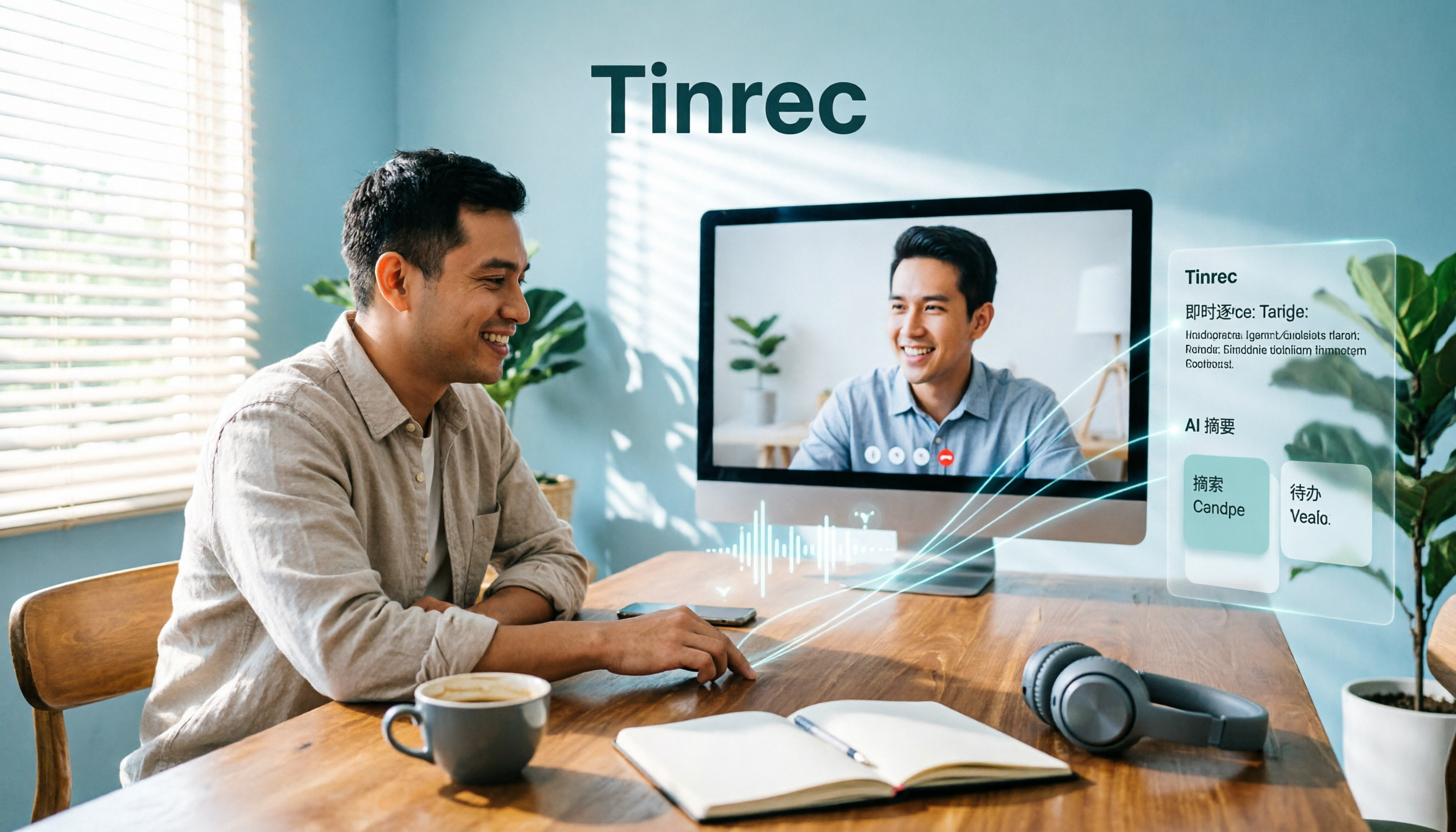
We tested and compared three ways to capture meeting notes in Google Meet, breaking down the most common inefficient habits and pitfalls, and demonstrating how Tinrec desktop records without a bot, provides live transcripts, AI summaries, and action items, turning meetings into searchable, queryable data.

2026 Video Conferencing Tools Comparison: Is Google Meet Really Like Skype?
Is Google Meet like Skype? The answer is "half alike": calls and screen sharing are similar, but one is a meeting room and the other is a messaging app—and Skype has officially retired. This article compares Google Meet, Skype, and Microsoft Teams from a real office worker's perspective, and tests how Tinrec fills the often-overlooked gap of post-meeting notes and organization.