

Turn recordings into transcripts and summaries in minutes
Upload audio or video for multilingual transcription, AI notes, and action items
Many people searching for "how to purchase Google Meet subscription" are actually stuck not because they can't find the purchase page, but because they're unsure which plan to buy.
That's because Google Meet doesn't have a standalone "Meet paid version" product.
It comes bundled with Google One or Google Workspace.
So the first decision you need to make is: Are you solving for personal meeting needs, or for your team's overall meeting governance?
Your answer will lead you down two completely different purchasing paths.
Below, I'll break it down into three layers: first, figure out what you should buy; then walk through the purchase process; and finally, cover a critical step most people overlook—how to turn meeting recordings into usable data.
First, Decide: Do You Need Google One or Google Workspace?
Google Meet's paid features are primarily tied to two types of subscriptions.
If you're an individual user who occasionally needs longer meetings, recording capabilities, or advanced in-meeting features, you should look at Google One.
If you need to manage meeting permissions, storage, and collaboration for multiple members in a company, department, or project team, you should look at Google Workspace.
This isn't a question of "which is better," but rather "what is your unit of use?"
For Personal Use: Start with Google One Premium
According to Google Meet's official documentation, only the Google One Premium plan, which includes 2 TB of storage, comes with Google Meet's advanced features.
In other words, not all Google One plans are the same.
If you purchase a smaller storage plan, you may not see Meet's paid features unlocked at all.
Before purchasing, check the Google One plans page to confirm that your chosen plan includes Meet advanced features.
For Team Use: Start with Google Workspace
If you're an administrator looking to enable meeting recording, attendance tracking, or more comprehensive meeting management for multiple users, your purchasing path starts in the Google Workspace admin console.
Google Workspace comes in different editions, and the features available in Meet vary by edition.
For example, meeting recording, in-domain live streaming, and attendance reports can differ depending on which Workspace edition you choose.
So the administrator's task isn't "buy Meet for everyone," but rather "choose a Workspace edition that covers your meeting needs."
Purchase Process: Two Entry Points, Don't Mix Them Up
Steps for Personal Purchase
Step 1: Sign in to your regular Google account.
Step 2: Go to the Google One plans page and find the Premium plan.
Step 3: Verify that the Meet advanced features listed for this plan include what you need.
Step 4: Complete the subscription payment.
After payment, return to Google Meet, and your meeting features will be unlocked with your account.
Steps for Team Purchase
Step 1: Sign in to the Google Workspace admin console as an administrator.
Step 2: On the Billing or Subscriptions page, check your current Workspace edition.
Step 3: If you need more comprehensive Meet features, evaluate whether to upgrade your edition.
Stop organizing recordings by hand
Upload audio or video and automatically get a transcript, summary, and action items
Step 4: After confirming the upgrade, members will have the new feature permissions applied when they use Google Meet with their own accounts.
The most important thing to note about team plans: you're upgrading the "organization's edition," not "one person's Meet."
The Step Most People Overlook: Turning Meeting Recordings into Usable Data
Buying a Google Meet subscription solves the problem of "being able to record, host longer meetings, and access more features."
But it doesn't fully solve another issue: What happens after the recording?
With a one-hour meeting recording, you still have to scrub through the timeline to find a specific conclusion.
That's why I add one more layer of consideration beyond the purchasing process: Is your meeting workflow just "record it and done," or do you need to "quickly find key points and track action items after recording"?
If it's the latter, then beyond a Google Meet subscription, you'll also need a tool that can turn meeting content into text, summaries, to-dos, and searchable data.
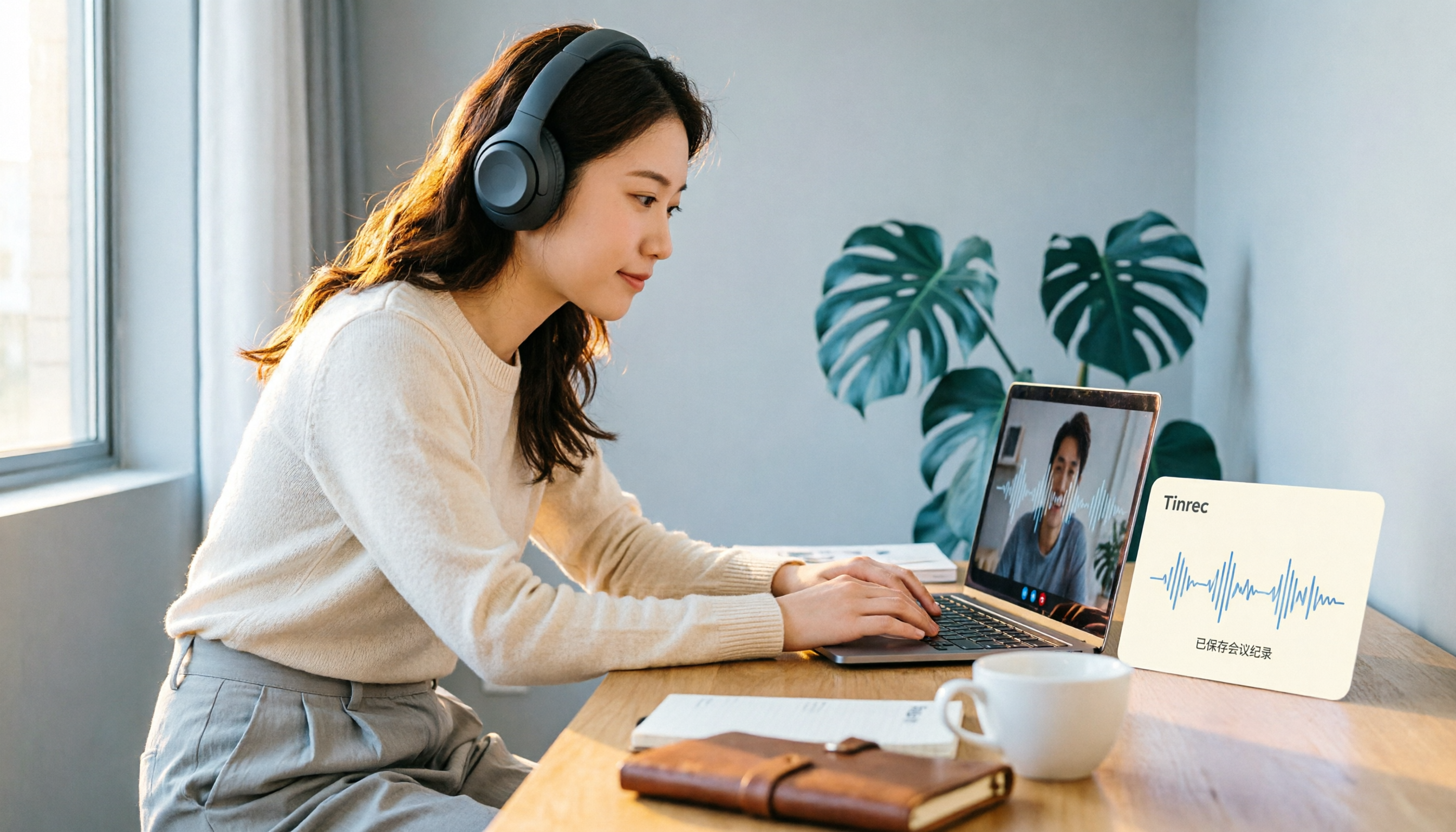
In my own workflow, I feed Google Meet's audio to the Tinrec desktop app.
Tinrec doesn't need to join the meeting as a bot; instead, it captures your computer's system audio directly.
This means you can keep your existing meeting flow without inviting extra meeting bots. Just open Tinrec on your computer, and you'll get real-time transcripts while you meet.
By the time the meeting ends, the transcript is already complete.
Then, Tinrec automatically organizes summaries, chapters, key points, and action items.
If you want to verify a decision, you don't have to re-listen to the entire recording. Just ask Tinrec: "What was the conclusion of this meeting?" "Who is responsible for what?"
It will give you answers based on the meeting content.
This is far more practical than buying a Meet subscription, recording a bunch of videos, and never revisiting them.
Subscription Is Just the Starting Point; Workflow Is What Matters
Let's return to the original question: How do you buy a Google Meet subscription?
The answer isn't complicated.
For personal use, go with Google One Premium.
For team use, go with Google Workspace.
But if you want meetings to be more than just recorded—if you want them to become searchable, trackable, and actionable work data—then your purchasing decision should include one more layer of thought.
A Google Meet subscription solves "being able to record."
Tools like Tinrec solve "making recordings useful."
When you put the two together, meetings won't just be a pile of video files sitting in the cloud that you open less and less often.
Quick-Start Checklist
- First, determine whether you're a personal user or a team user.
- For personal use, go to the Google One plans page and confirm whether the Premium 2 TB plan includes Meet advanced features.
- For team use, check your current edition and upgrade options in the Google Workspace admin console.
- After purchasing, return to Google Meet and confirm that recording or advanced features are unlocked.
- If you need meeting notes and post-meeting organization, open Tinrec on your computer and use the desktop version to record Google Meet meetings without a bot.
- After the meeting, use Tinrec's summary, to-do, and AI Q&A features to turn the content into actionable data.
With step-by-step testing, you can evolve your meetings from "recorded" to "usable."
References
- Is it possible to purchase a google meet subscription? - Google Meet Community
- How To Buy Google Meet Subscription (Simple Guide) - YouTube
- Premium Meet features for Google Workspace - Google Meet Help
- I want to purchase google meet premium - Google Workspace Admin Community
- Google Meet Premium Account - Buy Google Meet Premium
Turn every recording into actionable outcomes
Get 60 free transcription minutes when you sign in. No credit card required.
Related Reading
You might also like

5 Best Speech-to-Text Apps for Taiwanese Mandarin in 2026: Real-World Test & Comparison
We tested five speech-to-text tools—Yating Transcriber, Tinrec, Notta, Otter.ai, and PLAUD—using real Taiwanese Mandarin recordings, mixed Chinese-English code-switching, and noisy meeting audio to find the most reliable transcription app for Taiwanese accents.

How to Choose a Yating Transcriber Alternative in 2026: 5 Steps to Find a Better Fit
Yating Transcriber performs reliably for Taiwanese accents and Taiwanese Hokkien, but if you need meeting summaries, action item extraction, AI Q&A, and team collaboration, a raw transcript may not be enough. This article uses Tinrec as an example to compare the core differences between the two and provides 5 steps to help you decide which tool suits your needs.

Notta vs TurboScribe 2026 Hands-On Comparison: Which Offers Better Transcription, Translation, and Meeting Summaries?
Notta and TurboScribe are both popular AI speech-to-text tools, but they serve different purposes. This article compares them across five dimensions—transcription accuracy, language support, live meetings, post-processing, and pricing—to help you decide which one fits your use case.

How Long Can Yating Transcription Record in 2026? 4 Steps to Understand Recording Duration and Conversion Process
Recording and transcription time for Yating Transcription is one of the most common questions users ask. This article walks you through free quotas, upload limits, transcription wait times, and the actual workflow, helping you fully understand Yating's recording duration rules in 4 steps, and compares more efficient meeting notes alternatives.

Best Free Speech-to-Text Tools in 2026: 4 Student-Friendly Options
A roundup of free speech-to-text solutions for students, covering free quotas, lecture recording, group discussions, and final exam review. Here are 4 tools I actually used this semester that work best for students.

How to Buy Google Meet Subscription in 2026: A Complete Guide to Google One Premium and Google Workspace Plans
Wondering how to buy a Google Meet subscription? This guide takes a practical, mid-level manager's perspective to explain that Google Meet isn't sold as a standalone plan—it's bundled with Google One Premium or Google Workspace. We compare personal vs. team plans, walk through purchase steps, outline free version limits, and discuss when to consider a more comprehensive AI meeting notes tool.

How to Change Your Google Meet Background in 2026: Complete Guide for Desktop, Mobile, and Admin Settings
Looking to change your virtual background or blur your background in Google Meet but can't find the settings? This guide covers step-by-step instructions for desktop and Android, how Workspace admins can enable custom backgrounds, and important compatibility and system requirements to help you get set up quickly.

Google Meet Review 2026: Is It Enough for Students Taking Remote Classes?
A senior information management student tested Google Meet for a full semester, covering lecture recording, group discussions, and online presentations. This review highlights the free tier limits, recording restrictions, and cross-device experience that matter most to students, plus a more effective alternative for reviewing class content after lectures.
Can't Hear Me on Google Meet? 5 Proven Fixes (2026 Guide)
When others can't hear you on Google Meet, the issue is usually microphone permissions, input device settings, or browser configuration. This guide covers 5 practical troubleshooting steps and explains how tools like Tinrec can record meeting content so you never miss key discussions due to audio problems.