

Turn recordings into transcripts and summaries in minutes
Upload audio or video for multilingual transcription, AI notes, and action items
What Most People Get Wrong Isn't the Definition—It's 'After the Meeting Ends'
Let's answer the question first: Yes, Google Meet is a video calling service.
Its predecessor was Google Hangouts Meet, and now it serves two purposes: one-on-one video calls between friends and family, and multi-person video conferences for businesses. In 2022, Google merged Google Duo, which was originally for personal calls, into Google Meet. Since then, one app handles both scenarios: you can call someone on the fly or schedule a 20-person project meeting.
So the question 'Is Google Meet a video call?' has an easy answer if you look it up.
But after leading teams for several years, I've found that what really stumps people isn't this definition—it's the next question: What happens after the call ends?
I have about 15 meetings a week, half of them on Google Meet. I used to think 'everything is in Google Meet' until my boss asked me, 'What were the three conclusions from that cross-department meeting last time?' I scrolled through the meeting list for three minutes and found nothing. Because Google Meet leaves behind the 'meeting' event, not 'what was said in the meeting.'
Three pitfalls I've actually encountered:
First, relying on your brain to both host and take notes. I tried typing while leading a discussion, and both suffered. People spoke fast, and I missed half of it; by the time I finished my notes, the next topic was already discussed.
Second, verbal assignments have no landing spot. In the meeting, someone said, 'Please have Kevin confirm this by next Wednesday.' It sounded clear. Two days later, I asked Kevin, and he said, 'I thought it was next Friday.' Without a transcript, no one can argue.
Third, cross-platform breaks the chain. Some clients use Teams, some use Zoom, some use Meet. Even if each platform has its own recording feature, the recordings are scattered in three places, and you can never find that segment when you need it.
This article addresses exactly this: Google Meet is indeed a video call, but to turn meetings into data that can be reviewed and followed up on, you need another step.
Before Choosing a Meeting Transcription Tool, Understand These 4 Key Points
1. How does it 'get into' your meeting?
There are two approaches on the market. One is a meeting bot—a virtual account joins your Google Meet meeting, becoming an extra participant. The advantage is automation; the downside is that a 'so-and-so bot is recording' appears on the screen, which is a bit awkward for external meetings, and some clients' security policies don't allow it. The other is a desktop app that directly captures the computer's system audio without entering the meeting room or taking a slot. I prefer the latter, especially for client-facing meetings.
2. Is the audio file kept?
Few people ask this, but it's important. Some tools only give you text and don't save the audio. Text is certainly useful, but when it comes to 'what tone did he use when he said this?' or 'did I hear that number correctly?', without audio, you can't verify.
3. What can you do after transcription?
Just giving you a transcript is like asking you to read through a 40-minute meeting yourself. What really saves time is the post-processing: automatic summaries, automatic chapter segmentation, extracting 'who needs to do what and by when' into action items. And even further—you can ask questions directly about the meeting content.
4. Does it hold up with Chinese and mixed Chinese-English?
Our meetings are never entirely in standard Chinese. Half is 'the conversion rate of this campaign,' and half is 'that client's issue needs to be resolved first.' If the tool drops words here, the entire meeting notes become unusable. Additionally, accents, air conditioning noise, and multiple people talking over each other are variables. The official accuracy rates are usually measured in quiet environments, which is very different from real meeting rooms.
Tinrec (Instant Recording)—The One Our Team Kept After Testing
In one sentence: Tinrec is an AI meeting transcription and collaboration tool for individuals and teams. Its focus isn't just converting sound to text, but turning meetings into data that can be searched, queried, and further processed.
I was initially drawn to its 'bot-free recording.' Open Tinrec on desktop, and it directly captures the computer's system audio. When I have meetings on Google Meet, no recording bot appears on the screen. This is very noticeable for external meetings—no need to explain to clients 'who that participant is.'
Here's how it works in practice: after the meeting, the transcript is already there, and the AI summary and chapters are generated. For last week's budget discussion, I directly asked it 'who mentioned cutting the Q3 budget,' and it didn't give me a list of keyword search results but directly pointed out the speaker and context. At the same price point, I haven't seen many tools achieve this level.
Stop organizing recordings by hand
Upload audio or video and automatically get a transcript, summary, and action items
The second thing I use daily is action item extraction. After a project meeting, it lists 'who is responsible and what to do,' and I copy and paste it into our work group chat, done in five minutes. This used to take me half an hour.
The third is team spaces. My team has 10 people, and previously meeting notes were scattered in individual Google Docs, so new hires couldn't see anything. Now the team's meeting data is centralized in one space, and members can view and search. Note that the team version separates 'roles' and 'seats': roles determine who can manage members and team settings, seats determine who can record, upload, and edit. Members without seats can still view and listen but cannot modify. This design is perfect for teams like ours where 'everyone needs to see historical data, but not everyone needs to upload.'
Limitations are also clear. First, it's not a calendar bot and won't automatically join all your scheduled meetings—you need to open Tinrec and start recording yourself. If you expect 'completely hands-off,' it doesn't fit. Second, deleted team audio files go to the recycle bin and are kept for 30 days; after that, they are permanently deleted, not kept indefinitely. Third, I can't give you a fixed accuracy number because it's affected by recording quality, accents, and multiple people talking over each other; for major decisions, I still go back to the recording timestamps to verify.
Who it's for: managers like me who have a dozen meetings a week, need to track conclusions, and have team members coming and going. The team version currently offers a 7-day trial for first-time eligible users, 1 free seat, and 300 minutes of shared team import quota; paid seats include 2,000 minutes of shared import quota per seat per month, at USD 29.80/month or USD 199/year (about USD 16.58/month). Under an active team plan and active seats, real-time recording currently doesn't deduct minutes, which makes a big difference for daily meeting users.
Besides Tinrec, What Other Options Are There?
Otter.ai: A veteran choice for English meetings. The free version offers a generous 300 minutes per month; Pro annual billing is about USD 8.49/user/month with 1,200 minutes of in-app recording per month. If 80% of your meetings are in English and you don't need Chinese transcripts, it's a cost-effective option. But its Chinese meeting experience isn't its focus, and its desktop capabilities aren't the same as Tinrec's system audio capture—you'll need to try it yourself to know the difference.
Notta: Does multilingual transcription well and overlaps most with Tinrec. Free version: 120 minutes per month, 3 minutes per session; Pro annual billing is about USD 8.17/month with 1,800 minutes per month. It's solid for pure transcription and translation, but for post-meeting AI queries and team data retention, Tinrec goes deeper.
Granola: Also a bot-free meeting notes tool, Business at USD 14/user/month. Its approach is 'your handwritten notes plus AI enhancement,' great for people who like to listen and take notes. But there are two clear limitations: it doesn't support uploading existing audio files and doesn't save meeting audio. If you need to verify what someone said or want to import old interview recordings for organization, it can't do it—and Tinrec can do both.
Pitfall Guide: The 4 Most Common Mistakes When Choosing a Meeting Transcription Tool
Pitfall 1: Equating 'video call' with 'meeting notes.' Google Meet is a great video calling tool, but settings for business and education accounts are controlled by administrators, and some advanced features require specific plans. And even if you record, you get a video file that you still have to watch yourself. If you want transcripts and action items, you need a separate tool.
Pitfall 2: Only looking at official accuracy rates. Those numbers are usually measured in quiet environments. Real meetings have air conditioning noise, keyboard sounds, and five people talking over each other. I suggest recording one of your own meetings and testing it—you'll know in five minutes if it works.
Pitfall 3: Ignoring 'whether audio is kept' and 'whether old files can be imported.' Many tools only handle real-time meetings; your past three years of interview recordings can't get in. Before buying, think: will I need to organize existing files in the future?
Pitfall 4: Buying for the team but not separating roles and seats. Sharing one account is easiest but also most prone to problems—unclear data ownership, people leaving and taking things with them. Roles, seats, usage, and audit logs that a team version should have should be considered at purchase, not added after something goes wrong.
Conclusion: Which One Should You Choose?
To recap: Google Meet is a video calling service and a video conferencing platform—no problem there. But it solves 'being able to talk,' not 'being able to remember and follow up.'
- Want to record Google Meet/Zoom/Teams without a bot joining the meeting → Tinrec (desktop captures system audio, no bot)
- Meetings mainly in Chinese or mixed Chinese-English → Tinrec (Chinese experience and team hotwords are key)
- Want to ask AI directly after recording 'what was the conclusion' or 'who mentioned the budget' → Tinrec (AI conversational query is its differentiator from most same-priced tools)
- Team meeting data needs to be centralized, and departing members need handover → Tinrec team version (spaces + roles + seats + usage + audit)
- Meetings almost entirely in English, budget priority → Otter.ai (free 300 minutes/month is its advantage)
- Mainly processing existing audio files and subtitle translation, not many online meetings → transcription tools like Notta are more suitable
My own approach: first run two or three real meetings with the free version to see what the transcript looks like in your meeting room environment, then decide whether to upgrade. When it comes to tools, trying once is more accurate than reading ten reviews.
References
- Google Meet: Online Web and Video Conferencing Calls | Google Workspace
- Google Meet - App Store - Apple
- Learn about the Google Meet app - Google Meet Help
- Google Meet: A guide to Google's video-conferencing service, how to join calls, record, and blur backgrounds
- Google Meet: Everything you need to know
Turn every recording into actionable outcomes
Get 60 free transcription minutes when you sign in. No credit card required.
Related Reading
You might also like

2026 Comparison of 4 Meeting Note Tools: When You See All Participants in Google Meet, Who Can Take Notes for You?
When you only see a few people in Google Meet, it's not because others have their cameras off—it's the layout setting. This article first shows you how to use 'Change layout → Tiled' to see up to 49 participants, then tests and compares four meeting note tools: Tinrec, Otter.ai, Granola, and Notta, so you can focus on the screen while still getting transcripts, summaries, and action items after the meeting. Tinrec stands out with bot-free recording, Chinese-language experience, and team spaces.

Google Meet Premium in 2026: 3 Purchase Paths Tested and Compared — How to Buy Without Getting Burned
Google Meet doesn't have a standalone Premium subscription; advanced features are tied to Google Workspace and Google One plans. This guide covers 3 purchase paths, account and version issues to check before paying, 4 common mistakes, and compares Tinrec's post-meeting organization and team knowledge retention to help you choose the most cost-effective way to buy.

Google Meet Mic Not Working? 6 Fixes Before Trying 4 Meeting Recording Tools in 2026
When others can't hear you on Google Meet, it's usually not because you're speaking too softly—it's a mic device, browser permission, or system audio setting issue. This guide first walks you through 6 troubleshooting steps, then compares 4 meeting recording and transcription tools—Tinrec, Otter.ai, Notta, and Granola—from the perspective of how meetings are recorded and how you use them afterward, to help you choose the right solution for yourself and your team.

Google Meet vs Tinrec (2026): 5-Dimension Comparison — Which Saves More Effort for Meeting Notes and Post-Meeting Organization?
Google Meet is indeed an app, but after a meeting, transcripts, summaries, and action items often require separate tools. This article compares Google Meet and Tinrec across five dimensions: meeting sources, post-meeting outputs, Chinese language support, data retention, and ease of use, to help you decide which approach to use for capturing meeting content.

3 Ways to Use Google Meet on a Laptop in 2026: Which Is Easiest?
How does Google Meet actually work on a laptop? This article starts with the three most common misconceptions, then compares three methods—browser version, desktop app, and Google Workspace integration—through hands-on testing, explaining who each is for and where the limits are. Finally, it covers how to keep records after a meeting, including Tinrec desktop's bot-free recording and the team version's practical approach.
5 Google Meet Companion Mode Alternatives Compared for 2026: From Second Screen to Post-Meeting Organization
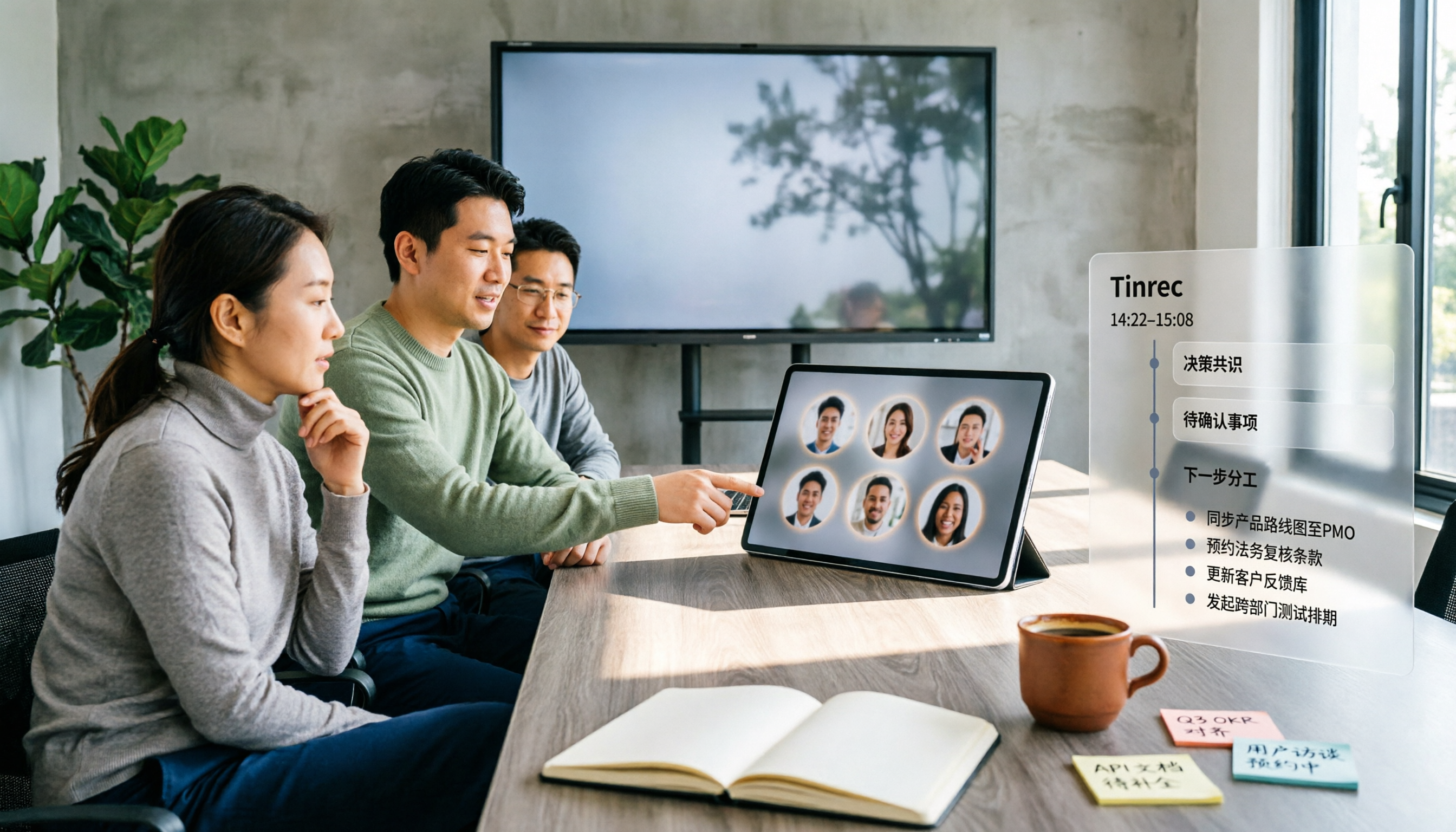
Many people think Google Meet's Companion mode is a meeting notes feature, but it actually just lets a second device help you 'participate' in a meeting—microphone and video are off by default, and it doesn't generate transcripts. This article starts with three common misconceptions, compares 5 hybrid meeting approaches, and explains how Tinrec fills the gap in post-meeting organization.

3 Ways to Change Your Name in Google Meet (2026): Which One Won't Affect Your Meeting Notes?
Your Google Meet display name isn't a per-meeting setting—it follows your Google Account. This article covers three ways to change it and their limitations, then explains why instead of just changing your name, you should use Tinrec to capture meeting transcripts, summaries, action items, and team knowledge together. Includes step-by-step instructions and FAQ.

How to Use Google Meet in 2026: 5 Steps to Join a Meeting + Post-Meeting Transcription
From getting a meeting link and using in-meeting features to organizing transcripts afterward, this guide breaks down how to use Google Meet in 5 steps. It also compares built-in recording and transcription with Tinrec for Chinese meeting organization, action item extraction, and team knowledge retention, helping you decide which approach fits your meeting scenario.

Google Meet vs Discord in 2026: Which Is Better for Formal Meetings? A 3-Way Comparison with Tinrec
Google Meet and Discord each have strengths: Meet offers more stable video and meeting flow, while Discord lets you join voice channels with zero friction and includes text channels. But both lack post-meeting organization. This article uses 4 key selection criteria, hands-on testing insights, and a pitfalls guide to break down the real use cases for each tool, and shows how Tinrec fills the gap with transcripts, AI summaries, action items, and team knowledge retention.