
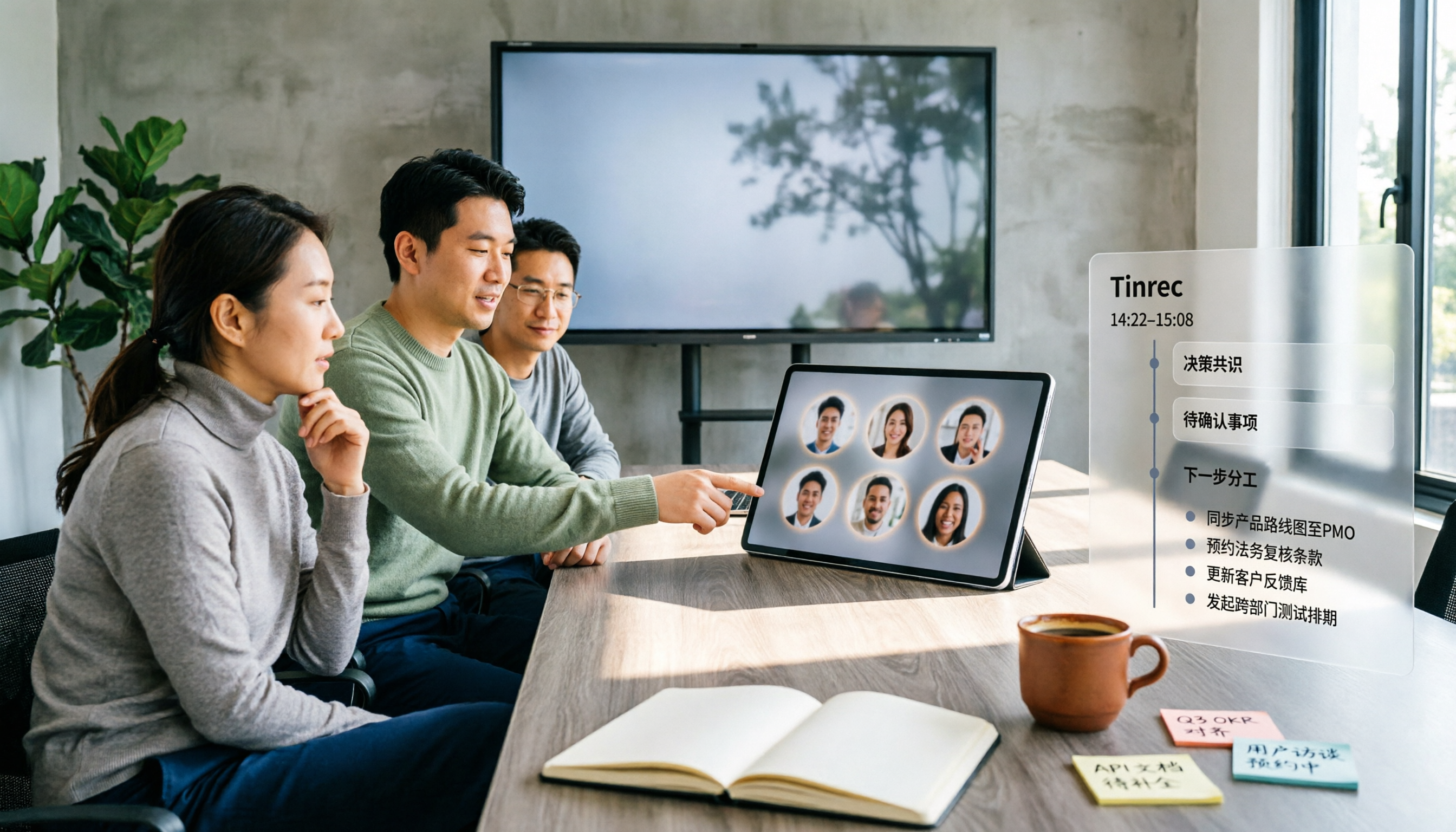
Turn recordings into transcripts and summaries in minutes
Upload audio or video for multilingual transcription, AI notes, and action items
Many people, upon first seeing Google Meet's Companion mode, intuitively assume it's a 'meeting notes mode'—the name sounds like some kind of auxiliary feature that helps you capture meeting content.
Honestly, I thought so at first too. It wasn't until I actually tried it that I realized what it solves isn't 'recording' at all—it's 'participation.'
This article starts with the most common misconceptions, then discusses what hybrid meetings really need, and how I later used Tinrec to capture meeting content.
What is Companion mode? In a nutshell: letting a second device join the meeting with you
Companion mode is a way to join Google Meet. You use a second device—a phone, tablet, or another laptop—to join the same meeting, and that device's microphone and video are off by default. The purpose is clear: to prevent both devices from picking up audio and causing echo.
So what's the point? The answer lies in hybrid meetings.
In a meeting room, a group of people share one camera, one microphone, and one set of controls; remote participants, however, have full chat, captions, and various buttons. Companion mode is designed to bridge this gap—after joining with your own phone, you can chat, raise your hand, vote, and answer questions on your personal device.
Another useful feature is room check-in. After your personal device connects to the meeting room equipment, your name appears in the participant list and on the meeting room screen, so when you raise your hand to speak, others clearly know who is talking.
Note that this option only appears when the meeting room equipment is connected to the meeting, and check-in is tied to the companion session—if you exit Companion mode, this connection is lost.
Simply put, it's a 'meeting remote control,' not a 'meeting recorder.'
Three most common misconceptions
Misconception 1: Thinking Companion mode will record for you
It won't. It doesn't generate transcripts, summaries, or action items. What you get is a smoother participation experience, not meeting materials you can review later.
Once the meeting ends, the discussion content is still scattered in everyone's memory.
Misconception 2: Thinking you can chat and vote directly using the meeting room equipment
You can't. Meeting room hardware or devices like Nest Hub Max do not support individual chat, liking questions, or answering polls—this is exactly the problem Companion mode solves.
To use these features, you can only rely on your own device.
Misconception 3: Thinking 'having a recording' equals 'having organized notes'
Even if you record, turning a two-hour file into meeting notes still requires someone to listen again, type, and extract key points.
What most people get stuck on isn't recording—it's this part.
This is also why I later switched to Tinrec—post-recording organization is what really eats up time.
Five capabilities hybrid meetings truly need
When I evaluate tools like this, I usually check these five things first. Taking Tinrec as an example, here's how it works:
1. Record online meetings without a bot joining
Tinrec desktop version directly captures your computer's system audio and can handle meetings on Google Meet, Zoom, Microsoft Teams, Webex, etc., without inviting an extra meeting bot.
For client meetings or external interviews, this is quite important—having one less unfamiliar account in the participant list makes things much cleaner.
Note that this is not 'automatically joining all meetings.' You need to open Tinrec and start recording yourself; it won't jump into meetings from your calendar on its own.
2. Generate transcripts while meeting, with real-time translation
Tinrec supports transcription while recording, so you can see text settling in sync during the meeting. For cross-language meetings, you can switch between original text, translation, or bilingual view.
Offline meetings and impromptu interviews can also use real-time recording directly, without setting up equipment first.
3. Get summaries, chapters, and action items right after the meeting
This is the part I find most labor-saving. Tinrec automatically generates summaries, breaks long meetings into chapters, highlights key points, and extracts action items from the discussion.
Previously, after a two-hour meeting, I'd spend another hour organizing; now, when the meeting ends, structured content is already there.
It can also further generate mind maps, reports, tables, and documents, suitable for presentations or retrospectives.
4. Ask questions directly about meeting content
Transcripts aren't just for reading. Tinrec's AI Q&A lets you ask questions directly—'Who mentioned the budget in this meeting?' 'What were the client's concerns?'—it answers based on semantic understanding, so you don't have to Ctrl+F for ages.
You can also ask questions across multiple meetings' data, which is very useful for project reviews.
5. Team data accumulation and governance
For team use, Tinrec's team version centralizes meeting data in a team space rather than scattering it across individual accounts.
Here's a commonly confused point: in the team version, distinguish between 'roles' and 'seats.' Roles determine who can manage the team, members, and audits; seats determine whether members can record, upload, edit, and export.
Members who are active but have no seat can still view, play, and read team data, but cannot perform actions like upload, edit, or export.
Additionally, when a member leaves or is removed, team resources belong to the team and need to be handed over to other active members—they won't leave with the individual.
Stop organizing recordings by hand
Upload audio or video and automatically get a transcript, summary, and action items
Four practical application scenarios
Scenario 1: Hybrid meeting with meeting room plus remote participants
Three people in the meeting room, five online. The meeting room side uses Companion mode to gain control over chat and voting—it's very useful for that.
But to keep a record, I'd also open Tinrec desktop version to capture system audio. After the meeting, transcripts, summaries, and action items are all ready at once, and no one has to ask 'who said that part just now?'
Scenario 2: Cross-language meetings
When a team mixes Chinese and English, Tinrec's real-time translation and bilingual view are very practical—you can confirm the translation while listening, without guessing after the meeting.
The team version also lets you maintain a glossary, adding product names and proper nouns to reduce recognition gaps.
Scenario 3: Client interviews and requirements organization
The biggest fear in interviews is 'understanding in the moment, forgetting after the meeting.' After recording with Tinrec, you can directly ask questions about the transcript, pull out the client's needs, concerns, and commitments one by one, then export to Notion or Google Docs for further processing.
Scenario 4: Turning past meetings into a searchable database
Past meeting recordings usually sit in some folder and no one opens them. The team version centrally manages Audio, Folder, and TODO, so new members can look up historical context instead of starting from scratch every time.
When a member leaves, you don't have to worry about data disappearing with them.
5 approaches compared: how to choose
Approach 1: Google Meet built-in Companion mode
Best for: In-room participants who need to operate chat, raise hands, vote, and check in.
Limitation: Does not produce transcripts or summaries; essentially a participation tool.
Approach 2: Video platform built-in transcription
Best for: Teams that don't want to install extra tools and only run meetings on one or two platforms.
Limitation: Records stay within each platform, cannot be unified across platforms, and post-meeting processing flexibility is limited.
Approach 3: Meeting bot-type tools
Best for: Situations where you want automatic recording as soon as the meeting starts and don't mind an extra participant.
Limitation: Requires adding a bot to the meeting, which sometimes needs extra explanation for external client meetings.
Approach 4: Desktop bot-free recording (Tinrec belongs here)
Best for: Individuals and teams that need Chinese meeting notes, don't want to add a bot, and need post-meeting organization and export.
Tinrec's difference is in the 'post-meeting'—not just transcripts, but also summaries, chapters, action items, AI Q&A, translation, multi-format export, plus team space, seats, usage analytics, audit logs, and audio recycle bin.
Approach 5: AI recording hardware
Best for: People who move around a lot offline and need portable recording.
Limitation: Requires carrying an extra device; online meeting processing still goes back to software.
Four things to note before choosing
1. First distinguish 'participation' and 'recording' as two separate things
Companion mode solves the former; tools like Tinrec solve the latter. They don't conflict and can be used together.
2. Confirm whether the recording method suits your occasion
If meetings often involve external clients, bot-free desktop recording is more low-key than 'inviting an account in.' Tinrec desktop version takes this approach.
3. Can the transcript be used directly after transcription?
Having only a transcript means leaving the organization work entirely to yourself. When choosing a tool, I first check whether it can provide summaries, action items, and exportable deliverables.
4. Pricing is subject to the official purchase page
Tinrec's personal version has a free version to try first, plus weekly cards, Pro monthly, and Pro annual, suitable for different usage frequencies—occasional recording organization is fine with the free version; consider Pro if you have meetings every week.
The team version currently offers a 7-day trial for first-time eligible users, 1 free seat, and 300 minutes of team shared import quota; monthly payment is USD 29.80 per paid seat per month, annual payment is USD 199 per paid seat per year (about USD 16.58 per month), with each paid seat providing 2,000 minutes of team shared import quota per month.
Under an active team plan, real-time recording currently does not deduct minutes; file and web imports use the team shared quota. Actual prices and promotions are subject to the official purchase page.
FAQ
Is Companion mode free?
This is a Google Meet feature; availability varies by account type, plan, and device. Refer to Google's official help page. This article focuses on what it can and cannot do.
Does Companion mode record audio or generate transcripts for me?
No. It's designed for you to operate meeting features on a second device, with microphone and video off by default to avoid echo, and it does not provide transcripts or summaries.
How do people in the meeting room use chat and voting?
By joining Companion mode on their personal devices, not using the meeting room hardware. The meeting room equipment itself does not support individual chat, liking questions, or answering polls.
Does Tinrec require a bot to join the meeting?
No. Tinrec desktop version directly captures computer system audio and handles meetings on Google Meet, Zoom, Teams, Webex, etc., without inviting extra participants. You need to start recording yourself; it does not automatically join all calendar meetings.
Can transcription accuracy be guaranteed?
We don't recommend making such a promise. Actual results are affected by recording quality, noise, accents, overlapping speakers, and technical terminology. For important content, we recommend cross-checking with transcript timestamps and recording playback.
If a team member leaves, will meeting data disappear?
It won't leave with the individual. Team resources belong to the team; when a member exits, is removed, or loses their seat, their team resources need to be handed over to other active members. Deleted audio goes to the team recycle bin, currently retained for 30 days, and can be restored before permanent deletion.
Conclusion
Google Meet's Companion mode is a feature misled by its name—it's actually a 'second-screen controller for hybrid meetings,' not a recording tool.
If you need to chat, vote, and check in within a meeting room, it's very useful; but if what you want is 'meeting ends, data is organized,' that's a different level of problem.
My approach is to keep both: Companion mode handles participation, Tinrec handles recording and organization. Rather than spending another hour re-listening to recordings after the meeting, let the tool prepare transcripts, summaries, and action items first.
If you have more than three meetings per week, start with Tinrec's free version, run two or three meetings, see how it feels to get structured records after the meeting, and then decide whether to upgrade.
References
- Use Companion mode for hybrid learning & collaboration - Android phone & tablet - Google Meet Help
- What is Companion Mode in Google Meet?
- Meet Companion mode cheat sheet - Google Workspace Learning Center
- Google Meet Companion Mode: How It Works
- What is Companion Mode in Google Meet? A Complete Guide for 2026
Turn every recording into actionable outcomes
Get 60 free transcription minutes when you sign in. No credit card required.
Related Reading
You might also like

2026 Comparison of 4 Meeting Note Tools: When You See All Participants in Google Meet, Who Can Take Notes for You?
When you only see a few people in Google Meet, it's not because others have their cameras off—it's the layout setting. This article first shows you how to use 'Change layout → Tiled' to see up to 49 participants, then tests and compares four meeting note tools: Tinrec, Otter.ai, Granola, and Notta, so you can focus on the screen while still getting transcripts, summaries, and action items after the meeting. Tinrec stands out with bot-free recording, Chinese-language experience, and team spaces.

Google Meet Premium in 2026: 3 Purchase Paths Tested and Compared — How to Buy Without Getting Burned
Google Meet doesn't have a standalone Premium subscription; advanced features are tied to Google Workspace and Google One plans. This guide covers 3 purchase paths, account and version issues to check before paying, 4 common mistakes, and compares Tinrec's post-meeting organization and team knowledge retention to help you choose the most cost-effective way to buy.

Google Meet Mic Not Working? 6 Fixes Before Trying 4 Meeting Recording Tools in 2026
When others can't hear you on Google Meet, it's usually not because you're speaking too softly—it's a mic device, browser permission, or system audio setting issue. This guide first walks you through 6 troubleshooting steps, then compares 4 meeting recording and transcription tools—Tinrec, Otter.ai, Notta, and Granola—from the perspective of how meetings are recorded and how you use them afterward, to help you choose the right solution for yourself and your team.

Google Meet vs Tinrec (2026): 5-Dimension Comparison — Which Saves More Effort for Meeting Notes and Post-Meeting Organization?
Google Meet is indeed an app, but after a meeting, transcripts, summaries, and action items often require separate tools. This article compares Google Meet and Tinrec across five dimensions: meeting sources, post-meeting outputs, Chinese language support, data retention, and ease of use, to help you decide which approach to use for capturing meeting content.

3 Ways to Use Google Meet on a Laptop in 2026: Which Is Easiest?
How does Google Meet actually work on a laptop? This article starts with the three most common misconceptions, then compares three methods—browser version, desktop app, and Google Workspace integration—through hands-on testing, explaining who each is for and where the limits are. Finally, it covers how to keep records after a meeting, including Tinrec desktop's bot-free recording and the team version's practical approach.

3 Ways to Change Your Name in Google Meet (2026): Which One Won't Affect Your Meeting Notes?
Your Google Meet display name isn't a per-meeting setting—it follows your Google Account. This article covers three ways to change it and their limitations, then explains why instead of just changing your name, you should use Tinrec to capture meeting transcripts, summaries, action items, and team knowledge together. Includes step-by-step instructions and FAQ.

2026 Comparison of 3 Meeting Transcription Tools: Google Meet Is a Video Call, But Meeting Notes Don't Write Themselves
Google Meet is indeed a video calling service, but 'being able to call' doesn't mean 'being able to keep trackable meeting records.' This article starts with definitions, breaks down 4 key points for choosing a meeting transcription tool, compares Tinrec, Otter.ai, Notta, and Granola in hands-on tests, and summarizes 4 common purchasing pitfalls to help you decide which tool suits your meeting scenarios.

How to Use Google Meet in 2026: 5 Steps to Join a Meeting + Post-Meeting Transcription
From getting a meeting link and using in-meeting features to organizing transcripts afterward, this guide breaks down how to use Google Meet in 5 steps. It also compares built-in recording and transcription with Tinrec for Chinese meeting organization, action item extraction, and team knowledge retention, helping you decide which approach fits your meeting scenario.

Google Meet vs Discord in 2026: Which Is Better for Formal Meetings? A 3-Way Comparison with Tinrec
Google Meet and Discord each have strengths: Meet offers more stable video and meeting flow, while Discord lets you join voice channels with zero friction and includes text channels. But both lack post-meeting organization. This article uses 4 key selection criteria, hands-on testing insights, and a pitfalls guide to break down the real use cases for each tool, and shows how Tinrec fills the gap with transcripts, AI summaries, action items, and team knowledge retention.