

Turn recordings into transcripts and summaries in minutes
Upload audio or video for multilingual transcription, AI notes, and action items
How to Use Google Meet in 2026: 5 Steps to Join a Meeting + Post-Meeting Transcription
Google Meet has a very low barrier to entry: if you have a Google account, you can start a meeting. But in practice, most people's problems aren't about "how to press start"—they're about "how to give the meeting link to the other person," "how to join when you're pulled into a meeting last minute," "can online meetings actually be transcribed," and "who's going to organize all that content after the meeting." This article walks through the complete process in 5 steps, then addresses the part where most people get stuck the longest: turning meetings into searchable, trackable data.
Google Meet Quick Overview
Google Meet is Google's online video conferencing service and part of the Google Workspace ecosystem. It's designed for meetings without installation and integrates directly with Calendar and document tools.
| Item | Description |
|---|---|
| Prerequisites | Requires signing in to a Google account; some settings for work or school accounts are controlled by the organization's administrator |
| Meeting link | Ends with a code like abc-defg-hjk; share the link or code to join |
| Security | Official documentation states meetings are encrypted in the cloud; end-to-end encryption is also available for personal users |
| Free version limits | Free users may face limits on participant count and meeting duration; refer to official announcements for specifics |
| Advanced assistance | Gemini in Google Meet can automatically take notes, translate conversations, and highlight key points; limited to certain Google One and Workspace Business/Enterprise plans |
Sources: Google Meet Help Center, Google Workspace Meet product page, Wikipedia entry.
Step 1 | Start a Meeting: Three Ways to Begin
The first way is to start a new meeting directly: sign in to your Google account, go to the Google Meet service page, create a meeting, and get the link. The second way is to check the box to add Google Meet video conferencing when creating an event in Google Calendar—ideal for recurring weekly meetings. The third way is to start or join a meeting directly from Google Docs, Sheets, or Slides. The official product page explicitly mentions seamless joining from these document tools, which is especially convenient for "discuss while editing" scenarios.
In practice: for a quick one-on-one sync, starting a new meeting and pasting the link is fastest; for scheduled meetings with presentations, creating via Calendar makes it less likely to miss anyone.
Step 2 | Join Someone Else's Meeting
The meeting link ends with a code that looks like abc-defg-hjk. Click the link or enter the code to join. If you're not signed in, the system will first ask you to sign in to a Google account.
Here's a common pitfall: for work or school account users, whether you can start meetings or record them is often determined by the organization administrator's settings. If permissions aren't enabled, you'll be stuck at the door. Asking IT first is more effective than fumbling five minutes before the meeting.
Step 3 | Common Features During a Meeting
- In-meeting chat: Don't interrupt the speaker—great for sharing links, adding numbers, or leaving action items.
- Live captions and translated captions: Displays speech as text in real time. Meet also offers translated captions, which is very useful for cross-language meetings.
- Video layout logic: According to Wikipedia, early versions limited simultaneous video display to 8 participants and tile layouts to 4, prioritizing the most recent speaker. Current versions and plans may differ; refer to the actual interface.
- Gemini assistance: On supported plans, it can automatically take notes, translate conversation content, and surface key points.
Step 4 | Recording and Transcripts: First Confirm You Have Permission
This is where most people get confused. Google Meet's recording and transcription capabilities vary by account type and plan; enterprise and school accounts are controlled by administrators. In other words, "another company can auto-generate transcripts" doesn't mean your account can. Before you plan to record or get a transcript, confirm your plan and administrator settings—so you're not left empty-handed after the meeting.
Step 5 | Post-Meeting Organization: Built-in vs. Dedicated Meeting Organization Tools
The real work begins after the meeting ends. This step directly compares two approaches: using Google Meet/Workspace built-in capabilities, or using a dedicated meeting notes tool (this article uses Tinrec as a comparison).
Dimension 1 | Transcripts and Summaries for Chinese Meetings
Google Meet's transcription and Gemini notes capabilities are primarily tied to Workspace plans and language support, with some features limited to specific plans. For Chinese meetings with mixed Chinese-English and heavy technical terminology, whether it can reliably organize content into readable paragraphs depends on the plan and currently supported languages.
Tinrec is positioned specifically for Chinese meeting notes: it supports transcription in Chinese, Traditional Chinese, and multilingual meetings, can organize mixed Chinese-English content, and offers real-time translation and bilingual viewing. Actual recognition performance is affected by recording quality, accents, background noise, overlapping speakers, and technical terminology—we don't recommend judging by a single accuracy number.
→ This dimension: When meetings are primarily in Chinese and you need transcripts and summaries produced together, Tinrec is more targeted.
Dimension 2 | How Meetings Are Recorded
Google Meet recording happens within the platform, provided your plan and administrator settings allow it. The advantage is no additional tools needed; the downside is that switching to Zoom, Teams, or Webex means a different setup for each.
Stop organizing recordings by hand
Upload audio or video and automatically get a transcript, summary, and action items
Tinrec's desktop version captures computer system audio—no meeting bot joining as a participant. It can handle meeting audio played on your computer from Zoom, Google Meet, Microsoft Teams, and Webex. Note that this doesn't mean it "automatically joins all calendar meetings"—users still need to actively start recording. It also doesn't imply official partnerships with these platforms.
→ This dimension: For teams on a single platform with full plan coverage, Meet's built-in features are sufficient; for those using multiple meeting platforms who don't want an extra bot, Tinrec is more convenient.
Dimension 3 | What's Produced After the Meeting
On Google Meet's side, the core outputs are meeting notes and key points organized by Gemini. Turning these into action item lists, reports, or tables usually requires manual transfer.
Tinrec focuses on the "after transcription" stage: automatically generating summaries, chapters, key points, and action items; AI Q&A around meeting content; and generating meeting minutes, reports, tables, and documents that can be exported to Notion, Google Docs, OneNote, Dropbox, and other tools for further processing. It also supports uploading existing audio and video files for transcription, covering the "meeting wasn't recorded, only the audio file remains" scenario.
→ This dimension: If you just need meeting notes, Meet's built-in features are sufficient; if you want to turn meetings directly into deliverable work products, Tinrec covers more steps.
Dimension 4 | How Team Data Is Retained
Google Meet meetings and records are tied to the Google Workspace account system, with data governance following the organization's existing Google management settings.
Tinrec's team edition is a standalone team space: create multiple teams, invite members via join links, set owners/admins/regular members, and distinguish between "roles" and "seats"—roles determine who can manage the team and audit, seats determine who can record, upload, edit, and export. Active members without seats can still view, play, and read team data but cannot perform resource-consuming operations. It also includes team usage trends, member rankings, team hotwords, audit logs, and an audio recycle bin (currently retained for 30 days). Note that this is currently team-level sharing, not file-level granular permissions.
→ This dimension: If your whole company is already on Google Workspace, Tinrec's marginal benefit is lower; if meeting data is scattered across personal accounts and needs to remain with the team after members leave, Tinrec's team space is more suitable.
Dimension 5 | How Pricing Is Structured
Google Meet's cost is effectively tied to your Google account plan: free personal use has participant and duration tier limits; getting recording, Gemini notes, and other capabilities usually requires upgrading to the corresponding Google One or Workspace plan.
Tinrec's personal edition uses task-based pricing: the free version lets you try basic quotas first, a weekly card for short-term intensive use, a Pro monthly card for steady use, and an annual card for long-term data retention. The team edition is currently USD 29.80 per paid seat per month, or USD 199 per paid seat per year (about USD 16.58/month), with each paid seat providing 2,000 minutes of team shared import quota per month; under an active team plan, real-time recording currently doesn't deduct minutes. The first eligible team trial is 7 days, 1 free seat, and 300 minutes of team shared import quota. Prices, currencies, and promotions are subject to the official purchase page.
→ This dimension: If you just need to meet, Google Meet's free version is the most cost-effective starting point; if you have high meeting volume and need transcription and post-meeting organization, converting tool costs into "organization time saved per meeting" is usually more practical than pure price comparison.
What Unique Advantages Does Each Offer?
Google Meet's advantages
- Deep integration with the Google ecosystem—schedule meetings from Calendar, start meetings directly from documents, with almost no learning curve.
- Anyone with an account can participate; low barrier across web and mobile apps.
- Enterprise and education accounts have administrator controls and encryption mechanisms that connect to existing organizational governance processes.
Tinrec's advantages
- Bot-free recording: the desktop version captures system audio, so no extra "participant" appears in the list.
- Complete post-meeting workflow: summaries, chapters, action items, AI Q&A, real-time translation, multi-format export, and Agent post-processing.
- Chinese and multilingual meeting experience is the focus, with team hotwords for managing technical terminology.
- Clear team governance: roles, seats, usage, audit, recycle bin—data can be handed over to other active members when members change.
Summary: Which Should You Choose?
- Just need to hold an online meeting with participants all in the Google ecosystem → Use Google Meet; the free version will do for now.
- Meetings are primarily in Chinese and you need transcript + summary + action items afterward → Tinrec fits better.
- Need to handle meetings across Zoom, Teams, and Webex without adding a bot → Tinrec's desktop version covers more ground.
- Need meeting data to stay with the team and not leave when members do → Tinrec's team edition is more suitable.
- Company already fully uses Google Workspace with plans that include recording and Gemini → Start with built-in features and treat Tinrec as an add-on for Chinese organization and cross-platform needs.
In one sentence: Google Meet solves "getting everyone together online"; Tinrec solves "what to do with all that data afterward." Running a free trial with your own meeting before deciding whether to pay is far more accurate than staring at spec sheets.
FAQ
Q: Can I use Google Meet without a Google account? No, using Meet requires signing in to a Google account; work or school accounts are also subject to administrator settings.
Q: What does a meeting link look like? It ends with a code like abc-defg-hjk; share the link or code with the other person to join.
Q: Are there limits on Google Meet's free version? Free users may face more restrictions on participant count and meeting duration; refer to official announcements and plans for specifics.
Q: Is meeting content secure? Official documentation states meetings are encrypted in the cloud, with end-to-end encryption also available for personal users.
Q: Can Tinrec automatically join all my meetings? No. Tinrec requires users to actively start desktop recording to capture computer system audio. It is not a calendar meeting bot and does not imply official partnerships with Zoom, Meet, or Teams.
Q: Can transcription accuracy be guaranteed? We don't recommend making such promises. Performance is affected by recording quality, noise, accents, overlapping speech, and technical terminology. For important content, cross-check against transcript timestamps and recording playback.
Q: What should I be aware of regarding recording and transcription? You must comply with local laws and regulations. When others' conversations are involved, obtain participant consent when necessary.
References
Turn every recording into actionable outcomes
Get 60 free transcription minutes when you sign in. No credit card required.
Related Reading
You might also like

2026 Comparison of 4 Meeting Note Tools: When You See All Participants in Google Meet, Who Can Take Notes for You?
When you only see a few people in Google Meet, it's not because others have their cameras off—it's the layout setting. This article first shows you how to use 'Change layout → Tiled' to see up to 49 participants, then tests and compares four meeting note tools: Tinrec, Otter.ai, Granola, and Notta, so you can focus on the screen while still getting transcripts, summaries, and action items after the meeting. Tinrec stands out with bot-free recording, Chinese-language experience, and team spaces.

Google Meet Premium in 2026: 3 Purchase Paths Tested and Compared — How to Buy Without Getting Burned
Google Meet doesn't have a standalone Premium subscription; advanced features are tied to Google Workspace and Google One plans. This guide covers 3 purchase paths, account and version issues to check before paying, 4 common mistakes, and compares Tinrec's post-meeting organization and team knowledge retention to help you choose the most cost-effective way to buy.

Google Meet Mic Not Working? 6 Fixes Before Trying 4 Meeting Recording Tools in 2026
When others can't hear you on Google Meet, it's usually not because you're speaking too softly—it's a mic device, browser permission, or system audio setting issue. This guide first walks you through 6 troubleshooting steps, then compares 4 meeting recording and transcription tools—Tinrec, Otter.ai, Notta, and Granola—from the perspective of how meetings are recorded and how you use them afterward, to help you choose the right solution for yourself and your team.

Google Meet vs Tinrec (2026): 5-Dimension Comparison — Which Saves More Effort for Meeting Notes and Post-Meeting Organization?
Google Meet is indeed an app, but after a meeting, transcripts, summaries, and action items often require separate tools. This article compares Google Meet and Tinrec across five dimensions: meeting sources, post-meeting outputs, Chinese language support, data retention, and ease of use, to help you decide which approach to use for capturing meeting content.

3 Ways to Use Google Meet on a Laptop in 2026: Which Is Easiest?
How does Google Meet actually work on a laptop? This article starts with the three most common misconceptions, then compares three methods—browser version, desktop app, and Google Workspace integration—through hands-on testing, explaining who each is for and where the limits are. Finally, it covers how to keep records after a meeting, including Tinrec desktop's bot-free recording and the team version's practical approach.
5 Google Meet Companion Mode Alternatives Compared for 2026: From Second Screen to Post-Meeting Organization
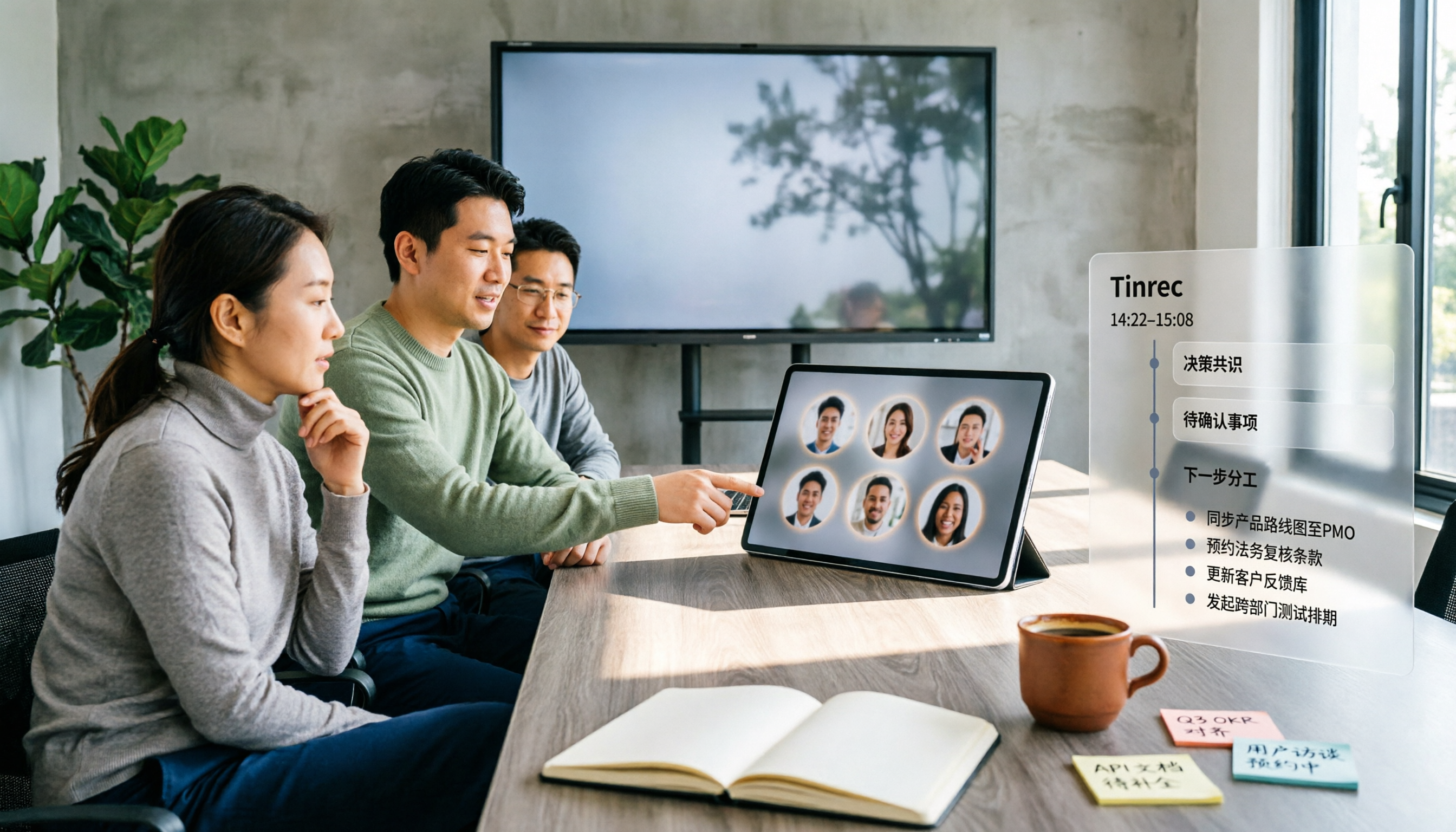
Many people think Google Meet's Companion mode is a meeting notes feature, but it actually just lets a second device help you 'participate' in a meeting—microphone and video are off by default, and it doesn't generate transcripts. This article starts with three common misconceptions, compares 5 hybrid meeting approaches, and explains how Tinrec fills the gap in post-meeting organization.

3 Ways to Change Your Name in Google Meet (2026): Which One Won't Affect Your Meeting Notes?
Your Google Meet display name isn't a per-meeting setting—it follows your Google Account. This article covers three ways to change it and their limitations, then explains why instead of just changing your name, you should use Tinrec to capture meeting transcripts, summaries, action items, and team knowledge together. Includes step-by-step instructions and FAQ.

2026 Comparison of 3 Meeting Transcription Tools: Google Meet Is a Video Call, But Meeting Notes Don't Write Themselves
Google Meet is indeed a video calling service, but 'being able to call' doesn't mean 'being able to keep trackable meeting records.' This article starts with definitions, breaks down 4 key points for choosing a meeting transcription tool, compares Tinrec, Otter.ai, Notta, and Granola in hands-on tests, and summarizes 4 common purchasing pitfalls to help you decide which tool suits your meeting scenarios.

Google Meet vs Discord in 2026: Which Is Better for Formal Meetings? A 3-Way Comparison with Tinrec
Google Meet and Discord each have strengths: Meet offers more stable video and meeting flow, while Discord lets you join voice channels with zero friction and includes text channels. But both lack post-meeting organization. This article uses 4 key selection criteria, hands-on testing insights, and a pitfalls guide to break down the real use cases for each tool, and shows how Tinrec fills the gap with transcripts, AI summaries, action items, and team knowledge retention.