

Turn recordings into transcripts and summaries in minutes
Upload audio or video for multilingual transcription, AI notes, and action items
You get a Google Meet link on your iPad and pause: can a tablet really handle a meeting? And even if it can, how do you capture what was discussed?
This article tackles two things: whether Google Meet works on iPad, and how to handle the "who said what, who needs to do what" after the meeting ends.
Does Google Meet Work on iPad?
Yes, and it's officially supported.
Google's support documentation clearly states: iPhone and iPad can join video meetings through the Google Meet app, Google Calendar, or Gmail. All three methods work—the difference is whether you're joining someone else's meeting or starting your own.
Google also recommends joining via the app for the most complete experience. If you're just clicking a link to listen in, joining via Safari works too.
Note: How you join affects whether you can share your screen, use the whiteboard, and even meeting stability. If you only join occasionally, it doesn't matter much. But if you meet weekly and need to share your screen, install the app.
In short: Google Meet on iPad is fine—no need to worry about that.
The Real Struggle for iPad Users Starts After the Meeting
In my experience, the meeting itself is never the problem—it's what comes after.
Scenario 1: Taking notes during the meeting
The iPad screen is only so big. With Google Meet open and Notes open, you're switching back and forth. By the third point, you can't find where that key sentence went.
Scenario 2: Trying to find "who said what" afterward
Three days later, your manager asks: "Who brought up that budget number?" You remember someone mentioned it, but you can't find it in your notes. Replay the recording? You'd have to listen to the whole hour again.
Scenario 3: Meeting on iPad, organizing on computer
What you recorded on the tablet is scattered across devices, and you have to retype everything on your computer afterward. Do that three times and you'll want a better way.
Over the years, I've tested meeting note tools that fall into roughly 4 categories: built-in platform transcription, standalone transcription tools, AI meeting assistants, and AI recording hardware. This article won't compare them one by one—instead, I'll share my current go-to workflow: using Tinrec to turn meetings into searchable, queryable data.
What Can Tinrec Do for You?
Tinrec is an AI meeting notes and collaboration tool for individuals and teams. It's not just about "recording to text"—it organizes meeting content into data you can keep working with.
Real-time recording to text: Transcribes as you record, so the transcript grows while the meeting is happening. When meeting on iPad, you can glance at the text to confirm you haven't missed key points—no need to listen to the whole thing again afterward.
Audio and video file transcription: Upload already-recorded meeting files, interview recordings, or course videos and turn them into text. Especially useful for those who only think about organizing after the meeting.
AI summaries and chapters: Long meetings are the worst without structure. Tinrec automatically generates summaries and breaks content into chapters, so you can grasp the key points by skimming.
Action item extraction: Pulls out "who's responsible for what, and when it's due" from the discussion. This is hard to do with handwritten notes because no one stops the meeting for you to write it down.
AI Q&A: Once the transcript is ready, you can ask it questions directly—"Who mentioned the budget in the meeting?" "What were the client's concerns about pricing?" It answers based on semantic understanding, so you don't have to search for keywords yourself.
Real-time translation and bilingual view: For mixed Chinese-English meetings, you can switch between original text, translation, or bilingual side-by-side.
Multi-format export: Export organized results to Notion, Google Docs, OneNote, Dropbox, and other tools to keep working—no retyping needed.
Team space (Team plan): Meeting data is stored centrally in a team space. Members can view past meetings, share recordings and import quotas, while admins can manage roles, seats, usage, and audit logs.
Practical Use Cases
Online meetings: Google Meet, Zoom, Teams
If you're using Google Meet on a computer, Tinrec's desktop version captures system audio directly—no need to invite any meeting bot. This is especially important for client meetings—no need to explain "who that account joining the meeting is."
On iPad, it's mainly mobile recording, suitable for joining a meeting on the go or uploading files afterward. Keep the two methods clear so you don't have the wrong expectations.
In-person interviews and client communication
Place the iPad on the table and tap to record. After the interview, the transcript, summary, and action items are all ready. Sales or customer success teams use it to record requirements, objections, and follow-up commitments—far more reliable than trying to remember afterward.
Classes, lectures, and internal training
Stop organizing recordings by hand
Upload audio or video and automatically get a transcript, summary, and action items
In a two-hour class, the key points often take only twenty minutes. After transcribing with Tinrec, use AI Q&A to review—just ask "What were the three frameworks the instructor mentioned?" It's faster than reading through notes from the beginning.
Content organization and knowledge retention
As meetings, interviews, and recordings accumulate, the real value is "can you look it up later." The Team plan centralizes this data in one space, so new members can see the historical context too.
4 Steps to Organize an iPad Meeting with Tinrec
Step 1: Start recording
Open the Tinrec app and tap the record button. Before the meeting starts, check the microphone position—place the iPad on the table, not too far from the speaker. It makes a big difference.
Step 2: Check the transcript while recording
During the meeting, text appears on screen in sync. Instead of looking down and scribbling notes, glance at it with your peripheral vision and mark key sentences—saves a lot of time afterward.
Step 3: Review summary, chapters, and action items after the meeting
As soon as the meeting ends, the summary and chapters are ready. First, read the summary to get the big picture, then dive into chapters for details, and finally confirm the owner and deadline for each action item.
Step 4: Ask follow-up questions and export
Use AI Q&A to follow up on anything unclear. Once confirmed, export the results to Google Docs or Notion to fit into your existing workflow.
4 Things to Consider When Choosing an iPad Meeting Note Tool
1. Cross-device continuity
Meeting on iPad and organizing on computer is the norm. Tinrec offers a mobile app, web version, and desktop version—all data under one account, no need to move files around.
2. Performance with Chinese and mixed Chinese-English
Meetings in Taiwan are rarely pure Chinese. Tinrec supports Chinese, Traditional Chinese, and multilingual meetings, and you can maintain company-specific terminology with team hotwords. Actual performance still depends on recording quality, accents, noise, and multiple people speaking at once—I recommend testing with a real recording to see for yourself.
3. Does it help you organize after transcription?
A tool that only gives you a transcript is basically handing the organizing work right back to you. Tinrec's value is in the second half: summaries, chapters, action items, AI Q&A, translation, and export—that's where the real time savings are.
4. Quotas and pricing
Tinrec's Personal plan has a free version to try basic quotas. For short-term intensive use, consider the weekly card. For steady weekly meetings, go with the Pro monthly card. For long-term data retention, the annual card is suitable.
The Team plan is a separate team space, not multiple people sharing one account. Currently, the Team monthly plan is USD 29.80 per paid seat per month, and the annual plan is USD 199 per paid seat per year (about USD 16.58 per month). Eligible teams can try 7 days free with 1 free seat and 300 minutes of shared team import quota; each paid seat provides 2,000 minutes of shared team import quota per month. Real-time recording is currently not deducted by minutes under active plans and seats.
Actual prices and promotions are subject to the official purchase page.
Also, team governance: The Team plan separates "roles" and "seats"—roles determine who can manage the team and members, seats determine who can record, upload, edit, and export. Members without seats can still view, play, and read team data. When a member leaves or loses their seat, team resources can be transferred to others and won't disappear with the personal account.
FAQ
Q1: Can I join Google Meet on iPad using only Safari without the app?
Yes. Open the meeting link in Safari to join—fine for occasional meetings. But screen sharing, whiteboard, and other features depend on how you join. For long-term use, installing the app is recommended.
Q2: How do I record Google Meet on iPad with Tinrec?
Two scenarios. If the meeting is on a computer running Google Meet, use Tinrec's desktop version to capture system audio—most direct, no bot needed. If the meeting is on iPad, use Tinrec's mobile recording, or upload the audio file afterward for transcription.
Q3: Is the free version enough?
If you only organize one or two recordings a week, the free version is a reasonable way to test the waters. But if you have meetings every week, the free quota will run out quickly—then evaluate the weekly card or Pro.
Q4: Can transcription accuracy be guaranteed?
I wouldn't trust any claim of a "fixed 98%." Recording quality, background noise, accents, people talking over each other, and technical jargon all affect results. A more practical approach: verify important content by checking the transcript timestamps against the recording playback.
Q5: Do I need consent to record a meeting?
Yes. Recording and transcription involve personal data and local regulations. Notifying participants and getting consent before recording is basic courtesy and self-protection.
Q6: What's the difference between Personal and Team plans?
Personal plan data belongs to the individual account; the Team plan provides a separate team space where data belongs to the team, plus management capabilities like members, roles, seats, usage analytics, audit logs, and an audio recycle bin. Deleted team audio goes to the recycle bin and is currently retained for 30 days—recoverable until permanently purged.
Conclusion
Back to the original question: Does Google Meet work on iPad? Yes, and joining via the app gives the best experience.
The real difference is never "can you meet"—it's "what do you have left after the meeting." Instead of replaying an hour-long recording afterward, let a tool prepare the transcript, summary, and action items for you.
If you have a meeting recording on hand, try the Tinrec free version—go through recording, summary, action items, and Q&A once, and you'll get a good sense of whether this workflow fits your pace.
References
- How to Use Google Meet on iPad in 2026: A Complete 5-Step Guide - Official Tinrec Blog
- Join a meeting - iPhone & iPad - Google Meet Help
- Download the Google Meet app - iPhone & iPad - Google Meet Help
- Start or schedule a Google Meet video meeting - iPhone & iPad - Google Meet Help
- Google Meet - App Store - Apple
Turn every recording into actionable outcomes
Get 60 free transcription minutes when you sign in. No credit card required.
Related Reading
You might also like

Google Meet Video Calls in 2026: A Complete Guide from Online Meetings to Post-Meeting Records
Google Meet is indeed a video calling service, but the real time sink comes after the call: transcripts, summaries, and action items. This guide starts from the reader's decision point, explaining what Meet can and cannot do, and how Tinrec fills the gap in post-meeting organization and team collaboration with desktop bot-free recording.

4 Google Meet Note-Taking Tools Tested for 2026: Get Transcripts Without a Bot?
Google Meet makes meetings easy, but post-meeting organization is painful. From a mid-level manager's hands-on testing perspective, this article compares Tinrec, Otter.ai, Granola, and Notta in Google Meet scenarios—covering audio capture methods, Chinese transcription, post-meeting outputs, and team knowledge retention—and outlines 3 common purchasing pitfalls to help you decide which tool can truly save you those two hours after each meeting.

3 Meeting Tools in the UAE in 2026: Does Google Meet Work in Dubai?
Public information remains divided on whether Google Meet works in the UAE. This article covers real-world usage scenarios, 4 key factors to consider, backup options like Teams and Zoom, and how to use Tinrec to turn meeting content into transcripts, summaries, and action items.

Google Meet Host Leaves: Does the Meeting End? 3 Note-Taking Methods Tested (2026)
What happens when the host leaves a Google Meet? This article breaks down the difference between 'Leave call' and 'End call,' the hidden rules for recurring meetings, and compares three meeting note-taking methods. It explains why notes often stop when the host leaves and how Tinrec's no-bot recording keeps transcripts, summaries, and action items intact.

4 Meeting Transcription Tools Tested for 2026: Does Google Meet Work in Dubai? How to Keep Meeting Records
Can you use Google Meet in Dubai? Most users report it works, but VoIP regulations can affect connection quality. This article summarizes real-world usage and compares Tinrec, Otter.ai, Granola, and Notta across four aspects: recording method, audio retention, Chinese recognition, and post-meeting output, to help you choose the most reliable record-keeping solution for international meetings.
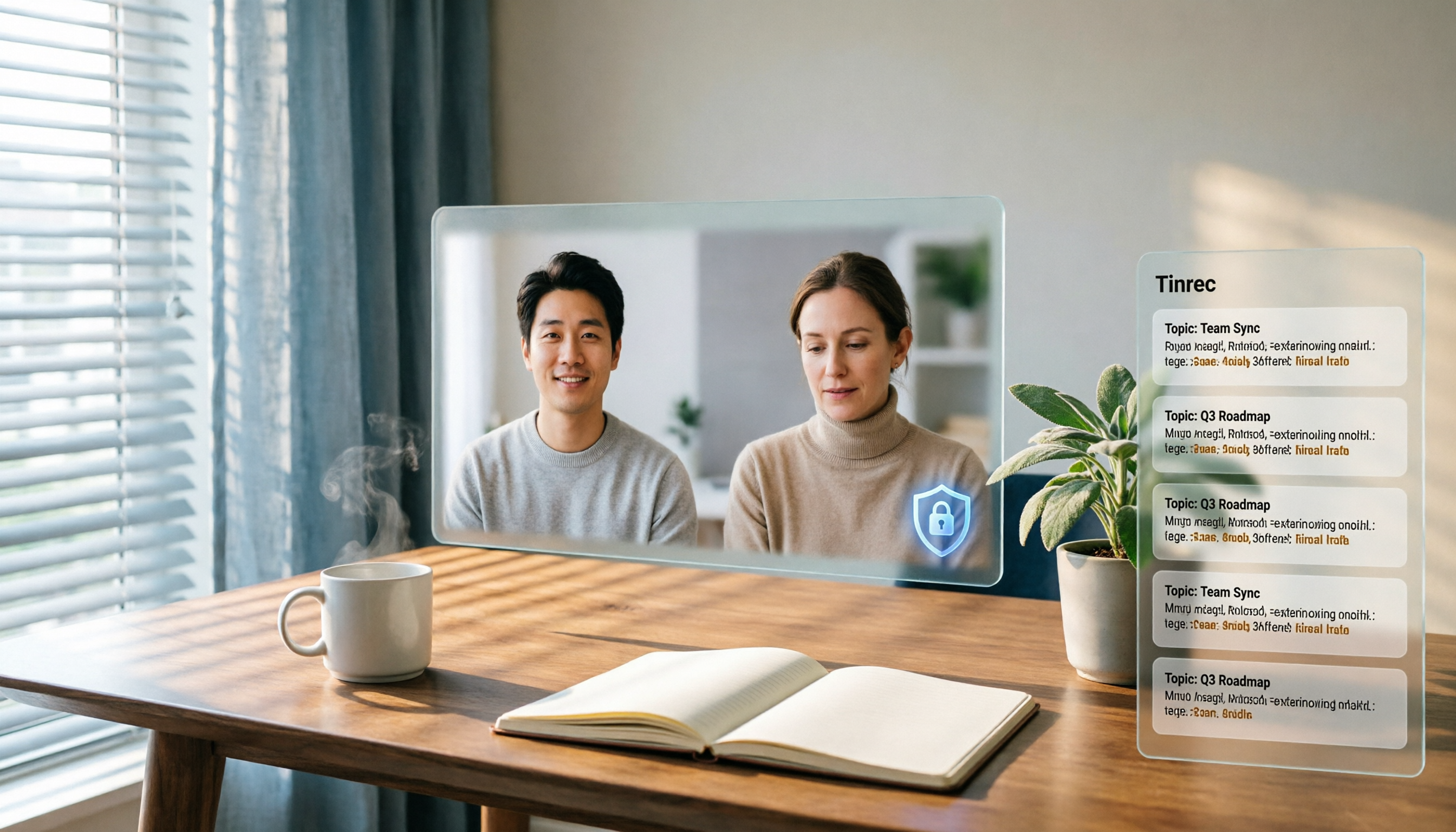
Google Meet Encryption in 2026: Cloud Encryption vs. E2EE — Which Is Right for You?
Does Google Meet encrypt calls? This article breaks down the difference between default cloud encryption and end-to-end encryption (E2EE), explains the differences between personal accounts and Workspace meetings, and compares Google Meet's built-in recording with Tinrec's post-meeting organization capabilities to help you choose the right meeting and recording approach.

Zoom vs Google Meet 2025: Which Meeting Platform Wins? Post-Meeting Notes Are Key
Zoom vs Google Meet in 2025: Compare free limits, Google ecosystem, cross-org meetings, large webinars, and post-meeting organization. Learn how Tinrec fills the last mile with meeting notes, AI summaries, action items, and team knowledge retention.

Google Meet Companion Mode vs Tinrec in 2026: 5-Dimension Comparison for Hybrid Meeting Notes and Post-Meeting Organization
What is Google Meet Companion Mode? This article breaks down the differences between Companion Mode and Tinrec across 5 dimensions, helping you understand how to combine 'second-screen interaction' during hybrid meetings with 'post-meeting AI organization,' plus purchasing advice and pitfalls to avoid.

Google Meet vs Zoom in 2026: Are They the Same? 5 Steps to Choose the Right Video Conferencing Tool
Google Meet and Zoom are not the same product, but their features overlap heavily—both are tools that quickly bring people into video meetings. This article uses 5 steps to compare free time limits, recording, calendar integration, in-meeting collaboration, and post-meeting organization, and explains how Tinrec fills the gap after Meet and Zoom meetings with transcripts, summaries, action items, and team knowledge retention.