

Turn recordings into transcripts and summaries in minutes
Upload audio or video for multilingual transcription, AI notes, and action items
Before Changing Your Background, You Really Need to Judge Three Things
Changing a background image in Google Meet looks like the simplest step in meeting preparation. But honestly, it's also the easiest step to get wrong.
What you need to judge isn't "which image looks good," but these three things: will this image blur the edges of your face, can your computer handle it, and after the meeting ends, where will the content of this meeting be kept?
Most people only think about the first one.
So this article doesn't talk about "the 40 most beautiful backgrounds" kind of list. I've split it into two parts: the first half covers how to choose a background image, where to find one, and what spec requirements there are; the second half addresses an often-overlooked question—the background makes you look professional, but is the meeting content saved?
Before Choosing a Google Meet Background, Understand These 4 Key Points
1. Size and Aspect Ratio First, Aesthetics Later
Virtual background images should be 1920×1090 pixels, or at least maintain the classic 16:9 ratio. Many people grab a vertical photo from their phone album and upload it, only to find the portrait cropped in half or strange black bars on the sides.
Before uploading, confirm the image is landscape and has sufficient resolution—this step is more important than which image you choose.
2. Static Image or Dynamic Background? Check Your Computer First
Dynamic backgrounds do offer more variety, but they consume more system resources and may cause lag during video meetings.
If your computer has average performance, a static image is usually the more stable choice. Many people only discover this after the meeting starts—the screen stutters, and participants only see your frozen expression.
3. Where to Find Free Image Libraries
Pexels is currently one of the most convenient free image libraries, with hundreds of thousands of free-to-use background assets, from offices and studies to cityscapes, updated daily.
Hello Backgrounds offers over 300 high-quality image backgrounds and about 100 video backgrounds, categorized by scenario (meeting rooms, home spaces, cafes, skylines, etc.), suitable for those who want to pick everything at once.
Livestorm's virtual background library is organized for platforms like Google Meet, free to download and upload directly, with options for both casual and formal occasions.
If you just want a quick fix, Google Meet's built-in blur background is actually sufficient—it sacrifices some visual quality for the lowest setup cost.
4. Device and Browser Requirements
To use virtual backgrounds, your computer needs a 64-bit operating system, and your browser must support WebGL 2.0. For Chrome, that's roughly version M84 or later; for Edge, version 85 or later.
This threshold isn't hard to meet, but if you can't find the option on your work computer no matter what you click, check your browser version first instead of doubting your own actions.
Also note: backgrounds only block the visual, not the sound. If family members walk by, phones ring, or documents that shouldn't appear show up on screen during a meeting, that's not something a background image can fix. When it comes to recording and transcription, remember to comply with local regulations and obtain participants' consent.
Tinrec — Backgrounds Make You Look Professional, Content Is Saved by It
Background images solve "how you look during this hour." But the real output of a meeting is the minutes afterward, the action items, and the sentence you can still look up three months later.
Tinrec is an AI meeting notes and collaboration tool for individuals and teams, available on iOS, Android, and web. It's not just audio-to-text; it turns meetings into searchable, collaborative, actionable data.
No Bot Invitations for Online Meetings
Tinrec's desktop version directly captures your computer's system audio, handling meetings played on your computer via Zoom, Google Meet, Microsoft Teams, Webex, etc., without needing an extra meeting bot to join as a participant.
This is especially noticeable in client meetings—you don't have to add an extra account to the meeting roster, nor explain to the other party "what that account joining the meeting is." Note that this doesn't mean automatically joining all calendar meetings; you still need to actively open Tinrec to start recording.
The Transcript Is Just the Beginning
During the meeting, Tinrec records and transcribes simultaneously, producing a real-time transcript. Afterward, it automatically generates summaries, chapters, and key points, and organizes action items from the discussion into to-dos.
Even better is the AI Q&A. You can directly ask it "Who mentioned the budget cap in the last meeting?" and it will give an answer based on content understanding, rather than dumping a bunch of keyword search results for you to scroll through. The same question might take you ten minutes manually flipping through a 40-minute transcript.
Stop organizing recordings by hand
Upload audio or video and automatically get a transcript, summary, and action items
For cross-language meetings, you can enable real-time translation and view in original, translated, or bilingual side-by-side format.
Meeting Results Need to Go Somewhere
Tinrec supports multi-format export, allowing you to take results to Notion, Google Docs, OneNote, Dropbox, etc. for further processing; it can also use Agent post-processing to turn a meeting into reports, tables, or meeting minutes documents.
For teams that need to accumulate data, the team version provides independent spaces to centrally store Audio, Folders, and to-dos, with member roles, seat management, usage analytics, audit logs, team hotwords, and audio recycle bin. Roles determine who can manage the team, seats determine who can record, upload, and edit—members who are active but without a seat can still view and play team data, but cannot perform resource-consuming operations.
Plans and Limitations, Listed Honestly
The personal version has a free version, weekly card, Pro monthly card, and Pro annual card—choose based on usage frequency; actual prices are subject to the official website.
The team version's first eligible trial is 7 days, 1 free seat, 300 minutes of team shared import quota; monthly payment USD 29.80 per paid seat per month, annual payment USD 199 per paid seat per year (about USD 16.58 per month), each paid seat provides 2,000 minutes of team shared import quota per month. Under an active team plan, real-time recording currently does not deduct minutes; file and web imports consume team shared minutes.
Limitations should also be clear: Tinrec is not a background image tool; it solves post-meeting organization. Transcription quality is affected by recording environment, noise, accents, and overlapping speech, and you should not expect a fixed accuracy number—important content should still be verified against transcript timestamps and audio playback.
Besides Tinrec, What Other Meeting Note Options Are There?
Otter.ai: A mature AI meeting assistant, strongest for English business meetings. The free version's 300 minutes per month is quite generous, and Pro annual billing is about USD 8.49 per user per month. If you mainly record English meetings, it's indeed cost-effective. However, if you need bilingual side-by-side review and team terminology maintenance, Tinrec's real-time translation and team hotwords are features it doesn't match.
Granola: Also uses a bot-free approach, capturing meeting content from desktop system audio and microphone, then combining with your handwritten notes to generate results. Basic is free, Business is USD 14 per user per month. Note that it doesn't support uploading pre-recorded audio files and doesn't save meeting audio—if you need to supplement presentation files or listen back to the original audio later, Tinrec's file import and recording retention are more suitable.
Notta: Performs well in multilingual transcription and file processing. Free version has 120 minutes per month, 3 minutes per single content limit; Pro annual billing is about USD 8.17 per month. Suitable for users mainly doing file transcription. If your scenario is real-time online meeting notes and post-meeting report and table generation, Tinrec's bot-free desktop recording and Agent post-processing will be closer to your needs.
Pitfall Guide: The 4 Most Common Mistakes When Choosing Google Meet Backgrounds
Pitfall 1: Only Looking at Whether the Image Is Pretty, Not the Aspect Ratio Vertical photos and low-resolution screenshots will show jagged edges or cropping after upload. Confirm the 16:9, 1920×1090 baseline first, then talk about style.
Pitfall 2: Insisting on Dynamic Backgrounds Despite Insufficient Hardware Dynamic backgrounds consume resources, and computers with average performance are prone to stuttering. Mid-meeting lag is more of a minus than a plain static image.
Pitfall 3: Background Too Distracting, Stealing the Spotlight If you're presenting slides or sharing your screen during the meeting, an overly fancy background will distract participants. Use low-distraction images like studies or meeting rooms for formal occasions, and switch to fun ones for casual occasions.
Pitfall 4: Thinking Changing the Background Means You're Prepared The background only handles appearances. What was discussed in the meeting, who committed to what, what to follow up on next time—if these aren't saved, an hour-long meeting leaves only a pretty screenshot.
Conclusion: How Should You Choose?
In one sentence: solve backgrounds with free image libraries, solve meeting content with tools that can accumulate it.
- Want the fastest solution → Google Meet built-in blur background, zero cost
- Want a decent formal background → Pick 16:9 images from Pexels or Hello Backgrounds
- Need video backgrounds but unsure about computer performance → Start with static images, don't rush into dynamic
- Need to record online meetings without putting a bot in the room → Tinrec desktop bot-free recording
- Want to directly ask "What was the conclusion of this meeting?" afterward → Tinrec's AI Q&A and summary chapters
- Department needs to share meeting data and manage members and usage → Tinrec team version's spaces, seats, and audit capabilities
- Mainly recording English meetings with limited budget → Otter.ai free version's 300 minutes is a good start
I recommend running a real meeting with Tinrec's free version first to see if the transcript and summary quality fit your scenario, and consider upgrading if it works for you. Background images can be changed in five minutes; the habit of organizing meeting data is worth spending a little more time to build.
References
- 40 Best Google Meet Backgrounds 2026
- Google Meet Background Photos, Download The BEST Free Google Meet Background Stock Photos & HD Images
- 5 Best Google Meet Backgrounds Tested in 2026: Professional Picks Without the Guesswork - Official Tinrec Blog
- Google Meet Backgrounds for Video Meetings - Hello Backgrounds
- Download Google Meet Virtual Backgrounds for free | Livestorm
Turn every recording into actionable outcomes
Get 60 free transcription minutes when you sign in. No credit card required.
Related Reading
You might also like

Google Meet Mobile Background Change Test 2026: Blur vs. Built-in Backgrounds vs. Custom Images
Changing your background in the Google Meet mobile app isn't just about finding the effects button—it comes down to four key factors: device requirements, effect stacking, mirror display, and privacy risks. This article tests the setup paths on Android and iPhone, outlines the four most common pitfalls, and compares how meeting content is captured after changing backgrounds—including use cases for Tinrec, Otter.ai, Granola, and Notta.

Google Meet Participant Limit Not Enough? 2026 Test of 3 Meeting Notes Tools—This One Works Best for Chinese Teams
Google Meet participant limits vary by free personal account and Workspace plan, but the limit only determines who can join the meeting—it doesn't solve how to organize post-meeting data. This article first clarifies common capacity numbers and how to check them after 2024, then from the perspectives of meeting notes, AI summaries, action item extraction, and team knowledge retention, explains how Tinrec bridges the post-Google Meet gap, and summarizes 5 purchasing considerations and FAQs.
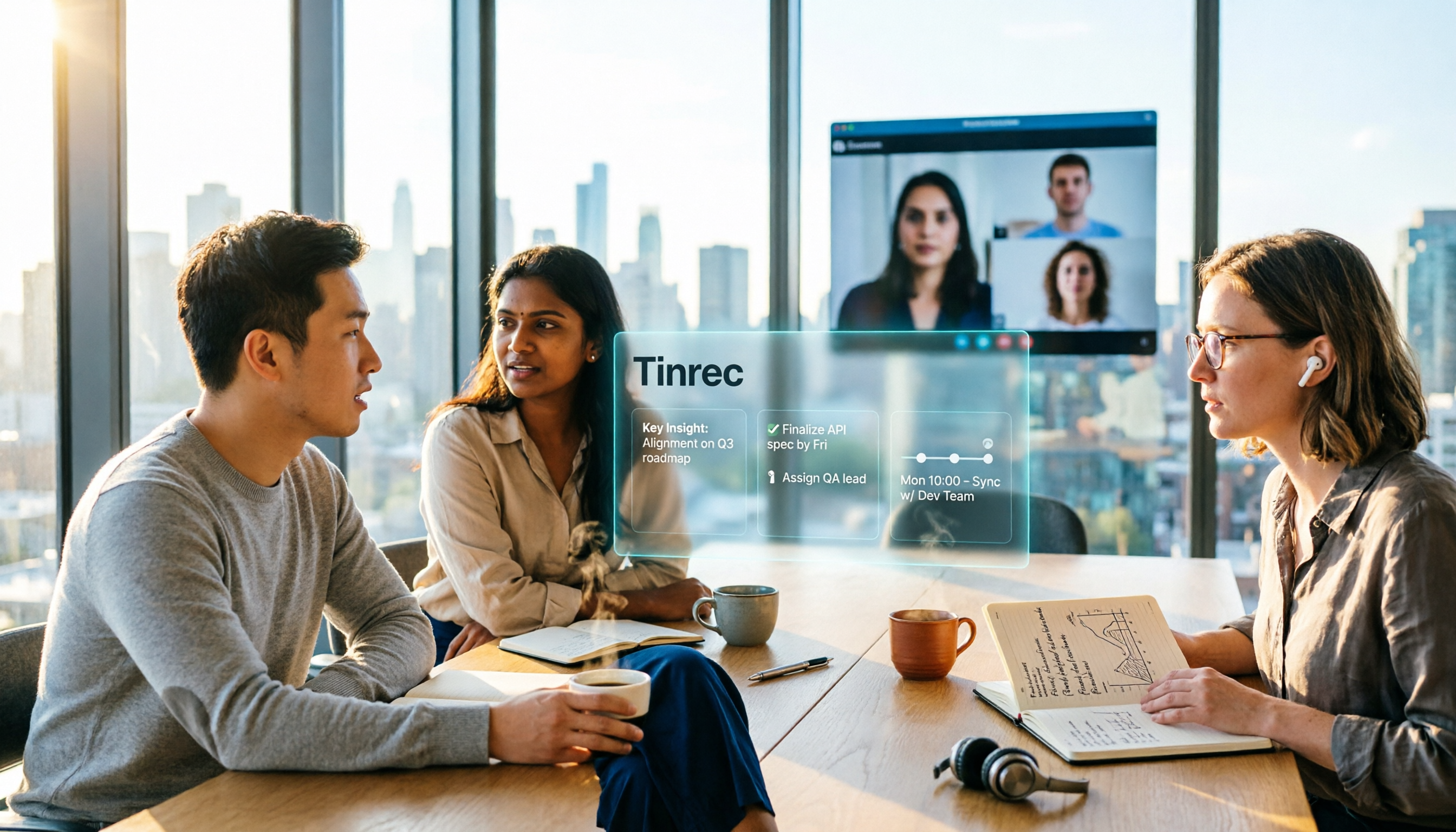
Google Meet Business Starter vs Tinrec in 2026: 5-Dimension Comparison — Who Handles Post-Meeting Follow-Up Better?
Many people assume that buying Google Workspace Business Starter automatically solves meeting notes. In reality, it provides smooth video meetings and branded email, but post-meeting organization is still up to you. This article breaks down what Business Starter actually includes, 5 key purchasing considerations, common pitfalls, and compares when specialized post-meeting tools like Tinrec are more suitable.

Google Meet Buying Guide 2026: 3 Plans vs Tinrec — Which Is Right for You?
Google Meet isn't sold as a standalone product. Before you buy, you need to know whether you're after a video conferencing plan, meeting room hardware, or a tool that captures meeting data after the call. This article breaks down Google Meet's purchasing paths and cost structure, then compares Tinrec across five dimensions to help you choose wisely.
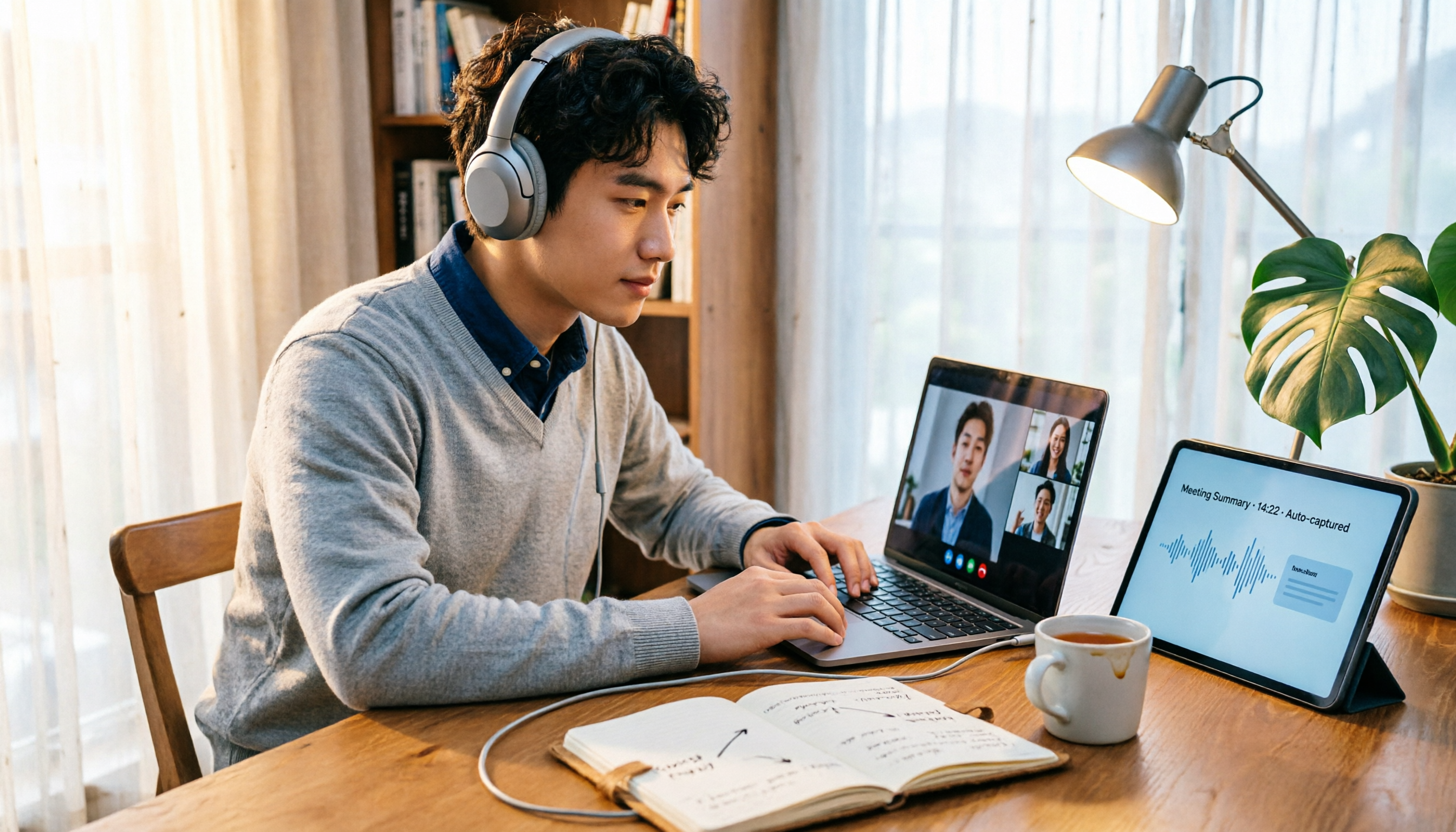
5 Browsers Tested for Google Meet in 2026: Is Chromium Really More Stable?
Opening Google Meet in a browser and dealing with blurry video, spinning fans, or shared videos with no sound usually isn't a network issue. This guide covers real-world performance of 5 browsers for Google Meet in 2026, the key macOS system audio limitations, 3 common pitfalls in browser choice and usage, and how to actually capture meeting content beyond the browser.

How to Change Your Background in Google Meet (2026): 3 Steps + Blur Without a Green Screen
Changing your background in Google Meet takes just 3 clicks, but the steps differ between desktop and Android. This guide addresses the 4 most common mistakes, provides complete steps for desktop and mobile, covers 5 limiting scenarios (not signed in, VDI, Workspace admin settings, etc.), and explains how to capture and retain meeting content after changing your background.

Google Meet Background Reversal in 2026: 3 Fixes & Mirror Preview Explained
Google Meet background reversal isn't a bug—it's a mirror preview illusion. This guide explains the cause, shows a table comparing what you see vs. what others see, and offers 3 practical fixes, including when to flip your background image and when not to, plus whether recordings and transcripts are affected.
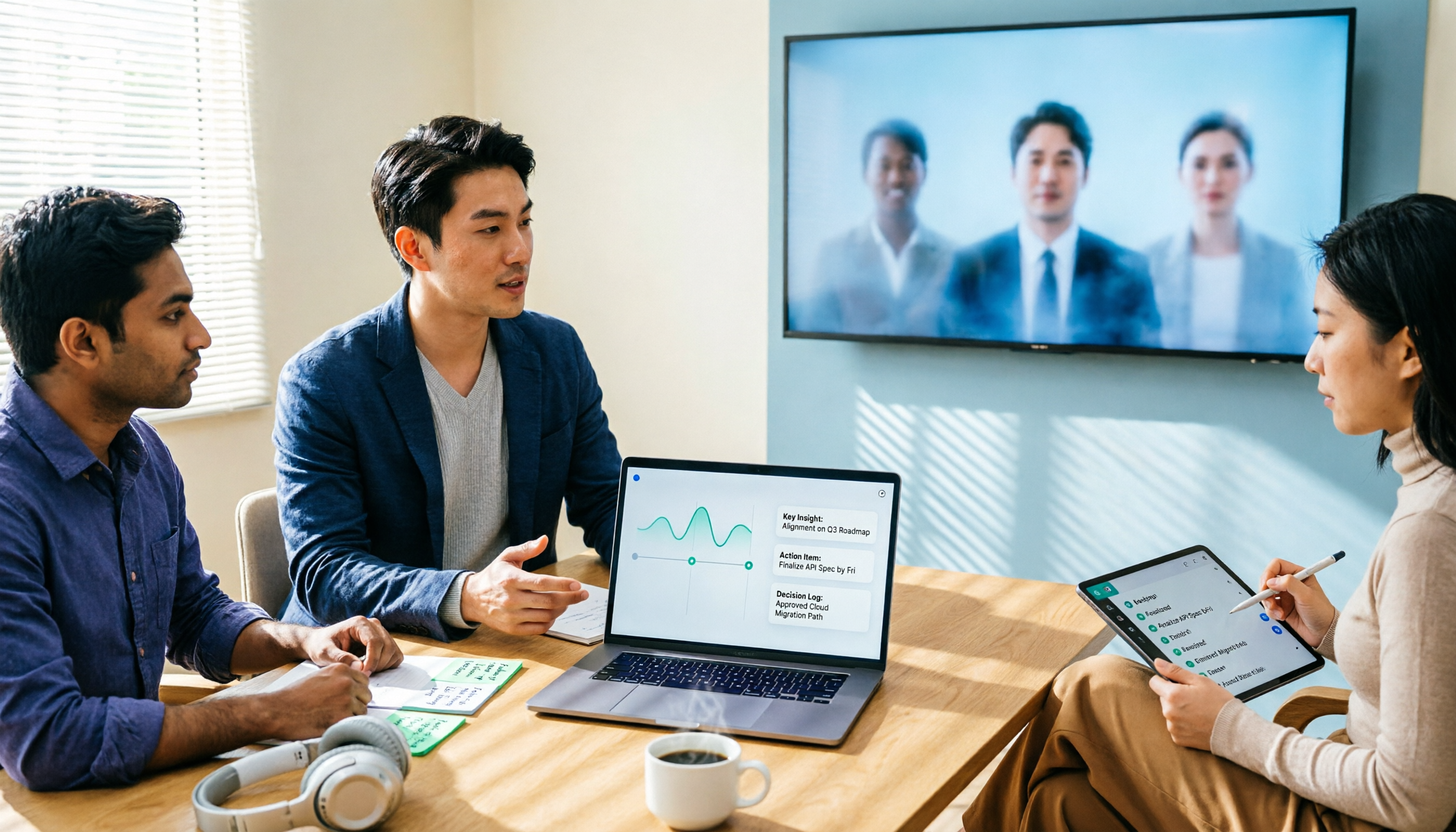
6 Best Google Meet Alternatives in 2026: Which Free Version Is Enough?
Google Meet's free version is adequate, but meeting notes, cross-platform organization, and team knowledge retention often fall short. This guide covers 6 alternatives people actually use—from bot-free AI meeting notes and open-source free tools to enterprise platforms—and helps you choose based on your situation, with prices and free-tier limits listed as-is.
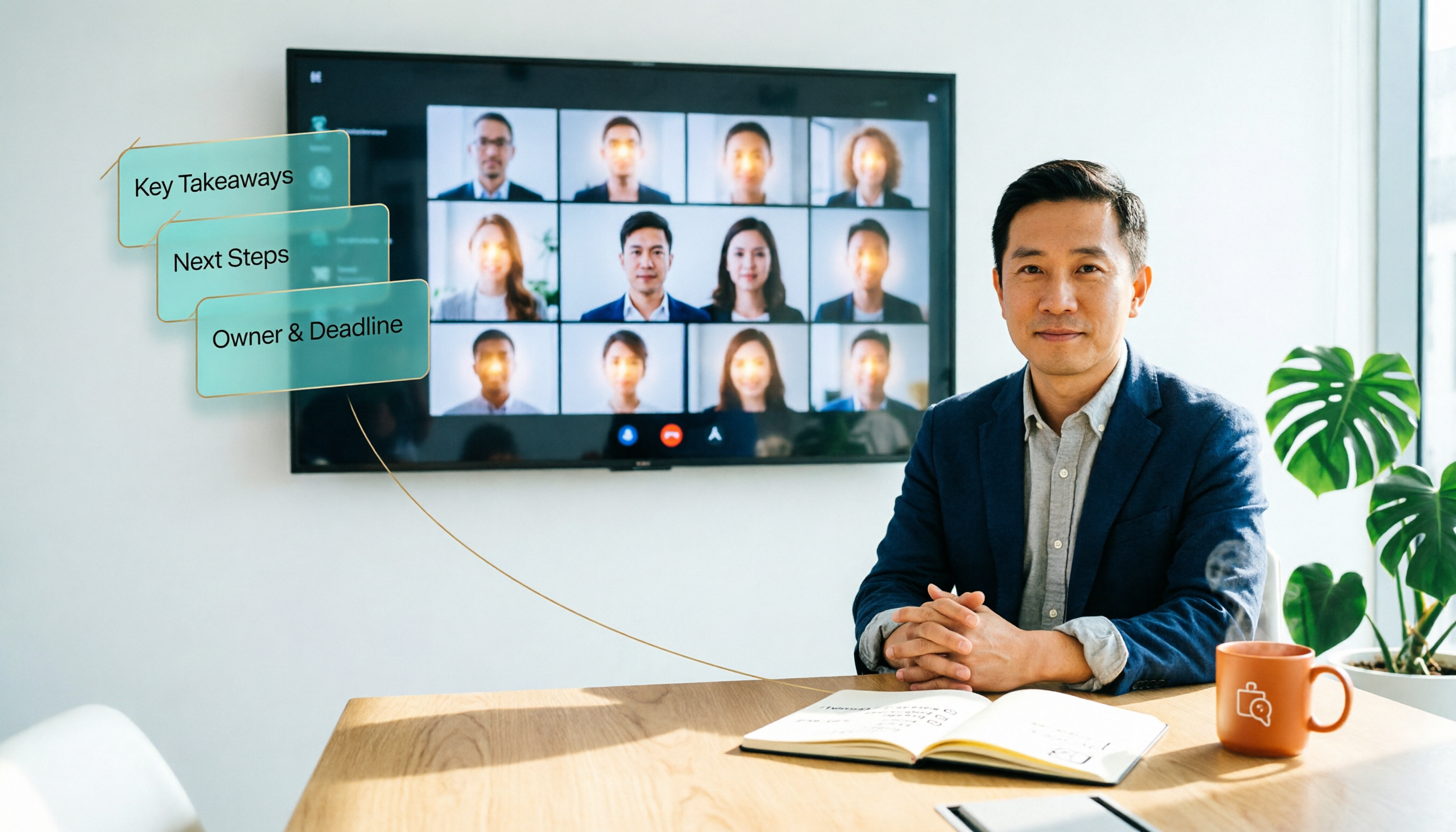
Google Meet 500 Participants in 2026: Business Plus Pricing and Post-Meeting Tools Compared
To host 500 people on Google Meet, you need Google Workspace Business Plus: standard price is USD 22 per user per month, and Google has shown a promotional price of USD 15.40 for the first 20 users for 12 months for new customers. This article covers participant limits and pricing from free to Enterprise, promotion conditions, common pitfalls, and compares post-meeting transcription and organization tools Tinrec, Otter.ai, Granola, and TurboScribe.