
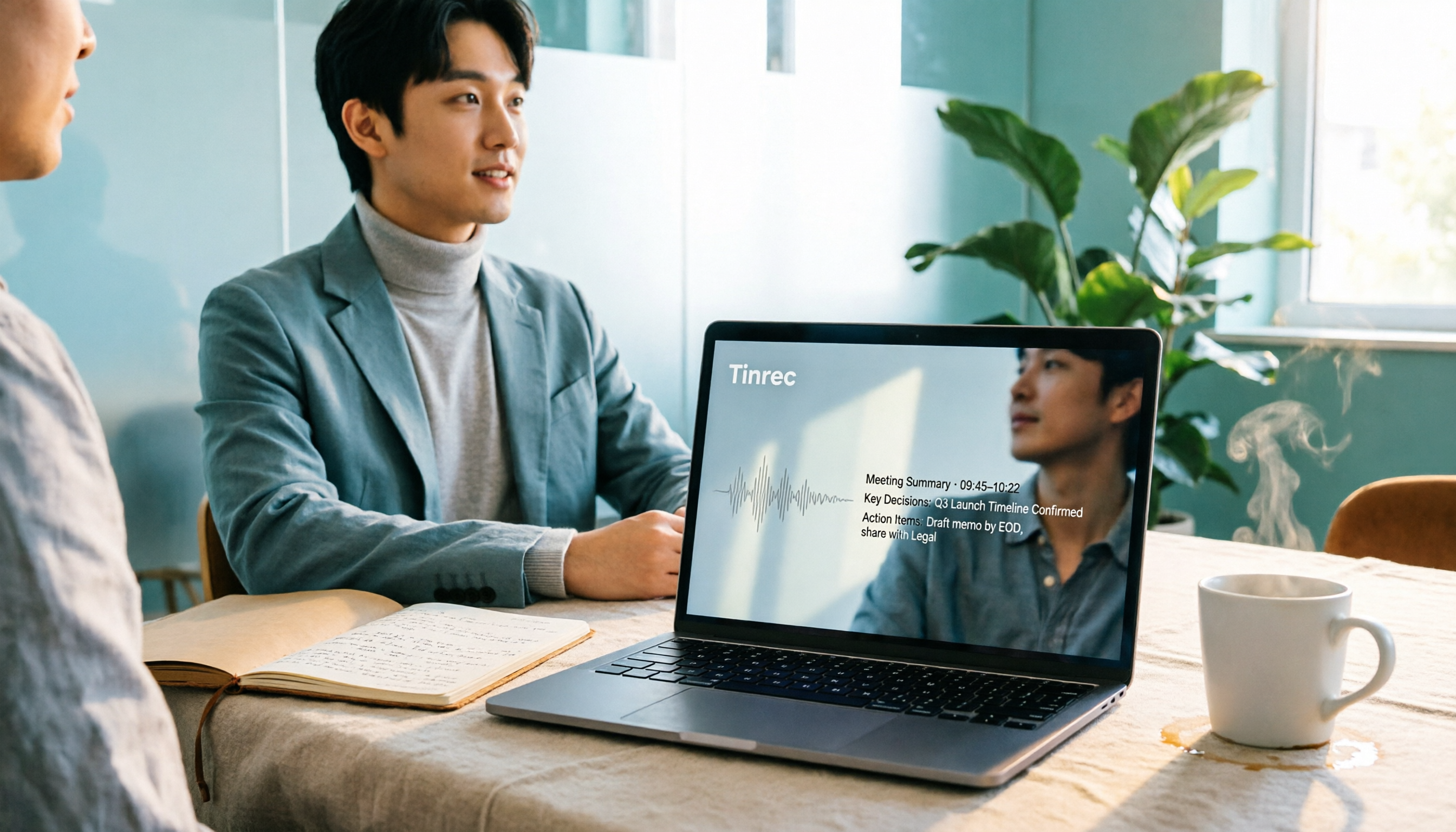
Turn recordings into transcripts and summaries in minutes
Upload audio or video for multilingual transcription, AI notes, and action items
Most people searching for "free online speech to text" start by finding a site that looks free, uploading their recording, and waiting for the result.
The problems usually start after step two.
The free quota runs out, the transcript is a jumbled mess of segments, timestamps disappear, you find out you have to pay to export a subtitle file, and your meeting files are stuck in someone else's cloud account with no way to get them back.
After trying a round of these tools myself, I realized the real difference between free tools isn't whether they can transcribe—it's how much work you still have to do after the transcription is done.
So this isn't just a list.
What I want to cover is: what scenarios each of these six options is suited for, and how to avoid the trap of "transcribing, then having to redo everything."
Why do you need online speech-to-text?
The two most common scenarios: one, turning recordings of meetings, interviews, and classes into searchable text; two, just wanting to speak your thoughts faster than you can type them.
AI transcription can now handle accents, speaking speeds, and mild background noise, compressing hours of listening and typing into minutes.
But with more tools available, the cost of choosing wrong has also gone up.
Below, I'll go through them one by one in the order of "what situation you'd need it in."
Option 1 | Tinrec — The one that turns transcription into a meeting workflow
If I had to pick a starting point to recommend, it would be Tinrec.
Its positioning isn't "a transcription tool" but an AI meeting notes and collaboration tool: first it turns your audio into text, then it turns that text into data you can keep using.
The first highlight is how it records online meetings.
The desktop version directly captures your computer's system audio, handling meeting audio played through Zoom, Google Meet, Microsoft Teams, and Webex—no need to invite a separate meeting bot to join.
(Screenshot: Tinrec desktop recording interface, arrow pointing to the "System Audio" source option)
The second highlight is what happens after transcription.
It generates summaries, chapters, key points, and action items, and you can keep asking questions about the meeting.
My own approach: after a meeting, I check the summary first to grasp the conclusions, then use AI Q&A to go back and confirm "which exact sentence did the client mention the budget constraint in?"
This is much faster than Ctrl+F in the transcript.
(Screenshot: Meeting page with summary and action items, arrow pointing to action items)
The third highlight is the variety of input sources.
Live recording, computer meetings, audio and video files, phone recordings—all can come in, and historical recordings can be transcribed retroactively.
Fourth is the team scenario.
The team version is a separate team space, not multiple people sharing one account: it has member roles, seat management, shared team quota, usage analytics, and audit logs.
Even without a seat, members can still view and play team data; but to actually record, upload, or edit, they need a seat.
(Screenshot: Team space member and seat list, arrow pointing to "Assign Seat" button)
Free vs. paid: The free version lets you experience recording, importing, summaries, and transcription with a basic quota; for regular use, there are weekly cards, Pro monthly cards, and annual cards.
Who it's for: People who need Chinese meeting transcripts, post-meeting minutes and action items, and want their data to accumulate in a team space.
Option 2 | MyEdit — Daily credits, intuitive online transcription
Positioned as "an AI audio editing station you can use right in your browser," with transcription as just one feature.
Its standout feature is that you can earn credits by logging in daily and use them for free transcription; it supports 9 languages including Chinese, English, and Japanese, and can export plain text (.txt) or subtitle files (.srt).
When exporting .srt, timestamps are added automatically—handy for subtitling videos—and the generated text can also be used commercially.
(Screenshot: MyEdit export format menu, arrow pointing to .srt option)
Free vs. paid: Daily login credits are free to use; upgrading to Audio Pro gives you fixed monthly credits and unlocks other audio tools.
Who it's for: People who occasionally transcribe a recording or make YouTube subtitles, with simple needs and no desire to sign up for too many services.
Option 3 | TicNote Cloud — Free transcription you can try without signing up
Positioned as a lightweight "upload and transcribe" page.
Stop organizing recordings by hand
Upload audio or video and automatically get a transcript, summary, and action items
Its pitch is clear: upload audio, get a clean formatted transcript, supports 120+ languages, and you can start without registering.
(Screenshot: TicNote file upload flow, arrow pointing to "Choose File")
Free vs. paid: Offers a free online tool, with separate registration entry points for login and extensions.
Who it's for: People who have a foreign-language recording and just want to confirm roughly what it's about.
Option 4 | OpenL — Speak your input, great for live dictation
Positioned more as browser-based voice input than file transcription.
Click record, speak naturally, and text appears in real time in an editable field—great for moments when "thoughts are faster than typing," like jotting down key points after a commute or dictating a draft while walking.
(Screenshot: OpenL recording screen, arrow pointing to text input area)
Free vs. paid: Offers a daily free quota, upgrade for higher usage.
Who it's for: People who want to use voice for notes, drafts, or dictation practice, rather than organizing existing recording files.
Option 5 | Notta — Multilingual transcription, tighter free quota
Positioned as a general-purpose transcription and meeting notes tool, with multilingual support as its strength.
The free plan offers 120 minutes per month, with a maximum of 3 minutes per item—in other words, it's better suited for short clip testing; Pro annual billing works out to about USD 8.17/month for 1,800 minutes per month, and Business annual billing is about USD 16.67/seat/month with unlimited transcription, role permissions, and usage reports (subject to official pricing page).
(Screenshot: Notta plan comparison page, arrow pointing to free plan's per-item duration limit)
Who it's for: People who need multilingual transcription and are willing to pay for a stable quota.
Option 6 | TurboScribe — A practical choice for long files and batch uploads
Positioned as a cost-effective file transcription tool.
The free plan allows 3 files per day, up to 30 minutes per file; Unlimited annual billing is USD 120 (about USD 10/month), and the paid version supports files up to 10 hours or 5 GB, with up to 50 files uploaded at once (subject to official pricing page).
(Screenshot: TurboScribe batch upload queue, arrow pointing to multi-file selection)
Who it's for: People with a whole batch of class recordings or long files to process all at once.
With so many options, how should you choose?
- Want transcription that directly produces summaries, chapters, and action items, and lets you keep asking questions → Tinrec (transcription, AI Q&A, and post-meeting output in one flow)
- Need to handle Zoom, Meet, Teams online meetings without a bot joining → Tinrec desktop captures system audio
- Meeting data needs to be shared with the whole team, with members changing → Tinrec team version (space, seats, usage, audit all in one)
- Just occasionally transcribe a recording or make video subtitles → MyEdit's daily credits are enough
- Want to quickly check a foreign-language recording without registering → TicNote Cloud
- Want to turn spoken thoughts directly into text drafts → OpenL
- Have a batch of long files to process → TurboScribe
When choosing, ask yourself one question: Do I want "a transcript" or "a record I can actually use"?
The former can be satisfied by any free tool.
The latter requires considering export formats, timestamps, whether you can ask follow-up questions, and whether your data stays put.
4 things to know before using online speech-to-text
First, free quotas are usually not "unlimited" but "a small amount per day or month."
Check your usage frequency first, then decide whether to upgrade. For example, Tinrec's free version is a basic quota experience, MyEdit gives daily login credits, and Notta's free version only allows 3 minutes per item—different quota formats mean different ways to get burned.
Second, a transcript is not the same as meeting notes.
A good practice is to do three things right after transcription: check the summary to grasp conclusions, confirm action items have names and deadlines, and highlight key sentences. Tinrec builds this into the flow; other tools usually require you to open another document and fill it in yourself.
Third, decide on timestamps at export time.
If you need subtitles, choose a format with timecodes like .srt from the start—don't wait until editing to go back and add them.
Fourth, when recording and transcription involve others, confirm authorization and local regulations first.
This is especially true for client interviews and cross-department meetings—informing beforehand is much easier than remedying afterward.
Conclusion
Free speech-to-text tools are quite capable now; the real dividing line is "how much work you still have to do after transcription."
If you just occasionally need a transcript, start with lightweight options like MyEdit, TicNote, or OpenL.
But if you need meeting notes, post-meeting actions, and team sharing, a tool like Tinrec that connects recording, transcription, summaries, Q&A, export, and team management will save you a lot of rework.
Start by testing with one meeting: open the desktop version, record once, and see if the summary and action items can be used directly.
Test step by step, and you'll gradually find the approach that works for you.
References
- Online speech-to-text AI, free MP3 or audio file to transcript - MyEdit
- Speech-to-text converter – free online | TicNote Cloud
- Tested: 4 of the best online speech-to-text tools, free audio to transcript in seconds
- Luvvoice: Free online text-to-speech, no word limit
- Free online speech-to-text - AI voice input - OpenL
Turn every recording into actionable outcomes
Get 60 free transcription minutes when you sign in. No credit card required.
Related Reading
You might also like

4 iPhone Recording-to-Text AI Tools Tested in 2026: The Real Work Starts After the Transcript
The difference between iPhone recording-to-text AI tools isn't just accuracy—it's how much time you spend organizing after transcription. This article compares four common approaches and uses Tinrec as an example to explain real-time transcription, bot-free online meeting recording, AI summaries and Q&A, and how team spaces work, with practical steps, buying tips, and FAQs.

2026 iPhone Transcription App Comparison: Chinese Accuracy & AI Meeting Notes Tested
Should you use iPhone's built-in free transcription or a paid app? We tested iPhone's native solution, Notta, PLAUD recording hardware, and Tinrec under real meeting conditions, comparing Chinese recognition, post-meeting organization, online meeting recording methods, and team data ownership. Plus, 3 common buying mistakes and scenario-based recommendations.

How to Choose a Speech-to-Text AI in 2026: 5 Steps to the Right Tool
How do you choose a speech-to-text AI tool? This article starts with three real meeting scenarios to help you identify which type of user you are, then covers 5 key buying factors, brief reviews of 3 common competitors, and a guide to avoiding pitfalls. It also breaks down Tinrec's bot-free recording, AI Q&A, and team seat management to help you make a decision between free and paid that you won't regret.

Best Free Chinese Speech-to-Text Tools in 2026: 4 Options Compared
How to choose a Chinese speech-to-text tool? This article tackles common misconceptions and reviews 4 free audio-to-text options for Chinese, including completely free and free-tier tools. It compares free quota calculations, Chinese and mixed Chinese-English recognition, post-meeting organization capabilities, and team data ownership to help you find the one that truly saves you time.

How to Use Samsung AI Voice-to-Text in 2026: 5-Step Tutorial and Tool Comparison
Galaxy AI's voice-to-text assistant sounds convenient, but it only works with audio recorded in Samsung's built-in apps and cannot process files longer than 3 hours. This guide walks you through Samsung's built-in process in 5 steps, then compares it with Tinrec across five dimensions: recording sources, post-meeting organization, translation, cross-device workflows, and team collaboration, helping you decide when the built-in tool is enough and when you need a dedicated tool.

2026 Comparison of 4 Audio-to-Text Tools: Is ChatGPT Transcription Good Enough?
Is it good enough to throw a meeting recording into ChatGPT and get a text file? This article compares ChatGPT, Tinrec, Notta, and Otter.ai from four angles: transcript usability, audio retention, post-meeting organization, and team collaboration. It also summarizes key purchasing factors and common pitfalls to avoid.

How to Choose Free Speech-to-Text Software in 2026: 5 Steps to Find a Tool That Works for You
How do you choose free speech-to-text software? First, clarify how much content you need to transcribe each week, whether you need summaries and Q&A, and whether the data needs to be shared with colleagues—then decide on a tool. This article uses Tinrec to demonstrate 5 steps from recording to a usable transcript, and outlines 5 key purchasing considerations including free quotas, Chinese recognition, post-meeting organization, and team collaboration.

iPhone Voice Memos vs Tinrec: Which Saves More Time for Audio Transcription in 2026?
iPhone's built-in Voice Memos can transcribe recordings after iOS 18, but what happens next? This comparison puts Apple's built-in feature against Tinrec, examining device requirements, audio formats, transcript post-processing, cross-platform access, and team collaboration to help you decide which approach fits your meeting and class notes needs.

Best Speech-to-Text Tools 2026: Tinrec for Chinese Transcription & One-Click Meeting Minutes
Tired of spending hours typing meeting transcripts? This guide covers 4 key factors for choosing a speech-to-text tool, with an in-depth review of Tinrec's Chinese recognition, bot-free online meeting recording, AI Q&A, and team spaces. We also compare Notta, Otter.ai, and TurboScribe, and share 3 common pitfalls plus scenario-based recommendations.