
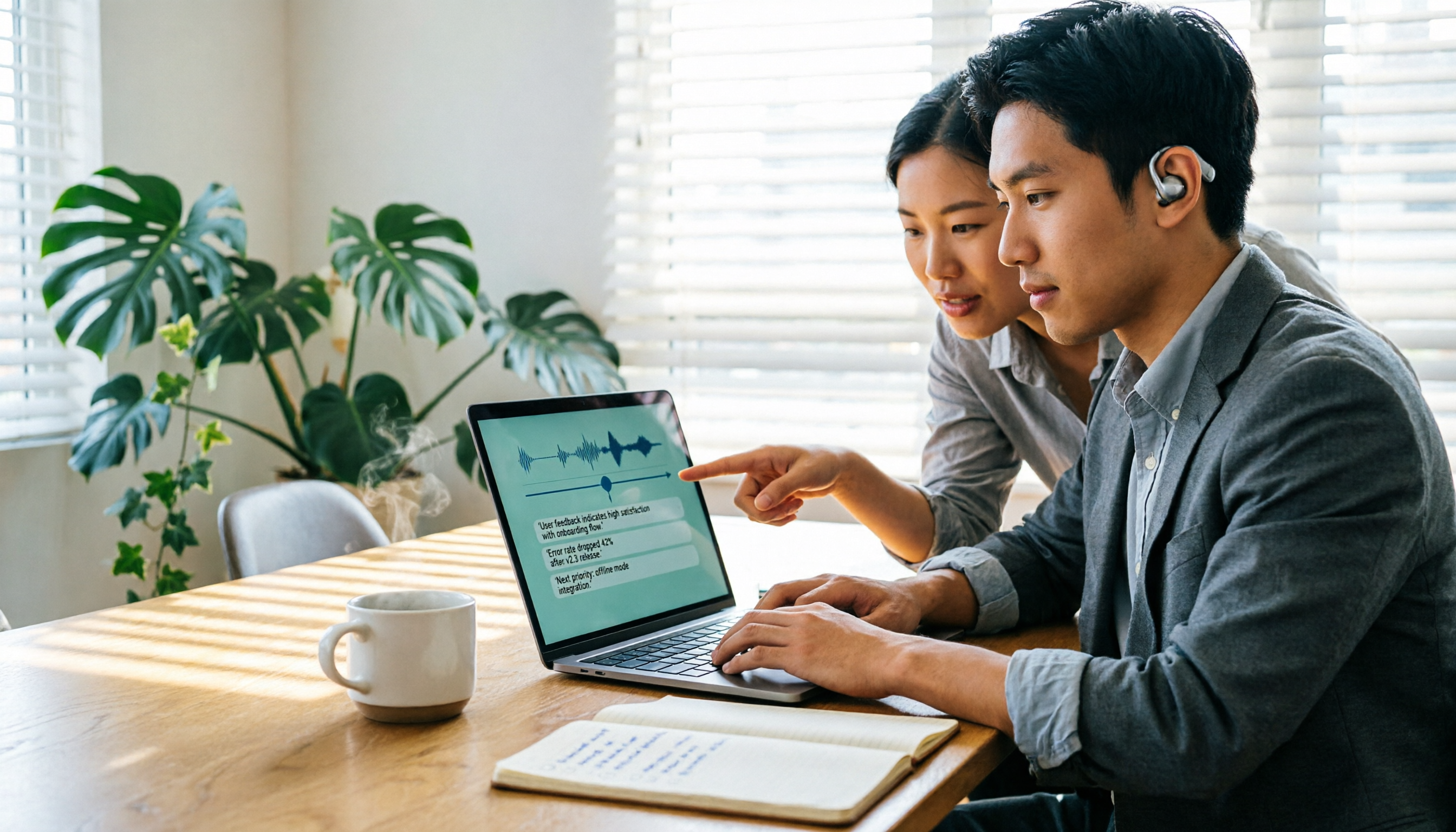
Turn recordings into transcripts and summaries in minutes
Upload audio or video for multilingual transcription, AI notes, and action items
4 Free Google Speech-to-Text Options for Computer in 2026: A Complete Review
Why Many People Still End Up Typing Manually After Trying Google Speech-to-Text on Computer
"Doesn't Google already have speech-to-text?" This is one of the questions I get most often.
The problem is that most people first think of the microphone button in Google Docs. It's free and does a decent job with Chinese recognition, but it only does one thing: you speak into the microphone, and it types for you.
If you have a pre-recorded meeting audio file, it can't help. If it's an online meeting and the sound comes from your computer speakers, using a microphone to capture the speaker output will naturally degrade the quality.
The result: after the meeting, you still have to put on headphones and listen to the 40-minute recording from the beginning.
This article reviews 4 speech-to-text solutions that actually work on a computer, including completely free built-in Google methods and Tinrec, which I now use regularly for meeting notes. I'll first explain what each can and cannot do, so you can decide whether to spend time or money.
4 Key Points to Understand Before Choosing a Computer Speech-to-Text Tool
1. Do You Need Real-Time Dictation or Transcription of Existing Recordings?
These are two completely different things. Real-time dictation is "you speak, it types for you"; transcribing existing recordings is "I have an mp3 and want to turn it into text."
Google Docs' built-in voice typing belongs to the former. Many people get stuck here—using a dictation tool to process audio files, which of course won't work. Before choosing a tool, confirm which type you need, or if you need both.
2. Does the Sound Come from a Microphone or from the Computer?
For offline meetings and interviews, sound comes from a microphone. For online meetings, sound is played through the computer system.
The latter actually requires a tool that can capture "system audio," rather than using another microphone to record from the speakers. Few people think of this initially, but it directly determines the recognition quality you'll get.
3. After Transcription, Who Is Responsible for Organizing?
Getting only a transcript means the work is only half done. What really takes time is extracting key points, writing summaries, and organizing action items.
So the second question to ask is: does this tool only give you text, or does it also help turn the text into usable data?
4. How Is the Free Quota Calculated, and Is Anyone Sharing It with You?
Almost all free plans have minute limits, and some reset monthly while others have a one-time cap. If you're using it with colleagues, also check whether it's a team space or a shared account.
Tinrec (Miao Ting Lu Yin) — Why I Eventually Moved My Workflow to It
Tinrec (Miao Ting Lu Yin) is an AI meeting notes and collaboration tool for individuals and teams, available on web, desktop, and mobile. It's not just recording-to-text; it turns meeting recordings into searchable, summarizable, and queryable data.
Desktop Version Captures System Audio Directly, No Need to Invite a Bot to Meetings
I think this is the most practical feature. When starting a Google Meet or Zoom, just open Tinrec desktop and start recording—it directly captures the computer's system audio without needing to invite an extra meeting bot into the room.
In practice, the difference is significant: no more "a bot has joined" notifications in the meeting, and no need to worry about forgetting to start recording.
Note that this is not "automatically join all calendar meetings." You still need to open Tinrec yourself to start recording.
The Transcript Is Just the Starting Point; Post-Meeting Organization Is the Key
After recording, Tinrec generates a transcript and automatically produces summaries, chapters, and action items.
My old approach was: transcribe audio to text, then read through the transcript myself to highlight key points, which took about another half hour. Now I scan the summary and action items first after the meeting, and go back to the corresponding timestamps in the transcript for anything unclear.
Even better is the AI Q&A. You can directly ask it "What was the budget cap discussed in this meeting?" and it will answer based on the meeting content, rather than giving you a bunch of keyword search results. Most transcription tools in the same price range don't have this layer yet.
It also supports mixed Chinese-English content, real-time translation, and bilingual comparison, which is quite helpful for our meetings that mix Chinese and English.
Stop organizing recordings by hand
Upload audio or video and automatically get a transcript, summary, and action items
When Used by a Team, Roles and Seats Are Separate
If your department or project team uses it together, the team version provides an independent team space: meeting data belongs to the team, and members can view, play, and read historical data.
Here's an easy misunderstanding: roles and seats are two different things. Roles determine who can manage the team, members, and audits; seats determine whether members can record, upload, edit, and export. Active members without a seat can still view team data, but cannot upload or edit.
The team version also currently offers team hotwords, usage analytics, audit logs, and an audio recycle bin, making it more complete for teams that need to manage multiple users.
Limitations and Plans, I'll Write Them Honestly
The free version has a basic quota that lets you experience recording, import, summaries, and transcription, but heavy use requires an upgrade. The personal version offers weekly cards, Pro monthly, and Pro annual—choose based on your usage frequency: occasional transcription of a recording can use the free version, short-term intensive interviews might consider a weekly card, and regular weekly meetings make Pro more reasonable.
The team version offers a 7-day trial for first-time eligible users, 1 free seat, and 300 minutes of shared team import quota; paid seats are USD 29.80/seat/month, or USD 199/seat/year (about USD 16.58/month), with each paid seat providing 2,000 minutes of shared team import quota per month. Actual prices and benefits are subject to the official purchase page.
Also note: Tinrec currently uses team-level sharing, not fine-grained file-level permission management; accuracy is also affected by recording quality, accents, noise, and multiple people talking over each other. For important content, it's recommended to cross-check with recording playback.
3 Other Google Speech-to-Text Options on Computer
Google Docs Voice Typing (Completely Free)
Open Google Docs, click "Tools" → "Voice typing," connect a microphone, and you can dictate in real time. The biggest advantages are that it's free and requires no installation. But it can only handle "what is being said right now"; you can't feed it pre-recorded audio files, and it won't generate summaries or action items—you'll still need to organize the transcript yourself afterward.
Google Cloud Speech-to-Text API (Developer-Oriented)
Google Cloud's speech-to-text service integrates speech recognition into applications via API, supports multiple languages and dialects, and offers models tuned for specific scenarios like telephony, as well as profanity filtering. It's the most flexible, but requires API integration, key management, and billing—the average office worker won't use it as a daily tool.
pyTranscriber (Open Source and Free, Good for Subtitles)
An open-source tool mainly used to convert video or audio into transcripts and subtitle files. It's suitable for processing one file at a time and getting free subtitles. Drawbacks: no post-meeting summaries, no AI Q&A, and speaker diarization and subsequent collaboration for multi-person meetings must be handled on your own.
Pitfall Guide: 3 Most Common Mistakes in Computer Speech-to-Text
Pitfall 1: Using a dictation tool to process audio files. This is the most common misunderstanding. Google Docs voice typing is great, but it's real-time dictation, not file transcription. First clarify whether you have a "meeting that hasn't happened yet" or an "already recorded file."
Pitfall 2: Only comparing official accuracy numbers. Many tools claim high accuracy, but that's usually measured in quiet environments with clear audio sources. Real meeting rooms have air conditioning noise, keyboard sounds, and people talking over each other, so performance drops noticeably. Test with your own recordings, don't just look at ads.
Pitfall 3: Treating the tool as "only converting text." If you only use a transcription tool to produce transcripts, you're only using part of its capabilities. Features like Tinrec's summaries, action items, and AI Q&A can save you the time of re-reading transcripts after meetings—which is often more time-consuming than the transcription itself.
Conclusion: Which One Should You Choose for Your Situation?
- Just occasionally typing a paragraph, don't want to install anything → Google Docs voice typing, free and sufficient.
- Have a bunch of videos to subtitle → pyTranscriber, open source and free, great for single files.
- Want to integrate speech recognition into your own system → Google Cloud Speech-to-Text API.
- Frequently hold online meetings and need transcripts plus post-meeting organization → Tinrec. The desktop version doesn't require inviting a bot into the meeting room, and directly produces summaries, chapters, and action items after the meeting, plus you can ask follow-up questions about the content.
- Team needs to share meeting data and manage members and usage → Tinrec team version, with independent team space, seat management, usage analytics, and audit logs.
If your main need is "not wanting to spend another hour organizing after a meeting," I suggest starting with Tinrec's free version, running through a real meeting workflow once, and seeing if the quality of summaries and action items fits your work habits before deciding whether to upgrade.
Finally, recording and transcription involve others' privacy. Please comply with local regulations before use, and obtain consent from participants when necessary.
References
- Speech-to-Text: AI speech input and transcription | Google Cloud
- Using Google Speech-to-Text - Fukudome Shison
- Google Live Transcribe: Super accurate Chinese speech-to-text with automatic punctuation
- Google Transcript Tutorial! Convert videos and audio to text right in your browser
- 2026 Comparison of 4 Speech-to-Text Tools: Is Google Enough for Typing Transcripts on Computer? - Tinrec Blog
Turn every recording into actionable outcomes
Get 60 free transcription minutes when you sign in. No credit card required.
Related Reading
You might also like

6 Google Meet Speech-to-Text Tools Tested and Compared for 2026: How to Choose Between Free and Paid
How do you transcribe Google Meet calls? This guide covers six practical methods, from Google Meet's built-in transcription and Google Docs' free dictation to AI tools like Tinrec, Notta, TurboScribe, and Otter. We compare free tiers, use cases, and pricing to help you choose the right solution for your meeting needs.

5 Free Google Speech-to-Text Options in 2026: A Complete Guide
Want to turn recordings into transcripts without spending money? This guide covers 5 free speech-to-text options in the Google ecosystem in 2026, from Google Docs voice typing and Android Live Transcribe to the Gemini app, Gemini Notebook, and Google AI Studio. We explain the free limits, length caps, and best use cases for each, plus a practical method for better meeting notes.

2026 Google AI Studio Speech-to-Text Buyer's Guide: 4 Tools Tested and How to Choose
Can Google AI Studio really turn recordings into transcripts for free? This guide tackles common misconceptions and compares four speech-to-text approaches—Google AI Studio, Tinrec, Notta, and Otter.ai—covering audio length limits, post-transcription processing, and team collaboration differences to help you pick the right tool for your workflow.

2026 Comparison of 4 Cantonese Speech-to-Text AIs: Which Saves the Most Time on Cantonese Transcripts?
Starting from the decision focus of 'what will this recording ultimately become,' this guide walks you through the complete Cantonese speech-to-text workflow: defining output format, ensuring recording quality, AI transcription, hotword proofreading, post-meeting organization, and export. It uses Tinrec's five-step process and explains the applicable boundaries of Cantonese-specific tools.

5 Cantonese Speech-to-Text Tools Tested for 2026: Free Tiers and Cantonese Accuracy Compared
We compare 6 Cantonese speech-to-text solutions in 2026, focusing on free quotas, Cantonese recognition, mixed Chinese-English, and spoken-to-written conversion. We list each tool's free limits and paid pricing to help you decide which one truly meets your needs.

4 Free Cantonese Speech-to-Text Tools Tested: Which Offers the Best Free Tier, Export, and AI Organization in 2026?
Searching for 'free Cantonese speech to text' yields many tools, but what matters is how far the free tier goes. This article compares Tinrec, Subanana, YouTuber AI, and cSubtitle from four angles: free quota, export limits, handling of colloquial Cantonese and mixed Chinese-English, and post-transcription organization. It also lists four common pitfalls to avoid.
Google Speech-to-Text Apps Free Plans in 2026: 5 Options Compared
Many people search for a "Google speech-to-text app" expecting one universal program, but Google's speech recognition is actually spread across Live Transcribe, the Pixel Recorder app, Google Docs voice typing, and the Cloud API. Using real student scenarios, this article rounds up 5 free and free-tier options and explains which one can actually turn class recordings into reviewable notes.

2026 Client Visit Recording Tools Buyer's Guide: 6 Hands-On Reviews and Recommendations
Client visit records aren't about filling out forms back at the office—they're about capturing the customer's needs, objections, and commitments. This article reviews 6 client visit recording tools, from Tinrec, Otter.ai, Notta, TurboScribe, Granola to PLAUD, comparing Chinese transcription, post-meeting summaries, AI Q&A, team knowledge retention, and pricing to help you choose based on your scenario.

2026 Comparison of 4 Free Customer Visit Record Templates: Excel Forms vs. AI Recording—Which Really Saves Time?
Starting from pitfalls encountered during an internship, this article outlines the fields a free customer visit record template should have and compares four approaches: Excel forms, cloud spreadsheets, document forms, and AI recording organization. Conclusion: Templates only solve the format; what truly saves time is using Tinrec to transcribe in real time during the visit, automatically generate summaries and to-dos after the meeting, and then export to your preferred record format.