
Turn recordings into transcripts and summaries in minutes
Upload audio or video for multilingual transcription, AI notes, and action items
Google Speech-to-Text Apps Free Plans in 2026: 5 Options Compared
"I'm looking for Google's speech-to-text app" — that sentence alone hides a trap
Last semester I took a required course where the professor spoke at roughly double speed and flipped through slides faster than he talked. I tried taking notes by hand, and when I opened my notebook before finals, I couldn't even read my own writing. So I opened Google Play, typed "speech to text," and downloaded five or six apps — every one named "Speech to Text" or something similar. Some were wall-to-wall ads, some cut off automatically after three minutes, and one made me subscribe before it would show me the text.
Later I figured out one thing: Google has not released a universal app called "Speech to Text." Its speech recognition is spread across at least four places — Android's Live Transcribe, the built-in Recorder app on Pixel phones, voice typing in Google Docs, and the Google Cloud Speech-to-Text API for developers. These four have completely different purposes, free conditions, and capabilities. Searching for them as if they were one thing is guaranteed to trip you up.
If your situation is: two-hour classes you can't finish transcribing by hand, group discussions where everyone talks over each other, and recordings you can't bear to listen to from start to finish before finals — this article is for you. I've organized the options I actually used this year and recommended to classmates into 5 picks, from completely free to free-tier, all explained clearly.
Before Choosing a Speech-to-Text App, Understand These 4 Key Points
1. Look at the "per-session limit" for free tiers, not just total minutes. Many tools say "120 free minutes per month," which sounds like plenty, but the fine print says "maximum 3 minutes per session." Your class is two hours — are you going to split it into 40 segments? So the first thing to check in a free plan is the length limit per recording or per file; the second is the total amount.
2. Whether the text can be used directly after transcription. Getting only a raw transcript is about as painful as typing it yourself — you just save the typing time. What really saves time is: automatic paragraphing, automatic summaries, extracting action items, being able to ask questions about the content, and one-click export to Google Docs or Notion. This is where the biggest difference lies, and it's what most free plans are most reluctant to give.
3. How well it handles Chinese and mixed Chinese-English. Classrooms and meetings in Taiwan rarely use pure Chinese — it's usually sentences like "this case we need to run in an agile way." If the tool only recognizes a single language, the transcript turns into gibberish. Also key: whether you can add proper nouns (theory names from class, lab abbreviations) so it recognizes them.
4. Cross-device: do you record on your phone and organize on your computer? My own habit is to record on my phone during class and organize on my laptop back in the dorm. If the tool only works on a single platform, you have to move the data yourself. If possible, choose one that lets you log in on iOS, Android, and web.
Tinrec — The One I Actually Kept Using This Semester
One-sentence positioning: Tinrec is an AI meeting-notes and collaboration tool for individuals and teams, supporting iOS, Android, desktop, and web. It doesn't just turn audio into text — it turns recordings into material you can review, search, and ask follow-up questions about.
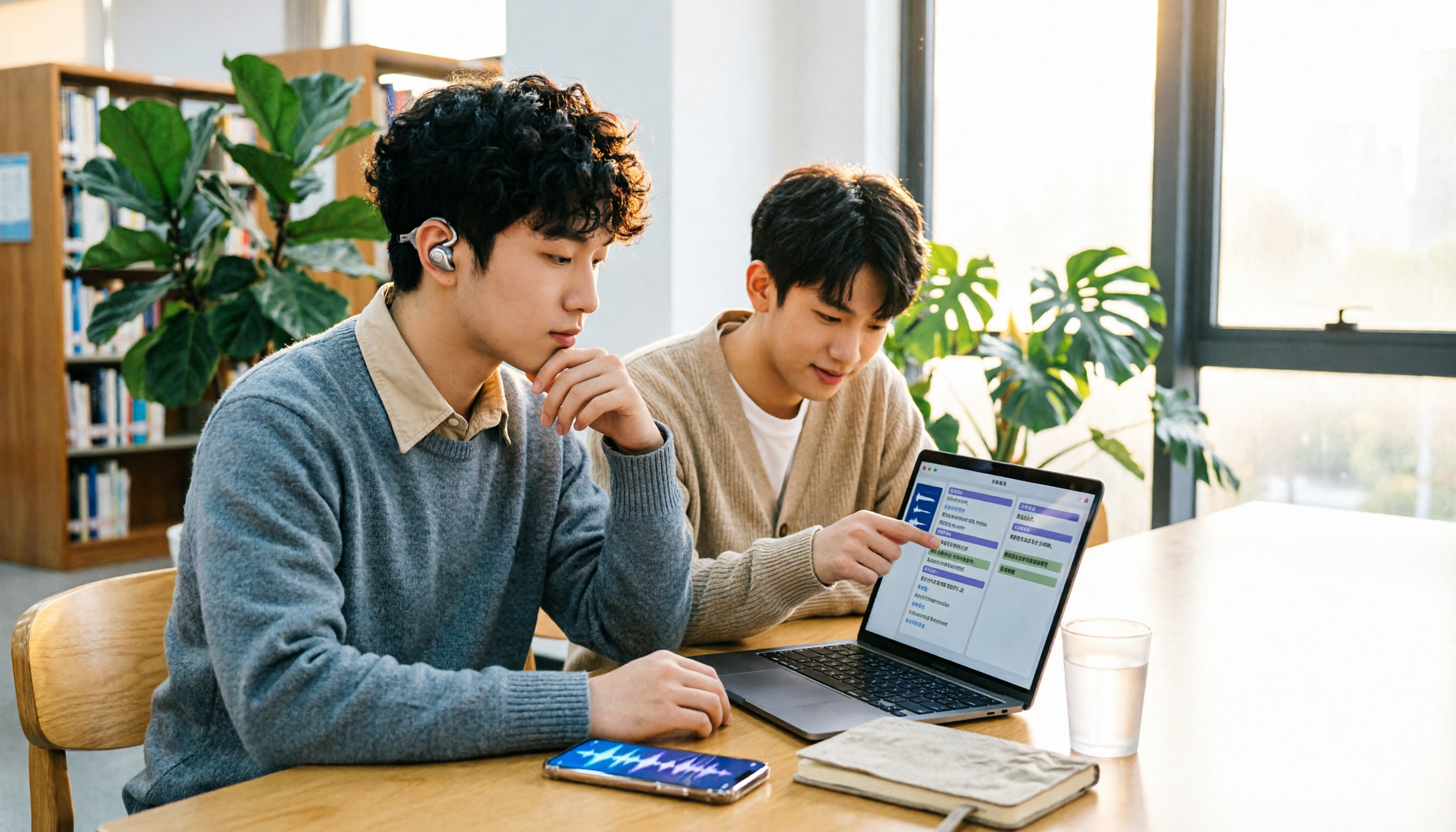
Classes and lectures: transcribe while recording, see the transcript in real time. Now I just open Tinrec and put it on my desk during class. It generates a live transcript while recording, and handles both Chinese and mixed Chinese-English. For cross-language classes (like English-taught general education or online courses), you can turn on live translation and view it in original, translated, or bilingual mode. This is especially noticeable in courses where "the professor speaks Chinese but the slides are all in English."
Group discussions and online meetings: no bot needs to join the meeting. Our project group meets online once a week via Zoom or Google Meet. Tinrec's desktop version captures your computer's system audio directly, meaning you don't need to invite an extra "meeting bot" into the room — which matters for a five-person group. One less account in the meeting list, one less awkward "who is this?"
Uploading recordings: turn old recordings into searchable material. This is the part I find most useful. Upload that three-hour recording on your phone, or a course video the professor provided, and Tinrec turns it into a transcript and automatically generates summaries, chapters, key points, and action items. The most impressive part is AI Q&A — I can directly ask it "which research method did we decide to use in this discussion?" or "who's responsible for submitting progress next time?" It doesn't just throw keyword search results at you; it answers based on the content. Before finals I asked it "what were the three key points the professor said would be on the exam," and the efficiency compared to re-listening from the start is a completely different world.
Output: not just viewable, but portable. Transcribed content can be exported to Notion, Google Docs, OneNote, Dropbox, and other common tools for further editing, and can also generate meeting minutes, reports, tables, and documents. For our project's midterm report, we first threw in the interview recordings, let it produce summaries and key points, and then I rewrote them myself.
If you're a team (lab, project group, student council): Tinrec's team version uses independent team spaces, not "multiple people sharing one account." You can create multiple teams, invite members via join links, set owners/admins/regular members, and distinguish "roles" from "seats" — members without seats can still view, play, and read team materials, but recording, uploading, editing, and importing/exporting require a seat. There are also team hotwords (add lab abbreviations for smoother recognition), usage analytics, audit logs, and an audio recycle bin. Currently, the first eligible team trial is 7 days, 1 free seat, and 300 minutes of shared team import quota; paid plans are USD 29.80 per paid seat per month (annual USD 199 per paid seat per year, roughly USD 16.58 per month), with each paid seat providing 2,000 minutes of shared team import quota per month. Live recording under an active plan and seat is currently not deducted by the minute. Actual prices, currencies, and promotions are subject to the official purchase page.
Stop organizing recordings by hand
Upload audio or video and automatically get a transcript, summary, and action items
Honest limitations: The free version provides basic recording, import, summary, and transcription quota; actual minutes are subject to official announcements and visible in your account after registration. If your usage is heavy, you'll need a weekly card, Pro monthly card, or annual card. Also, transcription accuracy is affected by recording quality, ambient noise, accents, people talking over each other, and technical terminology — it's not "unconditionally 98%." For important content I still cross-check against the recording. One more thing to be clear about: Tinrec's desktop version starts recording only when you actively turn it on — it doesn't automatically join every meeting on your calendar.
Besides Tinrec, What Other Options Are There?
Google Live Transcribe
A real-time captioning tool built into Android or available as a separate install, originally designed for people who are deaf or hard of hearing. It can be called up quickly on any screen, automatically adds punctuation and paragraph breaks in Chinese, and works well as a voice input method. But its positioning is "see captions in real time," not "organize material afterward" — you still have to copy and organize the output yourself. Tinrec can directly provide summaries, action items, and AI follow-up questions after transcription, which Live Transcribe can't do.
Pixel Built-in Recorder App
If you have a Pixel phone (based on current information, roughly Pixel 6 and later support multilingual transcription), the built-in recording tool can already produce Traditional Chinese transcripts, works well for meeting notes and voice memos, and is completely free. The limitation: it's tied to Pixel models, so it's gone when you change phones, and it wasn't designed as a cross-device database or for team collaboration. If your needs are cross-platform plus team sharing, Tinrec's web version, desktop version, and team spaces are more suitable.
Google Cloud Speech-to-Text (for clarification)
This is an API for developers, not an app for general users to download. It supports 85+ languages and dialects (Google's different product lines list anywhere from 85 to 125 languages; refer to the specific page), plus multiple models optimized for scenarios like telephony and profanity filtering. It's great if you want to write code to integrate it yourself, but you need to code first and pay by usage — too high a barrier for someone who just wants to record a class today. Tinrec is a ready-to-use product you just open.
Notta
A multi-platform transcription and translation tool. The free plan offers 120 minutes per month with a maximum of 3 minutes per session; Pro annual billing works out to about USD 8.17 per month (1,800 minutes per month), and Business is about USD 16.67 per seat per month. It performs well in pure transcription, subtitles, and translation, suitable for people mainly doing "file-to-text." I ultimately chose Tinrec mainly because of post-meeting organization for Chinese meetings, plus the whole set of roles, seats, usage, and auditing in team spaces — a combination that felt smoother for my own use.
Otter.ai
A veteran choice for English meeting assistants. The free Basic plan offers 300 minutes per month; Pro annual billing works out to about USD 8.49 per user per month, including 1,200 minutes of in-app recording and 10 file imports per month — quite generous. If you mainly record English content, it's more cost-effective than Tinrec; this is one of the few scenarios in this article where I recommend a competitor. But when I tried it with Chinese class recordings, it didn't feel as smooth, and it's built around English business meetings — Chinese plus team knowledge retention isn't its focus.
Pitfall Guide: The 4 Most Common Mistakes When Choosing a Speech-to-Text App
Pitfall 1: Assuming Google has one universal "speech-to-text app." This is the most common misunderstanding. Live Transcribe, the Pixel Recorder app, Google Docs voice typing, and the Cloud API are four different things: one is for real-time captions, one is tied to a phone model, one is a typing aid, and one is for engineers. First figure out whether you want "real-time viewing" or "post-meeting organization," so you don't download a bunch and delete them all.
Pitfall 2: Only looking at free minutes, not per-session limits and export restrictions. How big the free quota is isn't the point — the point is "how long you need to record at once" and "whether you can take the text with you." Some tools look like they offer a lot, but only allow 3 or 30 minutes per session, which kills long classes and long interviews.
Pitfall 3: Using the tool only as a typewriter. If you only use it for "recording to text," you're using only a third of its power. What really saves time is the post-meeting part — summaries, chapters, action items, and directly asking it "what was the conclusion of this discussion." I relied on this for finals review, without re-listening to three hours.
Pitfall 4: Ignoring teams and handovers. The pain point for project groups is "who has the data." When someone graduates or leaves, the recordings disappear with them. The team-version concept is that data belongs to the team and gets handed over when members change — much safer than storing it on a personal cloud drive. A reminder: before recording, tell your groupmates or meeting participants and obtain consent in accordance with local regulations — this is basic courtesy and a legal requirement.
Conclusion: Which One Should You Actually Choose?
To circle back: Google doesn't have a single speech-to-text app. First clarify whether you want "real-time captions" or "post-meeting organization," and half the answer emerges.
- Just want to see captions in class right away, occasional use → Google Live Transcribe (free, available on Android)
- Have a Pixel phone, only record your own classes, don't share with others → Pixel built-in Recorder app (free, but tied to phone model)
- Want to develop your own product, batch-process lots of audio files → Google Cloud Speech-to-Text (most flexible, but requires coding)
- Mainly record English meetings → Otter.ai (generous quota, the one exception recommendation)
- Chinese classes, group discussions, project interviews — need transcript + summary + action items + follow-up questions → Tinrec
- Lab or project team needs to share a meeting database → Tinrec team version (roles, seats, usage, auditing all in one)
My own approach is to start with the free version: after registering, you can see the actual quota in your account. Try it with one class or one group discussion first, and if the transcript quality and post-meeting organization really help you, then consider upgrading. Students have limited budgets — there's no need to pay right away. Run through the workflow with the free quota first, and you'll know whether you're someone who "just needs a typewriter" or "needs someone to organize things for you after the meeting."
(Please comply with local regulations when recording and transcribing, and obtain participant consent when necessary.)
References
- Speech-to-Text: AI voice input and transcription | Google Cloud
- Speech to Text - Google Play App
- Google Recorder App's built-in AI transcribes Traditional Chinese speech to text, switchable between Chinese, English, and Japanese
- Google Live Transcribe: highly accurate Chinese speech-to-text with automatic punctuation
- Convert speech to text | Gemini Enterprise Agent Platform | Google Cloud Documentation
Turn every recording into actionable outcomes
Get 60 free transcription minutes when you sign in. No credit card required.
Related Reading
You might also like

6 Google Meet Speech-to-Text Tools Tested and Compared for 2026: How to Choose Between Free and Paid
How do you transcribe Google Meet calls? This guide covers six practical methods, from Google Meet's built-in transcription and Google Docs' free dictation to AI tools like Tinrec, Notta, TurboScribe, and Otter. We compare free tiers, use cases, and pricing to help you choose the right solution for your meeting needs.

5 Free Google Speech-to-Text Options in 2026: A Complete Guide
Want to turn recordings into transcripts without spending money? This guide covers 5 free speech-to-text options in the Google ecosystem in 2026, from Google Docs voice typing and Android Live Transcribe to the Gemini app, Gemini Notebook, and Google AI Studio. We explain the free limits, length caps, and best use cases for each, plus a practical method for better meeting notes.

2026 Google AI Studio Speech-to-Text Buyer's Guide: 4 Tools Tested and How to Choose
Can Google AI Studio really turn recordings into transcripts for free? This guide tackles common misconceptions and compares four speech-to-text approaches—Google AI Studio, Tinrec, Notta, and Otter.ai—covering audio length limits, post-transcription processing, and team collaboration differences to help you pick the right tool for your workflow.

2026 Comparison of 4 Cantonese Speech-to-Text AIs: Which Saves the Most Time on Cantonese Transcripts?
Starting from the decision focus of 'what will this recording ultimately become,' this guide walks you through the complete Cantonese speech-to-text workflow: defining output format, ensuring recording quality, AI transcription, hotword proofreading, post-meeting organization, and export. It uses Tinrec's five-step process and explains the applicable boundaries of Cantonese-specific tools.

5 Cantonese Speech-to-Text Tools Tested for 2026: Free Tiers and Cantonese Accuracy Compared
We compare 6 Cantonese speech-to-text solutions in 2026, focusing on free quotas, Cantonese recognition, mixed Chinese-English, and spoken-to-written conversion. We list each tool's free limits and paid pricing to help you decide which one truly meets your needs.

4 Free Cantonese Speech-to-Text Tools Tested: Which Offers the Best Free Tier, Export, and AI Organization in 2026?
Searching for 'free Cantonese speech to text' yields many tools, but what matters is how far the free tier goes. This article compares Tinrec, Subanana, YouTuber AI, and cSubtitle from four angles: free quota, export limits, handling of colloquial Cantonese and mixed Chinese-English, and post-transcription organization. It also lists four common pitfalls to avoid.
4 Free Google Speech-to-Text Options for Computer in 2026: A Complete Review
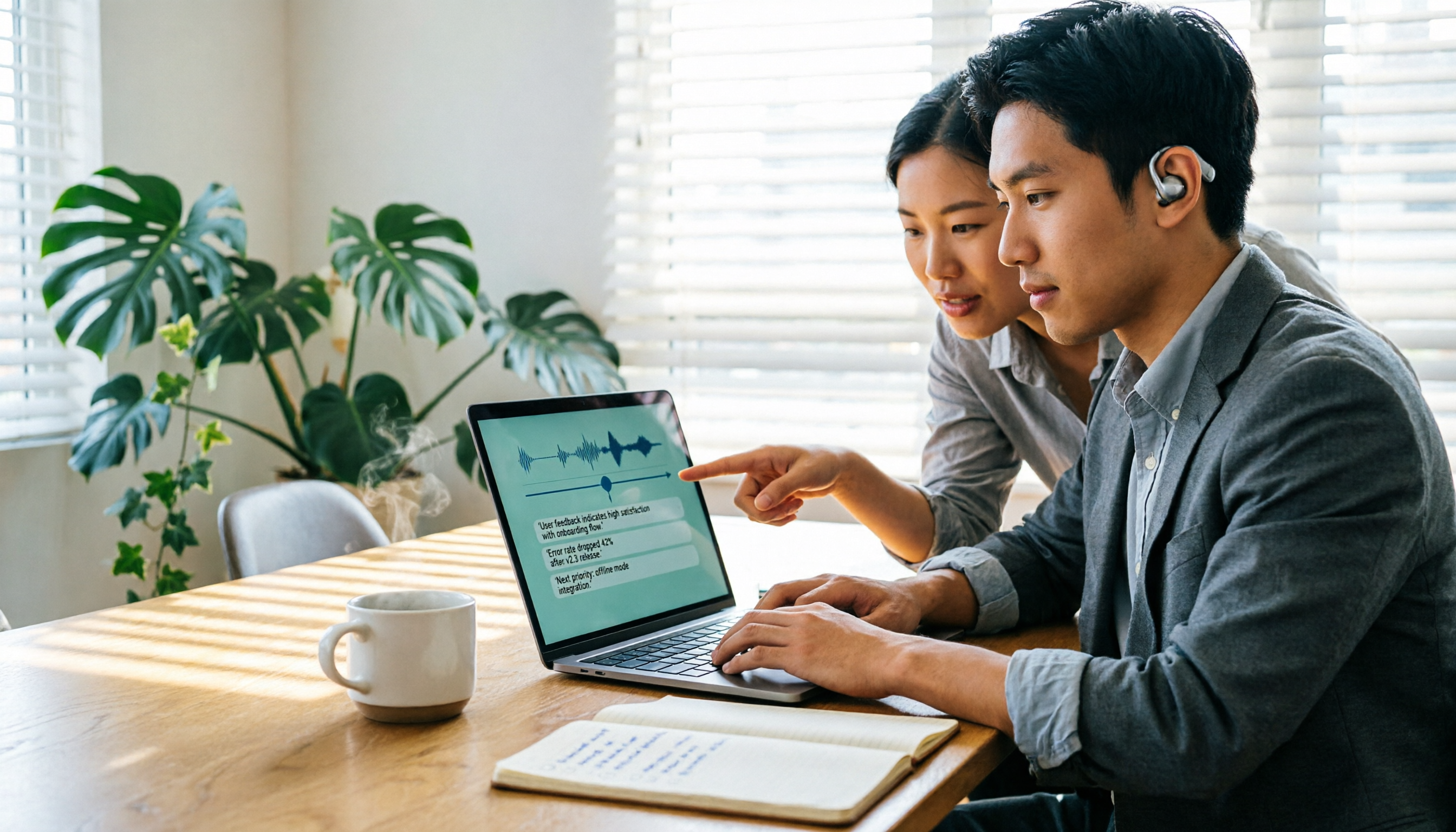
Want to use Google speech-to-text on your computer but find that meeting audio files don't work? This article reviews 4 practical speech-to-text solutions for computers, including Google Docs voice typing, Google Cloud Speech-to-Text API, pyTranscriber, and Tinrec, which I use for meeting notes. It explains each tool's free quota, limitations, and suitable scenarios.
2026 Client Visit Recording Tools Buyer's Guide: 6 Hands-On Reviews and Recommendations
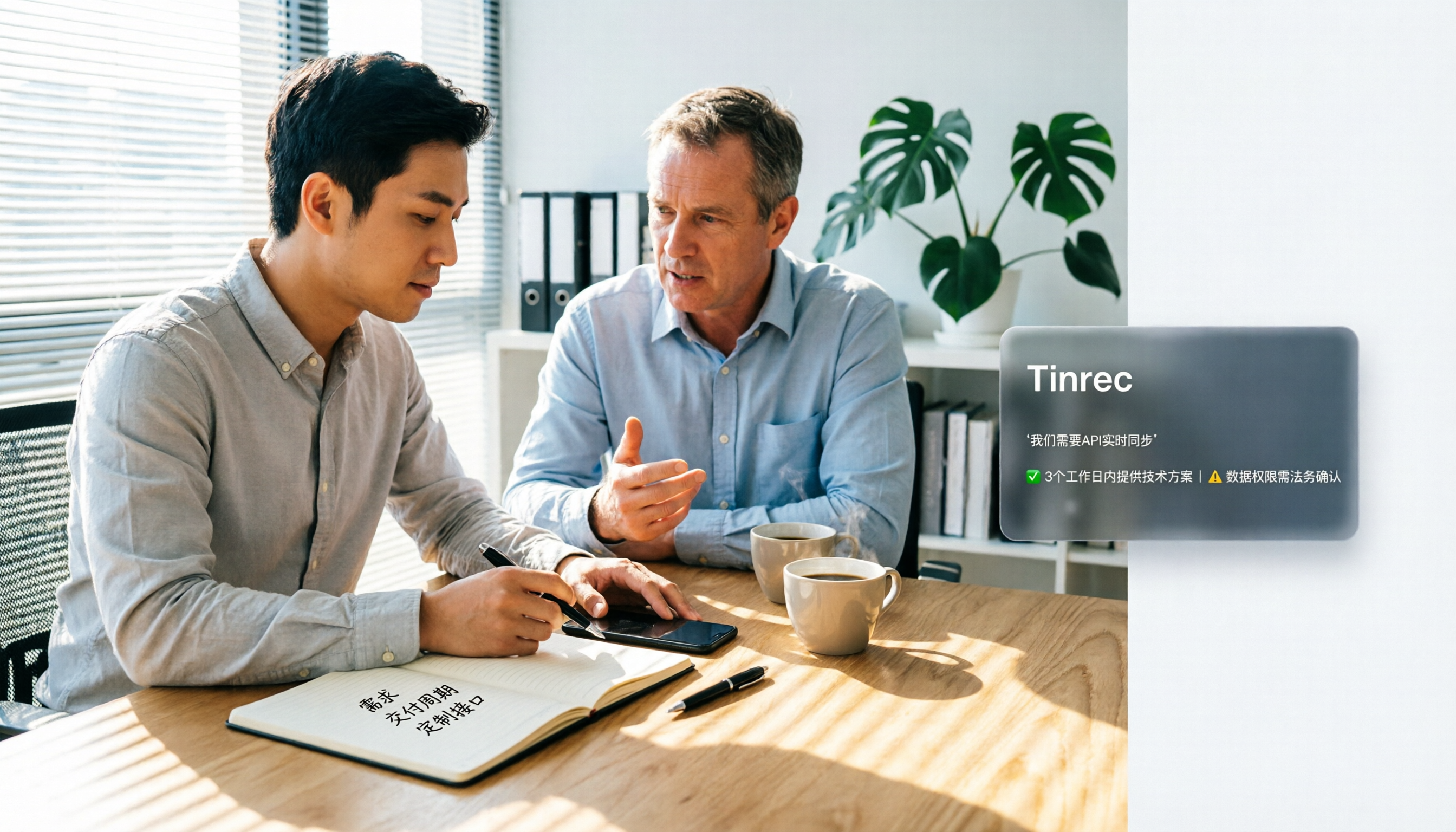
Client visit records aren't about filling out forms back at the office—they're about capturing the customer's needs, objections, and commitments. This article reviews 6 client visit recording tools, from Tinrec, Otter.ai, Notta, TurboScribe, Granola to PLAUD, comparing Chinese transcription, post-meeting summaries, AI Q&A, team knowledge retention, and pricing to help you choose based on your scenario.

2026 Comparison of 4 Free Customer Visit Record Templates: Excel Forms vs. AI Recording—Which Really Saves Time?
Starting from pitfalls encountered during an internship, this article outlines the fields a free customer visit record template should have and compares four approaches: Excel forms, cloud spreadsheets, document forms, and AI recording organization. Conclusion: Templates only solve the format; what truly saves time is using Tinrec to transcribe in real time during the visit, automatically generate summaries and to-dos after the meeting, and then export to your preferred record format.