

Turn recordings into transcripts and summaries in minutes
Upload audio or video for multilingual transcription, AI notes, and action items
2026 Windows 11 Recording Tools Tested: Which Saves the Most Time from Class to AI Summaries?
Last week before our group presentation, I opened a class recording I'd made on Windows 11 three weeks earlier, hoping to find the professor's grading criteria. After dragging the progress bar through 40 minutes, all I remembered was him saying "don't make the presentation too long"—I couldn't find any other key points. That's when I realized: recording isn't just about hitting record; the real question is whether you can find the key points afterward.
If you've ever been in these situations—can't take notes fast enough in class, want to re-listen to an online lecture, or no one remembers the conclusions from a group discussion—this article will walk you through my actual workflow this semester, from Windows 11 built-in recording all the way to AI organization. Bottom line first: if you're only recording a short clip, the built-in tool is enough; but if you're recording lectures, meetings, and group discussions, the key is "what you do after recording."
Pain Point: What You're Missing Isn't a Record Button, It's a Way to Organize After Recording
The first pain point is "recording but never re-listening." A two-hour class, a dozen or so classes per semester—re-listening to everything is simply impossible. The second pain point is "can't record system audio": many people use the built-in recorder for online classes only to find they've captured just the microphone, with the speaker's voice very quiet or completely missing. The third pain point is "group discussions with no conclusions": everyone talks over each other, and afterward all that's left is a recording file no one wants to click on.
This article won't just teach you to press the record button; instead, it breaks down Windows 11 recording methods into three layers: microphone recording, system audio recording, and post-recording transcription and AI organization. You can choose the shortest path for your situation.
Before Choosing a Windows 11 Recording Method, Understand These 4 Key Points
1. Are you recording the microphone or the sound coming from the computer?
For in-person classes, interviews, or your own speaking, microphone recording is enough. For online courses, YouTube, Zoom, or Teams audio, you need to record "system audio." The Windows 11 built-in recording app mainly captures the microphone and may not directly record internal computer audio—this is the first pitfall for many people.
2. Do you need to convert speech to text after recording?
If you're just saving a sentence, an .m4a file is enough. But for lectures or meetings, transcripts, summaries, chapters, and action items are what you'll actually use. Rather than listening from scratch after recording, choose a workflow that turns recordings into searchable text.
3. Does it understand Chinese and mixed Chinese-English?
In Taiwan, classes often mix Chinese with English terms, like "this KPI needs to align with OKR." If a tool is only good at English, Chinese proper nouns are prone to errors. Instead of trusting ads that say "supports multiple languages," try a segment with your own recording.
4. Is the free quota enough for a semester?
Students have limited budgets, so free quotas matter, but don't just look at minutes. Check whether the free version allows export, summaries, and questions. Some tools give lots of free minutes but charge for organization features; others let you experience the full workflow for free but with a smaller quota.
Tinrec (秒聽錄音)—My Current Go-To: Record, Then Ask AI for Key Points
Tinrec (秒聽錄音) is an AI meeting notes and collaboration tool for individuals and teams. It doesn't just convert speech to text; it organizes recordings into searchable, summarizable, queryable, and exportable data. For a student like me who wants to find key points right after recording, it solves the cost of re-listening, not just the recording function.
My own usage is simple: during class or group discussions, I use real-time recording to transcribe as I record; for online courses, I use the desktop version to capture computer system audio, handling meeting audio from Zoom, Google Meet, Microsoft Teams, Webex, etc., without pulling a meeting bot into the class. This is very practical for students—some classes don't accept extra bots joining, so rather than risk it, just record directly with the desktop app.
After recording is where it really shines. Tinrec generates a transcript and automatically organizes summaries, chapters, key points, and action items. For example, after our group discussion, I'll look at the summary to confirm "who's responsible for which page, what needs to be submitted before the next meeting." If the professor mentions report formatting in class, I can ask the AI: "What are the report formatting requirements the professor mentioned?" It answers based on the recording content, not just keyword search results. This is way faster than dragging back and forth through a 40-minute audio file.
It can also import existing audio or video files. Once I put in an interview recording, first converted it to a transcript, then had it organize key points and action items. Output can be exported to common formats and brought into tools like Notion, Google Docs, or OneNote to continue writing reports. For a department like Information Management that often does collaborative notes and projects, it's like connecting "recording" with "documents" and "task division."
Stop organizing recordings by hand
Upload audio or video and automatically get a transcript, summary, and action items
I'll sum up the advantages in three points: first, the desktop version can record online meetings without a bot, so you don't need to ask the teacher to add a bot for a last-minute recording; second, the workflow for Chinese meetings, mixed Chinese-English, and real-time translation is smoother, suitable for Taiwanese classrooms; third, after the meeting you get not just a transcript but also summaries, action items, and AI Q&A, making it noticeably faster to find key points.
Limitations should also be clear: the free version is a basic quota; if you record every class and organize interviews weekly, heavy use will require payment. Actual transcription quality is affected by microphone quality, classroom noise, accents, and overlapping speakers, so for important content I still go back to the transcript and recording to confirm. For group projects where multiple people need to share data, the team version has independent team spaces, member roles, seats, shared import quotas, and usage management; trials and pricing are subject to the official website. For individual student use, start with the free version or a short-term plan.
Besides Tinrec, What Other Recording Methods Does Windows 11 Have?
Windows 11 Built-in "Voice Recorder" App: Free, Fastest, but Only for Basic Microphone Recording
Press the Win key and search for "Voice Recorder" or "Sound Recorder" to open it, press the central blue microphone to start, and it automatically saves as .m4a when stopped; files are usually in "Documents > Sound recordings." It requires no installation and has a simple interface—handy for recording a quick memo. But it mainly records the microphone, can't reliably record system audio, and has no AI summaries or Q&A; if you want to organize class key points, you'll still need to put the file into a tool like Tinrec.
Xbox Game Bar: Records Screen and Sound Together, Not a Pure Audio Tool
Press Win + G to open Xbox Game Bar, and use "Capture" to record screen and audio, suitable for recording gameplay or tutorials. But it can't record audio alone—it captures the screen too, and files are larger. If you just want an audio file and transcript, Game Bar isn't the most convenient choice; Tinrec can directly process audio and meeting content and also produce summaries and action items.
Stereo Mix: Can Record System Audio, but Not Every Computer Has It
Stereo Mix is a recording option on the sound card; once enabled, it can record audio output from computer speakers. Go to "Settings > System > Sound > More sound settings > Recording" to see if "Stereo Mix" is available; if so, enable it and set it as the input device. The problem is some sound cards don't support it, and it has no editing or AI organization. Tinrec's desktop version directly records system audio for online meetings and can also convert content into transcripts and summaries, which is more reliable for online classes.
Otter.ai: A Free Choice for English Meetings, Not Ideal for Chinese
Otter.ai is a mature English AI meeting assistant with a free tier of 300 minutes per month, great value for those who only record English classes or international exchanges. But if you mainly record Chinese classes or mixed Chinese-English group discussions, Tinrec's Chinese meeting experience and post-meeting Chinese Q&A will be more intuitive; Otter is better suited for English-dominant scenarios. Pricing and quotas are subject to Otter's official page.
Pitfall Guide: The 4 Most Common Mistakes When Choosing a Windows 11 Recording Method
Pitfall 1: Mistaking "voice typing" for recording.
Win + H is voice typing, which converts speech to text in real time but doesn't save an audio file. To record, you still need a recording app or a tool like Tinrec.
Pitfall 2: Assuming the built-in recorder can always record system audio.
Many people only discover during an online class that they've captured just microphone audio. If the speaker's voice comes from the computer, check Stereo Mix or switch to desktop system audio recording.
Pitfall 3: Only looking at free minutes, not organization features.
300 free minutes sounds like a lot, but if you can't summarize, ask questions, or export freely, you'll still end up re-listening manually. Choose a tool based on "can it directly produce key points after recording."
Pitfall 4: Ignoring consent and privacy for recording situations.
Before recording classes, meetings, and interviews, it's best to inform participants; when personal data or sensitive content is involved, follow local laws and school policies. No matter how convenient the tool, it shouldn't be used for secret recording.
Conclusion: Which One Should You Choose?
To sum up in one sentence: Windows 11 built-in recording solves "capturing it," Tinrec solves "what to do after recording." If you're only recording a quick memo, the built-in Voice Recorder is enough; but if you're dealing with classes, online meetings, and group projects, I'd make Tinrec my main tool.
- Want to record classes or lectures without re-listening → Tinrec: transcript, summary, chapters, and AI Q&A all in one.
- Zoom, Google Meet, Teams online classes → Tinrec desktop version: captures system audio, no bot needed.
- Already have a bunch of recordings to organize → Tinrec: import audio or video, convert to searchable text and action items.
- Group projects needing shared meeting data → Tinrec team version: team spaces, roles, seats, and shared quotas, suitable for multi-person collaboration.
- Only recording a sentence or gameplay → Windows 11 built-in recorder or Xbox Game Bar: free and sufficient, but don't expect AI organization.
I suggest starting with Tinrec's free version for a class or two—pick a class you'd actually re-listen to and try recording it. If the free quota is enough for you, no need to rush to pay; if not, choose a short-term or Pro plan based on your usage frequency. For students, the most expensive tool isn't the best—it's about whether it can save you time for reports and exams.
References
- How to Record Internal Computer Audio on Win11? 5 Methods Explained + Complete Tutorial - EaseUS
- Complete Windows Computer Recording Tutorial (2026) | Built-in Features, Software, and Advanced Solutions
- How to Record Audio on Windows 11? 5 Tools Tested: From Built-in to AI Transcription Efficiency Comparison - 秒聽錄音Blog
- 4 Computer Recording Methods Decoded! Simple and Easy, Record Computer Audio Effortlessly [2026 Latest]
- Master Recording in Windows 11: A Guide to Using the Built-in Voice Recorder
Turn every recording into actionable outcomes
Get 60 free transcription minutes when you sign in. No credit card required.
Related Reading
You might also like

5 Free Real-Time Transcription Tools Worth Trying in 2026: Traditional Chinese Recognition and Free Quotas Explained
Many people misunderstand free transcription tools, thinking that free means unlimited recording. This article reviews the free quotas, real-time transcription capabilities, and limitations of five tools: Tinrec, Yating Transcription, Good Tape, Notta, and TurboScribe, with a comparison table verified in August 2026 to help you determine which one truly meets your needs.

2026 Real-Time Transcription Cost Comparison: Yating at $100/Hour vs. Tinrec Team Plan—Is It Worth It?
When searching for 'real-time transcription cost,' the most common mistake is assuming 'free real-time recording' means the entire service is free, or comparing audio hours with seat fees. This article breaks down the billing logic, free quotas, online meeting capture methods, and post-meeting organization costs of Yating Transcription and Tinrec Team Plan across five dimensions to help you calculate the real cost.

2026 Comparison of 4 iPhone Recording Apps: Which One Turns Recordings into Searchable Meeting Data?
2026 iPhone recording app comparison: Apple's built-in Voice Memos is great for quick recordings, while Tinrec excels at post-meeting transcription with summaries, action items, AI Q&A, and team knowledge retention; Otter.ai and Notta have strengths in English meetings and file transcription. This article runs the same Chinese meeting recording through each app's workflow, and provides buying criteria, pitfalls to avoid, and scenario-based recommendations.

Samsung Call Recording Guide 2026: Built-in Features, Free Apps, and Recording Management Limits
Whether a Samsung phone has call recording depends on the model, One UI version, and region. This article covers how to check for built-in features, free third-party apps, screen recording, and hardware solutions, and explains how to use Tinrec to transcribe and summarize call recordings, along with limitations and legal reminders.

2026 Comparison of 4 Windows Recording Methods: What Happens After Recording Is Key
Windows has built-in recording features, but Voice Recorder, Xbox Game Bar, OBS, and AI meeting tools solve completely different problems. Based on real usage scenarios, this article breaks down the limits of four recording methods and explains why 'how you organize after recording' is the key to efficiency.

Where Are iPhone Recordings in 2026? 5 Steps to Find Voice Memos and Organize Highlights
Can't find a recording after you finish? It's one of the most common iPhone frustrations. This guide starts with the usual mistake, shows you exactly where the Voice Memos app lives, walks through 5 steps to record, rename, export, and share, and lists 6 ways to process recordings afterward—so your audio becomes searchable, queryable data.
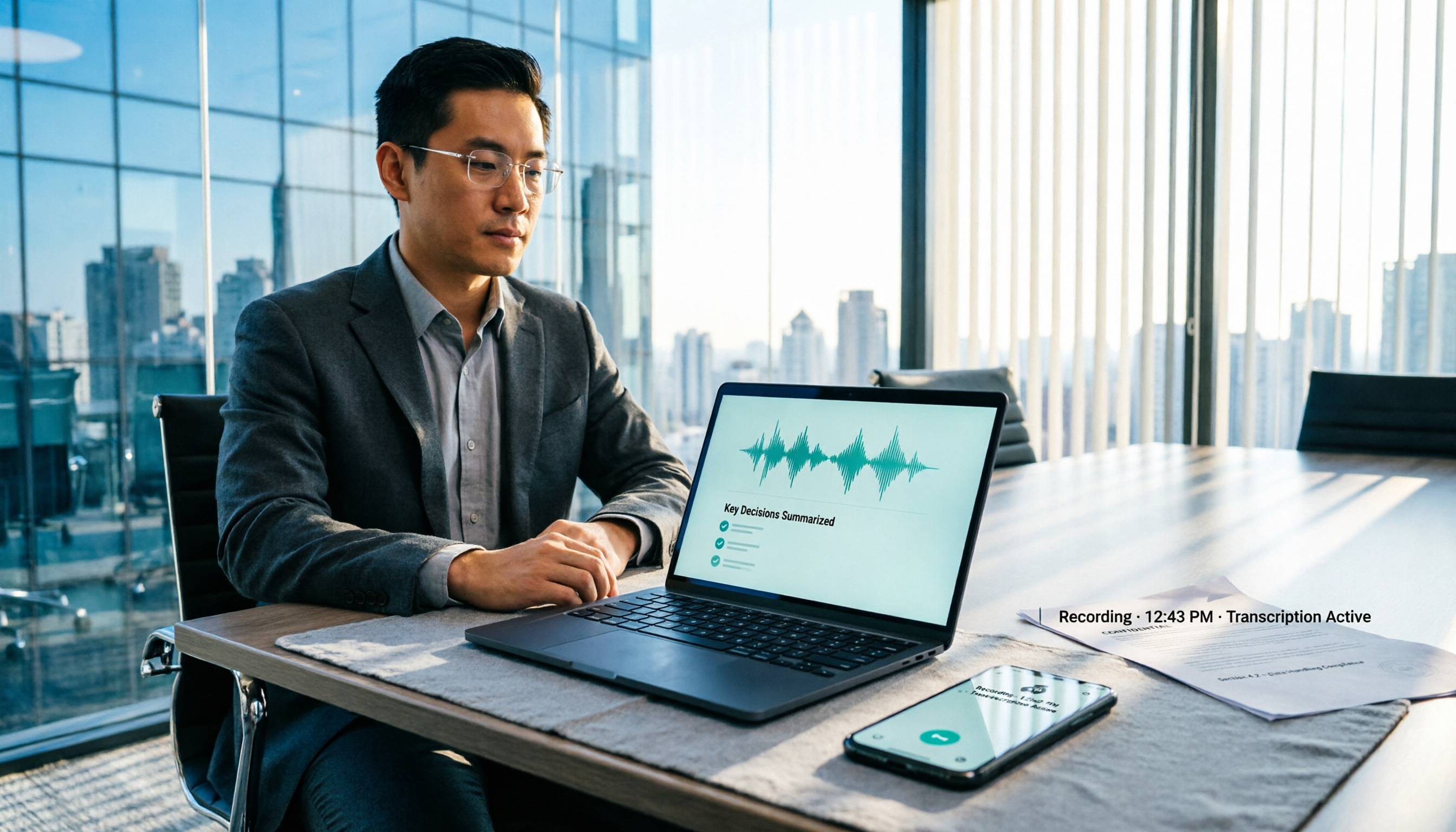
5 Meeting Recording Scenarios in 2026: Which Protect You and Which Violate Criminal Law?
Is recording a meeting illegal? This article compares 5 common scenarios against Article 315-1 of the Criminal Code, the Communication Security and Surveillance Act, and Article 12 of the Labor Standards Act. It outlines practices that can protect you and those that risk breaking the law, and compares workflows for using Tinrec to organize transcripts, summaries, and action items after recording, along with official pricing and quotas for each tool.
3 iPhone LINE Call Recording Methods Tested for 2026: Which One Turns Recordings into Transcripts
LINE has no built-in call recording, and iPhone users often discover after recording that they only captured their own voice. This article addresses three common misconceptions and compares iOS 26 native capture, screen recording, and post-recording transcription workflows, explaining how to turn a call recording into searchable, queryable, actionable meeting data.

Best AI Recording Tools in 2026: 5 Tested, This One Wins for Chinese Meetings
How to choose an AI recording tool? Start with the key question: where does your meeting happen? This guide uses Tinrec to demonstrate 5 steps from recording and transcription to summaries, action items, and AI follow-up questions. Then it compares 5 tools—Penpower AI Voice Recorder, Plaud, soundcore Work, built-in phone apps, and NotebookLM—to help you pick the right combo.