

Turn recordings into transcripts and summaries in minutes
Upload audio or video for multilingual transcription, AI notes, and action items
Search for "live transcription" on Dcard and you'll see two completely different sets of answers. One is the free approach that was widely discussed around 2024: iPhone Notes dictation, Yating Transcription, OpenAI Whisper, and using NotebookLM to organize notes. The other is the discussion of AI meeting tools that started appearing in the past year or so.
What most people actually get stuck on isn't "which one recognizes speech more accurately." The real key is: do you want a transcript, or do you want meeting minutes you can take straight into a meeting? For the former, you just need to turn audio into text, and free tools are enough. For the latter, you also need to turn the transcript into summaries, chapters, action items, and shareable team materials—so the tool choice is completely different.
This article uses Tinrec (Miaoting Recording) as an example to break down the "live transcription → meeting minutes" workflow into 5 steps. The tools and quotas mentioned here are based on data verified in 2026. The 2024 discussions on Dcard are still an important reference for free entry-level options. For actual plans, please refer to each official website.
Before You Start | What You Need to Prepare
- A device that can record audio or host meetings. Tinrec has a web version, desktop app, and mobile app. For online meetings, the desktop version works best.
- A Tinrec account. The free version provides a basic quota, so you can run one or two meetings first before deciding whether to upgrade.
- An audio segment you want to organize. It can be a live recording, an online meeting, or an audio or video file already on your computer.
- A stable internet connection. Live transcription and AI Q&A both require connectivity.
- A habit: inform participants before recording. Recording involves personal data and consent issues, so this step cannot be skipped.
Step 1 | First, Record the Content You Want to Transcribe
The purpose of this step is to get a clear audio recording, which every subsequent step depends on.
For offline meetings or interviews, start Tinrec's live recording directly. Place your phone or laptop in the center of the table, closer to the main speaker. For online meetings, use the desktop version to capture the computer's system audio directly. It works with Zoom, Google Meet, Microsoft Teams, and Webex without needing to invite an extra meeting bot.
Why does this order matter? Because transcription quality largely depends on audio quality. Rather than spending half an hour fixing typos afterward, it's better to spend 30 extra seconds before recording to check your position and ambient noise.
Once done, the recording will appear in your list, and you can proceed to the next step.
Step 2 | Let AI Turn the Audio into a Transcript
The purpose of this step is to turn audio into text that can be searched and quoted.
Tinrec transcribes in real time as you record, so you can see the transcript gradually appear during the meeting. For cross-language meetings, you can enable live translation and view it in original text, translated text, or bilingual mode.
Already-recorded files are handled the same way: upload the audio or video file and let AI convert it to text. This differs from some tools that only support live meetings—historical recordings can also be imported.
Step 3 | Spend a Few Minutes Proofreading the Transcript
The purpose of this step is to turn the transcript from "roughly understandable" into "quotable."
AI transcription will inevitably make mistakes with proper nouns, names, and product codes. Tinrec's transcript can be corrected while listening, and it supports searching for key passages, so you don't need to read from the first paragraph to the last. The team version also has a hotword feature that lets you maintain company-specific terminology to improve recognition of professional vocabulary.
Here's a realistic reminder: transcription accuracy is affected by recording quality, ambient noise, accents, and overlapping speakers. For important numbers, amounts, and commitments, it's recommended to replay the original audio at the corresponding timestamp in the transcript to confirm, rather than trusting the text directly.
Step 4 | Let AI Generate Meeting Minutes, Chapters, and Action Items
The purpose of this step is to upgrade the transcript into content that others can understand and act on directly.
Stop organizing recordings by hand
Upload audio or video and automatically get a transcript, summary, and action items
Tinrec automatically generates summaries and chapters, so for long meetings you can just read the key sections. Action items are extracted separately, providing a basis for assignment and follow-up. If you need more, you can use Agent post-processing to generate reports, tables, or document formats from the meeting content.
This step is the dividing line between a "transcript" and "meeting minutes." A transcript answers "who said what just now," while meeting minutes answer "so what do we need to do."
Step 5 | Export, Share, or Keep in the Team Space
The purpose of this step is to integrate the meeting results into your existing workflow.
For one-time use, you can export to common file formats or take it directly to Notion, Google Docs, OneNote, or Dropbox for further editing. For regular team meetings, it's recommended to put it in the team space: data belongs to the team, new members can see historical meetings after joining, and when members leave or lose their seats, resources can be handed over to others instead of disappearing with individual accounts.
FAQ and Troubleshooting
Q: Is the free version quota enough?
The Tinrec free version provides a basic quota that lets you experience recording, importing, summaries, and transcription. If your meeting volume is not large, starting with the free version is reasonable. If you have a short-term burst of meetings or interviews, consider a weekly card. If you have stable weekly usage, then evaluate Pro. For actual quotas and prices, please refer to the official website.
Q: Do online meetings always require inviting a bot into the meeting room?
Not necessarily. Tinrec's desktop version takes the approach of capturing system audio, so no extra participant needs to join the meeting. However, note that this is you actively starting a recording, not automatically joining all calendar meetings.
Q: What if the transcript has many typos?
First check the recording quality and microphone distance, then consider building a hotword list. Most transcription tools use the same default model for all recordings and have no room for hotwords or contextual adjustments—this is where the difference lies.
Q: Can all team members edit meeting materials?
In the team version, it's important to distinguish between "roles" and "seats." Roles determine who can manage the team, members, and audits; seats determine whether members can record, upload, edit, and import/export. Active members without seats can still view, play, and read team materials.
Q: Can team recordings be recovered after deletion?
Audio goes into the team recycle bin and is currently retained for 30 days. It can be restored before permanent cleanup. After the deadline, it is handled according to the team's data cleanup process.
Advanced Tips | 3 Ways to Make Tinrec More Efficient
- Use AI Q&A to follow up on past meetings. Instead of re-listening to a two-hour recording, just ask "What were this client's concerns about pricing last time?" and AI will find the answer from meeting data. Tools that only provide transcripts without a meeting database can't do this.
- Enable bilingual transcripts for cross-language meetings. For meetings with mixed Chinese and English, viewing original text alongside translation is closer to the live context than translating the whole document afterward, and less likely to misinterpret the original meaning.
- Use team hotwords and Agent post-processing to wrap up. Hotwords improve recognition of technical terms, and Agent turns meeting content into reports or tables, so you don't have to retype everything after the meeting.
If You Don't Use Tinrec, These Free Methods on Dcard Can Hold You Over
- iPhone/iPad Notes: Built-in dictation, supports Chinese and English, free. Suitable for quick notes of short segments; less effective for long meetings and distant audio.
- Yating Transcription: Supports simultaneous recording and live transcription, and can also convert audio files to text. Can save as plain text and subtitle files.
- OpenAI Whisper: Open-source speech-to-text model, suitable for people with technical backgrounds who want to batch-process large amounts of audio themselves.
What these tools have in common is that they do the "turn audio into text" part well, but for post-meeting summaries, action items, Q&A, and team archiving, you still need to find other solutions. If that's exactly what you need, choosing a tool with a post-meeting workflow will save you a lot of trouble.
Conclusion
Back to the initial judgment: if you only need a transcript, those free methods on Dcard are enough. If you want meeting minutes that "can be taken straight into a meeting after recording and reused by the team," then running through the 5 steps will be much faster than patching things up afterward.
The specific approach is: use Tinrec to record or import files, let AI transcribe, spend a few minutes proofreading key passages, generate summaries and action items, and finally export or keep in the team space. The free version lets you run through the complete workflow once. Try it with a recording of one of your own meetings—it's easier to judge whether you need to upgrade.
References
- Free AI transcription (with timeline), create meeting minutes! - Teacher forum | Dcard
- Latest discussions on transcription | Dcard
- Use AI for free to quickly convert speech to transcript - Teacher Fangfang, Teaching with Method (@changsheng0612) | Dcard
- AI organizes recording transcripts and video subtitle files #Whisper #InflowWeekly - Inflow (@geo1995) | Dcard
- Speech-to-text APP recommendations 1. iPhone/iPad "Notes" APP - Supports real-time text conversion - Cost: Free - Supports Chinese and English -
Turn every recording into actionable outcomes
Get 60 free transcription minutes when you sign in. No credit card required.
Related Reading
You might also like

2026 Real-Time Transcription Cost Comparison: Free Tiers and Per-Hour Pricing Explained
Real-time transcription costs vary widely: human transcription starts at NT$900 per hour, while AI tools offer free tiers. This article breaks down pricing units, free tier definitions, post-meeting organization costs, and team seats, comparing Tinrec, Yating Transcription, Otter.ai, and TurboScribe to help you calculate the truly cost-effective choice.

Tinrec Real-Time Transcription Review (2026): Live Transcription + AI Summaries & Action Items
A mid-level manager with a 10-person team tested AI real-time transcription tools, focusing on meeting recording, live transcription, post-meeting summaries, and action items. This review explains how to use Tinrec, how it differs from Otter.ai, whether the free version is sufficient, and when to upgrade to the team plan.

3 Real-Time Transcription Tools Tested: Which One Turns Meetings into Searchable Records?
The meeting ends, but the real work begins. We tested Tinrec, Otter.ai, Notta, and Granola—comparing recording methods, live transcription, AI summaries, Q&A, team collaboration, and pricing—to help you decide which tool truly saves post-meeting cleanup time.
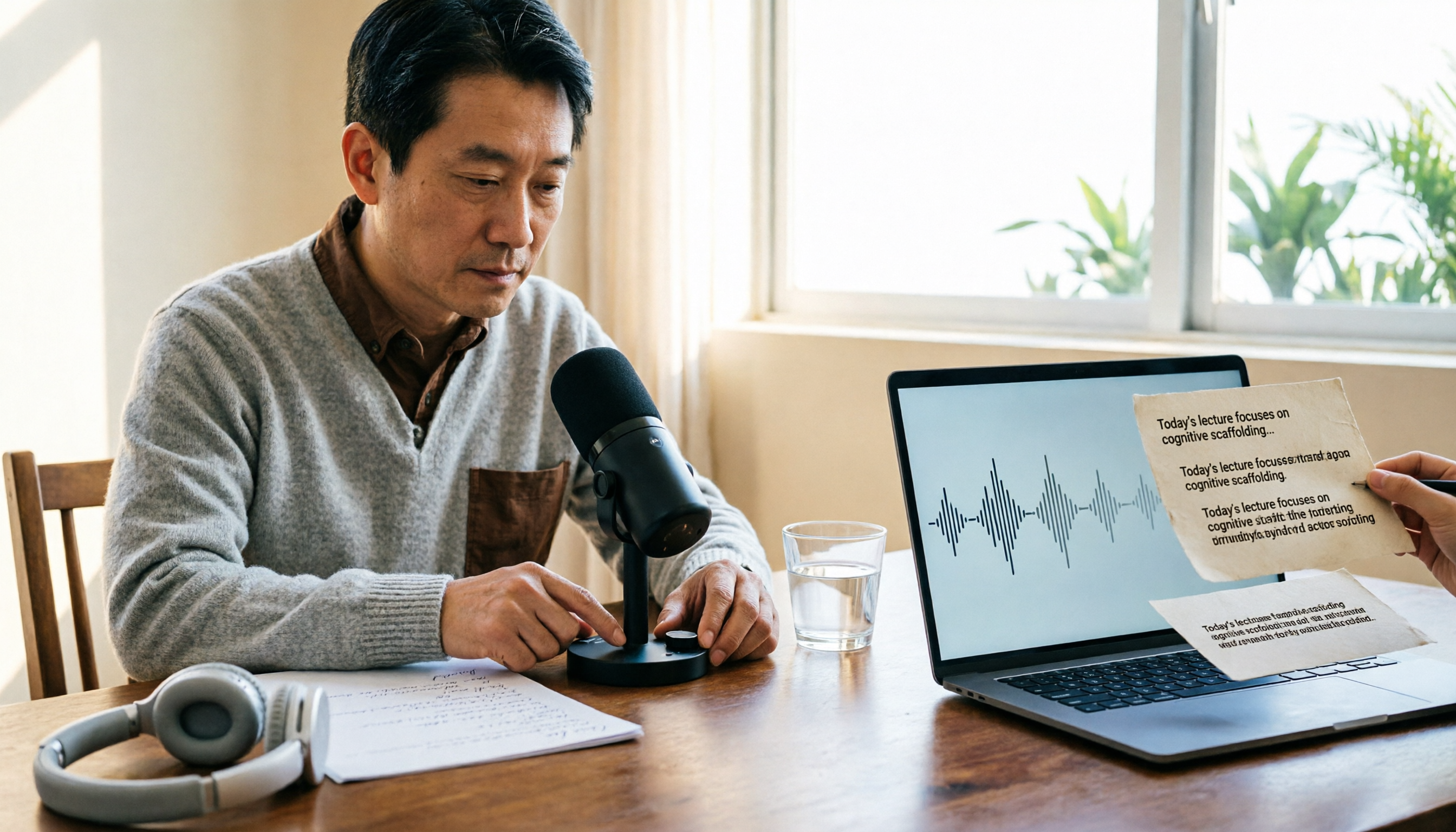
2026 Comparison of 4 Live Transcription Tools: Which Saves the Most Time for Lecture Recordings?
Turning lecture recordings into deliverable transcripts requires more than just speech-to-text. This article first demonstrates basic and descriptive transcript writing styles, then compares Tinrec, Notta, Otter.ai, and Granola using the same criteria, covering key purchasing factors, common misconceptions, and scenario-based recommendations.

2026 Comparison of 4 Real-Time Transcription Tools: Whose AI Organization Actually Saves Time?
How to choose a real-time transcription tool? This article tests and compares Tinrec, Otter.ai, Notta, and TurboScribe from four perspectives: meeting scenarios, Chinese recognition, post-meeting organization, and team collaboration, to help you determine which one truly saves time on post-meeting organization.

How to Do Real-Time Transcription in 2026: 5 Steps from Recording to Meeting Minutes
Real-time transcription isn't just pressing record. This article starts with three common pitfalls and breaks down the process into 5 steps: language settings, audio capture, speaker identification, and proofreading/export. It also compares the features, positioning, and available quotas of Tinrec, Yating Transcription, Whisper, Notta, Otter.ai, TurboScribe, and PLAUD using a consistent framework.

6 Best Live Transcription Tools in 2026: Free Tiers, Chinese Support, and Use Cases Compared
Searching for "free live transcription" often leads to the wrong first choice. This article breaks down the difference between real-time and upload transcription, the three hidden limits of free plans, and then reviews six live transcription tools in 2026—their positioning, free quotas, paid pricing, and ideal users—with a comparison table and selection guidance to help you choose the right tool within budget.

3 Recommended Real-Time Transcription Tools for 2026: Academic Interviews and Meeting Notes Made Easy
Many people choose real-time transcription tools based only on whether text appears during recording, but overlook that post-meeting organization is where the real time is spent. This article compares Tinrec, Meeting Ink, and Yating Transcription from the perspectives of academic interviews and meeting notes, and outlines key considerations for pricing, language support, AI Q&A, export, and team collaboration.

Best Free Real-Time Transcription Tools in 2026: 5 Options Compared
Still re-listening to recordings after meetings and interviews? This guide covers 5 real-time transcription tools frequently discussed on PTT and social media in 2026, from completely free to free-tier options. It includes the positioning, core features, free quotas, and ideal use cases for Tinrec, Yating Transcription, Otter.ai, Notta, and TurboScribe, plus a needs-based selection guide to help you pick the most time-saving option.