

Turn recordings into transcripts and summaries in minutes
Upload audio or video for multilingual transcription, AI notes, and action items
Last week's meeting: I missed two things
At last Wednesday's project meeting, I assigned three tasks: a quote, a client follow-up, and a timeline due next week. Two days later, I asked one team member for an update, and he replied: "Did you mean Plan A or Plan B?"
I opened my notebook. It had only four words written in it.
It wasn't his memory that failed—I simply hadn't recorded things clearly. The meeting lasted 70 minutes. I was listening while thinking about the numbers I needed to report to my boss in the next meeting, and by the time I needed to write down key points, my mind had drifted away.
That's when I started using iPhone recording. This article isn't about teaching you to "press the red button to start recording"—that takes three minutes to learn. What I want to cover is: what to do after recording, and which free solutions in 2026 can actually save you those two hours after a meeting.
First, answering your question: How do you record audio on iPhone?
The most basic method is simpler than you think:
- Open the Voice Memos app. It's in the Utilities folder (searching "Voice Memos" in Spotlight is faster).
- Press the red record button to start. You can pause and resume during recording, and press stop to automatically save when done.
- On supported models, recording with the built-in microphone automatically records in Spatial Audio; older models default to mono. To switch to stereo, go to Settings and enable "Stereo Recording."
- To improve audio quality, you can connect an external microphone or audio interface. Look for accessories with the Made for iPhone or Works with iPhone badge for reliability.
- To record phone calls, iOS 18.1 and later has a built-in feature: during a call, tap "More," then select "Call Recording." Note that when activated, both parties will hear a system notification sound indicating recording.
- Before recording, do a 10-second test. Speak at normal pace and distance, then play it back immediately to confirm the volume is adequate and there's no background noise—these 10 seconds can save an entire unusable recording.
A legal reminder upfront: In Taiwan, recording involves consent from both parties, and the Criminal Code's privacy provisions are no joke. To record calls or in-person conversations, inform the other party and obtain consent first—this is basic practice, not a technical issue.
How to choose a free solution? Understand these 4 key points first
1. Do you want a "file" or "usable content"?
Voice Memos gives you an audio file. But if you're like me and need a conclusion you can send to your boss or a to-do list you can assign to your team after a meeting, then "recording it" is just the first step. The difference lies in whether the tool can turn audio into text and then organize that text into structure.
2. Free tiers are calculated in two ways—don't be fooled by the numbers
One is "minutes per month," the other is "files per day, length per file." On the surface, 300 minutes sounds more generous than 120 minutes, but if the maximum recording length is only 3 minutes, you'd have to split a 40-minute meeting into a dozen segments—that kind of free tier is basically useless for working professionals. Check the limitations carefully before choosing.
3. Can it record online meetings?
This is the most overlooked point in 2026. Your phone's microphone records "sounds in your room," but if you're wearing headphones on Zoom, Meet, or Teams, the other party's speech won't reach your phone's microphone at all. To record online meetings, you need a desktop tool that can capture your computer's system audio.
4. Where is the recorded data stored?
If it's on your personal phone, it's gone when you change phones, leave the company, or forget to back up. If these meeting contents are valuable to the team, the data should be stored somewhere everyone can find and new hires can access. This is the dimension I care about most now.
Tinrec (秒聽錄音) — No more spending two hours organizing after recording
Tinrec (秒聽錄音) is an AI meeting notes and collaboration tool for individuals and teams, available on iOS, Android, desktop, and web. What it handles isn't "can you record it" but "those two hours after recording."
During a meeting, open real-time recording and get a live transcript as you record; when the meeting ends, the summary, chapters, and action items are already on screen—who's responsible for what, what's due next week—no need to listen back to a 70-minute audio file. For online meetings, use the desktop version to directly capture computer system audio, handling Zoom, Google Meet, Microsoft Teams, and Webex without inviting an extra meeting bot into the room. This makes a real difference for me: when a client meeting suddenly has a "recording bot" account appear, it's actually a bit awkward.
Stop organizing recordings by hand
Upload audio or video and automatically get a transcript, summary, and action items
My own approach is to ask questions directly about the recording after the meeting. For example, "What was the budget cap the client mentioned in this meeting?" or "What was the delivery date we discussed last week?" It answers based on the transcript content, not just throwing a bunch of keyword search results at you. For cross-department coordination or contract discussions, the time saved by this feature is significant. The output also fits into existing workflows: transcripts, summaries, and action items can be exported to Notion, Google Docs, OneNote, or Dropbox for further editing, and Agent post-processing can directly generate reports, tables, or meeting minutes drafts.
Let me mention the limitations so you don't set your expectations too high. First, the free version is a basic tier, suitable for trying out a few meetings; if you have a dozen meetings a week like me, you'll eventually need to upgrade. Second, it's not suitable for batch transcription of hundreds of files at once—that requires specialized tools. Third, transcription quality is affected by recording quality—if the microphone is too far, the meeting room has heavy echo, or multiple people talk over each other, the transcript will definitely be messier. For important content, it's recommended to replay and verify against timestamps, and not treat it as a 100% accurate document.
If you're a team leader, the team version is worth checking out: independent team spaces, separate management of roles and seats (members without seats can still view and play data but cannot upload, edit, or export), usage trends and operation audits, and an audio recycle bin. Paid seats are USD 29.80 per month, or USD 199 annually. When a member leaves, meeting data doesn't disappear with them—this makes a big difference for departmental knowledge retention.
The other 4 free solutions and who they suit
Voice Memos (built into iOS): Completely free, works offline, highest privacy. The downside is it only gives you audio files—no transcription, no summaries; you have to re-listen to organize. Suitable for pure archival purposes, like recording an idea or a class lecture. But it can't do Tinrec's transcript and action item extraction—that's the gap between "free" and "saving time."
Otter.ai: A veteran choice for English meetings. The free version offers 300 minutes per month, which is generous; Pro is about USD 8.49/month billed annually with 1,200 minutes per month. If 80% of your recordings are in English, it's more cost-effective than Tinrec—I'll be honest about that. But Chinese and mixed Chinese-English meeting organization isn't its strong suit; for features like team hotwords that are closer to Taiwanese workplace language, Tinrec is more suitable.
Notta: Good multilingual transcription capability. Free version offers 120 minutes per month, with a maximum of 3 minutes per recording. Short recordings and file-to-subtitle conversion are its strengths. But the 3-minute limit per recording is too fragmented for meeting scenarios, and Tinrec offers desktop bot-free recording and team space management—Notta takes a different approach.
Granola: A bot-free AI meeting notes tool. Free Basic version available; Business is USD 14/user/month. It combines your handwritten notes with AI enhancement, and the experience is good. But note: it doesn't save meeting audio files and doesn't support uploading pre-recorded audio files. Tinrec retains recordings and supports file import—the difference becomes clear when you need to replay and verify later.
Pitfall guide: The 4 most common iPhone recording mistakes
Pitfall 1: Thinking recording equals documenting. You record 60 minutes, then spend 60 minutes listening after the meeting—that's delaying the problem, not solving it. If you need conclusions and action items, choose a tool with transcription and summarization capabilities from the start.
Pitfall 2: Buying into "free unlimited." Many plans advertised as unlimited have hidden limits on file size, upload speed, or AI credits when you look closely. Check the official quota page directly before choosing, not just the advertising slogans.
Pitfall 3: Recording calls without informing the other party. The built-in call recording plays a notification sound—that's by design. Trying to record secretly not only carries high legal risk, but most workarounds only capture your own voice, which is meaningless in practice.
Pitfall 4: Buying a voice recorder before realizing you don't need it. AI recording hardware (e.g., PLAUD NotePin at USD 159, Note Pro at USD 189) has value for portable recording. But if 80% of your meetings are online, hardware won't help—what you actually need is desktop system audio capture.
Conclusion: Which one should you use?
In one sentence: If recording is just for archival, the built-in Voice Memos is enough; if recording is for "using after the meeting," choose a tool that can transcribe, organize, and answer questions—the time difference is very obvious.
- Need Chinese meeting transcripts + post-meeting action items → Tinrec (Chinese and mixed Chinese-English content, summaries and chapters all in one)
- Want to ask "What's the conclusion?" directly after recording → Tinrec (AI Q&A around meeting content)
- Need to record Zoom/Meet/Teams without an extra bot account → Tinrec desktop version (captures system audio)
- Need to continue using across phone, computer, and web → Tinrec (multi-device sync, data stored in team space)
- 80% English meetings, zero budget → Otter.ai (the only exception recommended in this article)
- Just want archival, no organization at all → Built-in Voice Memos
If you're a team leader, start with the personal free version for a few meetings to experience what "no need to re-listen after the meeting" feels like, then evaluate whether to move the whole department to a team space. You don't need to do everything at once—validating with two or three meetings is more accurate than reading ten sponsored posts.
References
- Record audio in Voice Memos on iPhone - Apple Support (Taiwan)
- How to record phone calls on iPhone? 5 methods revealed!
- iPhone recording tutorial: Master Voice Memos and AI voice recorders (2025 latest)
- 2026 iPhone recording tutorial: 5 methods tested and compared, which one suits you best? - Tinrec Blog
- iPhone call recording tutorial: Step-by-step guide to recording phone calls
Turn every recording into actionable outcomes
Get 60 free transcription minutes when you sign in. No credit card required.
Related Reading
You might also like
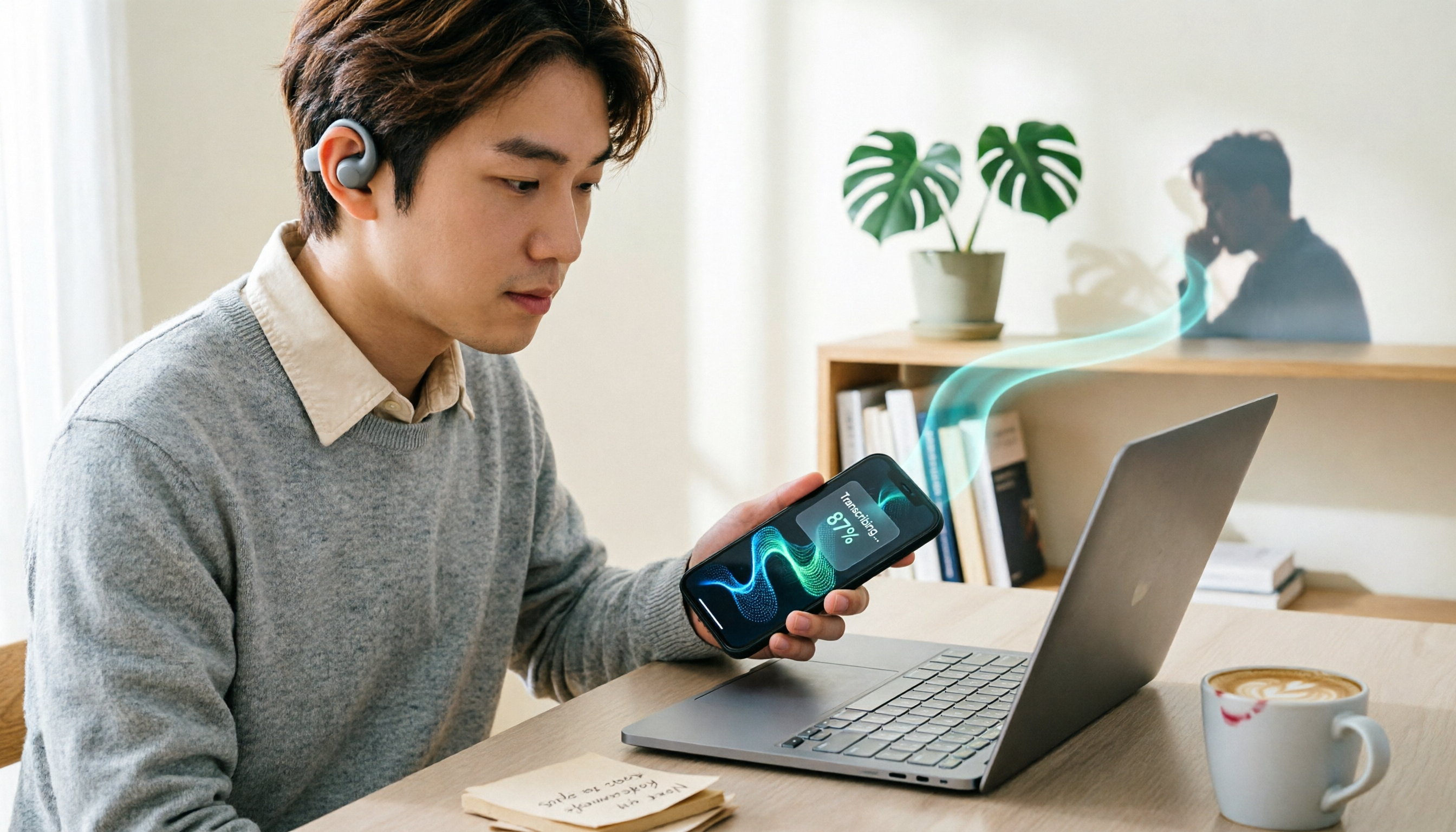
5 Phone Recording Features Compared in 2026: Are Built-in Free Recorders Enough?
Do phones have recording features? Almost all do, but call recording, voice memos, and meeting transcription are three different things. This article covers the built-in free recording methods and steps for Samsung, ASUS, OPPO/realme/vivo/Xiaomi, and iPhone, then explains what to do when you need transcripts and summaries after recording, with a free feature comparison table and selection advice.

5 Windows 11 Recording Tools Compared (2026): Free Tiers and System Audio Capture
Recording on Windows 11 isn't about finding the "best" app—it's about whether you need to capture your microphone or your computer's playback audio. This guide covers five options: the built-in Sound Recorder, Xbox Game Bar, Stereo Mix, Tinrec, and Notta. We break down free limits, system audio support, and restrictions, with a comparison table and a data verification date.
5 Windows Recording Methods Tested for 2026: Is Built-in Enough, or Should You Let AI Handle It?
Windows has built-in recording features—and more than one. This guide covers five recording methods: Windows Voice Recorder, Xbox Game Bar, OBS Studio, Stereo Mix, and Tinrec. It explains what each can record, where the limits are, and how to turn recordings into transcripts, summaries, and action items.
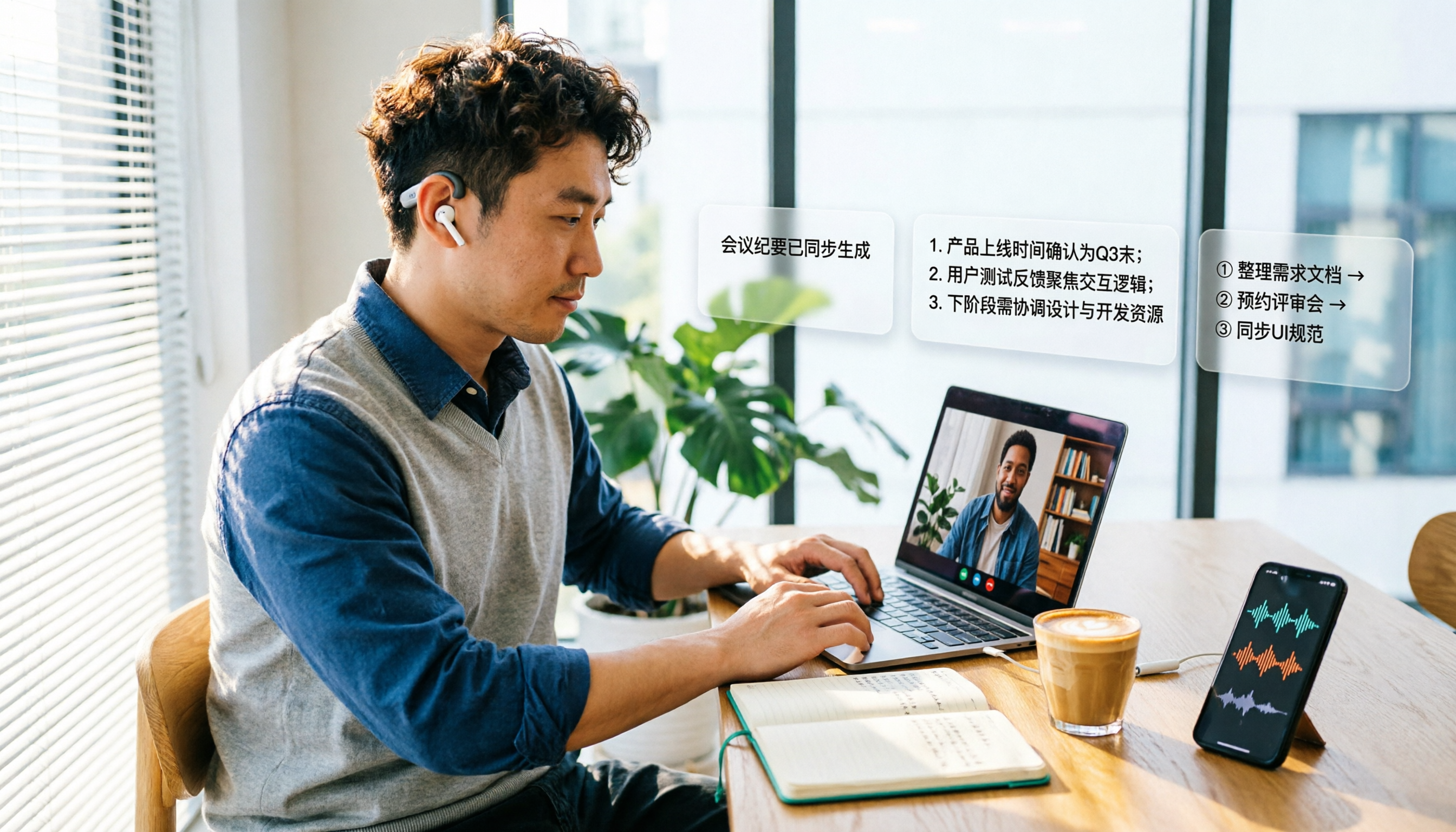
2026 Call Recording & Transcription Tools Compared: Cube ACR Free Tier and Post-Meeting Organization Capabilities
Is Cube ACR free? The Android version is free with ads, and the official app offers an in-app purchase for the advanced version; the iOS version is available by subscription. This article compares free scope, device compatibility, and post-meeting organization capabilities, and explains how Tinrec turns call and meeting recordings into transcripts, summaries, and action items, including free quota, team plan seats, and pricing details.

How Long Can ChatGPT Record in 2026? Free Audio-to-Text Tools Compared: Limits and Meeting Notes
ChatGPT's recording mode can capture about 120 minutes per session, but organizing, querying, and team collaboration after recording are what really matter. This article covers ChatGPT's recording time limit, pause rules, audio retention, and privacy settings, and compares tools like Tinrec and Otter.ai on free quotas, post-meeting summaries, and team management, with buying criteria and pitfalls to help you choose the right tool based on meeting length and use case.

3 iPhone Quick Recording Setups Compared: Which Is Fastest After Unlocking?
Most people think of dragging Voice Memos to the Home Screen for quick iPhone recording, but in a real impromptu meeting you still have to unlock, find the app, and tap record. This article compares three setups—Action Button, Back Tap, and Shortcuts—covering their prerequisites, trigger methods, and where recordings are saved, plus the cost of organizing them afterward.

2025 Real-Time Transcription Tools Compared: Which Is Best for Chinese Meetings and Post-Meeting Organization?
Starting from meeting documentation pain points, this comparison of Tinrec, Otter.ai, Notta, and TurboScribe evaluates real-time transcription, post-meeting summaries, action items, AI Q&A, export, and team collaboration capabilities to help you choose the right tool for Chinese meetings and team knowledge retention.

Best Live Transcription Tools for Teaching in 2026: Comparing 5 Options, Free Tiers and Pricing
A 2026 comparison of free tiers, pricing, and workflows for five live transcription tools for teaching—Tinrec, Yating, Clova Note, inFin, and Otter.ai—to help you choose based on course language, hours, and budget.

Tinrec vs Notta 2026: 5-Dimension Comparison — Which Chinese Real-Time Transcription Tool Is Better for Students?
2024 was full of hands-on test articles, but what students really need is real-time transcription that works while class is happening and can organize key points afterward. This article compares Tinrec and Notta across 5 dimensions based on classroom, group discussion, and interview practice scenarios, and covers free quotas, team seats, and purchasing considerations.