
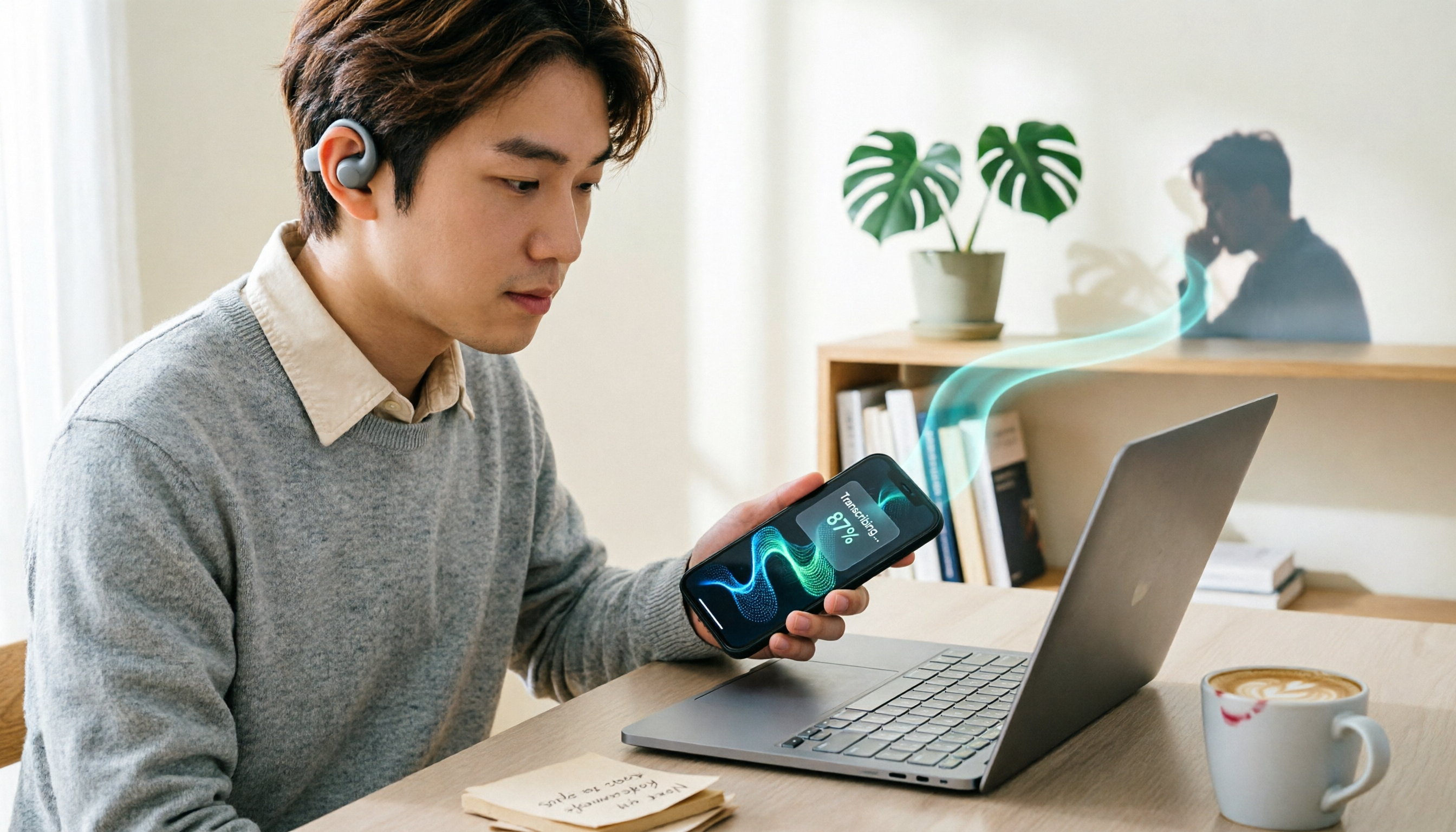
Turn recordings into transcripts and summaries in minutes
Upload audio or video for multilingual transcription, AI notes, and action items
5 Phone Recording Features Compared in 2026: Are Built-in Free Recorders Enough?
When most people ask "Do phones have recording features?" they actually have two different questions in mind.
One is "Can I record this phone call?" The other is "After a meeting, can I get a usable record of it?"
These two things work completely differently on phones. The former depends on brand and OS version; the latter depends on whether you just want an audio file or want a transcript and key points directly. Get this straight first so you don't download a bunch of stuff you won't use.
This article brings together 5 phone recording methods, starting with free built-in features, then discussing options for organizing recordings afterward, with a comparison table and selection advice at the end.
What to Check Before Using Free Features
First, distinguish three types of recording so you don't waste effort.
Voice memos: Almost every phone has them. Record classes, ideas, or in-person conversations. Free, no registration required.
Call recording: Depends on brand. Some have it built in, some require enabling in settings, some don't have it at all.
Meeting transcription: After recording, you still need a transcript, summary, and action items. Built-in features usually can't do this; you need additional tools.
Note that while built-in features are free, they're tied to the device. Changing phones or OS versions may change where options are located.
Also, check local laws before recording. Recording conversations may involve legal issues in some countries and regions; it's recommended to get participants' consent first. Features and steps were verified as of August 2026; actual screens may vary by model and software version.
1. Samsung Galaxy: Voice Memos and Call Recording Together
Samsung phones have a built-in "Voice Recorder" app where you can create voice memos directly, then view, play, or share them in the app. Recorded files can also be accessed directly from the "My Files" app without connecting to a computer.
For call recording, calls recorded using the default Samsung "Phone" app support two-way recording. Note that if you switch to a third-party app you downloaded yourself, the other party's voice may not be recorded.
Best for: Samsung users who want one app to handle both memos and call recording.
Limitations: Menu names, paths, and screen layouts may change by model, software version, or app version; if call recording is disabled, it may not be available during calls.
2. ASUS: Set Up Automatic Call Recording
Some ASUS models (e.g., models using ZEN UI after ZenFone 3) have built-in call recording and can be set to automatically record every call, which is relatively hassle-free.
Steps: Open the "Settings" app → tap "Network & internet" → "Calls" → "Advanced" → "Call recording settings" → enable "Auto call recording."
Best for: People who often need call records and don't want to press record manually each time.
Limitations: Not supported across all series. Models using stock Android (e.g., ZenFone MAX series M1, M2) don't have built-in call recording and need other methods. The above steps may also vary by software version.
3. OPPO, realme, vivo, Xiaomi: Built-in Call Recording and Screen Recording
Some models from these brands have native call recording without needing to install an extra app.
LINE calls are a special case. Most people think they can only put it on speaker and record with another device, but if you want to record LINE calls using the built-in screen recording feature, currently only SAMSUNG, OPPO, and realme support it.
Best for: People with high call volume who often use LINE for discussions.
Limitations: Support varies by brand and model; different series under the same brand may differ. Check your specific model before buying; don't assume all series have it.
4. iPhone: Call Recording Only Available After September 2024
iPhone didn't have built-in call recording in the past, a long-standing pain point for many users. This changed after the iOS version released in September 2024, when Apple began offering call recording capabilities.
If you're on an older iOS version, you won't see this option. A common practical workaround is to put the call on speaker and record with a voice recorder or other recording device; the advantage is the file doesn't take up phone storage.
Best for: iPhone users whose system is updated to a newer version.
Limitations: Not built in on older versions; Apple is quite cautious about privacy and regulations, so actual available features depend on your system version.
5. Tinrec: For Those Who Need to Organize After Recording
The previous methods all solve "recording it." But if you're recording a 40-minute meeting or interview, the real time-consuming part is what comes after: re-listening, typing, and extracting key points.
Stop organizing recordings by hand
Upload audio or video and automatically get a transcript, summary, and action items
Tinrec is an AI meeting notes and collaboration tool for individuals and teams. It supports real-time recording on mobile, and the desktop version can capture computer system audio to record online meetings on Zoom, Google Meet, Microsoft Teams, Webex, etc., without inviting a meeting bot to join.
The free version provides a basic quota to experience recording, importing, summaries, and transcription. Actual quotas and plan details are subject to the official website.
A documented workflow is: record or upload audio → generate transcript → simultaneously generate AI summary, chapters, and action items → ask follow-up questions about meeting content via AI Q&A when needed → export to Notion, Google Docs, OneNote, or Dropbox for continued use.
Best for: People with high volumes of meeting, interview, and class recordings who need transcripts and post-meeting organization.
Limitations: Transcription quality is affected by recording quality, ambient noise, accents, overlapping speakers, and technical terminology; important content should be verified by replaying the recording. It mainly handles meetings and audio content, not a dedicated call recording tool.
If meeting data needs to be shared within a team, the Team version is a separate team space where you can manage members, roles, and seats, and view usage trends and audit logs. Currently, the first eligible team trial is 7 days, 1 free seat, 300 minutes of team shared import quota; team monthly billing is USD 29.80 per paid seat per month, annual billing is USD 199 per paid seat per year (equivalent to about USD 16.58 per month), with paid seats providing 2,000 minutes of team shared import quota per month. Prices and benefits are subject to the official purchase page.
Free Feature Comparison Table
| Method | Registration Required | Free Scope | Key Features | Main Limitations |
|---|---|---|---|---|
| Samsung Voice Recorder | No | Built-in free | Voice memos, call recording (two-way) | Steps vary by model and version |
| ASUS Call Recording | No | Built-in free | Automatic call recording | Not supported on all series; stock Android models lack it |
| OPPO/realme/vivo/Xiaomi | No | Built-in free | Call recording, some support screen recording for LINE | Varies by brand and model |
| iPhone | No | Built-in free | Call recording available on versions after September 2024 | Not available on older versions |
| Tinrec | Yes | Free version offers basic quota | Recording to transcript, summary, action items, AI Q&A, export | Requires internet; transcription quality affected by audio conditions |
Data verified as of August 2026.
Which One Is Right for You?
Just see which category your needs fall into.
Just want casual recording: Use the built-in voice memos directly; no registration, no download.
Focus is call records: First check if your brand has built-in support. ASUS can set automatic recording; Samsung, OPPO, realme, vivo, and Xiaomi have some models with it; iPhone requires updating to a newer system version.
Recording meetings and interviews, and need transcripts: Built-in features won't help; you need a separate transcription tool. The value of tools like Tinrec isn't in recording, but in post-recording summaries, action items, and export.
Data needs to be shared with a team: Personal tools tend to scatter data across individual accounts; consider solutions with team spaces, seats, and permission management.
Simply put, first ask yourself whether you want "an audio file" or "usable content"—the answer will be much clearer.
FAQ
Q1: Do built-in phone recording features cost money?
No. Voice memos and call recording on some models are built into the system, free and require no registration.
Q2: Can iPhone record calls?
Call recording capabilities began with the iOS version released in September 2024; older versions don't have it built in. Actual features depend on your system version.
Q3: Does every Android phone have call recording?
No. Some models from ASUS, OPPO, realme, vivo, Xiaomi, etc. have it built in; Motorola also has models with a record button in the call interface; Huawei only has it in some regional versions. Different series under the same brand may differ; check before buying.
Q4: After recording a meeting with built-in features, what about the transcript?
Built-in features only save the audio file; converting to text requires separate handling. You can upload to a tool that supports audio transcription, e.g., Tinrec supports audio and video file transcription and can then generate summaries and action items.
Q5: Where are recording files stored?
For Samsung, for example, recording files can be accessed directly from the "My Files" app. Other brands can mostly be found in file management or the recording app.
Q6: What to note before recording?
First understand local laws. Recording conversations may be illegal in some countries and regions; check legal regulations and try to get consent from all participants.
Sources: Samsung Taiwan Official Support, ASUS Taiwan Official Support, AirDroid Android Call Recording Guide, Onion Net Phone Recording Guide, Landtop iPhone Call Recording Guide.
References
- How to record, play back, and share voice recordings on your Samsung Galaxy phone | Samsung Taiwan
- Android Call Recording Guide: Detailed Instructions for Samsung, Pixel, Xiaomi, Asus, etc. – AirDroid
- How to Record iPhone Calls? 5 iPhone Call Recording Methods Revealed!
- How to Record Phone Calls and LINE Calls? iPhone and Samsung Call Recording App Recommendations
- How to enable automatic call recording on your phone | Official Support | ASUS Taiwan
Turn every recording into actionable outcomes
Get 60 free transcription minutes when you sign in. No credit card required.
Related Reading
You might also like

5 Windows 11 Recording Tools Compared (2026): Free Tiers and System Audio Capture
Recording on Windows 11 isn't about finding the "best" app—it's about whether you need to capture your microphone or your computer's playback audio. This guide covers five options: the built-in Sound Recorder, Xbox Game Bar, Stereo Mix, Tinrec, and Notta. We break down free limits, system audio support, and restrictions, with a comparison table and a data verification date.

Best Free iPhone Recording Solutions in 2026: 5 Options Compared
Your iPhone's built-in Voice Memos can record audio, but most people get stuck on what to do after recording. Based on real meeting scenarios, this guide reviews 5 free iPhone recording solutions in 2026, comparing free tiers, online meeting recording methods, and post-meeting organization capabilities. It also includes key buying factors and 4 common mistakes to help you choose the one that fits your habits.

5 Windows Recording Methods Tested for 2026: Is Built-in Enough, or Should You Let AI Handle It?
Windows has built-in recording features—and more than one. This guide covers five recording methods: Windows Voice Recorder, Xbox Game Bar, OBS Studio, Stereo Mix, and Tinrec. It explains what each can record, where the limits are, and how to turn recordings into transcripts, summaries, and action items.
2026 Call Recording & Transcription Tools Compared: Cube ACR Free Tier and Post-Meeting Organization Capabilities
Is Cube ACR free? The Android version is free with ads, and the official app offers an in-app purchase for the advanced version; the iOS version is available by subscription. This article compares free scope, device compatibility, and post-meeting organization capabilities, and explains how Tinrec turns call and meeting recordings into transcripts, summaries, and action items, including free quota, team plan seats, and pricing details.

How Long Can ChatGPT Record in 2026? Free Audio-to-Text Tools Compared: Limits and Meeting Notes
ChatGPT's recording mode can capture about 120 minutes per session, but organizing, querying, and team collaboration after recording are what really matter. This article covers ChatGPT's recording time limit, pause rules, audio retention, and privacy settings, and compares tools like Tinrec and Otter.ai on free quotas, post-meeting summaries, and team management, with buying criteria and pitfalls to help you choose the right tool based on meeting length and use case.

3 iPhone Quick Recording Setups Compared: Which Is Fastest After Unlocking?
Most people think of dragging Voice Memos to the Home Screen for quick iPhone recording, but in a real impromptu meeting you still have to unlock, find the app, and tap record. This article compares three setups—Action Button, Back Tap, and Shortcuts—covering their prerequisites, trigger methods, and where recordings are saved, plus the cost of organizing them afterward.

2025 Real-Time Transcription Tools Compared: Which Is Best for Chinese Meetings and Post-Meeting Organization?
Starting from meeting documentation pain points, this comparison of Tinrec, Otter.ai, Notta, and TurboScribe evaluates real-time transcription, post-meeting summaries, action items, AI Q&A, export, and team collaboration capabilities to help you choose the right tool for Chinese meetings and team knowledge retention.

Best Live Transcription Tools for Teaching in 2026: Comparing 5 Options, Free Tiers and Pricing
A 2026 comparison of free tiers, pricing, and workflows for five live transcription tools for teaching—Tinrec, Yating, Clova Note, inFin, and Otter.ai—to help you choose based on course language, hours, and budget.

Tinrec vs Notta 2026: 5-Dimension Comparison — Which Chinese Real-Time Transcription Tool Is Better for Students?
2024 was full of hands-on test articles, but what students really need is real-time transcription that works while class is happening and can organize key points afterward. This article compares Tinrec and Notta across 5 dimensions based on classroom, group discussion, and interview practice scenarios, and covers free quotas, team seats, and purchasing considerations.