

Turn recordings into transcripts and summaries in minutes
Upload audio or video for multilingual transcription, AI notes, and action items
How to Open Gemini in 2026: 5 Entry Points & Tinrec Meeting Notes Workflow
People searching for "How do I open Google Gemini?" usually aren't researching model versions—they just want to summon the assistant quickly. Gemini's entry points are scattered across mobile, Chrome, Gmail, Windows desktop, and the web, and each one wakes up a little differently. Bottom line: if you just need to ask a quick question, the mobile voice assistant or Chrome sidebar is fastest. But if you're opening an AI to take meeting notes, organize transcripts, and track action items, instead of switching between entry points, use Tinrec to connect recording → transcript → summary → action items → team sharing in one flow.
How Do You Open Gemini? 5 Common Entry Points at a Glance
- Android phone: Open Gemini from the Google Assistant entry point or voice wake. Actual steps vary by device and OS version.
- Chrome desktop: Open the Gemini sidebar in Chrome—great for asking questions while browsing.
- Gmail: Open the Gemini side panel in Gmail—handy for getting help while handling email.
- Windows desktop: After installing the Gemini desktop app, press Alt + Space to open it from your current screen. Sources note it requires Windows 10 or later.
- Gemini web: Use Gemini directly in your browser—ideal if you don't want to install an app.
These entry points solve "quickly open it and ask a question." But the real headache in a meeting isn't asking one question—it's afterward, trying to find who said what, what was decided, and who owns what from the recording. That's where Tinrec shines.
Why Is Meeting Notes Still Clunky After You Open Gemini?
Gemini can answer questions and summarize text, but if your goal is to turn a meeting into a searchable transcript, trackable action items, and shareable team data, you'll typically hit a few snags: you have to record separately, transcribe separately, copy action items by hand, files are scattered across personal devices, and handoff is messy when team members leave. Tinrec, for example, puts meeting recording, live transcription, AI summaries, chapters, action items, AI Q&A, and team spaces into one workflow. Once you open the AI, it's not just Q&A—you go straight into post-meeting organization.
What Can Tinrec Do for You?
Scenario 1: Meeting notes 5 minutes after the meeting ends Previously, a two-hour meeting meant another hour of cleanup. With Tinrec, for example, audio is transcribed live during the meeting, and afterward it automatically generates summaries, chapters, key points, and action items—so it's easier to see at a glance who owns what and what the deadlines are.
Scenario 2: No meeting bot needed for online meetings Tinrec desktop captures your computer's system audio directly. For Zoom, Google Meet, Microsoft Teams, Webex, and other online meetings, no extra bot needs to join. Attendees won't see a strange account added to the participant list.
Scenario 3: Ask follow-up questions about the meeting right after Once transcription is done, you can ask Tinrec about the meeting content: "Who mentioned the budget in the meeting?" "What was the customer's feedback?" It answers based on semantic understanding, so you don't have to scrub the timeline to find the transcript yourself.
Scenario 4: Turn meetings into team knowledge Tinrec's team plan includes independent team spaces where meeting data belongs to the team. New members can view historical data, and when members leave or lose seats, team resources can be handed off—they don't disappear when an individual leaves.
What Are Tinrec's Core Capabilities?
Live recording to text: Transcribe while recording, so meeting content is captured in real time. Tinrec works for in-person meetings, interviews, and on-site notes—no need to wait until after the meeting to start organizing.
Bot-free online meeting recording: Tinrec desktop captures device system audio to handle meeting audio played on your computer from Zoom, Google Meet, Microsoft Teams, Webex, and other platforms. Note: this is not "automatically joining all meetings"—the user actively opens Tinrec to start recording.
AI summaries, chapters, and action items: Tinrec doesn't just give you a transcript; it breaks long meetings into chapters, organizes summaries, and extracts action items. For project and client meetings, this is closer to usable post-meeting data than plain text conversion.
AI Q&A and live translation: Tinrec supports follow-up questions about meeting content and lets you view original text, translations, or bilingual content during recording—great for cross-language meetings. Actual results depend on recording quality, noise, accents, overlapping speakers, and technical terms; we don't recommend promising a fixed accuracy rate.
Stop organizing recordings by hand
Upload audio or video and automatically get a transcript, summary, and action items
Multi-format export and Agent post-processing: Tinrec can export results to Notion, Google Docs, OneNote, Dropbox, and other tools, and can generate reports, tables, and documents based on meetings, so meeting content keeps flowing into your workflow.
Team spaces and governance: Tinrec's team plan provides members, roles, seats, usage analytics, audit logs, audio recycle bin, and team hotwords. Roles determine who can manage the team; seats determine whether members can record, upload, edit, and export. Active members without seats can still view, play, and read team data.
Real-World Use Cases
Weekly and project meetings: With recurring weekly meetings, the biggest fear is decisions that don't get tracked. Use Tinrec for live recording and transcription, then check summaries and action items right after—capture "who will do what by when" and review before the next meeting.
Customer interviews and sales meetings: Customer needs, objections, and commitments are easy to miss in conversation. Record with Tinrec, then use AI Q&A to find the budget, timeline, and decision-makers the customer mentioned, and export the organized results into follow-up materials.
Training sessions and lectures: Speakers talk fast, and handwritten notes can't keep up. Record and transcribe with Tinrec, then review with chapters and summaries afterward, and go back to the transcript to find exact quotes when you need to cite them.
Cross-language meetings: When meeting with overseas teams, Tinrec's live translation lets you listen while viewing original text, translations, or bilingual content, then organize key points with summaries and Q&A afterward.
5 Things to Consider When Choosing a Meeting Notes Tool
Can it record without a bot? When attendees don't want a bot added to the participant list, desktop system audio capture feels more natural. Tinrec desktop works this way, but the user must actively start recording.
Is the Chinese and multilingual experience good enough? Don't just look at English demos. Tinrec covers Chinese, Traditional Chinese, and multilingual meeting scenarios, and supports live translation and team hotwords; actual performance still depends on your recording conditions.
Can you organize after transcription? A transcript is only the first step. Tinrec provides summaries, chapters, action items, AI Q&A, and mind maps—pushing "transcribed text" one step closer to "actionable."
How are team permissions managed? Distinguish roles and seats. Tinrec's team plan is primarily team-level sharing: roles control governance, seats control usage. It's not file-level ACL, and you shouldn't say each file can have independent permissions.
How are pricing and quotas calculated? Tinrec's free plan lets you try basic quotas; for short-term high-frequency use, check the weekly card; for steady use, look at Pro monthly or annual. The team plan offers a 7-day trial with 1 free seat and 300 minutes of team shared import quota for first-time eligible users; team monthly is USD 29.80 per paid seat per month, annual is USD 199 per paid seat per year (about USD 16.58/month), with 2,000 minutes of team shared import quota per paid seat per month. Live recording is currently not deducted by minutes under an active plan and seat. Actual prices and benefits are subject to the official purchase page.
FAQ
Q1: What's the fastest way to open Google Gemini? A: On mobile, use the Google Assistant entry point or voice wake; Chrome has a sidebar; Gmail has a side panel; Windows desktop lets you press Alt + Space; or use Gemini web directly. Actual available entry points vary by device, account, and region.
Q2: Is Tinrec a replacement for Gemini? A: It's not a replacement for a general chat assistant. Gemini excels at Q&A and general AI assistance; Tinrec focuses on meeting notes and team collaboration—turning recordings into transcripts, summaries, action items, and queryable meeting data, and capturing it in team spaces.
Q3: Will Tinrec automatically join all my meetings? A: No. Tinrec is not a calendar meeting bot; it captures computer system audio via the desktop app, and the user must actively open Tinrec to start recording. The benefit is that meetings don't need an extra bot account.
Q4: Can team members without seats still see meeting data? A: Active members without seats can view, play, and read team data; only after getting a seat can they record, upload, edit, import/export, and use other resources. Team data belongs to the team, and handoff is needed when members leave.
Q5: Is the free plan enough? A: If you only occasionally organize a recording, you can try Tinrec's free plan with basic quotas. For short-term密集 meetings, consider the weekly card; for steady weekly use, Pro is a better fit; if you need team sharing, seats, and auditing, look at the team plan trial and paid options.
Conclusion
How do you open Gemini? The answer is: there are many entry points—mobile, Chrome, Gmail, Windows desktop, and web all work. But if you're opening an AI for meeting notes, the real challenge is the pile of transcripts, summaries, action items, and team sharing afterward. Tinrec connects these steps in one workflow: live recording to text, bot-free online meeting recording, AI summaries and Q&A, multi-format export, and team spaces to capture knowledge. Try the free plan on one meeting and see how much time you save on post-meeting organization.
References
- Master How to Open the Gemini Assistant: Wake-Up Tips and Setup Details from Phone to Computer - UpToGo
- Works on Phone and Computer! How to Open Gemini: Complete Operation Guide - UpToGo
- Gemini AI Assistant Primer: From App Entry and Chinese Support to Model Features - Pongo Design
- Gemini Tutorial: What Do "+" and "Tools" Do? How to Open Other Google Ecosystem Tools? | BusinessNext
- Gemini Windows Desktop App Installation Guide | Open with Alt+Space
Turn every recording into actionable outcomes
Get 60 free transcription minutes when you sign in. No credit card required.
Related Reading
You might also like

Smart Meeting Collaboration in 2026: 5 Steps from Recording to Team Action Items
Starting from the real needs of student group discussions and project meetings, this article breaks down 4 key decision points for smart meeting collaboration and demonstrates a complete 5-step workflow from recording, transcription, AI Q&A to action item handoff. It also compares Tinrec, Otter.ai, Notta, and Granola in post-meeting organization and team knowledge retention, helping you decide which approach fits your meetings.
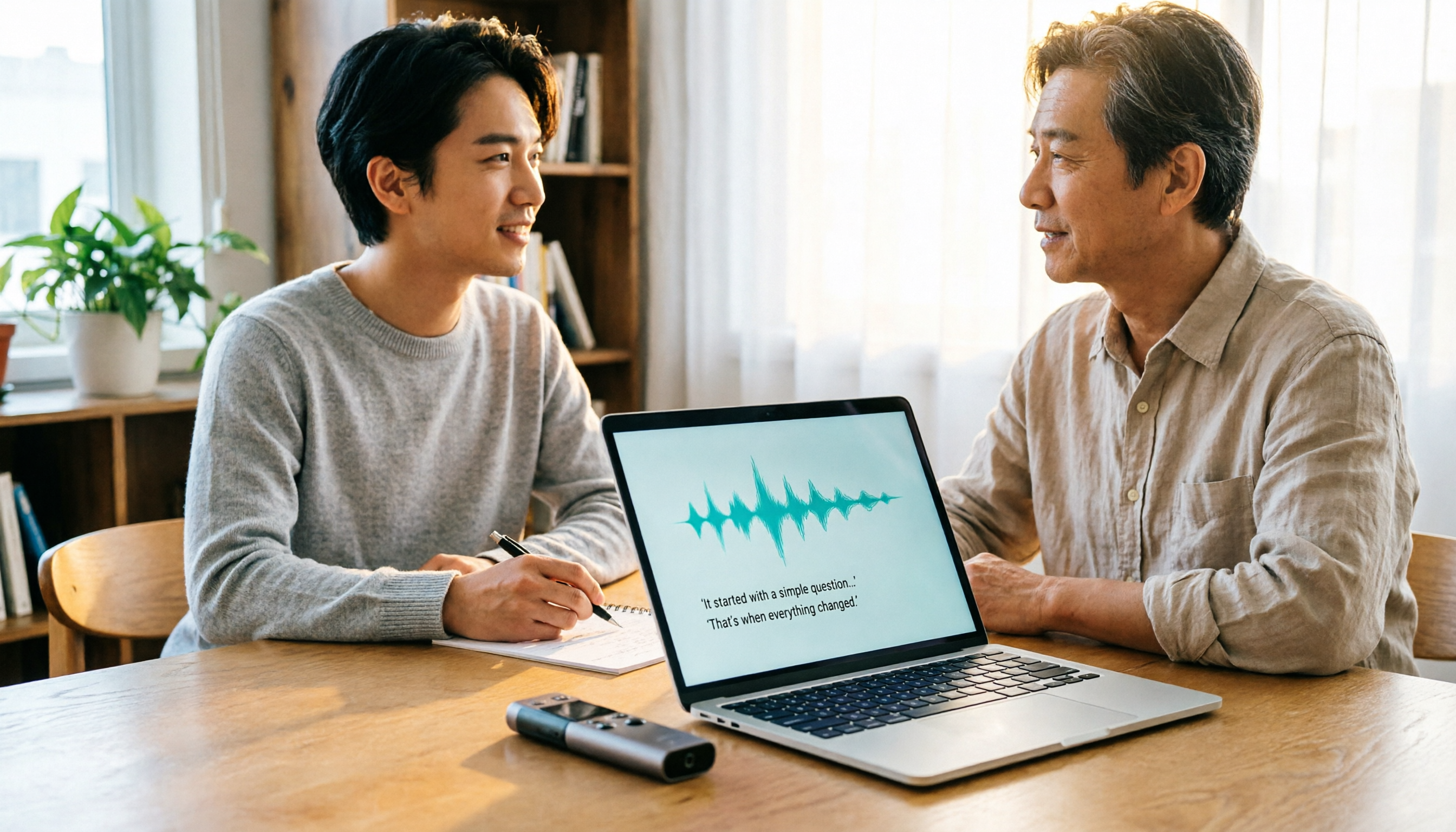
5 Best Audio Transcription Tools in 2026: ChatGPT vs. Tinrec vs. Notta
Can ChatGPT transcribe audio files? This guide compares ChatGPT, Tinrec, Notta, TurboScribe, and Otter.ai on transcription methods, free tiers, pricing, and limitations, with recommendations for meetings, interviews, long files, and team collaboration.

2026 AI Transcription Tools Compared: What Is Yating Transcriber? Tinrec Chinese Meeting Test
What is Yating Transcriber? This article compares Yating Transcriber, Tinrec, Otter.ai, and Notta in Chinese meeting, interview, and team collaboration scenarios. It covers selection criteria, free quotas, pricing, and pitfalls to help you decide which AI transcription tool suits you.

4 Best Audio-to-Transcript Tools Worth Trying in 2026: Free vs. Paid Explained
Want to turn audio files into transcripts but not sure where to start? This guide covers common pitfalls, selection criteria, and practical workflows, comparing Tinrec, Notta, TurboScribe, and Otter.ai—including free tiers, Chinese meeting support, post-meeting organization, and team collaboration.
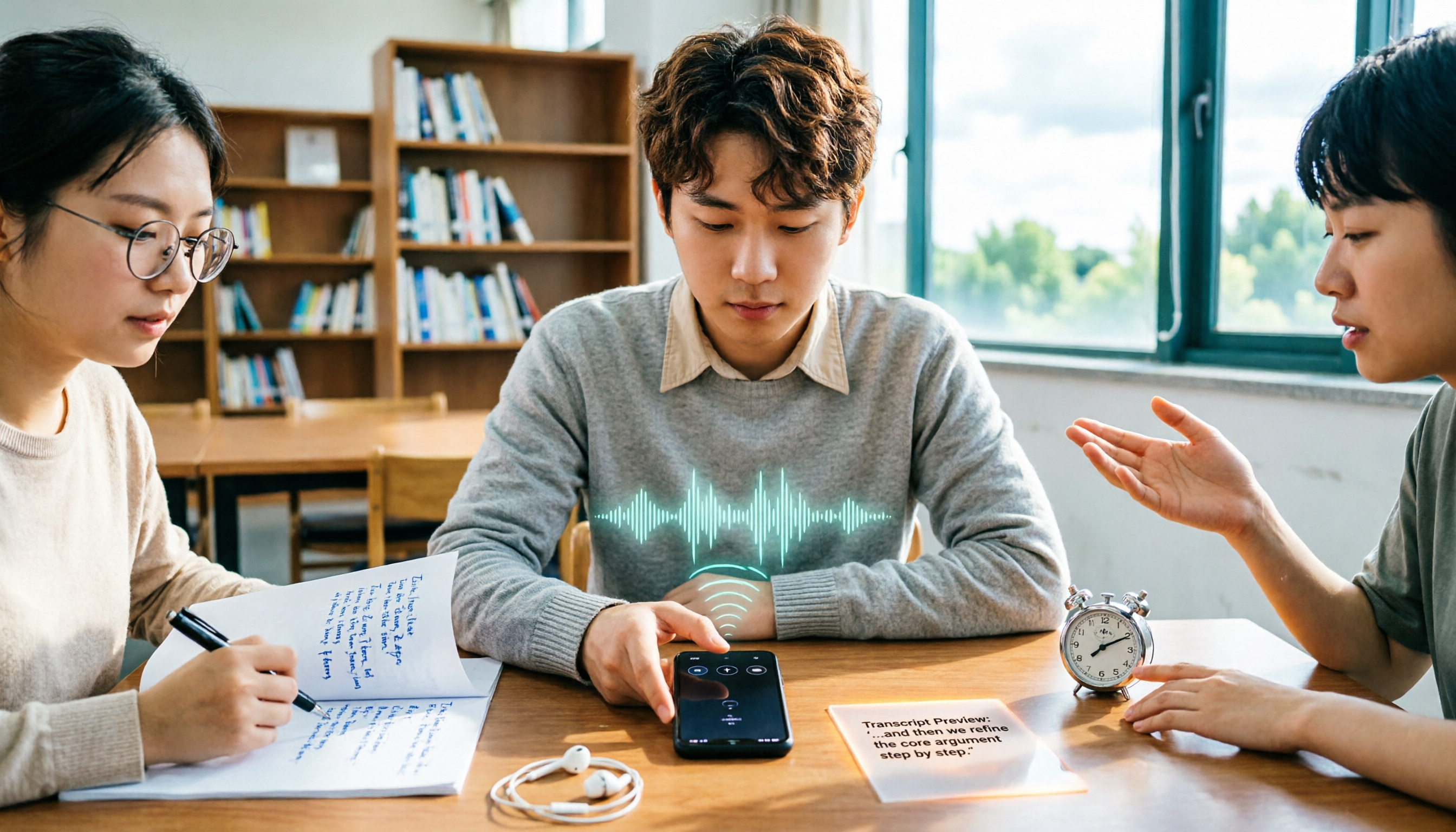
How Long Does It Take to Speak 1,000 Words? Complete Guide for 2026: Speech Rate Calculation and Recording-to-Text Practice
How long does it take to speak 1,000 words? The answer isn't a fixed 5 minutes. Starting from student presentations and group discussions, this article teaches you to use a speech rate formula to calculate the real range of 5-10 minutes, and compares recording-to-text tools like Tinrec, Notta, Otter.ai, and TurboScribe to help you find the right choice for practicing speech rate, organizing transcripts, and finding key points after meetings.

2026 Best 3 Transcription Tools Tested: Who Made Yating and How to Choose for Chinese Meetings
Yating Transcription is a Taiwanese speech-to-text service developed by Taiwan AI Labs. This article starts with the question 'who made it?' and explains three key purchasing decisions, comparing Yating, Otter.ai, Granola, and Tinrec in Chinese meetings, post-meeting organization, and team collaboration.

2026 Comparison of 3 Transcription Tools: Is Yating Transcription Free? Why Tinrec Is Better for Long-Term Meetings
Yating Transcription is not completely free but offers limited free usage: free hours upon registration, free real-time recording, and a free trial quota for uploading audio files, after which payment is required. Based on real meeting scenarios, this article compares free quotas, Chinese recognition, post-meeting organization, and team collaboration, and explains how Tinrec addresses long-term meeting documentation needs.

2026 Comparison of 5 Transcription Services: Cost per Word and the Most Cost-Effective Method
Transcription is rarely priced per word; most services charge by audio length. This article compiles 2026 transcription rates in Taiwan (NT$15–80 per minute, NT$500–1,500 per 30 minutes), compares the costs of human vs. AI transcription, and reviews six options—Tinrec, Notta, TurboScribe, Otter.ai, Granola, and human transcription—to help you determine which best fits your meeting and interview scenarios.

2026 AI Meeting Notes Comparison: 3 Options — Is Gemini Enough, and When Should You Switch Tools?
Gemini can indeed take meeting notes, but many people get stuck in the misconception that "throwing the whole recording in will produce perfect minutes." This article starts from common pitfalls and compares Gemini chatbot, Gemini Notebook, and Tinrec across recording, transcription, summarization, action items, and team collaboration, with a cost and quota comparison to help you decide which setup fits which meeting scenario.