

Turn recordings into transcripts and summaries in minutes
Upload audio or video for multilingual transcription, AI notes, and action items
Bottom line first: recording a memo takes only three steps, but the hard part comes after
"How do I record a voice memo?" The correct answer is actually very short: open a note, tap the attachment button and select "Record Audio," then tap the record button to start. Notes on iPhone, iPad, and Mac all support recording directly within a note. On iPad, after recording starts, you can switch to the transcript view to see live transcription; tap any sentence in the transcript to jump back to the corresponding audio segment.
But most people never get stuck on these three steps.
Misconception 1: Assuming that if you can record, you must get a transcript. Being able to record does not mean you can see a transcript. Apple's official documentation is clear: transcripts depend on whether your device meets minimum requirements and whether the system language is on the supported list. On Mac, you also need an M1 or newer chip, and the device language must be set to one of the specific languages that includes Traditional Chinese for transcripts to appear.
Misconception 2: Assuming that having a transcript means having a summary. These are two different capabilities. A transcript converts audio to text; a summary is a separate feature that requires compatible devices and settings. When troubleshooting, if you don't first distinguish which layer isn't working, it's easy to mistake language or hardware limitations for a microphone failure.
Misconception 3: Assuming that keeping recordings in Notes is foolproof. Features are most complete when using iCloud Notes; if you switch to an account from another provider, some features will be unavailable.
So the real question isn't "how do I press record," but rather: do you want to keep a piece of audio, or do you want a document you can use directly after the meeting ends?
To judge whether memo recording is sufficient, look at these 4 key points first
1. A transcript is the starting point, not the end. A 30-minute meeting transcript runs thousands of words. Without segmentation, key points, or action items, you've merely swapped "listening again" for "reading again"—the time saved is limited.
2. Can you jump from text back to audio? Transcripts inevitably contain typos or misheard words. A good tool should let you tap the text to replay that segment, so you can verify in 30 seconds instead of dragging the timeline from the beginning.
3. Are post-meeting outputs formed? The real value of a meeting lies in conclusions, owners, and deadlines. A tool that only gives you a transcript is essentially handing the organization work right back to you.
4. Who ultimately owns the data? Meetings recorded under a personal account are stored on personal devices; once personnel changes occur, that content disappears with them. As long as a meeting involves two or more people, this will eventually become a problem.
Tinrec: Extending "recording" into the post-meeting workflow
Tinrec is an AI meeting notes and collaboration tool for individuals and teams, available on iOS, Android, desktop, and web. Its biggest difference from built-in memo recording is that it handles "what happens after recording."
During the meeting, it produces readable text in sync. Real-time recording-to-text is suitable for in-person meetings and interviews; for online meetings, the desktop version directly captures computer system audio, handling sound played on the computer from platforms like Zoom, Google Meet, Microsoft Teams, and Webex—no need to invite an extra meeting bot to join as a participant. This is especially practical for external client meetings—you don't have to explain to the other party who that extra account is.
When the meeting ends, summaries, chapters, and action items are already formed. The system generates summaries and chapters, breaking long meetings into scannable structures and extracting action items from discussions. Transcripts, summaries, and action items can be exported together to tools like Notion, Google Docs, OneNote, and Dropbox, or further processed with an Agent to generate reports, tables, and meeting minutes.
After recording, you can keep asking questions. This is where it stands out from most recording tools: you can ask questions directly about a single meeting or across multiple meetings—for example, "Who mentioned the budget in the last meeting?"—and it will answer based on the content, rather than dumping a list of keyword search results on you. Cross-language meetings also support real-time translation, viewable in original, translated, or bilingual mode.
Team scenarios have a separate governance logic. The team edition is not "multiple people sharing one personal account" but an independent team space: meeting data belongs to the team, you can create and switch between multiple spaces, invite members via join links, and set Owner/Admin/Regular Member roles. Here you need to distinguish "roles" from "seats"—roles determine who can manage the team and members, while seats determine who can record, upload, edit, and export; active members without a seat can still view, play, and read team data but cannot perform resource-consuming operations. There are also team hotwords, usage analytics, audit logs, and an audio recycle bin (currently retained for 30 days; TODOs are not included in the recycle scope).
Stop organizing recordings by hand
Upload audio or video and automatically get a transcript, summary, and action items
Limitations should also be clearly stated. First, Tinrec does not promise a fixed accuracy rate; actual performance is affected by recording quality, ambient noise, accents, overlapping speakers, and technical terminology. For important content, it's recommended to verify against transcript timestamps and audio playback. Second, the team edition currently focuses on team-level sharing, not file-level or member-level granular permission systems. Third, the free version and various plans have different quotas; paid seats in the team edition provide 2,000 minutes of team-shared import quota per month, and real-time recording currently does not deduct minutes under an active team plan and active seat, but file and web imports consume shared quota. Please refer to the official purchase page for pricing and benefits.
Who is it for? If you have regular meetings and interviews every week, need transcripts for Chinese and mixed Chinese-English content, want to use AI to find key points directly after meetings, or want to turn meeting data into a searchable team asset—Tinrec is one of the most complete options currently available for this need.
Besides built-in Notes, what other options are there?
Apple Notes built-in recording. Free, zero installation, and stored in the same note as your notes—this is its biggest advantage. Most people asking "how to record a memo" can get started within half an hour. But its strength is "recording" rather than "organizing": whether a transcript appears depends on the device and language, summaries are a separate capability, and cross-team collaboration and data handover are not within its design scope. Suitable for individuals, short meetings, and quick voice notes.
Voice Memos app. Located in the "Utilities" folder, it focuses on recording clear audio: you can choose stereo or spatial audio, use multiple iPhone microphones for left and right channel recording, pause and resume during recording, and an orange dot appears at the top of the screen to indicate microphone usage. If your need is simply "capture the on-site audio completely," it does the job well; but structured organization after recording still requires a separate workflow.
Notta. A multi-platform transcription and translation tool with significant overlap with Tinrec. The official current terms are: free version 120 minutes per month with a 3-minute limit per item; Pro annual billing works out to about USD 8.17/month with 1,800 minutes per month; Business annual billing works out to about USD 16.67/seat/month. Suitable for users focused on file transcription and subtitle translation; if you need post-meeting AI Q&A, action item extraction, and team space governance, it's worth including Tinrec in your comparison when selecting a tool.
Pitfalls guide: the 4 most common mistakes when recording memos
Pitfall 1: Judging a tool solely by "does it have a transcript." A transcript is the baseline. The real difference lies in whether you can jump back to timestamps, whether there are summaries and action items, and whether you can ask follow-up questions about the content.
Pitfall 2: Recording important occasions without testing first. The first time you use it, the system may request microphone permission; if you press record but there's no sound, go to "Settings → Privacy & Security → Microphone" to confirm authorization. Don't record an entire important meeting right away—record 30 seconds and play it back first to check volume and ambient noise.
Pitfall 3: Storing team meetings in personal accounts. Data in personal notes belongs to the individual. The value of the team edition is that data belongs to the team; when a member leaves or is removed, the resources they are responsible for need to be handed over to other active members, rather than being taken away in bulk.
Pitfall 4: Treating AI summaries as the final minutes. AI may miss or misinterpret details. The practical approach is: AI produces the first draft, humans do the final verification, and important numbers and commitments are confirmed against the original text and recording.
Conclusion: Which one should you actually use?
- Just want to quickly record a piece of audio and listen back yourself later → Apple Notes built-in recording or Voice Memos is enough—free and zero learning curve.
- Need transcripts for Chinese and mixed Chinese-English meetings, plus summaries and action items → Tinrec, which gives you usable organized results directly after the meeting.
- Don't want an extra bot account showing up in online meetings → Tinrec desktop version captures system audio, keeping the participant list clean.
- Want to directly ask "What was the conclusion?" or "Who is responsible for what?" after recording → Tinrec's AI Q&A is the most direct solution for this need.
- Meeting data needs to be kept for the whole team, and you also need to manage seats and usage → Tinrec team edition, including roles, seats, hotwords, usage analytics, audit logs, and audio recycle bin.
Back to the original question: how to record a memo—the answer takes three minutes to learn; but how to make that recording truly useful after the meeting is where you should spend time when choosing a tool. It's recommended to start with the free version or a trial plan, record one of your own real meetings, and then decide whether to upgrade.
This article was compiled and published by the Tinrec team. Product capabilities and plan terms are subject to the official page; competitor information is taken from each product's official page, and prices and benefits may change. Data verification date: August 2026. Please comply with local regulations when recording and transcribing, and obtain participant consent when necessary.
References
- Record and transcribe audio in Notes on Mac - Apple Support (Taiwan)
- Record and transcribe audio in Notes on iPhone - Apple Support (Taiwan)
- How to use iPad Notes recording? Transcript and summary tutorial | PingGO
- How to use iOS Voice Memos? A deep dive into the built-in powerful recording tool - Mr. Mad
- Record in Voice Memos on iPhone - Apple Support (Taiwan)
Turn every recording into actionable outcomes
Get 60 free transcription minutes when you sign in. No credit card required.
Related Reading
You might also like

6 Audio Recording Software Compared: Which Free Version Is Enough in 2026?
Too many recording apps to choose from? This guide categorizes six tools—Windows Voice Recorder, Audacity, GarageBand, WavePad, Notta, and Tinrec—by use case, covering free limits, system audio capture, and post-meeting organization. It also demonstrates Tinrec's full workflow from recording to transcript, summary, and action items.

4 Free Recording Tools Compared in 2026: Where the Recording Feature Is Hiding and Whether the Free Quota Is Enough
"Where is the recording feature?" is the first question many people have when they open their phone. This article covers four free entry points—iPhone Voice Memos, Samsung Voice Recorder, Google Phone app call recording, and Tinrec—explaining where each is located, its free quota, registration requirements, and usage limits, with a comparison table and FAQ to help you choose the right tool for your needs.

ChatGPT Recording Limit vs Tinrec: 2026 AI Meeting Recorder Comparison
ChatGPT's recording mode caps at about 120 minutes per session, so meetings longer than two hours must be split into segments and summaries stitched together manually. This article compares ChatGPT recording mode and Tinrec across six dimensions—recording length, online meeting capture, post-meeting output, Chinese and multilingual support, audio retention, and team management—to help you decide which fits your meeting style.

Can CapCut for Desktop Record Audio in 2026? 6 Steps from Recording to Meeting Notes
CapCut for desktop can indeed record audio, but its recording is a voice-over feature designed for video editing. This article first answers "can it record," then helps you distinguish between two needs—"voice-over" and "meeting notes"—and breaks down the post-recording workflow, including transcripts, summaries, action items, and how to retain team data.

How to Screen Record on Windows and Mac (2026): Built-in Tools + How to Organize Your Recording
Your computer already has built-in screen recording: Windows uses Xbox Game Bar, and Mac uses Shift+Cmd+5. This guide, based on a student's real testing, covers step-by-step instructions for both systems, their limitations, and how to turn a two-hour recording into searchable, queryable notes.

5 Best PC Audio-Only Recording Tools in 2026: Built-in, Free Open-Source, and AI Transcription Compared
Trying to record only the sound playing on your computer, but the built-in recorder only captures your microphone? This guide covers five methods—Windows Voice Recorder, Xbox Game Bar, OBS Studio, Bandicam, and Tinrec—comparing audio sources, output formats, free tiers, and limitations, with recommendations based on your use case.

2026 iPhone Notes Alternatives Tested: Is Tinrec the Easiest for Cross-Device Meeting Notes?
iPhone Notes doesn't require a download, but when you need cross-device access or want to turn meeting recordings into transcripts and action items, the built-in app falls short. This article first answers 'Can you download iPhone Notes?' then compares the built-in Notes, downloadable note-taking services, and Tinrec on input sources, post-meeting output, cross-device use, and team collaboration to help you decide which one to use.

4 Best Windows Recording Tools in 2026: Built-in Features, Meeting Notes, and Free Tier Comparison
Windows does have built-in recording features—more than one, in fact—but the audio sources they can capture vary widely. This article compares four options: Windows Voice Recorder, Xbox Game Bar, OBS Studio, and Tinrec, covering recording sources, post-meeting organization capabilities, and free tiers to help you choose the right tool for your situation.
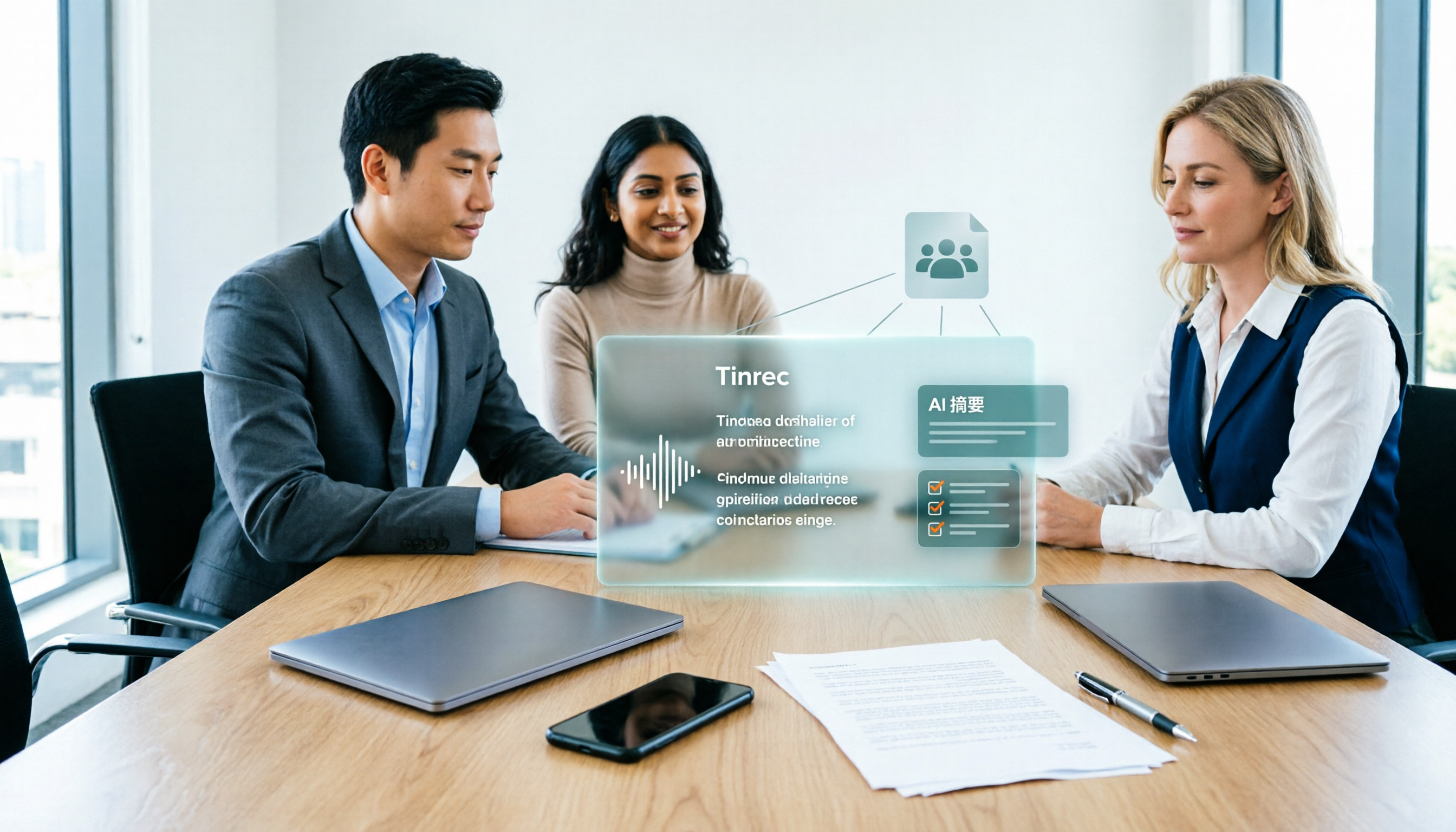
5 Best Transcription Tools in 2026: What 'Verbatim' Means and How to Choose
Verbatim means processing word by word in order; a verbatim transcript keeps every word of what was said. This guide starts with the definition, explains what transcripts can do for you and how to choose a tool, then walks through a complete workflow with Tinrec—from recording and transcription to AI summaries, action item extraction, and team knowledge sharing.