

Turn recordings into transcripts and summaries in minutes
Upload audio or video for multilingual transcription, AI notes, and action items
Before You Record, Ask Yourself: Do You Want the "Screen" or the "Key Points"?
Last semester, for our capstone project, our group spent over two hours in a library discussion room. We argued about the topic direction and who would be responsible for which chapter, and a big chunk of time was spent going in circles. When we wrapped up, the group leader asked, "So what did we decide just now?" Six people looked at each other, and we barely managed to come up with three conclusions—one of which was "we'll discuss it next time."
After that, I started researching recording. But after looking into it, I realized the real question isn't "Does my computer have built-in recording?" but **"Will you actually watch that two-hour recording a second time?"**
The answer is usually no. Unless you think it through from the start: do you want the screen, or the content?
If you just need to submit a demo video or record some gameplay to show classmates, the built-in tools are totally sufficient and free. But if, like us, you want to capture a discussion, a class, or an interview for "later use," then you need to consider more than just where the record button is.
In this article, I'll first answer the most common question—"Does my computer have built-in recording?"—then go over the actual steps, the pitfalls of each system, and finally share how I later dealt with "that big pile of stuff after recording."
Before Deciding Which Built-in Tool to Use, Understand These 4 Key Points
1. What Can It Actually Record?
This is where most people get confused. Windows' Xbox Game Bar can only record a single application window—it can't record the desktop, File Explorer, or two overlapping windows. Mac's recording tool lets you customize the selection area, so it's clearly more flexible.
If you want to record cross-window operations like "having a presentation open while browsing for data," Windows' built-in tool won't cut it. I'll explain more later.
2. Can It Record Audio? This Is the Biggest Dividing Line
Recording video without audio is as good as not recording at all. Windows Game Bar's microphone is off by default—you have to turn it on manually. Mac is even trickier: the built-in tool by default only captures microphone audio and cannot directly record system audio (like YouTube videos or the other person's voice in an online meeting). You need to install a virtual audio source to solve this.
3. How Long Can It Record? Where Are Files Saved?
Windows Game Bar has a default single-recording limit of 2 hours, which you can change to 4 hours in system settings. Mac has no hard time limit—it depends on how much hard drive space you have left. Windows saves files by default to C:UsersYourUsernameVideosCaptures, and you can't change the path directly from the interface.
4. After Recording, How Will You "Use" It?
This is the most overlooked and crucial point for students. The built-in tool gives you an MP4 video. But if you need to "find the minute where the professor said that definition," "summarize the three conclusions from the discussion," or "turn interview highlights into a transcript"—then your real need is organizing the content, not the screen itself.
Once you understand these four points, you'll know whether you can rely solely on built-in tools or need an extra layer of tools.
Step-by-Step: How to Use Built-in Recording on Windows and Mac
Windows 10/11: Xbox Game Bar—Just Press the Shortcut
Steps:
- First, open the window you want to record (browser, presentation, game—anything) and make it the active screen.
- Press
Win + Gto bring up the Game Bar panel. A small "Capture" window will appear at the top. - If you want to record your own voice, click the microphone icon to turn it on. If it won't turn on, go to "Settings → Privacy → Microphone" and make sure Xbox Game Bar has permission.
- Press
Win + Alt + Rto start recording, and press again to stop.
Limitations to Note:
- Can only record a single window; cannot record the desktop or File Explorer.
- On school or company-issued computers, this feature is sometimes locked by group policy—if pressing the shortcut does nothing, that's why.
- If you need to record the entire desktop, another built-in solution is to open PowerPoint and select "Insert → Media → Screen Recording." This can record the desktop.
Mac: Shift + Command + 5—One Shortcut Does It All
Since macOS Mojave (2018), screenshots and screen recording are integrated into the same shortcut.
Steps:
- Press
Shift + Command + 5. A toolbar will appear at the bottom of the screen. - Choose "Record Entire Screen" or "Record Selected Portion."
- If you need microphone audio, click "Options" to enable the microphone.
- Click "Record." To stop, press
Command + Control + Esc, or click the stop button in the menu bar. - After recording, the video will appear on your desktop, ready to play, edit, or share.
Limitations to Note:
- The built-in tool cannot record system audio (e.g., the other person's voice in a meeting, video sound). To handle this, you need to install virtual audio tools like BlackHole or Loopback, which can be a bit challenging for those unfamiliar with audio settings.
- Users on older macOS versions can use QuickTime Player instead: open the app and select "File → New Screen Recording." It's also just three steps.
Tinrec—What I Actually Kept Using After Recording
I need to be clear here: Tinrec is not a screen recording tool; it won't record your screen. The built-in tools handle "saving the screen," while Tinrec handles what comes after—turning audio into data you can find, query, and take with you. I used it for a whole semester; it was the app I opened most during my capstone project.
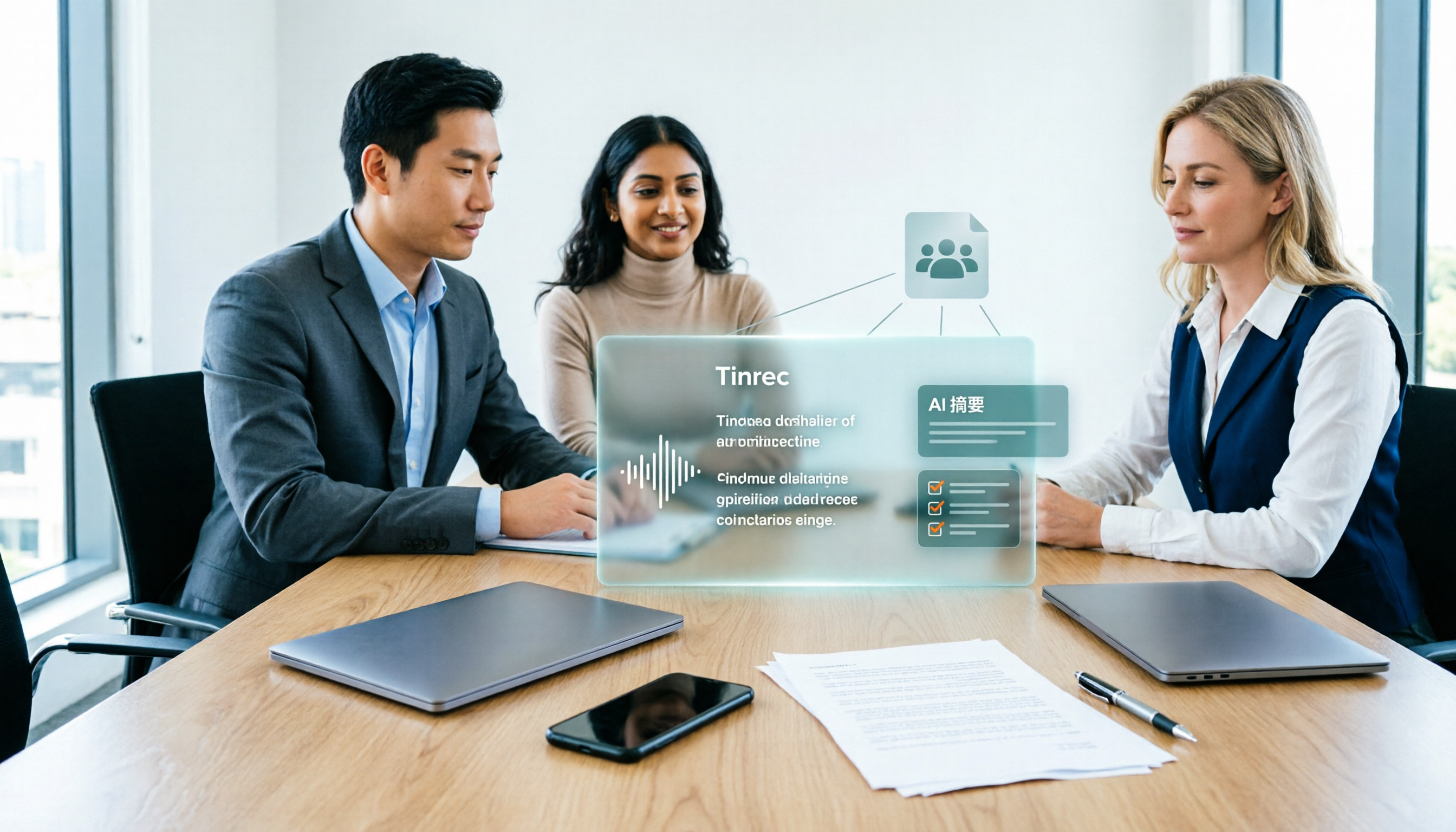
One-sentence positioning: Tinrec is an AI meeting notes and collaboration tool for individuals and teams. It supports real-time audio transcription, bot-free recording of online meetings, audio/video file import, real-time translation, and automatically generates summaries, chapters, and action items.
What it looks like in my life:
Group discussions: We eventually stopped recording video and switched to using Tinrec's desktop version to directly capture system audio. Unlike some meeting bots that join as a "participant," it can handle Zoom, Google Meet, Microsoft Teams, Webex, and other online group meetings. It produces a transcript while you discuss—by the time the meeting ends and everyone is still packing their bags, the summary and action items are already on screen: who's responsible for the literature review, who needs to submit the first draft of the questionnaire by Friday—all clearly written out.
Stop organizing recordings by hand
Upload audio or video and automatically get a transcript, summary, and action items
Classes and interviews: Last semester, I recorded an entire three-hour qualitative research class. Previously, I'd have to listen from start to finish to find key points. Now I just throw the transcript to the AI and ask: "What were the three sampling methods the professor mentioned in this class?" It answers directly based on content understanding, not just throwing keywords at you to look up yourself. This "AI chat query" is what I think sets it apart most from ordinary transcription tools—most competitors in the same price range don't have this feature yet.
Post-meeting extension: Before the capstone defense, I organized a semester's worth of discussion recordings into a one-page timeline, used its Agent post-processing feature to convert meeting content into reports and tables, and exported to Google Docs for co-editing with teammates. This used to take me a whole weekend; now it takes about an afternoon.
Three advantages I actually experienced:
- Bot-free recording—super useful for students. Some online meeting tools require pulling a bot into the meeting, and the other party sees an extra person on the list, which feels weird—especially awkward during interviews. Tinrec's desktop version directly captures your computer's system audio, so nothing extra appears in the participant list.
- Handles Chinese and mixed Chinese-English more smoothly. Our capstone discussions were all in Chinese, with some English technical terms mixed in, and the transcript reads naturally, not fragmented. Actual recognition accuracy is still affected by recording quality, accents, and multiple people talking over each other—I won't guarantee it's perfect.
- The team version solves the "teammate disappears" problem. In our cohort, one group had a member drop out halfway through, and all the data was in his personal account—effectively forcing the whole group to start over. Tinrec's team version puts data in a team space, owned by the team; when a member leaves or is removed, resources can be handed over to other active members. The team version currently offers a 7-day free trial, 1 free seat, and 300 shared minutes. Paid plans are subject to the official website (USD 29.80/paid seat/month, USD 199/paid seat/year for annual). Each paid seat gets 2,000 minutes of team shared import quota per month, and real-time recording does not deduct minutes under an active plan. For student groups, this might be over budget, but if your lab or internship team needs it, the structure is reasonable.
Honest limitations:
- It doesn't record video. If you need to submit a demo video, you'll still need built-in tools or OBS.
- The free version has a basic quota, suitable for light use; if you're a heavy user recording every class, you'll need to pay. Plans include weekly, Pro monthly, and Pro annual—prices per the official website. I suggest not buying the annual card right away.
- It doesn't promise a fixed accuracy rate. Recordings with multiple people talking over each other or loud air conditioning will definitely have missing words in the transcript. For important content, I still go back and listen to the original audio at the timestamp.
Who it's for: If, like me, your purpose for recording isn't "preservation" but "using it later"—needing transcripts, organizing interviews, finding meeting conclusions—then Tinrec fills exactly the gap that built-in tools lack.
Besides Built-in Tools and Tinrec, What Other Options Are There?
OBS Studio: Free, open-source recording software that can record the entire desktop and switch between multiple scenes—functionally a supercharged version of built-in tools. The downside is the interface isn't very friendly for first-timers; I spent half an hour figuring out the relationship between scenes and sources. Also, it only records—it won't organize content for you. If you need to record the desktop without spending money, this is the best solution.
Notta: A multilingual transcription tool. Free version: 120 minutes per month, 3 minutes per recording (meaning a class needs to be split into three parts). Pro annual works out to about USD 8.17/month, 1,800 minutes per month. Its transcription quality is good, but it focuses on file transcription—unlike Tinrec's desktop version, it doesn't directly capture system audio for bot-free meeting recording, and post-recording AI Q&A and team data retention aren't its focus.
Granola: Also a bot-free AI meeting notes tool. Basic is free, Business is USD 14/user/month. Its strength is combining your handwritten notes with AI enhancement, but note that it does not support uploading pre-recorded audio files and does not save meeting audio—if you, like us, need to go back and verify the original audio, this will be a blocker.
Pitfall Guide: 4 Common Mistakes Students Make
Pitfall 1: Thinking recording equals notes. A classmate recorded a whole semester of classes, only to find at finals that he hadn't opened a single one of the 18 videos. The value of recording isn't in the number of files; it's in whether you use them. Correct approach: Before recording, think about what you want to take away from the content. If it can be directly converted to text and summaries, don't leave it as video.
Pitfall 2: Ignoring system audio. Much of the key content in online courses and meetings is "what the other person says," and Mac's built-in recording can't capture that by default. Correct approach: Do a 30-second test recording before the real thing, and confirm you can hear both sides during playback. Don't wait until a two-hour meeting ends to discover there's no audio at all.
Pitfall 3: Storing everything on your own computer. The most common failure in group projects isn't ability—it's handover. Someone changes computers, someone drops out, someone's hard drive dies, and the data is gone. Correct approach: From the first discussion, put files in a shared space, and clarify who takes over when members change. This is also why I later leaned toward tools with a team space concept.
Pitfall 4: Using AI tools only as a "typewriter." If you only use a transcription tool to generate transcripts, you're using only a third of its power. Correct approach: After recording, ask it questions directly—"What were the conclusions of this discussion?" "What was the budget the client mentioned?" "What were the three principles the teacher talked about?"—much faster than Ctrl+F through a 40-minute transcript yourself.
Conclusion: How to Choose for Your Situation
Back to the original question: Do computers have built-in screen recording? Yes, and it's free, requires no installation, and the quality is good enough. But it solves "saving the screen," not "keeping the key points."
- Just need to record a demo or gameplay for classmates → Windows:
Win + G; Mac:Shift + Command + 5. Built-in is enough; no need to install anything. - Need to record the entire desktop or switch between multiple windows → Windows built-in won't work; use OBS Studio or PowerPoint's screen recording feature.
- Recording online meetings, interviews, or classes, and need to organize afterward → Tinrec desktop version offers bot-free recording, producing transcripts, summaries, and action items as you record.
- Want to directly ask "What did we decide last time?" after recording → Tinrec's AI chat query—this is where it stands out from most competitors in the same price range.
- Group projects, lab shared data → The team version has team space, seats, and handover mechanisms. First trial is 7 days, 1 free seat, 300 shared minutes—run a real group meeting first before deciding.
My advice is simple: use the free version for your next group meeting or class, and see if the transcript and summary are useful to you. If it feels right, go further; if not, just go back to built-in recording—tools are meant to save time, not add to your to-do list.
References
- How to Screen Record on Computer? Windows/Mac Built-in Screen Recording Tool Tutorial!
- [Tech News] How to Screen Record on Computer? Windows/Mac Built-in Screen Recording Quick Tutorial! | Jyes Communication ~ Challenging the Lowest Smartphone Prices
- Does Your Computer Have Built-in Recording? Detailed No-Install Tutorial for Windows and Mac - UpToGo
- No Software Download Needed! Does Your Computer Have Built-in Recording? Win10/11 and Mac Operation Details - UpToGo
- 2025 Edition - Beginner Tutorial: How to Screen Record? (Phone / Computer / Windows / Mac / iOS / Android)
Turn every recording into actionable outcomes
Get 60 free transcription minutes when you sign in. No credit card required.
Related Reading
You might also like

5 Best PC Audio-Only Recording Tools in 2026: Built-in, Free Open-Source, and AI Transcription Compared
Trying to record only the sound playing on your computer, but the built-in recorder only captures your microphone? This guide covers five methods—Windows Voice Recorder, Xbox Game Bar, OBS Studio, Bandicam, and Tinrec—comparing audio sources, output formats, free tiers, and limitations, with recommendations based on your use case.

2026 iPhone Notes Alternatives Tested: Is Tinrec the Easiest for Cross-Device Meeting Notes?
iPhone Notes doesn't require a download, but when you need cross-device access or want to turn meeting recordings into transcripts and action items, the built-in app falls short. This article first answers 'Can you download iPhone Notes?' then compares the built-in Notes, downloadable note-taking services, and Tinrec on input sources, post-meeting output, cross-device use, and team collaboration to help you decide which one to use.

4 Best Windows Recording Tools in 2026: Built-in Features, Meeting Notes, and Free Tier Comparison
Windows does have built-in recording features—more than one, in fact—but the audio sources they can capture vary widely. This article compares four options: Windows Voice Recorder, Xbox Game Bar, OBS Studio, and Tinrec, covering recording sources, post-meeting organization capabilities, and free tiers to help you choose the right tool for your situation.
5 Best Transcription Tools in 2026: What 'Verbatim' Means and How to Choose
Verbatim means processing word by word in order; a verbatim transcript keeps every word of what was said. This guide starts with the definition, explains what transcripts can do for you and how to choose a tool, then walks through a complete workflow with Tinrec—from recording and transcription to AI summaries, action item extraction, and team knowledge sharing.

2026 Comparison of 4 Meeting Notes Tools: Transcripts, Summaries, and AI Follow-up Capabilities
The pain of meeting notes usually isn't typing speed—it's choosing the wrong workflow and tools. Based on a mid-level manager's practical experience with 15 meetings per week, this article highlights key comparison points for 4 meeting notes tools: bot-free recording, transcript and summary quality, AI follow-up, and team seat management, along with a pitfalls guide and selection advice.

2026 Smart Meeting Collaboration Tools Tested: Which Chinese Meeting Assistant from Dcard Discussions Saves the Most Effort?
Starting from a Dcard discussion thread, we tested 4 smart meeting collaboration tools, comparing bot-free recording, Chinese transcripts, AI Q&A, action item extraction, and team knowledge retention. Tinrec is the smoothest for Chinese meetings and post-meeting workflows. This article also covers the use cases and pitfalls of Notta, Granola, and TurboScribe.

4 Free AI Meeting Collaboration Tools in 2026: Free Tiers, Meeting Notes Use Cases & Comparison Table
This article reviews the free tiers, meeting capture methods, post-meeting organization, and team collaboration capabilities of four free AI meeting collaboration tools: Tinrec, Notta, Fireflies.ai, and Granola. It includes a comparison table and a buying guide to help you choose the right solution for your meeting scenarios.

How to Take Sales Meeting Notes in 2026: 5 Steps + 3 AI Tools Compared
Sales meeting notes aren't transcripts—they're the foundation for follow-up. This guide walks through 5 key steps and compares AI tools like Tinrec, Otter.ai, and Notta to help you choose the best meeting notes solution for your team.

2026 Comparison of 4 Sales Meeting Notes Tools: From Templates to AI Summaries, Which Method Saves the Most Time?
Sales meeting notes aren't about transcribing every word—they're about capturing customer needs, commitments, and next steps. This article compares 4 writing methods and tools, with ready-to-use fields, pitfalls to avoid, and the Tinrec workflow.