

Turn recordings into transcripts and summaries in minutes
Upload audio or video for multilingual transcription, AI notes, and action items
2026 Comparison of 3 iPhone Image-to-Text Solutions: From Quick Copy to Automated Meeting Notes
Last month, after finishing price negotiations with a supplier, they dropped photos of three paper quotes in the group chat. I needed to enter the items, unit prices, and delivery dates into the procurement spreadsheet. After typing five lines while staring at my phone, I gave up—those three photos still haven't been filed.
This kind of small task happens more than a dozen times a month: a customer's business card screenshot, a foreign manufacturer's spec sheet, a whiteboard photo from a meeting. iPhone has long had a way to extract text from images, but you'll find that the real problem starts after extraction.
What Can iPhone Image-to-Text Do for You? 3 Real Scenarios
Scenario 1: Paper receipts, business cards, flyers—no need to retype Using iPhone's built-in Live Text, open an image in the Photos app, long-press the text to select and copy, or tap the Live Text button in the bottom right corner to highlight all text at once and then pick the section you want. It works for flyers, menus, business cards, whiteboard photos—no extra app needed.
Scenario 2: Understand foreign documents first After selecting text, you can directly bring up Translate, so you don't have to switch to another translation tool when reading overseas contracts, catalogs, or menus.
Scenario 3: Meetings and voice—this is where images can't help I have about 15 meetings a week. What really eats my time is never "typing an image into text," but "turning a two-hour discussion into a record I can hand off." Photos give you plain text—no conclusions, no owners, no deadlines—you still have to organize it yourself. That's why I later moved the meeting part to Tinrec.
Side-by-Side Comparison of Three Approaches
| Approach | Input | Output | Post-processing | Team sharing |
|---|---|---|---|---|
| iPhone Live Text | Photos, screenshots, live camera view | Plain text | Paste into Notes and organize manually | None |
| Shortcuts automation | Images, PDFs | Text saved to Notes | Still need manual summarization | None |
| Tinrec | Meeting recordings, online meetings, audio/video files | Transcript, summary, chapters, action items, translation | AI summary, action items, and follow-up questions | Team workspace, roles, and seat management |
Live Text Is Handy, but Know These 4 Limitations First
- Version requirement: Requires iOS 15 or later, on iPhone XS, XR, or later models.
- One at a time: It's designed for single-image processing; your hands will get tired when volume is high.
- Recognition depends on image quality: Printed text is very reliable, but messy handwriting, unusual fonts, and cluttered backgrounds significantly reduce accuracy.
- Only handles text in the frame: It can't help with recordings, videos, or an entire meeting.
In other words, Live Text solves the "input" part, but what I really lack is the "output"—a record I can send directly to the team.
Tinrec's Core Capability: Turning "Notes" into Something You Can Hand Off
Record online meetings without a meeting bot Tinrec's desktop app directly captures your computer's system audio, handling online meetings on Zoom, Google Meet, Microsoft Teams, Webex, etc., without an extra bot joining as a participant. No need to explain "who is this" internally or externally.
Live transcription while speaking, plus real-time translation For in-person meetings and interviews, use real-time recording to text—words settle as you speak; for cross-language meetings, you can switch between original, translated, or bilingual views.
Organize audio/video files directly Past meeting recordings and interview files can be uploaded and converted to text without re-listening.
AI summaries, chapters, and action items This is the biggest difference from pure transcription tools. Long meetings are broken into chapters, with key points, conclusions, and action items listed separately—who's responsible for what is clear at a glance.
Ask questions directly about meeting content After transcription, you can ask: "Who proposed the budget last time?" "What did the client say about the delivery date?" It answers semantically, so you don't have to Ctrl+F through sections yourself.
Export and post-meeting outputs Results can be brought into existing workflows like Notion, Google Docs, OneNote, Dropbox, and can further generate reports, tables, and meeting minutes.
Stop organizing recordings by hand
Upload audio or video and automatically get a transcript, summary, and action items
Team workspace and governance The team edition is a separate collaborative space, not a shared personal account: you can create multiple teams, invite members via link, set owners/admins/regular members, assign and revoke seats, and view usage trends, member rankings, manage team hotwords, query and export audit logs. When a member leaves or loses a seat, resources must be handed over to other active members—data doesn't follow the individual.
Real Use Cases: How My Team Uses It
Weekly and project progress meetings After meetings, I used to spend another hour organizing. Now when the meeting ends, the summary and action items are already in the team space—I just add "do these two this week."
Customer interviews and requirements confirmation Customer commitments, objections, and timelines are all in the transcript. Two weeks later, if they say "I didn't say that," I don't have to argue from memory.
Cross-language and mixed Chinese-English meetings The manufacturer's technician speaks English, we speak Chinese—real-time translation plus bilingual transcripts mean no need to find a translator afterward. For technical terms, team hotwords help maintain recognition quality.
Member handover and onboarding Meeting notes used to be scattered across personal computers and chat rooms—when someone leaves, it's lost. Now data belongs to the team, and new hires can browse past meetings directly.
5 Things to Consider When Choosing a Transcription Solution
1. First distinguish whether you're transcribing "images" or "audio" For images, the built-in feature is enough; the focus is on audio and meetings. Note that Tinrec does not have image OCR—it handles recordings, online meetings, and audio/video files. Tools work best when used for the right purpose.
2. Does it "organize" after transcription? Tools that only give you a transcript leave the organizing work to you. Tinrec directly produces summaries, chapters, and action items together—that's where the time savings come from.
3. How does it join online meetings? Some solutions require a bot to join the meeting, which some people mind. Tinrec captures system audio via the desktop app, and you initiate the recording yourself.
4. Chinese and mixed Chinese-English recognition experience Don't just look at marketing numbers—run a segment with your own recording. Tinrec covers Chinese, Traditional Chinese, and multilingual scenarios, but actual performance is still affected by recording quality, accents, noise, overlapping speakers, and technical terms.
5. Data ownership and team governance Personal use and team use are two different things. Tinrec's team edition distinguishes "roles" and "seats": roles determine who can manage the team, seats determine who can record, upload, edit, and export. Members without seats can still view, play, and read team data, but cannot perform resource usage operations. Currently it's team-level sharing, not file-level granular permissions.
FAQ
Q: Can iPhone convert images to text? What version is needed? Yes, using the built-in Live Text. Requires iOS 15 or later, on iPhone XS, XR, or later models; it also works directly in the Camera app or the camera interface in Notes and Reminders.
Q: Can it recognize handwriting? Printed text is very reliable; handwriting depends on neatness—messy notes have noticeably lower accuracy than printed text. When taking photos, try to keep text flat and lighting even for better results.
Q: Can Tinrec convert photos to text directly? No. Tinrec handles recordings, online meetings, and audio/video files—its positioning is meeting notes and post-meeting organization, not image OCR. Use iPhone's built-in feature for images and Tinrec for audio and meetings—that division works best.
Q: Is the free version enough? How is the team edition priced? Consider your usage frequency: for occasional recording organization, the free version's basic quota is enough; for short-term intensive meetings or interviews, consider a weekly card; for steady weekly needs, use the Pro monthly card; for long-term data accumulation, the annual card is suitable. The team edition offers a 7-day trial for first-time eligible users, 1 free seat, and 300 minutes of team shared import quota; paid plans are USD 29.80 per paid seat per month, or USD 199 per paid seat per year (about USD 16.58 per month), with 2,000 minutes of team shared import quota per paid seat per month. Under an active team plan and active seats, real-time recording currently does not deduct minutes; file and web imports use the team shared quota. Actual prices and benefits are subject to the official purchase page.
Q: What's the difference between the team edition and personal edition? Personal edition data belongs to the individual account; the team edition is a separate space where data belongs to the team, with additional members, roles, seats, sharing benefits, usage analytics, audit logs, and an audio recycle bin (currently retained for 30 days, can be restored or submitted for permanent deletion).
Conclusion
Back to those three quotes: for image-to-text, iPhone's built-in Live Text is enough—not worth installing another tool. What's really worth paying for is something else—whether the decisions, commitments, and action items from a dozen meetings a week have a place to be stored properly, searched, and handed off.
My advice is simple: use Live Text for images, and let Tinrec handle meetings. It turns recordings into transcripts, transcripts into summaries and action items, and puts them in a team space for everyone to search. Try the free version for a meeting or two and see if the hour you save is the hour you wanted—then talk about upgrading.
References
- Copy and translate text from photos on iPhone or iPad - Apple Support (Taiwan)
- iPhone photo/image/PDF to text automatically saved, all in one click! Plus translation - AppleFans
- iPhone image-to-text tutorial: iPhone OCR feature test and efficient AI recording alternative - Tinrec Blog
- iPhone photo copy text tutorial: 3 ways to extract and copy text from screenshots or images - Tech Girlz
- Which iPhone photo-to-text method is best? 3 tested in 2026, this one saves the most time - Tinrec Blog
Turn every recording into actionable outcomes
Get 60 free transcription minutes when you sign in. No credit card required.
Related Reading
You might also like

4 Zoom Meeting Summary Tools Tested in 2026: Which One Actually Saves You Time?
How to choose a Zoom meeting summary tool? This article compares Tinrec, Otter.ai, Notta, and Granola across summary deliverability, recording method, Chinese-language experience, and team collaboration, and covers pricing, limitations, and pitfalls to help you pick the right AI meeting notes solution for Zoom.

2026 Comparison of 2 Cantonese Speech-to-Text Tools: Tinrec vs Otter.ai — Which Is Better for Mixed Chinese-English Meetings?
Tired of transcribing Cantonese meeting recordings? This article compares Tinrec and Otter.ai across Cantonese and mixed Chinese-English recognition, bot-free online meeting recording, post-meeting summaries and AI Q&A, team collaboration governance, and free tiers and pricing, to help you decide which is better suited for Cantonese meetings, interviews, and team organization needs.

2026 Comparison of 3 Computer Video-to-Text Tools: Why Tinrec Is Better Than cSubtitle and VEED for Meeting Organization
Many people upload a video to a transcription site only to realize they still have to manually organize the transcript. Starting from common misconceptions about computer video-to-text, this article compares Tinrec, cSubtitle, and VEED, and explains how Tinrec turns video content into summaries, action items, and searchable team meeting materials.
5 Best Text-to-Speech Tools in 2026: Which One Sounds Most Human?
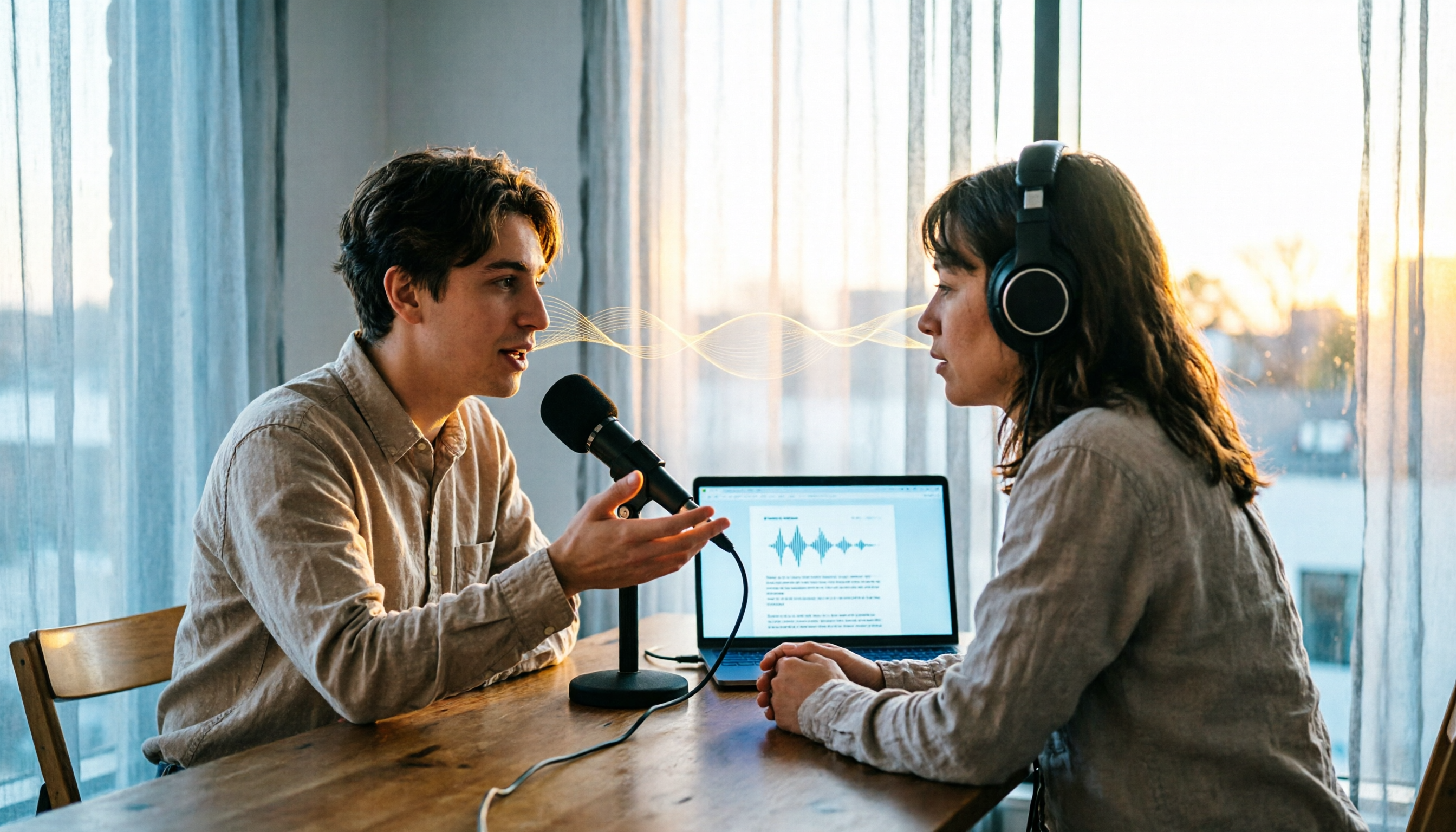
The same script fed into different tools produces wildly different 'human-like' results. This article first breaks down 4 key factors for choosing a text-to-speech tool with human-like voice, then hands-on compares MyEdit, Vidnoz, FlexClip, and Yating. Finally, it covers the other half of the human voice need: using Tinrec to turn meeting and interview recordings into searchable, queryable transcripts and summaries.

2026 Comparison of 5 Online Text-to-Speech Readers: Which Offers the Most Practical Traditional Chinese Voices and Audio Export?
Starting from the common misconception that you just paste text and press play, this article compares TextReader, MyEdit, Luvvoice, Vidnoz AI, and Speechify across speech engines, Traditional Chinese voices, long-text handling, and audio export. It includes comparison criteria, quota details, and recommendations based on user needs.

2026 Comparison of 3 AI Conversation Tools: Stop Treating Transcripts as Meeting Notes
AI conversation is more than just a chatbot. This article addresses common misconceptions and explains how to use Tinrec to turn meeting conversations into transcripts, summaries, action items, and queryable team data, along with purchasing checkpoints and FAQs.

2026 Speech-to-Text Tools Compared: Free Tiers, Chinese Transcription, and Post-Meeting Organization
Many speech-to-text tools exist, but the real challenge isn't transcription—it's what you do afterward. This hands-on comparison of Tinrec, Notta, Granola, and TurboScribe evaluates free tiers, Chinese transcription performance, and paid plan differences from three angles: post-meeting organization, online meeting recording methods, and team collaboration. Includes 4 common pitfalls to help you choose the right tool for your use case.

Huawei Phone Audio Transcription Tools Compared: Tinrec vs Built-in (2026)
How to transcribe Huawei phone recordings? This practical comparison examines whether the built-in transcription is sufficient, comparing Huawei's built-in recorder, Tinrec, Notta, and TurboScribe on Chinese recognition, post-meeting organization, AI Q&A, and team collaboration, with real-world scenarios and buying considerations to help you decide which approach saves the most time.

2026 iPhone Audio-to-Text App Guide: Tinrec No-Bot Meeting Recording + AI Q&A
iPhone's built-in Voice Memos transcription has device and OS limitations. This hands-on guide covers Tinrec, an iPhone audio-to-text app that records online meetings without a bot, transcribes mixed Chinese-English, provides AI summaries and Q&A, and helps teams retain knowledge. We explain how to use it and how it differs from built-in options.