

Turn recordings into transcripts and summaries in minutes
Upload audio or video for multilingual transcription, AI notes, and action items
Why Do You Need a Subtitle Generation Tool?
For content creators, manually adding subtitles to a 10-minute video can take up to 2 hours. Not only does it disrupt the editing rhythm, but it also increases the risk of typos and omissions. According to official YouTube data, videos with subtitles see an average 12% increase in watch time. Subtitles not only serve hearing-impaired audiences but also allow viewers to watch in silent mode, directly boosting completion rates and SEO. This article rounds up the 5 most worthwhile subtitle generation solutions available today, from editing software you may already use to professional AI transcription platforms, helping you get subtitles done in the shortest time possible.
5 Key Points to Know Before Choosing a Subtitle Generation Tool
Before diving into the tool list, understanding these 5 key points can save you a lot of trial and error:
- Recognition Accuracy: This involves accents, background noise, multiple speakers, etc. For creators working with Chinese, recognition capabilities for Traditional Chinese, Simplified Chinese, and Chinese-English code-mixing directly affect subsequent editing time.
- Output Format: Do you need a plain text file, or an SRT subtitle file that can be directly imported into editing software? Some tools only provide transcripts, requiring you to convert formats yourself.
- Editing Convenience: After automatic recognition, is the interface for fixing typos and adjusting timestamps user-friendly? If you can edit and export directly within the tool, it saves an extra step.
- Multilingual Support: If your channel uses English, Japanese, or other languages, or you want to add bilingual subtitles, check the number of languages the tool supports.
- Pricing and Usage: Free plans often have minute or usage limits. Is the paid version worth it? Start with a free trial or short-term plan to evaluate long-term needs.
Option 1: Tinrec – The Most Comprehensive AI Audio/Video Processing Workstation
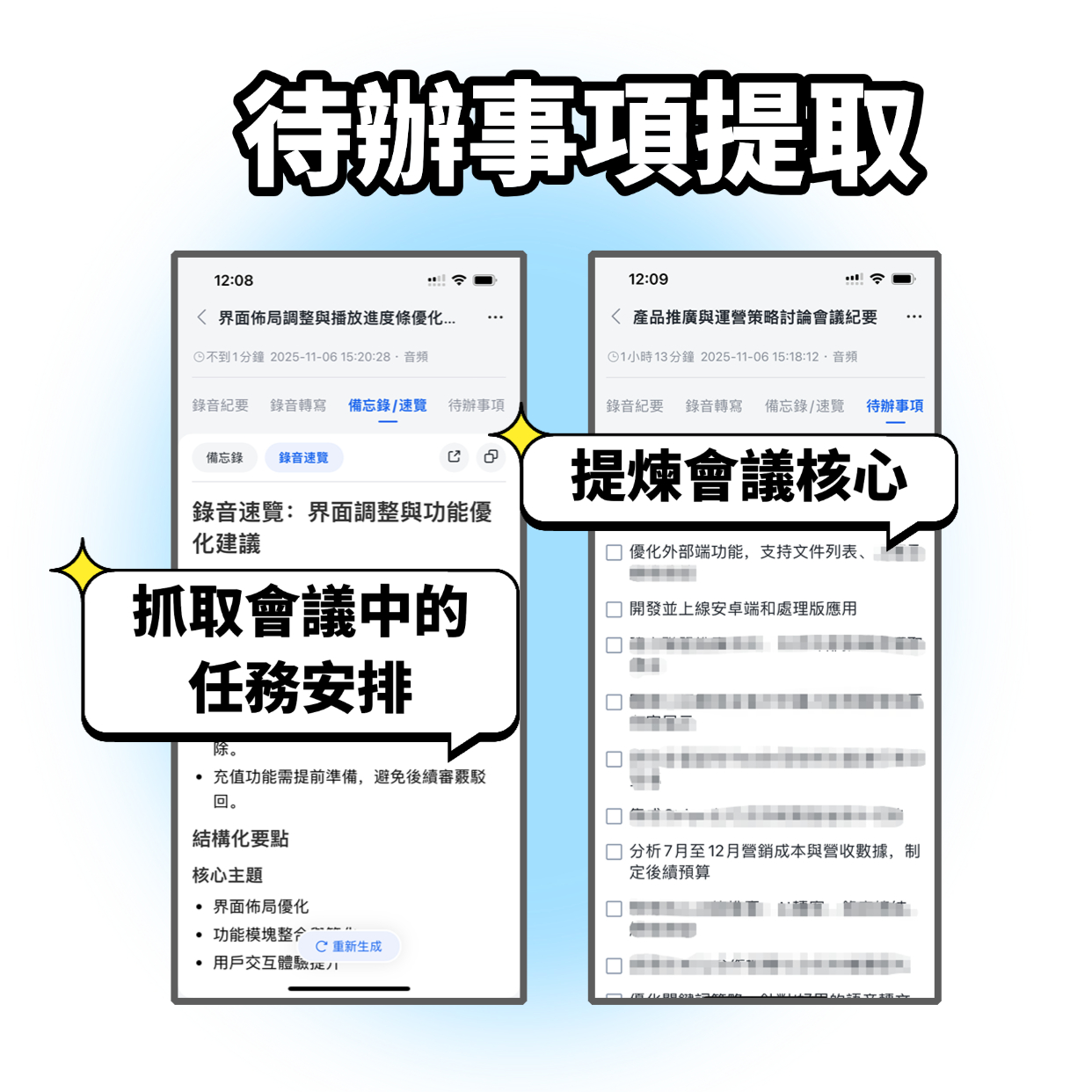
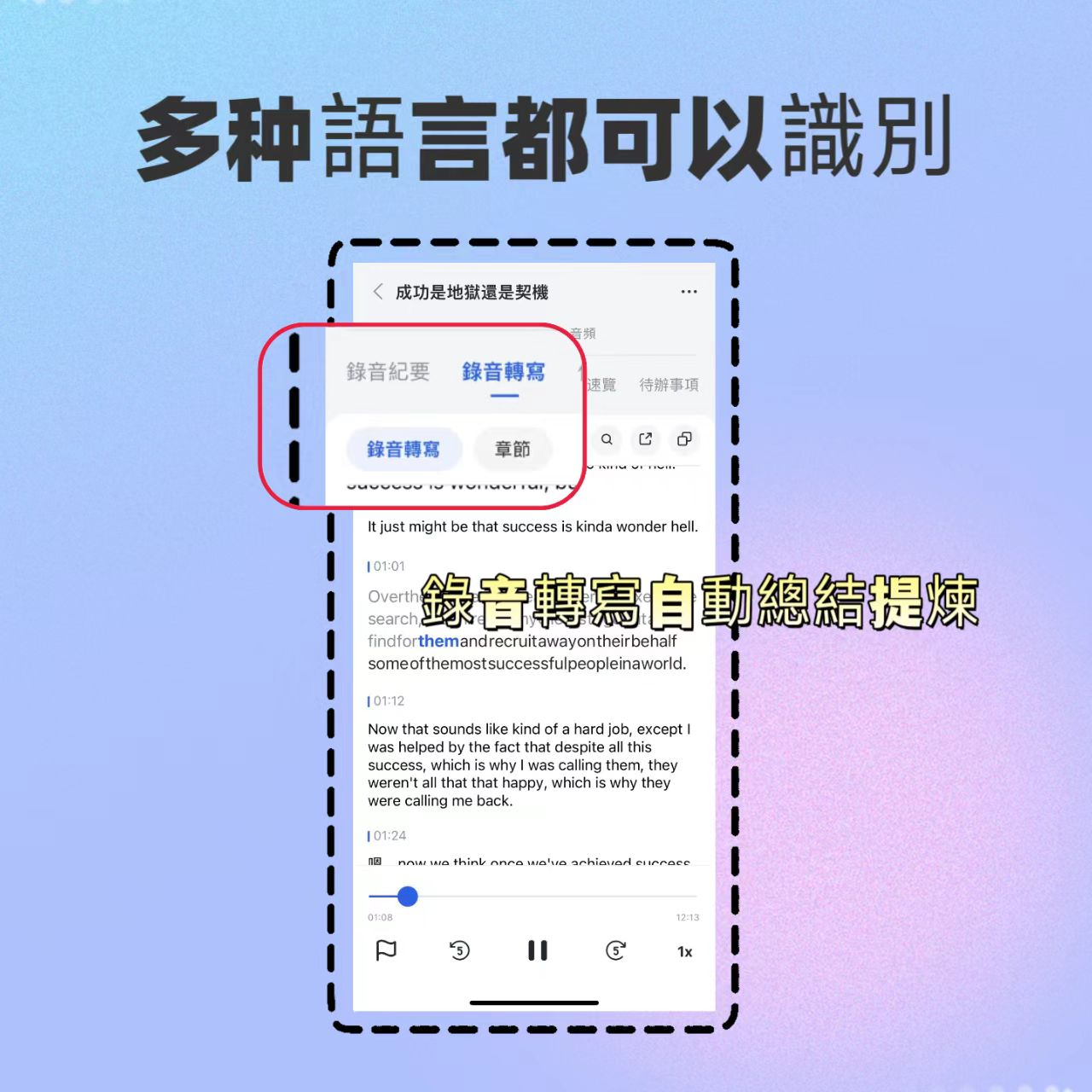
Tinrec is more than just speech-to-text; it's a productivity hub that turns videos into usable material. For content creators, you can paste public video links from YouTube, Bilibili, TikTok, Xiaohongshu, etc., directly generate transcripts with timestamps, auto-summarize, create chapters, and even perform AI Q&A on video content—for example, "What editing tips are mentioned in this video?"
The core highlight lies in "reuse after transcription": the output text can be exported as SRT subtitle files for direct import into editing software; it can also be exported as TXT, Markdown, or synced to Notion and Google Docs for scriptwriting or brainstorming new topics. If you frequently analyze other creators' videos or want to archive your past live streams into text summaries, Tinrec is a more long-term investment than a simple subtitle tool.
Pricing: Tinrec offers free trial credits for full-feature testing; if you have intensive video processing needs in the near future, a weekly plan is suitable; for stable, regular creators, the Pro monthly or annual plans are recommended.
Best for: Content creators who need to quickly extract text materials from a large number of videos, want to build a searchable video database, or manage content across multiple platforms.
Option 2: CapCut – Built-in Auto Subtitles, Edit While You Cut
If you already use CapCut for editing, its auto-subtitle feature requires almost no learning curve. After importing a video, click "Text" → "Intelligent Subtitles" to generate subtitles in one click, and you can edit typos and timestamps directly on the timeline. The free version supports multiple languages including Chinese and English, which is sufficient for most individual creators. The downside: if you need to adjust subtitle styles after recognition, you still have to manually set templates; the free version has limits on video length or number of uses, so longer videos may need to be processed in segments. Exported subtitles can be embedded in the video or exported as SRT separately.
Stop organizing recordings by hand
Upload audio or video and automatically get a transcript, summary, and action items
Best for: Creators who already use CapCut, prefer an all-in-one editing + subtitling workflow, and mostly work with videos under 30 minutes.
Option 3: VEED.io – Online Quick Subtitle Generation, No Installation Required
VEED.io is an online video editing platform whose biggest selling point is no installation—just open a browser. After uploading a video, its auto-subtitle feature quickly generates subtitles and lets you edit them on the web; it supports downloading subtitles in SRT, VTT, and other formats. The free version has a watermark and a monthly limit of 10 minutes of transcription; the paid version (Basic ~$12/month) unlocks longer videos and removes watermarks. It's convenient for those who rarely need subtitles or need to quickly process a single video, but for bulk processing, the minute limit can be a bottleneck.
Best for: Light users who need subtitles occasionally, don't want to install software, or only work on a laptop.
Option 4: SubtitleBee – Focused on Subtitle Generation with Strong Multilingual Support
SubtitleBee is an online tool specifically designed for adding subtitles to videos, supporting over 100 languages with fast recognition. The workflow is simple: upload video, select language, generate subtitles automatically, then fine-tune timestamps and styles in its editor, and finally export SRT or a video with embedded subtitles. The free plan allows about 10 minutes of video per month; the paid version (~€9/month) offers longer durations. It has no complex editing features, focusing solely on making subtitling convenient.
Best for: Creators who only need subtitles, don't want bulky editing software, and require multilingual support.
Option 5: Notta – Professional Transcription Tool That Also Outputs Subtitles
Notta was originally designed for meeting notes and transcription, but due to its stable transcription quality and support for over 100 languages, many content creators also use it to generate video subtitles. The process involves uploading (or recording) a video, obtaining a transcript, and then exporting as SRT. Its strengths are transcription accuracy and additional AI summaries and translation features. The free version offers 120 minutes per month; the Pro version (annual ~$8/month) provides 1800 minutes. However, Notta lacks a video editor, so you'll need to align timestamps in your editing software after transcription.
Best for: Content creators who demand high transcription accuracy, need bilingual Chinese/English subtitles, and don't mind an extra step in their workflow.
With So Many Options, How Do You Choose?
- For one-stop video material processing + subtitles + subsequent content reuse → Tinrec (the only option that handles video link transcription, AI Q&A, and multi-format export, plus syncing text to your favorite note-taking apps)
- Already using CapCut for editing and don't want to learn a new tool → CapCut (built-in, free enough, and brainless)
- Occasionally need subtitles and don't want to install anything → VEED.io (just open a browser, ideal for light needs)
- Only care about subtitles and need extensive multilingual support → SubtitleBee (focused solely on subtitling, simple operation)
- Extremely high transcription accuracy required, willing to do post-processing → Notta (great transcription quality but requires separate timestamp alignment)
3 Things to Know Before Using a Subtitle Generation Tool
- No automatic subtitles are 100% perfect: All AI tools are affected by audio quality, accents, and overlapping speech. Even high-quality transcription like Tinrec may produce errors in noisy Vlogs; develop a habit of "quick proofreading" to ensure a good viewer experience.
- Format compatibility with editing software: When exporting subtitles, check that your editing software supports the format (commonly SRT). Tinrec and SubtitleBee can export SRT directly, while some online tools only provide VTT, which may require conversion.
- Leverage transcribed text assets: Subtitles aren't just for videos—transcripts can become blog posts, social media content, or new script inspiration. Platforms like Tinrec, which sync text to Notion or Google Docs, can multiply the value of a single video.
Summary
For content creators, subtitle generation is no longer a question of "whether" but "which tool saves you the most time." If you're looking for a complete workflow that covers video transcription, subtitle output, material organization, and reuse, Tinrec currently offers the broadest functionality. If your needs are simpler, CapCut's built-in subtitles can handle most daily editing. Start with the video types and volume you handle most often, and choose a tool that lets you "finish subtitles and still have energy for the next script"—that's a truly worthwhile investment.
Turn every recording into actionable outcomes
Get 60 free transcription minutes when you sign in. No credit card required.
Related Reading
You might also like

How to Record iPhone Meetings in 2026: Auto-Generate Transcripts & Action Items
Recording a meeting on iPhone seems easy, but the real time sink is post-meeting organization. This guide starts with the decision point: do you just want audio, or do you need something usable? It breaks down 4 key selection criteria, compares Tinrec with PLAUD, Notta, and Otter.ai, and covers 4 common pitfalls to help you choose the right solution within your budget.

What Does 'Meeting Minutes' Mean? 4 Meeting Note Tools Tested in 2026 — This One Handles Chinese Best
'Meeting minutes' doesn't mean 'a few minutes' — it refers to the official written record of a meeting. This article first explains the correct meaning of 'minutes,' common collocations, and the fields a proper set of meeting minutes should include. It then tests and compares four tools — Tinrec, Otter.ai, Notta, and Granola — on Chinese transcription, recording retention, post-meeting organization, and team collaboration, helping you pick the one you'll actually keep using.

6 Speech-to-Text Tools Compared for 2026: Free Tiers, Chinese Recognition, and AI Summaries
How to choose a speech-to-text tool in 2026? Starting from three common misconceptions, this guide breaks down five key buying factors—free tier limits, Traditional Chinese recognition, AI summaries, and offline privacy—then compares six options including Whisper, MacWhisper, Google Live Transcribe, Otter.ai, Notta, and Yating Transcription, covering their best use cases and limitations.

2026 Client Meeting Notes: 3 Common Mistakes Freelancers Make and How to Fix Them
For freelancers, the biggest fear isn't a lack of projects—it's the 'he said, she said' after a client meeting. This article tackles three common mistakes, explains what to include (and exclude) in client meeting notes, shares a before-during-after approach, and uses Tinrec as an example to show how to turn voice into trackable decisions and action items. It wraps up with key considerations for choosing a tool and answers to FAQs.

2026 Comparison of 4 Audio Transcription Apps: Which Saves Reporters the Most Time?
Interview recordings often run an hour, and re-listening plus typing takes the most time. This article compiles actual data on four audio-to-transcript tools—Yating Transcription, Atter App, Easemate.AI, and NotebookLM—comparing multilingual recognition, real-time transcription, AI summaries, and data security to help reporters and anyone organizing interviews quickly choose the right tool.

5 AI Speech-to-Text Tools Compared for 2026: Which Has the Most Reliable Speaker Diarization?
Getting a transcript is one thing, but figuring out who said what is the real challenge when reviewing meetings and interviews. This article focuses on speaker diarization as a key selection criterion, comparing the strengths and limitations of Google Cloud Speech-to-Text, Yating Transcription, Otter.ai, RecCloud, and Vocol.ai, and highlights three common pitfalls to help you choose the right tool for your use case.

Best Speech-to-Text Apps in 2026: 4 Tested, This One Handles Taiwanese Mandarin and Mixed Chinese-English Best
A two-hour meeting recording often takes three hours to review and organize. This article compares four speech-to-text apps based on real-world use cases, covering language support, external audio import, transcript organization, and free tier differences. It also includes a three-step practical tutorial and common pitfalls to help you choose the right tool.

4 Best Speech-to-Text Apps in 2026: Real-Time Translation vs. Transcription—Which Saves More Time?
After a mixed Chinese-English meeting, do you still have to replay the recording, type a transcript, and then translate it? This article starts from real-world scenarios, outlines 4 key factors for choosing a speech-to-text tool, and compares Tinrec, Monica, JotMe, and Yating Transcription on real-time translation, transcription, and post-meeting organization to help you find the most time-saving option.
Speech to Text in Traditional Chinese 2026: PTT-Recommended Tools & 3-Step Transcript Workflow
PTT threads are full of speech-to-text recommendations, but the real reason answers diverge is that people are asking different questions. This guide starts with the decision point: what will you do with your recording afterward? It breaks down the challenges of recognizing mixed Traditional Chinese contexts, four key selection criteria, how to choose among PTT-favored tools, and includes my 3-step transcript organization workflow with a copyable prompt template.