

Turn recordings into transcripts and summaries in minutes
Upload audio or video for multilingual transcription, AI notes, and action items
Last semester, I filmed a 20-minute interview video for my project. The professor said I needed to add Chinese subtitles before submitting. I initially planned to do it the old-fashioned way—transcribing by typing every word. Two hours later, I had barely finished 5 minutes, and my hands were cramping up. Luckily, a classmate recommended I try Tinrec. Now I can quickly generate subtitles for lecture recordings and even YouTube videos. Here’s how I use it.
Before You Start | What You’ll Need
Before generating subtitles, make sure you have the following to ensure a smooth process:
- A smartphone or computer (iPhone, Android, or web version all work; I use an iPhone with the Mac web version)
- Download the Tinrec app (free from the App Store or Google Play; you can also log in directly with Google or Apple ID)
- Your video file ready for subtitles (can be from your phone, camera, or a public video downloaded from YouTube)
- A stable internet connection (real-time transcription requires connectivity; if you want to use it offline, remember to download the language pack in advance)
Step 1 | Import Your Video for Subtitle Generation
This step puts your video into Tinrec so it can start working.
Open Tinrec, tap "Import Audio/Video File" on the main screen, and select your video from your phone or computer. For public online videos (like tutorials from YouTube or Bilibili), just paste the link and Tinrec will parse it automatically. After uploading, you’ll see the processing progress; a 10-minute video usually imports within 30 seconds.
Why is clear audio important? Because transcription accuracy largely depends on audio quality. In my experience, videos recorded directly with an iPhone in a quiet environment achieve at least 90% accuracy. If your video has background noise, you can briefly reduce noise with editing software before importing.
Once done, you’ll see your video on the Tinrec main screen with its duration and file size.
Step 2 | Let AI Transcribe and Auto-Timestamp
This step converts the speech in your video into text with automatic timestamps, forming the basis for subtitles.
Tap the imported video and select "Voice to Transcript." Tinrec will analyze the audio track, and within a few minutes, you’ll see a transcript with timestamps. I especially like that it automatically segments the text into dialogue-like chunks rather than one massive block, making subtitle creation easier.
Why are timestamps necessary? Because subtitle files (like SRT and VTT) rely on timestamps to sync with the video. Tinrec does this for you, saving you the effort of manually listening and adjusting timestamps.
After transcription, quickly preview the result to spot any obvious errors or missing sentences.
Step 3 | Quickly Proofread Subtitles
This step helps you fix minor transcription errors to ensure accurate subtitles.
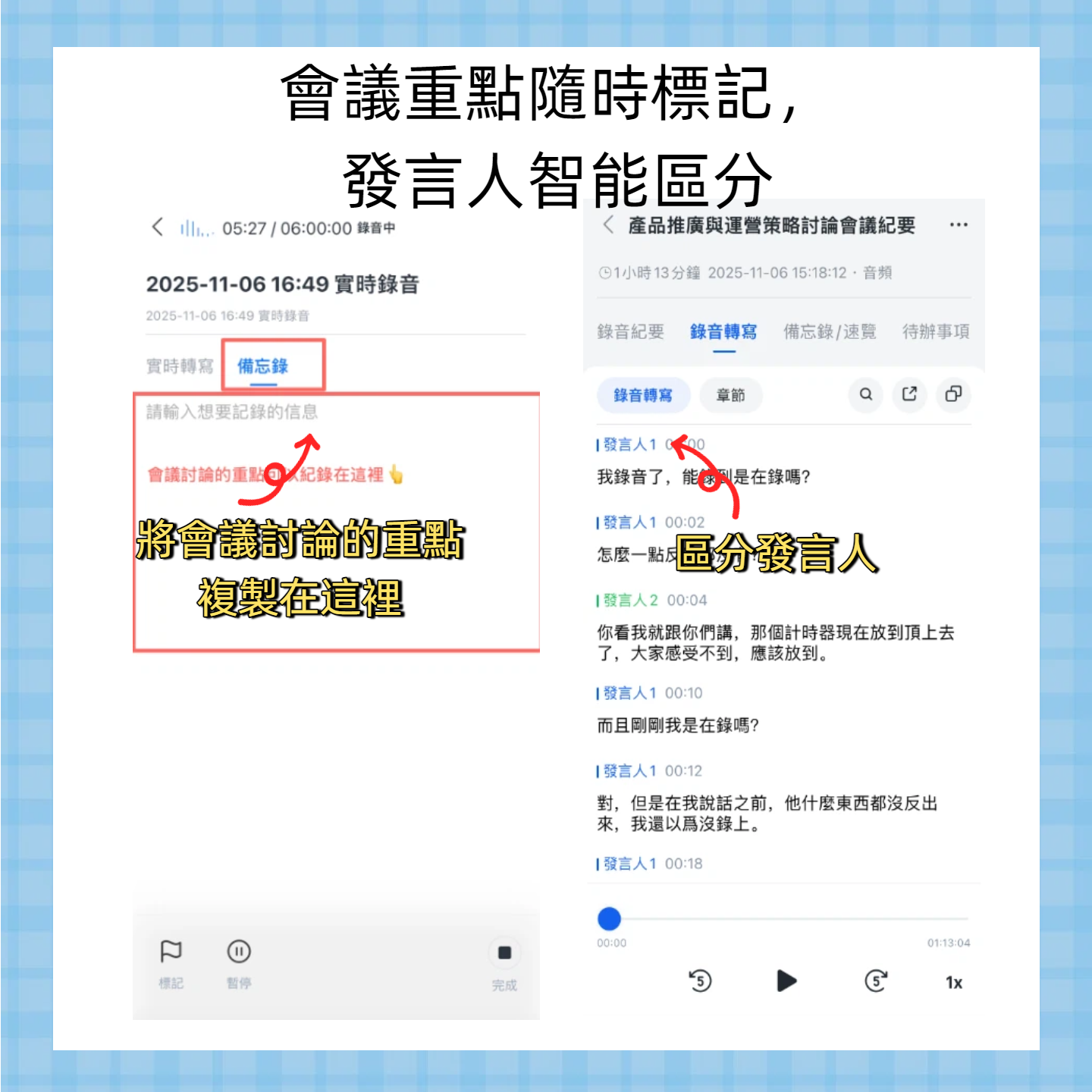
Play the video while comparing it with the transcript. I usually playback at 1.5x speed and tap the text to edit any mistakes. Tinrec’s editing interface is intuitive—tap a word to change it, and timestamps adjust automatically. If there are multiple speakers, it automatically labels them as "Speaker 1," "Speaker 2," helping you identify who is speaking.
Why spend a few minutes proofreading? Although AI is highly accurate, names, proper nouns, and heavy accents can cause occasional errors. It’s better to spend five minutes now than to have your professor spot mistakes later.
After proofreading, you’ll have a clean, timestamped transcript ready to export.
Step 4 | Export Subtitle File
This step exports the formatted text with timestamps into a subtitle format compatible with video editing software.
Stop organizing recordings by hand
Upload audio or video and automatically get a transcript, summary, and action items
On the proofread transcript page, tap "Export" and select "Subtitle File." Tinrec supports SRT and VTT, the two most common formats. I use Premiere Pro, so I choose SRT, which imports directly. You can also adjust maximum characters per subtitle line and duration during export—very handy.
Why check the format? Final Cut, DaVinci, and CapCut may read different subtitle formats. Tinrec’s two mainstream formats cover over 90% of needs; if your software requires a specific format, you can use an online converter.
After exporting, you’ll get an .srt or .vtt file; just drag it into your editing project and you’re set.
Step 5 | Merge Subtitles with Video
This step combines the subtitle file with the video to produce the final result.
Open your video editing software, import the original video and the subtitle file downloaded from Tinrec, align the subtitle track with the video start, check a few timestamps, and export. If you only need subtitles, you can export the subtitle track separately and then combine it with the video.
Why include this step? Many people get stuck after generating subtitles, not knowing how to use them. While Tinrec doesn’t have built-in video burning, handing plain text + timestamps to a professional editor offers more flexibility—you can customize fonts, colors, and positions for better-looking subtitles.
Once exported, you can submit your subtitled video or upload it to platforms.
FAQ and Troubleshooting
Q: The generated subtitles have many errors. What should I do?
This usually happens due to poor audio quality or heavy accents. Tinrec has built-in smart noise reduction; if you use it for live recording, enable noise reduction beforehand. For external videos, select the "High Noise Environment" mode during import. Most other transcription tools lack this option, so they easily make mistakes in noisy settings.
Q: Is the free version sufficient?
The free plan offers 100 minutes of transcription per month, which can handle about 3–4 short videos of 20 minutes each for a semester. If you only need subtitles for midterms and finals, the free version is enough. If you produce videos weekly, consider the Pro monthly subscription—about the cost of a boba tea—for more minutes.
Q: I recorded an English lecture. Will the AI make mistakes?
Tinrec supports multiple languages including Chinese, English, Japanese, and Korean. Make sure to select the correct language before transcription. I’ve processed interviews mixing Chinese and English with surprisingly good results—even proper nouns like "machine learning" were transcribed correctly. Of course, with too much background noise or a distant microphone, no tool can be 100% accurate.
Pro Tips | 3 Ways to Double Tinrec’s Efficiency
Use AI Chat for Quick Corrections of Specific Sections
If a speaker talks fast and mentions many numbers, you don’t need to re-listen to the whole section. Use Tinrec’s AI chat box: “Find all amounts mentioned between minute 3 and minute 5.” It will list them directly, letting you quickly jump to problematic spots. This feature goes beyond other tools—even Otter.ai’s AI chat focuses more on summaries than sentence-level correction.Auto-Extract Action Items for Subtitle Prompts
For project discussions or meeting recordings, Tinrec can automatically extract to-do items. I export these as a separate subtitle file to display at the end of the video as a key review, so viewers know what to do at a glance. Think of it as “action-item subtitles”—even my professor said it’s very useful.Cross-Device Sync: Record on Phone, Subtitle on Computer
Record a lecture with your phone on the go, then open Tinrec on your computer at home—the video is already synced. No file transfer or cables needed; start transcribing immediately. Notta also offers multi-device sync, but Tinrec’s real-time sync is faster, appearing within seconds of recording, saving waiting time.
If You Don’t Use Tinrec, Here Are Alternatives
- Happy Scribe: A well-established transcription tool with high accuracy but higher cost (about US$12 per hour). Suitable for business teams with budgets, but not student-friendly—free trial only offers a few minutes.
- VEED.io: An online subtitle generator with a simple interface, but the free version adds watermarks and limits quality, making it better for quick previews than final submissions.
If you’re like me and care about budget while needing flexibility with various video sources, Tinrec is a more balanced choice, especially with a free plan that’s more than enough for occasional student use.
Summary
From importing videos to finally dropping the .srt file into your editor, you’ve now learned the complete workflow for auto-generating subtitles with Tinrec. This method has saved me countless nights of manual transcription and made my submissions look more professional. Next step: download the free version of Tinrec and try it with a video you’ve already shot. The monthly 100-minute quota lets you handle several course videos without spending a dime.
Turn every recording into actionable outcomes
Get 60 free transcription minutes when you sign in. No credit card required.
Related Reading
You might also like

4 Free AI Meeting Collaboration Platforms Compared in 2026: Which Handles Chinese Meeting Notes Best?
Still spending an hour after every meeting writing up notes? We tested 4 free AI meeting collaboration platforms—Tinrec, Otter.ai, Granola, and the built-in transcription in Google Meet/Microsoft Teams—comparing free tiers, Chinese recognition, bot-free recording, post-meeting summaries and Q&A, and team data ownership. We also break down individual and team pricing and common pitfalls to help budget-conscious professionals find a free plan that actually works.

2026 Top 6 AI Meeting Collaboration Platforms Compared: Which Makes Chinese Meeting Notes and Follow-Ups Easiest?
Starting from the real pain of 'can't find key decisions after a meeting,' this guide reviews 6 AI meeting collaboration platforms, covering use cases, plans, and pricing. It explains how to choose for Chinese meeting notes, post-meeting organization, and building a team knowledge base.

2026 Top 5 AI Meeting Collaboration Tools Compared: Capture Usable Data Without a Meeting Bot
After a meeting ends, the transcript often never gets opened again—the problem isn't that the tool is bad, but that the workflow wasn't designed well. This article starts with buying criteria, shares my evaluation method after hands-on testing, and compares Tinrec, Otter.ai, Granola, and Notta on bot-free recording, post-meeting organization, data ownership, and team collaboration to help you choose a solution that truly captures your meetings.

2026 Smart Meeting Collaboration Platforms: 5 Tools Compared + Tinrec Bot-Free Recording
This article reviews 5 smart meeting collaboration platforms in 2026, including Tinrec, Otter.ai, Notta, Google Meet, and Microsoft Teams. It compares bot-free recording, AI summaries, real-time translation, team collaboration, and pricing to help you find the best meeting notes solution.

Smart Meeting Collaboration in 2026: 5 Steps from Choosing Tools to Post-Meeting Follow-Up
Managing a 10-person team and 15 meetings a week, the most time-consuming part is never the meeting itself—it's the post-meeting cleanup. This article, from the perspective of a mid-level manager, breaks down whether smart meeting collaboration tools are practical, which 5 steps to check, and how Tinrec works in practice for bot-free recording, transcripts, AI summaries, action item extraction, and team knowledge retention, along with its limitations.
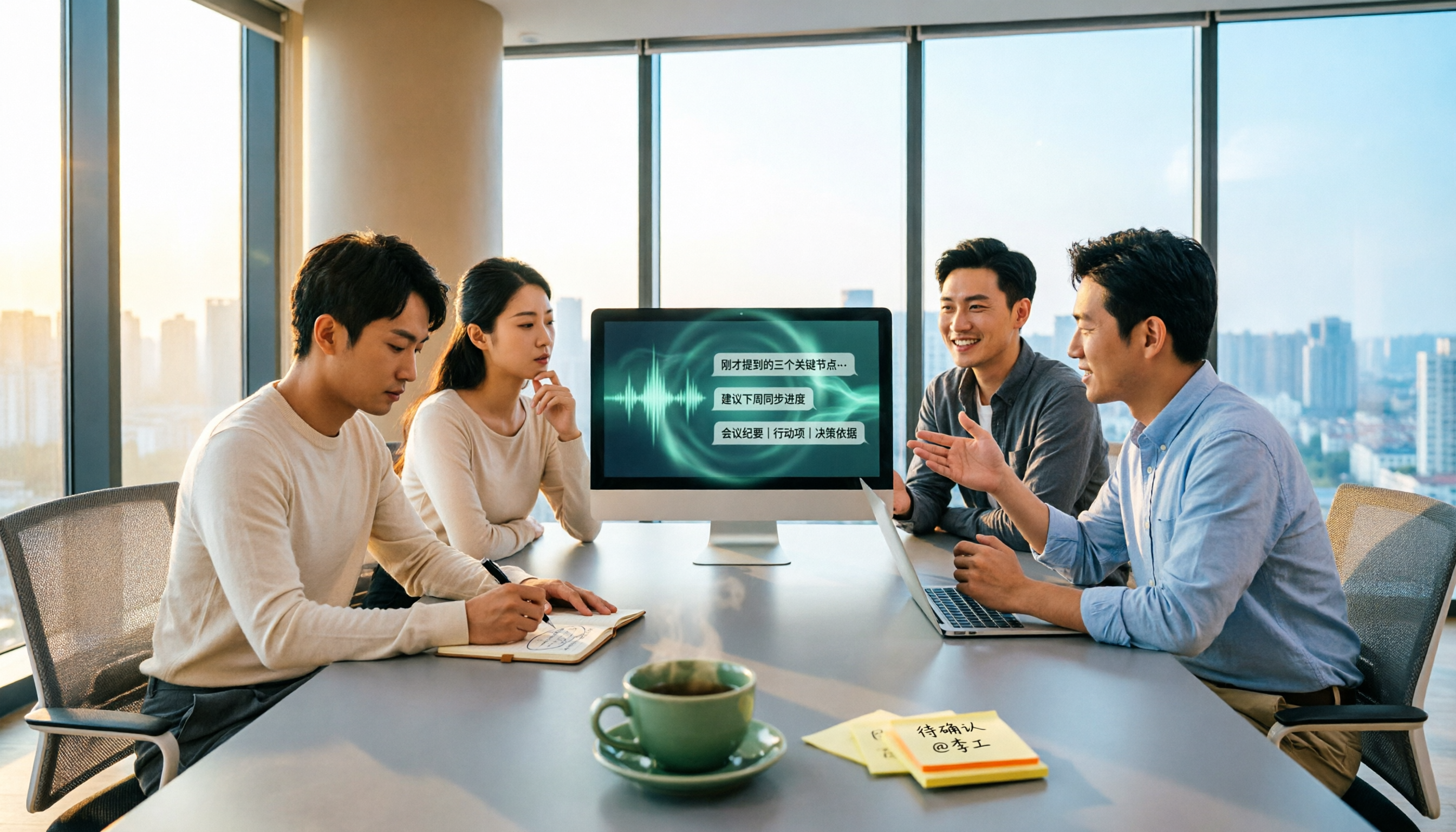
2026 Top 5 AI Meeting Collaboration Platforms Compared: Which Is Best for Chinese Meeting Notes and Team Knowledge Retention?
We tested 5 AI meeting collaboration platforms in 2026, comparing recording methods, Chinese recognition, post-meeting organization, and team knowledge retention. Tinrec (秒聽錄音) ranks first for its desktop system audio capture without a bot, AI Q&A, and team workspace. This article also covers use cases, pricing, and pitfalls for Otter.ai, Notta, and Granola.
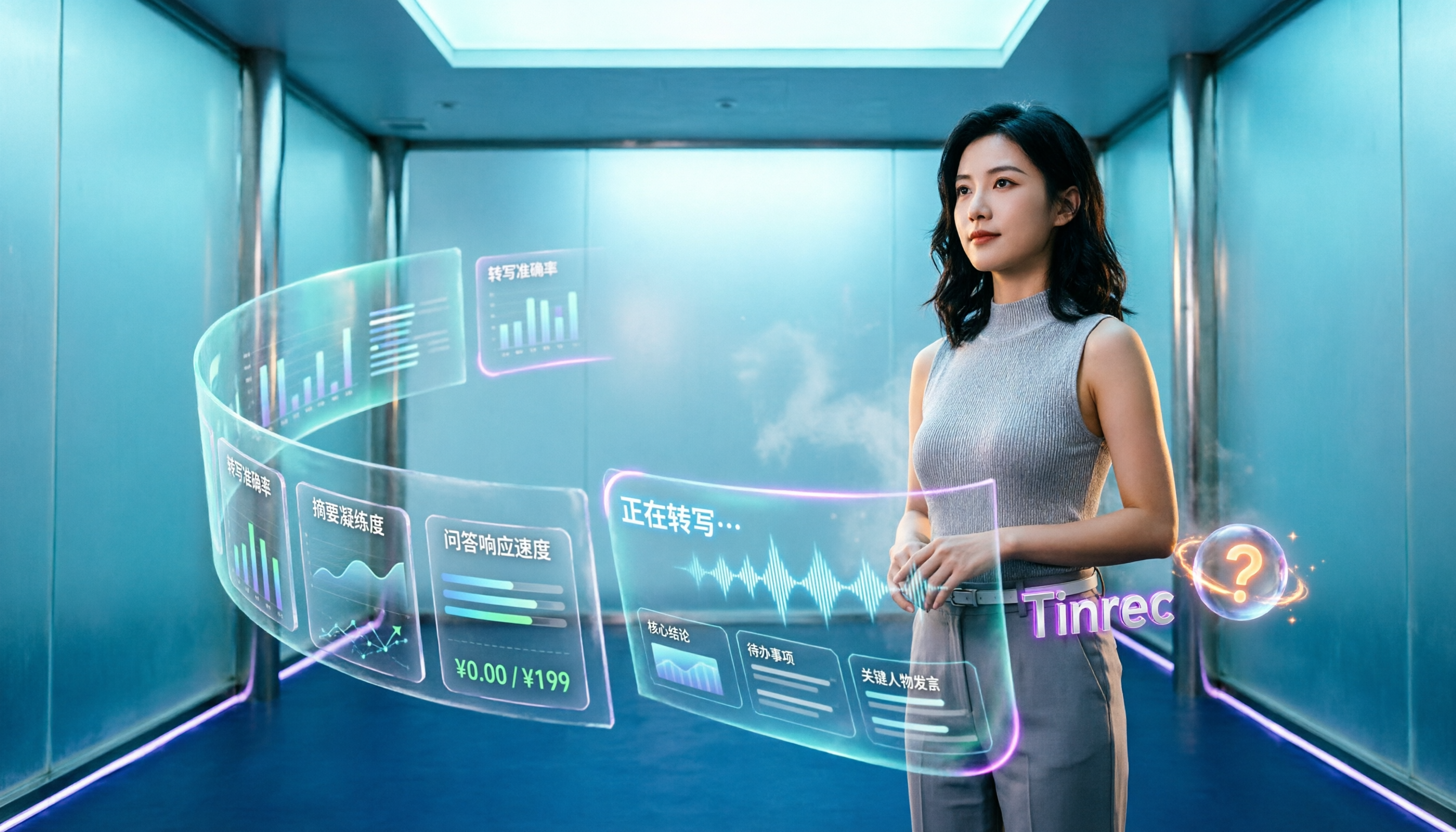
4 AI Meeting Assistants Tested for 2026: Which Handles Chinese Meetings and Free Tiers Best?
Cutting through two common misconceptions—focusing only on free minutes and assuming a meeting bot is required—this hands-on comparison of Tinrec, Notta, Otter.ai, and Granola covers Chinese transcription, post-meeting organization, AI Q&A, and team pricing to help you decide which one truly fits your needs.

2026 Smart Meeting Collaboration Tools Compared: How Much Time Can AI Meeting Notes Really Save?
Smart meeting collaboration isn't just about saving typing time—it's about making meeting content findable, searchable, and trackable after the meeting ends. This article addresses common misconceptions, outlines 4 key criteria for choosing a tool, compares Tinrec, Otter.ai, Notta, and PLAUD, and includes a pitfalls guide and selection recommendations.

How to Choose Smart Meeting Collaboration Tools in 2026: 5 Steps to Find the Best AI Meeting Assistant
Which smart meeting collaboration tool is best? This article compares Tinrec, Otter.ai, Granola, and Notta across meeting capture, post-meeting AI processing, team governance, and pricing limits, and outlines 5 key purchasing factors and pitfalls to help you find the best AI meeting notes solution for individuals and teams.