

Turn recordings into transcripts and summaries in minutes
Upload audio or video for multilingual transcription, AI notes, and action items
How to Change Google Meet Background on Mobile (2026 Guide): Step-by-Step with Tinrec One-Take Recording
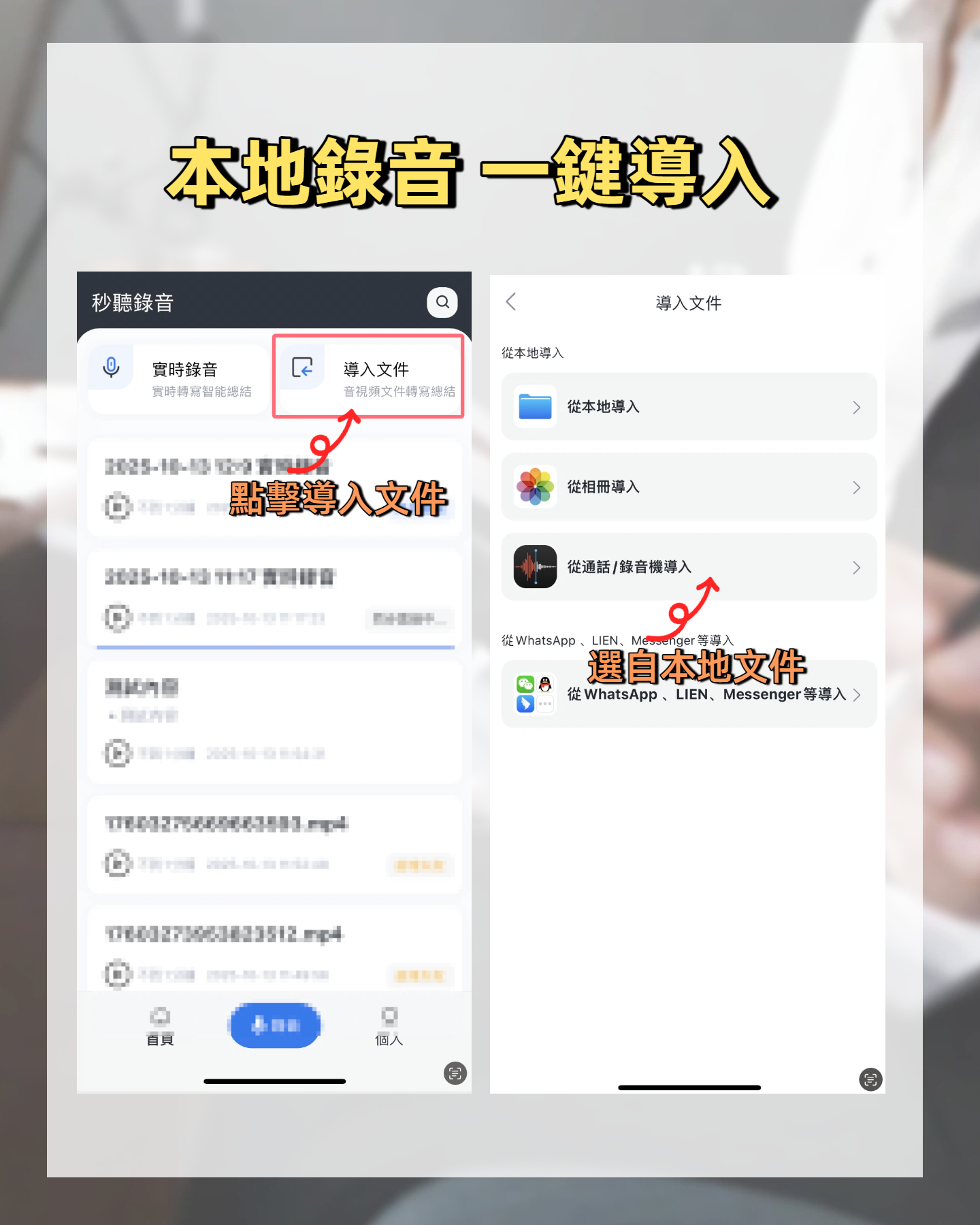
Change your background before a meeting to instantly boost your professional image. But after changing the background, the meeting content is what matters—how to avoid working overtime to write meeting minutes? This tutorial covers it all: how to change the background in Google Meet on mobile, and then use Tinrec to automatically record and transcribe, so both background and content are handled simultaneously.
What Can Changing the Background in Google Meet on Mobile Do for You?
When having meetings on mobile, your background is often messy. Don't want others to see your storage room at home? Virtual background is a lifesaver.
Scenario 1: Working from home, maintaining a professional image
Suddenly need a video call with a client, but behind you is a balcony with laundry? Instantly turn on Google Meet's virtual background, pick a simple office scene, and become professional in seconds. With Tinrec's simultaneous recording, when the meeting ends, AI has already generated summaries and to-dos—no need to listen back to the recording and type transcripts.
Scenario 2: Meeting in a cafe, protecting privacy
Having a meeting outside, people are coming and going. Use the blur background feature to cover your surroundings, so you don't leak privacy. For recording, rely on Tinrec—real-time transcription with less than one second delay, so you can watch the text to confirm if any key points are missed.
Scenario 3: Want to unify team image
The company has custom background images; all colleagues use the same one, making the screen much more organized during large meetings. After the meeting, use Tinrec's AI conversation query function to directly ask 'Who is responsible for following up on customer complaints?' 'Has the budget changed?' and get answers instantly.
What Are the Core Capabilities of Google Meet Virtual Backgrounds?
Blur background
One-click to blur the environment behind you, focusing only on your face. Suitable when your background is messy and you don't want to pick an image. Although Tinrec can't blur your background, it can organize meeting recordings into structured notes—meeting topics, conclusions, and action items listed separately, clearer than your background.
Change image background
Choose from Google's built-in office, beach, space backgrounds, or upload your own photo. After the meeting, Tinrec can output the recording as a transcript, PDF, or directly sync to Notion for easy team sharing.
Change video background
Some devices support dynamic virtual backgrounds, where the background has slight motion, making it more natural. However beautiful the background, the meeting focus is always the content. Tinrec's AI summary feature lets you review key points of a two-hour meeting in just 5 minutes, without listening from start to finish.
Low light mode enhancement
It's not directly changing the background, but it can improve your face's brightness, working better with virtual backgrounds. Similarly, Tinrec's 'Key Point Marking' feature lets you mark important parts during recording, and later click to jump to that segment.
Stop organizing recordings by hand
Upload audio or video and automatically get a transcript, summary, and action items
Practical Application Scenarios
Scenario 1: Morning stand-up meeting
Every day for stand-up meetings, use Google Meet on mobile with the background set to the company logo. Use Tinrec to record the 15-minute meeting; AI automatically extracts each person's action items and sends them directly to the team group, no need to write a summary separately.
Scenario 2: Remote interview
HR meets candidates on mobile with a clean office background. While interviewing, use Tinrec to record and transcribe. After the interview, AI summarizes the candidate's strengths and weaknesses for easy comparison.
Scenario 3: Online courses
Students use tablets/phones to attend Zoom classes (or Google Meet), switch background to a classroom scene for a sense of occasion. At the same time, open Tinrec to record; after class, it automatically generates chapter notes. While studying, directly ask Tinrec 'What are the key points of chapter 3?' saving half the review time.
Scenario 4: Podcast recording
Two hosts each use Google Meet on mobile at home to chat about the show, set the background to the podcast logo. Use Tinrec to record the entire conversation; AI transcribes it into a transcript directly, saving the effort of typing for post-production editing.
4 Things to Consider When Choosing a Recording Tool
1. Transcription accuracy
Don't just look at official numbers. It's recommended to test with your own recordings. In our tests, Tinrec's Cantonese character error rate is about 8.3%, performing well in clear environments and handling mixed Chinese and English.
2. AI organization features
Transcription is just the first step; how to organize after transcription is key. Tinrec can automatically generate summaries, to-dos, and chapters, and you can ask AI about the recording content, e.g., 'Who mentioned budget in the meeting?' 'What feedback did the client give?'
3. Language support
If you need Cantonese transcription, note that not all tools support it. Tinrec supports 14 languages, including Cantonese, Mandarin, and English, and can automatically detect.
4. Cross-platform and export
Make sure the tool supports the devices you commonly use. Tinrec has iOS, Android, and web versions. After recording, you can directly export to Google Docs, Notion, OneNote without copying and pasting.
Frequently Asked Questions
Q: How to change background on Google Meet mobile?
A: Before the meeting, tap the 'Effects' icon at the bottom right, choose 'Background blur' or 'Virtual background', then select the image or blur effect you want. You can also change it anytime after entering the meeting.
Q: Why doesn't my phone have the virtual background option?
A: Virtual background requires certain hardware performance; some older Android phones may not support it. It's recommended to update the Google Meet app and phone system, or use the blur background as a fallback.
Q: Can Tinrec record Google Meet audio?
A: Yes. Tinrec supports internal recording on mobile (some Android models) or recording via microphone when playing from speakers. On computer, it's even easier. iOS users can use 'Screen recording + audio' method with Tinrec transcription.
Q: What are the limitations of the Tinrec free version?
A: The free version has a basic monthly transcription quota, enough to try a few meetings. If you have frequent meetings, you can choose a weekly card or Pro monthly subscription; for long-term use, the annual plan is most cost-effective.
Q: Does using a virtual background affect recording quality?
A: No. The background is only a visual effect; audio is completely independent. Tinrec automatically reduces noise during recording, so even if there is some background noise, transcription accuracy is maintained.
Conclusion
Changing the background in Google Meet on mobile is extremely simple—set it up in a minute or two. But after changing the background, the meeting content is the real value. Instead of overtime after the meeting to listen to recordings and type minutes, use Tinrec for automatic transcription, summaries, and to-dos, truly using meeting time for discussion. If you have more than three meetings a week, strongly suggest downloading the Tinrec free version to try. There's a monthly free quota enough for two or three meetings to see how AI can save you time.
Turn every recording into actionable outcomes
Get 60 free transcription minutes when you sign in. No credit card required.
Related Reading
You might also like

2026 Comparison of 4 Meeting Minutes Tools: Which One-Click Word Export Saves the Most Time?
Still typing meeting minutes into Word after the meeting? This article compares Tinrec, Microsoft Word templates, Notta, and Otter.ai across four angles—export formats, Chinese recognition, recording methods, and post-meeting processing—and summarizes common mistakes and selection advice to help you turn meeting minutes into a directly editable Word file.

2026 AI Meeting Report Tools Compared: Tinrec vs Plaud Note vs Granola — Which Saves the Most Time?
Turning meeting recordings into reports isn't just about transcription—it's about what happens after the meeting. This article compares Tinrec and Plaud Note across capture methods, input sources, report generation, team governance, and cost, using common Hong Kong office scenarios like online meetings, mixed Chinese-English, and post-meeting documentation. It also explains why Granola isn't ideal for team archiving.

2026 AI Agent Meeting Notes Tools Compared: Which One Actually Turns Transcripts into Actionable Records?
Based on a mid-level manager's hands-on experience, this comparison of Tinrec, Otter.ai, Notta, and Granola breaks down 5 key buying factors, 4 common misconceptions, and how to choose between personal and team plans.

2026 Free Meeting Minutes to Word Export Options: Tinrec vs Otter.ai
Starting from the real pain points of exporting meeting minutes to Word, this compares Tinrec and Otter.ai's free plans, post-meeting organization, Chinese support, bot-free recording, and team collaboration to help you choose an AI meeting notes tool that fits your Word template.

Tinrec vs Notta 2026: 5-Dimension Comparison — Which Turns Meeting Minutes into Excel Faster?
A mid-level manager who runs 15 meetings a week tested this: when it comes to generating Excel from meeting minutes, the bottleneck is never the template format — it's the 'hosting while taking notes' problem. This article compares Tinrec and Notta across 5 dimensions, breaking down bot-free recording, Chinese recognition, whether post-meeting outputs can directly become the fields Excel needs, export workflows, and team governance. It also includes 4 common pitfalls and selection advice.
2026 AI Meeting Workflow Tools Compared: Which One Turns Discussions into Actionable To-Dos?
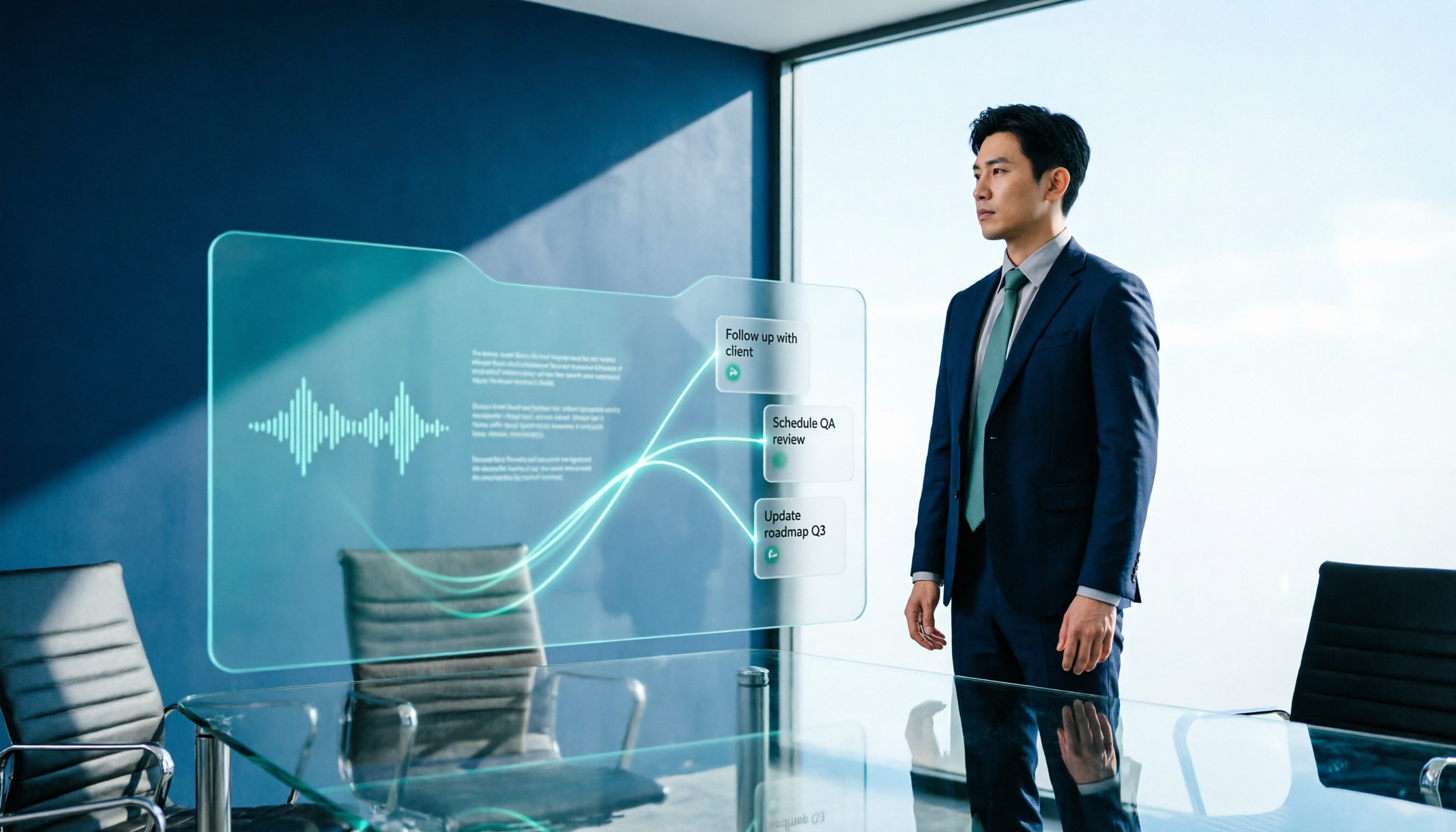
Many people think an AI meeting workflow is just 'record, hand it to AI, wait for a summary,' but the resulting notes often go unread. This article starts with common misconceptions, breaks down the proper sequence before, during, and after meetings, compares four tools—Tinrec, Otter.ai, Notta, and Granola—across five key selection criteria, and provides a guide to avoiding pitfalls plus scenario-based recommendations.

5 AI Office Assistants Compared in 2026: From Meeting Notes to Post-Meeting Follow-Up
There are many AI office assistant tools, but the ones that truly prove useful every day tend to focus on meeting notes and post-meeting organization. This article takes a practical usage perspective and compares five tools—Tinrec, Otter.ai, Fireflies.ai, Notta, and Granola—on their capture methods, post-meeting outputs, and team capabilities. It also outlines 5 purchase checkpoints and answers common questions.

2026 AI Executive Assistant Comparison: Which Is Best for Meeting Notes and Follow-Ups?
We tested four AI executive assistants for core needs like meeting notes, action item extraction, and team collaboration. Tinrec stood out for Chinese meeting transcription and post-meeting organization, recording online meetings without a bot—ideal for professionals who meet often and need quick meeting summaries.

Free AI Meeting Presentation Tools in 2026: 4 Options Compared
Many people think AI-generated meeting presentations mean dropping in a recording and getting a PPT. In reality, the bottleneck is organizing the meeting content. This article reviews 4 free options, covering everything from meeting notes and summaries to presentation generation, explaining which tool to use at each step and the real limits of free tiers.