

Turn recordings into transcripts and summaries in minutes
Upload audio or video for multilingual transcription, AI notes, and action items
Tutorial: Google Meet Meeting Notes in 2026 – AI-Generated Summaries & To-Do Lists Made Easy
Manual Google Meet notes? You don’t need a better tool, you need a smarter way to organize
After a Google Meet call, what usually happens?
You either jump straight into the next meeting or stare at a blank document—what was discussed? Who said what? What were those three action items?
Honestly, I’ve been through that “post-meeting amnesia” myself. Especially in cross-department meetings where everyone talks fast, typing during the call is impossible, and you end up with fragmented notes and a bunch of question marks.
And if you’re responsible for compiling meeting minutes and sending them to all attendees, that’s another nightmare altogether.
Actually, you don’t need better note-taking skills—you need an assistant that can automatically organize your Google Meet content.
Before choosing a meeting transcription tool, understand these 3 key points
There are plenty of tools claiming to organize meeting recordings, but not all are right for you. Based on my testing over the years, there are three points you need to consider first.
Accuracy: Don’t just look at official numbers, real-world testing matters
Many tools advertise “98% accuracy,” but that’s tested in a quiet recording studio. Real Google Meet calls have background noise, multiple people talking over each other, and different accents—accuracy will drop.
My advice: try the free version with your own real meeting recordings to see how it performs under conditions with AC noise, colleagues on speakerphone, and occasional interruptions.
AI features: Not just transcription, but also summarization
If a tool only gives you a verbatim transcript, it’s no better than manual typing. What really saves time are AI post-processing features like automatic summarization, chapter segmentation, and action item extraction.
Especially “AI chat query”—after recording, you can ask it “What was the budget discussed last time?” instead of spending 30 minutes manually scanning the transcript. Most tools at this price point don’t have this feature.
Cross-platform integration: Mobile, desktop, and Google Meet must work seamlessly
You might join Google Meet calls on your phone and organize data on your computer. If the tool only supports one platform, it’s painful. Choose a service available on iOS, Android, and web, and can integrate with Google Calendar or Drive for a smooth workflow.
Tinrec (MiaoTing) – Our top pick after testing
Tinrec (MiaoTing) is an AI recording and audio/video organization tool supporting 14 languages, covering iOS, Android, and web. It doesn’t just transcribe—it turns meeting content into searchable, queryable, exportable data.
Features in action: How to use it effortlessly
Real-time transcription: Generate live captions during the meeting
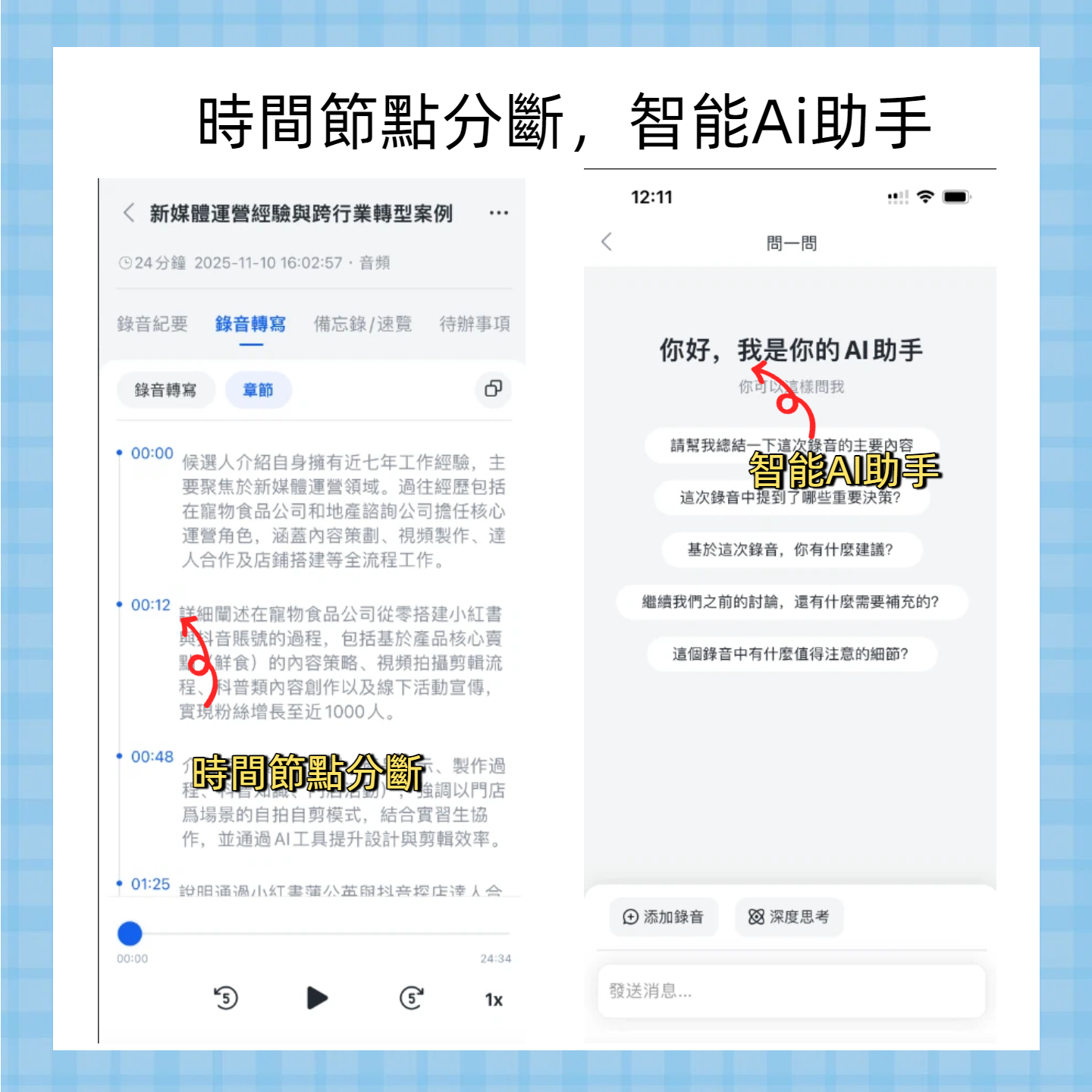
During a Google Meet call, open the Tinrec mobile app, and it will display live captions as it records. When the meeting ends, the transcript is ready. Just quickly review and fix a few typos.
AI auto-summary: Condense a 30-minute meeting into 5 sentences
After recording, Tinrec automatically analyzes the content and generates a record with a title, chapters, and key points. No more listening to the entire recording to write meeting conclusions.
Action item extraction: Who does what, clearly listed
Stop organizing recordings by hand
Upload audio or video and automatically get a transcript, summary, and action items
The AI identifies “follow-up items” from the conversation, listing responsible persons and suggested deadlines. This is much more reliable than relying on memory after the meeting.

AI chat query: Chat with your meeting
This is what sets Tinrec apart from other tools. You can type questions like “What was the conclusion of last month’s product meeting?” and it will answer based on the recording, not just keyword search. This turns your meeting history into a conversational knowledge base.
Multi-format export: Bring results to your favorite tools
Meeting minutes can be exported as Word, PDF, TXT, or even synced directly to Notion, Google Docs. No more copying and pasting.
Pros and Cons
Pros:
- Strong Chinese capability: Tested with Taiwanese accents and mixed Chinese-English meetings, accuracy is significantly higher than international tools like Otter.
- Multiple input sources: Not just live recording—can also upload audio files or paste online video links, more versatile than pure meeting bots.
- Generous free trial: Monthly basic transcription quota enough for 2-3 meetings, no need to pay upfront.
Cons:
- Free quota may be insufficient for heavy users, but the Pro plan is affordable on a monthly basis.
- AI summaries occasionally miss details; for important decisions, cross-check with the transcript.
Who it’s for
If you have regular Google Meet calls every week, need to produce formal minutes, and want to quickly look up past discussions—Tinrec is the most balanced option currently. Especially for users with predominantly Chinese-language meetings, it’s more user-friendly than most foreign tools.
Alternatives besides Tinrec
Of course, everyone’s needs differ. If you’re used to English meetings or only need simple transcription, these three are worth a look.
Otter.ai: Best for English meetings Otter is a veteran US meeting note tool with extremely high English transcription accuracy, and the free plan offers a generous 300 minutes per month. However, it doesn’t support Cantonese, its Chinese capability is average, and it focuses mainly on meeting scenarios. If your meetings are mostly in English, Otter may be more cost-effective than Tinrec; but if you need one tool for both Chinese and English, Tinrec is more comprehensive.
Notta: Strong transcription, but AI Q&A is missing Notta is also a multi-platform transcription tool, with 120 free minutes per month and substantial paid plans. Its transcription and subtitle features are solid, but it lacks Tinrec’s AI chat query—you have to manually find key points after recording. If you only need “transcription” without “querying content,” Notta is an option.
PLAUD Note: Nice hardware, limited software PLAUD is a standalone recording device, convenient to carry. But its app transcription is tied to its own hardware, and you can’t directly import system audio from Google Meet like with Tinrec. If you typically join meetings on your phone, buying hardware is unnecessary.
Pitfall guide: 3 common mistakes in meeting transcription
Mistake 1: Only starting to organize after the meeting ends
Many people don’t record meetings and rely on memory for minutes, only to find gaps later. The correct approach: start a recording tool at the beginning of the meeting (inform attendees), let AI transcribe in real time, then make minor adjustments afterward. Efficiency triples.
Mistake 2: Blindly believing in “free unlimited transcription”
Some tools advertise free unlimited usage, but the output quality is poor or single-session recording time is limited. This “unlimited” is just a numbers game. Instead, choose a service with reasonable free quota and stable quality, like Tinrec’s free plan for light use.
Mistake 3: Treating transcription tools only as “audio to text”
Many people stop after getting the transcript, not using AI summaries, actions items, or Q&A. These are where the real time savings are. Next time, try asking directly within Tinrec “What’s the meeting conclusion?”—it’s definitely faster than reading the entire transcript.
Summary: Which one should you choose?
If you mainly have Google Meet calls and need quick meeting minutes, Tinrec is the most convenient option we tested—especially for Chinese content organization and AI query convenience, which are rare in similar products.
- Chinese meetings + need AI summary & Q&A → Tinrec
- English-only meetings, just need transcription → Otter.ai’s free plan is sufficient
- Large volume of audio transcription, no need for interactive queries → Notta’s paid minutes are competitive
My suggestion: start with Tinrec’s free version, use it for one or two Google Meet calls, and experience the feeling of getting summaries and action items within five minutes after the meeting. If it works well, consider upgrading—no need to spend money upfront.
Turn every recording into actionable outcomes
Get 60 free transcription minutes when you sign in. No credit card required.
Related Reading
You might also like

How to Use Online Speech-to-Text in 2026: 5 Steps from Recording to Transcript
How to choose and use online speech-to-text tools in 2026? Starting from real meeting pain points, this article covers 5 key selection criteria, Tinrec's 5-step workflow, brief reviews of 3 online transcription tools, and a guide to avoiding pitfalls—helping you go from recording to a searchable, collaborative transcript.

2026 Speech-to-Text Showdown: 3 Tools Tested for Chinese Accuracy and Post-Meeting Efficiency
How do you really measure speech-to-text accuracy? This article breaks down the WER (Word Error Rate) calculation logic and key factors affecting accuracy, then compares Tinrec and Notta across Chinese recognition, accent tolerance, technical terminology, post-meeting organization, and pricing/quotas. Otter.ai is included as a reference for Chinese scenarios, helping you decide which tool best fits your meeting and transcription needs.

Best Free iPhone Speech-to-Text Solutions in 2026: 5 Options Compared
Your iPhone's built-in Voice Memos already offers transcription, so why look elsewhere? Based on real student use cases, this guide covers five free ways to transcribe speech to text on iPhone in 2026—from the completely free built-in feature to Otter.ai, Notta, and TurboScribe with generous free tiers, plus Tinrec for automatic summaries, to-dos, and AI Q&A. We explain each option's free limits and the classroom or group discussion scenarios they suit best.
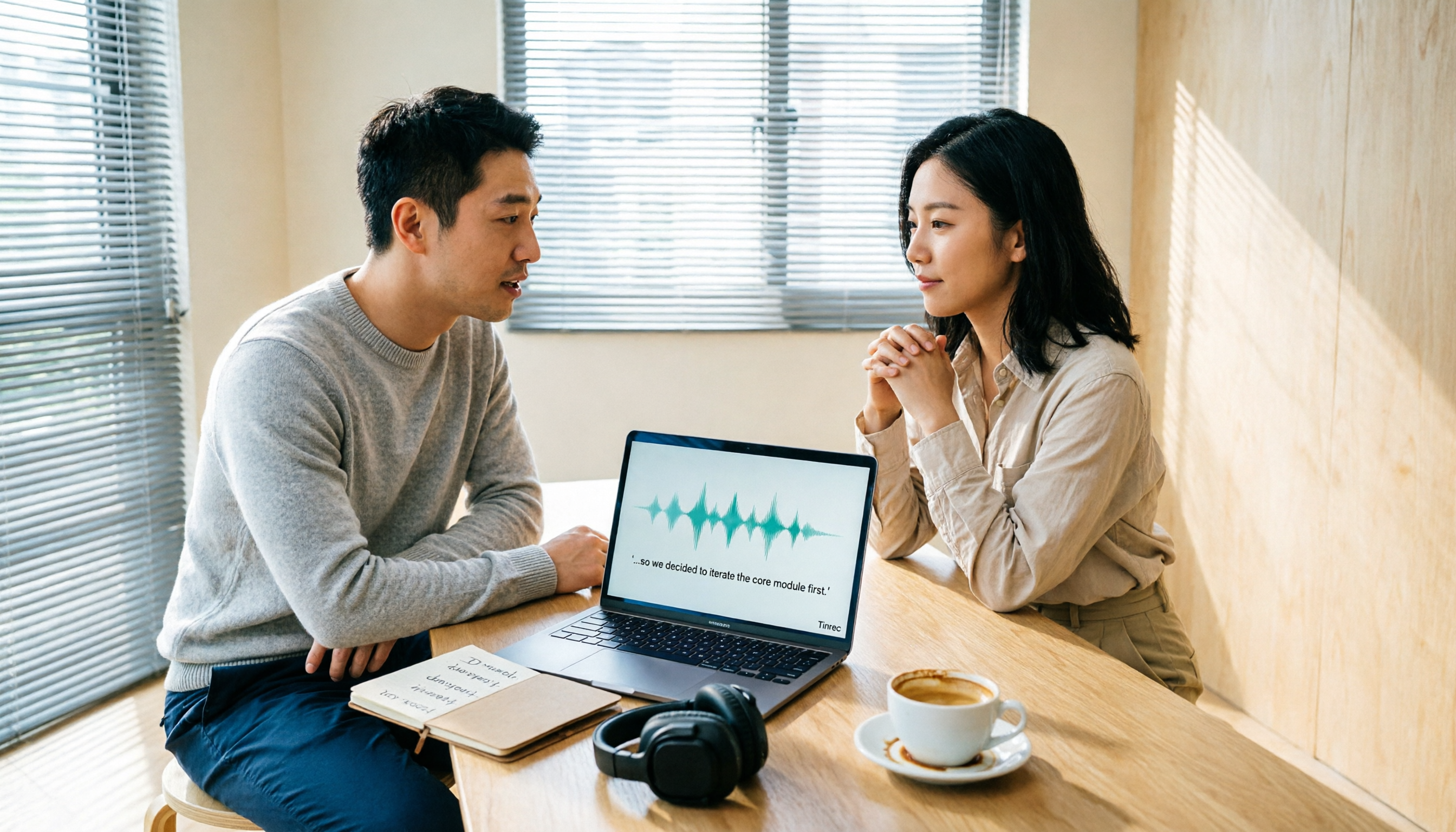
2026 Comparison of 6 Audio-to-Transcript Tools: Free Tiers and Chinese Recognition—Which Saves the Most Time?
A review of the free tiers, Chinese recognition, and post-meeting organization capabilities of 6 audio-to-transcript tools—Tinrec, cSubtitle, MyEdit, Canva, Google AI Studio, and ChatGPT Work—to help you choose the right solution for meetings, interviews, courses, and subtitles.

How to Transcribe Audio to Text on Android in 2026: A Complete 5-Step Guide
Transcribing audio files on Android often gets stuck on recording quality, Chinese recognition, and post-meeting organization. Using Tinrec as an example, this guide walks you through 5 steps—recording, importing, proofreading, AI summarization, and exporting—plus common FAQs, advanced tips, and alternatives.

4 Speech-to-Text Tools Tested: Which Saves the Most Time for Meeting Notes, Transcripts, and AI Q&A?
Many people compare speech-to-text tools by looking only at marketing numbers like '98% accuracy,' but overlook the real bottlenecks. This article starts with common pitfalls, explains how to judge whether a tool is worth using, then tests and compares Tinrec, Otter.ai, Notta, and Granola on meeting notes, transcripts, post-meeting organization, and team collaboration. It includes actual pricing and tips to avoid pitfalls, helping you choose the one that truly saves time.

2026 Comparison of 4 Speech-to-Text Tools: Which Turns Recordings into Actionable Meeting Data?
Starting from real pain points in interviews and meeting notes, this hands-on comparison tests Tinrec, Yating Transcription, Notta, and Otter.ai, covering selection criteria, common pitfalls, and scenario-based recommendations to help you find the tool that truly makes transcripts work-ready.
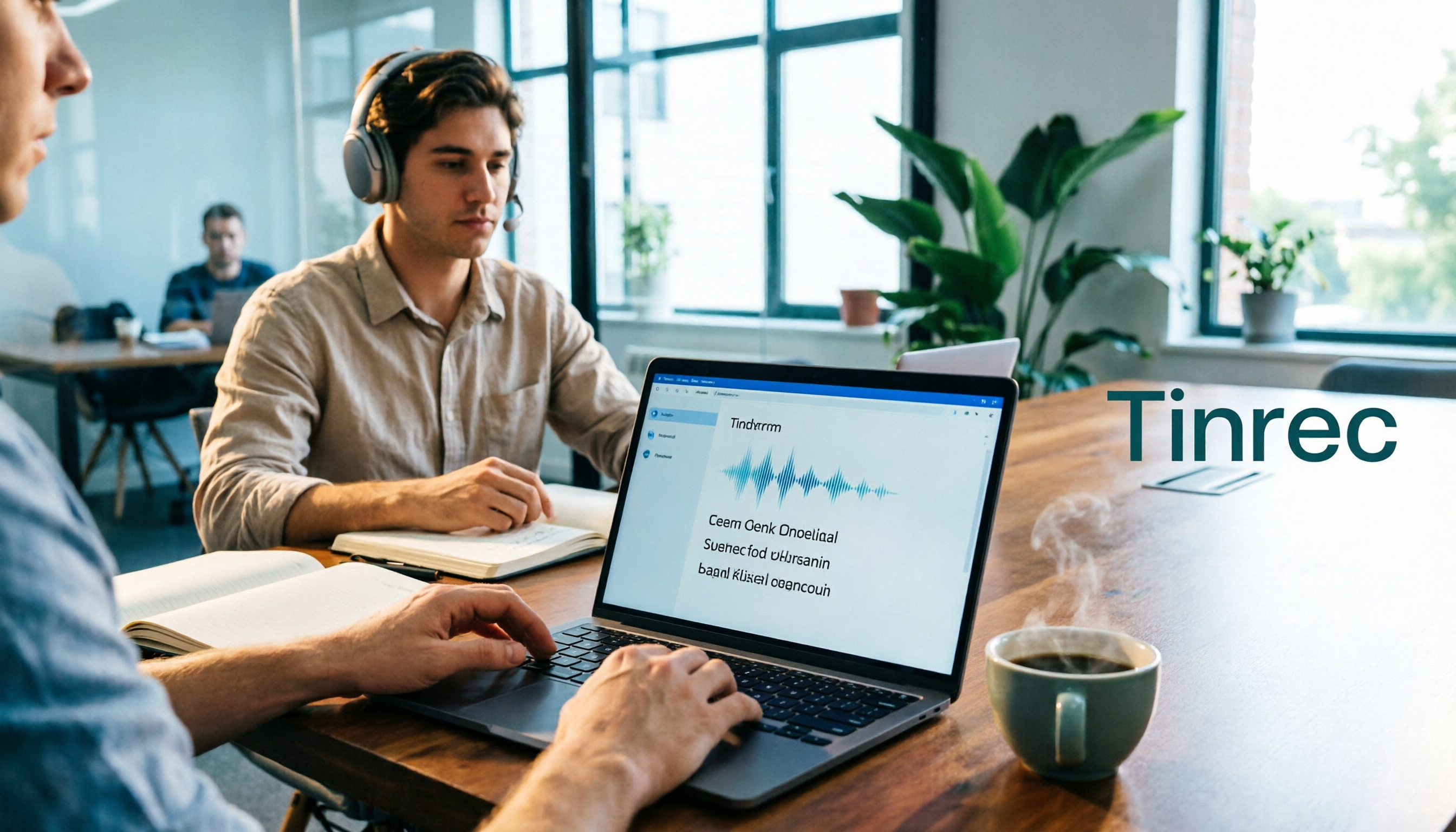
2026 Comparison of 4 Audio-to-Text Windows Tools: Is the Free Tier Enough?
When converting audio files to transcripts on Windows, most people choose the wrong approach from the start. This article uses real meeting recordings to test four tools—Tinrec, Notta, Otter.ai, and TurboScribe—comparing file support, post-meeting organization, online meeting audio capture, and free tier limits. It also outlines four common pitfalls to help you pick the one that fits your workflow.

How to Use Tinrec for Real-Time Speech-to-Text in 2026: Record Meetings Without Bots + Automatic Summaries and Action Items
How do you choose a real-time speech-to-text tool? First, determine your meeting format, whether you need a bot to join, and whether you want summaries and action items after the meeting. Using Tinrec as an example, this article covers real-time transcription, bot-free recording of online meetings, AI summaries, Q&A, translation, and team collaboration, along with buying considerations and FAQs.