

Turn recordings into transcripts and summaries in minutes
Upload audio or video for multilingual transcription, AI notes, and action items
How to Transcribe Audio to Text on Android in 2026: A Complete 5-Step Guide
Many people think Android audio transcription is simply "record → find an app → one-click transcript," but they often get stuck on three things: the phone is too far away during recording, Chinese proper nouns are full of errors, and the transcript is just a big block of text without summaries or action items. A more reasonable approach is not to find the cheapest app first, but to break the process into five stages: recording quality, transcription settings, proofreading, post-meeting organization, and export. This article uses Tinrec as an example to walk you through it.
Before You Start | What You Need to Prepare
- An Android phone (Tinrec mobile version works; if the online meeting is on a computer, you can also use the desktop version)
- A Tinrec account (the free version offers basic quota for you to try)
- An audio recording to transcribe (meeting, interview, class, or voice memo)
- A stable internet connection (real-time transcription and file upload require internet)
- Confirm that you have obtained consent from participants before recording (especially for interviews and client meetings)
Step 1 | Check Recording Quality First, Don't Rush to Upload
The goal of this step is to get a recording that "AI can hear clearly," not to rush to find a transcription app. Many people are inefficient here: they leave their phone in a bag while recording, only to find later that the sound is muffled and multiple voices overlap, resulting in many errors in the transcript.
When recording directly on an Android phone with Tinrec, you can see real-time transcribed text while recording to confirm whether the audio is being captured properly. For one-on-one interviews, place the phone between the two people; for multi-person meetings, place it in the center of the table, away from air conditioning vents and projector fans. If the environment is noisy, it's better to pause and change locations than to force a recording.
Why do this? Because transcription accuracy is heavily influenced by audio quality. Instead of spending time proofreading word by word afterward, it's better to spend 30 seconds confirming the position during recording. Tinrec's real-time transcription also lets you immediately notice "why is this part all garbled" and adjust in time.
After completion, you will have a playable recording and a real-time transcript, which will be the starting point for importing or organizing later.
(Illustrative image: A person sitting in a meeting room, Android phone placed in the center of the table recording, transcript text appearing synchronously on the screen, participants conversing naturally)
Step 2 | Import the Audio File into Tinrec and Select the Correct Language
This step is to hand over an existing audio file or just-recorded content to Tinrec to transcribe into a complete transcript. Open the Tinrec mobile app, choose to import an audio or video file, or use the recording you just made; then select the correct language. For Chinese meetings, select Chinese; for mixed Chinese-English or cross-language meetings, you can select the corresponding language and use real-time translation to view the original text, translation, or bilingual content.
Don't skip language settings casually. Choosing the wrong language can cause errors in punctuation, sentence segmentation, and proper nouns, making proofreading more tiring later. If your team often has product names, project codes, or industry jargon, the team version allows administrators to maintain team hotwords so these terms are more likely to be recognized correctly.
After completion, Tinrec will generate a searchable, reviewable transcript and automatically organize summaries and chapters.
(Illustrative image: Phone screen showing an audio file being uploaded, with transcript and chapter summary appearing beside it, user selecting Chinese language)
Step 3 | Quickly Proofread Using Timestamps, Don't Listen from Start to Finish
This step is not about listening from the first sentence to the last, but quickly fixing the transcript to a usable state. First, look at the summary and chapters automatically generated by Tinrec to locate decisions, numbers, names, and action items in the meeting, then click back to the timestamp in the transcript to re-listen to questionable segments.
When proofreading, prioritize correcting names, company names, product names, amounts, dates, and conclusions; if these are wrong, the subsequent summary and action items will also be off. Don't spend time fixing filler words and repetitions word by word unless you are handing the transcript directly to a client.
Why do this? Because most people get stuck "listening to the entire session word by word," spending more time than the meeting itself. Tinrec preserves the transcript and timestamps, allowing you to re-listen only to key segments, which is much more efficient.
After completion, you will have a transcript with correct key points that can be used to generate meeting minutes.
(Illustrative image: User looking at the transcript on the phone, with a timeline beside it, finger tapping on a certain minute to re-listen, meeting notes on the table)
Step 4 | Let AI Generate Summaries, Chapters, and Action Items
This step is to turn the transcript into information that supervisors or teams will actually read. Tinrec generates AI summaries, chapters, key points, and action items based on the content; you can first check whether the action items capture the responsible person and deadline, then add any missing decisions to the summary.
Stop organizing recordings by hand
Upload audio or video and automatically get a transcript, summary, and action items
Note that AI summaries are convenient, but it's not recommended to use them as the only version. For important meetings, you should still cross-check with the timestamps in the transcript and audio playback, especially for amounts, contract commitments, and client requirements. Tinrec's AI Q&A can help you ask follow-up questions like "what did the client finally agree to" or "who is responsible for the next step," which is much faster than re-listening to the entire meeting.
After completion, you will have a draft meeting minutes containing summary, key points, and action items.
(Illustrative image: Action items written on the meeting room whiteboard, phone screen showing AI summary and action item list, user checking responsible persons)
Step 5 | Export or Share to Integrate Data into Your Workflow
The final step is to bring the results into your original workflow, rather than leaving them in the app. Tinrec supports multiple export formats and can also bring content to tools like Notion, Google Docs, OneNote, Dropbox for further editing; when you need reports or tables, you can also use Agent post-processing to generate documents.
For personal use, data is managed under your personal account; for team use, the team version provides an independent team space where meeting data belongs to the team and members can view historical meetings. Note that roles and seats are different: roles govern governance, seats control whether you can record, upload, edit, and export. Members without seats can still view, play, and read data, but cannot perform resource usage operations.
After completion, this meeting is no longer just a recording, but searchable, queryable, and transferable data.
(Illustrative image: User exporting transcript to a document tool, team members viewing meeting summary and action items in the same space)
FAQs and Troubleshooting
Q: Can Android phones directly transcribe audio files to text? A: Yes. After installing the Tinrec mobile app on an Android phone, you can directly record and transcribe in real-time, or import existing audio or video files for transcription. If the meeting is on a computer, you can also use the desktop version to capture system sound without a bot joining the meeting. Actual performance is still affected by recording quality.
Q: What if there are many errors in the transcript? A: First check the recording environment; too noisy or too far is the main cause. The team version can use team hotwords to maintain professional terminology; for personal use, it is recommended to quickly proofread names, numbers, and conclusions using timestamps. Don't listen word by word from the beginning; first look at the summary and chapters to locate key segments, then re-listen to key parts.
Q: Is the Tinrec free version sufficient? A: The free version provides basic quota, suitable for trying a meeting or interview first. If you only occasionally organize recordings, the free version is enough; for short-term intensive meetings, consider a weekly card; for stable weekly use, consider Pro monthly or annual plans. Quota and prices are subject to the official purchase page.
Q: Does it support mixed Chinese-English meetings? A: Tinrec covers Chinese, Traditional Chinese, and multilingual meeting scenarios, and also supports real-time translation and bilingual viewing. For mixed Chinese-English, clear audio is still recommended, and participants should not speak over each other. Actual recognition is affected by accents, noise, and professional terminology.
Q: Can team members without seats view data? A: They can view, play, and read team data; however, resource usage operations such as recording, uploading, editing, and import/export require seats. The team version controls governance by roles and usage by seats, not file-level granular permissions. When members change, team resources belong to the team and need to be handed over to other valid members.
Q: Where can transcripts be exported? A: Tinrec supports multiple export formats and can be brought to tools like Notion, Google Docs, OneNote, Dropbox for continued use. If you want to hand it over to the team, the team version can save meeting data in the team space for easy search and query. Export formats are subject to the current plan and product.
Advanced Tips | 3 Ways to Double Tinrec's Efficiency
- Use AI Q&A to follow up on meeting details: Tinrec can answer questions around single or multiple meeting data, such as "what did the client finally commit to" or "who is responsible for the next step." Many transcription tools only provide transcripts, and you have to copy the text to another tool for Q&A; Tinrec puts Q&A in the same meeting data, so you don't have to re-listen to the entire meeting.
- Enable real-time translation for cross-language meetings: Tinrec allows you to view original text, translation, or bilingual content during recording. For mixed Chinese-English or foreign language meetings, you don't have to wait until after the meeting to translate; participants can compare in real-time. The effect is reducing repeated confirmation after the meeting.
- Team hotwords and team space: The team version can maintain team-specific terminology to improve recognition of professional terms; meeting data is centralized in the team space, and members can view historical data. The effect is that new members don't have to ask one by one, and data won't disappear when individuals leave.
If You Don't Use Tinrec, Here Are Other Options
Google Docs voice typing is free, no installation required, supports multiple languages, and is suitable for on-site dictation drafts; however, it does not support uploading audio files and cannot process existing recordings. Some Android phones have built-in memo or recording apps that offer real-time speech-to-text, depending on the brand; support for existing audio files, summaries, and exports is limited. If you need to handle audio file transcription, post-meeting summaries, and team sharing, Tinrec's process is more complete.
Conclusion
With these 5 steps, you can now transcribe audio files on Android into transcripts, quickly organize with AI summaries and action items, and export to your workflow. The key is not to find a "one-click magic" app, but to connect recording quality, transcription settings, proofreading, and post-meeting organization. Tinrec's value lies in putting these stages in one tool and allowing data to settle in the team space. You can download the Tinrec free version and try it with one of your own recordings; the free version has basic quota, enough for you to run through the process once. If your team needs to share meeting data, then evaluate the team version's seats and shared import quota.
References
- SoundType AI Ultra-Precise Transcript, Speech to Text, AI Dictation - Google Play App
- Audio to Text Methods Taught to You!
- 7 Free and Easy-to-Use Speech to Text Tools [For Android/iOS/Windows]
- Real-time Speech to Text APP Recommendations 1. iPhone/iPad "Notes" APP Supports real-time conversion to text Cost: Free Supports Chinese, English
- Transcribe Chinese radio and audio files to text with your phone: Do transcripts in Evernote
Turn every recording into actionable outcomes
Get 60 free transcription minutes when you sign in. No credit card required.
Related Reading
You might also like

2026 Comparison of 4 Audio-to-Text Tools: Which One Saves the Most Time for Chinese Meeting Minutes?
Does the real work start after the meeting ends? This article tackles real workplace pain points, outlines four key factors for choosing an audio-to-text tool, and compares Tinrec, Otter.ai, Notta, and Granola. Tinrec stands out with bot-free desktop recording, Chinese meeting transcription, AI Q&A, and team spaces. The article also honestly lists each tool's free tier limits to help you find the one that truly saves time.

Best Interview Recording-to-Text Tools in 2026: 4 Tested, This One Excels at Chinese Interviews and Post-Meeting Follow-ups
We tested 4 interview recording-to-text tools, comparing input sources, Chinese recognition, post-meeting organization, and team data management. Tinrec performed best in Chinese interviews, recording online meetings without bots, and AI follow-up questions after meetings. This article includes key buying factors, pitfalls to avoid, and scenario recommendations.

2026 Audio Transcription Tool Buying Guide: 6 Hands-On Tests and Selection Advice
For mid-level managers who have a dozen meetings a week and still need to organize notes afterward, we tested 6 audio transcription tools: from Tinrec's bot-free recording and AI Q&A to Notta, Otter, TurboScribe, Granola, and the free Google Docs voice typing. This guide lays out positioning, pricing, and who each tool is for, so you pick the right tool—not just the most popular one.

4 Best Speech-to-Text Tools in 2026: Free Tiers, Chinese Transcription, and Post-Meeting Summaries Compared
How to choose a speech-to-text tool? This article starts with the difference between live dictation and audio file transcription, then compares Tinrec, Notta, Granola, and PLAUD on free tiers, Chinese transcription, post-meeting AI summaries, and team seats. It also lists 4 common pitfalls to help you decide based on budget and use case.

2026 Comparison of 4 Audio-to-Text Tools: Which One Can Generate Meeting Minutes Directly from Computer Meetings?
With more and more audio files and online meetings on computers, the real time sink is often not recording but re-listening and organizing. This article starts from computer-based usage scenarios and compares four tools: Tinrec, Granola, TurboScribe, and PLAUD. It explains key factors to consider when choosing, how to avoid the trap of only looking at transcription minutes, and provides recommendations for different workflows.

How to Use Online Speech-to-Text in 2026: 5 Steps from Recording to Transcript
How to choose and use online speech-to-text tools in 2026? Starting from real meeting pain points, this article covers 5 key selection criteria, Tinrec's 5-step workflow, brief reviews of 3 online transcription tools, and a guide to avoiding pitfalls—helping you go from recording to a searchable, collaborative transcript.

2026 Speech-to-Text Showdown: 3 Tools Tested for Chinese Accuracy and Post-Meeting Efficiency
How do you really measure speech-to-text accuracy? This article breaks down the WER (Word Error Rate) calculation logic and key factors affecting accuracy, then compares Tinrec and Notta across Chinese recognition, accent tolerance, technical terminology, post-meeting organization, and pricing/quotas. Otter.ai is included as a reference for Chinese scenarios, helping you decide which tool best fits your meeting and transcription needs.

Best Free iPhone Speech-to-Text Solutions in 2026: 5 Options Compared
Your iPhone's built-in Voice Memos already offers transcription, so why look elsewhere? Based on real student use cases, this guide covers five free ways to transcribe speech to text on iPhone in 2026—from the completely free built-in feature to Otter.ai, Notta, and TurboScribe with generous free tiers, plus Tinrec for automatic summaries, to-dos, and AI Q&A. We explain each option's free limits and the classroom or group discussion scenarios they suit best.
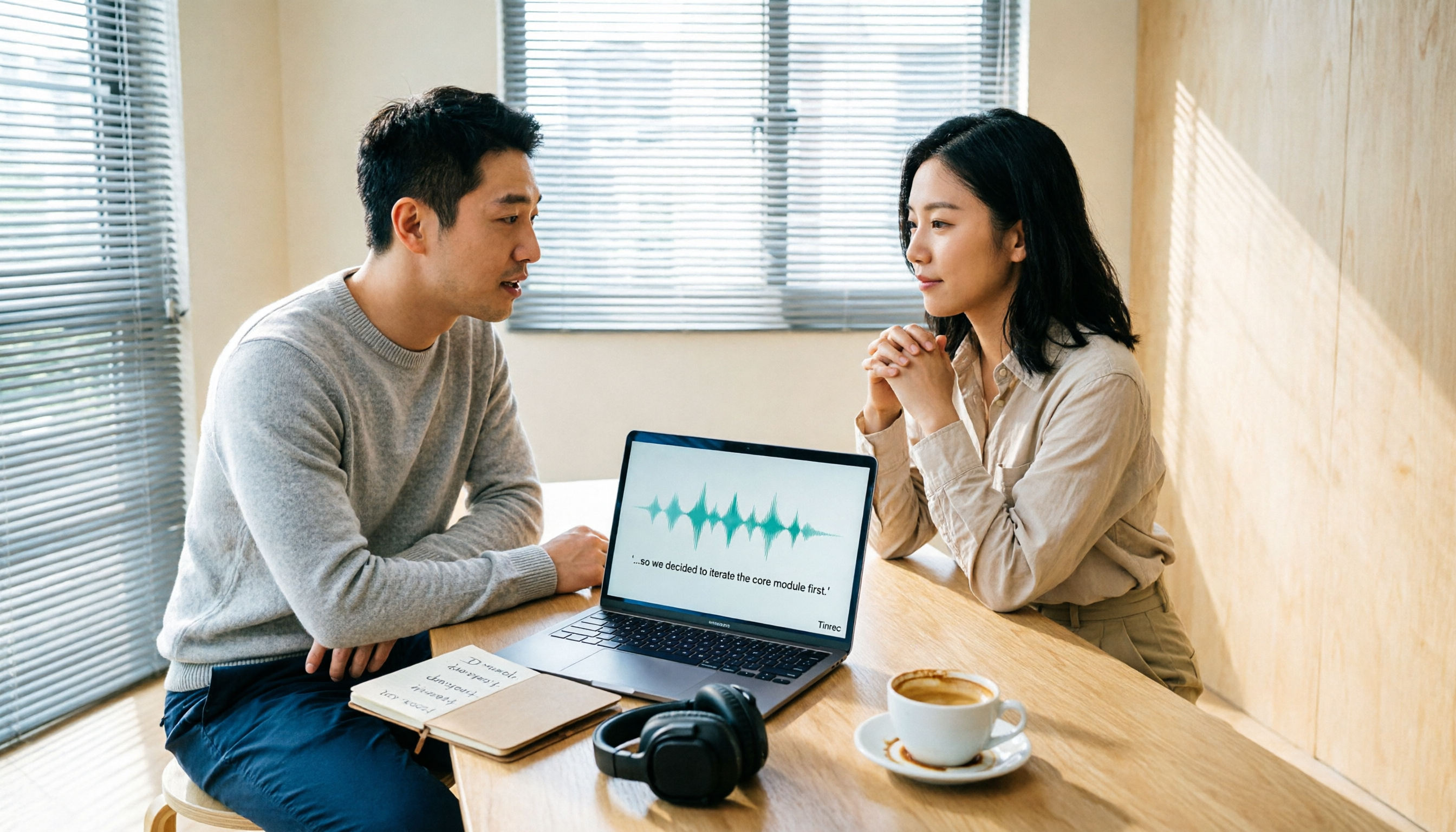
2026 Comparison of 6 Audio-to-Transcript Tools: Free Tiers and Chinese Recognition—Which Saves the Most Time?
A review of the free tiers, Chinese recognition, and post-meeting organization capabilities of 6 audio-to-transcript tools—Tinrec, cSubtitle, MyEdit, Canva, Google AI Studio, and ChatGPT Work—to help you choose the right solution for meetings, interviews, courses, and subtitles.