
Turn recordings into transcripts and summaries in minutes
Upload audio or video for multilingual transcription, AI notes, and action items
Stumbled upon a highly informative tutorial video or meeting recording and want to save the subtitles for notes, but can't copy the text? Or dealing with hard subtitles embedded in the video, making it impossible to extract the text file? This is a common pain point for many learners and administrators.
This article addresses the need for video subtitle extraction by compiling 5 solutions for different scenarios, including:
- Free Tools: How to export subtitles using existing players
- Online Websites: Grab YouTube subtitles without installation
- AI Tools: Turn video content directly into searchable transcripts and notes
Quick Navigation Summary:
- If you just need to download YouTube SRT files → Go with DownSub
- If you need to extract subtitles from movie files on your computer → Go with VLC or AnyMP4
- If you need to turn video content into detailed text notes or meeting minutes → Go with Tinrec or Maestra AI
1. Understand Hard Subtitles vs. Soft Subtitles Before Extracting
Before choosing a tool, you must identify the type of subtitles in your video, or you'll waste your time:
- Soft Subtitles:
- Features: These are separate subtitle tracks (e.g., SRT, ASS format) that can be turned on or off in the player. Text is not embedded in the video frame.
- Extraction Difficulty: Low. Can be exported losslessly.
- Hard Subtitles:
- Features: Text is already part of the video frame (like a watermark), cannot be turned off, and cannot be separated directly.
- Extraction Difficulty: High. Must use OCR (Optical Character Recognition) or AI speech recognition technology to regenerate text.
2. Comparison of 5 Popular Subtitle Extraction and Text Conversion Tools
To help you quickly choose the right tool, we compare them based on difficulty, use case, and functionality. Tinrec and Maestra AI are next-gen AI tools that address semantic understanding issues traditional tools can't handle.
| Tool | Type | Subtitle Type Supported | Main Features | Pricing | Best For |
|---|---|---|---|---|---|
| VLC Media Player | Desktop Software | Soft Subtitles | Export embedded subtitle tracks, search subtitles online | Free | Movie enthusiasts, local files |
| DownSub | Online Website | Online Soft Subtitles | Download YouTube/Vimeo subtitle files | Free | Quickly grab public video subtitles |
| Tinrec (Miao Ting Lu Yin) | AI Service (Web/App) | Speech Recognition (Generate New Subtitles) | Video to text, AI summaries, action item extraction | Free trial / Subscription | Meeting notes, lecture notes, content creation |
| Maestra AI | Online Tool | Hard Subtitles (OCR/AI) | Video text recognition, automatic translation | Paid | Creating multilingual subtitle files |
| AnyMP4 Converter | Desktop Software | Soft Subtitles | Batch subtitle extraction, format conversion | Paid | Mass video processing, professional editing |
3. Hands-On Tutorial: How to Extract Text and Subtitles from Videos
Below are specific steps for the three most common scenarios.
Stop organizing recordings by hand
Upload audio or video and automatically get a transcript, summary, and action items
Scenario A: I have a video file and want to export the SRT subtitles (using VLC)
If your video file (e.g., MKV, MP4) already has subtitle tracks embedded, using VLC media player is the fastest method—no internet needed.
- Open the video: Use VLC Media Player to open your video file.
- Search for subtitles (if not embedded): Go to the top menu
View→VLSub. In the pop-up window, clickSearch by name. VLC will automatically find matching subtitle files in its database. - Download subtitles: Select the appropriate subtitle and click
Download selection. The SRT file will be saved to the video's folder automatically. - Note: This method only works for videos that already have subtitles created and uploaded by someone.
Scenario B: I want to grab YouTube video subtitles (using DownSub)
This is the simplest online method, great for public links from YouTube, Vimeo, etc.
- Copy the link: Find the online video you want to extract subtitles from and copy its URL.
- Paste the URL: Open the DownSub website, paste the link into the input box, and click
Download. - Choose format: The system will list all available languages and formats (SRT or TXT).
- Limitations: Only supports public videos that already have CC subtitles (auto-generated or uploaded). Can't handle private videos or member-only content.
Scenario C: The video has no subtitles, but I need the text content and key points (using Tinrec)
If the video itself has no subtitles at all, or you need text for note-taking or meeting minutes, traditional extraction tools won't help. You need an AI speech-to-text tool.
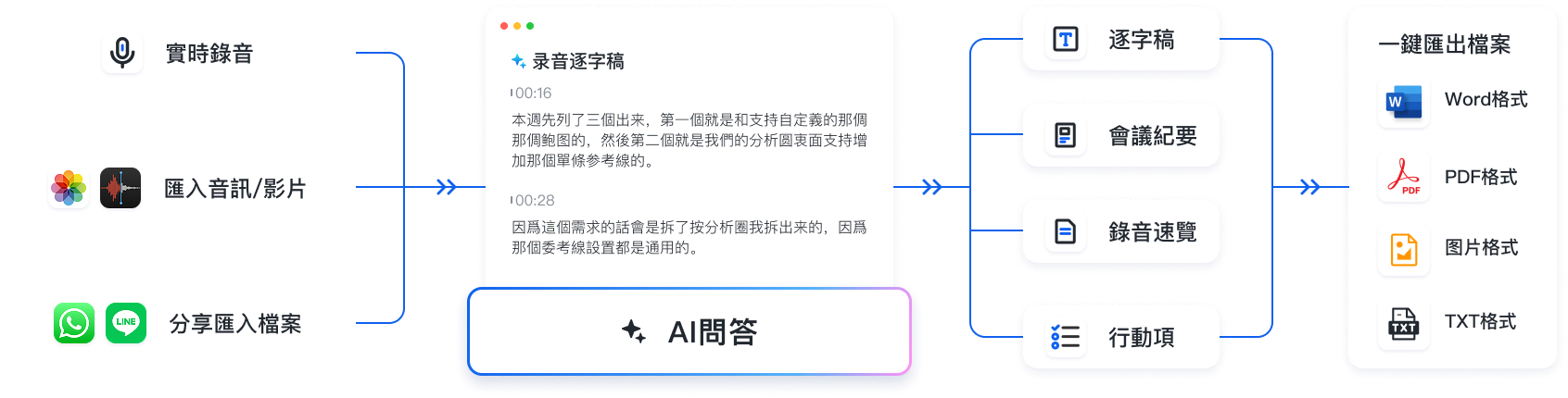
Tinrec (Miao Ting Lu Yin) doesn't rely on existing subtitle tracks. Instead, it directly processes the audio and transcribes it into accurate transcripts, and can even summarize key points.
Steps:
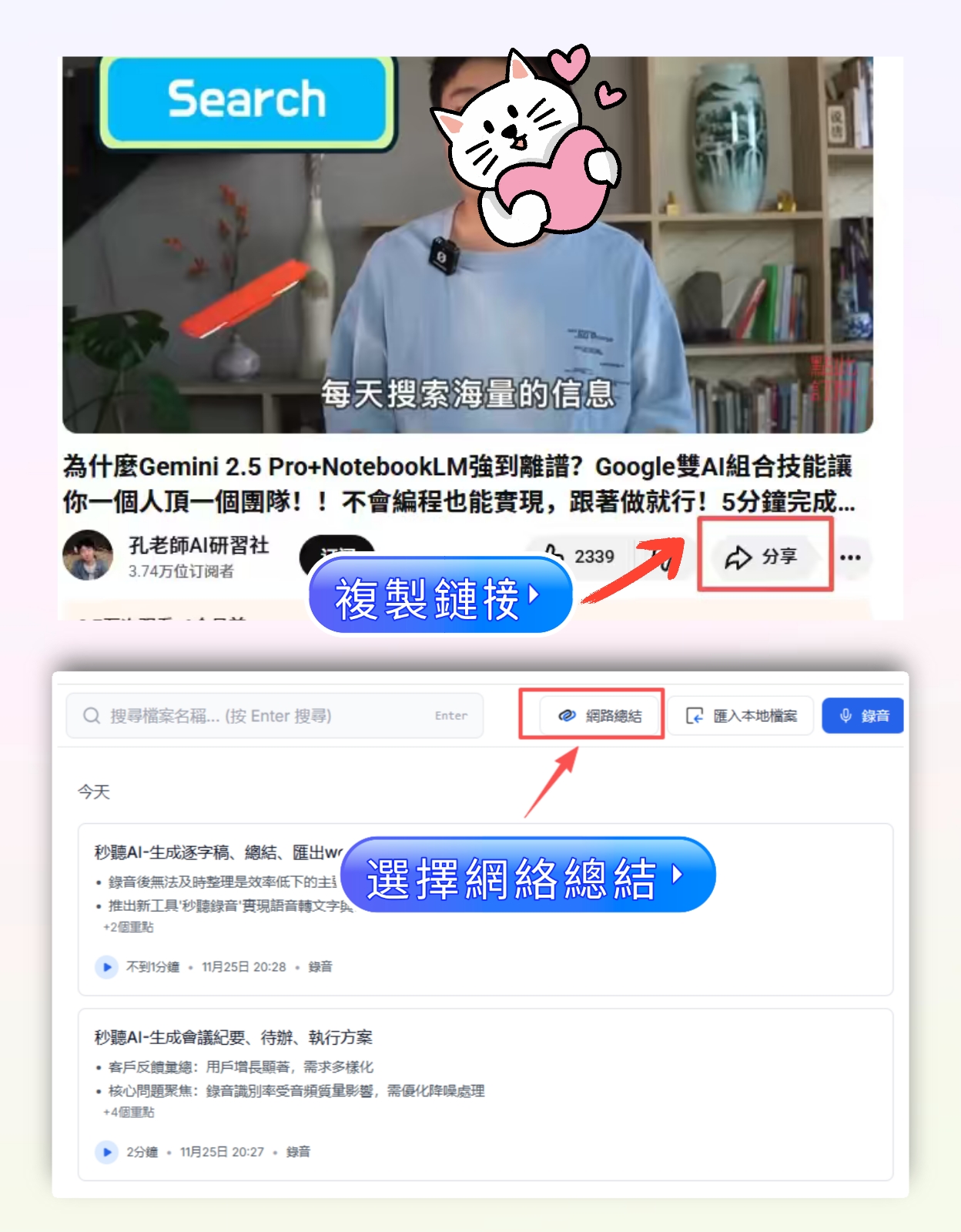
- Import video source:
- Online video: Log into Tinrec web version, select "Podcast/Online Video to Text," and paste the YouTube or TikTok link.
- Local file: Select "Audio File to Text," upload your MP4 or MOV recording.
- AI auto-transcription: Tinrec supports 10 languages including Chinese, English, Japanese. The system automatically converts speech to text.
- Get smart results:
- Transcript: Get the full text content within minutes, with speaker differentiation.
- AI Summary: Automatically generate chapter summaries, meeting minutes, and action items.
- Conversational Query: If you don't feel like reading the full text, ask the AI chat panel on the right: "What are the key points about marketing strategy in this video?" It will answer directly.

4. Advanced Applications: How to Make the Most of Extracted Subtitles
Extracting text is just the first step. The key is how to use this content to boost work efficiency. Instead of just storing SRT files, modern workers prefer using AI tools for "content activation":
- Language Learning: Convert foreign language videos into bilingual transcripts via Tinrec, and use AI to query unfamiliar words.
- Meeting Transformation: Export text from Teams or Google Meet recordings, then have AI automatically extract action items and send them directly to attendees, instead of manually retyping.
- Content Repurposing: Video creators can convert their videos into text and quickly rewrite them into blog posts or social media updates.
5. FAQ
Q1: Can I extract subtitles from Netflix or Disney+? Generally, no. These streaming platforms heavily encrypt (DRM) content and subtitle tracks, so common tools can't extract them. Forcing a bypass may violate terms of service.
Q2: Is it really impossible to convert hardcoded subtitles into text files? Traditional methods can't, but AI tools like Tinrec or Maestra can. Instead of extracting subtitles, they use speech recognition or OCR to re-generate text by "listening" to or "reading" the content.
Q3: What format are extracted subtitles usually in? The most common is SRT (SubRip Text), supported by almost all players and editing software. If you just need to read the content, TXT plain text format is more convenient.
Q4: What limitations do free online tools have? Most free tools (like DownSub) only support public videos and have lots of ads. Software trials (like AnyMP4 trial) typically limit length. AI tools (like Tinrec) usually offer a free allowance (e.g., 100 minutes per month), suitable for light users.
Q5: Why don't the timestamps of extracted subtitles match the video? This usually happens when you download subtitles with a different frame rate (e.g., video is 24fps, but subtitles are 25fps). Using AI transcription tools like Tinrec, which generate text directly from audio, typically avoids timestamp issues because they're timed based on speech.
Q6: I have an iPhone recording. Can I convert it to text directly? Yes. Use a multi-platform tool like the Tinrec App. Import the recording directly on your phone, and it will be transcribed in the cloud and exported as text—no need to transfer to a computer.
Turn every recording into actionable outcomes
Get 60 free transcription minutes when you sign in. No credit card required.
Related Reading
You might also like

2026 AI Meeting Assistant Comparison: 4 Tools Tested for Chinese Transcription and Post-Meeting Organization — Which One Actually Saves Time?
A 2026 hands-on comparison of 4 AI meeting assistants, starting with the most common pre-download misconceptions. We break down 4 key buying factors, share real-world experience with Tinrec, compare the positioning of Otter.ai, Notta, and Granola, and highlight 3 pitfalls to avoid — so you can think clearly before hitting install.

How to Choose an AI Meeting Notes Tool in 2026: 7 Tools Compared + Summaries and Action Items in One Go
Most people compare AI meeting note tools only by minutes and price, overlooking who will actually use the notes after the meeting. This guide starts with three key questions and compares seven tools—Tinrec, Otter.ai, Fireflies.ai, Notta, Granola, PLAUD, and TurboScribe—on meeting capture methods, Chinese-language experience, post-meeting output, and team management, with clear recommendations by scenario.
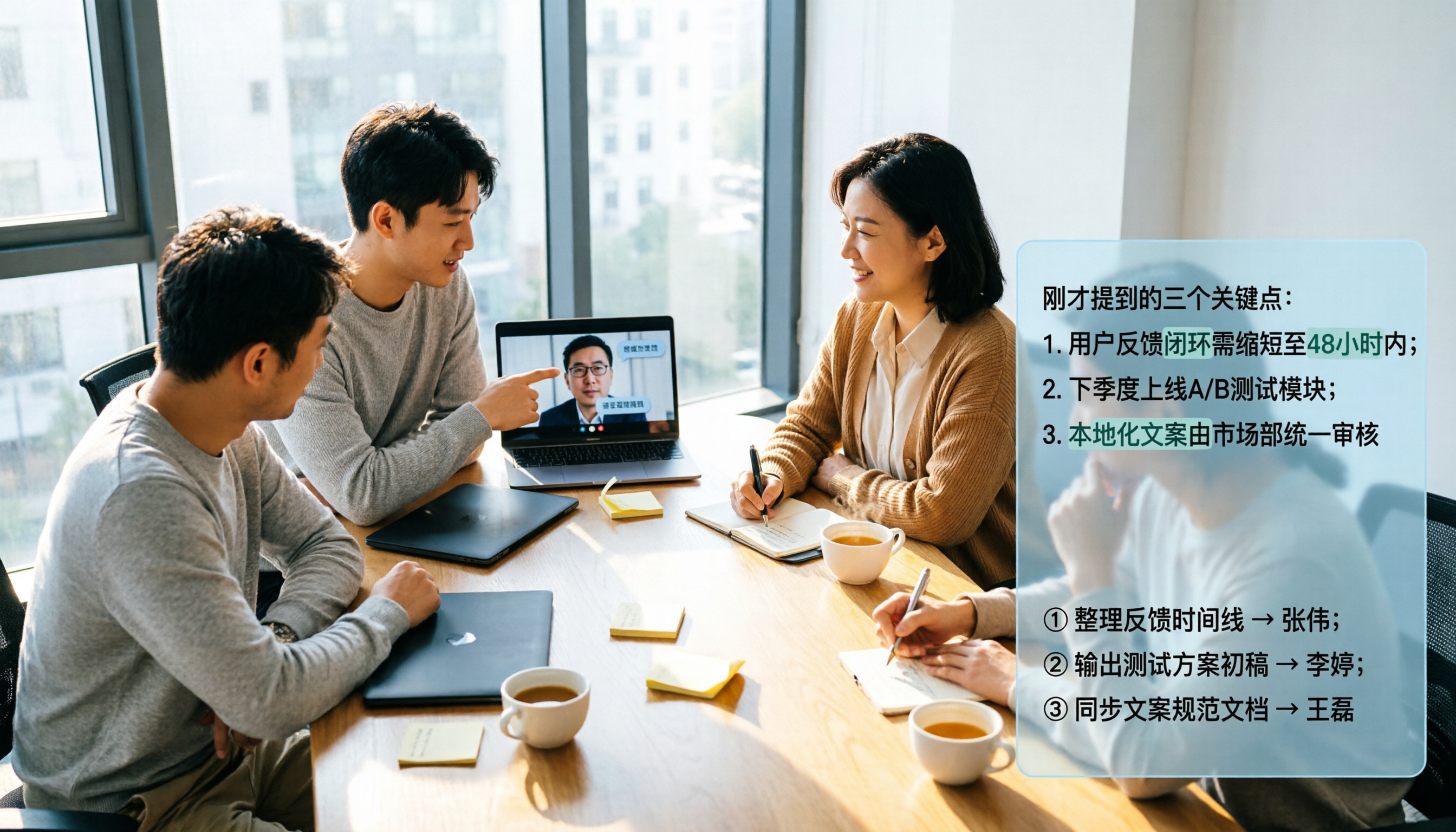
Best AI Meeting Recorder in 2026? We Tested 2 Options — This One Saves the Most Time for Chinese Meetings
Many people think the pain point of meeting notes is whether the recording captures audio, so they buy a recorder first—only to still spend time organizing afterward. This article compares Tinrec and Plaud Note across online meeting recording, Chinese transcription, post-meeting organization, team collaboration, and cost structure to help you choose the truly time-saving option in 2026.

How to Download AI Meeting Assistants in 2025: Bot-Free Recording + Chinese Transcripts
Tired of recording meetings but never organizing them? This guide walks you through downloading and using two AI meeting assistants, Tinrec and Otter.ai, comparing them across five dimensions: recording methods, Chinese and mixed-language handling, post-meeting outputs, file import/export, and team collaboration governance. Find out which one fits your meeting scenarios and budget.

Tinrec vs Granola 2026: 5-Dimension Comparison — Which Wins for Chinese Meetings and Team Knowledge Retention?
Looking for the best AI meeting assistant in 2026? This article compares Tinrec and Granola across 5 dimensions: meeting capture and audio retention, Chinese transcription and real-time translation, post-meeting organization and AI follow-up, team workspace governance, and platform coverage and export. It also lists pricing and ideal use cases to help Hong Kong office workers decide which tool fits them best.

3 Smart Meeting Notes Solutions Tested for 2026: Which Saves the Most Time?
Still replaying recordings and manually taking notes after meetings? This article walks through the smart meeting notes workflow using Tinrec, from pre-meeting preparation and in-meeting recording to post-meeting proofreading and archiving. It also provides a ready-to-use meeting minutes format, buying tips, and FAQs.

4 Smart Meeting Notes Tools Tested: How to Go from Recording to Action Items with the Least Time in 2026
How do smart meeting notes work? This article breaks down the five-step workflow—record, transcribe, summarize, query, and create action items—and compares Tinrec, Otter.ai, Granola, and TurboScribe on Chinese meetings, bot-free recording, post-meeting organization, and team collaboration. It includes quota and pricing comparisons, pitfalls to avoid, and selection advice to help you choose the right tool at once.

2026 Smart Meeting Minutes Comparison: Tinrec vs Otter.ai on 5 Dimensions — Which Saves More Time?
Good meeting minutes aren't about verbatim transcription—they're about conclusions and action items. This article compares Tinrec's instant recording and Otter.ai dimension by dimension, from note-taking style, meeting capture, Chinese transcription, post-meeting workflow to team governance and pricing, to help you choose the smart meeting minutes solution that truly saves time.

How to Use AI Meeting Assistants in 2026: Tinrec 6-Step Guide + Auto-Generated Meeting Minutes
A student's hands-on guide to using AI meeting assistants, featuring Tinrec: six steps to get started, how to record online meetings without bots, how to generate post-meeting summaries and action items, and an honest comparison of Google Meet, Tactiq, Notta, and Granola for student use cases. Also covers whether the free version is enough.