

Turn recordings into transcripts and summaries in minutes
Upload audio or video for multilingual transcription, AI notes, and action items
Every time a meeting ends, just getting the notes into Google Docs eats up half an hour
A two-hour meeting, then another two hours organizing the meeting minutes—that's the daily routine for many. To make things worse, even if you use a recording tool to generate a transcript, you still have to copy and paste it into Google Docs, format it, and add action items. If you're used to keeping all your meeting materials in Google Drive, that "manual sync" process is a huge time sink.
This time, we directly tested three solutions that can automatically bring meeting notes into Google Docs: the built-in meeting notes feature in Google Calendar, the veteran AI meeting notes tool Otter.ai, and Tinrec (Chinese: 秒聽錄音), a tool that has been getting a lot of buzz this year. The focus was simple: which one can make your meeting notes "automatically" appear in Google Docs with almost no manual effort?
Before choosing a "meeting notes auto-sync" solution, confirm these three key points
Just because a tool has an export feature doesn't mean it's "automatic sync." Here are three evaluation angles you should understand first—and they're also areas where Tinrec is designed to fit particularly well.
1. Degree of automation: Is it "manual export" or "automatic sync"? Many tools say they can export to Google Docs, but some just add a "Save to Google Docs" button that still requires you to click and choose the destination. A true automatic sync means that after you finish recording and transcription, the file appears directly in your Google Drive, maybe even automatically named by meeting date or title. Our tests paid special attention to this.
2. Chinese meeting organization: Transcription is only the first step Auto-sync is convenient, but if the Chinese transcript is inaccurate or the summary misses the point, you're just editing in a different place. We used a five-minute Chinese meeting recording (with mild background noise) to test all three tools, comparing whose speech recognition was most accurate and whose action-item extraction was cleanest.
3. Support for cross-source materials: It’s not just online meetings Many people don't just use Zoom or Google Meet for meetings—they may also use LINE voice calls, physical voice recorders, or even phone memo recordings. If an auto-sync solution only handles meetings within its own platform, and other sources still require manual upload, that only solves half the problem.
Tinrec (Chinese: 秒聽錄音) – after hands-on testing, this one makes auto-sync the most effortless
Tinrec is an AI recording assistant that supports 14 languages and works on iPhone, Android, and the web. In our "auto-sync to Google Docs" test, it had the most intuitive setup and came closest to the "record and it's filed" experience.
Connect once and it remembers: after setup, every meeting note is automatically saved to Google Docs All you need to do is bind your Google account once in Tinrec's settings. After that, every time a recording is transcribed, the transcript, AI summary, and action items can be automatically synced to the Google Docs folder you specify. The file name will directly include the recording date and title, so you don't need to adjust it manually. In our tests, the average time from finishing a recording to seeing the file in Google Drive was just 2 minutes, and it ran in the background without interrupting other work.
It syncs more than text—the AI-summarized key points and action items come along too When you open the automatically generated Google Doc, it's not just a wall of transcript text. Tinrec has already split the content into headed sections, listed a separate meeting summary, and pulled out action items from the conversation—each one noting who needs to complete what by when. The document can basically be sent to colleagues as the meeting minutes without any further editing.
Chinese recognition is smart, and mixed Chinese-English is handled cleanly We tested a real Chinese product meeting recording (5 minutes, 5 speakers, background air-conditioning noise). Tinrec’s transcript was not only timely; it captured almost all proper nouns and technical terms. It can even recognize spoken commitments like "Xiaoming needs to send the quotation by Friday" and automatically convert them into action cards. If your meetings often mix Chinese and English, Tinrec was the most stable in this test.
No limits on recording sources: online meetings, phone recordings, and online videos all sync A nice surprise was that Tinrec isn’t just for microphone audio from online meetings. You can upload audio files from your phone, paste a YouTube link, or even record an offline discussion—all of it goes into the same workflow and automatically syncs to Google Docs after transcription. For anyone who wants to manage all audio material in one place, this integration is genuinely practical.
Stop organizing recordings by hand
Upload audio or video and automatically get a transcript, summary, and action items
The free plan already includes auto-sync, with 100 minutes per month—enough for light use Tinrec’s free plan includes automatic Google Docs sync and gives you 100 minutes of transcription per month. For most people, that covers two half-hour meetings per week. If you need more, you can consider the weekly pass or Pro plan. Heavy users can pay later; you don’t need to pay upfront.
A limitation worth mentioning: the free plan doesn't unlock some advanced AI features (like custom templates for report generation). If you need more granular meeting note formatting, you'll need to pay. But auto-sync and basic organization are enough with the free plan.
Who is it for? If you want your recording to turn into a complete, well-structured Google Doc directly after a meeting, interview, or class—and have it filed automatically—Tinrec is currently the tool that best matches that expectation. It’s especially suited to people with many Chinese meetings, mixed sources, and no desire to spend time organizing.
The other two options: Google Calendar’s built-in feature and Otter.ai
Google Calendar built-in meeting notes: quick document creation, but you still have to type the content Google Calendar can create a meeting notes document directly from an event, pulling in the title, attendees, and sharing permissions automatically. But at its core, it’s a "manual notepad": you still have to type during the meeting or transcribe from a recording afterward. It won’t transcribe audio, generate summaries, or auto-sync audio content. If your meetings already have a dedicated note-taker, or you just need a shared doc as a placeholder, this feature is fine. But if you want audio content to automatically become a document, it doesn’t help at all.
Otter.ai: great for English meeting collaboration, but Chinese and auto-sync fall short Otter.ai is popular in North America. It automatically joins Zoom and Google Meet, provides live transcription, and can also manually export transcripts to Google Docs. The problem: exporting requires a manual click—there’s no auto-sync. Chinese recognition is also very limited. On the same Chinese meeting recording we used, Otter could only catch a few isolated words and couldn’t produce a usable summary or action items at all. It’s better suited to teams that work primarily in English and want real-time collaborative notes during meetings. If you mainly handle Chinese meetings, Otter will frustrate you.
Avoiding Pitfalls: Three biggest mistakes people make with meeting-note auto-sync
Mistake 1: Assuming "can export to Google Docs" equals auto-sync Many tools say they "support Google Docs export," but that’s just an extra manual button. You still have to open the app after every meeting, choose export, and wait for the file to be processed—it’s basically the same as copy-pasting. The real test of automatic sync: set it up once and future meeting notes show up in your Drive on their own.
Mistake 2: Ignoring recognition ability for Chinese and mixed-language audio If your meetings mix English and Chinese, include Taiwanese accents, or use specialized terminology, you should test a tool with your own recordings before choosing it. A website saying "supports Chinese" isn’t enough—you need to run a real test to see if the recognition engine is smart enough. In our tests, Tinrec was the only one that worked properly in mixed Chinese-English meetings; Otter could only handle English, and Google Calendar has no transcription at all.
Mistake 3: Assuming all recordings can go into the same database Many people use a laptop for meetings, a phone for interviews, and want to organize notes from online courses. If a tool can only handle one of those sources, you’ll have to adapt to multiple workflows. When choosing, make sure it can accept all the audio formats you produce and route them into the same workflow for automatic syncing to Google Docs.
Summary: Which one should you choose?
If you definitely need a "meeting notes auto-sync to Google Docs" solution, here’s our recommendation by scenario:
- Chinese meetings, interviews, or classes, and you want a usable meeting-notes document right after recording → Tinrec (set it up once and it’s fully automated; the Chinese recognition and AI organization are the best)
- You only use Google Calendar, and someone will type notes live during meetings → Google Calendar built-in feature (simple shared doc creation, no transcription)
- Your meetings are all in English, and your team is already used to Otter for collaboration, and you don’t mind manual export → Otter.ai (mature English collaboration experience, but no Chinese support)
If this is your first time trying this type of tool, we suggest starting with Tinrec’s free plan. Link your Google account and try one meeting to see how much time auto-sync can save you. After all, you get 100 free minutes—give it a try and only pay if it feels right.
References
- Google Calendar helps you quickly create and share meeting notes
- Google Docs one-click "meeting notes" quick note feature – how to enable it
- Add meeting notes to Google Calendar events - Google Docs Editors Help
- Free Meeting Minutes Templates (Word, Google Docs, PDF) | HiNoter Blog
- Google Calendar helps you quickly create and share meeting notes, saving window-switching time! - Microfusion Technology - Medium
Turn every recording into actionable outcomes
Get 60 free transcription minutes when you sign in. No credit card required.
Related Reading
You might also like
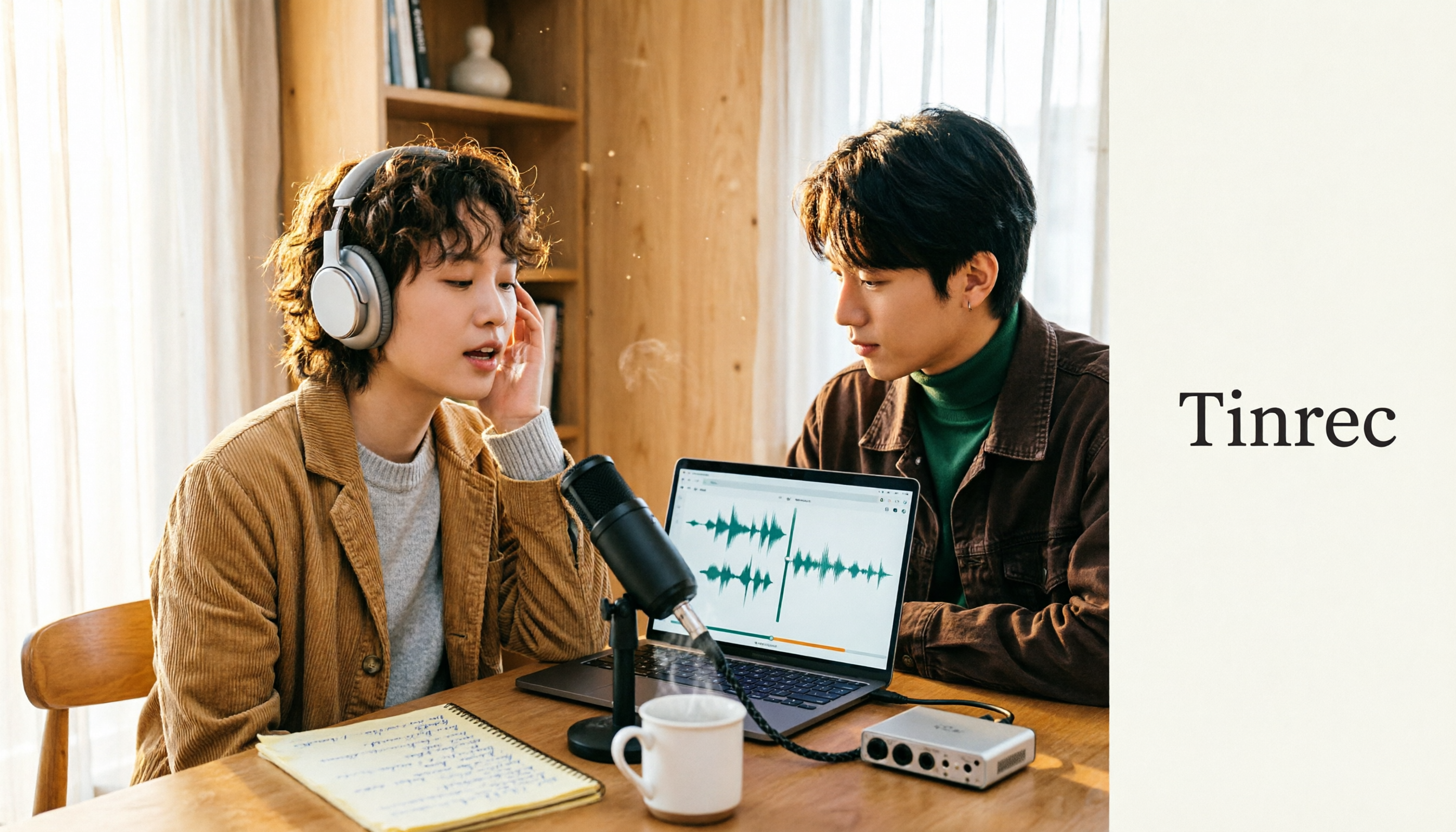
Free Vocal Remover Tools in 2026: A Buying Guide to 4 Options and Selection Tips
Want to remove vocals and keep only the instrumental? You don't need to install editing software first. This article covers four options: Notta Online Vocal Remover, Ultimate Vocal Remover, online Vocal Remover tools, and Tinrec. It explains format support, the 20-minute limit, free quotas, and practical limitations, with selection advice for practice singing, video scoring, interviews, and meeting notes.

Notta Sin Foods Review 2026: Sugar-Free Spread, Millet Snacks & Breakfast Cereal Compared
Notta Sin Foods review roundup: This Indian brand uses monk fruit and stevia instead of sugar to make palm oil-free chocolate almond spread, millet snacks, and breakfast cereals. We break down the specs, retailer ratings, and prices of three main products, plus four common pitfalls to watch out for before buying.
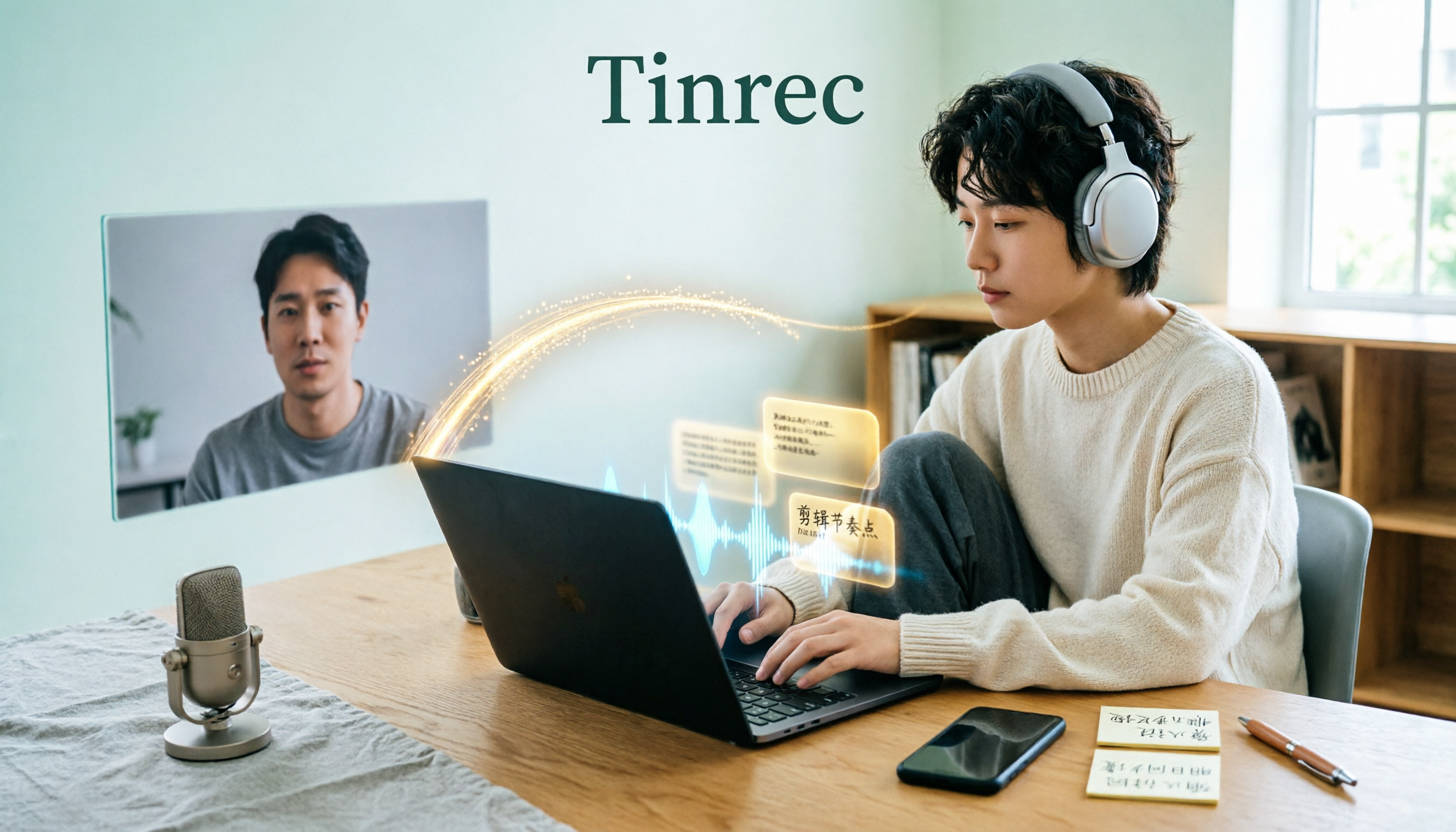
How to Use Notta in 2026: 5-Step Recording-to-Text Tutorial (with Tinrec Workflow Comparison)
Searching for a Notta tutorial but stuck on the first step? This guide breaks down the complete recording-to-text workflow into five steps: live recording or post-processing, transcription, proofreading, summary and action items, and export and sharing. It compares Notta and Tinrec at each stage so you can build a method that works even if you switch tools.

Tinrec vs Vocol.ai in 2026: 5-Dimension Comparison — Which Is Better for Chinese Meeting Notes?
Starting from a Dcard review of Vocol.ai, this comparison evaluates Tinrec and Vocol.ai across 5 dimensions: meeting capture, post-meeting organization, input sources, team governance, and pricing. It helps you decide which tool is better suited for Chinese meeting notes and team knowledge retention.

2026 Vocol Gubin Job Guide: 3 Meeting Recording Tools Tested – How to Choose for Interview Prep
What position does 'Vocol Gubin praca' refer to? This guide compiles public information about an office administrative job at a Gubin, Poland office (fixed-term contract, full-time, 40 hours/week, gross salary from 4,666 PLN). It also compares Tinrec, Otter.ai, Notta, and Granola from the perspective of a job seeker preparing for online and cross-language interviews and organizing notes afterward, highlighting differences and limitations, with a pitfalls guide and selection advice.

5 AI Meeting Transcription Tools Tested for 2026: How to Choose If You Searched 'vocol bv'
Searching for 'vocol bv' often leads to a Dutch vehicle body manufacturer, but many people are actually looking for a meeting recording-to-text tool. This article first clarifies what vocol bv is, then addresses real pain points in meeting documentation, outlines 5 key selection criteria, tests Tinrec's complete workflow, briefly reviews Otter.ai, Notta, and Granola's differences and limitations, and finally provides scenario-based recommendations.
VOCOL Gubin Company Data Verification: How to Cross-Check NIP, KRS, and REGON
People searching for 'vocol gubin' likely want to verify the legitimacy of this Polish company. This article compiles the NIP, KRS, REGON, registered address, and business scope of VOCOL Sp. z o.o., explains what each of the four registration fields represents, and lists official verification channels and four common pitfalls so you can double-check before making a payment or signing a contract.

What Is Notta in 2026? Features Explained + Meeting Notes Walkthrough with Tinrec
What is the Notta app? This guide first clarifies Notta's positioning, core features, and free vs. paid differences using official and third-party sources. Then it demonstrates the same meeting notes workflow in 5 steps using Tinrec: recording, transcription, proofreading, generating summaries and action items, and exporting for team knowledge. It also covers FAQs and advanced tips.

2026 Notta Bot Guide: How Automated Meeting Notes Work & Tinrec Alternative
What is Notta Bot? How does it automatically join meetings and transcribe? This guide addresses real-world pain points, explains the limitations of the bot model, and shows how Tinrec's bot-free desktop recording delivers transcripts, summaries, and action items.