

Turn recordings into transcripts and summaries in minutes
Upload audio or video for multilingual transcription, AI notes, and action items
I manage a small team of 8 people, and every time we finish a meeting, what I dread most is putting together the meeting notes. A one-hour recording would take me an entire afternoon to manually transcribe, not to mention extracting the key points and writing down action items. I've tried several tools: PLAUD.ai's hardware is too expensive, Notta sometimes stumbles on Chinese transcription, and Otter is really designed for English meetings. It wasn't until I recently started using Tinrec that I finally felt I had a workflow that truly saves 60% of my note-taking time. This isn't a vendor-sponsored post—it's the honest feedback from my own team's hands-on testing, and I'll also mention the downsides.
Before You Start: What You'll Need
• A smartphone or computer (iPhone, Android, Mac, Windows all work—Tinrec supports all platforms) • Download the Tinrec app or open the web version directly (free on App Store / Google Play; sign in with Google or Apple ID) • A meeting recording you want to organize (can be recorded live on your phone or an mp3/m4a file from an online meeting) • A stable internet connection (real-time transcription needs internet; for offline use, download the Traditional Chinese language pack in settings first)
Step 1: Record What You Want to Transcribe
This step is about getting a clean recording file—the quality of the file directly determines the accuracy of the transcription later.
If you're in a physical meeting, place your phone in the center of the table with the microphone facing up. For a one-on-one interview, put it between the two of you. Never put it in your pocket or bag. If the audio becomes muffled, no AI can save it.
Why spend the extra 30 seconds to get the position right? Because it's better to have a clear audio file from the start than to spend half an hour correcting it later. Tinrec has smart noise reduction, but if you're too far away, words will still be missed—that's not a flaw in the tool; it's a limitation of physics.
After recording, the audio file automatically appears on Tinrec's main screen, showing its duration and file size.
(Figure: In a meeting room, several people sit around a table, a phone is placed flat in the center of the table recording, the screen is showing the recording interface, and a person is speaking.)
Step 2: Let AI Convert It into a Transcript
Open the file you just recorded, and Tinrec will ask if you want to start transcribing. Select Traditional Chinese, hit Start, and it will display the text as it processes.
There's basically nothing left to do in this step except wait. In my own test, a 30-minute meeting took about 2 minutes to transcribe, which was surprisingly fast. The resulting text is automatically split into paragraphs, and it marks the speakers (though not always 100% accurately).
Why let AI transcribe first? Because it skips the most painful part—listening and typing. You only need to do the next step of verification, instead of starting from scratch.
After it's done, the entire transcript appears on the screen, and you can play the audio alongside using the button in the top-right corner.
(Figure: A laptop screen displays the freshly transcribed transcript with text arranged paragraph by paragraph, and a playback bar on the side to compare with the recording. The scene gives a sense of relief: "Finally, I don't have to type it myself.")
Step 3: Quickly Proofread the Transcript
Many people might be tempted to skip this step, but I strongly advise against it. AI transcription still makes mistakes, especially with proper nouns, mixed Chinese-English, or parts where people talk unclearly.
My habit is to read through the transcript while using Tinrec's "jump by text" feature to quickly listen to the original audio to confirm. If I really can't make out something, I mark it and move on—as long as it doesn't affect overall understanding. For a 30-minute meeting, I can proofread in about 10 minutes—way faster than retyping the whole thing.
Why proofread yourself? Because this record will eventually be shared with the team, and mistakes can affect decisions. AI saves you from the mechanical work, but the responsibility is still yours.
After proofreading, this transcript can serve as the team's basic reference, even for colleagues who didn't attend the meeting.
(Figure: A person looks at the transcript on their phone, tapping on a line. Earphones are connected to Tinrec to listen back to that specific sentence. The atmosphere is serious but not tense.)
Step 4: Let AI Generate Meeting Minutes
This is where I think Tinrec is truly stronger than general transcription tools. On the transcript page, select "AI Summary," and it automatically generates these four sections: Meeting Summary, Key Points, Action Items, and Discussion Topics.
Even better, you can customize templates. Our team set up a format with a three-part summary plus an action list. After each generation, we just make minor adjustments and it's ready to use. In the past, it took me 30 minutes to write this out; now it takes 3 minutes.
Stop organizing recordings by hand
Upload audio or video and automatically get a transcript, summary, and action items
However, it's worth noting that AI summaries might miss some tone or background emotion, so for important decisions, I still go back and glance at the original. This isn't a Tinrec-specific limitation; it's the same with all AI.
Once done, the minutes are saved under the same project, and you can edit them repeatedly.
(Figure: A phone screen shows a clearly structured meeting summary: the summary at the top, bullet-pointed key points in the middle, and "Action Items" at the bottom, each with an owner and due date.)
Step 5: Export and Share
Tinrec supports exporting the minutes or transcript directly as PDF, Word, or TXT, and you can also sync to Notion, Google Docs, and OneNote. This is super important for small teams—we manage all tasks in Notion, and with one-click sync, everyone can see it.
Additionally, you can generate a share link and send the entire meeting record—including audio, transcript, and summary—to those who didn't attend. That's much more complete than just sending a Word file via email.
Before exporting, double-check the title and date to make it easier to search for later.
(Figure: A laptop shows Tinrec's export menu with several format and external service icons, giving a satisfying "everything's done, ready to hand off" feeling.)
FAQ & Troubleshooting
Q: The transcription has a lot of errors. What should I do?
Usually it's because the recording distance is too far or the environment is too noisy. Tinrec has built-in smart noise reduction; turn it on in settings before recording. If you're using an existing old file, after importing, try the "High Noise Environment" mode. Many transcription tools on the market don't have this option and just run with default settings.
Q: We have foreign clients in meetings, and the speech is a mix of Chinese and English. Does it handle that well?
Tinrec's Traditional Chinese language pack handles mixed Chinese-English fairly well, but if your meeting is entirely in English, I recommend switching to English mode. It supports multiple language switching, so you don't need to download a separate app.
Q: How do I protect privacy? Where will the meeting content be uploaded?
My approach is: for sensitive meetings, I only use local recording and don't enable cloud sync. Tinrec's transcription is processed on the server. If you're very concerned about confidentiality, you can use only its local recording feature and then manually export. For general internal discussions, I think it's more than sufficient.
Advanced Tips: 3 Ways to Make Tinrec Way More Efficient
AI Q&A: Search Records Like You're Asking a Colleague—For a finished transcript, you can directly ask questions conversationally in Tinrec, for example, "What was the budget discussed last time?" or "Who is responsible for contacting the supplier?" It will pull the answers from the recording. Otter has this feature too, but Tinrec is more accurate with Chinese questions, and you don't need to open a separate Chat interface—everything can be done in the same app.
Turn Online Videos Directly into Meeting Highlights—Our team often references industry analysis videos on YouTube. With Tinrec, you can paste a link and it will convert it into a transcript and summary. Notta and TurboScribe can't do this; they focus on file transcription. Converting public videos into text materials and then using them for internal presentations is much faster.
Cross-Platform Sync: Seamlessly Switch Between Desktop and Mobile—At the office, I use the desktop version of Tinrec for meetings; while commuting, I take out my phone to continue proofreading or checking summaries. All data syncs, so there are no version conflicts. Fireflies' app experience isn't as smooth, and its mobile version is more basic.
If You Don't Use Tinrec, Here Are Other Options
Notta: If you need heavy transcription volume, Notta's Pro plan offers 1,800 minutes per month (more than Tinrec) and has comprehensive multi-language translation. But it lacks online video transcription, and its AI Q&A is weaker. It's best for those who simply want to upload files and get text.
Otter.ai: The go-to for English meetings, with strong team collaboration features. But its Traditional Chinese support is only average, and the price is higher. If all your meetings are in English, it's worth considering.
In short, Tinrec hits the sweet spot for "Chinese meetings + multi-source organization," and for a small team like mine that needs to handle meetings, courses, and online information, it's the best fit.
Conclusion
By following these 5 steps, you can now use Tinrec to turn meeting recordings into transcripts, automatically generate meeting minutes, and use AI Q&A to quickly find key points in your past records. I personally went from spending 2 hours a day on this to less than 1 hour. The time I saved goes to thinking about strategy and tracking progress—which is what a small team leader should really be doing.
Next step: Download the free version of Tinrec and try it with a meeting recording of your own. The free tier includes a basic monthly allowance, enough for a couple of meetings. If you don't find it worthwhile, you can always delete it—at least you've tried a method that genuinely saves time, which is far better than continuing to transcribe manually until you question your life.
References
- Struggling with meeting notes? 5 NotebookLM "AI Note Conversion" tips that accurately handle mixed Chinese-English and proper nouns | BusinessNext
- Meeting Ink – 2026 AI Meeting Tools Test: Speed Showdown of 8 Voice-to-Text and Summary Tools | Meeting Ink – AI Meeting Notes Assistant, Auto-Transcribe, and Summarize
- Get Meeting Notes Done! How to Use AI Voice-to-Transcript? Gemini Notebook, Gemini, and EchoScript Explained | 104 Career Force
- How to Use AI for Meeting Notes? How to Organize Meeting Transcripts? | AI Voice-to-Transcript Tutorial | 104 Career Force
- AI Meeting Note Software Recommendations: 5 App Real-World Test Reviews – Auto Transcribe and Make Meetings a Breeze! | PLAUD Blog
Turn every recording into actionable outcomes
Get 60 free transcription minutes when you sign in. No credit card required.
Related Reading
You might also like

2026 AI Meeting Transcription Tools Compared: Notta's 2025 Update and the Best Choice for Chinese-Speaking Teams
Starting with Notta's 2025 pricing changes, Notta Memo, and mobile bilingual transcription, this hands-on comparison of Tinrec, Notta, Otter.ai, and TurboScribe covers meeting recording workflows, post-meeting processes, team management, and quotas to help Chinese-speaking teams choose the right tool.

5 Best Meeting Transcription Tools for 2026: Notta Pricing, Dcard Reviews, and Alternatives Compared
A breakdown of Notta pricing, free plan limits, and common Dcard discussions, plus a comparison of 5 meeting transcription tools including Tinrec, Otter, Fireflies, and TurboScribe—helping you decide if a free plan is enough and whether paid plans are worth it.

Tinrec vs Notta 2026: 5-Dimension Comparison — Which Is Better for Chinese Meetings and Team Knowledge Retention?
There's a lot of discussion about Notta on Dcard, but free minutes aren't the only standard. This article takes the perspective of a student group project and compares Tinrec and Notta across 5 dimensions: online meeting capture, Chinese-language experience, post-meeting organization, team governance, and post-meeting outputs. It also covers free tiers and budget recommendations.

2026 Nottawasaga Hockey Tournament Schedule: Complete Guide to Dates, Divisions, and Coaching Records
The 2026 Nottawasaga Hockey Tournament (Quest For the Cup preseason) takes place August 8–10 at Nottawasaga Inn Resort, featuring U9 to U18 AA, A, and BB/Select divisions. This guide covers event dates, venue, accommodations, and key verification points, and explains how Tinrec can turn pre-trip meetings, coach instructions, and post-game reviews into searchable, queryable, and transferable team documentation.

How to Use Notta for Chinese in 2026: Traditional Chinese Transcription Settings + 5-Step AI Summary Guide
A hands-on 5-step walkthrough of Notta's Chinese transcription workflow: language settings, recording method selection, transcript proofreading, generating summaries with Chinese prompts, and exporting for team use. Plus practical workarounds for the free plan's 3-minute limit and why I eventually switched my main workflow to Tinrec, with real-world team pricing tested.

2026 Nottawasaga Tournaments: 5 Places to Check Schedules and Prepare
Searching for 'Nottawasaga tournament 2026' returns more than one event. This guide organizes the 2026 Nottawasaga-related paddling races, youth hockey tournaments, venue and schedule pages into 5 options, plus record-keeping methods for team meetings and post-game reviews, so you can figure out which event to enter and what to prepare.

2026 Nottawasaga Hockey Tournament Coach's Guide: Schedule, Costs, and Post-Game Record-Keeping Compared
A complete overview of the 2026 Nottawasaga Hockey Tournament (Weekend Hockey Quest For the Cup), including schedule, divisions, costs, and venue details. From the perspective of coaches and team managers, it explains how to use Tinrec to turn pre-game meetings, parent communications, and post-game reviews into trackable records, avoiding conflicting accounts after the tournament.
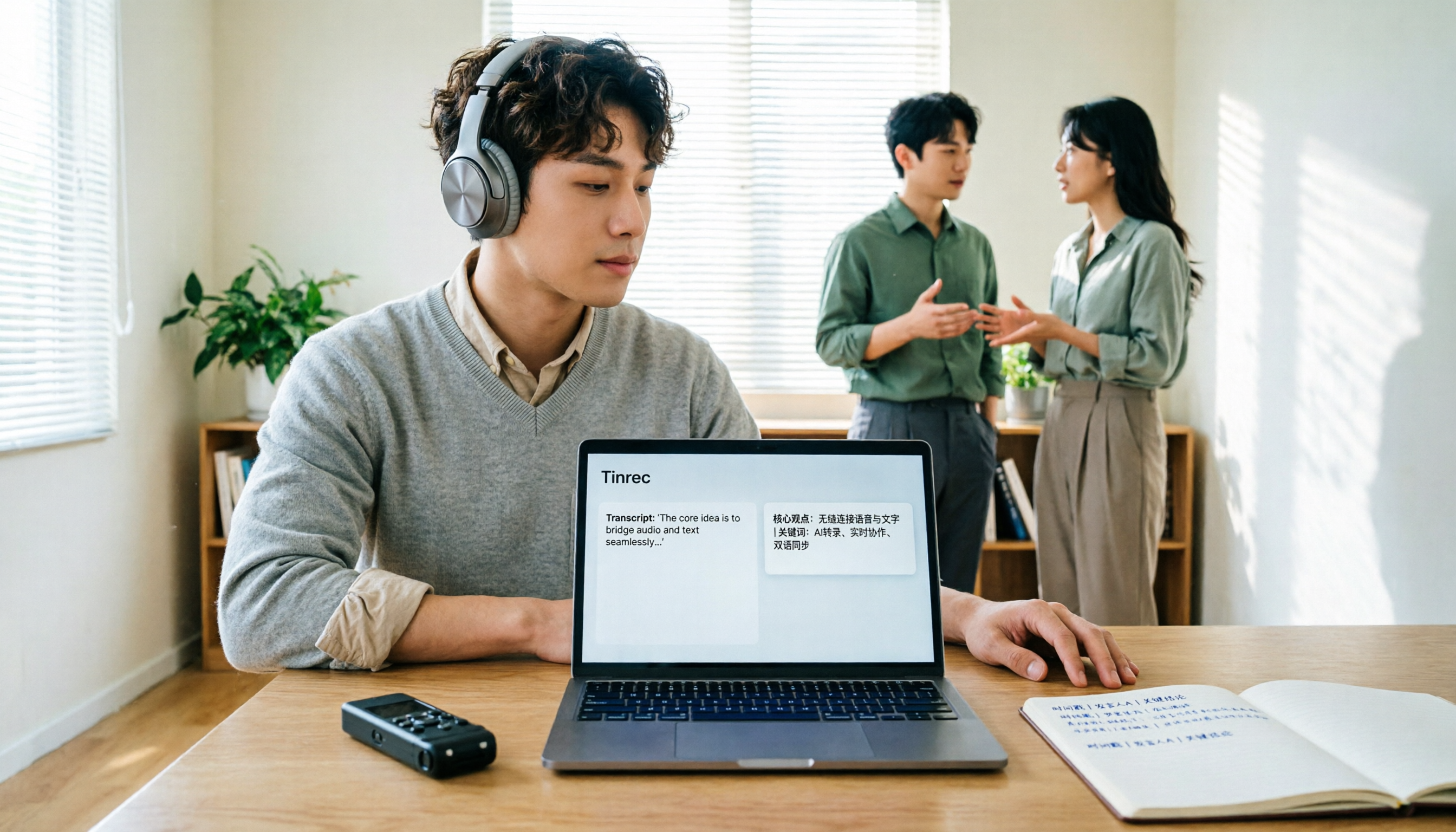
How to Translate Recordings into Chinese in 2026: 5-Step Transcript Translation Tutorial (Notta vs. Tinrec)
How do you use Notta's Chinese translation, and where are the limits? This article breaks down the complete process of converting recordings to transcripts and then translating them into Chinese in 5 steps, demonstrates real-time bilingual, AI summaries, and team knowledge retention with Tinrec, and finally provides purchasing guidance.
Best Audio-to-Text Apps in 2026: 6 Options Compared, Including the Most-Discussed Pick on Dcard
Cramming for finals and realizing you can't get through all your lecture recordings? Based on real student needs, this guide compares six audio-to-text tools in 2026—their plans and limitations—including Notta, frequently asked about on Dcard, and Tinrec, which can record online meetings without a bot and lets you ask AI follow-up questions after transcription. Includes a free-tier comparison and buying advice.