
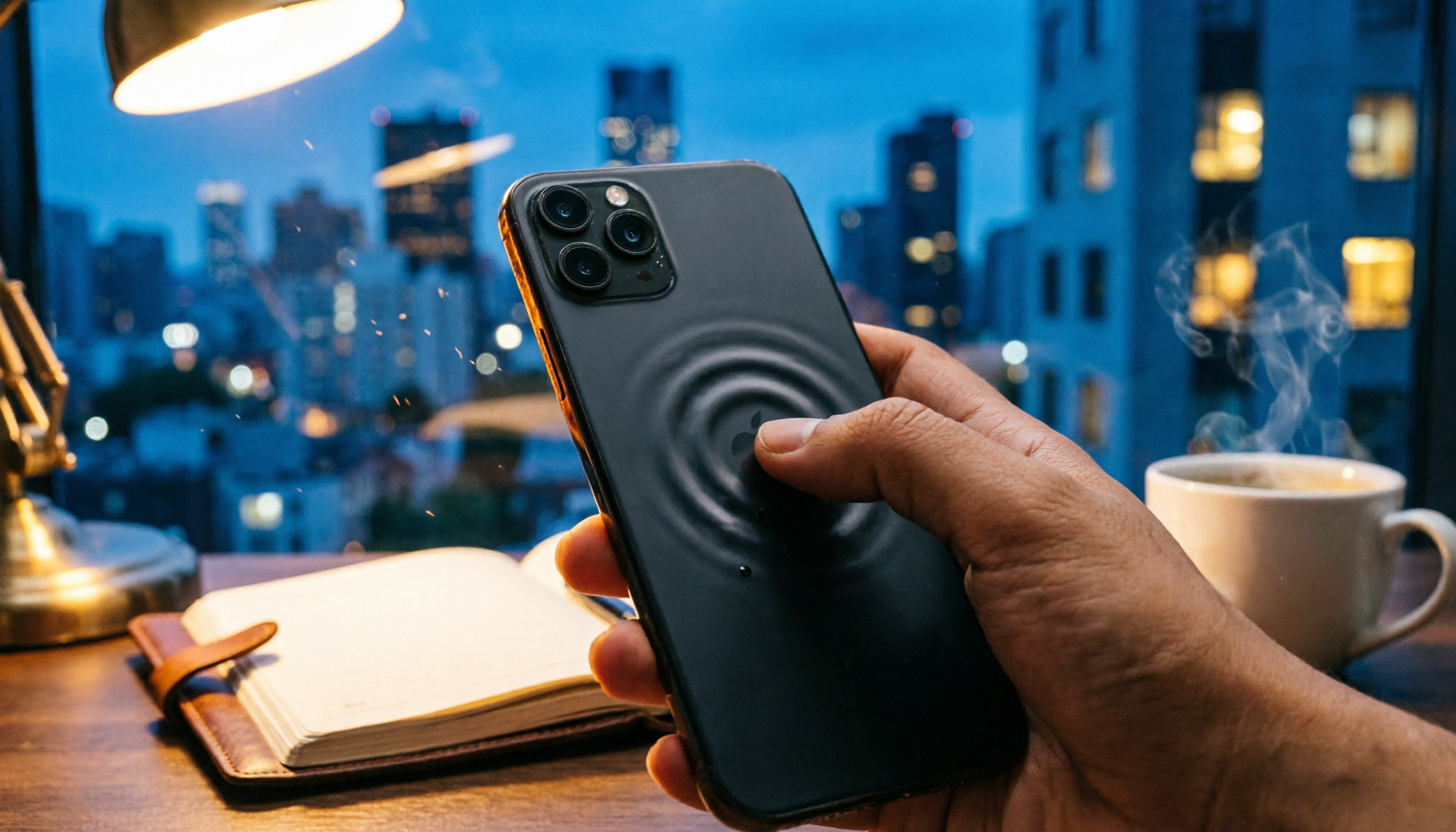
Turn recordings into transcripts and summaries in minutes
Upload audio or video for multilingual transcription, AI notes, and action items
Need to Record Quickly During Meetings, Classes, or Interviews but Always Miss the Moment?
I remember once, in an impromptu brainstorming meeting, everyone was discussing enthusiastically, but I had to unlock my phone, find the Voice Memos app, tap into it, and hit the record button. By the time I was ready, the most critical inspiration had passed. This is a classic scenario: the recording feature on iPhone is great, but it lacks an "instant start" method.
Many iPhone users have likely had similar experiences: needing to record at a critical moment, fumbling to find the record button, and ending up missing important content. In recent iOS versions, Apple has quietly added several ways to "start recording quickly," but many people don't know how to set them up.
In this article, I'll take a hands-on approach to walk you through four methods for quickly starting a recording on an iPhone, and compare their startup speed, ease of use, and compatible models so that you won't have to scramble in an emergency.
Before Choosing a Recording Shortcut, Understand These 3 Key Points
No matter which method you choose, these three core considerations come into play:
- Startup speed: Can you start recording directly from the lock screen? Or do you have to wake the screen, unlock, and find the app? In situations where you need to record immediately, that one or two seconds can make all the difference.
- Ease of use: Do you need both hands? Do you have to tap the screen multiple times? Ideally, you'd complete it with one hand and a single action, so you don't interrupt your focus.
- Device compatibility: Not every method works on all iPhone models. For example, the Action button is only available on iPhone 15 Pro and later flagship models. Your specific handset will directly affect which options you can use.
With these three criteria in mind, let's look at the four mainstream methods and see which one is the best "one-touch recording" solution for you.
Action Button — The iPhone Recording Shortcut I Recommend Most After Testing
If you have an iPhone 15 Pro, 16 series, or a newer flagship model, the "Action button" on the left side is the ideal recording shortcut. It's like a dedicated shutter button for a camera; now you can turn it into a dedicated recording button.
The setup steps are very simple:
- Open the "Settings" app and tap "Action Button."
- Scroll to the "Voice Memos" icon and select it. (Screenshot here: Action button settings screen, with an arrow pointing to the Voice Memos option)
Once set up, just press and hold the Action button, whether you're on the lock screen or using another app, and recording will start instantly. Plus, the recording is saved to Voice Memos right away, so you won't lose track of the file later.
Why do I particularly recommend this method?
- It's genuinely fast: The advantage of a physical button is that you don't need to look at the screen—just feel for it and press, and you're recording.
- No need to unlock: Even if your iPhone is locked, pressing and holding the Action button still starts recording, something no software gesture can do.
- Prevents accidental triggers: Compared to Back Tap, the Action button requires a "press and hold" to activate, so it won't accidentally start while in your pocket.
Limitations: Of course, this method only works on iPhone 15 Pro and later models with an Action button. If you have a standard iPhone or an older model, check out the other options below.
Who it's best for:
- Professionals, students, and journalists who frequently need to record quickly.
- Those who want to start recording with one hand and don't want to fiddle with the screen.
- People who already own an iPhone 15 Pro or later.
Stop organizing recordings by hand
Upload audio or video and automatically get a transcript, summary, and action items
The Other Three iPhone Quick Recording Methods: Pros and Cons
If your iPhone doesn't have an Action button, there are still several decent alternatives. Below is a quick rundown of three common approaches—you can choose based on your habits.
Back Tap: Go to "Settings" > "Accessibility" > "Touch" > "Back Tap," and you can set double-tap or triple-tap on the back of your iPhone to open Voice Memos. The advantage is that it's an intuitive gesture, and it works on almost all iPhones. The downside is that you need to unlock the screen before it can be activated, and if you set the sensitivity too high, it's prone to accidental triggers. In contrast, the Action button doesn't require unlocking and offers the tactile feedback of a physical button.
Shortcuts automation: Using the "Shortcuts" app, you can design a one-touch recording button and place it on the home screen or as a lock screen widget. The benefit is high customizability—you can even set it to automatically upload recordings to the cloud. However, it still requires tapping the screen, and there is a slight delay from tap to recording start. With the Action button, you simply press and hold, and recording starts almost immediately with no waiting.
Traditional Voice Memos: This is the most basic method—unlock your phone, find the Voice Memos app, and hit the red record button. If you really don't want to set up anything, this still works, but it's the slowest to start. You can also add Voice Memos to "Control Center" so at least you can swipe down from the upper-right corner and tap it, which is faster than hunting for the app on your home screen. Still, it requires a two-step process, unlike the Action button's one-press solution.
3 Common Mistakes When Setting Up iPhone Recording Shortcuts
While helping friends set up these shortcuts, I've noticed some common pitfalls. Let me warn you so you can avoid them:
Pitfall 1: Assuming every method works from the lock screen Back Tap and Shortcut widgets require the iPhone to be unlocked first. Only the Action button truly lets you "pick up the phone, press and hold, and record immediately." If you care about recording speed while locked, the Action button is the way to go.
Pitfall 2: Setting Back Tap to double-tap is too sensitive, causing accidental triggers Many people set Back Tap to double-tap, only to find that recordings get triggered spontaneously when the phone is on a table or in your hand. I recommend setting it to "triple-tap"—it takes one extra tap, but the chance of accidental activation drops significantly, and it feels far more reliable.
Pitfall 3: Recording without organizing files No matter which shortcut you use, the recordings end up in "Voice Memos." If you don't rename the file after recording, a month later you'll be staring at a long list of "New Recording" entries with no idea which is which. Develop a good habit: tap the filename right after recording and type in a quick keyword. You'll thank yourself later when searching for a specific file.
Conclusion: Which iPhone Quick Recording Method Is Best for You?
Each of the four methods has its strengths, but looking at startup speed, ease of use, and reliability, my conclusion is clear:
- If you have an iPhone 15 Pro or newer, set the Action button to Voice Memos. It's the most tangible, closest-to-a-dedicated-record-button experience.
- If your iPhone doesn't have an Action button but you want a fast gesture → Back Tap (set to triple-tap) is the best alternative, just remember it only works after unlocking.
- If you want more customization flexibility, or even want to record in the background discreetly → you can explore "Shortcuts" automation, but it's more complex and startup speed is a bit slower.
- If you only record occasionally and don't want to spend time setting up → add Voice Memos to Control Center, so you can swipe it out and tap it—much faster than hunting for the app on the home screen.
Just one simple setting can let your iPhone calmly capture important content at key moments. Go try it now, pick the most convenient method for you, and get your recording button ready!
References
- iPhone Recording Without Hassle: One-Touch Quick Record When It Matters
- Record in Voice Memos on iPhone - Apple Support (Taiwan)
- iPhone Recording Shortcut Setup Guide: 3 Ways to Quickly Launch Recording - Tech Girlz
- How to Record on iPhone Without Being Detected? Use Shortcuts with Back Tap for Secret Recording - Mr. Mad
- [Mobile Know-How] 2026 Built-in "Call Recording" Feature on iPhone! iOS Phone Recording / Important Notes Cheat Sheet | Jason Communication ~ Lowest Price on Mobile Market
Turn every recording into actionable outcomes
Get 60 free transcription minutes when you sign in. No credit card required.
Related Reading
You might also like
Best Recording App 2026: Hands-On Test of 4 — Tinrec Wins for AI Transcription & Organization
We tested the most download-worthy recording apps of 2026, comparing 4 tools from free to paid. In our hands-on review, Tinrec's AI transcription, summarization, and Q&A features proved the most practical. Whether for meeting notes, lecture notes, or content creation, it turns recordings into searchable material.

Which iPhone Voice-to-Text App Is Best? We Tested 4 in 2026 – This Cross-Platform AI Query Tool Is the Most Convenient
We tested four voice-to-text tools: iPhone's built-in Voice Memos, Yating, Otter.ai, and Tinrec. We compared language support, AI summarization, cross-platform use, and free plans to help you find the right fit.

Free Speech-to-Text Apps in 2026: 5 Options at a Glance
Can't keep up with lecture notes? This article rounds up the 5 free speech-to-text apps most used by college students, from fully free options to the best value picks, to help you easily handle class recordings and meeting minutes.

2026 MP3-to-Text Tools Tested and Compared: Which AI Saves You the Most Time?
Converting MP3 recordings to text is only the first step. The real key is getting AI to summarize, highlight key points, and even answer questions. I tested four tools to find out which one works best for organizing Chinese content.

2026 Meeting Recording & Transcription Tools: 2 Hands-On Reviews & Legal Recording Tips
Is it illegal to record a meeting? This article unpacks the legal boundaries of recording for self-protection, then compares two meeting recording/organizing tools—Tinrec and PLAUD Note—across recording methods, multi-source input, AI organization, and price, helping you choose the best fit.

2026 Comparison of 4 Cantonese Voice-to-Text Tools: Which One Has the Best AI Organization?
After testing multiple Cantonese voice-to-text tools, I found that the key selection factor is not just accuracy, but also AI-powered organization and flexibility. This article shares my hands-on experience and buying advice to help you find the best solution.
Free Speech-to-Text App Roundup for 2026: 5 Options Compared
A curated list of 5 speech-to-text apps that offer free plans, including Tinrec, Yating Transcriber, cSubtitle, Notta, and Easemate AI. Compare features, pricing, and suitability—from fully free to paid—to find the right tool for your needs.
3 iPhone LINE Call Recording Organizer Tools Tested in 2026: Which Free Plan Is Good Enough?
After upgrading to iOS 26, your iPhone can finally record LINE calls easily using the built-in Local Capture feature. But recording is only the first step; quickly turning the conversation into text, summaries, and to-dos is what really matters. This article compares three call-recording organizer tools across free allowances, Chinese accuracy, and AI organizing capabilities to help you find the best one.

2026 Hands-On Test: 3 Covert Recording Methods – Which Balances Stealth and AI Auto-Organization?
This article tests three covert recording methods, including iPhone back-tap recording, third-party hidden recording apps, and call recording considerations, and recommends using Tinrec for AI-powered post-processing to turn recordings into transcripts, summaries, and action items, ideal for meetings, interviews, and backing up important conversations.