
Turn recordings into transcripts and summaries in minutes
Upload audio or video for multilingual transcription, AI notes, and action items
Need a Level for Decorating, Photography, or Hanging Pictures? Stop Relying on Guesswork
Shelves that tilt, pictures that hang crooked, photos with wonky horizons—these "just a little off" frustrations can be solved with a level. But it's a hassle to fetch a tool every time. Can your iPhone really double as a level? Some say it's super accurate, others say it's useless. What's the truth? This article puts three common uses to the test.
Before You Start: 3 Key Factors Affecting Your Phone's Level Accuracy
Before using your phone as a level, several variables will directly determine whether the numbers you get are reliable. Understanding these three points will prevent you from being fooled by a 0° reading on the screen.
1. The sensor is phone-grade accuracy
The iPhone's built-in accelerometer and gyroscope are fine for detecting orientation or playing games, but they inherently lag behind the high-precision bubbles or laser calibration in professional levels. Apple doesn't officially claim this is a professional measuring tool; it's for "assisting in determining if an object is level."
2. Factory calibration is affected by hardware design
Many users notice that when the iPhone is placed on its side and shows 0°, you can visually see the surface is slightly tilted, but the reading doesn't change. Reddit discussions and our own experience point to the same culprit: the camera bump. When the phone is flat, the camera corner slightly lifts the body, so the sensor thinks it's level when it's actually not flush with the table.
3. A case isn't supposed to be the savior, but it often becomes key
Apple expects you to use it naked, but most people use a case. A good case that covers the camera bump flush with the back can actually let the phone lie flat on a table. If you don't want to buy a case just for a level, at least know that 0° without a case isn't true 0°.
How to Use the iPhone's Built-in Level: Three Scenarios Tested
The iPhone's level is in two places: the Measure app (since iOS 11) and the Compass app (swipe left). Both function the same; we tested the most common scenarios.
Scenario 1: Flat on a Table for Desks and Shelves
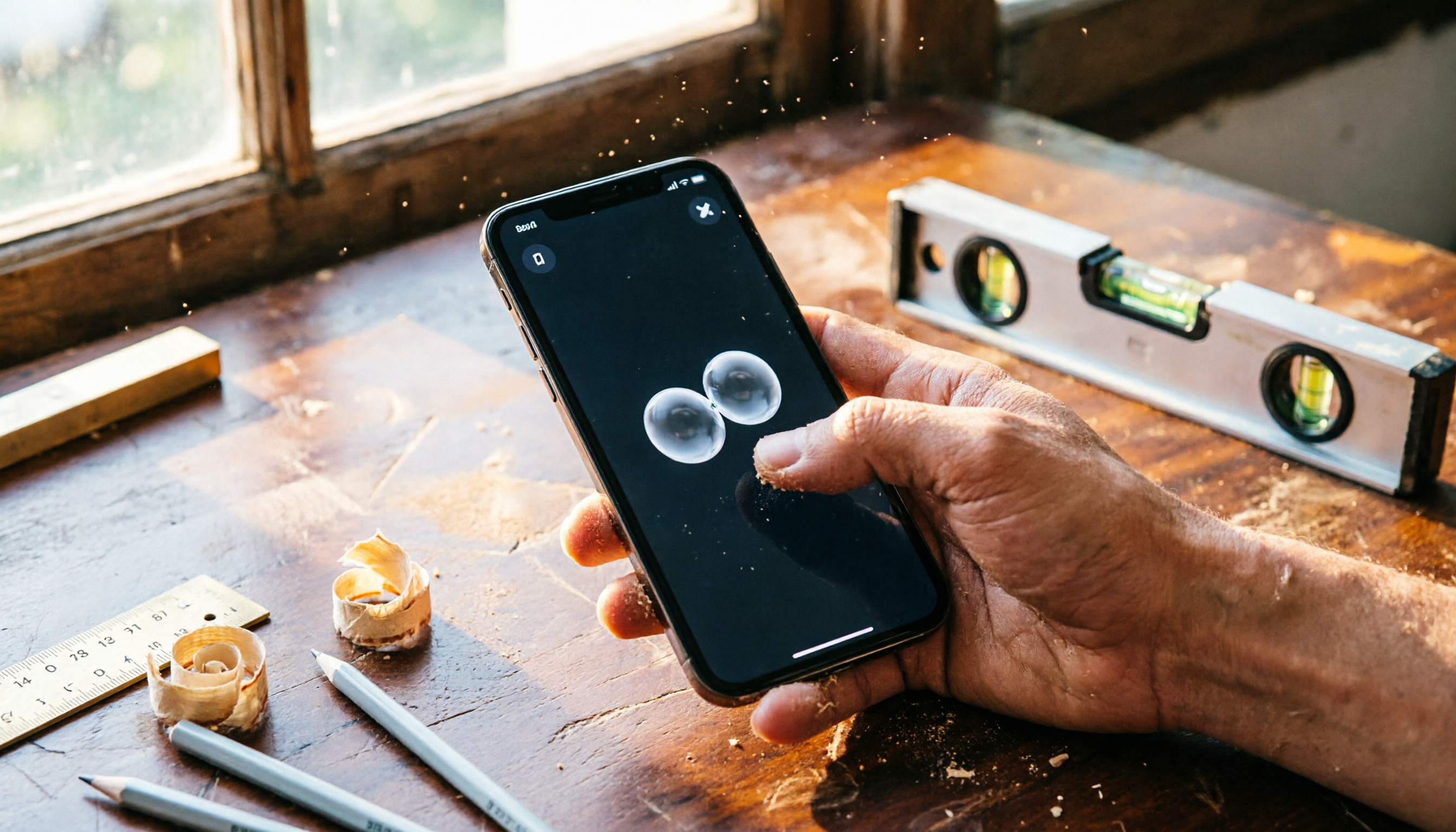
Place the phone flat on the table, and the screen shows two circular bubbles with a number indicating tilt. As you adjust the phone to level the surface, the number decreases; when perfectly level, the screen turns green and shows 0°.
Real-world impression:
With a case that makes the camera flush, testing on a solid wood table, the level did catch an acceptable flatness. But without a case, due to the camera bump, it can never truly lie flat, so 0° is just "the phone's self-perceived level." If you just need to check if a newly installed shelf is noticeably crooked, this works; for precision woodworking, save your energy.
Scenario 2: Standing on Edge for Walls and Columns
Hold the phone upright against a wall, and the level automatically switches to vertical mode, showing a white line with dots at each end. When the wall is perfectly plumb, the screen turns green. If tilted back, the line turns red as a warning.
Real-world impression:
This mode is handy for checking columns and door frames at home, especially during renovation inspections—no need to drag out a ladder and a big level. But note: the case thickness and side buttons might prevent the phone from lying flush against the wall, causing reading errors. We suggest moving the phone slightly left and right to see if the reading stabilizes, avoiding being misled by a single angle.
Stop organizing recordings by hand
Upload audio or video and automatically get a transcript, summary, and action items
Scenario 3: Photo Leveling Aid (iOS 17 New Feature)
iOS 17 added a "Level" toggle in Settings > Camera > Composition. When enabled, if the camera detects a tilted frame, a white line appears in the viewfinder; when aligned, it turns yellow, helping you capture a true horizon.
Real-world impression:
This feature is especially useful for landscape and architecture shots. While Android phones like Google Pixel have had this for a while, it's finally here. In testing, it only detects left-right tilt, not forward-backward pitch, focusing solely on the horizon. Compared to a professional camera's electronic level, this line is more intuitive, but accuracy is still limited by the phone's sensor. For macro or serious photography, rely on a physical level on a tripod.
Beyond the iPhone: What Other Level Options Are There?
If you frequently need precise measurements, or if you're still angry about being fooled by the iPhone level, it's time to let the pros handle it.
Traditional bubble level
You can get one for a few bucks. It works on liquid and bubbles, unaffected by battery or sensors, and is irreplaceable in woodworking, construction, and mechanical assembly. The downside is its size—you can't pull it out of your pocket anytime.
Professional laser level
Ideal for contractors or large projects, projecting horizontal and vertical laser lines with high accuracy. But prices range from hundreds to thousands, and most people use it only a few times a year.
These two tools complement the iPhone: the phone is a convenient option for daily checks and DIY; professional tools are your reliable partner when you need "not a hair out of place."
Pitfall Guide: 4 Common Mistakes When Using a Phone Level
- Forgetting the camera bump A naked phone lying flat will never measure true level. If you insist on no case, at least place a paper shim of equal thickness under the opposite corner, but that's just a temporary fix.
- Trusting 0° blindly Users report that some models don't adjust the reading in real time near level; it might stay at 0° when it's actually off. To confirm, tilt the phone slightly and then return it slowly, watching for continuous changes in the reading.
- Cases aren't a cure-all Not every case wraps the camera bump flat; some have raised edges but a recessed camera area. Check that the back is completely flat before buying.
- Ignoring environmental vibration Phone sensors are sensitive; nearby movement or slight vibrations can make readings jump. Place the phone on a stable surface, step away, and wait a few seconds before reading.
Conclusion: Should You Trust the iPhone Level?
Using the iPhone as a level is entirely feasible, but only if you understand its limits. Our advice is straightforward:
- Home DIY, hanging pictures, checking furniture level → Use the iPhone, but remember to use a case that flattens the camera.
- Amateur woodworking, assembling items with low precision requirements → You can use the iPhone for a rough estimate, then confirm with a traditional level.
- Professional renovation, mechanical installation, or precision-critical tasks → Go straight for a laser or bubble level; the iPhone is just a backup.
- Architecture or landscape photography for a level horizon → The iOS 17 camera level is sufficient, but for serious photography, rely on the viewfinder and a physical level.
A phone is a communication device, not a measuring instrument. The iPhone's built-in level makes life more convenient, but don't treat it as an engineering tool. Knowing when to trust it and when to pull out professional gear is what makes a smart user.
References
- Use iPhone as a level - Apple Support (Taiwan)
- r/iphone on Reddit: On the level?
- Apple ER: Decoration and construction "measurement" without asking for help! Your iPhone is your level and ruler #Chen Ning (124160) - Cool3c
- "iOS Tutorial" iPhone has a built-in level!? A must-see for interior design and photography enthusiasts! - ^(oo)^~Xiaomi Mobile CCC
- Hidden iOS 17 feature Apple didn't mention! iPhone camera finally gets a built-in "level" | Tool Guy Classroom | udn Tech Gamer
Turn every recording into actionable outcomes
Get 60 free transcription minutes when you sign in. No credit card required.
Related Reading
You might also like
Tinrec vs Otter.ai 2026: 5-Dimension Comparison for Secure Chinese Speech-to-Text
With more speech-to-text tools available, is yours truly secure? This article compares Tinrec and Otter.ai across five dimensions: accuracy, AI features, input sources, cross-platform support, and data security. It also explains why AES encryption is key to protecting your recordings, helping you choose the most reliable tool.

2026 Hands-On Comparison of 2 Recording-to-Text Tools: Tinrec App vs Plaud Note – Which Should You Choose?
A hands-on comparison of Tinrec App and Plaud Note recording hardware, covering input sources, Cantonese accuracy, post-processing features, and pricing to help you pick the best recording-to-text tool for Hong Kong users.
How to Use iPhone Voice Typing in 2026: A 5-Step Complete Guide
From iPhone's built-in dictation to professional recording-to-text tools, this guide provides hands-on comparisons to help you find the best voice input solution for your needs.

Tinrec vs Otter.ai in 2026: AI Speech Recognition Custom Vocabulary Showdown – Who Understands Your Industry Terms Better?
How do AI speech recognition tools handle industry-specific terminology? This article compares five tools—Tinrec, Otter.ai, Notta, Google Cloud Speech-to-Text, and Vocol.ai—based on the practical need for custom vocabularies, helping you find the best speech-to-text solution for professional scenarios.
Best AI Transcription Tools in 2026: 6 Tested, This One Is the Most Complete
We tested 6 AI transcription generators, from free to paid, and recommend Tinrec as the best for multi-scenario organization, helping you quickly process meeting, course, and interview recordings.

Tinrec vs Otter.ai in 2026: A 5-Dimension Comparison for Chinese Speech-to-Text
Choosing an AI speech-to-text tool? This article compares Tinrec and Otter.ai across 5 key dimensions: accuracy, AI features, cross-platform support, noise reduction, and free tier limits. It also provides buying tips, common pitfalls to avoid, and scenario-based recommendations to help you pick the right tool.
3 Steps to Convert iPhone Voice to Text in 2026: Recording, Transcription, and AI Organization Made Easy
Tired of figuring out how to transcribe iPhone recordings? This article fully compares built-in features with third-party tool Tinrec, and teaches you 3 steps to turn meeting and lecture recordings into searchable, exportable knowledge with summaries.
2026 Real-Time Speech-to-Text Tools Compared: 4 Apps Tested for Live Transcription and AI Summaries
A mid-level manager tests multiple real-time speech-to-text tools, analyzing live transcription and AI summary practicality for meeting notes, class notes, and interviews, ultimately recommending the best choice for professionals.
5 Best Recording-to-Text Tools Tested in 2026: Which AI Conversation Search Is Most Useful?
I tested 5 recording-to-text tools, including Tinrec, Otter.ai, Yating, Monica, and cSubtitle, comparing accuracy, AI summarization, cross-platform support, and free tiers to help you find the best option for meetings, classes, and interviews.