
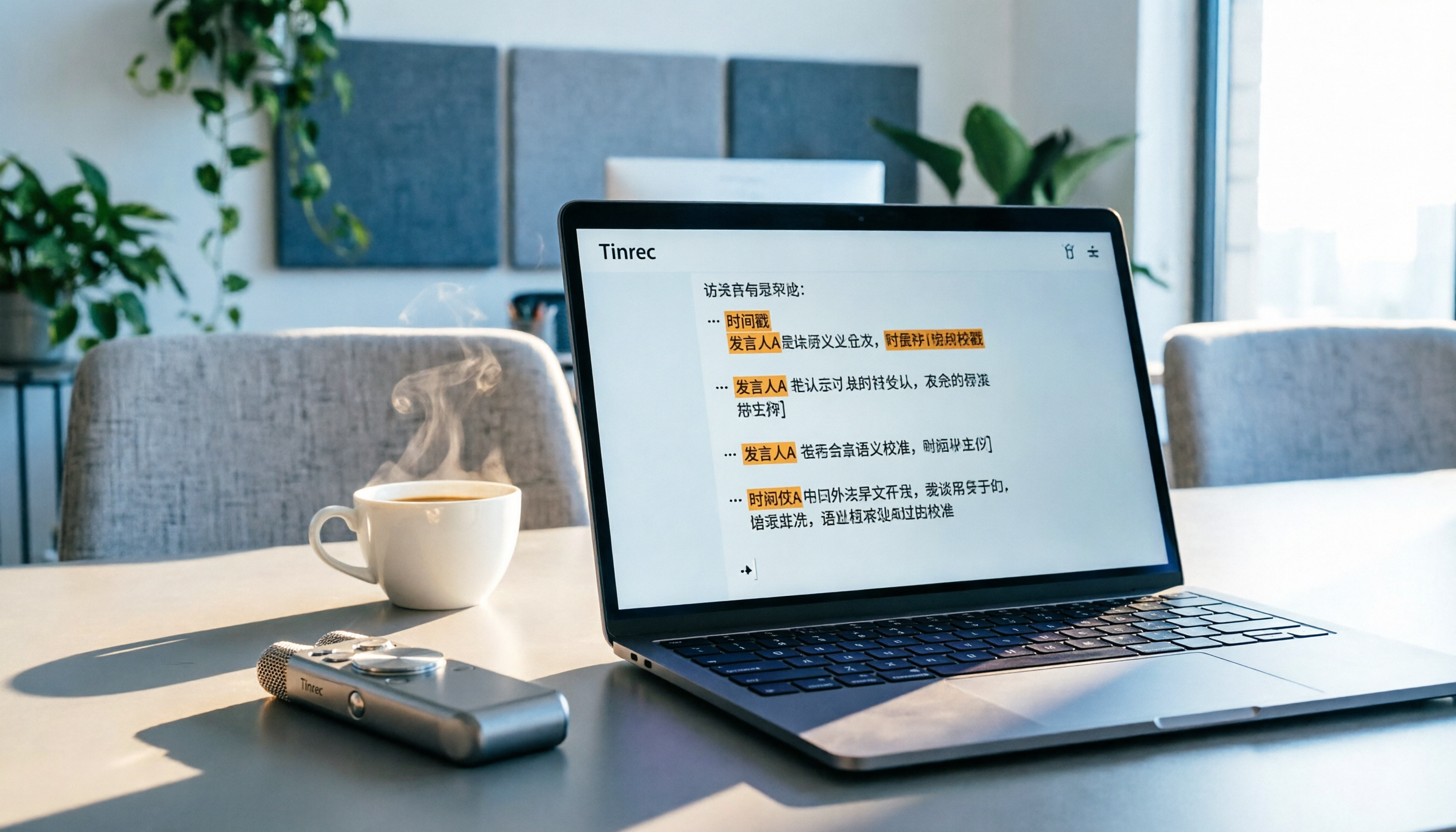
Turn recordings into transcripts and summaries in minutes
Upload audio or video for multilingual transcription, AI notes, and action items
Recently, I've spent a lot of time figuring out how to organize recordings more efficiently. With weekly meetings, online courses, and interviews, I've accumulated a huge pile of audio files. I've tried several methods—starting with manual transcription, then using various transcription tools—but I always felt something was missing. Either the transcription had too many errors, or after transcription, I was left with just a transcript, forcing me to read through thousands of words to find the key points before writing meeting notes. It wasn't until I started using Tinrec that I realized the problem wasn't accuracy, but whether the tool could help me organize and use the content afterward. In this article, I'll use Tinrec as an example to share my current workflow for speech-to-text. I've also compiled a few tools I've tried this year that I found useful, for your reference.
Before You Start | What You'll Need
- A smartphone or computer with the Tinrec app installed or the web version open.
- A recording you want to transcribe (could be a meeting, course, interview, or a link to a public video you found online).
- A stable internet connection, as AI transcription requires online processing (Tinrec also offers offline language packs, but real-time transcription needs internet).
- Decide what you want to produce: just a transcript? Or do you need summaries, action items, or even meeting minutes?
Step 1 | Record the Content You Want to Transcribe
The goal here is to get a good-quality recording—this significantly impacts the accuracy of the transcription later.
My approach: for in-person meetings or interviews, I use the Tinrec app on my phone to record directly. Open the app, tap the record button, and you're set. While recording, keep the phone close to the speaker but not blocking their face. For one-on-one interviews, placing the phone on a small table between you two is ideal; for multi-person meetings, put it in the center of the table. Recording quality matters more than you think—for the same meeting, a phone in your pocket versus on the table can make a noticeable difference in transcription accuracy.
Why emphasize recording quality? Because AI transcription engines, though powerful, will guess wrong when they can't hear clearly. Instead of spending time correcting later, spend an extra 30 seconds positioning the phone properly. Tinrec has built-in smart noise reduction that you can enable before recording, which helps in multi-person environments.
Once done, you'll see the recording on Tinrec's main screen with duration and file size. Don't rush to transcribe; listen for a few seconds to ensure the audio is clear.
(Illustration: A person conducting an interview in a coffee shop, phone placed on the table in the center, quiet environment, professional yet relaxed vibe.)
Step 2 | Let AI Transcribe It for You
If you already have a recording or an audio file from elsewhere, you can import it directly into Tinrec. I often drop in MP4 recordings of online meetings or MP3s of interviews. You can also paste YouTube or Bilibili video links—Tinrec will fetch the audio and transcribe it. This saves me tons of time, especially when I need to organize webinar content.
After importing, select the language (English), then hit start. Within minutes, a timestamped transcript is ready. Tinrec also auto-segments and highlights possible speakers (if there are different voices). Accuracy is high, especially with clear speech, requiring almost no manual correction.
I've used other tools that output a wall of text with no breaks; just splitting sentences was exhausting. Tinrec's segmentation and punctuation let me start reading right away—a big plus.
(Illustration: Laptop screen showing Tinrec's transcription result, neatly segmented with timestamps, clean and clear window.)
Step 3 | Quickly Proofread the Transcript
AI is powerful but not perfect. I've developed a habit: quickly scan the transcript and fix obvious errors, especially proper nouns, names, and technical terms, which AI tends to get wrong. Tinrec lets you click to edit directly on the transcript and listen to the audio while comparing—no need to switch apps.
My method: jump to potentially problematic sections (e.g., where a name was unclear), listen to the original, and manually correct. If the recording quality is good, this step takes about 5–10 minutes. For a one-hour meeting recording, it's worth it.
Here's a tip: if you notice a word consistently gets transcribed wrong, use Tinrec's "Custom Vocabulary" feature to add those words in advance, so they won't be misheard next time. This is especially useful for teams with internal jargon.
(Illustration: A person editing a transcript on a computer at a desk, coffee cup on the left, focused but relaxed expression.)
Step 4 | Let AI Generate Meeting Minutes
Now for my favorite part. Once I have a clean transcript, I don't manually sift through it. I use Tinrec's AI summary feature to generate key points, action items, and chapter segmentation.
Stop organizing recordings by hand
Upload audio or video and automatically get a transcript, summary, and action items
Tap "AI Summary," and it analyzes the entire content, pulling out important conclusions and action items. I can also tap "Smart Chat" to ask questions and find specific info. For example: "What was the decision about the marketing budget in this meeting?" "Who is responsible for what?" Tinrec finds answers directly from the transcript, so I don't have to read thousands of words.
My old workflow: listen to the recording, manually note key points, organize, then write formal minutes. Now, I just record, wait for Tinrec to transcribe, spend 10 minutes proofreading, 5 minutes asking questions, and a well-structured meeting note is done.
(Illustration: Phone screen showing Tinrec's AI summary with title, bullet points, and action items, with a "Continue Asking" dialog below.)
Step 5 | Export and Share
Of course, you need to take your organized content elsewhere. Tinrec supports exporting to multiple formats: plain text, Word, SRT subtitles, and even syncing directly to Notion, Google Docs, or Dropbox. I usually export meeting minutes to Word, do minor formatting, and send to the team; for course recordings, I sync directly to my Notion study notes.
Additionally, if you need to turn video highlights into social media posts, you can export a timestamped subtitle file and quickly align it in editing software.
(Illustration: A person syncing Tinrec content directly to Notion on a computer, showing export options and progress bar.)
FAQ and Troubleshooting
Q: The transcription has many errors. What should I do? Usually, it's due to a noisy environment or the speaker being too far. Tinrec has built-in smart noise reduction—enable it in settings before recording. If you're using an existing file, you can manually select "High Noise Environment" mode after import. Most transcription tools don't have this option—they use a default mode for all recordings.
Q: Does transcription take long? In my experience, Tinrec transcribes a one-hour recording in about 5–10 minutes, noticeably faster than some similar tools. If you're in a hurry, you can process the first few minutes and review as it goes.
Q: Can it transcribe online videos? Yes, this is one of Tinrec's unique features. Just paste a public video link (e.g., YouTube, Bilibili), and it automatically downloads the audio and transcribes. This is a huge time-saver for those who need to organize lots of online courses or webinars.
Q: Is the free plan sufficient? Tinrec's free plan includes a monthly base transcription quota, enough to try the full workflow. If you have intensive meetings or courses coming up, you can try a weekly card; for long-term use, the Pro monthly or annual card is more cost-effective. The key is to start free and confirm it meets your needs.
Pro Tips | 3 Ways to Double Your Efficiency with Tinrec
Tip 1: Use AI Chat to Find Key Info Directly Don't just read summaries; learn to ask questions. For example, ask: "What are the interviewee's views on remote work in this interview?" Tinrec will search the transcript and answer directly, rather than giving you the whole content. This is smarter than traditional keyword search, and only Tinrec offers such deep conversational querying.
Tip 2: Turn Online Videos into Study Notes I often take interesting talks or tutorial videos I find online, transcribe them with Tinrec, and use AI summaries and chapter features to create a one-page structured note. This is closer to real learning organization than just getting a transcript from other tools.
Tip 3: Combine Export Features to Build Your Audio Knowledge Base You can feed all your meeting, course, and interview recordings into Tinrec, transcribe them, and sync to Notion or Google Docs. When you need to find a decision or a quote, you don't have to listen to the audio—just search the text in your note app. That's how you turn recordings into a true knowledge base.
If You Don't Use Tinrec, Here Are Alternatives
Of course, besides Tinrec, I've tried other tools, each suited for different scenarios:
- MyEdit: If you need to quickly transcribe a short audio clip, MyEdit's online tool is simple, supports multiple formats, and offers daily free credits—good for occasional transcription. But it lacks summary and Q&A features.
- cSubtitle: This tool focuses on transcript generation and subtitles, supporting batch processing. If you only need to convert large volumes of audio to text and subtitle files, cSubtitle is efficient. But it also lacks deep content organization.
- SoundType AI: An app option supporting 90 languages with decent speaker identification. I tried its transcription, which was accurate, but the interface occasionally had noise or ads, slightly disrupting the experience.
- Speech-to-Text App (iOS): If you use an iPhone, this app integrates recording, transcription, and AI summaries with a clean, ad-free interface. It's suitable for capturing ideas or short meetings on your phone, but its depth and cross-platform integration aren't as robust as Tinrec's.
Overall, if you need more than just transcription—truly turning audio into organized, searchable, reusable knowledge—Tinrec's complete workflow is still the most appealing to me.
Conclusion
Now that you've learned the steps, here's what you can do: next time a meeting ends, don't rush to organize. Take out your phone, record the entire session with Tinrec; let it transcribe and generate summaries and action items; spend 10 minutes proofreading and asking questions; then export to a suitable format, share with your team, or save to your note library. I've been using this workflow for a while, and it genuinely saves me a lot of time. If you have a recording lying around that you haven't organized, why not download Tinrec's free version and try it? The monthly free quota is enough to experience the entire process. After trying it, you'll likely find that organizing recordings can be easier than you thought.
References
- Online Speech-to-Text AI Tool: Free MP3 or Recording to Text Transcript - MyEdit
- Online AI Speech, Video, Recording Auto-Transcription - Free Trial - cSubtitle
- SoundType AI: Ultra-Precise Transcripts, Speech-to-Text, AI Dictation - Google Play
- 2026 Recommended 6 Speech-to-Text Tools: Free Online Recording to Text!
- "Speech-to-Text: AI Transcript, Recording to Text, Voice Memo Real-Time Translator" App - App Store
Turn every recording into actionable outcomes
Get 60 free transcription minutes when you sign in. No credit card required.
Related Reading
You might also like
How to Choose a Smart Voice Recorder in 2026: A 4-Step Guide from Recording to AI Summaries
A smart voice recorder is more than just hardware; choosing the right approach makes recordings truly useful. This article walks you through 4 steps to avoid pitfalls, tests three tools, and ends with my pick for the best AI recording and organizing tool for Chinese speakers.
2026 Tested: 5 Recording Solutions Compared—Are Mobile Apps Really Better Than Voice Recorders?
Still debating whether to buy a voice recorder? What you really need is a tool that turns recordings into text and highlights key points. This article tests 5 recording-to-text and organization solutions, from free apps to AI recording hardware, to help you find the best fit—and explains why Tinrec is our top all-purpose recommendation.

2026 Long-Battery Voice Recorder Free Options: 5 Picks Reviewed
Running out of battery on your voice recorder during class is a nightmare? We tested 5 recording and AI organization tools, from free apps to paid plans, from a student's perspective to tell you which is best for long recordings, comparing battery life, audio quality, and AI features.

Tinrec vs Otter.ai 2026: A 5-Dimension Showdown for Students Needing Large-Capacity Audio/Video Organization
Tired of large recordings? A senior student tests Tinrec and Otter.ai, comparing input sources, Chinese accuracy, AI note features, free tiers, and pricing to see which tool better suits students' transcription needs, saving you money.

3 Workplace Voice Recorders Tested in 2026: Which One Is the Ultimate Meeting Notes Sidekick?
How should you choose a voice recorder for the workplace? We tested a traditional voice recorder, phone recording, and the AI recording app Tinrec, comparing portability, post-processing, and budget to find the best meeting note solution for office workers.

Voice Recorder vs. Phone Recording in 2026: How to Choose? 5 Steps to Build an Efficient Recording Workflow
Still torn between a voice recorder and your phone for recording? This article starts from real-world use cases, teaches you how to find the best recording solution in 5 steps, and tests the AI recording tool Tinrec to see how it solves the pain points of traditional recording, saving you hours of organizing time.

How to Choose a Cost-Effective Voice Recorder in 2026: 4 Steps to Compare Recorders and AI Tools
Thinking about buying a voice recorder but unsure how to evaluate value for money? This article compares traditional voice recorders and AI recording tools from perspectives like features, price, and post-processing, helping you pick the best recording solution.

2026 Test: AI Software vs. Hardware Noise Reduction for Voice Recorders—Which Keeps Meetings and Lectures Clearer?
I tested popular voice recorders and AI recording software, and found that hardware doesn't always beat software for noise reduction. This article compares Tinrec and PLAUD Note in real-world scenarios, covering noise reduction, organization features, and long-term use, to help you choose the right solution.

2026 AI Voice-to-Text Tools: AI Conversation Search and Multi-Source Organization in One Go
Still manually transcribing meeting notes with a traditional voice recorder? In 2026, AI voice-to-text tools have evolved significantly—not only do they transcribe accurately, but they also auto-summarize, extract action items, and support AI Q&A. This article reviews 5 leading solutions from a buyer's perspective, helping you choose the right tool to save hours of organizing time.