
Turn recordings into transcripts and summaries in minutes
Upload audio or video for multilingual transcription, AI notes, and action items
Common Pain Points in Video Subtitle Extraction: Why Can't You Get the Text?
When organizing video materials, translating foreign content, or taking course notes, one of the biggest frustrations is seeing text on screen but not being able to copy it. Many creators and office workers have faced this: you want to save dialogue or subtitles from a video, but they're "hard subtitles," or the video has no subtitle file at all—only audio.
If you're looking for "video subtitle extraction" methods, you'll typically face two different technical needs:
- Extract text from the video frame (OCR): Subtitles are "burned" into the video and cannot be turned off; you need to recognize the text like scanning an image.
- Extract audio content into text (ASR): The video has no subtitle file, or you want to convert speech directly into a transcript.
This article addresses both scenarios, presenting the latest tool selection strategies for 2026 with detailed comparisons and hands-on tutorials, so you can choose the best solution for your needs.
Want a quick answer?
- If you need to extract hard subtitles embedded in the video → choose Video Subtitle Extractor (OCR technology).
- If you need to convert video speech into text/summary → choose Tinrec (AI speech recognition).
Understand Subtitle Types: Hard Subtitles, Soft Subtitles, and External Subtitles
Before choosing a tool, you must know which type of subtitle your video has—this determines the success rate of your "extraction."
1. Hard Subtitles (Embedded Subtitles)
These are the toughest to handle. The subtitles have become part of the video frame (pixels), like a watermark—they cannot be turned off or deleted separately. Extracting them is essentially an OCR (Optical Character Recognition) problem. The tool needs to "look" at each frame and pull out the text.
- Pros: Highest compatibility—any player can display them.
- Cons: Cannot be modified or hidden; extraction is difficult.
2. Soft Subtitles (Muxed Subtitles)
Subtitle streams are packed inside the video container (e.g., MKV) but separate from the video stream. These are the easiest to extract—usually you just need a video editing software or a specific player to export them.
- Pros: Freely switch languages, show/hide, lossless extraction.
- Cons: Some older devices may not support them.
3. External Subtitles
Subtitles exist as separate .srt or .ass files stored outside the video. No extraction needed—just open the file with a text editor and copy the text.
Tool Recommendations & Comparison: OCR vs. AI Speech Transcription
For the different needs above, here are two representative tools, one for "screen text extraction" and one for "speech content transcription."
Tool 1: Video Subtitle Extractor (Hard Subtitle Extraction Powerhouse)
This is a deep learning-based OCR tool designed specifically for extracting "hard subtitles." It works by detecting subtitle regions in the video, capturing screenshots, and then recognizing text via an OCR engine (like Tesseract).
- Core Features: Subtitle region detection, screen text recognition, SRT file generation.
- Advantages: No need for third-party APIs; runs locally to protect privacy; ideal for movies or shows with baked-in subtitles.
- Limitations: Depends on video clarity; recognition rate drops with complex backgrounds or unusual fonts; mainly desktop software, not a pure online tool.
Tool 2: Tinrec (AI Speech-to-Text Assistant)
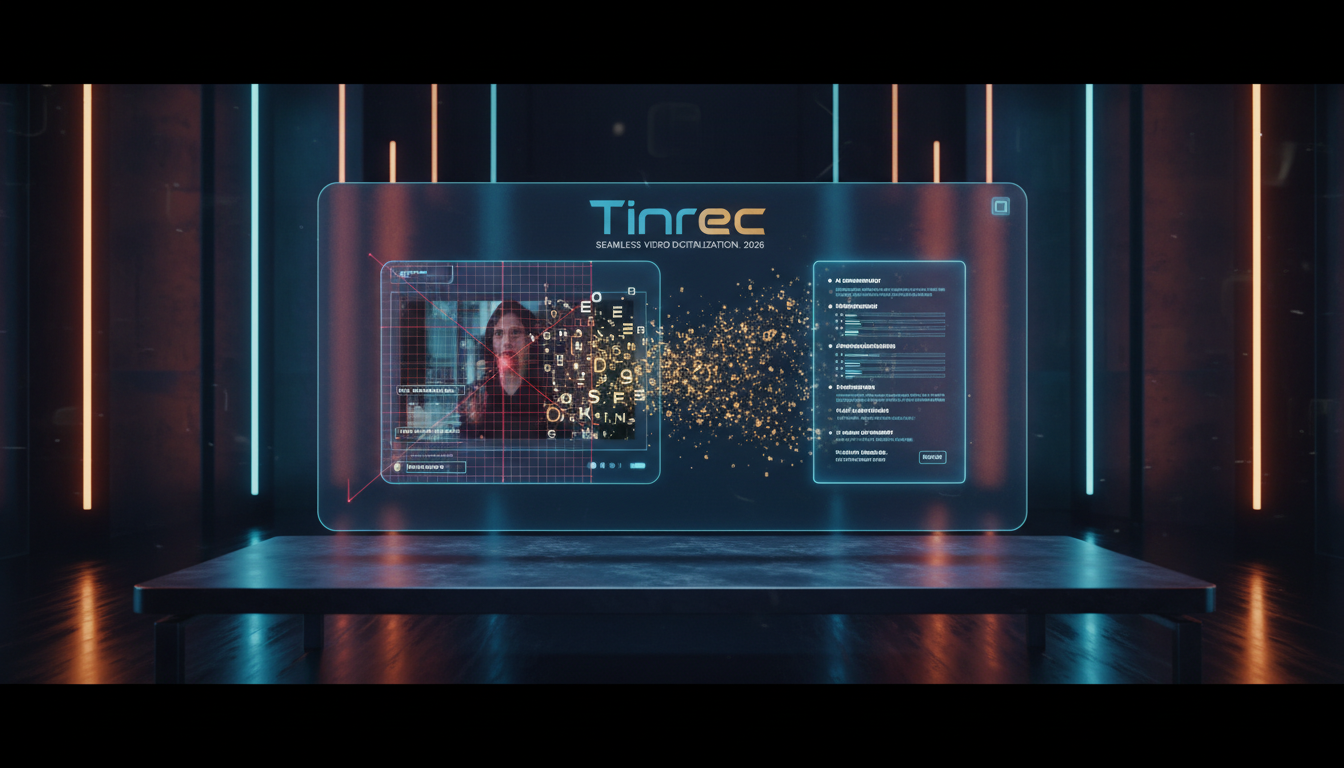
If what you want to extract isn't text on screen but rather "conversation inside the video," or if you want to turn a YouTube/TikTok link into notes, Tinrec is a more modern AI solution. It doesn't look at the video; it "listens" to the audio and converts speech to text via ASR (Automatic Speech Recognition).
- Core Features: Real-time speech-to-text, video file/link to transcript, AI meeting minutes, action item extraction.
- Advantages: Supports multiple languages (Chinese, English, Japanese, Korean, etc.), can distinguish speakers, and includes an AI chat feature (you can ask AI "What's the key point of this video?").
- Use Cases: Meeting notes, online course notes, video content creation.
Stop organizing recordings by hand
Upload audio or video and automatically get a transcript, summary, and action items
Comparison Table: How to Choose the Right Tool?
| Dimension | Video Subtitle Extractor | Tinrec |
|---|---|---|
| Core Technology | OCR (Optical Character Recognition) | ASR (Automatic Speech Recognition) |
| Extraction Source | Pixel text on screen | Audio track content |
| Best For | Translating hard-subtitled videos, extracting movie dialogues | Meeting records, course notes, YouTube video summaries |
| Accuracy Factors | Affected by background complexity, font clarity | Affected by recording quality, accent clarity |
| Real-time | Must wait for video scan processing | Supports real-time transcription while recording |
| Output Format | SRT subtitle file | Transcript, AI summary, to-do list |
| Online/Local | Local software (requires installation) | Web/App (cloud processing) |
| Ease of Use | Medium (needs region settings) | Low (just upload or paste a link) |
In-Depth Review: How Tinrec Extracts Subtitles by "Listening"
In many work scenarios, what we call "extracting subtitles" is actually getting a transcript. Tinrec's design goes beyond simple transcription—it emphasizes "understanding and action." Unlike traditional OCR tools that only produce rigid segmented text, Tinrec uses AI to provide more structured information.
1. Direct Extraction from a Link: Unlike traditional software that requires downloading the video first, Tinrec lets you paste a YouTube, TikTok, or Podcast link directly—it parses the audio in the cloud and generates text. For creators who need to organize online material, this saves significant download and conversion time.
2. AI Smart Summary & Action Items: Extracted text is often long and unstructured. Tinrec's built-in AI automatically generates "meeting minutes" and "to-do items." For example, after a 1-hour product discussion video, it can directly list "what to do next" instead of just dumping a wall of text.
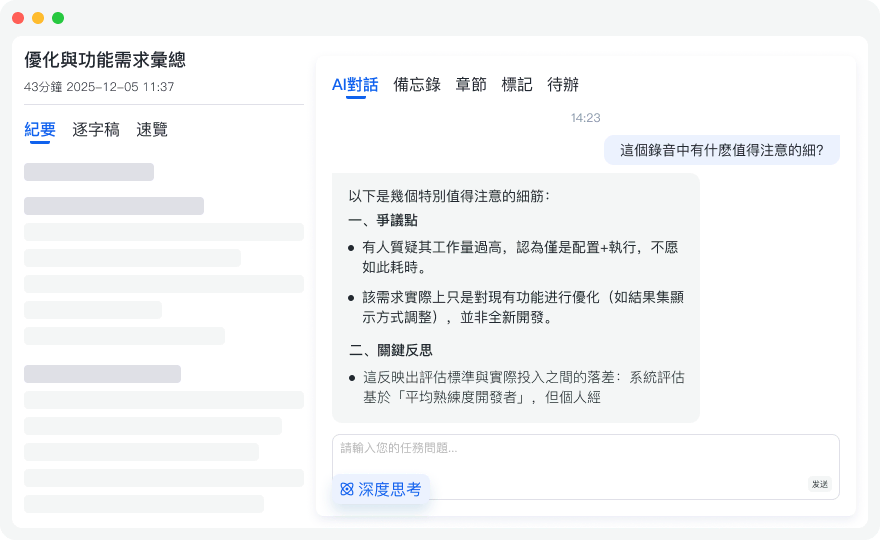
3. Search Content Like a Conversation: Traditional subtitle files only support keyword search (Ctrl+F), but Tinrec offers "AI chat query." You can type: "What was the second solution mentioned in the video?" and the system will answer based on semantic understanding. This is far more valuable than plain text extraction.
Step-by-Step Tutorial: How to Extract Video Text with Tinrec
If you have a video file or online link and want to quickly get text content, follow these steps:

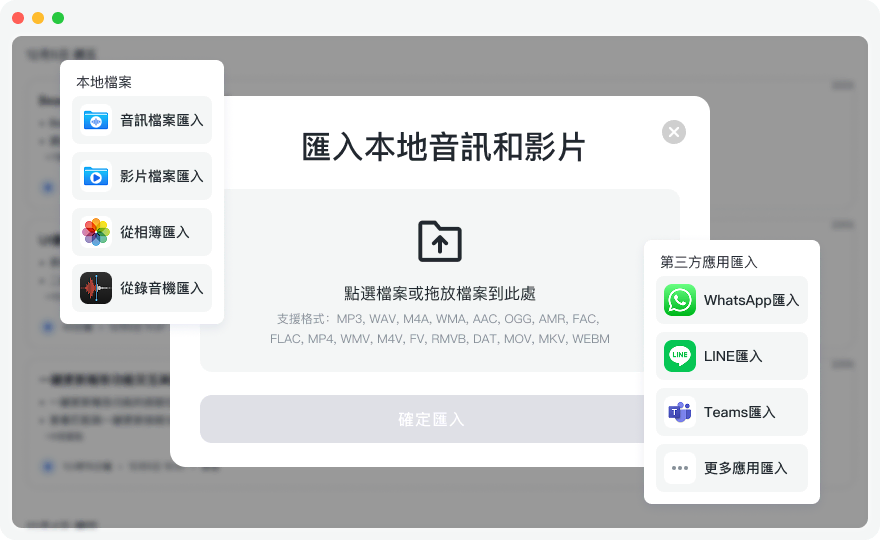
Step 1: Choose Import Method
Log into Tinrec and select the entry point based on your source material:
- Local video file: Click "Audio file to text" and upload an mp4 or mp3 file.
- Online video: Click "Podcast/Online video to text" and paste a YouTube or TikTok link.
Step 2: Confirm Language Setting
Although Tinrec supports automatic language detection (including Chinese, English, Japanese, and 10 other languages), confirming the main language before transcription helps the AI improve accuracy for specific terms.
Step 3: Wait for Transcription and Summary Generation
After uploading, the system will automatically transcribe. Within minutes (depending on video length), you'll see on the interface:
- Transcript: With timestamps and speaker differentiation.
- AI Summary: Automatically generated key points.
- Mind Map/Outline: Structured content presentation.
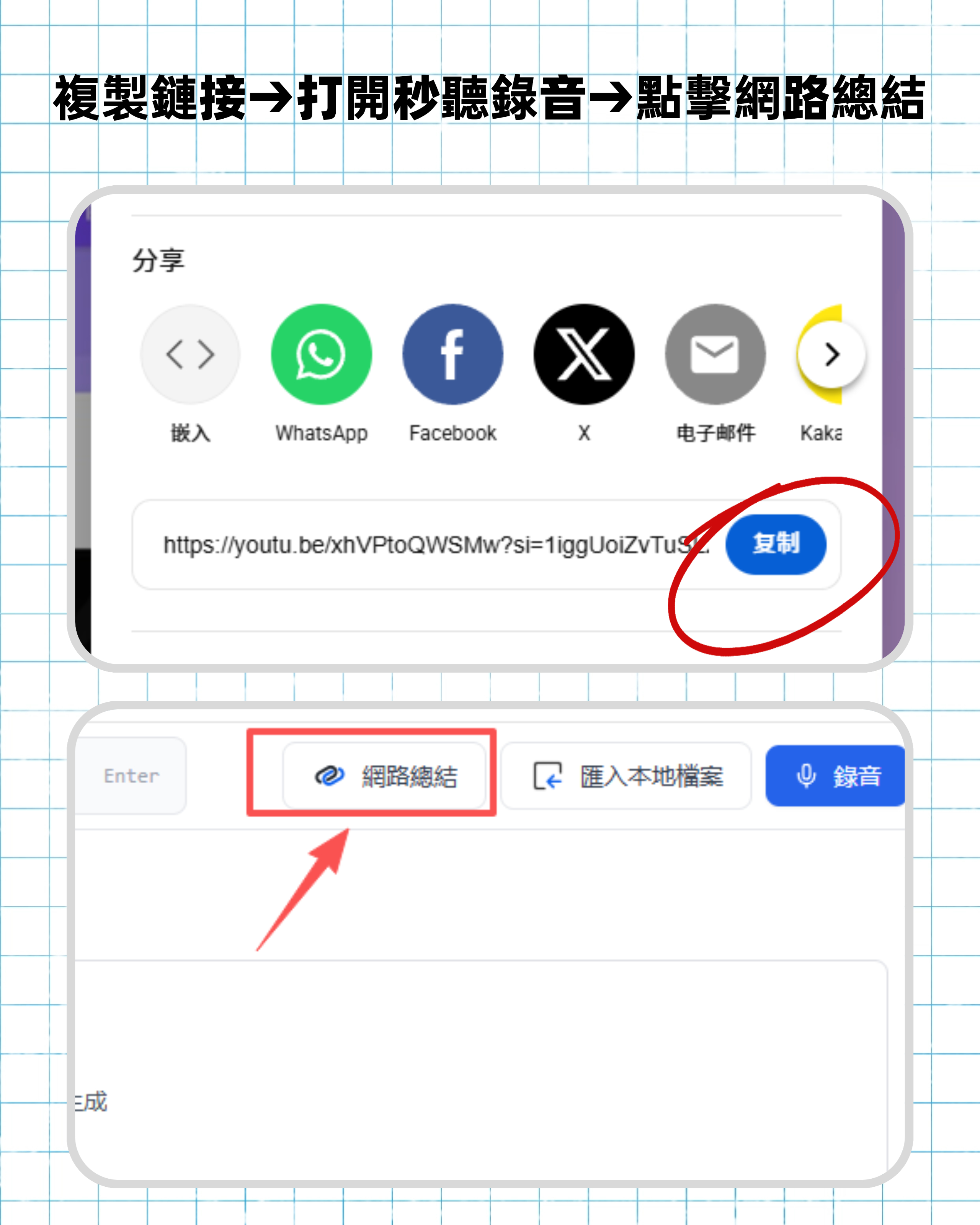
Step 4: Export and Apply
Once transcription is complete, you can export the content as Word, PDF, or Markdown for use in reports or note-taking apps. If you need a subtitle file, you can copy the transcript content and adjust it for post-production.
FAQ
Q1: Why do some videos produce garbled text with OCR extraction? Usually because the background is too complex (e.g., white subtitles on a white background) or the video resolution is too low, preventing the OCR engine from correctly recognizing strokes. For such hard subtitles, try finding a higher-quality source, or use a dictation method like Tinrec.
Q2: Can I directly convert videos recorded on an iPhone to text? Yes. Use the Tinrec app or web version to upload the iPhone video file for transcription. Compared to iOS's built-in dictation, Tinrec can handle long recordings and distinguish speakers.
Q3: What's the difference between online YouTube subtitle downloaders and Tinrec? Typical YouTube subtitle downloaders can only download CC subtitles that the uploader has already provided. If the video doesn't have CC subtitles enabled, the downloader won't work. Tinrec, on the other hand, re-transcribes the audio using AI, so it can generate text even if the video has no subtitles at all.
Q4: Are there usage limits for free tools? Video Subtitle Extractor is open-source and usually unlimited, but it requires your own computer's processing power. Tinrec offers a free tier with 100 minutes of transcription per month—enough for occasional short video processing.
Q5: Can I extract bilingual subtitles? For hard subtitles via OCR, if the screen displays both languages simultaneously, they are usually recognized together, but the formatting may need manual cleanup. For Tinrec speech transcription, it currently focuses on single-language high-accuracy recognition and translation of audio content.
Q6: Can the extracted text be edited? Yes. Whether it's an SRT file from OCR or a transcript from Tinrec, the final output is editable text—you can freely correct errors or adjust paragraphs.
Turn every recording into actionable outcomes
Get 60 free transcription minutes when you sign in. No credit card required.
Related Reading
You might also like

2026 Smart Meeting Notes Tools Compared: Which Really Deliver Transcripts, Decisions, and Action Items?
We tested 6 smart meeting notes tools in 2026, breaking down transcripts, AI summaries, decisions and action items, team permissions and deletion workflows, plus pricing and ideal users for each, so you can judge which one truly saves post-meeting cleanup time.
2026 Comparison of 3 Online AI Meeting Notes Apps: Which One Turns Meetings into Actionable Team Data?
A hands-on comparison of three online AI meeting notes apps in 2026, focusing on five key aspects: meeting capture methods, post-meeting workflows, Chinese language experience, team governance, and quota/pricing. Tinrec is the primary test subject, compared with Notta and Granola in terms of positioning and limitations, to help you decide which one suits individuals, teams, and budget-conscious users.

Best AI Meeting Notes Apps in 2026: We Tested 4 — Tinrec Excels for Chinese Meetings
Starting from the pain point of never-ending meeting notes, we outline the criteria for choosing an AI meeting notes app and compare Tinrec, Otter.ai, Granola, and PLAUD to help you decide which one suits Chinese meetings, bot-free recording, and team collaboration.

2026 Comparison of 4 AI Meeting Note Apps: Which Saves More Time with Bot-Free Recording and Post-Meeting Organization?
Starting from a Wednesday afternoon online meeting scenario, we tested and compared four AI meeting note apps: Tinrec, Fireflies.ai, Notta, and Granola. We cover selection criteria, pitfalls to avoid, and team pricing to help you decide which is best for Chinese-language meetings and post-meeting collaboration.

How to Take Smart Meeting Notes in 2026: 5 Steps from Recording to AI Summary
How do you choose and use smart meeting notes software in 2026? This article addresses common misconceptions and demonstrates 5 steps with Tinrec: bot-free recording of online meetings, real-time transcription, AI summaries and action items, Q&A follow-ups, and team archiving. It also covers purchasing considerations and FAQs.

2026 Smart Meeting Notes App Buying Guide: Tinrec vs Otter.ai Across 5 Dimensions
Starting from common buying mistakes, this guide compares Tinrec and Otter.ai across 5 dimensions—Chinese-language meetings, bot-free recording, post-meeting outputs, team governance, and pricing/quotas—to help SMBs and team leads make a choice they can justify to their boss.

2026 Comparison of 4 AI Meeting Notes Apps: Which Handles Chinese Meeting Minutes Best?
How much time do you spend after a meeting turning the content into minutes you can actually send out? This article is built around real meeting scenarios office workers face. It first breaks down the 5 key decision points when choosing an AI meeting notes app, then reviews Tinrec, Otter.ai, Granola, and Notta—their positioning, limitations, and pricing. Finally, it uses scenario-based guidance to help you decide which one fits you, and lists the 4 most common buying mistakes.

Tinrec vs Meeting Bots in 2026: 5-Dimension Comparison – Are Smart Meeting Recorders Worth It?
Tired of staying after meetings to organize notes? This article compares Tinrec with traditional meeting bots across 5 dimensions: meeting capture, Chinese transcription, post-meeting organization, team collaboration, and pricing/quotas. It also uses real scenarios to show how a smart meeting recorder can handle transcripts, summaries, and action items all at once.

3 Smart Meeting Notes Tools Tested: Which Delivers the Most Practical Minutes and Action Items?
After a meeting, all you have are three lines of notes? This article starts from the real pain points of meeting documentation, outlines key criteria for choosing a smart meeting notes tool, and tests and compares Tinrec, Otter.ai, Notta, and PLAUD Note on their meeting minutes and action item output examples, bot-free recording methods, Chinese language support, and team data ownership, with a pitfall guide and selection advice.