

Turn recordings into transcripts and summaries in minutes
Upload audio or video for multilingual transcription, AI notes, and action items
2026 iPhone Voice Recording Loop Test: 3 Steps to Repeat Playback with a Free App
You recorded a two-hour meeting, and now you want to replay the key points, but the iPhone's Voice Memos app only plays once, requiring manual restarts. If you have this problem, this article is your lifesaver.
We tested several methods and found that the free player KMPlayer is the most reliable, achieving loop playback in 3 steps, plus speed adjustment for slower listening. Here's the detailed guide.
Why Doesn't the iPhone's Built-in Voice Memos App Work?
Many iPhone users have encountered this: you want to repeat a recording, but the Voice Memos app has no loop button, so you have to manually replay it. Apple hasn't added this feature yet, so you need a third-party tool for automatic repetition.
Some online tutorials suggest using the Shortcuts app to write a script for looping, but Reddit users have complained that Shortcuts often freezes, overheats the phone, and even requires a restart to fix. So we don't recommend that approach.
Before Choosing a Repeat Playback Solution, Understand These 3 Key Points
1. Must Support Importing Audio Files
Your recordings are in m4a format (the default for iPhone Voice Memos). When choosing a player, make sure it can read m4a files, not just mp3 or video.
2. Loop Playback Feature Should Be Easy to Find
Many players bury the loop button deep in menus or require payment to unlock. Free and obvious tools are worth using.
3. Variable Speed Is a Plus
To finish long recordings faster or slow down to catch accents, variable speed is important. You won't need another app for that.
KMPlayer meets all three criteria, has a nice interface, and is free, making it our top pick in this test.
KMPlayer—The Best Free iPhone Voice Recording Loop Player
KMPlayer is a multimedia player that supports music and video. The best part is it can directly import voice memo recordings from iPhone storage without needing a computer sync.
Tested Steps (3 Steps to Done)
- Download the free version of KMPlayer from the App Store, open it, and switch to the "Music" tab.
- Tap "Import Music from Storage," then select the recording you want to loop (usually in the "Voice Memos" folder).
- Find the file in the Tracks list, tap to enter the full-screen playback screen, and tap the "Loop" icon (a 1 with a loop arrow) in the top toolbar. It will repeat continuously.
We tested on an iPhone 15 (iOS 18), and importing a 30-minute recording worked perfectly with no lag during loop playback. You can also adjust EQ and playback speed (0.5x–2x) from the bottom menu, and there are skip forward/back 5-second buttons, which is super handy for finding key points in long recordings.
Pros:
Stop organizing recordings by hand
Upload audio or video and automatically get a transcript, summary, and action items
- Free, no ad interruptions (for basic features)
- Clean interface, supports Traditional Chinese
- Directly imports recordings, no iTunes or cloud needed
- Has variable speed, EQ, and skip features
Limitations:
- Requires installing an extra app, not system built-in
- If the recording file is very large, import may take a few seconds (but files under 1GB are fine)
Who It's For:
- Students, journalists, and office workers who frequently need to repeat recordings
- People who need variable speed for Cantonese/English recordings
- Users who want a simple, one-tap solution
Other Options: Not Recommended, but Good to Know
Apple's Music App
You can sync recordings to Apple Music cloud via computer, then enable repeat playback in the Music app on iPhone. But the steps are tedious: you need a computer, Finder/iTunes, and syncing—not a quick phone-only solution. Also, free iCloud storage is limited, and large recordings fill it up fast.
Shortcuts App for Custom Loop
Some Reddit users tried creating a Shortcut to loop recordings, but the test results: the Shortcut produced no sound, then the phone overheated, requiring a restart. Unless you're very familiar with iOS automation, we strongly advise against trying this.
Pitfall Guide: 3 Common Mistakes When Repeating Playback of Recordings
Pitfall 1: Using the Wrong Format Conversion Some tutorials tell you to convert m4a to mp3 before putting it in a player, but that's unnecessary. KMPlayer can read m4a directly, and converting actually compresses audio quality.
Pitfall 2: Installing Paid Apps Blindly The App Store has many "loop player" apps that charge US$4.99 or more, but they offer the same features as KMPlayer's free version. Don't pay for basic functionality.
Pitfall 3: Expecting the Built-in Music App to Open Voice Memos Directly This is the most common question. The iPhone Music app doesn't automatically show Voice Memos recordings unless you manually sync. So don't waste time looking for them.
Summary: For Quick and Easy Repeat Playback of iPhone Recordings, Use KMPlayer
If you just want to simply loop a recording, download KMPlayer for free, complete 3 steps, and you'll have loop playback plus variable speed and EQ. No Shortcuts, no computer connection—done in under two minutes on your phone.
Scenario Recommendations:
- Need to repeat meeting recordings → KMPlayer (most direct)
- Need variable speed for language learning/dictation → KMPlayer (speed adjustment is sufficient)
- Only listen occasionally → Built-in Voice Memos is enough; no need for a new app
In short: Save time with KMPlayer; if you want hassle, use Shortcuts. You know the drill.
References
- How to Set Up Repeat Playback for iPhone Voice Memos? Achieve It in 3 Easy Steps - Mr. Mad
- r/applesucks on Reddit: Record and play a voice memo on repeat. Can this be done on iPhone without a third-party app???
- Shuffle or Repeat Songs in Music on iPhone - Apple Support (Taiwan)
- How to Shuffle and Repeat Music on iPhone or Android - Apple Support (Taiwan)
- Question: Methods or Apps for Recording and Loop Playback? - iOS Board - PTT
Turn every recording into actionable outcomes
Get 60 free transcription minutes when you sign in. No credit card required.
Related Reading
You might also like

How to Use Smart Meeting Notes in 2026: Bot-Free Recording, Transcription, and AI Summaries with Action Items
Many people think smart meeting notes just means hitting record and waiting for AI to spit out a summary—but the resulting transcript is often something no one wants to read. This article starts with the most common misconceptions, breaks down the four key judgment points that truly matter for meeting notes, and then walks through a complete before-during-after workflow using Tinrec, including copy-paste prompt templates and a pitfalls checklist.

Best AI Meeting Notes Apps 2026: Auto Transcripts + AI Summaries & Action Items
Tired of spending two hours writing up meeting notes? This guide starts with the key question—do you need a recording or usable meeting data?—then breaks down 4 essential factors for choosing an AI meeting notes app, compares Tinrec, Otter.ai, Notta, and Granola, and covers the 3 most common pitfalls so you can pick the right tool the first time.
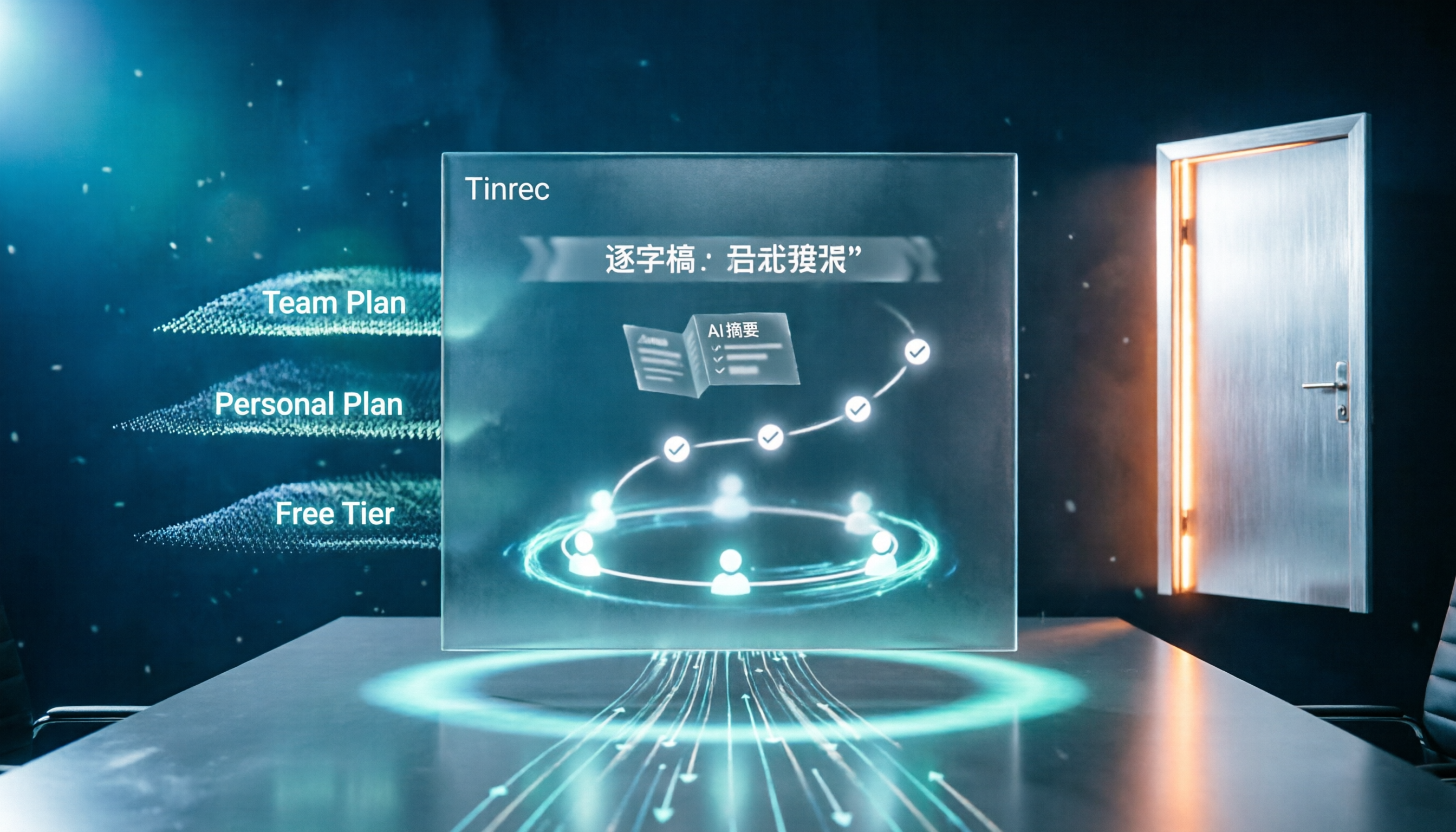
2026 AI Meeting Assistant Cost Comparison: Free Tiers and Paid Thresholds Dcard Users Ask About Most
Starting from the common Dcard question about free minutes, this article explains how to evaluate AI meeting assistant costs. Using Tinrec as the main test subject, it covers the quotas and pricing for the free, personal, and team plans, and compares bot-free recording, Chinese transcripts, AI summaries, action items, and team collaboration, with 6 cost FAQs.
Tinrec vs Notta 2026: 5-Dimension Comparison for Chinese Meeting Notes
How to choose the latest AI meeting assistant in 2026? This article compares Tinrec and Notta across 5 dimensions: Chinese transcription, meeting capture methods, post-meeting output, team data governance, and pricing quotas. It honestly lists free quotas and paid prices for both, and includes 4 common pitfalls when choosing an AI meeting assistant to help you decide which one fits your meeting scenarios.

2026 AI Meeting Assistant Comparison: No Bots, Best Chinese Transcription?
How to choose the latest AI meeting assistants in 2026? This article examines four key aspects: recording method, audio retention, Chinese recognition, and post-meeting output. It compares Tinrec, Otter.ai, Notta, and PLAUD, and includes pricing, seats, and quotas for personal and team plans to help you avoid the trap of only looking at free minutes.
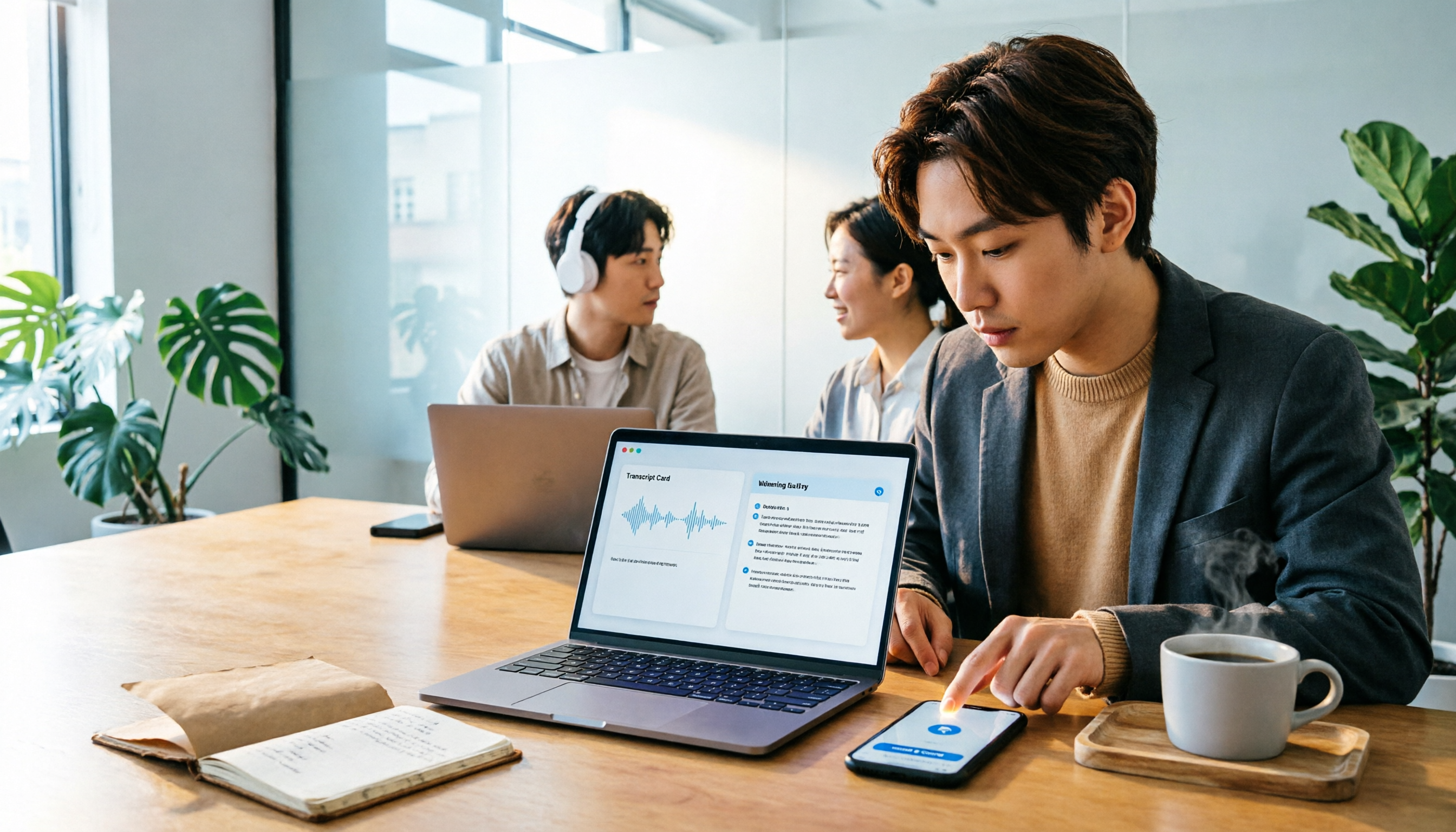
How to Download an AI Meeting Assistant in 2026: 5 Steps from Installation to Meeting Minutes
Looking for an AI meeting assistant in 2026 but stuck on download, installation, and setup? This guide tackles real pain points and walks you through 5 steps to complete Tinrec download, permission settings, recording transcription, and post-meeting export, plus 5 things to consider when choosing and FAQs.

2025 AI Meeting Assistant Comparison: Tinrec, Otter.ai, Notta, and Granola Reviewed
Many people download AI meeting assistants only to find transcripts hard to use, Chinese recognition unreliable, and team data scattered. This article compares Tinrec, Otter.ai, Notta, and Granola across selection criteria, real workflows, and pitfalls to help you choose a tool that actually produces usable meeting notes.

2026 Smart Meeting Notes Tools Compared: How to Tell If Meeting Minutes Are Actually Useful
Most people evaluate smart meeting notes tools only by transcription accuracy, but the real cost is in how you use the notes after the meeting. This article starts with common misconceptions, breaks down 4 key points for reviewing meeting notes, compares Tinrec, Otter.ai, Notta, and Granola, and highlights 3 pitfalls to help you choose a tool that fits your workflow.

4 Smart Meeting Notes Tools Tested for 2026: From Transcripts to Action Items, Which One Really Saves Time?
Meeting notes aren't just about keeping a transcript. This article starts with the most common pitfalls, breaks down the correct workflow for smart meeting notes and 4 key selection criteria, and compares Tinrec, Otter.ai, Notta, and Granola in terms of recording capture methods, post-meeting organization capabilities, and team collaboration differences, with a guide to avoiding pitfalls and selection advice.