
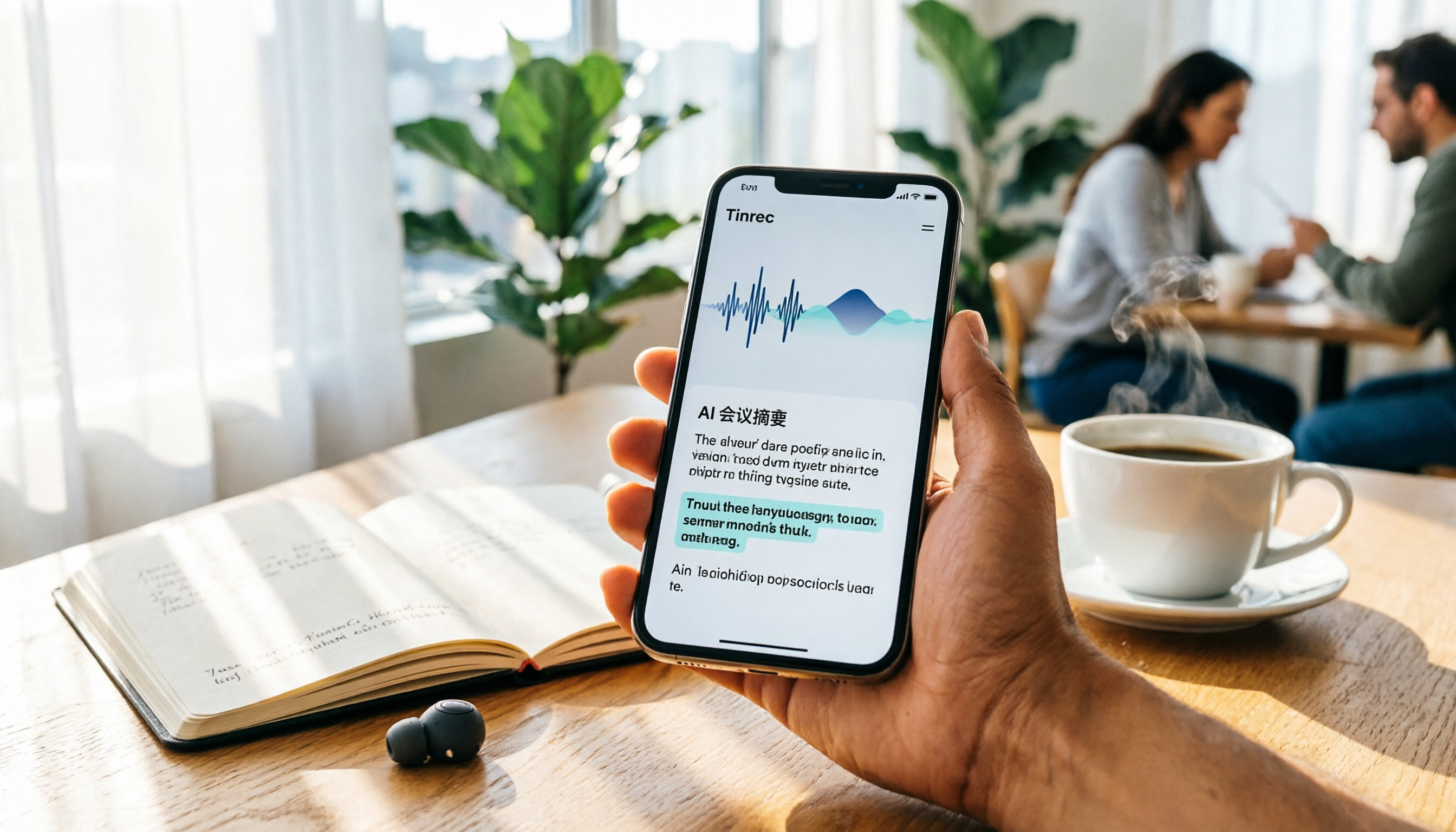
Turn recordings into transcripts and summaries in minutes
Upload audio or video for multilingual transcription, AI notes, and action items
Can't Find Your iPhone Recording? You Don't Need Another Recording App—You Need a Complete Recording Management Solution
Many iPhone users record a memo in Voice Memos, then open the Photos or Files app and can't find the recording, thinking they failed to record. In reality, recordings made with the built-in Voice Memos app are saved only within that app by default; you must manually "Save to Files" for them to appear in the Files app folders. If you use the call recording feature in iOS 18 or later, recordings are placed in the Downloads folder in the Files app. But even after you find the recording, if you want to quickly locate a specific part, turn it into meeting minutes, or share it with your team, the built-in tools require a lot of manual work. If you only occasionally record personal memos, the built-in features are sufficient; but if you need to turn recordings into searchable, collaborative productivity assets, choosing the right tool can save you a lot of time. This article helps you understand where to listen to your iPhone recordings and which tool is most worth using.
Before Choosing an iPhone Recording Tool, Understand These 4 Key Points
1. Where can you listen to the recording files? Voice Memos recordings are only available within the app; you need to export them to access them elsewhere. Call recordings are in the Files app. But these locations are only for "listening." If you want to search the content or jump to a specific part, you still need a transcription tool.
2. Transcription and search capabilities A recording is audio, not text. If you record a one-hour meeting and want to find a keyword, you have to slowly drag the timeline. Tools with transcription can automatically generate a transcript, letting you search the text directly and even jump to the corresponding audio timestamp. Tinrec excels here—it not only transcribes but also lets you ask AI questions like "What was the meeting conclusion?"
3. AI summaries and to-dos Recording is just the first step; organizing it into key points is what really takes time. Tools like Tinrec can automatically generate summaries, chapters, and action items, so you have a usable meeting record right after recording, without having to relisten.
4. Cross-platform and team collaboration If you need to record on your iPhone, organize on your computer, or share with your team, consider whether the tool supports multiple platforms and team spaces. Tinrec offers iOS, Android, web, and desktop versions, and lets you create team spaces to centralize meeting materials.
Tinrec (秒听录音)—Our Top Pick After Testing
Tinrec (秒听录音) is an AI meeting notes and collaboration tool for individuals and teams, supporting iOS, Android, web, and desktop. It handles live recording, online meetings, and audio/video file transcription, and offers AI summaries, to-dos, Q&A, export, and team spaces. After testing, we believe it's the best choice for turning iPhone recordings into actionable data.
Core features in real scenarios
During a meeting, you can use the Tinrec iPhone app to record directly, and it generates a transcript in real time. For online meetings (Zoom, Meet, Teams, etc.), use the desktop version to capture your computer's system audio directly—no need to invite a bot to the meeting. By the time the meeting ends, the transcript and summary are ready. After recording, you can ask Tinrec: "Who mentioned the budget in this meeting?" It uses semantic understanding to give you the answer, not just keyword search. This AI conversational query feature is rare among the competitors we tested.
Pros from our testing
Stop organizing recordings by hand
Upload audio or video and automatically get a transcript, summary, and action items
- Bot-free online meeting recording: No need to add a bot to your meeting. The Tinrec desktop app records your computer's audio directly, so participants don't see an extra attendee, offering better privacy.
- More than just a transcript: Automatically generates summaries, chapters, action items, and mind maps, and can export to Notion, Google Docs, and other tools for further editing.
- Great Chinese and multilingual support: Supports Chinese, Traditional Chinese, and multilingual meetings, with real-time translation and team-specific terminology for better accuracy.
Where are the limitations?
The free personal plan offers basic usage credits, suitable for light use; heavy users will need to pay. But if you have regular weekly meetings, upgrading to Pro or Team is cost-effective. The Team plan also includes 2,000 shared import minutes per seat per month.
Who is it for?
If you frequently record meetings, interviews, or classes, and want to search key points, generate summaries and to-dos, and switch between phone and computer, Tinrec is currently the most suitable choice. Especially for teams that need Chinese meeting notes, its Chinese experience is better than most international competitors.
Alternatives to Tinrec
Voice Memos (built-in on iPhone): The simplest and free, but limited to recording and basic editing—no transcription, AI organization, or collaboration. Suitable for those who only record personal memos and don't need post-processing. If you want to search content or share with a team, the built-in features are insufficient; Tinrec's transcription and Q&A are missing.
Otter.ai: A mature choice for English meetings, with 300 free minutes per month, but its Chinese support is average and it's more geared toward English business scenarios. If you mainly record English meetings, Otter is worth considering; but if you have Chinese content or need bot-free recording, Tinrec's desktop bot-free and Chinese support are better.
Notta: Features overlap with Tinrec, supporting multi-platform transcription and translation, but the free plan limits each recording to 3 minutes, which is restrictive. Notta's strength is document transcription, but its team spaces and AI Q&A are less complete than Tinrec's. If you need an end-to-end workflow from recording to team collaboration, Tinrec is better.
Pitfall Guide: 4 Common Mistakes When Looking for iPhone Recordings
Mistake 1: Thinking recordings are in the Photos app. Voice Memos recordings are not videos or photos; they're stored only in the Voice Memos app by default. You need to manually export them to Files. If you can't find them in Photos, check Voice Memos first.
Mistake 2: Ignoring transcription and search capabilities. Treating recordings as just audio files means you have to relisten every time to find key points—a huge waste of time. Choose a tool with transcription and AI search to find content via text; the efficiency difference is huge.
Mistake 3: Manually organizing meeting notes. Recording a one-hour meeting and then spending two hours transcribing and summarizing is a nightmare. Tools like Tinrec automatically generate summaries and to-dos, giving you a record right after recording. Stop doing it the hard way.
Mistake 4: Considering only a single device. If you record on your iPhone but need to edit on your computer or share with colleagues, choosing a mobile-only tool will cause pain later. Cross-platform and team spaces are must-haves when choosing.
Summary: Which One Should You Choose?
If you only occasionally record personal memos, the built-in Voice Memos on iPhone is enough; recordings are in the app, and you need to export them to see them in Files. But if you need to turn recordings into searchable, organizable, collaborative meeting assets, Tinrec is our top pick. Here's a direct scenario mapping:
- Need Chinese meeting transcription and summaries → Tinrec (best Chinese experience, supports Traditional Chinese)
- Want to ask AI about key points after recording → Tinrec (AI conversational query)
- Don't want to invite a bot to online meetings → Tinrec (bot-free desktop recording)
- Need cross-platform and team sharing → Tinrec (iOS + Android + Web + Desktop + Team Spaces)
- Only record English meetings and have zero budget → Otter.ai (free 300 minutes, but weak Chinese)
We recommend downloading the free version of Tinrec to try it out—record a real meeting or interview to experience the fluency of transcription, summaries, and AI Q&A. If you like it, consider upgrading; there's no need to pay upfront.
References
- Record audio in Voice Memos on iPhone - Apple Support (Taiwan)
- Record audio and video on iPhone - Apple Support (Taiwan)
- How to record iPhone calls? 5 methods revealed!
- Record and transcribe calls on iPhone - Apple Support (Taiwan)
- Where are iPhone recordings stored? How to export or share them? - Tech Girlz
Turn every recording into actionable outcomes
Get 60 free transcription minutes when you sign in. No credit card required.
Related Reading
You might also like

2026 AI Meeting Assistant App Comparison: Chinese Transcription, Bot-Free Recording, and Team Knowledge Retention
A 2026 hands-on comparison of AI meeting assistant apps, examining Tinrec and Notta across Chinese meeting transcription, bot-free recording, post-meeting AI Q&A, team knowledge retention, and pricing to help professionals and teams choose the right meeting notes tool.

2024 Comparison of 5 AI Meeting Assistant Platforms: Why Tinrec Is a Better Fit for Chinese-Speaking Teams Than Notta
A procurement-focused comparison of 5 AI meeting assistant platforms, highlighting Chinese-language meetings, bot-free recording, post-meeting AI Q&A, and team knowledge retention, and explaining why Tinrec is a Notta alternative worth evaluating first.

5 AI Meeting Assistants Compared in 2024: Free vs. Paid, How to Choose for Chinese Meetings and Post-Meeting Organization
How to choose an AI meeting assistant in 2024? This article compares Tinrec, Fireflies.ai, Granola, TurboScribe, and PLAUD Note across five dimensions: meeting capture method, Chinese recognition, post-meeting summaries and Q&A, team seats and pricing. It also outlines selection criteria and common pitfalls to help you find the right tool for Chinese meetings and team collaboration.

2024 AI Meeting Assistant Comparison: Chinese Meetings, Bot-Free Recording, and Post-Meeting Organization—Which Saves the Most Time?
2024 AI meeting assistant review comparing Tinrec, Otter.ai, Notta, and PLAUD on Chinese transcription, bot-free recording, post-meeting summaries, and team collaboration—covering use cases, pricing, and limitations to help you choose the right meeting tool.

2026 AI Meeting Assistant Comparison: 5 Tools Tested for Chinese Transcripts, Bot-Free Recording, and Post-Meeting Organization
A practical comparison of five popular AI meeting assistants in 2026, covering how meetings are captured, post-meeting outputs, audio retention, and team management, with a comparison chart and pitfalls to avoid—helping you choose the one that best fits your meeting habits.

2026 AI Meeting Assistant Comparison: Which One Saves the Most Time on Chinese Meeting Notes?
Starting from the real scenario of "having to stay after the meeting to re-listen to the recording," this hands-on comparison tests four AI meeting assistants—Tinrec, Notta, Otter.ai, and Granola—breaking down buying criteria, each tool's limitations, and the most common purchasing pitfalls. It also compares pricing, seats, and data ownership between personal and team plans to help you pick the one that truly saves time after meetings.

Tinrec vs Notta 2026: 5 Criteria for Chinese Meeting Notes
Avoid three common mistakes when choosing an AI meeting assistant: relying only on lab accuracy, focusing only on transcription, and judging team features by personal experience. This article establishes evaluation criteria across five dimensions: meeting capture method, transcription and language support, post-meeting organization depth, output workflow, and team governance. It uses Tinrec's actual approach as an example, and includes buying tips and FAQs.

2026 AI Meeting Assistant Comparison: 4 Tools Tested on Free Tiers and Pricing
We break down the cost structure of AI meeting assistants—free tiers, per-meeting caps, seat-based pricing, and hidden limits—and walk through a 3-step workflow covering recording, organizing, follow-up Q&A, and export. We also compare Tinrec, Otter.ai, Notta, and Granola on pricing and best-fit scenarios.

2024 Review: 5 AI Meeting Assistants Tested — No Bots Needed for Chinese Meetings
Starting from the real pain of 'can't find key points after a meeting,' we tested and compared five AI meeting assistants: Tinrec, Otter.ai, Fireflies.ai, Notta, and Granola. We organized five key buying factors: recording method, post-meeting output, Chinese language performance, team permissions, and quota calculation. Also included are common pitfalls to avoid and scenario-based selection advice.