
Turn recordings into transcripts and summaries in minutes
Upload audio or video for multilingual transcription, AI notes, and action items
What is Voice Memos?
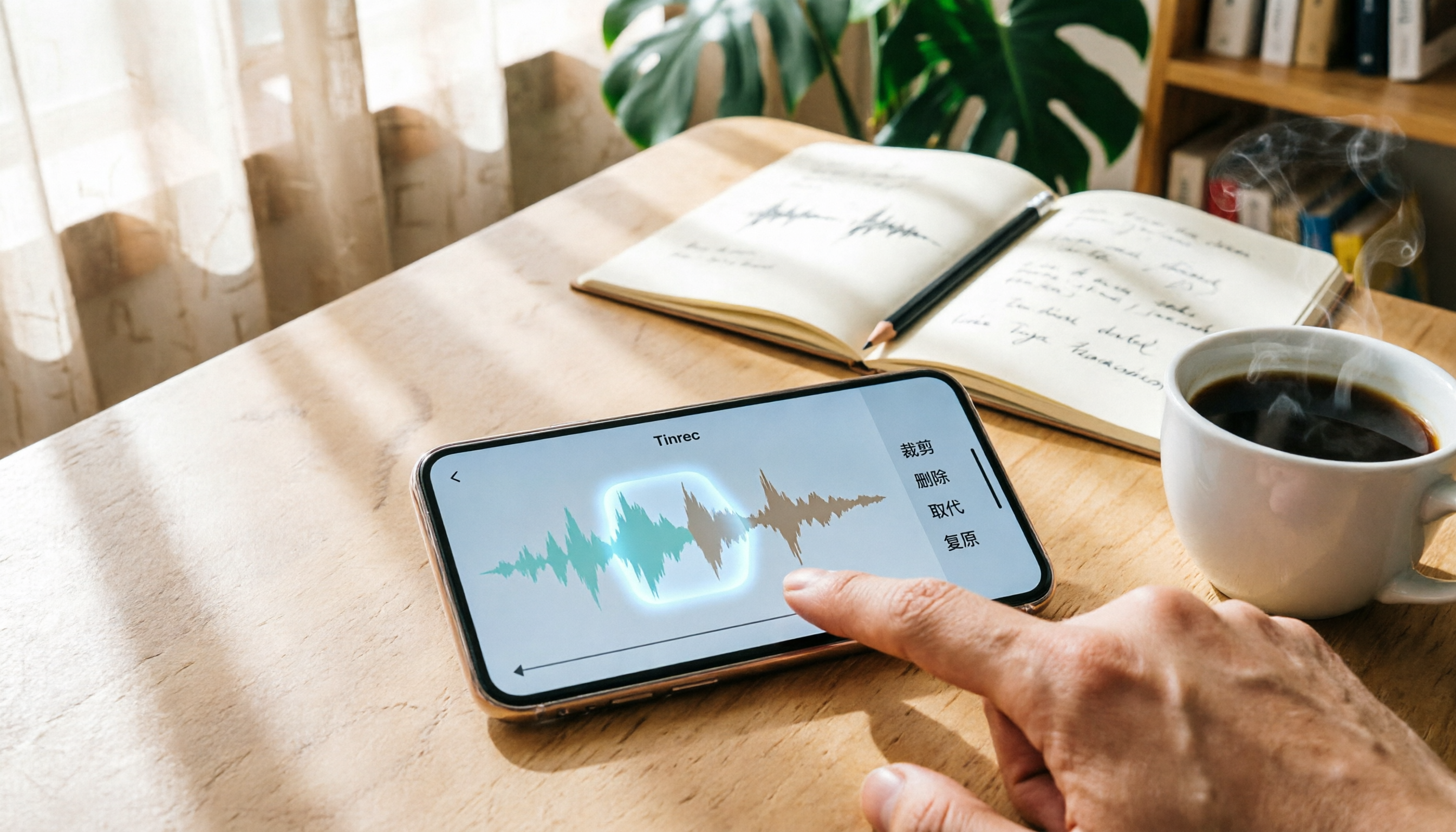
Voice Memos is a free recording tool built into the iPhone. Besides recording, you can also trim, delete, or replace parts of a recording directly without downloading any additional apps.
How to Edit iPhone Voice Recordings
Step 1: Open the Editing Interface
Open Voice Memos, tap the recording you want to edit, tap the "..." button in the top-right corner, and select "Edit Recording."
Step 2: Trim or Delete
Tap the "Trim" icon in the top-right corner, then drag the yellow trim handles to select the portion you want to keep or delete.
- To keep the selected portion and delete the rest: tap "Trim."
- To delete the selected portion: tap "Delete."
Step 3: Replace a Segment
If you want to re-record a specific part, move the playhead to that position, tap the red "Replace" button to start recording. You can pause and resume, then tap "Done" to save.
Step 4: Confirm and Save
Play back the recording to make sure everything is correct, then tap "Save" to finish editing. Note: Once saved, you cannot undo the changes.
How to Restore Accidentally Deleted Recordings
On the main Voice Memos screen, tap the back arrow in the top-left corner to go to the "Recently Deleted" folder. Select the recording you want to restore and tap "Recover." To permanently delete all deleted recordings, tap "Edit" at the top and then "Delete All."
Stop organizing recordings by hand
Upload audio or video and automatically get a transcript, summary, and action items
Frequently Asked Questions
Is editing in Voice Memos free?
Yes, it is completely free. No additional payment or app downloads are required.
Will the audio quality degrade after editing?
No. Voice Memos only removes or keeps the original audio segments; it does not recompress the audio.
Can I undo a replaced segment?
No. Once you replace a segment and save, you cannot revert to the original. Please double-check before proceeding.
Can I adjust playback speed or skip silence?
Yes. In the recording list, tap a recording, then use the playback speed adjustment and the "Skip Silence" feature in the playback interface.
References
- Edit or delete recordings in Voice Memos on iPhone - Apple Support (Taiwan)
- [Phone Tips] How to edit/crop segments in iPhone Voice Memos? iOS recording file deletion and segment replacement tutorial | Jason Communication - Challenge the lowest price in the mobile phone market
- How to Easily Edit Voice Recordings on Mobile and Computer in 2025 - EaseUS
- [Phone Tips] Complete Guide to iPhone Voice Memos Editing! Improve recording quality/audio cropping and segment replacement/playback speed/skip silence tutorial | Jason Communication - Challenge the lowest price in the mobile phone market
- How to record, edit, and edit audio on iPhone? Get it done without spending a penny! [Audio Gas Station]_Bilibili
Turn every recording into actionable outcomes
Get 60 free transcription minutes when you sign in. No credit card required.
Related Reading
You might also like
How to Download an AI Meeting Assistant in 2026: 5 Steps from Installation to Meeting Minutes
Looking for an AI meeting assistant in 2026 but stuck on download, installation, and setup? This guide tackles real pain points and walks you through 5 steps to complete Tinrec download, permission settings, recording transcription, and post-meeting export, plus 5 things to consider when choosing and FAQs.

2025 AI Meeting Assistant Comparison: Tinrec, Otter.ai, Notta, and Granola Reviewed
Many people download AI meeting assistants only to find transcripts hard to use, Chinese recognition unreliable, and team data scattered. This article compares Tinrec, Otter.ai, Notta, and Granola across selection criteria, real workflows, and pitfalls to help you choose a tool that actually produces usable meeting notes.

2026 Smart Meeting Notes Tools Compared: How to Tell If Meeting Minutes Are Actually Useful
Most people evaluate smart meeting notes tools only by transcription accuracy, but the real cost is in how you use the notes after the meeting. This article starts with common misconceptions, breaks down 4 key points for reviewing meeting notes, compares Tinrec, Otter.ai, Notta, and Granola, and highlights 3 pitfalls to help you choose a tool that fits your workflow.

4 Smart Meeting Notes Tools Tested for 2026: From Transcripts to Action Items, Which One Really Saves Time?
Meeting notes aren't just about keeping a transcript. This article starts with the most common pitfalls, breaks down the correct workflow for smart meeting notes and 4 key selection criteria, and compares Tinrec, Otter.ai, Notta, and Granola in terms of recording capture methods, post-meeting organization capabilities, and team collaboration differences, with a guide to avoiding pitfalls and selection advice.

2026 AI Meeting Assistant Guide: Bot-Free Recording + Auto Summaries & Action Items
Many people think recording a meeting is enough and they can just listen again later—but that's actually the most time-consuming and inefficient approach. This article starts with the key factors for choosing an AI meeting assistant, introduces Tinrec's bot-free recording, automatic summaries and action items, AI Q&A, and team collaboration capabilities, and briefly reviews alternatives like Otter.ai, Granola, and PLAUD to help you find the right meeting notes workflow.

2026 AI Meeting Assistant App Comparison: Chinese Transcription, Bot-Free Recording, and Team Knowledge Retention
A 2026 hands-on comparison of AI meeting assistant apps, examining Tinrec and Notta across Chinese meeting transcription, bot-free recording, post-meeting AI Q&A, team knowledge retention, and pricing to help professionals and teams choose the right meeting notes tool.

2024 Comparison of 5 AI Meeting Assistant Platforms: Why Tinrec Is a Better Fit for Chinese-Speaking Teams Than Notta
A procurement-focused comparison of 5 AI meeting assistant platforms, highlighting Chinese-language meetings, bot-free recording, post-meeting AI Q&A, and team knowledge retention, and explaining why Tinrec is a Notta alternative worth evaluating first.

5 AI Meeting Assistants Compared in 2024: Free vs. Paid, How to Choose for Chinese Meetings and Post-Meeting Organization
How to choose an AI meeting assistant in 2024? This article compares Tinrec, Fireflies.ai, Granola, TurboScribe, and PLAUD Note across five dimensions: meeting capture method, Chinese recognition, post-meeting summaries and Q&A, team seats and pricing. It also outlines selection criteria and common pitfalls to help you find the right tool for Chinese meetings and team collaboration.

2024 AI Meeting Assistant Comparison: Chinese Meetings, Bot-Free Recording, and Post-Meeting Organization—Which Saves the Most Time?
2024 AI meeting assistant review comparing Tinrec, Otter.ai, Notta, and PLAUD on Chinese transcription, bot-free recording, post-meeting summaries, and team collaboration—covering use cases, pricing, and limitations to help you choose the right meeting tool.