

Turn recordings into transcripts and summaries in minutes
Upload audio or video for multilingual transcription, AI notes, and action items
What You Need Isn't Just to 'Record'—It's to Get Actionable Results
I attend about 15 meetings a week—team syncs, project status updates, one-on-ones, and cross-departmental coordination. The most annoying part used to be the aftermath, not the meetings themselves, because every session left a pile of decisions and action items to organize.
Eventually, I started recording meetings on my iPhone to at least capture the content. But I quickly hit a new problem: I had the audio files, but going back to listen, find key points, and transcribe them took almost as much time as the meetings themselves.
If you're also looking for ways to record on your iPhone, this article covers two parts: first, how to use built-in Shortcuts to start recording quickly, and second, how to organize recordings so they don't overwhelm you.
First Things First: How to Set Up an iPhone Recording Shortcut
Step 1: Create a Recording Shortcut
Open the built-in 'Shortcuts' app on your iPhone, tap the '+' icon in the top-right corner to create a new shortcut, then tap 'Add Action.' In the search bar, type 'record' and add the 'Record Audio' action.
After adding it, I recommend adjusting two settings:
- Change 'Audio Quality' to 'High'—this makes transcription more accurate later.
- Change 'Start Recording' to 'Immediately'—so the shortcut starts recording without requiring a manual tap.
Finally, rename the shortcut to something like 'Recording Shortcut' or anything you'll recognize, and save it.
Step 2: Trigger Recording with Back Tap
This step is key. Go to 'Settings' > 'Accessibility' > 'Touch,' then find 'Back Tap.' You can set 'Double Tap' or 'Triple Tap' to trigger the recording shortcut you just created. I recommend 'Triple Tap' to avoid accidental triggers.
Back Tap is supported on iPhone 8 series and iPhone SE (2nd generation) or later. Older models don't have this feature.
Step 3: Find Where Your Recordings Are Stored
Recordings are saved to the location you specify. If you didn't set a custom location in the shortcut, they typically go to the 'Files' app under 'iCloud Drive' > 'Shortcuts.' Multiple recordings are automatically numbered with '-1,' '-2,' '-3,' so they won't overwrite each other.
At this point, you can start recording by tapping the back of your phone without opening any app. But honestly, this only solves the 'capture audio' part.
After Recording: 3 Free Tools to Organize Your Audio
An audio file is just the starting point. The real time sink is turning it into a transcript, extracting key points, and creating action items. The following three tools all have free tiers and work well with iPhone recording shortcuts.
Tinrec: Beyond Transcription—Ask Questions About Your Meeting
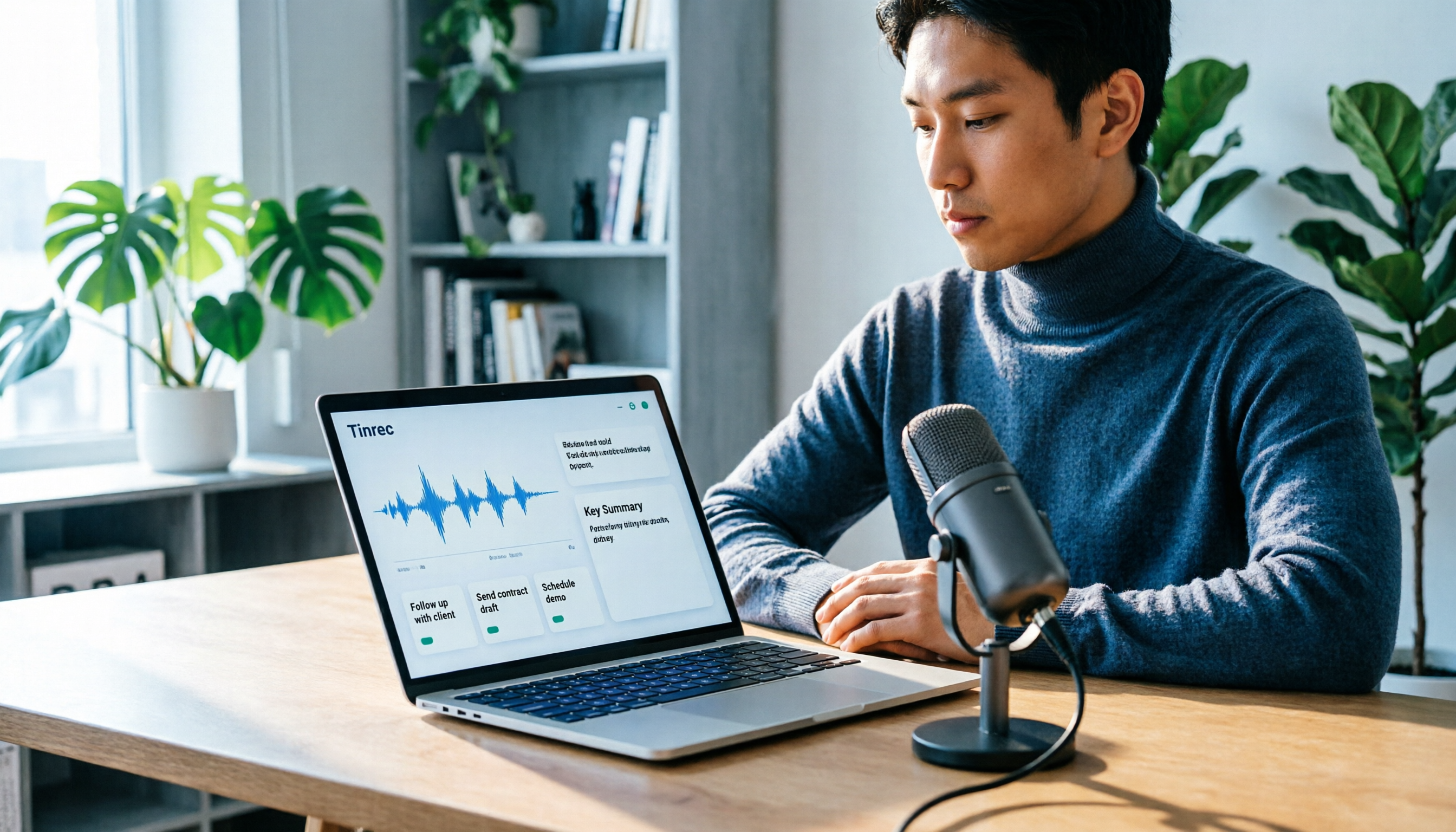
Tinrec is an AI-powered recording organizer that supports multiple languages and works on iOS, Android, and the web. You can upload meeting recordings made on your iPhone, and it generates transcripts, summaries, chapters, and action items.
For me, the most useful feature is the AI Q&A. After recording a cross-departmental meeting, you can ask Tinrec things like 'Who's tracking the budget in this meeting?' or 'What objections did the client raise last time?' It answers directly based on the meeting content, rather than just giving you keyword search results. For anyone who needs to quickly report to their boss or brief their team afterward, the time saved is tangible.
Stop organizing recordings by hand
Upload audio or video and automatically get a transcript, summary, and action items
The free version includes basic credits to try transcription, summarization, and Q&A. If you only have two or three meetings a week, start with the free tier to see if it's enough. If you need to process large volumes of meeting content regularly, consider the paid plan.
Voice Memos: Built-In, Free, but Limited Organization
Apple's built-in 'Voice Memos' app is a simple recording tool. Its advantage is that you don't need to download anything, and recordings are stored directly on your phone. Newer versions also include transcription, which converts speech to text for easier searching and reference.
However, it's positioned more for personal memos, idea capture, and lecture recordings. If you need automatic meeting summaries, action item extraction, AI Q&A, or centralized team access, Voice Memos falls short. It's great for 'record now, listen later,' but not for 'turn this into a work document.'
Otter.ai: A Solid Option for English Meetings, but Consider Your Language Needs
Otter.ai is well-established for English meeting notes. The free plan offers 300 minutes per month, which is generous. If you primarily work with English content, Otter is a viable free option.
But if your meetings are mostly in Chinese, with occasional mixed Chinese-English content like mine, Tinrec handles Chinese meeting organization and real-time translation more smoothly. Otter's strength is English business meetings; Chinese content organization isn't its focus.
Three Common Pitfalls When Choosing a Recording Tool
Pitfall 1: Thinking saving the file is enough. Recording is just the first step; the real cost is 're-listening' and 'organizing.' If you record and forget, you'll spend half an hour digging through transcripts two weeks later to find a specific decision. Look for tools that help you 'find key points,' not just 'store files.'
Pitfall 2: Treating the tool only as speech-to-text. If you only use it to convert audio to text, you're missing out on most of its value. For example, Tinrec's AI Q&A lets you ask 'What was the meeting conclusion?' right after recording—much faster than manually scanning a 30-minute transcript.
Pitfall 3: Ignoring how recording quality affects transcription. The same recording will transcribe very differently in a quiet conference room versus a noisy café. When recording on your iPhone, stay close to the speaker and avoid placing the phone on a vibrating surface. These small details directly impact how efficiently you can process the audio later.
Summary: How to Choose
Here's the bottom line: If you just need to 'quickly capture audio,' the built-in Shortcuts plus Back Tap is completely free and sufficient.
If you need 'actionable results'—transcripts, summaries, to-dos, AI Q&A—then Shortcuts alone won't cut it. You'll need a recording organizer tool.
Here's a quick guide based on your needs:
- Just want to record on the fly and listen back → iPhone Shortcuts + Voice Memos, zero cost.
- Need to quickly turn recordings into meeting notes and action items → Tinrec, best for Chinese meeting organization and AI Q&A.
- Primarily handle English meetings and have zero budget → Try Otter.ai's free plan.
I recommend starting with free options. Tinrec's free tier includes basic credits, enough to upload a few recordings and test the organization features. If it saves you time, then consider upgrading—no need to pay upfront.
References
- How to Record on iPhone Without Being Noticed? Use Shortcuts with Tap to Trigger Secret Recording - Mr. Mad
- [Shortcut] One Trick to Start iPhone Recording! Tap Back 3 Times to Auto-Record and Save | Kiki Notes
- How to Secretly Enable iPhone Recording Without Being Noticed?
- iOS 14 'Dictation Memo' Shortcut! Convert Voice to Text on Your Home Screen - Apple Almond
- Voice Memos App - App Store
Turn every recording into actionable outcomes
Get 60 free transcription minutes when you sign in. No credit card required.
Related Reading
You might also like

Yating Transcript vs Tinrec in 2026: 5-Dimension Comparison for Chinese Meeting Notes
Is Yating Transcript good? This article breaks down real evaluations from speaker identification, Taiwanese Hokkien recognition, cost, and proofreading effort, and compares it with Tinrec, Notta, Otter, TurboScribe, and PLAUD to help you choose the right transcription tool for your meeting scenario.

How to Choose a Speech-to-Text App in 2026: Meeting Notes + AI Summaries & Action Items
Recording meetings is easy; organizing them afterward is the hard part. This guide covers 5 key factors for choosing a speech-to-text app based on real-world use cases, using Tinrec as the main example to demonstrate bot-free online meeting recording, AI summaries and action items, and AI Q&A. It also compares Otter.ai, Notta, and Yating Transcription, highlighting their positioning and pitfalls to avoid.
How to Record Audio on Mac in 2026: 6 Methods from Built-in Tools to AI Transcription
Recording audio on a Mac isn't hard—the challenge is making the recording useful afterward. This guide covers 6 ways to record on Mac, from free built-in options like Voice Memos, Notes transcription, QuickTime, and GarageBand, to Tinrec, which directly produces transcripts, summaries, and action items. It also includes selection advice and 4 things to know before recording.

4 Speech-to-Text Tools Tested for 2026: Is Yating Transcript Good? Which Saves the Most Time After Meetings?
Is Yating Transcript good? From the perspective of a mid-level manager who holds 15 meetings a week, I tested four speech-to-text tools: Yating Transcript, Tinrec, Otter.ai, and Notta. I compared them on Traditional Chinese and Taiwanese Hokkien recognition, post-meeting summaries and action items, AI Q&A, team collaboration, and pricing. I also compiled selection criteria and 3 common pitfalls to help you decide which one truly saves time on post-meeting organization.

2026 Comparison of 2 Transcription Tools: How to Use Yating Transcript vs. Tinrec
How do you use Yating Transcript? This article starts with hands-on steps: first, a 3-step walkthrough from recording to transcription to export. Then it compares Yating Transcript and Tinrec across 5 dimensions—free quota, AI post-meeting organization, online meeting recording, multilingual support, and team collaboration—to help you decide which tool to use for your recording.

2026 Comparison of 4 Online Transcription Tools: Yating vs. Tinrec — Which Should You Choose?
Starting from the real need for 'Yating online transcription,' this comparison examines Tinrec, Yating, Notta, and TurboScribe across Chinese recognition, post-meeting organization, online meeting recording, and team collaboration. It clearly explains each tool's limitations and ideal users to help you pick the one that truly saves time.

Cantonese Speech-to-Text App Comparison 2026: Tinrec vs Otter.ai — Which Wins on Five Dimensions?
Comparing Tinrec and Otter.ai across five dimensions—Cantonese with mixed English recognition, bot-free meeting recording, post-meeting AI organization, cross-platform input, and team seat governance—to help you decide which Cantonese speech-to-text app truly fits your meeting scenarios and budget.

2026 Comparison of 5 Transcription Tools' Free Tiers: Which Free Version Is Most Generous?
How many free minutes does Yating Transcription actually offer? Public sources cite 20 minutes, 120 minutes, and about 300 minutes. This article explains why these figures conflict, how pricing works after the free quota runs out, and compares the free plans and ideal use cases of Tinrec, Notta, Otter.ai, and TurboScribe to help you judge whether a one-time free allotment covers your actual usage.

Best Transcription Tools in 2026: Testing 3 Options, Yating Free Plan Limits and Tinrec Differences
People searching for "Yating transcription free" often ask: how much can the free version handle, do I have to pay to upload audio files, and is it enough for a meeting? This article compares Yating, Tinrec, Otter.ai, and Notta in terms of free quotas, Chinese recognition, and post-meeting organization, and lists 3 common pitfalls when choosing a tool to help you decide which one is worth using long-term.