
Turn recordings into transcripts and summaries in minutes
Upload audio or video for multilingual transcription, AI notes, and action items
Meeting Notes Take Too Long—Try Before You Commit
Have you ever done the math: a 45-minute interview recording takes 45 minutes to listen to, then another hour to transcribe—so the transcription alone takes longer than the meeting itself.
What's worse, many transcription tools require a credit card before you can try them, and if you forget to cancel, you get charged.
So this time, I walked through Good Tape's free trial process myself to show you what the free trial includes, how to activate it, and whether it's worth upgrading.
4 Key Things to Know Before You Sign Up for the Free Trial
Trial credit: The free trial gives you 1 hour of transcription, not unlimited use. One hour is enough for testing, but if you need to transcribe a full 2-hour seminar in one go, you'll exceed the limit.
Credit card required?: No. Good Tape's official page clearly states "no credit card required," which is great for anyone who wants to avoid automatic charges.
What features can you test?: During the trial, you can use all Pro features, including AI summaries, speaker labels, and project creation. This means you're not testing a watered-down version—you get the full experience.
Privacy and security: Good Tape emphasizes GDPR compliance and states that it does not use your files to train AI models. If you're handling interviews, meetings, or sensitive content, this is worth noting.
Good Tape Free Trial Tutorial: 5 Steps to Activate
Step 1: Go to the Official Website
Open the Good Tape website and click the "Start free trial" button on the homepage.
Step 2: Create an Account
You can sign up with just your email. No credit card is required during this step, and it usually takes less than a minute.
Step 3: Upload an Audio or Video File
After logging in, upload the file you want to transcribe. The interface is the same as what Pro users see, with no extra trial-specific restrictions.
Step 4: Wait for Transcription to Complete
Once transcription is done, you can view the transcript, AI summary, and speaker labels. The official site mentions you can test speed, usability, and accuracy.
Step 5: Decide Whether to Upgrade
If you've used up your 1-hour credit and find the accuracy and features meet your needs, then consider upgrading to Pro. There's no pressure to upgrade during the trial.
Which Pro Features Can You Test in the Free Trial?
Good Tape's free trial isn't a "crippled" version—it lets you experience the full Pro features first.
You can test:
Stop organizing recordings by hand
Upload audio or video and automatically get a transcript, summary, and action items
- AI summaries: Automatically extract key points from long meetings.
- Speaker labels: Identify different speakers in multi-person conversations.
- Project creation: Organize transcriptions into projects.
- MCP integration: Connect Good Tape to your LLM for use.
The official site also mentions you can download the Good Tape recording app to test, and the app supports iOS and Android.
Note that once your 1-hour transcription credit is used up, you'll need to upgrade to continue. If you only transcribe short clips occasionally, the free trial alone may be sufficient.
Alternatives to Good Tape
Otter.ai: A mature choice for English meeting transcription, with 300 free minutes per month—more than Good Tape's trial. However, if you mainly work with Chinese content, Good Tape's multilingual support might be a better fit.
Notta: Also supports multilingual transcription and is functionally similar to Good Tape. When choosing, compare the trial limits and subsequent pricing of both.
TurboScribe: If you only need to transcribe large volumes of files without real-time meeting transcription, TurboScribe's long-file handling may be more cost-effective.
Pitfall Guide: 3 Common Mistakes When Signing Up for the Free Trial
Pitfall 1: Uploading without knowing what to test
Your 1-hour credit is precious. Prepare a recording you'd actually use in real life, rather than grabbing any random test file. Testing with real content lets you judge whether the accuracy meets your standards.
Pitfall 2: Ignoring privacy policy differences
Some transcription tools use your audio to train AI. Good Tape explicitly states it does not, and it complies with GDPR. If you're handling interviews or client recordings, this matters more than price.
Pitfall 3: Treating the free trial as a permanent free plan
A free trial and a free plan are two different things. Good Tape's free trial is meant for testing Pro features, and it ends once your credit is used up. If you need long-term use, you'll need to look at its pricing plans separately.
Summary: Who Is the Free Trial For?
Those who want to verify accuracy first: Upload a real recording to check transcript quality.
Those who don't want to link a credit card: Good Tape's trial requires no credit card, making it ideal for users who want to avoid charge risks.
Those who need to test AI summaries and speaker labels: The trial lets you fully test Pro features, not a stripped-down version.
Those who only transcribe occasionally: After using up the 1-hour credit, evaluate whether to upgrade—no need to pay upfront.
I recommend signing up for the free trial on the official website and running a real recording through it. If the accuracy and features meet your needs, then consider upgrading—there's no need to pay right away.
References
Turn every recording into actionable outcomes
Get 60 free transcription minutes when you sign in. No credit card required.
Related Reading
You might also like
5 Tested Ways to Download iPhone Voice Memos in 2026: Which Is Fastest and Won't Get Stuck on Large Files?
Can't find a download button after recording a voice memo? This article tests 5 ways to get iPhone recordings out—saving to Files, AirDrop, email, and iCloud web—comparing speed, limitations, and pitfalls. It also explains how to use Tinrec to turn recordings into searchable, queryable transcripts and meeting materials.

5 iPhone Recording Tools Tested and Compared in 2026: What Happens After Recording Is What Matters
Most people choose an iPhone recording tool based only on whether it captures audio when you press record, but the real pain comes after recording. This article starts from the pain points of post-meeting organization and compares five options: Tinrec, Recorder Pro, Recording Tool, Voice Recorder, and the built-in Voice Memos, including costs, suitable users, and selection advice.

How to Download iPhone Voice Memos in 2026: A Complete 5-Step Guide
Recorded a voice memo but can't get it off your iPhone? This guide starts with the most common download mistakes, then walks through 5 steps to export iPhone recordings to a computer. It also explains how to turn audio files into transcripts, summaries, and action items after downloading. Includes practical limits of Apple's built-in methods, iCloud, AirDrop, and email, plus hands-on experience with Tinrec for organizing recordings and plan details.

2026 iPhone Recording App Comparison: Is the Built-in Voice Memos Enough?
The built-in Voice Memos app on iPhone is actually more useful than you might think, but it falls short when you need to write meeting minutes, find key points, or share with a team. This article starts with the built-in features and compares four options: Voice Memos, GarageBand, Notta, and Tinrec. We cover key buying factors, common pitfalls, and scenario recommendations to help you decide which recording method truly meets your needs.
2026 iPhone Recording Showdown: Voice Memos Stuck on 'Downloading' — Time to Switch?
The night before finals, you open Voice Memos and every recording shows 'Downloading.' Tapping the three dots does nothing, rebooting doesn't help. This article tackles the decision of whether to fix the built-in app or switch tools, comparing iPhone's built-in Voice Memos with Tinrec across five dimensions: troubleshooting the 'Downloading' issue, where recordings are stored, cross-device use, post-meeting organization, and student budget. It ends with clear recommendations.
5 iPhone Recording Download Tools Tested for 2026: Which Saves the Most Time on Export and Transcription?
Downloading iPhone recordings often gets stuck at "can't get the file out, and even when you do, it's unusable." Starting from real student scenarios like working on projects and recording lectures, this article tests and organizes 6 solutions: built-in Voice Memos plus Files app, Recorder Pro, Notta, Otter.ai, TurboScribe, and Tinrec, which can simultaneously handle export, transcription, AI summaries, and Q&A. It also includes free quotas, pricing, and selection advice.

How to Download iPhone Voice Memos in 2026: 3 Methods + AI Transcription
Downloading iPhone voice memos involves two separate tasks: extracting the audio file and making it usable afterward. This guide first shows you three ways to save iPhone recordings to your computer and the cloud, then explains how to use Tinrec to turn m4a files into transcripts, summaries, and action items, and compares the differences between the Personal and Team plans.
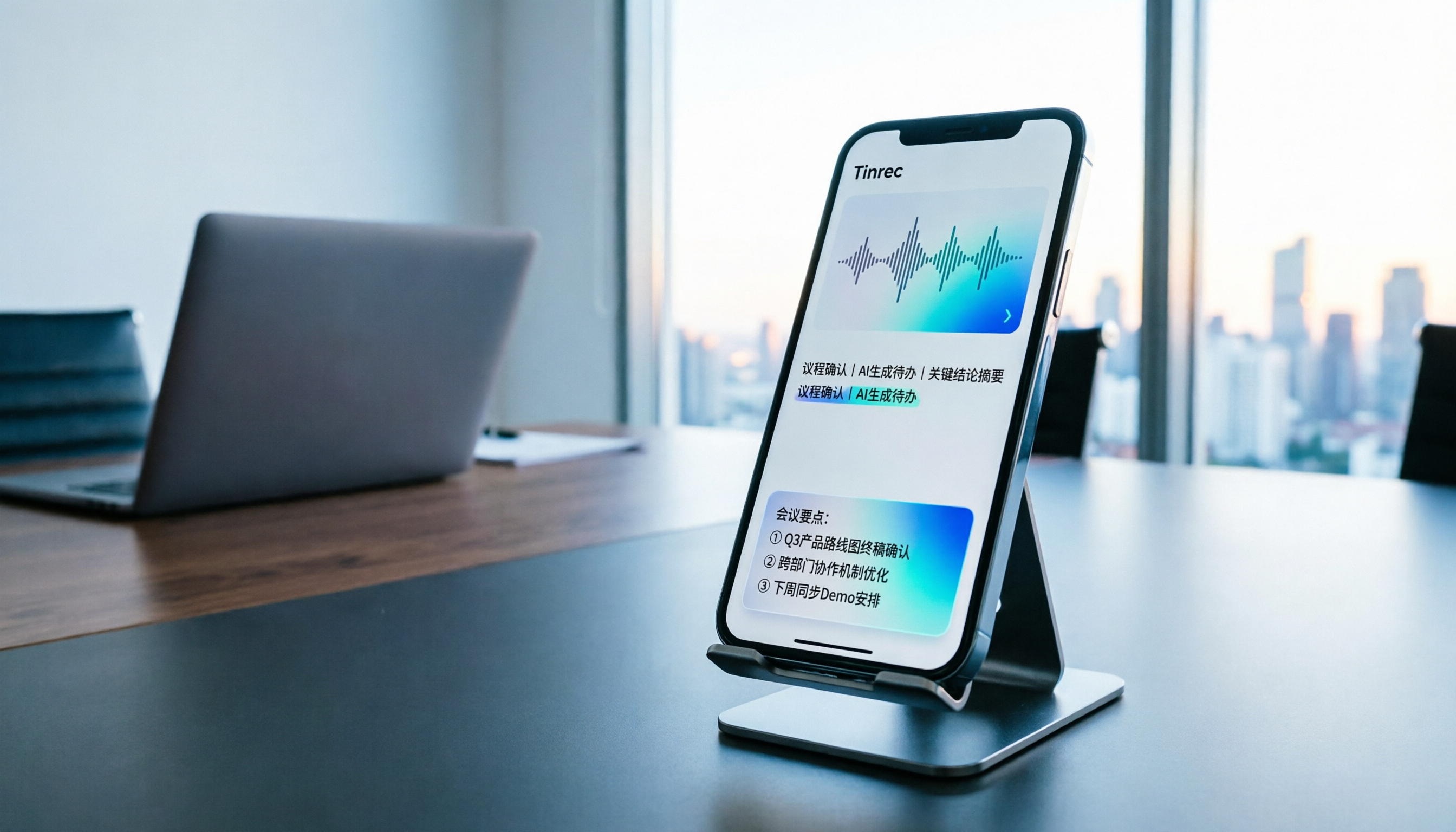
Tinrec vs Notta in 2026: 5-Dimension Comparison of the iPhone Recording App Everyone on PTT Is Talking About
Every few weeks, someone on PTT asks for iPhone recording app recommendations. Common complaints include recordings stopping when a call comes in and files showing 00:00 after a meeting. This guide covers 7 practical options—from the built-in Voice Memos and AI meeting assistants to recording hardware—and compares Tinrec and Notta across 5 dimensions to help you choose the right solution for meetings, interviews, classes, and calls.

2026 AI Voice Recorder Buying Guide: PLAUD vs. Tinrec and 3 Real-World Tests
Is the PLAUD voice recorder worth it? This guide tackles common buying mistakes, compares PLAUD Note, PLAUD Note Pro, and Tinrec on recording, transcription, post-meeting organization, and team collaboration, and offers 5 key buying factors and pitfalls to help you decide between a hardware recorder and an AI meeting notes tool that handles online meetings.