

Turn recordings into transcripts and summaries in minutes
Upload audio or video for multilingual transcription, AI notes, and action items
How to Download iPhone Voice Memos in 2026: 3 Methods + AI Transcription
First, Ask Yourself: Do You Want an Audio File or Usable Content?
People searching for "download iPhone voice memos" usually have two different things in mind. The first is simply getting the audio file off the phone: saving it to a computer, uploading it to the cloud, or sending it to a colleague. The second is using it after extraction: finding out who said what, turning it into meeting minutes, or identifying who is responsible for what.
These two tasks require very different approaches. If you just need to extract the file, the built-in sharing features on iPhone are sufficient. But if you find yourself having to listen to the recording again and type out a transcript every time, what you really need is not just "downloading" but a "post-download organization workflow."
This article breaks it down into two parts: first, three ways to extract iPhone recordings, and then how to use Tinrec to turn an audio file sitting in a folder into searchable, queryable, and deliverable meeting materials.
Three Common Methods to Download iPhone Voice Memos
Here are the three most commonly used extraction methods, each suited to different situations:
| Method | How to Do It | Who It's For | Things to Note |
|---|---|---|---|
| Save to Files app / iCloud Drive | Select the file in the voice memos list, tap the "..." in the top right corner → "Share" → Save to "Files" or cloud | People who want to centralize audio file management and later upload to other tools | Check that you have enough cloud storage; syncing may take a moment |
| AirDrop to Mac | Select file → Share → AirDrop → Choose a nearby Mac | People with a Mac at hand who want the file as quickly as possible | Both devices must have AirDrop and Bluetooth turned on |
| Send via Email | Share → Mail → Enter recipient and send | People with only a Windows PC and no other tools | Most email services have an attachment limit of about 25MB; meeting recordings longer than 20 minutes often fail to send |
Practical tip: If the recording is longer than 15–20 minutes, using "Files" or cloud storage is more reliable than email. Once you have the audio file, the next step is to upload it to a tool like Tinrec for transcription and organization, rather than letting it sit in a folder.
There's an even easier approach: if you know in advance that a meeting needs to be documented, you can record directly with Tinrec. The desktop version captures system audio to handle online meetings on Zoom, Google Meet, Microsoft Teams, Webex, and others without needing to invite a meeting bot. The mobile app can also record directly. This skips the three-step process of "record, download, then upload."
The Real Value Is After Downloading: What Can Tinrec Do for You?
Scenario 1: Grasp the Key Points of a Two-Hour Meeting in 5 Minutes
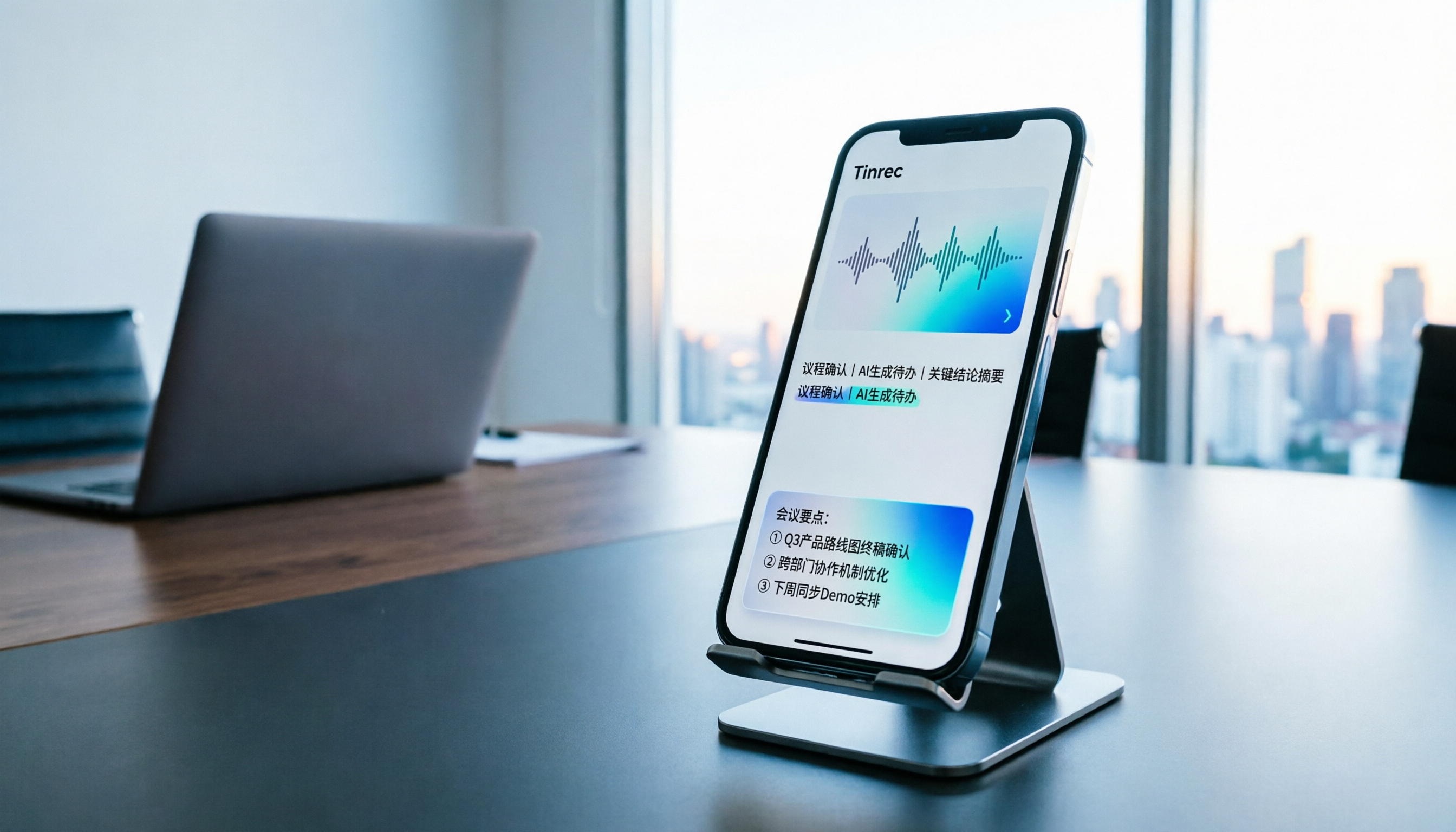
In the past, after a meeting you'd spend another hour listening to the recording and typing notes. After uploading the audio file to Tinrec, it generates a transcript and automatically organizes summaries, chapters, and action items—who is responsible for what and by when, clearly listed. You don't need to listen from minute one.
Scenario 2: Turn Interview Recordings into a Searchable Library for Year-End
After completing a round of research or marketing interviews, you often accumulate a dozen or more recordings. Tinrec's transcripts are searchable, and the AI Q&A lets you ask questions directly: "What were the interviewee's concerns about pricing?" "Which ones mentioned repurchase intent?" No need to listen to everything again.
Scenario 3: No More Relying on Human Interpreters for Cross-Language Meetings
Tinrec supports real-time translation, allowing you to switch between original text, translated text, or bilingual view during recording. The bilingual transcript after the meeting is also convenient to share directly with colleagues who speak different languages.
Scenario 4: Team Data No Longer Scattered Across Personal Phones
This is where many teams really get stuck: the recording is on the organizer's iPhone, and when they leave, the data is lost. Tinrec's Team plan centralizes audio files, transcripts, summaries, and action items in a team workspace, and when members change, resources can be handed over to other active members.
What Are Tinrec's Core Capabilities?
1. Multiple Input Methods, Not Just Live Recording Tinrec supports live recording, computer meeting recording, audio and video file uploads, and mobile recording. For those who have already downloaded iPhone recordings, the most direct approach is to upload the file for transcription without re-recording.
2. Transcript + AI Summary + Chapters Transcription is just the first step. Tinrec breaks long meetings into chapters and extracts key points, allowing you to grasp two hours of content by scanning rather than reading a wall of text.
3. Action Item Extraction It organizes follow-up actions from discussions, ideal for project and client meetings. For managers, this is the most directly reportable output to superiors.
4. AI Q&A: Continue Asking Questions About Meeting Content After the transcript is ready, you can ask Tinrec questions directly, such as "Which option was decided at the end of this meeting?" or "What were the three concerns the client mentioned?" It answers based on semantic understanding, not keyword matching.
Stop organizing recordings by hand
Upload audio or video and automatically get a transcript, summary, and action items
5. Export and Post-Processing to Fit Your Existing Workflow Tinrec supports multiple export formats and can send results to Notion, Google Docs, OneNote, or Dropbox for further processing. Agent post-processing can generate reports, tables, and documents based on meeting content. For those who need to submit weekly reports or meeting minutes, this step saves the most noticeable time.
6. Team Workspace and Governance (Team Plan) The Team plan provides an independent team workspace, member invitations, role and seat management, usage analytics, audit logs, audio recycle bin, and team hotwords. When you need to distinguish between "who can manage the team" and "who can use resources," roles and seats are controlled separately—active members without a seat can still view, play, and read team data, but cannot upload, edit, or export.
Practical Use Cases
Meeting Minutes The most time-consuming part of weekly meetings, review meetings, and cross-departmental meetings isn't the meeting itself—it's the post-meeting organization. After recording with Tinrec or uploading a file, transcripts, summaries, and action items are generated at once and can be pasted directly into your work log.
Client Interviews and Sales Tracking The biggest fear in client interviews is missing commitments. Upload the audio to Tinrec and use AI Q&A after the meeting to confirm details like "the delivery date the client requested" or "the bottom line on pricing"—more reliable than flipping through notes.
Courses and Lectures For a two-hour class, the transcript is searchable and you can jump between chapters. For those who need to review repeatedly or organize teaching materials, this is far more efficient than replaying the recording.
Content Creation and Team Knowledge Base Podcast interview outlines, internal training, product briefings—all can be preserved as searchable team resources. New members no longer need to ask "What was reviewed in that case last time?"—they can just search the team workspace.
5 Things to Consider When Choosing a Recording Download and Organization Tool
1. Can It Handle Your File Formats and Lengths? What matters is not what you recorded, but whether the tool accepts it. Tinrec supports audio and video file uploads, making it suitable for importing existing iPhone recordings directly without re-recording.
2. Does It Offer Organization Capabilities After Transcription? A tool that only provides transcripts is essentially replacing "re-listening" with "re-reading." Tinrec adds summaries, chapters, and action items after transcription, which truly saves time.
3. Practicality for Chinese and Multilingual Support Meetings in Taiwan often mix Chinese and English. Tinrec covers Chinese, Traditional Chinese, and multilingual meeting scenarios, and supports real-time translation and team hotword management. A reminder: transcription quality can be affected by recording quality, ambient noise, accents, overlapping speech, and technical terminology. For important content, it's recommended to cross-check with playback at specific timestamps.
4. Team Governance Capabilities If the recording will be viewed by three or more people, you need to ask: Who owns the data? Will it still be there after members leave? Tinrec's Team plan centralizes audio files, folders, and action items in a team workspace and provides roles, seats, usage analytics, and audit logs.
5. Choose a Cost Structure Based on Usage Patterns Tinrec's Personal plan offers a free version, weekly pass, Pro monthly, and Pro annual: use the free version for occasional transcription; consider the weekly pass for short-term intensive meetings or interviews; choose Pro for steady weekly use; and the annual plan for long-term data preservation. The Team plan is currently USD 29.80 per paid seat per month, or USD 199 per paid seat per year (equivalent to about USD 16.58 per month). Each paid seat provides 2,000 minutes of shared team import quota per month; eligible teams can enjoy a 7-day trial with 1 free seat and 300 minutes of shared team import quota for the first time. Actual prices and benefits are subject to the official purchase page.
Frequently Asked Questions
Q: Where exactly are iPhone voice memos stored? A: In the built-in Voice Memos app. Select the file, tap the "..." in the top right corner → "Share," and you can save it to the Files app, AirDrop it to other Apple devices, or send it via email.
Q: What if the recording is too long to send via email? A: Most email services have an attachment limit of about 25MB, and long meetings often fail. Saving to Files or the cloud and then uploading to Tinrec for transcription is more reliable than forcing an email.
Q: Can Tinrec process audio files I've already downloaded? A: Yes, Tinrec supports audio and video file uploads for transcription, suitable for organizing historical meetings, interviews, and course recordings.
Q: Can you guarantee transcription accuracy? A: We don't recommend making that claim. Tinrec provides high-quality transcription for clear audio and common scenarios, but actual performance can be affected by noise, accents, overlapping speech, and technical terminology. For important decisions, it's recommended to verify against the transcript timestamps and recording playback.
Q: What's the difference between the Team and Personal plans? A: Personal plan data belongs to the individual account; the Team plan is an independent team workspace with additional member invitations, role and seat management, shared import quota, usage analytics, audit logs, and audio recycle bin. Team resources belong to the team, and when a member leaves, they need to hand over to other active members.
Q: Can deleted team audio files be recovered? A: After audio enters the team recycle bin, it can be restored before permanent deletion begins. The current retention period is 30 days.
Conclusion
Downloading iPhone voice memos isn't difficult; the hard part is what comes after: re-listening, typing, organizing, and delivering. If you get stuck at this stage every time, the problem isn't your phone—it's your workflow.
The practical approach is: record meetings that need documentation directly with Tinrec, and upload existing audio files for transcription. Both paths ultimately feed into the same team workspace, turning them into searchable, queryable, and transferable data. Individuals can start with the free version to experience the "audio in, transcript and action items out" workflow once; if meeting data needs to be shared among multiple people, then evaluate the Team plan's seat configuration. For those who have more than three meetings per week, the time saved by this workflow is usually worth more than the cost of the tool.
References
- Voice Memos App - App Store
- Complete Guide to Exporting iPhone Voice Memos! 7 Ways to Quickly Transfer Recordings to Computer
- Recorder Pro - Professional Recording App - App Store
- 3 Ways to Export/Output iPhone Voice Memos! | iFAST Smart Life Technology
- 4 Easy Methods to Recover Deleted iPhone Recordings Without Backup!
Turn every recording into actionable outcomes
Get 60 free transcription minutes when you sign in. No credit card required.
Related Reading
You might also like

5 Tested Ways to Download iPhone Voice Memos in 2026: Which Is Fastest and Won't Get Stuck on Large Files?
Can't find a download button after recording a voice memo? This article tests 5 ways to get iPhone recordings out—saving to Files, AirDrop, email, and iCloud web—comparing speed, limitations, and pitfalls. It also explains how to use Tinrec to turn recordings into searchable, queryable transcripts and meeting materials.

5 iPhone Recording Tools Tested and Compared in 2026: What Happens After Recording Is What Matters
Most people choose an iPhone recording tool based only on whether it captures audio when you press record, but the real pain comes after recording. This article starts from the pain points of post-meeting organization and compares five options: Tinrec, Recorder Pro, Recording Tool, Voice Recorder, and the built-in Voice Memos, including costs, suitable users, and selection advice.

How to Download iPhone Voice Memos in 2026: A Complete 5-Step Guide
Recorded a voice memo but can't get it off your iPhone? This guide starts with the most common download mistakes, then walks through 5 steps to export iPhone recordings to a computer. It also explains how to turn audio files into transcripts, summaries, and action items after downloading. Includes practical limits of Apple's built-in methods, iCloud, AirDrop, and email, plus hands-on experience with Tinrec for organizing recordings and plan details.

2026 iPhone Recording App Comparison: Is the Built-in Voice Memos Enough?
The built-in Voice Memos app on iPhone is actually more useful than you might think, but it falls short when you need to write meeting minutes, find key points, or share with a team. This article starts with the built-in features and compares four options: Voice Memos, GarageBand, Notta, and Tinrec. We cover key buying factors, common pitfalls, and scenario recommendations to help you decide which recording method truly meets your needs.

2026 iPhone Recording Showdown: Voice Memos Stuck on 'Downloading' — Time to Switch?
The night before finals, you open Voice Memos and every recording shows 'Downloading.' Tapping the three dots does nothing, rebooting doesn't help. This article tackles the decision of whether to fix the built-in app or switch tools, comparing iPhone's built-in Voice Memos with Tinrec across five dimensions: troubleshooting the 'Downloading' issue, where recordings are stored, cross-device use, post-meeting organization, and student budget. It ends with clear recommendations.

5 iPhone Recording Download Tools Tested for 2026: Which Saves the Most Time on Export and Transcription?
Downloading iPhone recordings often gets stuck at "can't get the file out, and even when you do, it's unusable." Starting from real student scenarios like working on projects and recording lectures, this article tests and organizes 6 solutions: built-in Voice Memos plus Files app, Recorder Pro, Notta, Otter.ai, TurboScribe, and Tinrec, which can simultaneously handle export, transcription, AI summaries, and Q&A. It also includes free quotas, pricing, and selection advice.
Tinrec vs Notta in 2026: 5-Dimension Comparison of the iPhone Recording App Everyone on PTT Is Talking About
Every few weeks, someone on PTT asks for iPhone recording app recommendations. Common complaints include recordings stopping when a call comes in and files showing 00:00 after a meeting. This guide covers 7 practical options—from the built-in Voice Memos and AI meeting assistants to recording hardware—and compares Tinrec and Notta across 5 dimensions to help you choose the right solution for meetings, interviews, classes, and calls.

2026 AI Voice Recorder Buying Guide: PLAUD vs. Tinrec and 3 Real-World Tests
Is the PLAUD voice recorder worth it? This guide tackles common buying mistakes, compares PLAUD Note, PLAUD Note Pro, and Tinrec on recording, transcription, post-meeting organization, and team collaboration, and offers 5 key buying factors and pitfalls to help you decide between a hardware recorder and an AI meeting notes tool that handles online meetings.

2026 AI Recording & Transcription Tools Compared: Is PLAUD Worth It & Which Saves the Most Time?
Starting from the pain point of students unable to sort through a pile of unnamed recordings before finals, this hands-on comparison tests Tinrec, PLAUD Note, Notta, and Granola across three scenarios: classroom lectures, online classes, and group discussions. It also covers free quotas, subscription costs, and pitfalls to help budget-conscious students choose the right tool.