
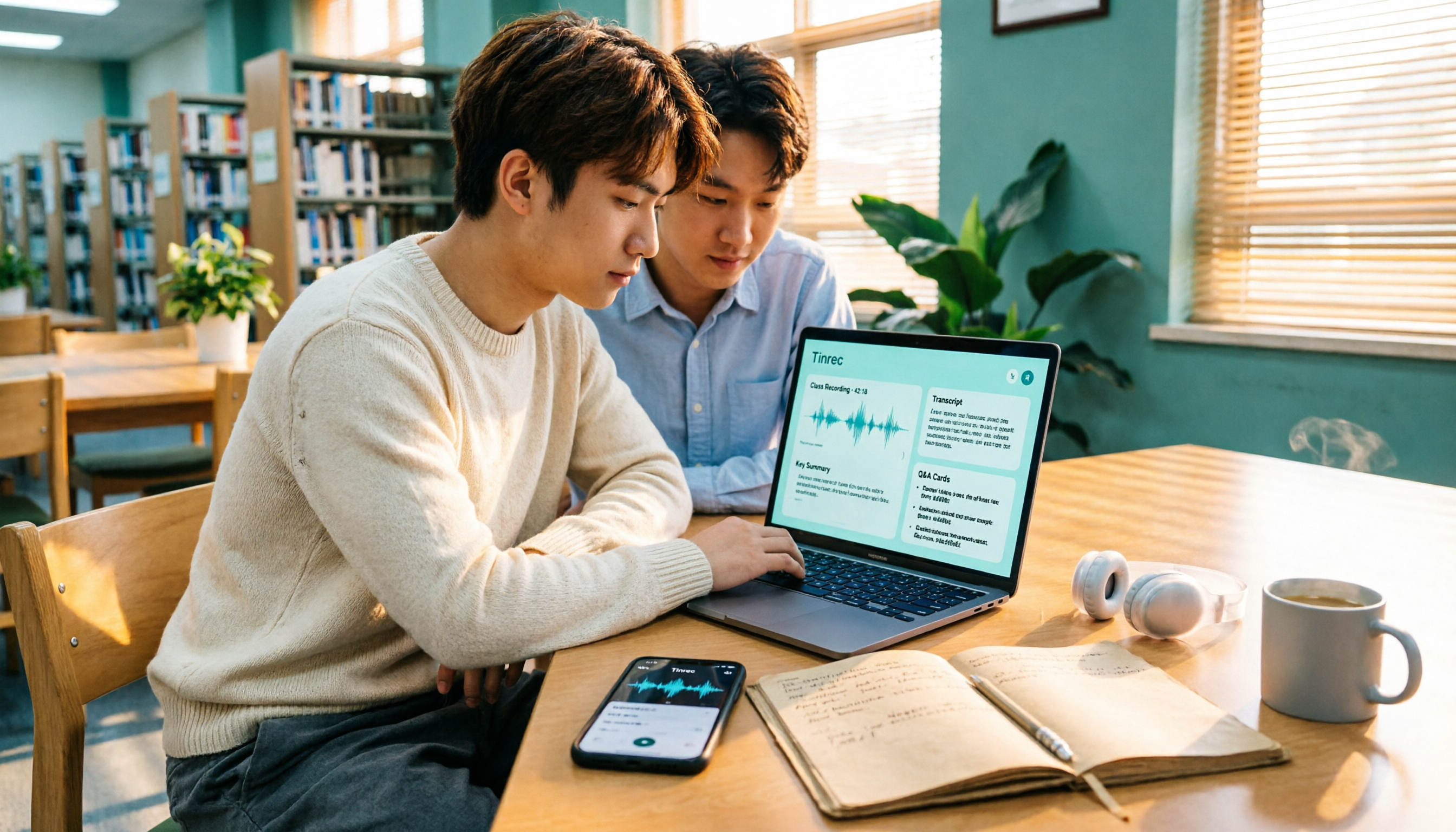
Turn recordings into transcripts and summaries in minutes
Upload audio or video for multilingual transcription, AI notes, and action items
5 iPhone Recording Download Tools Tested for 2026: Which Saves the Most Time on Export and Transcription?
Last semester, while working on my graduation project, my teammates and I interviewed 6 upperclassmen, recording everything with iPhone Voice Memos. When it came time to actually write the analysis, I realized a big problem: the recordings were locked in the phone, not a single word of transcript existed, and if I wanted to find a specific quote from an interviewee, I had to fast-forward from the beginning to the end. That night I struggled in the lab for nearly two hours—email attachments were too large halfway through sending, and after uploading to iCloud, I had to download them again on the computer.
Later I figured out that iPhone recording "download" actually involves two needs: one is to get the file out, and the other is to be able to use it directly after getting it out. This article, based on my testing experience this semester, organizes 6 solutions for you.
Why Is iPhone Recording "Download" More Troublesome Than You Think?
First, Voice Memos recordings are stored inside the app and only become portable files through "Save to Files." Second, while sending via email is simple, attachments usually have a limit of around 25MB, and in my tests, an interview recording of over 20 minutes easily fails. Third, iPhone exports are mostly m4a, and if the computer lacks the corresponding codec, playback may have noise.
But the real trouble is actually after downloading: transcripts, key points, and to-dos still have to be done yourself. So the list below goes from "pure download" all the way to "download + automatic organization."
Solution 1 | Tinrec (Instant Recording) — The Most Complete iPhone Recording Download and Post-Meeting Organization Assistant
One-sentence positioning: Turn recording files into searchable, queryable, and exportable meeting and classroom materials.
My own usage: after recording on the phone or uploading an m4a, it transcribes while playing, then automatically generates summaries, chapters, and to-dos. A few points I actually felt:
- Multi-format export + third-party tools: Organized content can be directly brought to Notion, Google Docs, OneNote, Dropbox. My project interview organization was moved into the Notion interview library this way.
- AI summaries and chapters: A two-hour interview is automatically split into several paragraphs, so you can jump directly to sections when reviewing without linear re-listening.
- AI Q&A: This is what I feel makes the biggest difference. You can directly ask "What categories of complaints did interviewees have about the department's course selection system?" and it will find answers from the recording content, making final analysis much faster.
- Audio/video file transcription and real-time translation: Can handle English or mixed Chinese-English content; cross-language interviews can be viewed in original, translation, or bilingual mode.
- Desktop version records online meetings without bots: If the project switches to online interviews, you can record system audio with the desktop version without inviting an extra bot into the meeting.
Plans and pricing: The official website offers a free version, weekly card, Pro monthly card, and Pro annual card. The free version has basic quota for trial. For short-term sprints (e.g., interviewing several people within a week), use the weekly card; for long-term accumulation of materials, consider the annual card. Actual prices and quotas are subject to the official purchase page. For group projects shared by multiple people, the team version is an independent team space with a 7-day trial (1 free seat, 300 minutes shared team import quota). Paid seats are USD 29.80/seat/month, annual payment USD 199/seat/year (equivalent to about USD 16.58/month), each paid seat has 2,000 minutes shared import quota per month, and real-time recording is not deducted by minutes under an active plan.
Who it's for: Students who need to "download files + transcribe + organize key points" all at once and will go back to review old recordings.
Solution 2 | Apple Voice Memos + Files App — Built-in, Free, the Most Basic Download Method
One-sentence positioning: Without installing anything, it's the most direct way to "get the recording out." The operation is to open Voice Memos, select the recording to send, tap the top right "⋯" → "Share" → "Save to Files," then navigate to the desired location and tap "Save." The app itself also has editing tools like transcription, trimming, replace, and "Save As," allowing you to fine-tune content without touching the original file.
Stop organizing recordings by hand
Upload audio or video and automatically get a transcript, summary, and action items
The highlight is free, zero learning curve, and Apple Watch can also record. The limitation is that the transcribed text is not easy to organize and export, and there is no AI Q&A or cross-recording database; you still have to add summaries and to-dos yourself.
Who it's for: You, who occasionally record a two or three-minute memo and just need to save the file out.
Solution 3 | Recorder Pro — A Professional Recording Program on iPhone
One-sentence positioning: Put recording control back in your hands, with freedom in format and file transfer.
It supports iTunes file sharing and iCloud Drive, with output formats including MP3, M4A, AAC, MP4, CAF, AIFF, WAV, and more; features include scheduled start recording, recording only when speaking, recording via Bluetooth headset, and post-production like trimming, merging, mixing, splitting, and making ringtones. It's especially useful for situations like "I must get an mp3 to play."
Free download, advanced features and actual plans are subject to the App Store page. Who it's for: Students who want to control file formats themselves and need scheduling or Bluetooth recording.
Solution 4 | Notta — Multilingual Transcription and Translation
One-sentence positioning: A multilingual tool that handles transcription, translation, and document import all at once.
The official plan is a free version with 120 minutes per month, up to 3 minutes per single content; Pro annual payment is about USD 8.17/month, 1,800 minutes per month; Business annual payment is about USD 16.67/seat/month, including role permissions and usage reports. It overlaps considerably with Tinrec, the difference being that Tinrec adds desktop bot-free online meeting recording and team data accumulation.
Who it's for: People who need multilingual translation and transcription of existing files.
Solution 5 | Otter.ai — A Mature Assistant for English Meetings
One-sentence positioning: A veteran choice for English meeting notes.
Basic is free, 300 minutes per month; Pro annual payment is about USD 8.49/user/month, including 1,200 minutes of in-app recording per month and 10 file imports; Business offers unlimited meetings and in-app recording. Its English business meeting experience is mature, but Chinese classrooms and mixed Chinese-English organization are not its strong suit.
Who it's for: Users whose courses or meetings are mainly in English and who need mature summaries and Q&A.
Solution 6 | TurboScribe — Cost-Effective Transcription for Long Documents
One-sentence positioning: When it comes to transcribing "large and long" files, it is very competitive.
The free version allows 3 files per day, up to 30 minutes per file; Unlimited annual payment is USD 120 (equivalent to about USD 10/month), and the paid version allows up to 10 hours or 5GB per file, and up to 50 files uploaded at once. It doesn't focus on real-time meetings, but it's very convenient for batch converting a whole semester's recordings into text.
Who it's for: Students who have a bunch of long recordings and only need transcripts and subtitles.
With So Many Solutions, How Should You Choose?
- Want to complete "download + transcription + summary + follow-up questions" all at once → Tinrec, currently one of the few options with AI Q&A, to-do extraction, and multi-format export.
- Interviews or courses with mixed Chinese-English, need bilingual comparison → Tinrec, supports real-time translation and original/translation/bilingual viewing.
- Want to continue using on phone, computer, and web → Tinrec, multi-device use, centralized data.
- Group projects with multiple people sharing the same batch of interviews → Tinrec team version, data belongs to the team, seats and usage can be managed.
- Only need to occasionally save recordings out, zero budget → Voice Memos + Files App, built-in free is enough.
- Need specific formats (e.g., mp3) or scheduled recording → Recorder Pro.
- Have a whole batch of long recordings and only want transcripts → TurboScribe.
Before Downloading iPhone Recordings, 4 Things to Know
- First confirm format and playback: m4a may have noise on some computers without codecs; if necessary, convert to mp3 before playing, don't rush to think the recording is broken.
- Email sending has a 25MB limit: Recordings over 20 minutes easily get stuck; using cloud or directly uploading to tools like Tinrec will save much trouble.
- Get consent before recording: For interviews, classes, or meetings, remember to inform the other party and comply with local regulations.
- Downloading is only the first step, organization is key: Rather than scattering files across phone, cloud, and email, go through a complete process—record or import → transcribe → summary/chapters/to-dos → Q&A and export, so you won't have to re-listen when looking for materials later.
Conclusion
Downloading iPhone recordings is not difficult; the hard part is how quickly you can find that sentence after downloading. Built-in Voice Memos plus Files App can solve "getting it out," but to solve "being usable," I ultimately relied on Tinrec this semester to collect interview, class, and group discussion recordings in one place, and when writing the project, I could directly ask and export to Notion. I suggest you first use the free quota to record a class and try it, then upgrade when it feels right.
References
- Voice Memos App - App Store
- Recorder Pro - Professional Recording Program App - App Store
- Export Voice Memos recordings to Files on iPhone - Apple Support (Taiwan)
- Complete Guide to Exporting iPhone Voice Memos! 7 Tricks to Quickly Transfer Recordings to Computer
- 3 Methods to Export/Output/Transfer iPhone Voice Memos! | iFAST Smart Life Technology
Turn every recording into actionable outcomes
Get 60 free transcription minutes when you sign in. No credit card required.
Related Reading
You might also like

5 Tested Ways to Download iPhone Voice Memos in 2026: Which Is Fastest and Won't Get Stuck on Large Files?
Can't find a download button after recording a voice memo? This article tests 5 ways to get iPhone recordings out—saving to Files, AirDrop, email, and iCloud web—comparing speed, limitations, and pitfalls. It also explains how to use Tinrec to turn recordings into searchable, queryable transcripts and meeting materials.

5 iPhone Recording Tools Tested and Compared in 2026: What Happens After Recording Is What Matters
Most people choose an iPhone recording tool based only on whether it captures audio when you press record, but the real pain comes after recording. This article starts from the pain points of post-meeting organization and compares five options: Tinrec, Recorder Pro, Recording Tool, Voice Recorder, and the built-in Voice Memos, including costs, suitable users, and selection advice.

How to Download iPhone Voice Memos in 2026: A Complete 5-Step Guide
Recorded a voice memo but can't get it off your iPhone? This guide starts with the most common download mistakes, then walks through 5 steps to export iPhone recordings to a computer. It also explains how to turn audio files into transcripts, summaries, and action items after downloading. Includes practical limits of Apple's built-in methods, iCloud, AirDrop, and email, plus hands-on experience with Tinrec for organizing recordings and plan details.

2026 iPhone Recording App Comparison: Is the Built-in Voice Memos Enough?
The built-in Voice Memos app on iPhone is actually more useful than you might think, but it falls short when you need to write meeting minutes, find key points, or share with a team. This article starts with the built-in features and compares four options: Voice Memos, GarageBand, Notta, and Tinrec. We cover key buying factors, common pitfalls, and scenario recommendations to help you decide which recording method truly meets your needs.

2026 iPhone Recording Showdown: Voice Memos Stuck on 'Downloading' — Time to Switch?
The night before finals, you open Voice Memos and every recording shows 'Downloading.' Tapping the three dots does nothing, rebooting doesn't help. This article tackles the decision of whether to fix the built-in app or switch tools, comparing iPhone's built-in Voice Memos with Tinrec across five dimensions: troubleshooting the 'Downloading' issue, where recordings are stored, cross-device use, post-meeting organization, and student budget. It ends with clear recommendations.

How to Download iPhone Voice Memos in 2026: 3 Methods + AI Transcription
Downloading iPhone voice memos involves two separate tasks: extracting the audio file and making it usable afterward. This guide first shows you three ways to save iPhone recordings to your computer and the cloud, then explains how to use Tinrec to turn m4a files into transcripts, summaries, and action items, and compares the differences between the Personal and Team plans.
Tinrec vs Notta in 2026: 5-Dimension Comparison of the iPhone Recording App Everyone on PTT Is Talking About
Every few weeks, someone on PTT asks for iPhone recording app recommendations. Common complaints include recordings stopping when a call comes in and files showing 00:00 after a meeting. This guide covers 7 practical options—from the built-in Voice Memos and AI meeting assistants to recording hardware—and compares Tinrec and Notta across 5 dimensions to help you choose the right solution for meetings, interviews, classes, and calls.

2026 AI Voice Recorder Buying Guide: PLAUD vs. Tinrec and 3 Real-World Tests
Is the PLAUD voice recorder worth it? This guide tackles common buying mistakes, compares PLAUD Note, PLAUD Note Pro, and Tinrec on recording, transcription, post-meeting organization, and team collaboration, and offers 5 key buying factors and pitfalls to help you decide between a hardware recorder and an AI meeting notes tool that handles online meetings.

2026 AI Recording & Transcription Tools Compared: Is PLAUD Worth It & Which Saves the Most Time?
Starting from the pain point of students unable to sort through a pile of unnamed recordings before finals, this hands-on comparison tests Tinrec, PLAUD Note, Notta, and Granola across three scenarios: classroom lectures, online classes, and group discussions. It also covers free quotas, subscription costs, and pitfalls to help budget-conscious students choose the right tool.