

Turn recordings into transcripts and summaries in minutes
Upload audio or video for multilingual transcription, AI notes, and action items
Two hours in a meeting, two more hours writing up notes—you don't need just a tool; you need a solution
Many people think that once a Teams meeting ends, the work is done. In reality, the real pain is just beginning.
You have to go back and listen to the recording, fill in your notes, organize action items, and then send the summary to those who didn't attend. If some people spoke English and others spoke Chinese, or if the discussion veered into technical jargon, the cleanup becomes even more overwhelming.
Microsoft Teams does have built-in live transcription that shows captions in real time during the meeting, but it mainly solves the problem of "understanding in the moment." After the meeting, you still need to turn that transcript into meeting minutes, action items, and searchable knowledge.
The right tool doesn't just differ in "whether it can transcribe speech to text"—it differs in "how much time you'll still spend organizing after the transcription."
Before choosing a meeting transcription tool, understand these 4 key points
1. The transcript is just the starting point, not the finish line
Teams' built-in transcription gives you a word-for-word transcript with timestamps, but it won't automatically summarize the key points for you.
If you need meeting minutes you can send to your manager, you'll still have to review the transcript yourself. An ideal tool should automatically generate summaries, chapters, and action items—not just turn speech into text.
2. Whether a bot joins the meeting makes a big difference
Traditional AI meeting tools join as a bot participant, so everyone in the meeting sees an extra attendee.
Some companies are sensitive about security and don't like having a third-party bot in the room. Newer approaches capture the computer's system audio directly from the desktop, so there's no need to add a bot to the meeting. For teams using Teams, this is usually more acceptable.
3. Chinese and mixed-language meetings are the daily reality for many users
Many international tools perform well in English meetings, but their accuracy drops when it comes to Chinese, code-switching between Chinese and English, or region-specific expressions.
Don't just rely on official marketing claims. Test with your own real meeting recordings, especially in situations with multiple people talking at once or background noise.
4. Individual use and team use have completely different needs
If you're an individual who occasionally needs to organize meetings, a free or low-cost plan might be enough.
But if a team needs to share meeting knowledge, you need a centralized space for storage, search, and handoffs. When a member leaves, the meeting notes shouldn't disappear; when new members join, they should be able to look up past discussions.
Tinrec—Our Top Pick After Hands-On Testing
Tinrec is an AI meeting notes and collaboration tool designed for both individuals and teams. It doesn't just convert speech to text; it emphasizes turning meeting content into actionable knowledge.
Record Teams meetings without a bot
The Tinrec desktop app captures your computer's system audio directly, so you don't need to add an extra bot to your Microsoft Teams meeting.
That means you don't have to add another participant to the meeting invitation, and you won't have colleagues asking, "Who's that bot?" Just open the Tinrec desktop app before the meeting starts, and it will record the meeting audio in the background and generate a live transcript in real time.
After transcription, AI organizes the meeting for you
Tinrec automatically generates summaries, chapters, and key points, breaking long meetings into an easy-to-browse structure.
It also extracts action items from the discussion, such as who is responsible for what and deadlines. After the meeting, you can ask follow-up questions directly about the content, like "What was the conclusion on the budget discussion?" or "What issues did the client mention?" Tinrec answers based on the content, not just keyword search.
Better handling of Chinese and mixed-language meetings
Tinrec performs better in Chinese, Traditional Chinese, and multilingual meeting scenarios compared to most English-centric international tools.
Stop organizing recordings by hand
Upload audio or video and automatically get a transcript, summary, and action items
It also supports real-time translation, so you can view the original text, translation, or bilingual content during recording. The team plan lets you maintain a custom glossary, adding company-specific product names, project codes, or industry jargon to improve recognition of specialized terms.
Meeting knowledge can be stored in a team space
The individual plan is great for personal meeting organization, while the team plan centralizes meeting knowledge in one shared space.
Team members can view historical meeting notes, and new members can search past discussions after joining. Admins can manage roles, seats, usage, and audit logs. When a member leaves, meeting knowledge doesn't disappear—it's handed over to other active members.
Who is it best for?
If you have Teams meetings every week and need to quickly organize notes and action items without adding a bot to the meeting, Tinrec is an excellent choice.
If your team needs to centrally store meeting knowledge and let new members search past discussions, the team plan will serve you better than the individual plan.
Beyond Tinrec: What Other Options Are There?
Otter.ai
Otter is a mature AI meeting assistant with strong English meeting capabilities, supporting Zoom, Teams, and Google Meet. However, it's better suited for English-centric business scenarios, and its Chinese meeting organization isn't as tailored to users who need Chinese support. If you primarily record English meetings, Otter is worth considering; but if you need Chinese transcripts and post-meeting action items, Tinrec is more convenient.
Fireflies.ai
Fireflies focuses on meeting automation and sales analytics, with strong integrations, but its features lean toward a meeting-bot model. In comparison, Tinrec's desktop app doesn't require adding a bot to the meeting, making it more friendly for security-conscious teams or those that don't want to change their meeting workflow.
Notta
Notta and Tinrec have significant feature overlap, both supporting multi-device transcription, translation, and team plans. However, Tinrec emphasizes bot-free online meeting recording, AI Q&A, and agent-based post-processing. If you need to turn meeting content into reports, tables, and follow-up documents, Tinrec's post-meeting workflow is more complete.
Pitfall Guide: 3 Common Mistakes When Choosing a Meeting Transcription Tool
Pitfall 1: Thinking Teams' built-in transcription is enough
Teams' live transcription is convenient, but it mainly solves the problem of understanding during the meeting.
After the meeting, you still have to organize the transcript, add action items, and write meeting minutes. If you have more than three meetings a week, relying solely on built-in transcription will eat up a lot of extra time.
Pitfall 2: Believing official accuracy claims
Many tools claim 98% accuracy, but that's usually measured in ideal conditions—quiet rooms, single speakers.
Real Teams meetings have background noise, overlapping speech, accents, and technical jargon, so accuracy will inevitably drop. We recommend testing with your own real meeting recordings, not just relying on marketing numbers.
Pitfall 3: Using the tool only as "audio-to-text"
If you only use it to generate transcripts, you're using only a third of the tool's capabilities.
For example, Tinrec's AI Q&A feature lets you ask "What was the meeting conclusion?" or "Who's responsible for what?" right after recording—much faster than manually scanning a 30-minute transcript. When choosing a tool, remember to factor in post-meeting organization capabilities.
Summary: Which One Should You Choose?
If your primary need is to record Microsoft Teams meetings and quickly get summaries, action items, and searchable knowledge after the meeting, Tinrec is the best starting point.
Scenario-based recommendations:
- Need bot-free Teams meeting recording with real-time transcripts → Tinrec
- Need Chinese and mixed-language meeting organization → Tinrec
- Need to turn meeting content into summaries, action items, reports, and documents → Tinrec
- Need team-wide centralized storage and search of meeting knowledge → Tinrec Team Plan
- Primarily record English meetings and don't need Chinese organization → Otter.ai
We recommend starting with Tinrec's free plan and testing it with your actual Teams meeting recordings. Upgrade only if you find it helpful—no need to pay upfront.
References
- Start, stop, and download live transcripts in Microsoft Teams meetings | Microsoft Support
- Start, stop, and download live transcripts in Microsoft Teams meetings | Microsoft Support
- Admin - Manage transcription and captions for Teams meetings - Microsoft Teams | Microsoft Learn
- View live transcription in Microsoft Teams meetings - Microsoft Support
- Use live captions in Microsoft Teams meetings | Microsoft Support
Turn every recording into actionable outcomes
Get 60 free transcription minutes when you sign in. No credit card required.
Related Reading
You might also like

Best Multilingual Speech-to-Text Tools in 2026: 4 Tested, This One Handles Chinese + Mixed Chinese-English Best
How to choose a multilingual speech-to-text tool? This article starts from the real pain point of mixed-language meetings, explains 4 key points to consider before buying, and tests Tinrec, Otter.ai, Notta, and TurboScribe on Chinese, mixed Chinese-English, and cross-language meeting performance. It honestly lists each tool's free quota, paid pricing, and feature limitations to help you decide which fits your meeting scenario, not just how many languages it supports.

4 Audio-to-Text Tools Tested: Which Offers the Best Free Tier in 2026?
How to choose a meeting transcription tool? This article covers four real-world scenarios—Chinese meetings, mixed Chinese-English, online meeting recording, and post-meeting organization—and outlines 4 key buying factors and 4 common pitfalls. It also tests and compares Tinrec, Otter.ai, Notta, and Granola on free tier limits, Chinese performance, and post-meeting workflows, with final recommendations by use case.
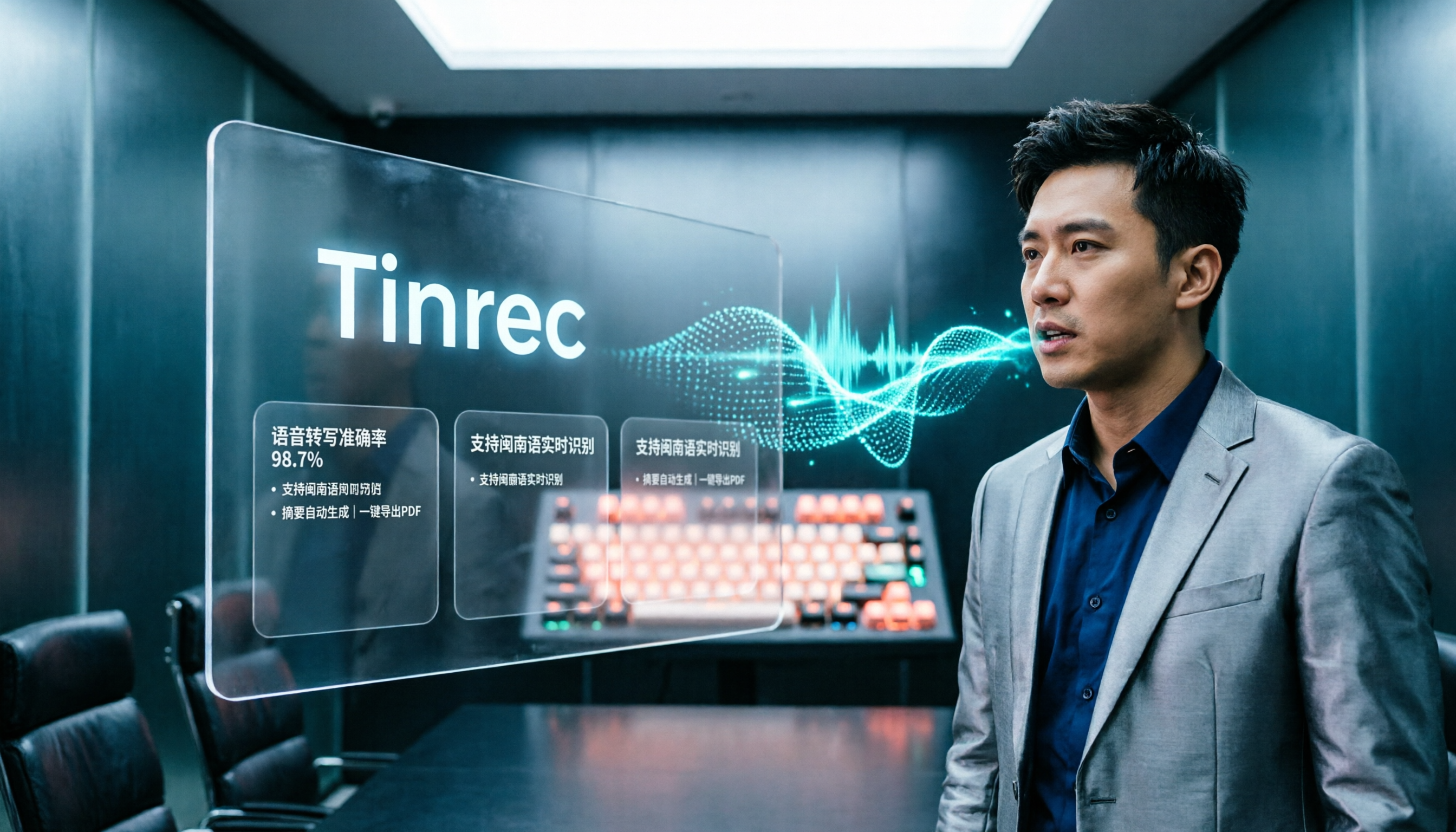
Best Taiwanese Hokkien Input Methods in 2026: 5 Tested, Speaking Beats Typing for Meeting Notes
Most people get stuck on Tâi-lô romanization and tones, so they install a Taiwanese Hokkien input method but end up typing Mandarin instead. This article tests the Ministry of Education Taiwanese Hokkien Hanzi input method, PhahTaigi, RIME, and built-in mobile keyboards, covering 4 key buying factors and 3 common pitfalls. It also explains how using Tinrec to record first and organize later can save effort in meetings and interviews.

Best Free Audio-to-Text Tools in 2026: 6 Real-Time Transcription Apps Compared
How to choose a real-time audio-to-text tool? This guide compares 6 free and paid options—from online meeting recording without a bot, bilingual live transcription, to post-meeting summaries, action items, and team knowledge retention—with free quotas and pricing details to help you decide which one is worth your time.

Free Audio-to-Text Solutions in 2026: 6 Tools Compared + AI-Generated Meeting Minutes
Tired of replaying recordings and typing every word after a meeting? This guide reviews six free audio-to-text solutions in 2026—Tinrec, MyEdit, Monica, Notta, TurboScribe, and Granola—covering free quotas, supported languages, pricing, and ideal users to help you pick the right tool and avoid overtime transcription.
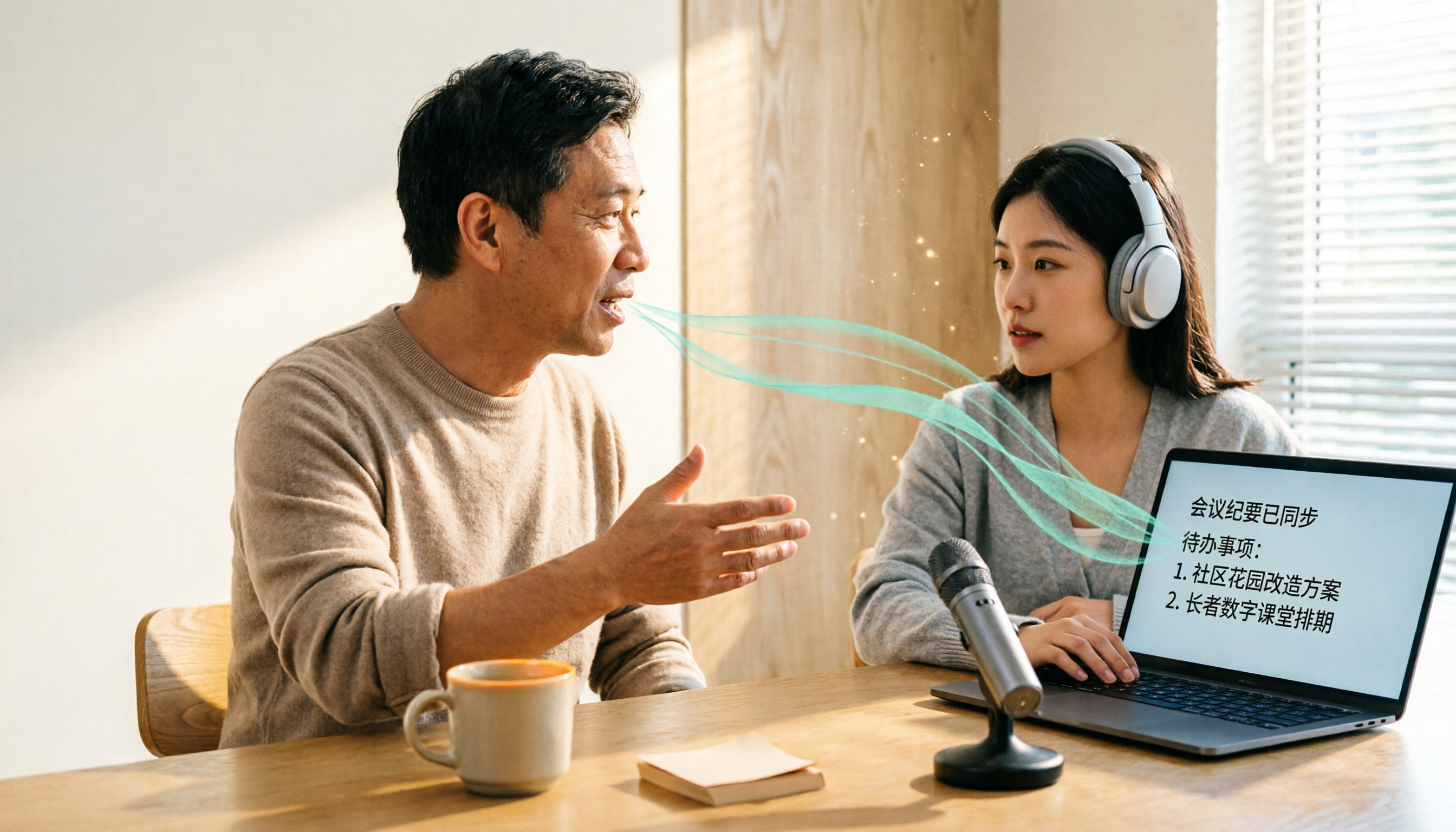
How to Do Dialect Speech Recognition in 2026: A 5-Step Practical Guide
Dialect speech recognition isn't solved by buying a tool with a 'supports dialects' label. This article starts with common misconceptions, breaks down 4 key purchasing criteria, tests Tinrec's Chinese meeting workflow, compares Otter.ai, Notta, and Granola in positioning and pricing, and concludes with scenario-based recommendations.
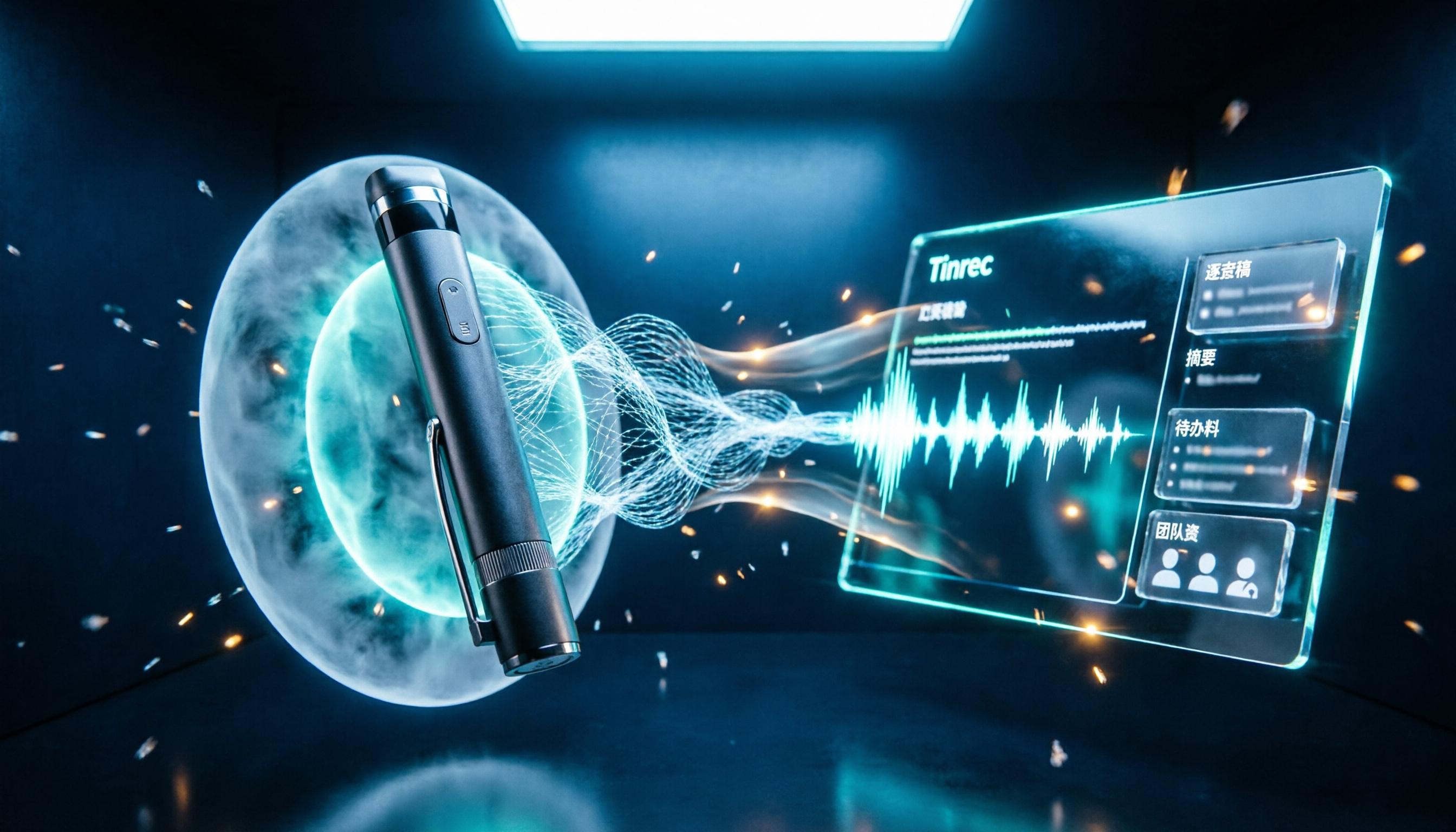
2026 Voice Recorder Noise Cancellation Guide: 3-Layer Tech + AI Post-Recording Organization
Noise cancellation for voice recorders isn't just about levels. This article breaks down the three layers of noise reduction—physical isolation, hardware DSP, and AI algorithms—and explains what to look for when buying: microphones, formats, battery life, and post-recording organization. It also shows how Tinrec turns recordings into transcripts, summaries, action items, and team data.

2026 Comparison of 4 Taiwanese Speech-to-Text Tools: Accuracy Isn't Everything—Look at Post-Meeting Workflow First
Starting from a real interview recording mixed with Mandarin and Taiwanese, this article compares the actual workflows of Tinrec, Otter.ai, Yating Transcription, and TurboScribe for Taiwanese speech-to-text. It goes beyond transcription to examine automatic summarization, action item extraction, follow-up questions, and suitability for team knowledge retention.

Tinrec vs Notta 2026: 5-Dimension Comparison — Which Is Better for Dialect and Multilingual Meeting Notes?
The real challenge with dialect translation isn't just getting a translation — it's keeping it, searching it, and handing it off. This article compares Tinrec and Notta across five practical dimensions, explains how to choose a tool for mixed-language meetings, how to avoid common transcription mistakes, and includes a step-by-step starter checklist you can follow.