

Turn recordings into transcripts and summaries in minutes
Upload audio or video for multilingual transcription, AI notes, and action items
Before Sharing Your Screen, Determine Which Type of Meeting You're Solving For
The biggest fear in remote meetings isn't unstable internet—it's 'I can't see what you're referring to on the screen.'
Whether you're presenting to clients, reviewing documents with colleagues, or demonstrating operations in an online class, Google Meet's screen sharing feature can help. But many people get stuck at the first step: should you share your entire screen, a single window, or a Chrome tab?
The choice among these three modes directly determines whether your presentation goes smoothly. Choosing the wrong mode can lead to common meeting mishaps like notifications popping up, switching to the wrong screen, or audio not playing.
This guide takes you through the sharing steps for both desktop and mobile in the most straightforward way, and addresses the most frequently asked questions.
Before Sharing, Understand These 3 Key Choices
Sharing your screen in Google Meet isn't as simple as 'pressing a button'—the key is which mode you select.
Entire Screen: Ideal for Presentations That Require Switching Between Multiple Programs
If you need to switch back and forth between presentation software, browsers, and documents, 'Entire screen' is the most reliable choice. The meeting will display everything on your screen, including the desktop, taskbar, and all open windows.
Note: Notifications will also be visible. If you don't want participants to see LINE or email notifications, enable 'Do Not Disturb' mode before sharing.
Single Window: Best for Showing Only One Application
If you only need to display a specific software, such as PowerPoint or Excel, 'Single window' limits the share to that window, and other windows won't appear in the meeting.
The advantage of this mode is higher privacy: when you switch to other windows, participants only see the window you're sharing, not any other content behind it.
Chrome Tab: The Only Option That Can Simultaneously Share Audio
If you're playing a video, audio in a presentation, or any content that requires 'sound,' 'Chrome tab' is the only viable choice.
Key reminder: When sharing a tab, you must check 'Also share tab audio'; otherwise, participants will only see the picture without hearing the sound. This detail is often overlooked and is the most common reason for 'no audio in videos' during meetings.
Google Meet Screen Sharing: Step-by-Step Guide for Desktop
The desktop version is currently the most feature-complete platform. The following steps apply to mainstream browsers like Google Chrome and Edge.
Step 1: Join or Start a Meeting
Open Google Meet, choose 'Start an instant meeting,' or join a scheduled meeting via a meeting code or link.
Step 2: Click 'Present now' in the Bottom Toolbar
At the bottom of the meeting screen, there's a control bar. Find the 'Present now' button (the icon is a screen with an arrow). Clicking it will bring up three options:
- Your entire screen
- A window
- A tab
Step 3: Choose What to Share and Confirm
After selecting one of the modes, the system will list available screens, windows, or tabs. Click the item you want to share, then press 'Share.'
If it's your first time, the browser will prompt for permission. Make sure to click 'Allow'; otherwise, screen sharing will fail.
Step 4: Stop Sharing
While sharing, Google Meet will display a 'You are presenting to everyone' indicator at the bottom or side of the screen. To end sharing, click 'Stop presenting' to return to the regular meeting view.
Google Meet Screen Sharing: Step-by-Step Guide for Mobile
The mobile operation logic differs slightly from the desktop version. The following uses Android as an example; the process on iPhone/iPad is largely the same.
Step 1: Open the Google Meet App and Join a Meeting
Enter a meeting from the Google Meet app on your phone, using a code, link, or directly from your calendar.
Stop organizing recordings by hand
Upload audio or video and automatically get a transcript, summary, and action items
Step 2: Tap 'More options' in the Bottom Right
In the bottom right corner of the meeting screen, there are three vertical dots (More options). Tap them to bring up the menu.
Step 3: Select 'Share screen'
In the menu, find 'Share screen.' Tap it, and the system will ask if you want to start sharing. After confirming, your phone screen will be fully displayed in the meeting.
Step 4: Stop Sharing
To end sharing, return to the Google Meet app and tap 'Stop sharing.'
On mobile, you share your entire phone screen; you cannot share only a single app. Therefore, it's recommended to turn off unnecessary notifications before sharing to avoid exposing private messages during the meeting.
Can't Share Your Screen? Check These 4 Reasons First
'Why is my share screen button grayed out?' is one of the most common questions from readers.
Reason 1: Browser Permissions Not Granted
When using screen sharing for the first time in Google Chrome or Edge, a permission prompt appears. If you clicked 'Block' at that time, you won't be able to share afterward.
Solution: Click the lock icon on the left side of the address bar, find the 'Screen sharing' or 'Screen capture' permission, and manually change it to 'Allow.'
Reason 2: The Meeting Host Has Disabled Sharing
If you're joining a meeting with a Google Workspace account, the administrator may have restricted screen sharing permissions. Additionally, the meeting host can disable sharing for participants.
In this case, ask the host to check the meeting settings, or try using a personal Google account to test.
Reason 3: Using an Incompatible Browser or Device
Some older browsers or specific devices may not support screen sharing. It's recommended to use the latest version of Google Chrome or Edge and ensure your operating system is up to date.
Reason 4: Mac System Permissions Not Enabled
If you're a Mac user, the system will request 'Screen Recording' permission the first time you share your screen. If you didn't allow it, screen sharing will keep failing.
Solution: Go to 'System Settings' → 'Privacy & Security' → 'Screen Recording,' and make sure Google Chrome or Edge is checked. After changing the setting, restart the browser.
7 Common Questions About Screen Sharing
1. When sharing my entire screen, can participants see my notifications?
Yes, they can. Entire screen mode shows everything on your screen, including pop-up message notifications. It's recommended to enable 'Do Not Disturb' before sharing, or switch to 'Single window' mode.
2. Why is there no audio when sharing a video?
Because you selected 'Entire screen' or 'Single window.' To let participants hear audio from a video or presentation, you must choose 'Single tab' mode and check 'Also share tab audio.'
3. Can I share only one app from my phone?
No. The Google Meet mobile app shares your entire phone screen; you cannot share only a single application.
4. When sharing my screen, can others see my mouse cursor?
Yes, they can. Your mouse cursor will be displayed in real-time in the shared screen, making it easy to point out key information or guide participants.
5. Can I share my screen and keep my camera on at the same time?
Yes. Sharing your screen does not turn off your camera; participants will still see your video feed on the side of the screen.
6. Does screen sharing affect meeting recording?
Meeting recordings will include the content you share. If you open sensitive documents during sharing, they will also be recorded. Before sharing, make sure the content is appropriate to be saved.
7. Does Google Meet screen sharing require payment?
No. You can use screen sharing with a free Google account; there's no need to upgrade to Google Workspace. However, if you're a Workspace user, your administrator can set sharing permissions.
Summary: Think About What You Want to Share First, Then Choose the Mode
The core of Google Meet screen sharing isn't 'how to click,' but 'which one to choose.'
In simple terms:
- Need to switch between multiple programs → Choose 'Entire screen'
- Only show one app without exposing other content → Choose 'Single window'
- Need to play video or presentation audio → Choose 'Single tab' and check 'Share tab audio'
On mobile, there's only one mode: 'Share entire screen.' It's suitable for quickly showing your screen, but privacy control is less granular than on desktop.
If screen sharing keeps failing, first check browser permissions, meeting settings, and system screen recording permissions—this usually resolves most issues.
Next time before a meeting, take 10 seconds to think about the type of content you'll share, and you can avoid awkward situations like 'no audio in videos' or 'notifications popping up.'
References
Turn every recording into actionable outcomes
Get 60 free transcription minutes when you sign in. No credit card required.
Related Reading
You might also like

Google Meet on Laptop in 2026: Can You Join Meetings Without Downloading an App?
Do you really need to download an app to use Google Meet on a laptop? This hands-on guide tests the web version and PWA installation process, covering everything from creating and joining meetings to screen sharing and recording, plus a complete tutorial and FAQs for using Google Meet on a laptop.

Google Meet Meeting Notes 2026: How to Auto-Transcribe and Get AI Summaries Without Bots
Tired of taking manual notes during Google Meet? This guide shows you how to use a bot-free desktop recording method to turn Meet meetings into transcripts, summaries, and action items in real time, and organize them into searchable, collaborative team resources.
How to Share Your Screen on Google Meet in 2026: Complete Guide for Desktop, Mobile, Audio, and Common Issues
This tutorial provides step-by-step instructions for sharing your entire screen, a single window, or a Chrome tab in Google Meet, covering both desktop and mobile versions, how to configure audio sharing, and common reasons why the share option might be missing.
The Complete Guide to Google Meet Companion Mode in 2026: Hybrid Meeting Participation Features and a 5-Step Setup Tutorial
What is Google Meet Companion Mode? This article fully explains Companion Mode's features, use cases, and setup steps, helping meeting room and remote participants interact fairly in hybrid meetings, and compares AI meeting notes tools suitable for teams.
How to Share Screen with Audio on Google Meet in 2026: 3 Methods Explained
Want to share your screen with audio on Google Meet? This guide covers three ways to share audio—using a Chrome tab, your entire screen, and the Android app—plus common troubleshooting tips and settings advice for smooth playback of videos, music, or presentation sounds.
How to See All Participants in Google Meet in 2026: Switch Layouts and View Everyone During Presentations
If you can only see a few people during a Google Meet call, it's not your imagination—it's your layout settings. This guide walks you through the simplest steps to find all participants on both desktop and mobile, and explains how to keep everyone visible while presenting, so you never miss a face during meetings or interactive sessions.

How to Buy Google Meet Premium in 2026? 3 Upgrade Paths Compared: Which Is the Best Deal?
Want to buy Google Meet Premium but don't know where to start? This article covers 3 practical upgrade paths, compares Google Workspace vs. Google One Premium, eligibility limits, and use cases to help you decide which fits your needs best.
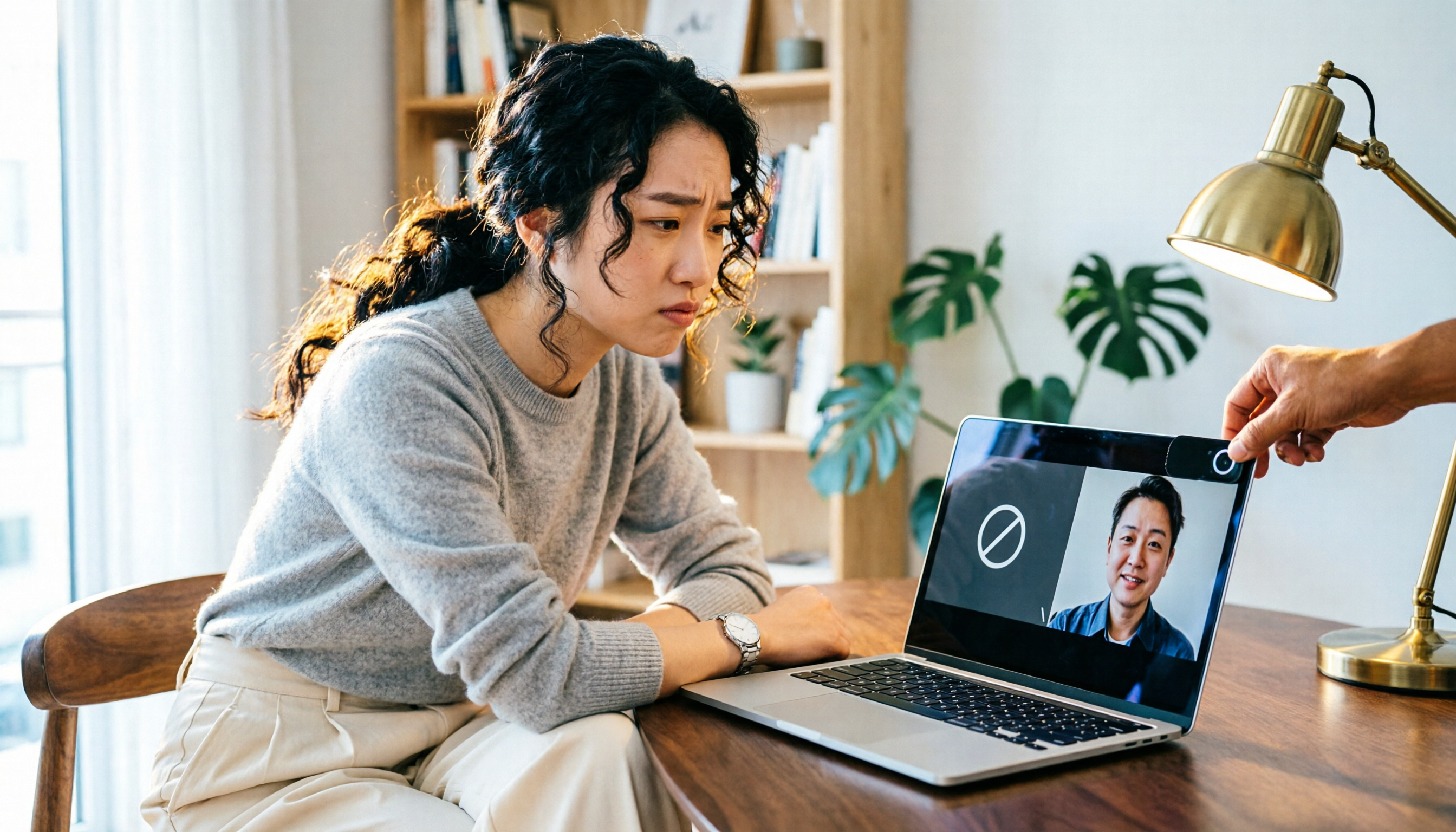
How to Fix Google Meet Camera Not Working in 2026: 8-Step Complete Guide
Is your Google Meet camera not opening, showing a black screen, or displaying an access error? This article covers 8 practical steps, from browser permissions and hardware acceleration to camera privacy switches and system settings, to help you troubleshoot and restore normal video.
How to Change Your Name in Google Meet in 2026: Update Your Display Name Instantly
Want to change your name in Google Meet but can't find the rename button? This guide explains why Meet doesn't have a built-in rename feature, how to update your display name from your Google account, and alternative options if you'd rather not change your account name.