

Turn recordings into transcripts and summaries in minutes
Upload audio or video for multilingual transcription, AI notes, and action items
Mid-Meeting Realization: The Button Is Gray
Recently, I was in an online product discussion with a startup team. The host was using Google Meet, and partway through, he said, "Let me hit record—give me a second."
But the record button was grayed out.
He paused, tried switching screens, refreshed the page, but it still wouldn't work.
The meeting went on, but the key decisions were never captured.
That's when I realized: many people assume Google Meet recording is a simple "flip the switch" feature, but in reality, it depends on your account plan, meeting host permissions, admin settings, and even storage space.
If you don't understand these limitations, the record button will disappear exactly when you need it most.
So in this article, I want to walk through real-world scenarios: how to actually use Google Meet recording, where the limits are, and what you can do to truly preserve meeting content when built-in recording isn't suitable.
What Can Google Meet Recording Do for You?
Let's start with the bottom line: if you're eligible, Google Meet recording's most direct value is turning your meeting into a replayable file.
Scenario 1: Catching Up on What You Missed
Team members might miss part of a meeting due to time zones or unexpected conflicts. Recording lets them watch later without relying on someone else's recap.
Scenario 2: Preserving the Decision-Making Process
During meetings, you discuss why you chose Plan A over Plan B. Without recording, only the final decision remains—the reasoning behind it fades away.
Scenario 3: Interview and Research Material
If you use Meet for user interviews or expert interviews, recording preserves the full context, which you can later turn into transcripts or key takeaways.
But here's the catch: Google Meet recordings are video files, not text.
That means after recording, you still need to spend time replaying, finding key points, and compiling meeting notes.
If what you want is "after the meeting, the transcript and action items are already organized," then built-in Meet recording won't help.
I'll come back to this later.
The Core Limitation of Google Meet Recording: Not Everyone Can Hit Record
Google Meet's recording feature requires several conditions to be met simultaneously.
Condition 1: Your Account Plan Must Be Eligible
According to Google's official documentation, not all accounts can use the recording feature.
Free personal Gmail accounts cannot use Meet's built-in recording.
You need a qualifying Google Workspace edition or an eligible Google One plan.
So if you're using a personal account, the record button simply won't appear.
Condition 2: You Need the Right Host Permissions
Even if your account is eligible, not every participant can record.
When "Host management" is enabled, only the meeting host or those promoted to co-host can start recording.
If the host hasn't granted permission, others won't even see the button.
Condition 3: Your Organization's Admin Must Enable Recording
If you're using a company or school Workspace account, admins can disable recording in the admin console.
Once disabled, even if your account plan is eligible, you won't be able to record.
Condition 4: You Need Google Drive Storage Space
Recording files are automatically saved to the meeting host's Google Drive, in the "Google Meet" folder.
If Drive storage is full, recording may fail.
Additionally, Google Workspace admins can set a retention period for recording files, with a default of three months.
That means recordings won't stay in Drive forever—they might be automatically deleted after the retention period.
When Built-In Google Meet Recording Isn't Right: An Alternative Approach
When I'm organizing meeting notes, the issue I often face isn't "can I record?" but "what do I do after recording?"
Google Meet's built-in recording gives you a video file.
You have to replay it, find the key points, and write up the notes yourself.
A one-hour meeting might take another half hour to review and summarize.
So my approach now is to use Tinrec for Google Meet meetings.
Tinrec's desktop app can capture your computer's system audio directly, without adding an extra bot to the meeting.
That means the meeting proceeds normally in Google Meet, and participants won't see a strange new attendee.
But Tinrec works in the background, converting meeting audio into text and generating a real-time transcript.
By the time the meeting ends, the transcript, summary, key points, and action items are already organized.
Stop organizing recordings by hand
Upload audio or video and automatically get a transcript, summary, and action items
I don't need to replay the video to find the important parts.
(Screenshot here: Tinrec desktop app recording a Google Meet session, with an arrow pointing to the real-time transcript area)
My Real-World Workflow with Tinrec for Google Meet
My process is simple, in three steps.
Step 1: Open Tinrec Desktop Before the Meeting
First, make sure Tinrec is set to capture system audio so it can pick up Google Meet's sound.
Then hit record.
Tinrec doesn't join the meeting—it just works on your own computer.
Step 2: Let It Transcribe in Real Time During the Meeting
As the meeting progresses, Tinrec transcribes audio to text on the fly.
You don't need to watch it constantly, but it can help you confirm nothing important is missed.
If the meeting mixes Chinese and English, Tinrec handles that too.
Step 3: Ask for Key Points Right After the Meeting
Once recording stops, you can directly ask Tinrec: "What was the conclusion of this meeting?" "What issues did the client raise?" "Who's responsible for which action items?"
It answers based on the meeting content, so you don't have to dig through the transcript yourself.
(Screenshot here: Tinrec's AI Q&A interface, with the question "What are the action items from this meeting?" and an arrow pointing to the generated result)
Why I Don't Use Google Meet's Built-In Recording for Meeting Notes
It's not that Meet recording is bad.
Its value lies in preserving full audio and video, which is great for scenarios where you need to review visuals, tone, or facial expressions.
But if what you need is "meeting minutes," then a video file is just raw material, not the final product.
What you really need are transcripts, summaries, and action items.
That's exactly what Tinrec does.
Plus, Tinrec's data doesn't depend on Google Drive storage, and it won't disappear due to admin-set retention policies.
Recordings and transcripts stay in Tinrec's team space or personal account, so you can search and ask questions anytime.
4 Things to Consider When Choosing a Meeting Recording Tool
If you're evaluating how to record Google Meet meetings, here are the aspects I'd recommend you look at.
1. Can You Quickly Find Key Points After Recording?
Recording is just the first step.
If you still spend a lot of time replaying to find key points, the tool isn't saving you time.
Tinrec's AI summaries and AI Q&A let you ask for key points directly, without replaying line by line.
2. Will It Disrupt the Meeting?
Some meeting recording tools join as a bot, so participants see an unfamiliar attendee.
If you don't want an extra "participant" in your meeting, Tinrec's desktop no-bot recording is a more natural choice.
3. Quality for Chinese Meetings
Many meeting tools have strong English support, but not all handle Chinese or mixed-language meetings well.
Tinrec offers more complete support for Chinese and Traditional Chinese meetings, including real-time translation and bilingual transcripts.
4. Can Meeting Data Accumulate Over Time?
If you only record occasionally, it's fine to record and forget.
But if you want to search past meetings, track action items, and share with your team, you need a tool that can build a knowledge base.
Tinrec's team space centralizes meeting data, and it stays even if a team member leaves.
Frequently Asked Questions
Why Can't I Hit Record in Google Meet?
The most common reason is that your account plan isn't eligible. Free personal Gmail accounts can't use Meet's built-in recording. It could also be that the host hasn't granted recording permission, or your organization's admin has disabled the feature.
Where Does Google Meet Recording Save?
Recordings are automatically saved to the meeting host's Google Drive, in the "Google Meet" folder. Once recording is complete, the system sends a link to the host and the person who started the recording.
How Long Can I Record in Google Meet?
Recording length is affected by available Google Drive storage and organizational settings. If storage is insufficient, recording may be interrupted or fail.
Is There an Alternative If I Don't Have Google Meet Recording Access?
Yes. You can use Tinrec's desktop app to capture your computer's system audio, recording Google Meet meetings without a meeting bot, and generating real-time transcripts.
Does Google Meet Recording Automatically Transcribe?
Google Meet's built-in recording produces a video file, not structured meeting notes. If you need transcripts, summaries, and action items, you'll need to handle that separately or use a tool like Tinrec.
Summary: Decide Whether You Want "Video" or "Meeting Minutes"
Google Meet recording is a useful feature, but it solves the problem of "preserving audio and video."
If what you need is "quickly knowing what was discussed and who's doing what," then a recording is just the starting point, not the finish line.
My advice: first, clarify your actual needs.
If you only occasionally need to review visuals, Google Meet's built-in recording is enough.
If you have meetings to organize every week, need to track action items, and share with your team, then try using Tinrec to generate meeting minutes directly—it's a more efficient approach.
You don't have to give up Meet; you just need a tool alongside it that turns meetings into data.
References
Turn every recording into actionable outcomes
Get 60 free transcription minutes when you sign in. No credit card required.
Related Reading
You might also like

4 Audio-to-Text Tools Tested: Which Saves More Time on Chinese Meeting Notes and Post-Meeting Cleanup in 2026?
Audio-to-text tools shouldn't just turn speech into text—they should quickly produce usable meeting notes. Based on real workflows, this article explains how Tinrec handles Chinese meetings, bot-free online meeting recording, AI Q&A, team spaces, and buying considerations, helping you decide if the free version is enough and whether the team version is worth evaluating.

How to Choose a Cantonese Speech-to-Text App in 2026: 5-Step Hands-On Comparison
This article compares Tinrec and Subanana across 5 dimensions—input sources, Cantonese colloquial handling, post-meeting organization, team collaboration, and export/integration—to help you decide between a pure Cantonese transcript tool and a meeting workflow solution.

Tinrec vs Notta 2026: 5-Dimension Comparison — Which Is More Reliable for Chinese Meeting Transcription?
Starting from common misconceptions about audio-to-text accuracy, this comparison evaluates Tinrec and Notta across five dimensions and explains the suitable scenarios for Otter.ai and PLAUD Note, helping you choose the right tool for Chinese meetings and team collaboration.

5 Best Chinese-English Real-Time Translation Tools in 2026: Free vs Paid Comparison
A comparison of 5 Chinese-English real-time translation tools in 2026, from free text translation and meeting voice translation to AI meeting note tools that generate transcripts and action items, helping you choose based on your use case.

How to Transcribe Korean Audio to Text in 2026: A Complete 5-Step Guide
Korean audio transcription is more than just converting speech into words. This guide walks you through 5 steps to turn Korean meeting, interview, and course recordings into transcripts, summaries, and action items, and covers the key factors to consider when choosing a tool—language support, audio file retention, export options, and team permissions—using Tinrec as a practical workflow example.

2026 English Speech-to-Text Tools Tested: Which One Turns Transcripts Into Usable Data?
How do you choose an English speech-to-text tool? Starting from common pitfalls, this hands-on comparison tests Tinrec, Otter.ai, Notta, and TurboScribe, covering five key buying factors: audio sources, post-meeting organization, mixed Chinese-English speech, free quotas, and team data ownership, plus a pitfalls guide and scenario-based recommendations.

4 Phone Recording-to-Text Solutions Tested for 2026: Which Offers the Most Free Minutes and Best Post-Meeting Organization?
Starting from the three most common mistakes students make, this hands-on comparison tests four phone recording-to-text solutions and explains how Tinrec turns classroom and group meeting recordings into searchable, queryable, exportable transcripts and action items. It also covers free quotas, pricing, and what students should consider when choosing a tool.
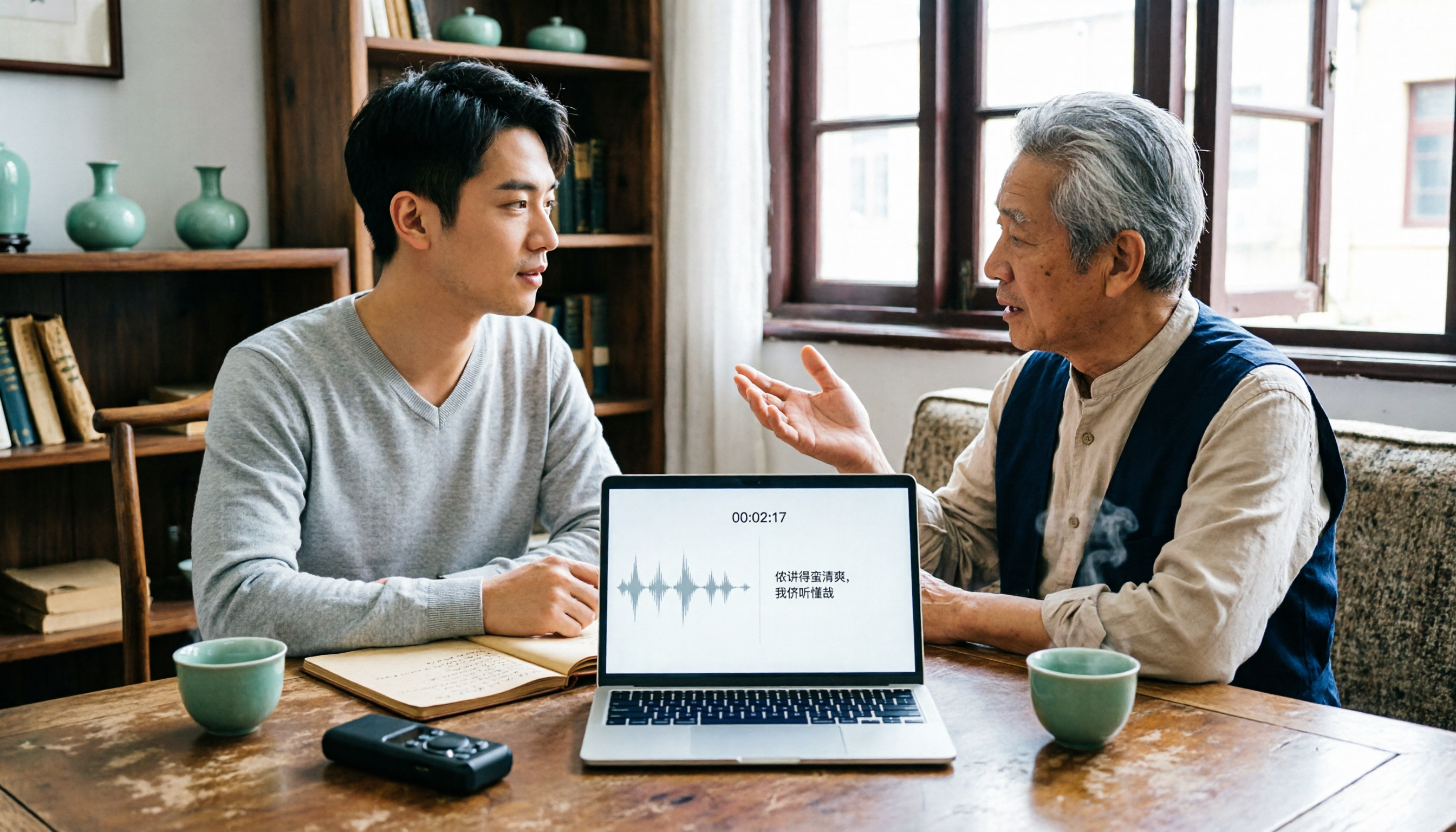
2026 Tested: 3 Shanghainese Speech-to-Text Tools Compared — The Least Painful Way to Process Dialect Interviews
There's no one-size-fits-all answer for transcribing Shanghainese. Instead of hunting for a tool that "supports dialects," change your workflow. This article covers four key points — assessing your recording's language mix, checking timestamps, post-meeting follow-up questions, and preserving team data — and tests Tinrec, Notta, Granola, and Otter.ai on mixed-language interviews, plus the 4 most common buying mistakes.

5 Best Korean Speech-to-Text Tools in 2026: Free vs Paid Comparison
After a one-hour Korean meeting, do you spend three hours organizing the transcript? This article compares five Korean speech-to-text tools: Tinrec, Musely, UniScribe, TurboScribe, and Notta. It breaks down honorific level handling, post-meeting summaries and action items, input sources, team collaboration, and free tier limits, with a guide to avoid pitfalls and scenario-based recommendations to help you find the one that truly saves time.