

Turn recordings into transcripts and summaries in minutes
Upload audio or video for multilingual transcription, AI notes, and action items
What You Need Isn't Just a "Video Link"—It's a Meeting Plan That Won't Time Out or Kick You Out
Many people assume Google Meet is simply "free video calling."
But once you actually use it, you'll find that the free version has time limits, participant caps, and often lacks recording and AI features.
If you're an employee, freelancer, or part of a small to medium business, the real question isn't "Does Google Meet cost money?" but rather: Is the free version enough? And what does the paid version actually add for the extra cost?
This article breaks down Google Meet's 2026 pricing structure, from the free tier to Enterprise, so you can see all the details without any hidden limitations or pushy upsells.
Before Diving into Google Meet Costs, Keep These 4 Key Points in Mind
1. You Can't Buy Google Meet as a Standalone Product
This is the most common misconception.
Google Meet doesn't have a "Meet-only subscription." Its paid features are bundled into Google Workspace plans.
In other words, what you pay for isn't just Meet—it also includes Gmail for business, Google Drive storage, Docs, Sheets, and the whole suite of tools.
So, deciding whether to pay isn't just about "I need better video features." You also need to consider whether you want to upgrade your work email and cloud storage as well.
2. The Biggest Differences Between Free and Paid Aren't About Video Quality
The video quality on Google Meet's free version is actually pretty good.
The real differences come down to three things: meeting duration, recording capabilities, and AI summaries/Gemini features.
If you're just video chatting with friends for 20 minutes a week, the free version is more than enough.
But if your meetings regularly exceed an hour, or you need to review recordings or get automatic summaries afterward, the free version will start to hold you back.
3. Pricing Varies Between Annual and Monthly Billing
Google Workspace's list prices are typically based on annual billing; monthly billing is slightly more expensive.
For example, Business Starter saw a price adjustment after 2025 when Gemini AI was added, landing around $7 per user.
When you see old prices online, double-check whether they're for annual or monthly billing and whether Gemini is included.
4. The Logic Behind Paying Differs for Individuals vs. Businesses
If you're a solo user, Google Meet's free version or a Google One add-on is usually sufficient.
But if you're a company or team that needs shared cloud storage, member permission management, and centralized meeting recordings, you'll need to look at Workspace team plans.
First, clarify whether you're an "individual user" or a "team buyer." That will make the plan selection much clearer.
Google Meet Free Version: No Cost, but Be Aware of These 3 Limitations
The free version of Google Meet is available with just a Google account, suitable for casual video calls, quick chats, and one-on-one meetings.
Here's what the free version includes:
- Up to 100 participants.
- Meetings capped at 60 minutes.
- No meeting recording.
- No AI summaries, Gemini assistance, or other advanced features.
Honestly, the 100-person limit is plenty for most small meetings.
The real pain point is the 60-minute limit.
For project discussions, client meetings, or online classes that go over an hour, the meeting automatically ends, and everyone has to rejoin—a terrible experience.
If you only meet occasionally, the free version is fine. But if you have long meetings every week, don't force yourself to stick with the free tier.
Google Meet Paid Plans: Costs and Differences Across 4 Workspace Subscriptions
Google Meet's paid features are tied to Google Workspace, which currently offers four main tiers: Starter, Standard, Plus, and Enterprise.
The prices below are based on common 2026 annual list prices; actual amounts may vary by region, currency, and Google's official adjustments.
Business Starter: Entry-Level for Small Teams, ~$7/User/Month
This is the most affordable paid option.
It includes 100-person meetings, longer meeting durations, meeting recording, and a 99.9% uptime guarantee.
Stop organizing recordings by hand
Upload audio or video and automatically get a transcript, summary, and action items
Since 2025, Gemini AI has been included in Workspace plans at no extra cost.
If you're a small team that wants recording and AI summaries without jumping to a higher price point, Starter is a reasonable starting place.
Business Standard: The Most Commonly Recommended Sweet Spot, ~$14/User/Month
Standard offers more cloud storage, higher participant limits, and more comprehensive recording and management features compared to Starter.
For a 100-person team, that's roughly $16,800 per year with annual billing, but most SMBs won't purchase that many seats at once.
This plan suits teams that need reliable recording, longer meetings, and cross-departmental collaboration.
Business Plus: Consider Only When You Need Stronger Governance and Compliance
Plus builds on Standard by adding advanced security management, device management, and retention policies.
If you're just here to find out "how much Google Meet costs," you usually don't need to jump straight to Plus.
Starter and Standard are enough for most cases.
Enterprise: For Large Organizations and Custom Needs
Enterprise doesn't have a public fixed price; you typically need to contact Google's sales team for a quote.
It offers even higher participant limits and more comprehensive management and compliance capabilities.
Unless you're an organization with hundreds of employees, you likely won't need this tier.
How to Choose Google Meet Pricing: 4 Scenarios to Guide You
Scenario 1: You Only Video Chat Occasionally
Just go with the free version.
The 60-minute limit won't affect personal calls much, and there's no need to pay a monthly fee for occasional use.
Scenario 2: You Need AI Meeting Summaries Personally, but Your Company Doesn't Use Workspace
In this case, you don't necessarily have to buy Workspace.
Since Workspace bundles everything together, if you only want meeting summaries, AI notes, and transcripts, a standalone AI meeting tool might be more flexible.
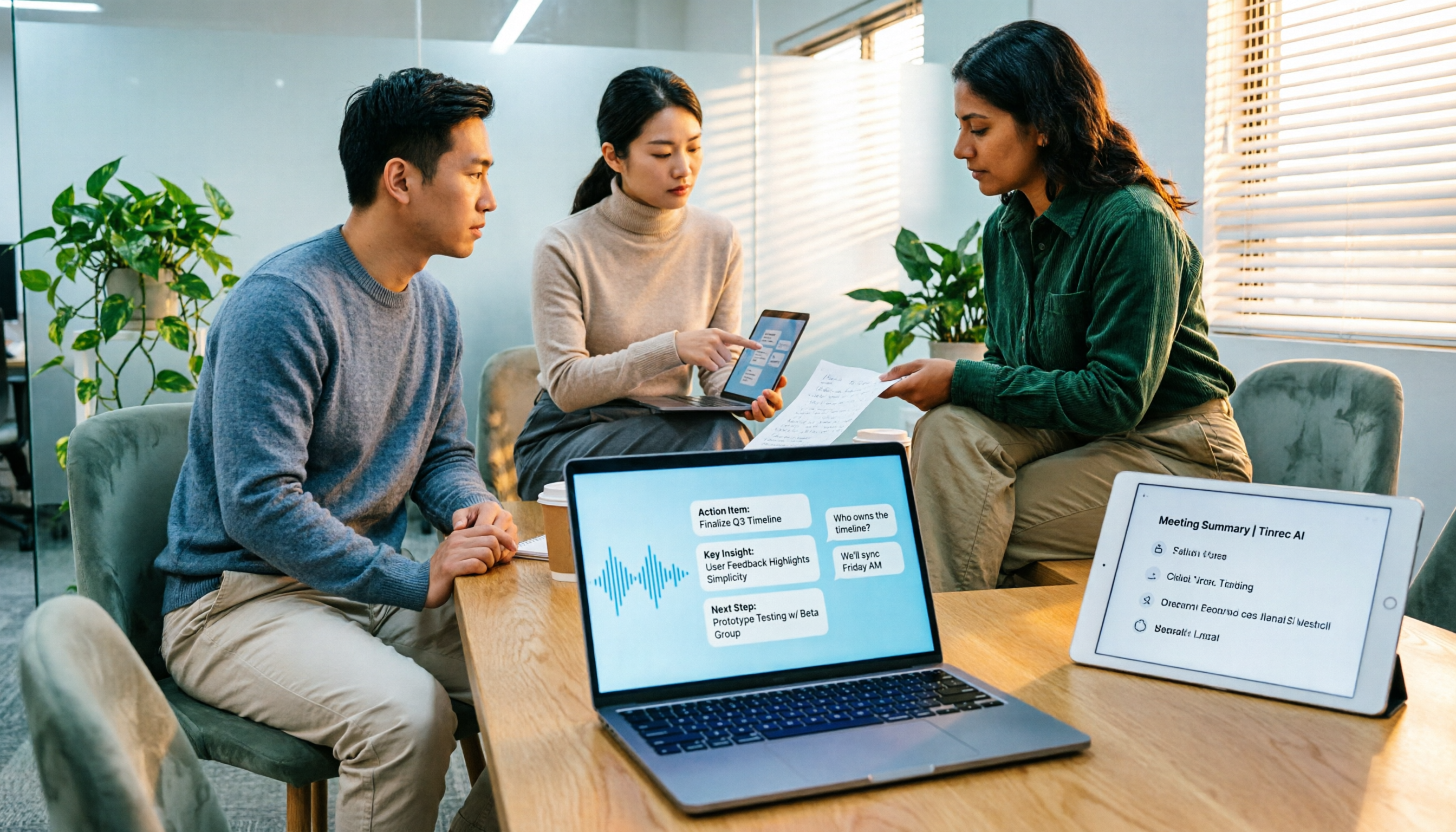
For example, tools like Tinrec can process system audio from Google Meet, Zoom, and Teams without requiring a bot to join your meetings, and they can turn recordings into summaries, action items, and searchable data.
If you don't want to upgrade your entire Workspace just for meeting features, this is a viable alternative.
Scenario 3: Small Teams Need Recording and Shared Meeting Materials
Start with Business Starter.
If your recording needs are consistent and cloud storage is sufficient, Starter is the lowest-cost entry point.
But if your team has frequent meetings and large file volumes, compare the total cost of Standard versus "Starter plus a third-party meeting assistant tool."
Sometimes, the money you'd spend on a Workspace upgrade could be better used on meeting organization and team knowledge bases.
Scenario 4: Your Company Already Uses Google Workspace
Then just check your current subscription tier to see if Gemini and Meet recording are already included.
In most cases, Business Standard is the most common choice for SMBs in the U.S.
Pitfall Guide: 3 Common Mistakes When Evaluating Google Meet Costs
Mistake 1: Assuming "Google Meet Is Free" Means All Features Are Free
The free version lets you have meetings, but that doesn't mean you get recording, AI summaries, or unlimited meeting lengths.
Many users only realize after an hour-long meeting that there's no recording, leaving them to rely on memory—wasting even more time.
Mistake 2: Thinking That Paying for Workspace Automatically Gives You Full Transcripts and AI Organization
Workspace's Gemini provides summaries and assistance, but it's not a comprehensive meeting organization tool.
If you need full transcripts, action item tracking, or cross-meeting Q&A, you'll still need to pair it with a dedicated tool.
Mistake 3: Not Checking Whether Prices Are Annual or Monthly
Google Workspace's monthly billing is usually more expensive than annual.
If you're purchasing for a company, confirm whether the quote is annual or monthly and whether Gemini is included, so you don't estimate based on outdated prices or the wrong currency.
Summary: How Much Does Google Meet Actually Cost?
The simplest answer is:
- Occasional personal use: $0.
- Small teams needing recording and AI: from ~$7 per user/month.
- Sweet spot for most SMBs: ~$14 per user/month.
- Large organizations: contact Google for a quote.
If you just need to hold meetings, the free version is plenty.
But if what you really need is "no more spending two hours after each meeting to compile notes," then the focus isn't just on Google Meet's subscription cost—it's about whether you're turning meeting data into searchable, trackable, and collaborative assets.
Start with the free version, assess your meeting frequency and note-taking needs, and then decide whether to upgrade to Workspace. That's the most cost-effective approach.
References
Turn every recording into actionable outcomes
Get 60 free transcription minutes when you sign in. No credit card required.
Related Reading
You might also like

4 Best Speech-to-Text Tools in 2026: Chinese Recognition, Free Tiers, and Post-Meeting Organization Compared
Many people confuse speech-to-text with text-to-speech and don't realize phone dictation can't process existing recordings. This article breaks down 4 key purchasing factors and compares Tinrec, Notta, Otter.ai, and PLAUD NotePin on positioning, quotas, and post-meeting organization, plus 3 common pitfalls to help you choose the right tool within budget.
3 Speech-to-Text SDK Paths Compared for 2026: 3 Pitfalls to Avoid Before Building Your Own API Integration
A speech-to-text SDK is not a one-size-fits-all solution. Starting from common pitfalls, this article breaks down the applicable boundaries of Google Cloud Speech-to-Text, Azure Speech SDK, and Otter.ai, then explains how Tinrec fills the post-meeting organization gap with desktop bot-free recording, AI Q&A, and team spaces when you don't want to maintain your own service.

How to Use WeChat Voice-to-Text in 2026: 3-Step Guide + Practical Solutions for Long Meeting Transcripts
How do you use WeChat voice-to-text? This guide starts with hands-on steps: long-press a voice message to convert it to text, use voice input and say "over over" to send automatically, and understand its real limits in long meetings and interviews. It then explains four decision points—length, output, history search, and team sharing—to help you decide when to switch to an AI meeting notes tool like Tinrec, with hands-on tips and pitfalls to avoid.

How to Use Online Speech-to-Text in 2026: 5 Steps to Choose the Right Tool and Build a Transcription Workflow
There are many online speech-to-text tools, but the real reason you can't choose is usually not that the tools aren't good enough—it's that you haven't thought through where the text will go after it's produced. This article uses three key questions to help you set direction, then helps you pick the right one from five options: Tinrec, Dictation.io, Google Docs, MyEdit, and Notta. Finally, it gives you a 5-step workflow you can follow directly.

6 Speech-to-Text Tools Tested and Compared in 2026: Which Is Fastest for Chinese Meeting Transcripts and Post-Meeting Summaries?
Using the same criteria, we compare six speech-to-text tools—Tinrec, Otter.ai, Notta, TurboScribe, Granola, and PLAUD—and walk through the full workflow with Tinrec: recording, transcription, proofreading, summary generation, and team knowledge retention. This helps you decide which tool fits your meeting style and budget.

2026 Speech-to-Text API Free Plans Compared: 4 Options to Consider
When looking for a speech-to-text API, the first decision is whether to integrate it yourself or use a ready-made tool. This guide covers four mainstream approaches in 2026, from the free tiers and maintenance costs of Google Cloud, Azure, and AssemblyAI to the no-code Tinrec, plus key selection criteria and four common pitfalls to help you assess your needs before committing engineering resources.

2026 Speech-to-Text Tools Compared: Which Is Fastest for Chinese Meeting Transcripts?
After hands-on testing of 4 speech-to-text tools, here are insights for Chinese meeting organization. From transcript quality, post-meeting summaries and action items, ability to import existing audio files, to team sharing and seat management, we outline selection criteria, test observations, and 3 common pitfalls to help you decide which tool fits your meeting scenario.

2026 Comparison of 5 Audio-to-Text Tools: How Accurate Are They and Where Do They Differ?
How accurate is audio-to-text transcription really? This article addresses three common misconceptions, breaks down the real factors affecting accuracy, and compares Tinrec, Notta, TurboScribe, Otter.ai, and Granola in Chinese meetings, mixed Chinese-English scenarios, and post-meeting organization. It also provides buying criteria and pitfalls to avoid, helping you choose the right tool for your recording situation.

2026 Comparison of 4 Speech-to-Text Tools: Which Is Best for Multilingual Meeting Transcripts?
Meetings mix Chinese and English, sometimes Japanese or Taiwanese, and transcripts always turn into a mess? This article tests and compares four speech-to-text tools—Tinrec, Otter.ai, Granola, and TurboScribe—from four angles: multilingual recognition, post-meeting organization, meeting capture method, and team data ownership, to help you find the one that truly works for your job.