

Turn recordings into transcripts and summaries in minutes
Upload audio or video for multilingual transcription, AI notes, and action items
3 Ways to Record Microsoft Teams Meetings in 2026: Save Transcripts Without a Meeting Bot
Last semester, my study group had to hold an online discussion with students from another department. We scheduled a two-hour Microsoft Teams meeting, but after it ended, we realized no one had remembered to hit record. We had to piece together our conclusions from memory, and the final report felt shaky even to us. Since then, I've been researching how to record Teams meetings and have tried several methods. This article covers three approaches I've actually used, including their limitations, where recordings are saved, and why I've come to rely on the third method most.
Teams Built-In Recording vs. Desktop System Audio vs. Third-Party Tools: A Quick Overview
Here's the bottom line: Teams' built-in recording is the most straightforward but depends heavily on account permissions; desktop system audio recording is the most reliable but requires a separate tool; third-party tools combine "recording" and "transcript organization" in one go. None is universally better—it depends on whether you're the organizer, an internal member, or a guest.
| Comparison | Teams Built-In Recording | Desktop System Audio Recording | Third-Party AI Tools |
|---|---|---|---|
| Main Action | Click record during the meeting | Open a desktop tool to record | Open a desktop tool to record |
| Requires Additional Installation | No | Yes | Yes |
| Guests Can Record | No | Yes | Yes |
| Recording Storage Location | OneDrive or SharePoint | Local drive or tool's cloud | Tool's cloud |
| Automatic Transcript and Summary | Depends on license | Requires manual organization | Usually included |
| Best For | Regular Teams members | Guests or those without recording permissions | Those needing transcripts and organized notes |
Method 1: Teams Built-In Recording: Most Direct, but Most Permission Restrictions
The built-in recording option is in the meeting controls. Just click "More actions" and select "Start recording," and participants will be notified. Once recording starts, Teams captures audio, video, and screen-sharing content.
However, not everyone can hit the record button. Admins must enable the cloud recording policy first; otherwise, you might not even see the option. Guests and external attendees can't start recording by default—only if the organizer explicitly grants permission.
After the meeting, the recording is automatically owned by the organizer. Regular meeting recordings are saved to the organizer's OneDrive, while channel meetings go to the corresponding SharePoint site. By default, only the organizer and co-organizers can download or delete the recording.
The biggest advantage here is that you don't need to install anything extra. But if you're a guest, your school account lacks recording permissions, or you're not the meeting organizer, this method hits a wall. Also, if everyone forgets to stop the recording manually, it ends automatically when everyone leaves; if someone stays connected, the recording may restart every four hours, resulting in multiple clips.
Method 2: Desktop System Audio Recording: Works for Guests, but Not a Native Teams Feature
If you don't have Teams recording permissions, the most common workaround is using a desktop recording tool to capture your computer's system audio. Start the meeting, then open the desktop recording software, select system audio and microphone, and the entire Teams call is saved.
Stop organizing recordings by hand
Upload audio or video and automatically get a transcript, summary, and action items
The upside: guests, external participants, and even those who don't want others to see a recording notification can use this. The downside is obvious: you need to run a separate tool, and the resulting file is just an audio or video clip—no automatic transcript.
I tried this during a group discussion and ended up with a nearly two-hour audio file. When I needed to find a specific part, I had to manually scrub through the timeline, which was painfully tedious. So I started looking for tools that could also transcribe.
Method 3: Third-Party AI Tools: Beyond Recording, Directly Generate Transcripts and Action Items
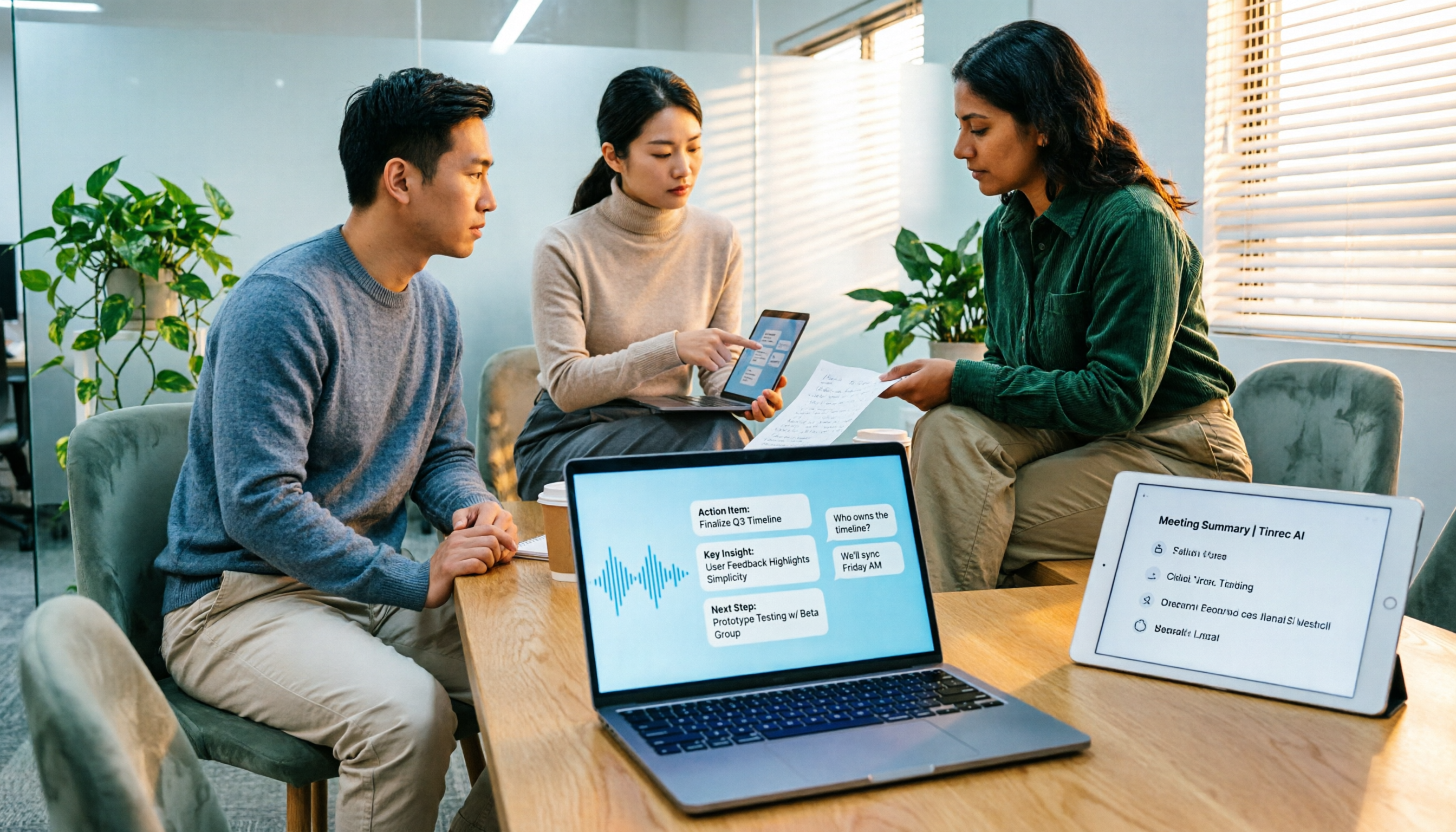
Later, a senior recommended AI meeting note tools like Tinrec. Its desktop version can record Teams meetings via system audio—no meeting bot required, and no need for the organizer to grant extra permissions. This lowers the barrier significantly for those of us who frequently meet with students from other departments or external guests.
My go-to workflow: once the Teams meeting starts, I open the Tinrec desktop app and let it record system audio. It generates a live transcript during the meeting and automatically creates a summary, chapters, and action items afterward. This is a game-changer for me—before, I had to listen to the recording and manually extract key points; now I can just check the action items to see what needs to be done before the next meeting.
This method isn't without trade-offs. The free tier has limited credits, so if you have meetings every week, you might need to consider a paid plan. For students, if you only record important discussions occasionally, the free version is enough to try; for a semester-long group project, splitting a monthly plan is actually cheaper than buying everyone coffee.
One important note: when using any third-party tool to record, you should inform participants in advance and ensure it complies with your school's or internship organization's policies. Don't bypass basic informed consent for convenience.
What Are the Unique Advantages of Each Method?
Teams' built-in recording offers the highest integration—recordings go straight to OneDrive or SharePoint, so no extra file management is needed. If your school or company account has full permissions, this remains the easiest option.
Desktop system audio recording offers flexibility—even as a guest without organizer rights, you can save the meeting. The downside is the time-consuming post-meeting organization.
Third-party tools like Tinrec excel at connecting "recording" with "organization." They don't just save audio; they generate live transcripts, summaries, and action items, and you can even ask AI questions about the meeting content. For students, the most practical benefit is skipping the painful process of listening to recordings to find key points.
Summary: Which Recording Method Should You Choose?
- If you're the meeting organizer, have full account permissions, and just need to save the meeting → Teams' built-in recording is sufficient.
- If you're a guest, lack recording permissions, and only need to save audio/video → Desktop system audio recording works as a stopgap.
- If you need transcripts, summaries, and action items, and don't want to re-listen to two hours of audio → Third-party AI tools are better.
- If you need bot-free recording, Chinese transcripts, and post-meeting organization → Tinrec is more convenient than recording separately and then finding a transcription tool.
In one sentence: Teams' built-in recording solves "can you record," while third-party tools solve "what to do after recording." If you only occasionally save meetings, the built-in feature is enough; if you frequently need to organize meeting notes like I do, try a free version of a third-party tool, test it with your own meeting recordings, and then decide whether to pay.
References
- Start, stop, and find meeting recordings in Microsoft Teams | Microsoft Support
- Record a meeting in Microsoft Teams - Microsoft Support
- 2 Ways to Secretly Record Microsoft Teams Meetings or Group Calls
- Manage recording and transcription options for sensitive Microsoft Teams meetings - Microsoft Teams | Microsoft Learn
- Manage recording policies for Teams meetings and events - Microsoft Teams | Microsoft Learn
Turn every recording into actionable outcomes
Get 60 free transcription minutes when you sign in. No credit card required.
Related Reading
You might also like

4 Best Speech-to-Text Tools in 2026: Chinese Recognition, Free Tiers, and Post-Meeting Organization Compared
Many people confuse speech-to-text with text-to-speech and don't realize phone dictation can't process existing recordings. This article breaks down 4 key purchasing factors and compares Tinrec, Notta, Otter.ai, and PLAUD NotePin on positioning, quotas, and post-meeting organization, plus 3 common pitfalls to help you choose the right tool within budget.
3 Speech-to-Text SDK Paths Compared for 2026: 3 Pitfalls to Avoid Before Building Your Own API Integration
A speech-to-text SDK is not a one-size-fits-all solution. Starting from common pitfalls, this article breaks down the applicable boundaries of Google Cloud Speech-to-Text, Azure Speech SDK, and Otter.ai, then explains how Tinrec fills the post-meeting organization gap with desktop bot-free recording, AI Q&A, and team spaces when you don't want to maintain your own service.

How to Use WeChat Voice-to-Text in 2026: 3-Step Guide + Practical Solutions for Long Meeting Transcripts
How do you use WeChat voice-to-text? This guide starts with hands-on steps: long-press a voice message to convert it to text, use voice input and say "over over" to send automatically, and understand its real limits in long meetings and interviews. It then explains four decision points—length, output, history search, and team sharing—to help you decide when to switch to an AI meeting notes tool like Tinrec, with hands-on tips and pitfalls to avoid.

How to Use Online Speech-to-Text in 2026: 5 Steps to Choose the Right Tool and Build a Transcription Workflow
There are many online speech-to-text tools, but the real reason you can't choose is usually not that the tools aren't good enough—it's that you haven't thought through where the text will go after it's produced. This article uses three key questions to help you set direction, then helps you pick the right one from five options: Tinrec, Dictation.io, Google Docs, MyEdit, and Notta. Finally, it gives you a 5-step workflow you can follow directly.

6 Speech-to-Text Tools Tested and Compared in 2026: Which Is Fastest for Chinese Meeting Transcripts and Post-Meeting Summaries?
Using the same criteria, we compare six speech-to-text tools—Tinrec, Otter.ai, Notta, TurboScribe, Granola, and PLAUD—and walk through the full workflow with Tinrec: recording, transcription, proofreading, summary generation, and team knowledge retention. This helps you decide which tool fits your meeting style and budget.

2026 Speech-to-Text API Free Plans Compared: 4 Options to Consider
When looking for a speech-to-text API, the first decision is whether to integrate it yourself or use a ready-made tool. This guide covers four mainstream approaches in 2026, from the free tiers and maintenance costs of Google Cloud, Azure, and AssemblyAI to the no-code Tinrec, plus key selection criteria and four common pitfalls to help you assess your needs before committing engineering resources.

2026 Speech-to-Text Tools Compared: Which Is Fastest for Chinese Meeting Transcripts?
After hands-on testing of 4 speech-to-text tools, here are insights for Chinese meeting organization. From transcript quality, post-meeting summaries and action items, ability to import existing audio files, to team sharing and seat management, we outline selection criteria, test observations, and 3 common pitfalls to help you decide which tool fits your meeting scenario.

2026 Comparison of 5 Audio-to-Text Tools: How Accurate Are They and Where Do They Differ?
How accurate is audio-to-text transcription really? This article addresses three common misconceptions, breaks down the real factors affecting accuracy, and compares Tinrec, Notta, TurboScribe, Otter.ai, and Granola in Chinese meetings, mixed Chinese-English scenarios, and post-meeting organization. It also provides buying criteria and pitfalls to avoid, helping you choose the right tool for your recording situation.

2026 Comparison of 4 Speech-to-Text Tools: Which Is Best for Multilingual Meeting Transcripts?
Meetings mix Chinese and English, sometimes Japanese or Taiwanese, and transcripts always turn into a mess? This article tests and compares four speech-to-text tools—Tinrec, Otter.ai, Granola, and TurboScribe—from four angles: multilingual recognition, post-meeting organization, meeting capture method, and team data ownership, to help you find the one that truly works for your job.