
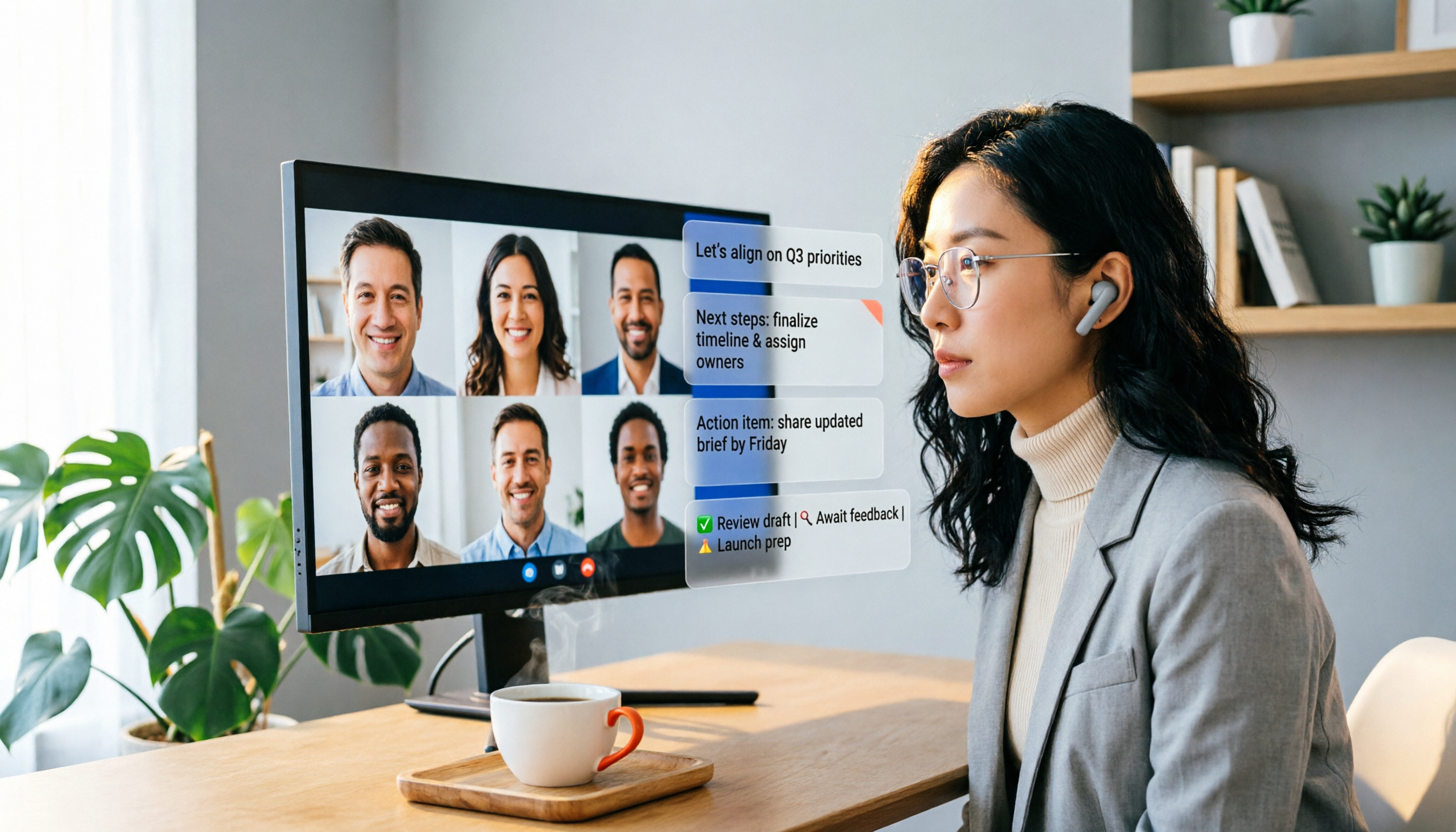
Turn recordings into transcripts and summaries in minutes
Upload audio or video for multilingual transcription, AI notes, and action items
First, Clarify: Do You Want to 'Record' or 'Make the Recording Useful'?
People searching for "how to record a Teams meeting" typically fall into two camps.
One group is about to start a meeting and urgently needs to know where to click to start recording. The other group has already recorded the meeting but can't find the file, doesn't know how to download it, or how to share it with people who didn't attend.
An even more common frustration: you have the recording, but to find a specific discussion or compile meeting minutes, you still have to manually replay one or two hours of audio.
So this article is split into two parts: first, we'll solve the operational issues with Teams' built-in recording, then we'll show you how to use Tinrec to turn your recordings into searchable, organized, and trackable meeting assets.
Before Choosing a Recording Method, Understand These 4 Key Points
1. Meeting Type Affects Where Recordings Are Stored
Teams meeting recordings are not all stored in one central location.
For regular private or scheduled meetings, recordings are saved to the organizer's OneDrive. For channel meetings, recordings go to SharePoint. This difference directly affects where you'll need to look for the file later.
2. Not Everyone Can Directly Download Recordings
According to Microsoft's official documentation, guests and external attendees can only view recordings if they are explicitly shared with them.
If you find that a recording can't be downloaded, it's often not a user error but a permissions issue. Channel meeting recordings may also be configured by admins so that "members can view but not download."
3. Built-in Recording Is Good for Playback, Not for Quick Summaries
Teams' built-in recording saves audio, video, and screen-sharing content, and it also offers automatic transcription and closed captioning options.
But to extract "what was the conclusion" or "who is responsible for what" from a 90-minute recording, you'll still need to drag the progress bar back and forth. Recording solves the problem of preservation, not organization.
4. Check Your Permissions Before Recording
Generally, meeting organizers can start or stop recordings. Some organizations allow eligible internal participants to record as well, but this depends on the admin's cloud recording policy settings.
If you can't find the recording button during a meeting, first verify that you're logged in with your company account, that the meeting has started, and that your organization allows recording.
Teams Built-in Recording: 5 Steps to Start, Stop, and Find Recordings
Step 1: After Joining the Meeting, Find 'More Actions'
Once you're in the meeting, look for the "More actions" menu on the meeting controls—that's the "⋯" icon.
The exact location may vary slightly depending on your Teams version, but it's usually near the meeting toolbar at the top right of the screen.
Step 2: Select 'Start Recording'
Click "Start recording" in the menu.
If you're the meeting organizer or a member with recording permissions, the system will begin recording. All participants will receive a notification that recording has started.
Step 3: You Can Stop Recording Anytime During the Meeting
Go back to the same "More actions" menu and click "Stop recording."
After stopping, Teams will process the recording and generate a transcript (if your organization has transcription enabled).
Step 4: Find the Recording in the Meeting Chat
Once processing is complete, the recording usually appears in the meeting chat. Click that message to open the recording in a browser-based video player page.
If you don't see it in the meeting chat, check the organizer's OneDrive or the corresponding SharePoint channel folder.
Step 5: Download or Share the Recording
On the video player page, select "Download" to save the recording file locally.
To share it with people who didn't attend the meeting, make sure you have edit permissions, then adjust the sharing settings in OneDrive or SharePoint.
After Recording: Use Tinrec to Turn Teams Recordings into Usable Meeting Data
Teams' built-in recording preserves content, but if you need quick summaries, search, and action item tracking, relying solely on the recording is cumbersome.
Tinrec (秒听录音) is an AI meeting tool that turns meetings into searchable, collaborative, and actionable data. You can import the audio or video file from your Teams recording into Tinrec, and it will automatically handle transcription, summarization, action items, and key point extraction.
Stop organizing recordings by hand
Upload audio or video and automatically get a transcript, summary, and action items
No Meeting Bot Required to Process Teams Meetings
The Tinrec desktop app can directly capture your computer's system audio. In other words, when you play a Teams meeting's audio on your computer, Tinrec doesn't need to join the meeting as a bot to generate a real-time transcript.
This is especially useful for people who don't want an extra "participant" in their meetings.
After Importing a Recording, You Get More Than Just a Transcript
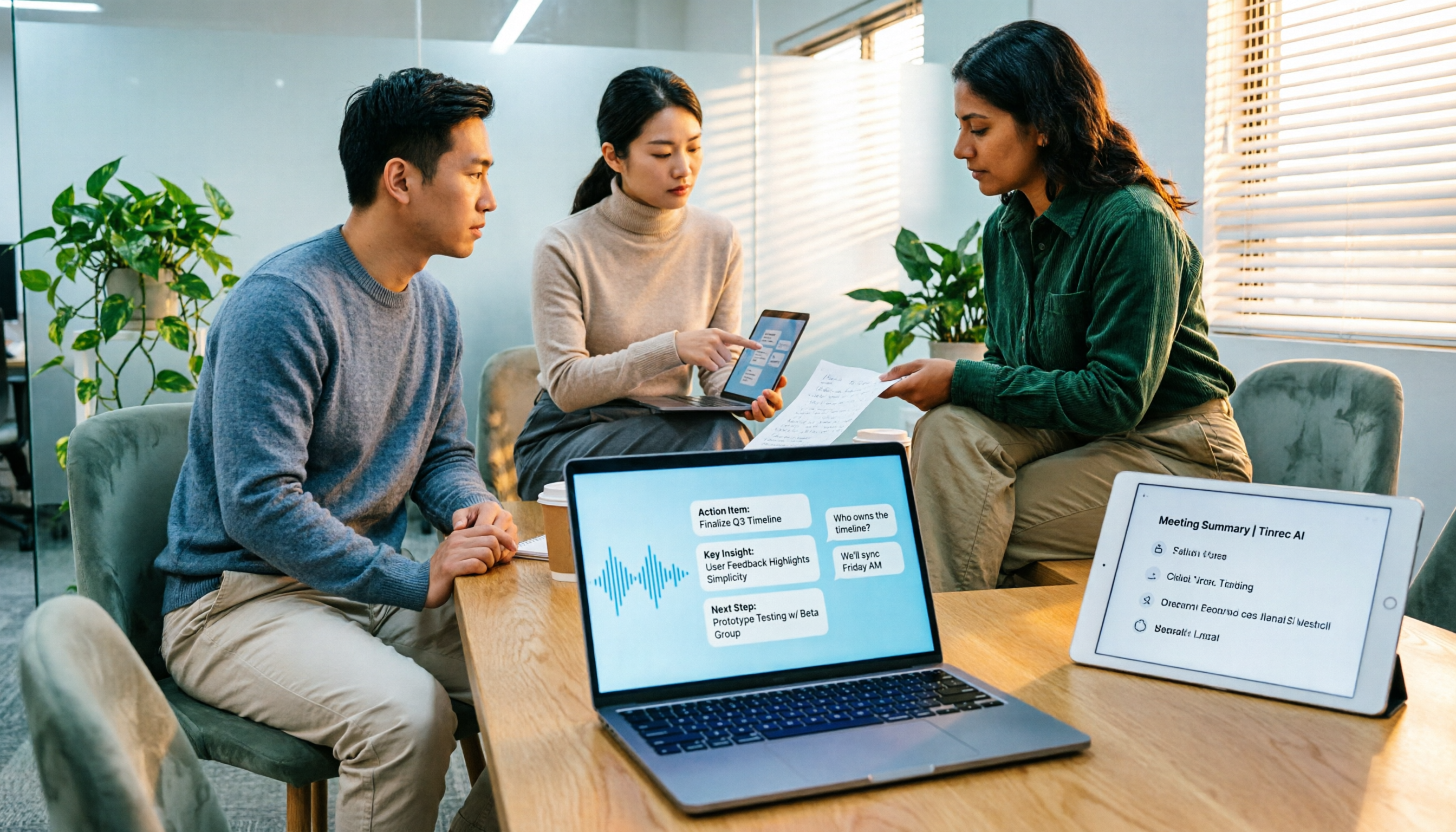
Tinrec converts audio to text and automatically generates summaries, chapters, key points, and action items.
You can directly ask it: "Who mentioned the budget in this meeting?" or "What was the conclusion?" It will answer based on the meeting content, not just give you keyword search results.
Ideal for Those Who Frequently Compile Meeting Minutes
If you have multiple Teams meetings every week and need to write minutes and track action items afterward, Tinrec can save you the time of replaying recordings.
It supports exporting to tools like Notion, Google Docs, OneNote, and Dropbox, so you can seamlessly continue your existing workflow.
Teams Can Share Meeting Data
The team plan lets you centralize meeting recordings, transcripts, summaries, and action items in a shared team space.
New members can access historical meeting data without relying on colleagues to forward recordings and notes. Admins can also manage member roles, seats, usage, and records.
Beyond Tinrec: What Other Options Are There?
Otter.ai
Otter.ai is a mature AI meeting assistant with reliable transcription and summaries for English meetings. The free plan includes 300 minutes per month.
However, if you primarily handle Chinese meetings, or you prefer using a desktop app to capture system audio without adding a bot to the meeting, Tinrec is a better fit for that need.
Notta
Notta is a transcription tool with similar features, supporting multiple languages, file imports, and team plans. It's suitable for those who need large-scale file transcription and translation.
But if you need to ask follow-up questions about meeting content with AI, generate reports and action items, and consolidate data into a team space, Tinrec offers a more complete post-meeting workflow.
Fireflies.ai
Fireflies.ai excels at meeting automation, AI summaries, and sales team analytics. It's ideal for English-speaking meeting teams that need extensive integrations and automated workflows.
But if you prefer not to have a bot join your meetings and care more about Chinese meeting content organization, Tinrec's bot-free desktop recording and Chinese-language experience will be smoother.
Pitfall Guide: 4 Common Mistakes When Organizing Teams Meeting Recordings
Pitfall 1: Discovering After Recording That the File Is in Someone Else's Space
Private meeting recordings are stored in the organizer's OneDrive, not automatically accessible to all participants.
If you need to download it after the meeting, first confirm whether the organizer has shared the recording with you, or ask them to enable download permissions.
Pitfall 2: Treating the 'Recording' as 'Meeting Minutes'
A recording only proves the meeting happened; it doesn't mean the key points have been extracted.
A more effective approach: use Teams' built-in recording to preserve the original content, then import it into Tinrec to generate transcripts, summaries, and action items. This way, you keep the evidence and make it easy to follow up.
Pitfall 3: Ignoring Permission Differences and Assuming Everyone Can Download
Guests, external attendees, and channel members have different permissions.
If you need to share a recording with external partners, remember to explicitly share it in OneDrive or SharePoint first; otherwise, they'll only see a "no permission" message.
Pitfall 4: Assuming Free Tiers Aren't Enough Without Trying Them First
Tinrec's free plan includes basic credits to try recording, importing, summarization, and transcription. If you only occasionally organize a few meeting recordings, start with the free plan.
When you need more advanced features, you can choose the Pro or team plan based on your usage frequency—there's no need to pay upfront.
Summary: What Should You Actually Do?
If you just need to preserve meeting content, Teams' built-in recording is sufficient. After recording, find the file in the meeting chat, the organizer's OneDrive, or SharePoint, and download it when needed.
If you want to "quickly find key points, turn them into action items, and share with the team after recording," then we recommend importing your Teams recording into Tinrec.
- Only occasionally reviewing meeting content → Use Teams' built-in recording
- Want to quickly compile summaries and action items after recording → Use Tinrec
- Need Chinese meeting transcription and AI Q&A → Use Tinrec
- Don't want a bot to join your meetings → Use Tinrec's desktop bot-free recording
- Need to share historical meeting data with the team → Use Tinrec's team plan
- Primarily recording English meetings and only need transcription → Consider Otter.ai
We recommend trying Tinrec's free plan first and importing an existing Teams recording to see the results. If it saves you time on organizing, you can consider upgrading later.
References
- Manage recording policies for Teams meetings and events - Microsoft Teams | Microsoft Learn
- Start, stop, and find meeting recordings in Microsoft Teams | Microsoft Support
- How to download Microsoft Teams meeting recordings | Subanana Help Center
- Manage recording and transcription options for sensitive Microsoft Teams meetings - Microsoft Teams | Microsoft Learn
- r/MicrosoftTeams on Reddit: Is there any way to secretly record Microsoft Teams meetings without anyone knowing, and still capture audio from headphones?
Turn every recording into actionable outcomes
Get 60 free transcription minutes when you sign in. No credit card required.
Related Reading
You might also like

4 Best Speech-to-Text Tools in 2026: Chinese Recognition, Free Tiers, and Post-Meeting Organization Compared
Many people confuse speech-to-text with text-to-speech and don't realize phone dictation can't process existing recordings. This article breaks down 4 key purchasing factors and compares Tinrec, Notta, Otter.ai, and PLAUD NotePin on positioning, quotas, and post-meeting organization, plus 3 common pitfalls to help you choose the right tool within budget.
3 Speech-to-Text SDK Paths Compared for 2026: 3 Pitfalls to Avoid Before Building Your Own API Integration
A speech-to-text SDK is not a one-size-fits-all solution. Starting from common pitfalls, this article breaks down the applicable boundaries of Google Cloud Speech-to-Text, Azure Speech SDK, and Otter.ai, then explains how Tinrec fills the post-meeting organization gap with desktop bot-free recording, AI Q&A, and team spaces when you don't want to maintain your own service.

How to Use WeChat Voice-to-Text in 2026: 3-Step Guide + Practical Solutions for Long Meeting Transcripts
How do you use WeChat voice-to-text? This guide starts with hands-on steps: long-press a voice message to convert it to text, use voice input and say "over over" to send automatically, and understand its real limits in long meetings and interviews. It then explains four decision points—length, output, history search, and team sharing—to help you decide when to switch to an AI meeting notes tool like Tinrec, with hands-on tips and pitfalls to avoid.

How to Use Online Speech-to-Text in 2026: 5 Steps to Choose the Right Tool and Build a Transcription Workflow
There are many online speech-to-text tools, but the real reason you can't choose is usually not that the tools aren't good enough—it's that you haven't thought through where the text will go after it's produced. This article uses three key questions to help you set direction, then helps you pick the right one from five options: Tinrec, Dictation.io, Google Docs, MyEdit, and Notta. Finally, it gives you a 5-step workflow you can follow directly.

6 Speech-to-Text Tools Tested and Compared in 2026: Which Is Fastest for Chinese Meeting Transcripts and Post-Meeting Summaries?
Using the same criteria, we compare six speech-to-text tools—Tinrec, Otter.ai, Notta, TurboScribe, Granola, and PLAUD—and walk through the full workflow with Tinrec: recording, transcription, proofreading, summary generation, and team knowledge retention. This helps you decide which tool fits your meeting style and budget.

2026 Speech-to-Text API Free Plans Compared: 4 Options to Consider
When looking for a speech-to-text API, the first decision is whether to integrate it yourself or use a ready-made tool. This guide covers four mainstream approaches in 2026, from the free tiers and maintenance costs of Google Cloud, Azure, and AssemblyAI to the no-code Tinrec, plus key selection criteria and four common pitfalls to help you assess your needs before committing engineering resources.

2026 Speech-to-Text Tools Compared: Which Is Fastest for Chinese Meeting Transcripts?
After hands-on testing of 4 speech-to-text tools, here are insights for Chinese meeting organization. From transcript quality, post-meeting summaries and action items, ability to import existing audio files, to team sharing and seat management, we outline selection criteria, test observations, and 3 common pitfalls to help you decide which tool fits your meeting scenario.

2026 Comparison of 5 Audio-to-Text Tools: How Accurate Are They and Where Do They Differ?
How accurate is audio-to-text transcription really? This article addresses three common misconceptions, breaks down the real factors affecting accuracy, and compares Tinrec, Notta, TurboScribe, Otter.ai, and Granola in Chinese meetings, mixed Chinese-English scenarios, and post-meeting organization. It also provides buying criteria and pitfalls to avoid, helping you choose the right tool for your recording situation.

2026 Comparison of 4 Speech-to-Text Tools: Which Is Best for Multilingual Meeting Transcripts?
Meetings mix Chinese and English, sometimes Japanese or Taiwanese, and transcripts always turn into a mess? This article tests and compares four speech-to-text tools—Tinrec, Otter.ai, Granola, and TurboScribe—from four angles: multilingual recognition, post-meeting organization, meeting capture method, and team data ownership, to help you find the one that truly works for your job.