
Turn recordings into transcripts and summaries in minutes
Upload audio or video for multilingual transcription, AI notes, and action items
What Is Companion Mode: A One-Sentence Definition and the Problem It Solves
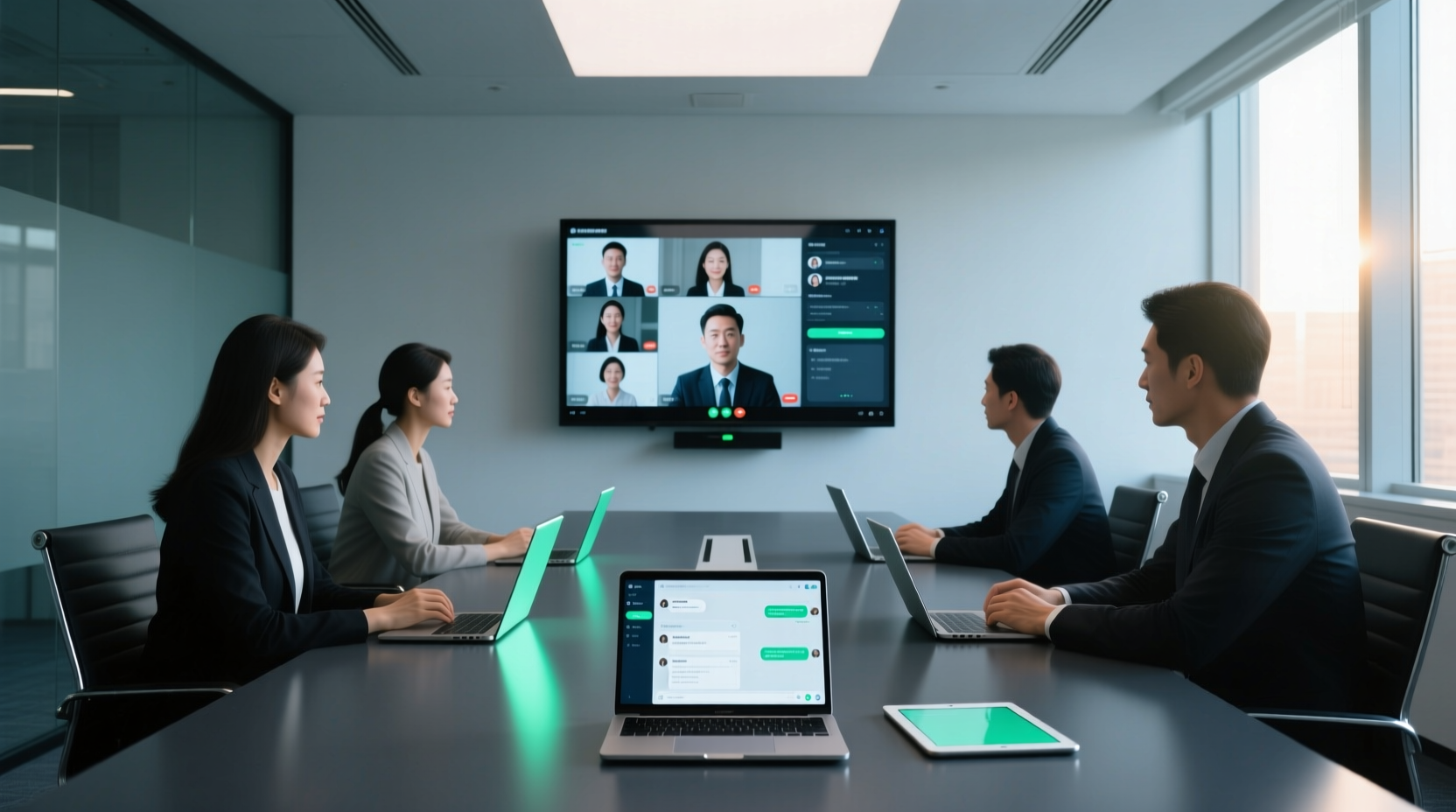
If your company has a physical conference room with only one video device, this scenario probably sounds familiar: six people are sitting in the conference room, but there is only one camera and microphone, so everyone shares the same screen and the same speaking channel. Meanwhile, three colleagues on the other end each have their own screen, their own chat, and their own raise hand button.
Google Meet's Companion Mode exists to fix this gap. According to Google's official documentation, when you join a meeting in Companion Mode, you can check in or connect to the conference room; after checking in, your name appears in the participant list and on the conference room screen. Discussions about this feature on Reddit also describe it as a supplementary version that "gives conference room participants the same participation and representation as remote participants," and note that it is primarily not designed for general situations outside the conference room.
In other words, Companion Mode solves the problem of "individual participation in the conference room," not the problem of "meeting notes." These two things must be viewed separately, as explained later.
How It Differs from Regular Meeting Join: Division of Labor Between Conference Room Equipment and Personal Devices
The most effective way to understand Companion Mode is to think of it as a division of labor:
- Conference room equipment handles the "shared signal": The camera, microphone, and speakers in the room handle the audio and video input and output for the entire conference room. This is the shared part for everyone.
- Your personal device handles "personal operation": You use a laptop or phone to join the same meeting in Companion Mode, getting your own interactive interface.
According to third-party explanations, Companion Mode lets users join a Google Meet call with a second device to access chat, polls, Q&A, and other features, while the main audio and video are still handled by the primary device (that is, the conference room equipment).
This is exactly the biggest difference from "regular meeting join." When joining a meeting normally, your device itself is your audio and video source; with Companion Mode, audio and video are handled by the conference room equipment, and your device only handles interaction and personal operation.
Google's official page also mentions that this feature is available on certain Google One, Google Workspace Business, and Google Workspace Enterprise plans, and includes AI-powered background noise reduction, audio synchronization (so you and the colleague next to you are in the same call without echo or squealing), live captions, and collaboration integrations such as joining directly from Google Docs, Sheets, and Slides.
Common Use Cases: How to Use It When Multiple People Share a Conference Room
The following scenarios are where Companion Mode truly shines:
Scenario 1: Hybrid meeting with multiple people in the conference room and multiple people online
Everyone in the conference room joins on their own laptop in Companion Mode, while online colleagues join normally. The conference room equipment handles audio pickup and playback, and each person's laptop handles viewing the presentation, typing in chat, and participating in polls.
Scenario 2: Need for a personalized view
When the presentation text is too small, or you want to enlarge a document on your own screen, the large conference room display cannot satisfy everyone. After joining with a personal device, you can control what you want to see.
Scenario 3: A role in the conference room that needs to participate quietly
For example, someone in the conference room is only attending, needs to follow the materials but does not plan to speak. Joining with a personal device gives access to chat and captions without competing for the room's only microphone.
It is worth noting that the specific availability of Companion Mode depends on the Google Workspace plan type and administrator settings, and not all Google accounts can use it. Before use, it is recommended to confirm the permission settings on the meeting organizer's side.
What It Can and Cannot Do: Interactive Features vs. Meeting Notes
This is the line that needs to be drawn most clearly in this entire article.
What Companion Mode can do is "participate":
- Make your name appear in the participant list and on the conference room screen (check-in).
- Provide interactive features such as chat, polls, and Q&A.
- Through audio synchronization, prevent echo or squealing even when you sit next to a colleague.
- Provide live captions so you can follow what is being said.
- Support joining meetings directly from Google Docs, Sheets, and Slides.
What Companion Mode does not handle is "recording":
It is not an automatic recording tool, nor does it automatically generate meeting minutes. It handles the personal participation experience during the meeting, not the data organization after the meeting ends.
Stop organizing recordings by hand
Upload audio or video and automatically get a transcript, summary, and action items
In other words, if you finish a conference room meeting and want a transcript, summary, decision list, and action items, Companion Mode will not produce these for you. That part requires a separate workflow.
How to Preserve Conference Room Meeting Content: From Recording to Transcript and Action Items
The recording gap in conference room meetings is usually more obvious than in online meetings. Online meetings at least have platform built-in recording or transcription to fall back on, while conference room meetings often leave only the attendees' individual notes.
To preserve the content of a conference room meeting, you can follow this sequence:
Step 1: Capture the meeting audio
The audio source for a conference room meeting is the on-site microphone. If the conference room equipment itself has recording capability, first confirm whether it is enabled and whether attendees consent to recording. If not, you can use a personal device to record the meeting audio with consent.
Step 2: Convert audio to transcript
Once you have the recording, you need to convert it into searchable text. Tinrec supports real-time audio-to-text and audio/video file transcription, can organize meeting recordings into transcripts, and automatically generates summaries, chapters, and key points.
Step 3: Extract action items from the transcript
The transcript itself is not the end goal. Tinrec can extract action items from meeting discussions and supports AI Q&A around meeting content, making it easy to go back and confirm the context in which a decision was made.
Step 4: Use an AI assistant to turn action items into post-meeting materials
This is where most tools stop, but the workflow is not yet complete. Tinrec's Agent (which can be understood as an AI assistant) can use meeting minutes and context to help further process action items into action plans, follow-up materials, reports, tables, and documents. For example, after a project meeting, organize the division of labor discussed into an action plan ready to send; or turn the conclusions of a management meeting into reports and tables.
It must be emphasized that important commitments, external communications, and key decisions should still be confirmed by a human. The AI assistant is responsible for moving the organization work forward, not for making final judgments on behalf of people.
Team Edition: Making Conference Room Meeting Data Shared and Continuously Followed Up
So far, the workflow above solves "how the content of this meeting is organized." But if conference room meetings are a regular team occurrence—such as weekly department meetings, project reviews, or cross-department coordination meetings—then the next question is: where should this data be placed so that the people who need it can find it, take over, and continuously follow up?
This is exactly the part that Tinrec Team Edition addresses. Team Edition is not multiple people sharing one personal account; it is an independent team collaboration space.
Part 1: Put meeting data into the team space
After a conference room meeting ends, the transcript, summary, action items, and post-meeting action plans can be stored together in the team space. The team space centrally stores the team's meeting data, including Audio, Folder, TODO, and related meeting content. This solves the problem of "data scattered across personal devices and chat records"—new members can view the team's historical data without having to ask each person individually.
Part 2: Let members take over and continuously follow up
Once meeting data enters the team space, team members can share, view, search, and continue to process it. This is especially important for conference room meetings: when a member leaves, is removed, or loses their seat, team resources belong to the team and can be handed over to other active members, so the entire meeting history does not lose its ownership because one person leaves.
It should be noted that Team Edition currently focuses on team-level sharing, where all active members can read team data; roles determine who can manage the team and members, and seats determine whether members can record, upload, edit, and export. This is not document-level fine-grained permission control, and this should not be confused in external communications.
If your team holds several meetings in the same conference room every week, and post-meeting data is still pieced together from personal notes and group messages, then putting meeting data into a shareable, searchable team space will be less work than reorganizing every time. Specific plans and seat arrangements can be confirmed by consulting the official team based on the actual team size.
Usage Boundaries and Pre-Handover Checklist
Before introducing Companion Mode and the post-meeting organization workflow to your team, it is recommended to check the following items:
- Plan and administrator settings: The availability of Companion Mode depends on the Google Workspace plan type and administrator settings, and not all accounts can use it. Confirm before use.
- Recording consent: When recording and transcription are involved, comply with local laws and obtain attendee consent. This is an especially easily overlooked part of conference room meetings, because on-site audio pickup covers everyone.
- Do not confuse feature positioning: Do not describe Companion Mode as a feature for automatic recording or automatic meeting minutes generation. It solves individual participation during the meeting; recording is a separate workflow.
- Human confirmation boundary: Action plans, follow-up materials, and reports produced by the AI assistant should be confirmed by a person before being sent when they involve external communications or important commitments.
- Data ownership: Team data belongs to the team, and resource handover should be arranged when members change, to avoid meeting history being interrupted when an individual leaves.
Once these items are confirmed, Companion Mode can return to its original place: a tool that lets everyone in the conference room participate equally. The decisions and actions that the meeting truly needs to preserve are then carried forward by the post-meeting organization workflow.
References
Turn every recording into actionable outcomes
Get 60 free transcription minutes when you sign in. No credit card required.
Related Reading
You might also like

4 Best Speech-to-Text Tools in 2026: Chinese Recognition, Free Tiers, and Post-Meeting Organization Compared
Many people confuse speech-to-text with text-to-speech and don't realize phone dictation can't process existing recordings. This article breaks down 4 key purchasing factors and compares Tinrec, Notta, Otter.ai, and PLAUD NotePin on positioning, quotas, and post-meeting organization, plus 3 common pitfalls to help you choose the right tool within budget.

3 Speech-to-Text SDK Paths Compared for 2026: 3 Pitfalls to Avoid Before Building Your Own API Integration
A speech-to-text SDK is not a one-size-fits-all solution. Starting from common pitfalls, this article breaks down the applicable boundaries of Google Cloud Speech-to-Text, Azure Speech SDK, and Otter.ai, then explains how Tinrec fills the post-meeting organization gap with desktop bot-free recording, AI Q&A, and team spaces when you don't want to maintain your own service.

How to Use WeChat Voice-to-Text in 2026: 3-Step Guide + Practical Solutions for Long Meeting Transcripts
How do you use WeChat voice-to-text? This guide starts with hands-on steps: long-press a voice message to convert it to text, use voice input and say "over over" to send automatically, and understand its real limits in long meetings and interviews. It then explains four decision points—length, output, history search, and team sharing—to help you decide when to switch to an AI meeting notes tool like Tinrec, with hands-on tips and pitfalls to avoid.

How to Use Online Speech-to-Text in 2026: 5 Steps to Choose the Right Tool and Build a Transcription Workflow
There are many online speech-to-text tools, but the real reason you can't choose is usually not that the tools aren't good enough—it's that you haven't thought through where the text will go after it's produced. This article uses three key questions to help you set direction, then helps you pick the right one from five options: Tinrec, Dictation.io, Google Docs, MyEdit, and Notta. Finally, it gives you a 5-step workflow you can follow directly.

6 Speech-to-Text Tools Tested and Compared in 2026: Which Is Fastest for Chinese Meeting Transcripts and Post-Meeting Summaries?
Using the same criteria, we compare six speech-to-text tools—Tinrec, Otter.ai, Notta, TurboScribe, Granola, and PLAUD—and walk through the full workflow with Tinrec: recording, transcription, proofreading, summary generation, and team knowledge retention. This helps you decide which tool fits your meeting style and budget.

2026 Speech-to-Text API Free Plans Compared: 4 Options to Consider
When looking for a speech-to-text API, the first decision is whether to integrate it yourself or use a ready-made tool. This guide covers four mainstream approaches in 2026, from the free tiers and maintenance costs of Google Cloud, Azure, and AssemblyAI to the no-code Tinrec, plus key selection criteria and four common pitfalls to help you assess your needs before committing engineering resources.

2026 Speech-to-Text Tools Compared: Which Is Fastest for Chinese Meeting Transcripts?
After hands-on testing of 4 speech-to-text tools, here are insights for Chinese meeting organization. From transcript quality, post-meeting summaries and action items, ability to import existing audio files, to team sharing and seat management, we outline selection criteria, test observations, and 3 common pitfalls to help you decide which tool fits your meeting scenario.

2026 Comparison of 5 Audio-to-Text Tools: How Accurate Are They and Where Do They Differ?
How accurate is audio-to-text transcription really? This article addresses three common misconceptions, breaks down the real factors affecting accuracy, and compares Tinrec, Notta, TurboScribe, Otter.ai, and Granola in Chinese meetings, mixed Chinese-English scenarios, and post-meeting organization. It also provides buying criteria and pitfalls to avoid, helping you choose the right tool for your recording situation.

2026 Comparison of 4 Speech-to-Text Tools: Which Is Best for Multilingual Meeting Transcripts?
Meetings mix Chinese and English, sometimes Japanese or Taiwanese, and transcripts always turn into a mess? This article tests and compares four speech-to-text tools—Tinrec, Otter.ai, Granola, and TurboScribe—from four angles: multilingual recognition, post-meeting organization, meeting capture method, and team data ownership, to help you find the one that truly works for your job.