
Turn recordings into transcripts and summaries in minutes
Upload audio or video for multilingual transcription, AI notes, and action items
Think First: Are You Adding a "Meeting" or "Meeting Knowledge"?
Most people new to Teams rush to find the "New Meeting" button.
But in my experience, the real bottleneck isn't where the button is—it's that after the meeting is created, the discussion content often isn't preserved.
So this article is structured in two parts.
First, I'll walk you through the different ways to add a Teams meeting. Then, I'll discuss how to turn the meeting content into searchable, trackable knowledge after the meeting ends.
Three Main Ways to Add a Teams Meeting
Method 1: Schedule a Meeting from the Teams Calendar
This is the method I use most often. It's suitable for formal meetings where you need to schedule a time in advance and invite participants.
The process is straightforward.
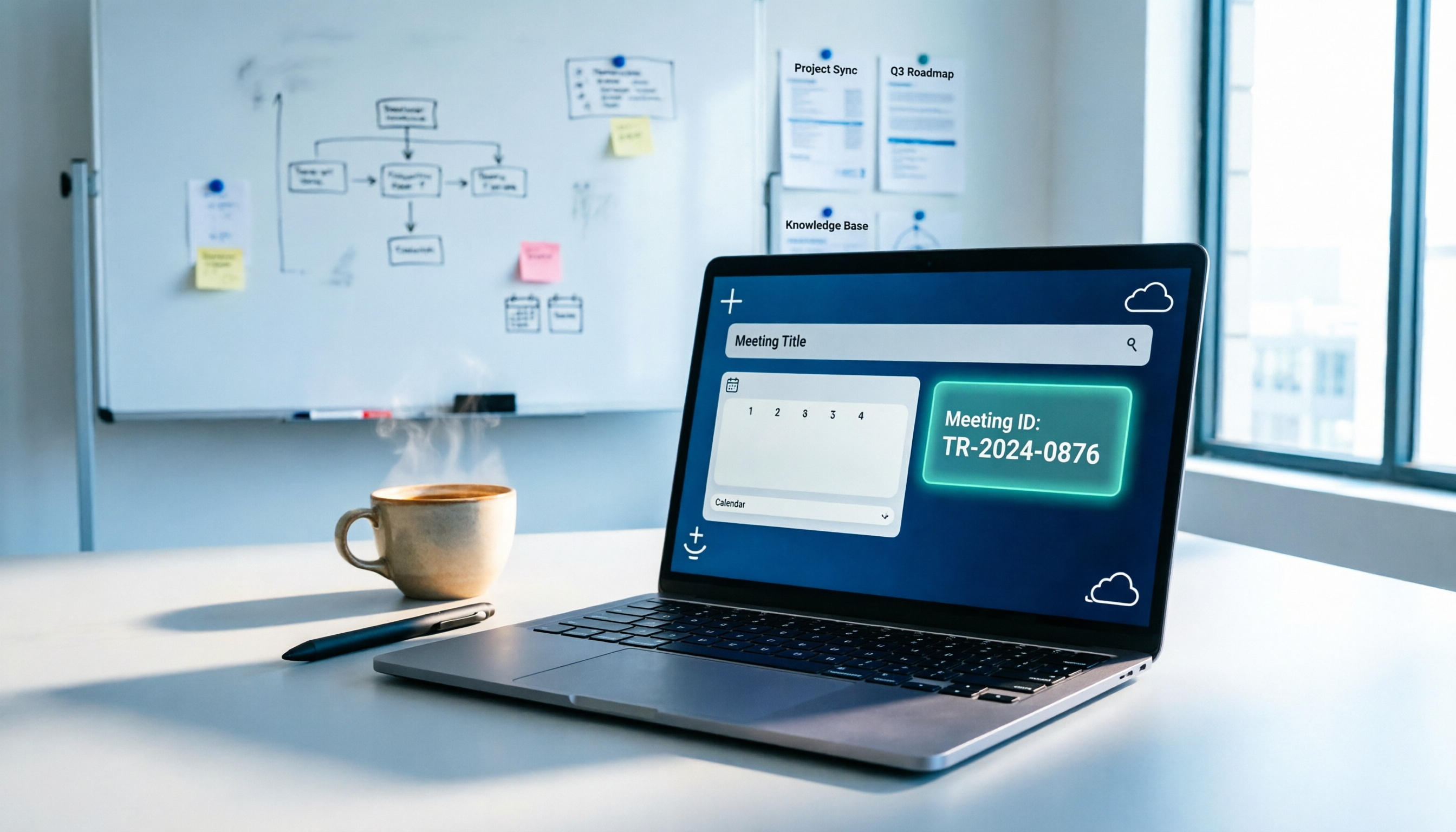
In the Teams left-hand menu, open "Calendar," then click "New meeting" in the top-right corner.
Next, enter the meeting title, invite attendees, and set the date and time.
Teams automatically generates a meeting link and meeting ID. Invitees can join directly from the link after receiving the invitation.
The advantage of this method is that the meeting details stay in the Teams calendar, making it easy to review, modify, or cancel later.
Method 2: Schedule from Outlook and Add a Teams Meeting
If your daily workflow revolves around Outlook email and calendar, this method will feel more natural.
When creating an appointment in Outlook, select "Add online meeting to all meetings" and make sure Microsoft Teams is chosen as the meeting provider.
After you hit "Send," the Teams meeting join details are automatically attached to the meeting invitation.
One thing to note: if you select "Save as Draft" first, a draft will be created in the calendar, but it won't yet show the Teams meeting join information.
So, if the formal invitation isn't ready yet, you can save it as a draft; when you're ready to send it, just hit Send.
Method 3: Add or Join a Meeting Using a Meeting ID
Sometimes, you're not the meeting organizer—you've just been given a meeting ID and password.
In this case, you don't need to create a new meeting; you just join using the existing ID.
You can open the Teams join meeting page in your browser and enter the meeting ID and password provided by the organizer.
You can also enter the meeting ID directly from within the Teams app.
Every Microsoft Teams meeting has a unique meeting ID, similar in concept to the meeting invitation link.
This method is especially useful for external guests, ad-hoc participants, or situations where you don't have the full invitation link.
Which Method Is Best for You?
I don't recommend that everyone use the same process.
The key is where your daily work entry point is.
If you open Teams before every meeting, then adding a meeting directly from the Teams calendar is the most convenient.
Stop organizing recordings by hand
Upload audio or video and automatically get a transcript, summary, and action items
If you're used to handling email and scheduling in Outlook first, then starting the meeting from Outlook will fit your existing rhythm better.
If you just need to join someone else's meeting temporarily, you don't need to create a new meeting—just use the meeting ID to enter.
Once you clarify this entry point, adding a meeting won't feel like an extra burden.
After Adding the Meeting, There's Something Even More Important
Successfully adding a meeting doesn't mean the meeting content will be successfully preserved.
Many teams struggle with this: after a Teams meeting ends, the transcript, key points, and action items are scattered across different people's notes or chat histories.
The next time you need to find a specific decision, you don't know where to look.
My approach is to treat a meeting as a knowledge source that needs to be organized, not as an event that disappears once it's over.
There are now AI meeting recording tools that allow users to manually start desktop recording to capture system audio directly, without requiring an extra bot to join the meeting.
For example, Tinrec can handle online meetings like Zoom, Google Meet, Microsoft Teams, and Webex this way.
After recording, it doesn't just generate a transcript—it also organizes summaries, chapters, key points, and action items.
You can also ask follow-up questions about the meeting content or export the results to tools like Notion, Google Docs, or OneNote.
Compared to just getting a transcript, this is much more useful in practice.
Turning Personal Meetings into Team Knowledge
If everyone on your team is taking their own meeting notes, a problem will eventually arise.
The knowledge becomes fragmented.
When a member leaves, switches projects, or takes time off, the context of past discussions is hard to pick up.
Team-based meeting recording tools centralize meeting knowledge in a shared team space.
New members can see historical meeting knowledge when they join; admins can manage member roles, seats, and usage.
Meeting content no longer belongs to just one person's device—it becomes a lasting asset the team can use.
Quick-Start Checklist
- If you need to schedule a time in advance and invite participants: Add a meeting from the Teams calendar.
- If you primarily use Outlook: Create an appointment in Outlook and add a Teams online meeting.
- If you just need to join someone else's meeting: Use the meeting ID and password to enter.
- If you want meeting content to be searchable and trackable: Don't just keep chat logs—turn the meeting recording into a transcript, summary, and action items.
- If the meeting involves team collaboration: Centralize meeting knowledge in a team space to avoid it being scattered across personal devices.
Test these methods step by step, and you'll gradually find the meeting creation workflow that works best for you.
References
Turn every recording into actionable outcomes
Get 60 free transcription minutes when you sign in. No credit card required.
Related Reading
You might also like

How to Use Microsoft Teams Meeting Links? 5 Ways to Join (2026 Tested) — This One Rarely Fails
Wondering how to use Microsoft Teams meeting links? This guide covers creating meetings, copying links, inviting external guests, and joining via meeting ID. We compare 5 joining methods for reliability and use cases, helping you avoid common issues like broken links or being stuck in the lobby.

Teams Video Conferencing Tested in 2026: Which of the 3 New Meeting Methods Saves You the Most Time?
There are many ways to start a video meeting in Teams, but few are truly ideal for managers of small to mid-sized teams. This hands-on review takes a practical look at Teams' built-in meetings, Outlook scheduling, and a bot-free desktop recording tool, revealing which workflow has the fewest steps and which is most likely to trip you up.

Are Microsoft Teams Meetings Time-Limited? 2026 Test of 3 Plans—How to Use the Free Version Worry-Free
Are Microsoft Teams meetings time-limited? This article breaks down the duration and participant limits for the free version, paid plans, and large meetings, and explains how to use Tinrec to turn meeting content into searchable, trackable data.

Free Line-in Recording Solutions in 2026: 4 Options Compared
What is Line-in recording? This article explains common misconceptions and how Line-in recording works from a student's perspective, reviews 4 recording solutions suitable for students in 2026, including free options, and shows how to use Tinrec to quickly convert lecture and tutoring recordings into transcripts and key points.

2026 Teams Meeting Recording Guide: 5 Key Settings to Stop Relying on Manual Notes
Can Microsoft Teams meetings be recorded? This article provides U.S. professionals with a guide to Teams recording permissions, storage locations, notification mechanisms, and post-meeting organization methods, while comparing tools like Tinrec to save time on meeting follow-up.

Do You Need an Account for Teams Meetings in 2026? 3 Ways to Join and a Practical Management Guide
Teams meetings don't always require an account, but it depends on the organizer's settings. Based on a mid-level manager's hands-on experience, this article explains the differences between joining without an account, using a one-time verification code, and signing in with a Microsoft account. It also shows how to use Tinrec to turn meeting content into trackable action items and team knowledge.

How to Start a New Meeting in Teams in 2026: 5 Methods Explained
There's more than one way to start a new meeting in Microsoft Teams. This article walks through the steps for the Teams desktop app, web version, Outlook add-in, and instant meetings, comparing which method works best in different scenarios to help you set up online meetings quickly.

Microsoft Teams Meeting Time Limits in 2026: Free Version 60 Minutes, What's Different in Paid Plans?
Do Microsoft Teams meetings have time limits? This article compares meeting duration, participant limits, and ideal use cases for the free version, Teams Essentials, and Microsoft 365 Business plans, and explains how AI meeting notes tools can cover post-meeting organization needs.

Can You Record Microsoft Teams Meetings? 5 Methods Tested in 2026 — No Bot Option Is the Most Convenient
Microsoft Teams meetings can be recorded, but the built-in recording notifies all participants and has restrictions on downloading and managing files. This article breaks down 5 methods: Teams built-in recording, audio-only mode, desktop screen capture, transcription tools, and hardware recording, with purchasing recommendations based on recording retention, AI summarization, and team collaboration needs.