
Turn recordings into transcripts and summaries in minutes
Upload audio or video for multilingual transcription, AI notes, and action items
What Google Meet Live Translation Can Do Now: Subtitles, Translation, and Language Prerequisites
Let's answer the keyword itself first: yes, Google Meet already has live voice translation capability. According to Google's official blog, this feature uses AI models to translate speech in meetings in real time, allowing participants who speak different languages to understand each other in the same call; the Google Meet community page also describes this capability as "communicating across languages in near real-time."
But "having this feature" and "being able to use it now" are two different things. Before using it, you need to confirm three prerequisites:
- Plan prerequisite: According to Mashable, Google is gradually rolling out live voice translation to users on AI Premium and other subscription plans. In other words, this is not a capability enabled by default for all Google accounts.
- Language prerequisite: According to discussions in the translation research community on Reddit, this feature initially covered only a limited set of language pairs such as English and Spanish. The actual supported language pairs will change over time, so before use, refer to Google's official documentation.
- Administrator prerequisite: Workspace organizations can decide whether to enable specific features, so the options seen by personal accounts and company accounts may differ.
There is also an easily confused distinction: Google Meet's "subtitles" and "voice translation" are not the same thing. Subtitles convert speech into text, while translation performs language conversion on top of that. Seeing subtitles appear does not mean translation is turned on; conversely, turning on translation does not guarantee that every sentence is fully recognized.
Another distinction to make is between "live voice translation" and "remote simultaneous interpretation." According to Interprefy's overview, Google Meet does not provide a separate simultaneous interpretation audio channel like professional conference platforms. Its translation is an auxiliary layer added to the meeting experience, not a switchable independent interpretation channel.
The Real Difficulty of Cross-Language Meetings: Not Failing to Understand, But Being Half a Beat Behind
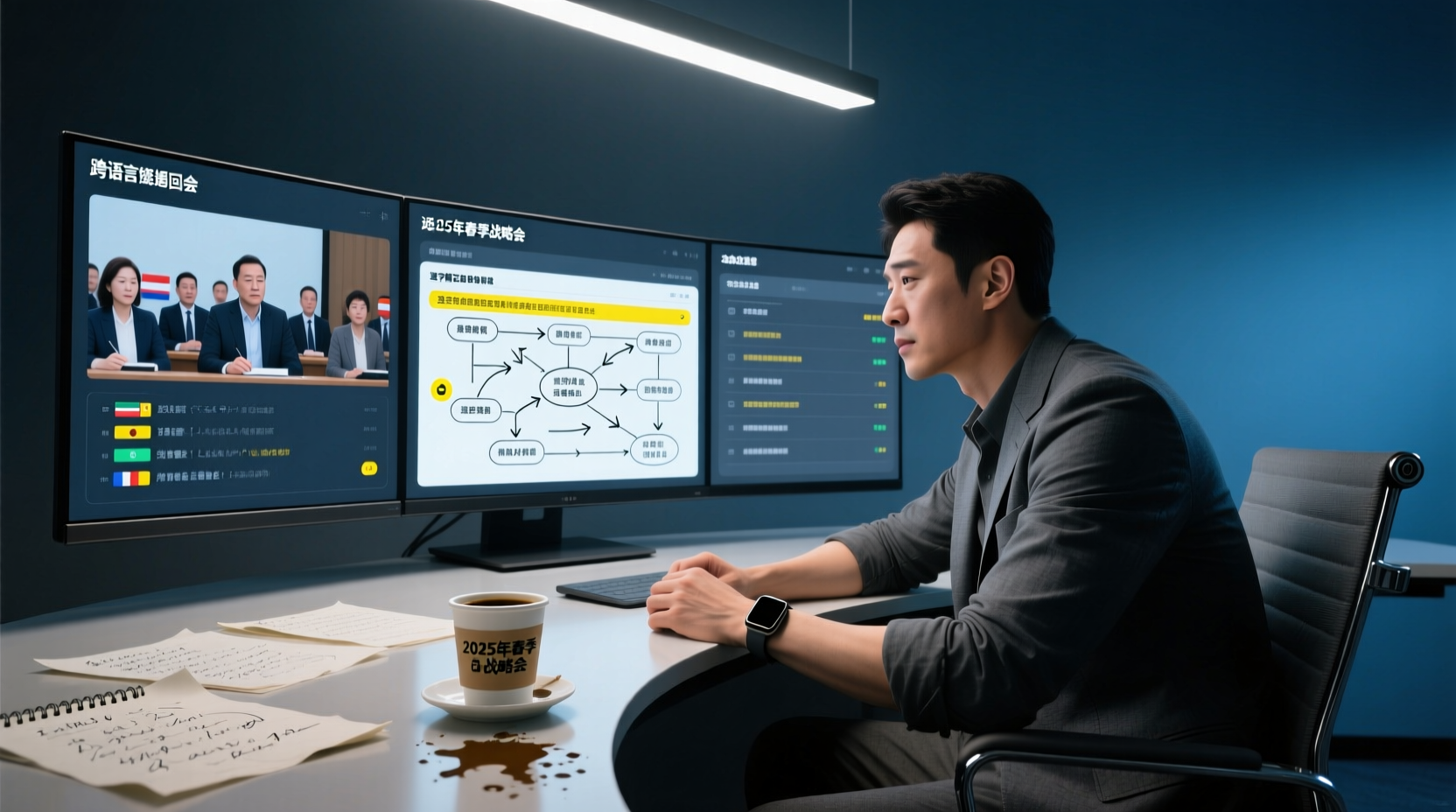
Most people's first Google Meet with an overseas client or cross-language team worries about "not understanding." But after a few meetings, you realize the real problem is not vocabulary but rhythm.
The other party finishes explaining a requirement in English, and by the time you read the Chinese translation subtitle, everyone else has moved on to the next topic; by the time you confirm your understanding, the discussion has already moved forward. You spend the whole meeting catching up, with no room to judge, ask questions, or push back. Worse, when you finally understand the previous segment, you are still digesting it mentally while having to respond to the next one—this rhythm gap cannot be eliminated by the translation feature itself.
This gap creates three chain reactions:
1. Judgment is compressed: You do not have enough time to assess whether the other party's proposed terms are reasonable.
2. Questions are delayed: Details you want to follow up on often come to mind only after the topic has moved on.
3. Record-keeping is sacrificed: While busy reading subtitles during the meeting, your memory of decisions and task assignments becomes blurrier afterward.
In other words, live translation solves "understanding in the moment," not "remembering and distinguishing after the meeting." Between these two things, there is still a workflow that needs to be filled in.
Common Distortion Scenarios in Live Subtitles and Translation: Accents, Technical Terms, and Multiple People Talking Over Each Other
The quality of live translation is not a fixed value but fluctuates with meeting conditions. The following scenarios are most prone to gaps:
| Distortion Scenario | Why It Happens | Actual Impact on the Meeting |
|---|---|---|
| Heavy accent or fast speech | Speech recognition must first correctly transcribe the source language before translation can occur | If the source is misrecognized, the translation deviates accordingly |
| Technical terms and product codes | General models may not be familiar with industry-specific vocabulary | Key nouns are replaced with synonyms, and the meaning goes off track |
| Multiple overlapping speakers | The system struggles to separate simultaneous voices | Subtitles skip or miss sentences, making it hard to reconstruct who said what |
| Mixed Chinese and English discussion | Frequent language switching requires the model to identify the language in real time | Mixed-language passages are easily misjudged or left untranslated |
| Background noise and poor audio pickup | Signal quality directly affects recognition | Entire sections need to be replayed to confirm |
A special reminder here: do not understand such features in terms of a fixed accuracy rate. Actual performance is affected by recording quality, noise, accents, overlapping speakers, and technical terms, so any claim of a "fixed percentage" is not suitable as a basis for judgment.
For project and product people, the most dangerous thing is not mishearing a word, but a key noun being translated into another meaning without anyone in the room noticing. For example, if scope, acceptance criteria, amounts, or timelines are blurred at the translation layer, the cost of post-meeting disputes is far higher than during the meeting itself.
Translation Solves In-the-Moment Understanding; Post-Meeting Decisions and Task Assignments Still Need to Be Filled In
Live translation does not automatically produce a decision list, owners, and deliverables. It converts a sentence from language A to language B, but what a meeting really needs to leave behind is "who decided what under what conditions, and who is responsible for the next step."
The post-meeting breakpoints in cross-language meetings usually look like this:
- Decisions are scattered across conversations in two languages, with no single version.
- Commitments are remembered only by the individuals involved, with no written basis.
- Action items lack clear owners and deadlines, so the next meeting requires realignment again.
- To confirm a specific statement, you can only replay the entire recording.
Stop organizing recordings by hand
Upload audio or video and automatically get a transcript, summary, and action items
Therefore, what cross-language meetings really need is not "stronger translation" but a verifiable bilingual record: searchable, time-stamped, able to compare source and translation, and from which summaries and action items can be extracted.
Turning Cross-Language Meetings into Verifiable Data: Recording, Bilingual Transcript, and Summary
To make cross-language meeting content verifiable, the first step is not organizing but obtaining a searchable transcript. The order is as follows:
1. Preserve the meeting audio: Obtain playable audio during or after the meeting as the basis for later verification.
2. Convert to a transcript: Turn the audio into searchable, time-stamped text.
3. View bilingually: Switch between source, translation, or bilingual comparison to confirm the true meaning of key sentences.
4. Extract summaries and action items: Organize meeting highlights, decisions, and action items from the transcript.
The value of this step is that when you have doubts about a translation, you can return to the corresponding time point in the transcript and compare the source and translation, rather than arguing from memory. For cross-language projects, this verifiable record is often more important than the live subtitles during the meeting.
Tinrec's positioning fits exactly at this stage: it supports real-time audio-to-text conversion, audio and video file transcription, and allows viewing content in source, translation, or bilingual mode during recording, while automatically generating summaries, chapters, and action items. The desktop version processes online meetings by capturing system audio from the device, without needing to invite an additional meeting bot.
It should be noted that there is no official partnership between Tinrec and Google Meet; it processes the meeting audio played on your computer and is a user-side recording and organization tool.
How AI Assistants Turn Bilingual Action Items into Deliverable Post-Meeting Materials
After obtaining the bilingual transcript and action items, there is another step that is often overlooked: turning action items into materials that others can understand and use directly.
Traditional tools usually stop at "summary + action item list." But post-meeting work for cross-language projects is often more complex:
- Action items from project meetings need to be organized into action plans with owners, deadlines, and acceptance criteria.
- Commitments from client meetings need to be processed into follow-up materials that can be sent externally.
- Discussions from management meetings need to be organized into reports or tables that can be presented.
Tinrec's AI assistant (Agent) can help process action items further into action plans, follow-up materials, reports, tables, and documents based on meeting minutes and context. Its focus is not to summarize again but to carry forward the work after the meeting.
Here is a fictional teaching example: suppose after a cross-language requirements review meeting, three action items appear in the transcript—adjust the launch scope of a feature, supplement a cost estimate, and confirm the availability of a third-party interface. The AI assistant can use these action items to draft an action plan with owners, deadlines, and deliverables for you to modify and send.
The boundary here should be clear: important commitments, external communications, and key decisions should still be confirmed by a human before sending. The AI assistant will not operate third-party systems for you, nor will it automatically complete unconfirmed external processes.
Team Edition: Enabling Bilingual Meeting Data to Be Shared and Continuously Followed Up
There is another easily underestimated problem in cross-language meetings: whose hands the data stays in.
If bilingual transcripts, summaries, and action items exist only in an individual's account, then once the responsible person takes leave, transfers, or leaves, the entire context of the cross-language project is broken. The next person taking over can only replay recordings and realign from scratch.
Tinrec Team Edition provides an independent team collaboration space where participants can put bilingual meeting data into the team space for sharing. Specifically, two aspects are worth elaborating:
Aspect 1: Meeting data is stored centrally, not scattered across personal devices. After team members upload or sync cross-language meeting transcripts, summaries, and action items to the team space, other members can view and search them directly without requesting files one by one. For cross-language projects that need to compare source and translation, this means anyone wanting to confirm a specific commitment can return to the same data rather than relying on their own memory.
Aspect 2: Post-meeting outputs are continuously followed up, not scattered after the meeting. Action plans, follow-up materials, or reports processed by the AI assistant can also be placed in the team space, allowing owners and collaborators to view progress in the same place. When members change, team resources belong to the team and can be handed over to other active members, without losing ownership because an individual leaves.
It should be noted that the Team Edition currently focuses on team-level sharing, governing and managing usage eligibility through roles and seats, and is not document-level fine-grained permission control. Active members can still view, play, and read team data even without a seat; only after obtaining a seat can they perform operations such as recording, uploading, editing, and importing/exporting.
If your cross-language meetings have gone from "occasional" to "weekly fixed," moving this data from personal accounts into a team space usually solves the problem better than buying another translation tool.
Usage Boundaries: Language Support, Accuracy, and Human Confirmation
Finally, let's summarize a few easily overlooked boundaries:
- Language support will change: The supported language pairs for Google Meet live translation are still evolving. Before use, refer to Google's official documentation and do not rely on lists from old articles.
- Do not promise a fixed accuracy rate: Whether it is Google Meet translation or any transcription tool, actual performance is affected by accents, noise, overlapping speakers, and technical terms.
- Important content requires human confirmation: For passages involving amounts, timelines, acceptance criteria, and external commitments, it is recommended to verify against transcript timestamps and recording playback before finalizing.
- Recording must comply with local regulations: Cross-language meetings often involve participants from different regions. Before recording and transcription, confirm local legal requirements and obtain participant consent when needed.
- Do not treat translation as meeting minutes: Translation solves in-the-moment understanding, while meeting minutes require decisions, owners, and deliverables—this part still needs to be filled in yourself.
Back to the original question: Can Google Meet do live translation? Yes, and it is indeed helpful for in-the-moment understanding in cross-language meetings. But it is an auxiliary layer, not a post-meeting workflow. What truly makes cross-language meetings produce action is the verifiable, shareable, and continuously followable bilingual data after the meeting.
References
- Check out Google Meet's speech translation to connect in near real-time across languages - Google Meet Community
- How Google build real-time language translation for Meet
- r/TranslationStudies on Reddit: I just tested Google Meet's new live translation tool - here's my review
- Live Translation Options for Google Meet in 2025: New Feature and More
- Google Meet can now do AI-powered live voice translation | Mashable
Turn every recording into actionable outcomes
Get 60 free transcription minutes when you sign in. No credit card required.
Related Reading
You might also like

4 Audio-to-Text Tools Tested: Which Is Fastest for Chinese Meeting Transcripts in 2026?
Transcribing audio isn't just typing—you need to decide whether you want a transcript or a time-coded subtitle file. We tested Tinrec, cSubtitle, TurboScribe, and Notta with real meeting recordings, comparing Chinese recognition, post-meeting summaries, AI Q&A, team collaboration, and pricing limits to help you choose the right workflow for meeting notes, interview organization, and video subtitles.

5 Free Auto Subtitle Solutions Compared in 2026: What Tinrec Adds Beyond CapCut and pyTranscriber
There are many free auto subtitle tools, but their quota calculations, output formats, and post-meeting organization capabilities vary widely. This article starts with 5 common free solutions, breaks down what gaps Tinrec fills in audio-to-text, summarization, AI Q&A, and team collaboration, and includes version selection advice.

2026 Free Subtitle Generator Comparison: Which Tool Saves More Time on Chinese Meeting Transcripts?
How do you choose a free subtitle generator? This article compares two practical options, Tinrec and Otter.ai, across free quotas, Chinese transcription, meeting recording methods, post-meeting outputs, and team governance to help you decide which is better suited for Chinese meetings and video content organization.

2026 Comparison of 3 Online Subtitle Generators: Which Saves More Time for Chinese Meetings and Videos?
There are many online subtitle generation tools, but the key is whether the output is usable. This article starts with common misconceptions and compares Tinrec, Subanana, VEED, and Clideo on Chinese recognition, long audio processing, and post-meeting organization. It also covers free quotas, export formats, and practical limitations of team collaboration to help you choose the right tool.
2026 Video-to-Text Tools Compared: Which One Makes Subtitles Easiest?
Video-to-text isn't just about generating a transcript—it's also about producing subtitle files with timecodes. This article compares Tinrec, Notta, TurboScribe, and Granola from four angles: output formats, Chinese punctuation, post-meeting organization, and free quotas. It outlines each tool's limitations, pricing, and ideal users to help you avoid the trap of having to redo everything manually after transcription.

2026 Auto Subtitle Generator Comparison: Which Tool Produces the Most Effortless Chinese Video Transcripts?
There are many auto subtitle generators, but do you need subtitles burned into the video or a searchable, summarizable, and queryable transcript? This article compares Tinrec, FlexClip, VEED, and CapCut based on real-world use cases, and provides buying criteria, common mistakes, and scenario recommendations to help you choose the right tool.

4 Auto Subtitle Generators Tested: Which Handles Chinese Transcription with the Least Editing?
Auto subtitles aren't a one-click finish. This article tackles the common pain point of still having to edit every line after auto-captioning. It covers 4 key factors to consider when choosing an auto subtitle generator, compares Tinrec, VEED, FlexClip, and Clideo on Chinese transcription, post-meeting organization, and team collaboration, and outlines common buying mistakes and scenario-based recommendations to help you decide which tool fits your video and meeting workflow.

2026 Free Simultaneous Interpretation Software Options: 2 Tools Compared
Starting from a real-world experience of missing a delivery deadline in a Japanese meeting, this article compares two simultaneous interpretation tools—Tinrec and Notta—from the perspective of a mid-level manager, covering five dimensions: Chinese recognition, meeting capture methods, post-meeting output, team governance, and free plan limits, along with each tool's unique strengths and ideal use cases.

2026 Subtitle Generation Tools Compared: Which Transcripts Are Actually Usable?
How to choose a subtitle generation tool? We tested Tinrec, Notta, TurboScribe, and Otter.ai with the same mixed Chinese-English meeting recording, breaking down transcription quality, post-meeting output, export workflow, and team management—plus 3 common pitfalls to help you pick a tool that delivers usable results.