

Turn recordings into transcripts and summaries in minutes
Upload audio or video for multilingual transcription, AI notes, and action items
The hardest part of a Teams meeting usually isn't the meeting itself
It's 3 PM on a Wednesday, and you just closed a 50-minute cross-department Teams meeting. The shared slides are still on your screen, but your notes consist of just two lines—three decisions, five action items, and a budget number a client mentioned in passing, all scattered across the conversation that just ended.
It's not that you weren't paying attention. Teams' built-in transcription can leave you a transcript, but a transcript is just a long, unfocused stream of text. To find out who's responsible for what, you still have to scroll through it line by line.
Cross-language meetings are even trickier. When meetings mix Chinese and English, or include Cantonese- or Japanese-speaking colleagues, transcript usability takes another hit.
This article tackles exactly that: how to turn Teams meeting notes from "after-the-fact damage control" into "automatically generated, ready to use."
Before choosing a Teams meeting notes tool, understand these 4 key points
1. How does it "listen" to your meeting?
Some tools require sending a "meeting bot" to join as a participant; others capture system audio directly from your computer. The former can feel awkward in external meetings, while the latter doesn't add an extra participant but usually requires installing a desktop app. If you frequently hold client meetings, this point is especially worth noting.
2. After recording, what does it give you besides a transcript?
A transcript is just raw material. What really saves time is summaries, chapters, action items, and whether you can ask questions directly about the meeting content. If a tool only converts audio to text, you still have to read through a 40-minute transcript to find the key points.
3. Will the audio file be kept?
Some tools only keep the transcribed text and don't store audio. This matters when you need to replay for verification or have compliance requirements. Before choosing, think clearly: do you want a text document, or a complete record you can go back and verify?
4. Is the free tier enough for you?
Most tools offer free plans, but the limits vary—some cap monthly minutes, others restrict single-session length. Estimate how many meetings you have per week and how long each one runs, then compare plans. That's more practical than just looking at the price.
Tinrec — Our top pick after testing
Tinrec is an AI meeting notes and collaboration tool for individuals and teams, supporting live recording, online meeting transcription, audio file import, and real-time translation.
Its most direct difference lies in "how it records Teams meetings." The Tinrec desktop app captures your computer's system audio directly, so you don't need to invite any bot into the Teams meeting. Open the desktop app, start recording, and the transcript is generated in sync as the meeting proceeds—no unfamiliar participant appears in external client meetings.
After the meeting ends is where it truly saves time. Tinrec automatically generates summaries, chapters, and action items—who's responsible for what and what's next, listed directly. If the meeting includes mixed Chinese-English or foreign-language speech, you can translate in real time and view the original, translation, or bilingual side-by-side.
Even better is the AI Q&A. You don't need to re-read the entire transcript; just ask it "What was the budget the client mentioned in the last meeting?" or "Which three directions did we decide on?" It answers based on semantics, not a list of keyword search results.
In our testing, we recorded a roughly 40-minute Chinese Teams meeting using the desktop app in a quiet room. Transcript usability was high, and the summary and action items captured key points well. Note that actual results are affected by recording quality, accents, multiple people talking over each other, and technical jargon. For important content, we recommend cross-checking with the original text.
Stop organizing recordings by hand
Upload audio or video and automatically get a transcript, summary, and action items
Notable advantages:
- No meeting bot needed; works with Teams, Zoom, Google Meet, and Webex.
- Audio files are retained, and transcripts can be replayed and verified against timestamps.
- Beyond transcription, there are summaries, action items, translation, mind maps, multi-format export, and Agent post-processing.
Limitations to be clear about:
- The free version offers basic usage quota, suitable for trying it out; frequent users should consider Pro.
- It's currently not a "bot that automatically joins all calendar meetings" mode—you need to actively start recording.
Who it's for: People who frequently hold Teams or cross-platform online meetings, need Chinese transcripts, want to use AI to find key points right after recording, or want to turn meeting data into a team asset.
For team use, Tinrec for Teams provides an independent team space where meeting data belongs to the team, with member, role, seat management, usage analytics, and audit logs. Paid seats on the team plan provide 2,000 minutes of shared team import quota per month; live recording within an active subscription is currently not deducted by the minute.
Besides Tinrec, what other options are there?
Otter.ai: A mature choice for English meetings, covering Zoom, Teams, and Google Meet, with a free tier of 300 minutes per month. But its focus is mainly English business meetings, and the Chinese meeting experience isn't its strength. If you mainly record English meetings, it's worth considering; if your meetings are primarily in Chinese, think twice.
Granola: Also uses a bot-free approach to capture system audio, with a clean interface, focusing on "user notes + AI enhancement." However, it doesn't save meeting audio files and doesn't support uploading pre-recorded audio. This limits you when you need to go back and verify recordings or want to organize existing meeting audio—while Tinrec supports both.
Notta: Overlaps significantly with Tinrec, offering multi-platform transcription, translation, and team plans, with a free tier of 120 minutes per month and a maximum of 3 minutes per session. It has a foundation in multilingual and subtitle processing, but bot-free recording, team spaces, and AI Q&A are not its main focus. The free quota is tight, and long-term use will require payment.
Pitfall guide: The 3 most common mistakes when choosing a meeting notes tool
Pitfall 1: Only looking at advertised accuracy numbers. Many tools boast high accuracy, but that's usually measured in a quiet environment. Real Teams meetings have air conditioning noise, keyboard sounds, and multiple people speaking at once—the numbers drop noticeably. We recommend testing the free version with one of your own real meetings, not just looking at ads.
Pitfall 2: Ignoring the difference between "meeting bot vs. system audio." If your meetings often include external clients, a bot jumping in as a participant may not be appropriate. In that case, a bot-free desktop capture method feels more natural.
Pitfall 3: Treating the tool only as "audio-to-text." If you only use it to produce transcripts, you're using just one-third of its features. With Tinrec's AI Q&A, for example, you can ask right after recording "What was the conclusion of this meeting?"—much faster than scrolling through a 30-minute transcript yourself.
Conclusion: Which one should you choose?
Simply put, when choosing a Teams meeting notes tool, first ask yourself three questions: Are meetings mainly in Chinese or English? Do you need to keep audio? Do you need AI to help organize and answer?
- Mainly Chinese, want bot-free Teams recording, and want to use AI to find key points right after recording → Tinrec
- Need to keep audio and also organize existing audio files → Tinrec (Granola doesn't save audio or support uploads)
- Team needs to share meeting data, manage members and usage → Tinrec for Teams
- Zero budget, only recording English meetings → Otter.ai free version is worth a try
We suggest running a real Teams meeting with Tinrec's free version first to see if the transcript and summary help you. If it works for you, then consider upgrading—no need to pay from the start.
References
- How Teams meetings automatically record meeting transcripts – Acer E-Enabling Microsoft Cloud Knowledge Base
- Office Applications: Using ChatGPT to quickly generate meeting notes | Vocus
- Teams meeting transcription recording tutorial: AI easily makes meeting notes | AI transcription service—Mr. Transcription
- Record a meeting in Microsoft Teams - Microsoft Support
- Enable 'Meeting transcription' and Copilot meeting notes/summary features in Teams
Turn every recording into actionable outcomes
Get 60 free transcription minutes when you sign in. No credit card required.
Related Reading
You might also like

2026 Teams Meeting Transcription Tools Buying Guide: 4 Tested Picks and Recommendations
Teams built-in transcription can generate transcripts, but real-time translation and smart summaries require additional paid licenses. This article explains how to start Teams transcription and its limitations, and compares Tinrec, Otter.ai, and Notta to help you choose the best meeting transcription solution.
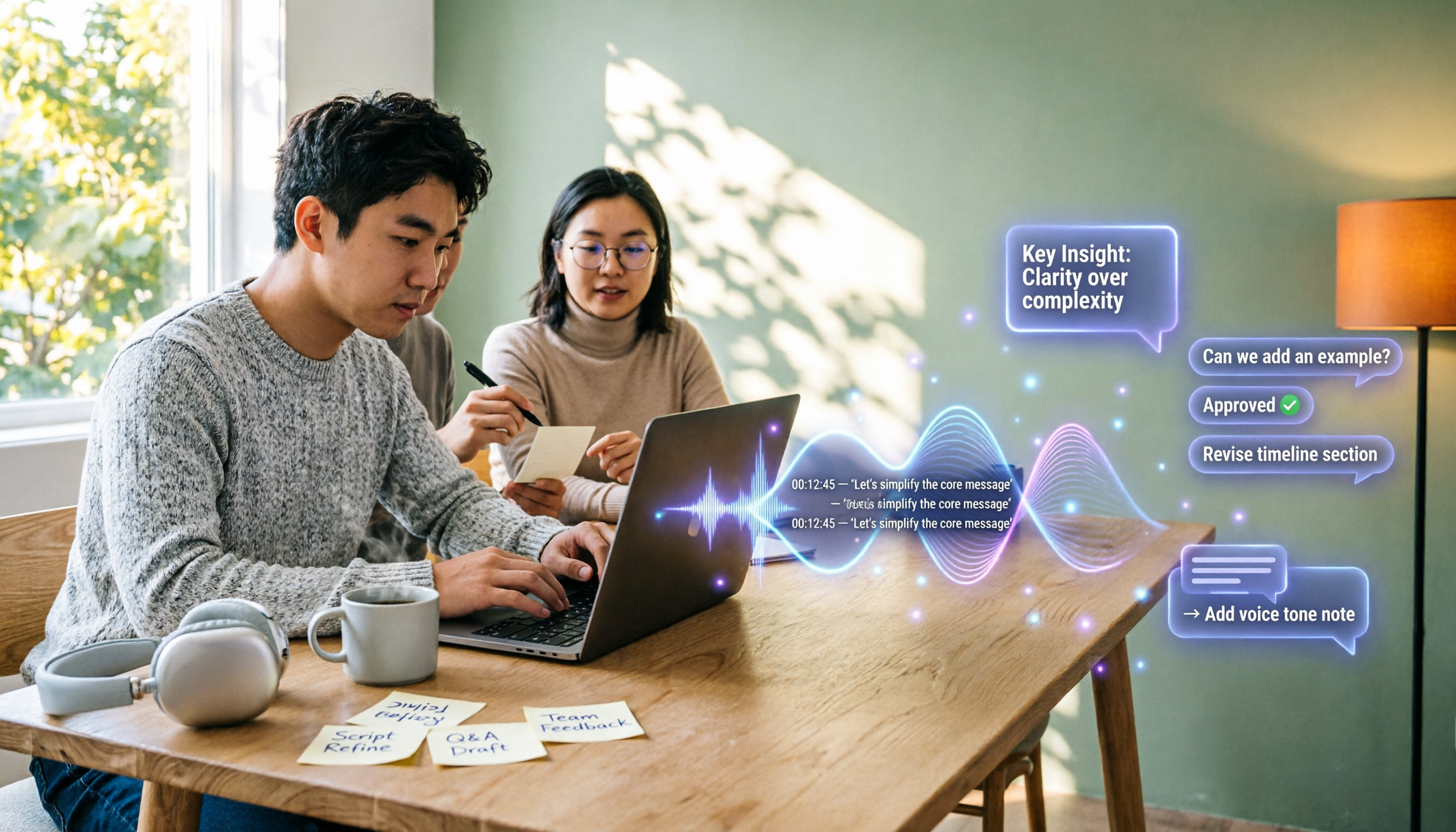
4 YouTube Transcript Tools Tested and Compared in 2026: Which Free Tier Gives You the Most?
A comparison of four free YouTube transcript tools covering free usage limits, support for videos without captions, timestamps, and export formats. It also explains how Tinrec fits in after transcription with summaries, AI Q&A, and team collaboration, helping you decide which tool to use.

4 Teams Meeting Transcription Tools Tested in 2026: Built-in Transcription vs. Tinrec — Which Is Enough?
Complete guide to Teams meeting transcription: first, the requirements and common pitfalls of Teams built-in transcription, then a 5-step walkthrough using Tinrec for recording, transcript, summary, action items, and team export, plus troubleshooting tips.
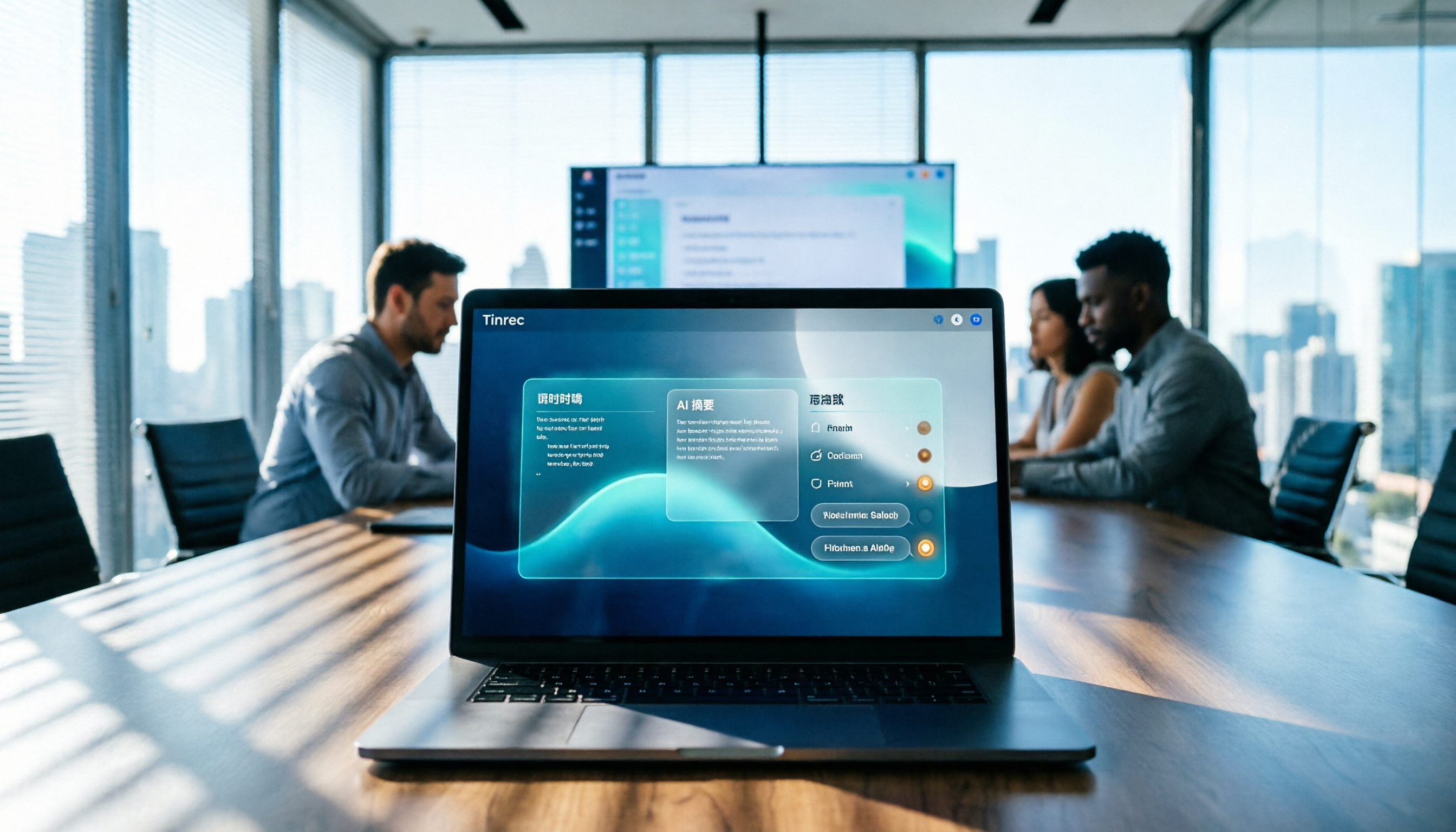
Tinrec Meeting Notes 2026: Auto Summaries + Action Items, a Notion Template Alternative
Notion meeting note templates are great for manual organization, but typing while listening and filling in action items afterward can be time-consuming. This article features Tinrec voice recording, comparing bot-free recording, real-time transcription, AI summaries, action item extraction, AI Q&A, Notion export, and team spaces. It also covers free and team pricing to help you decide if you should add an automated meeting notes workflow.

Which YouTube Transcript Tool Is Best? 2026 Hands-On Test of 4 Options—This Free, No-Login One Is the Easiest
How do you choose a free YouTube transcript tool? This article starts with common misconceptions, then hands-on tests and compares 4 transcript tools. It explains the difference between grabbing captions and AI speech-to-text, the traps of free quotas, and outlines the best use cases for Tinrec, youtube-transcript.ai, Notta, and TurboScribe.

2026 Teams Meeting Transcription Comparison: 3 Tools Tested for Ready-to-Use Transcripts
Teams built-in transcription only gives you a transcript; organizing, searching, and tracking action items are still on you. This article starts from real meeting scenarios, outlines 4 key buying factors, and compares Teams built-in transcription, Otter.ai, Notta, and Tinrec to show which one truly helps you wrap up meeting notes.

6 Zoom Meeting Transcription Tools Tested and Compared for 2026: How to Choose for Chinese Meetings and Free Plans
A practical guide to common misconceptions and methods for getting Zoom meeting transcripts, with hands-on comparisons of six options (Tinrec, Zoom built-in, Otter.ai, Fireflies.ai, Notta, Granola) covering positioning, pricing, and ideal users, plus notes on recording permissions, participant consent, free quotas, and team seats.

2026 Teams Meeting Transcription: Auto Transcribe + AI Summary Guide
Teams built-in transcription only gives you a raw transcript, summaries require an add-on license, and transcripts expire after 120 days by default. This article addresses common misconceptions, breaks down 4 key factors for choosing a Teams meeting transcription tool, shares hands-on experience with Tinrec, and covers alternatives and pitfalls to help you build a truly workable meeting notes workflow.

6 Best Audio Transcription Tools Tested for 2026: Which Free Version Is Enough?
Meeting's over, but the recording has been sitting on your phone for days? This guide shares hands-on experience with 6 audio transcription tools—Tinrec, Otter.ai, Notta, TurboScribe, Granola, and PLAUD—covering their positioning, key features, free and paid pricing, and ideal use cases. Find out whether a free plan is enough, whether you need a meeting bot, and what you can do with transcripts afterward.