

Turn recordings into transcripts and summaries in minutes
Upload audio or video for multilingual transcription, AI notes, and action items
Meetings are a daily routine for office workers. But when it comes to "how to start a Teams meeting," what most people get wrong isn't the steps—it's the mindset. They think clicking "Meet now" is all there is to it. What really eats up your time is the meeting record afterward.
Before Starting a Teams Meeting, Avoid These 3 Misconceptions
Misconception 1: You must install the desktop version. The web version works just as well. Log in to office.com, select "Teams," enter any team or channel, and you'll see "Meet now" above the conversation box.
Misconception 2: Recording audio means you have a record. With a two-hour recording, trying to find when a client mentioned the budget by dragging the progress bar? That's the root of inefficiency.
Misconception 3: Transcripts must be typed manually. Not anymore. The question is whether you're using the right method.
A more reasonable approach: keep meetings and record-keeping separate. Start Teams the fastest way, then let Tinrec handle the post-meeting organization.
Correct Ways to Start a Teams Meeting: 3 Methods
1. Instant meeting (fastest) On desktop, select "Calendar" on the left, then "Meet now." On the web, log in to office.com → Teams → select a team and channel → choose "Meet now" in the conversation box, set the meeting subject, toggle camera on or off, and you're ready to start.
2. Scheduled meeting (most common) In Calendar, select "New meeting," enter the title, participants, start and end times. Use the scheduling assistant to check availability, choose which channel to meet in, and click "Schedule."
3. Add a Teams link from Outlook In Outlook, create a new meeting, add the meeting link using the Teams add-in, or right-click to copy the Teams meeting hyperlink, paste it into the invitation, and send.
For invitees: After receiving the link or meeting ID, choose "Continue on this browser" or "Open Teams app," enter your name, adjust audio and video settings, then click "Join now." Depending on meeting settings, you may need to wait in the lobby for the host to admit you.
The Real Time-Saver Is After the Meeting: How Tinrec Takes Over
Teams meetings themselves are free, but meeting records are not—your overtime hours are the cost.
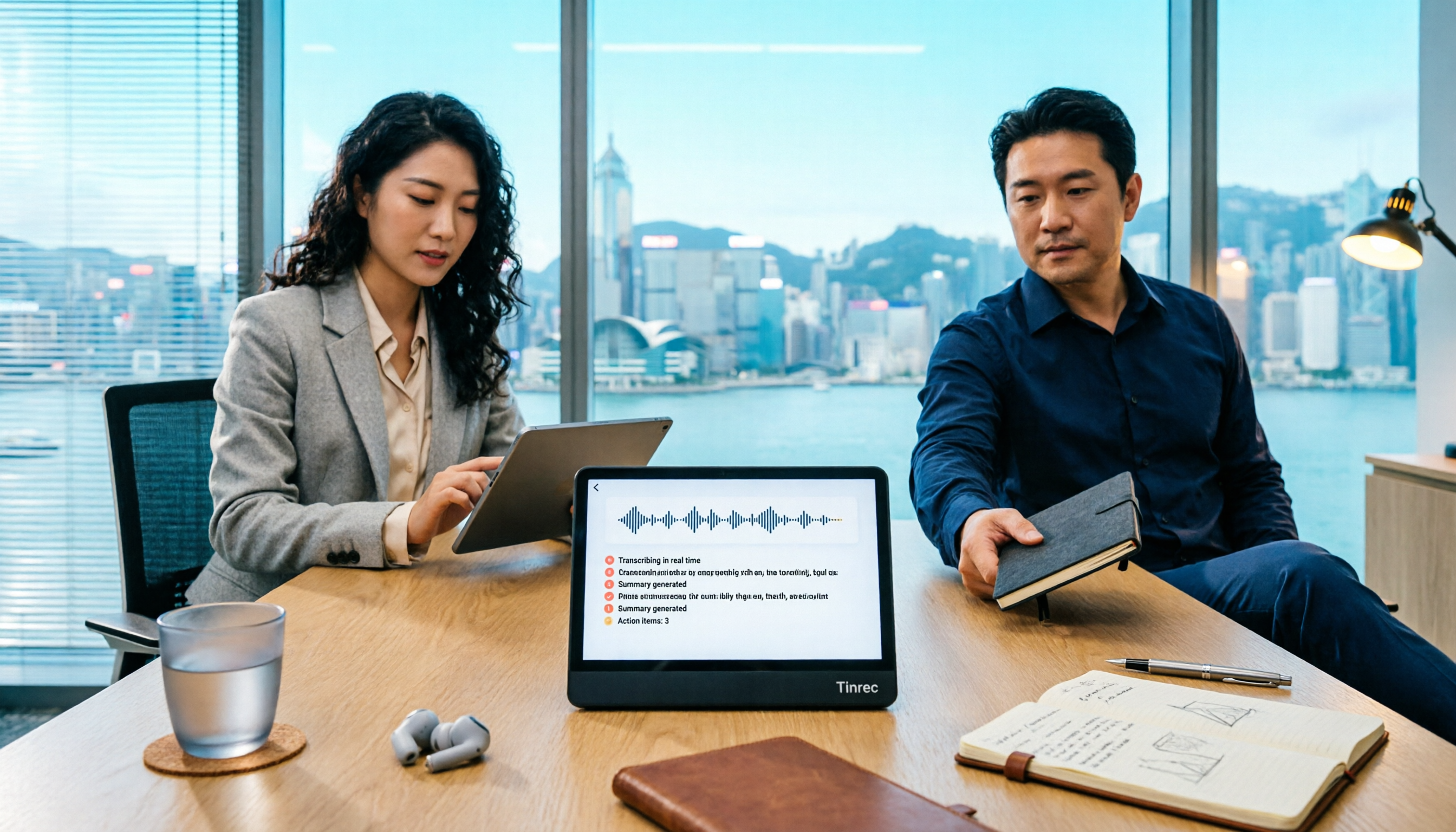
Tinrec is an AI meeting transcription and collaboration tool for individuals and teams. Its desktop version directly captures computer system audio without inviting any meeting bot as a "participant." You run your Teams meeting while Tinrec transcribes in real time. By the time the meeting ends, the transcript, summary, chapters, and action items are already organized.
Note: Tinrec is not a calendar bot and won't automatically join all your meetings. You need to actively open the desktop app to start recording.
What Tinrec Does in the Teams Meeting Workflow
Live transcription as you meet. Real-time audio-to-text means text is captured as the meeting progresses—no need to wait until recording ends.
AI summary and chapters. Long meetings are automatically broken into browsable sections. Meeting topics, conclusions, and key points are clear at a glance—no need to re-listen to two hours.
Action item extraction. Action items are pulled from the discussion, listing who is responsible for what and when it's due.
AI Q&A. After transcription, you can ask follow-up questions like "Who mentioned the budget in the meeting?" or "What was the client's feedback?" Answers are based on semantic understanding.
Real-time translation and bilingual view. For cross-language meetings, you can view the original, translation, or bilingual content during recording.
Stop organizing recordings by hand
Upload audio or video and automatically get a transcript, summary, and action items
Export and post-processing. Results can be exported to Notion, Google Docs, OneNote, Dropbox, and other tools for further work; Agent post-processing can generate reports, tables, and meeting notes.
Team space. The team version isn't multiple people sharing one personal account—it's an independent collaboration space: create and switch between multiple teams, invite members via join links, set owners/admins/regular members, and assign, revoke, or transfer seats. Admins can also view usage trends, member rankings, export audit logs, use the audio recycle bin, and maintain team hotwords. Note that roles and seats are two different things: active members without a seat can still view, play, and read team data, but cannot upload, edit, or export.
Practical Use Cases
Cross-department weekly meetings. Run the meeting in Teams while Tinrec desktop records and transcribes simultaneously. After the meeting, summaries and action items are ready to paste into the group chat for follow-up.
Client interviews. Client needs, objections, and commitments are fully recorded. You can later ask follow-up questions or export as follow-up materials.
Classes and training. When instructors speak fast and content is dense, transcripts with chapters and key points let you jump directly to the section you need when reviewing.
Team knowledge retention. Meeting materials are stored in the team space. New members can view historical content, and data isn't lost when members leave.
4 Things to Consider When Choosing a Teams Meeting Transcription Tool
1. Whether audio is retained. Some tools keep only text, not audio, making it hard to verify exact wording later. Tinrec supports audio retention, so important content can be replayed alongside transcript timestamps for verification.
2. Post-meeting processing capability. Transcription is just the first step. The key is whether it can smoothly produce summaries, action items, and deliverable documents. Tinrec handles this workflow in one integrated process.
3. Test accuracy yourself. Don't rely solely on marketing numbers. Actual performance is affected by recording quality, noise, accents, overlapping speakers, and technical terminology. Try it with a sample of your own meeting recording. Tinrec also offers team hotwords to help improve recognition of specialized vocabulary.
4. Team permissions: distinguish roles from seats. Team-level sharing and document-level permissions are different things. Before purchasing, clarify whether members can edit and how seats are billed. Tinrec uses roles to control governance and seats to control usage eligibility. When members change, resources can be handed over to other active members.
Frequently Asked Questions
Q: Do I need to install anything extra to start a Teams meeting? Not necessarily. The web version can start and join meetings directly; the desktop version has more complete features. For meeting records, Tinrec offers iOS, Android, and web versions, with the desktop version capturing system audio.
Q: Does Tinrec join meetings as a bot? No. It captures computer system audio without an extra participant, and can handle audio from Zoom, Google Meet, Microsoft Teams, and Webex meetings playing on your computer.
Q: What's the difference between Tinrec team and personal versions? Personal version data is managed under a personal account; the team version provides an independent team space where meeting data belongs to the team, plus capabilities like members, roles, seats, sharing rights, usage analytics, audit logs, and recycle bin. Actual seat counts, quotas, and pricing are subject to the official purchase page.
Q: What compliance considerations apply to recording and transcription? Follow local laws and obtain participant consent when required before recording and transcribing.
Conclusion
Starting a Teams meeting is just a few steps. What really determines when you finish work is those two hours after the meeting. Instead of slowly listening to recordings and typing transcripts after the meeting, let a tool handle the records. If you have more than three meetings a week, it's worth trying Tinrec: run Teams as usual, transcribe simultaneously on desktop, and get summaries, chapters, and action items when the meeting ends.
References
Turn every recording into actionable outcomes
Get 60 free transcription minutes when you sign in. No credit card required.
Related Reading
You might also like

5 Ways to Record LINE Calls in 2026: Which One Should You Use?
LINE doesn't have a built-in call recording feature, but you can use iPhone's built-in capabilities, screen recording, Android third-party apps, or desktop tools to get the job done. This article tests and compares 5 methods, explaining their use cases and limitations, and shows how to use Tinrec to turn recordings into searchable, queryable, actionable records.

5 iPhone Recording Methods Compared: Where Is the Record Button? Tinrec Saves the Most Time
Can't find the iPhone record button? We tested 5 quick ways to start recording—built-in Voice Memos, Control Center, Siri, Back Tap, and Action Button—and compared note-taking tools like Tinrec, Otter, and Notta to show how to generate transcripts, summaries, and action items with one tap after recording.

4 LINE Call Recording & Storage Methods Tested for 2026: How to Save Voice Messages Before They Expire
LINE doesn't have a built-in call recording feature, and voice messages can expire and disappear. This article tests and compares 4 ways to record LINE calls and save voice messages—from LINE Keep and phone screen recording to Tinrec's transcription and AI organization workflow—to help you decide which method truly saves, finds, and uses your recordings.

2026 Teams Meeting Tools Comparison: How to Schedule a Teams Meeting and Who Handles the Minutes?
Sending a Teams meeting invite takes 30 seconds, but post-meeting cleanup takes 90 minutes. This article first explains three scenarios for sending Teams meetings (calendar scheduling, channel meetings, and instant meetings), then compares Tinrec, Otter.ai, Notta, and Granola in terms of meeting capture methods, post-meeting outputs, and team data management. It also lists 4 common pitfalls to help you choose the right tool for post-meeting follow-up.

Best Online Speech-to-Text Tools in 2026: We Tested 4, and This One Saves the Most Time for Chinese Meetings
How do you choose an online speech-to-text tool? We tested four tools—Tinrec, MyEdit, cSubtitle, and Otter.ai—comparing Chinese recognition, post-transcription processing, online meeting recording methods, and team data ownership. We also highlight the three most common pitfalls to help you pick the right one based on your budget and use case.
Tinrec vs Teams Built-in Transcription 2026: 5-Dimension Comparison — Which Keeps Meeting Records Better?
In Teams meetings, 'retention' has two meanings: call hold and post-meeting record retention. This article breaks down the blind spots of Teams built-in transcription and retention policies, compares Tinrec and Teams built-in solutions across 5 dimensions, and briefly reviews Otter.ai and Granola to help professionals choose a method that truly retains meeting content.

2026 Voice-to-Text Tools Comparison: Tinrec vs Yating Transcript, Which Is Better for Chinese Meetings?
There are plenty of voice-to-text tool recommendations, but the real challenge for most people is choosing the right one. This article compares Tinrec and Yating Transcript across five dimensions: Chinese recognition, online meeting handling, post-transcription usability, cross-platform quotas, and team collaboration, to help you decide which better fits your meeting and organization needs.

2026 Comparison of 3 Teams Meeting Tools: How to Run Meetings and Who Can Auto-Organize After?
How do you run a Teams meeting without missing records? This article tests 3 meeting note tools, covering the meeting process, scheduling, instant meetings, and post-meeting AI summaries, and shares hands-on experience with Tinrec's bot-free recording for Teams meetings to help you find the most time-saving solution.

Best Speech-to-Text Software in 2026: We Tested 5, and This One Nails Chinese Meetings
For knowledge workers who need to organize meeting, interview, and lecture recordings. I tested several speech-to-text tools, from Chinese recognition to post-meeting organization and team collaboration, and found Tinrec to be the smoothest for Chinese meetings and post-meeting AI Q&A. Here I share my selection method and a list of pitfalls to avoid.