

Turn recordings into transcripts and summaries in minutes
Upload audio or video for multilingual transcription, AI notes, and action items
Can You Record a LINE Call? Here's the Bottom Line
LINE itself does not provide a call recording button. Honestly, whether you can record depends on your phone's operating system, version, and whether you're willing to use an external recording method.
iPhone users: If you've upgraded to iOS 26 or later, you can add "Local Capture" to the Control Center. During a LINE call, pull down the Control Center and tap to start recording. Remember to turn on speakerphone, otherwise you may only record one side of the conversation. Sources indicate this method does not actively notify the other party, but you should still confirm legal requirements and obtain consent before recording.
Android users: Some brands allow you to record call audio using the built-in "Screen Recording"; you can also consider third-party call recording apps like Cube ACR. However, permissions and Google Play policies vary by brand and may change, so check compatibility before installing.
Older iPhones or those who don't want to install an app: Put your LINE call on speakerphone, then use a voice recorder, external recorder, or another phone to record. This is the most traditional approach, but you'll have to accept the audio quality and background noise.
Before Recording a LINE Call, Understand These 3 Key Points
System version determines the method: iOS 26's "Local Capture" is currently the most direct way on iPhone; older iOS versions usually require external equipment. On Android, it depends on whether the brand supports internal audio during screen recording.
Always turn on speakerphone: Many people only discover after recording that they only captured their own voice—this usually happens because speakerphone wasn't on. Speakerphone allows the phone's microphone to pick up both sides of the conversation.
What to do after recording: If you only save an audio file, you'll still have to listen from the beginning when you later need to find "what budget the client mentioned." That's when you need a tool that can turn recordings into transcripts, summaries, and to-dos.
If you're recording for work meetings, client interviews, or team discussions, I'd suggest looking at "recording" and "organizing" separately: your phone handles the recording, and Tinrec turns the content into searchable, queryable data.
Tinrec — The Top Choice for Organizing LINE Call Recordings
Tinrec is an AI meeting notes and collaboration tool for individuals and teams, available on iOS, Android, and web. It is not a LINE call recording app and cannot directly record LINE calls; its strength is turning your audio files into truly usable meeting data after you've obtained them.
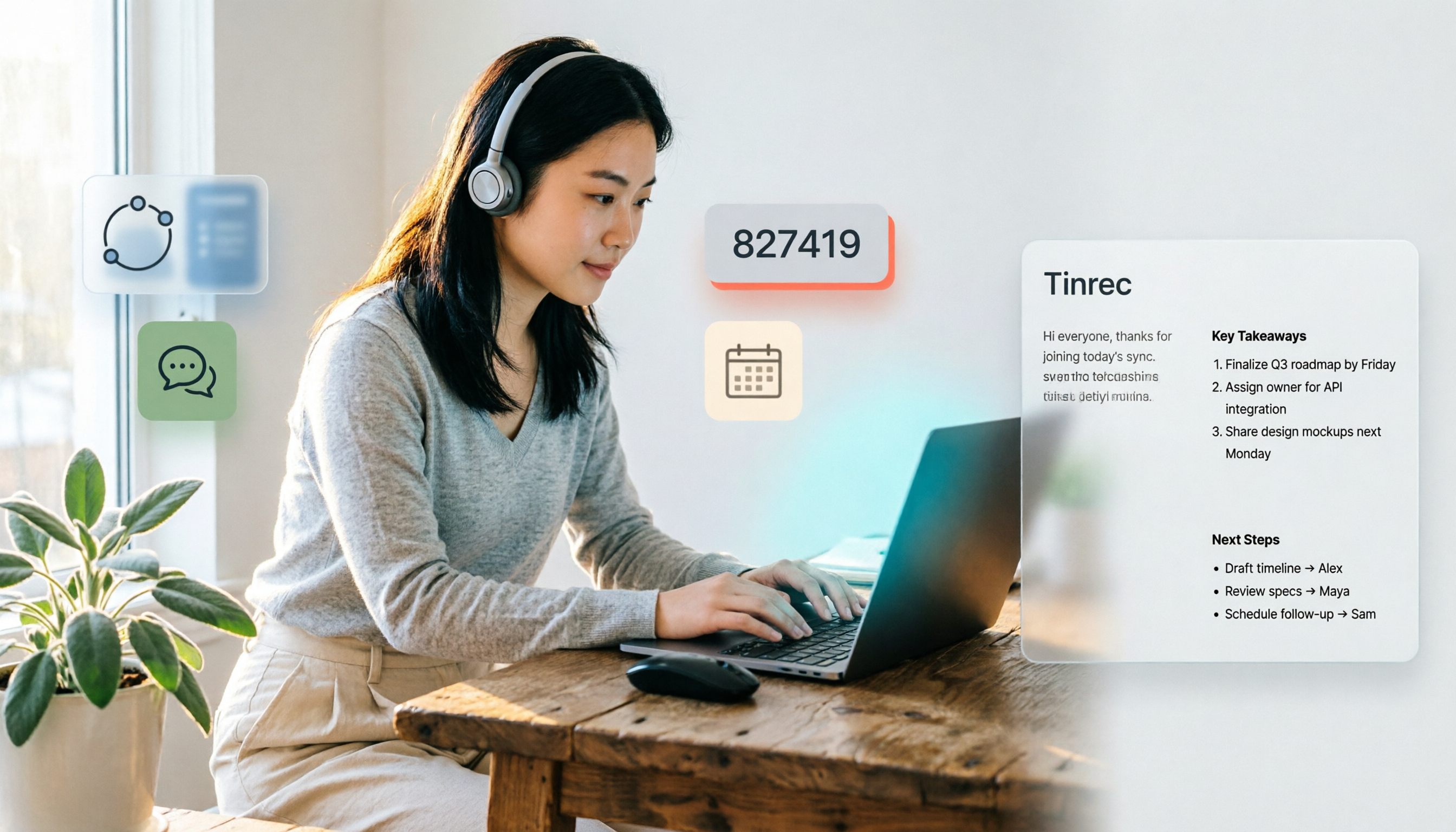
You can upload LINE call recordings, interview audio, or meeting videos to Tinrec, and it will convert them into transcripts and automatically generate summaries, chapters, key points, and to-dos. Decisions you didn't have time to write down during the meeting, or requirements the client mentioned in passing, can be quickly found in the text.
Even better is the AI Q&A. After recording, you can directly ask Tinrec: "What feature was the client most concerned about this time?" "Who is responsible for following up next week?" It answers based on the meeting content, rather than just throwing keyword search results at you. This is especially useful for Chinese meetings and mixed Chinese-English content, and it also supports real-time translation and bilingual viewing.
Stop organizing recordings by hand
Upload audio or video and automatically get a transcript, summary, and action items
Tinrec also supports multiple export formats, allowing you to take results to Notion, Google Docs, OneNote, Dropbox, and other tools for further processing; it can also use Agent post-processing to generate reports, tables, and meeting minutes. If you're a team, the team plan provides an independent team space, member and seat management, shared import quota, usage analytics, audit logs, and an audio recycle bin. Currently, the team monthly plan is USD 29.80 per paid seat per month, and the annual plan is USD 199 per paid seat per year. First-time eligible users can try 7 days, 1 free seat, and 300 minutes of shared team import quota; paid seats provide 2,000 minutes of shared team import quota per month. Actual prices are subject to the official purchase page.
Limitations should also be clear: Tinrec cannot replace your phone's call recording function, and the free version has a basic quota—heavy use requires an upgrade. It's suitable for people who frequently need to turn recordings into text, summaries, and to-dos, or who want to store meeting data in a team space.
Besides Tinrec, What Other Recording Organization Options Are There?
Otter.ai: A representative English meeting assistant. Basic is free with 300 minutes per month; Pro annual billing is about USD 8.49 per user per month. The English meeting experience is mature, but Chinese meetings, desktop recording without a bot, and Chinese team data storage are not its strong suits. Tinrec is better suited for Chinese users in these areas.
Notta: A multi-platform transcription tool. Free is 120 minutes per month, up to 3 minutes per session; Pro annual billing is about USD 8.17 per month. It's suitable for general transcription, but Tinrec adds AI Q&A, Agent post-processing, and team spaces, making post-recording usability higher.
TurboScribe: Cost-effective file transcription. Free is 3 files per day, up to 30 minutes per file; Unlimited annual is USD 120. It excels at long files and batch uploads; if you need real-time meetings, post-meeting Q&A, and team collaboration, Tinrec is a better fit.
Pitfall Guide: The 4 Most Common Mistakes in LINE Call Recording
Pitfall 1: Assuming LINE has built-in recording. LINE itself does not have a call recording button, so don't waste time looking for it in the call interface. First check whether your phone system has "Local Capture" or screen recording available.
Pitfall 2: Forgetting to turn on speakerphone. This is the most common reason iPhone built-in recording fails; without speakerphone, the file may only contain one side of the conversation.
Pitfall 3: Saving only the audio file without organizing it. Audio files can't be searched and can't be directly turned into to-dos. Throw the recording into Tinrec to convert it into a transcript, summary, and to-dos—that's what truly saves time.
Pitfall 4: Ignoring laws and consent. Recording calls may be illegal in some countries or regions. Check local regulations before recording, and it's best to obtain consent from all participants.
Conclusion: Should You Record, and How Should You Organize It?
If your iPhone has been upgraded to iOS 26 and you need to record a LINE call, try the Control Center's "Local Capture" first, and remember to turn on speakerphone. On Android, check whether your brand's screen recording or Cube ACR is supported. For older phones or if you don't want to install an app, use speakerphone plus an external recording device.
After recording, if you only occasionally listen back, your phone's built-in Files app is enough. If you frequently need to turn calls into transcripts, summaries, and to-dos, or if your team needs to share meeting data, I recommend trying Tinrec. Start with the free version, organize one or two recordings, and experience the difference from "just an audio file" to "searchable meeting data."
References
- How to record phone calls and LINE calls? Recommended call recording apps for iPhone and Samsung
- LINE can finally record calls! No plug-in or external device needed—just use iPhone's built-in system feature
- [Phone Tips] LINE can now record calls! iPhone built-in call recording trick that won't notify the other party! | Jyes Communication ~ Challenging the lowest phone prices
- Achieve Cube ACR, LINE call recording
- LINE call recording tutorial: 4 methods to achieve LINE call recording, personally tested! [2025]
Turn every recording into actionable outcomes
Get 60 free transcription minutes when you sign in. No credit card required.
Related Reading
You might also like

3 Teams Meeting Recording Tools Tested for 2026: Which Is Least Disruptive?
Need to record a Teams meeting? Should you use the built-in feature, a meeting bot, or bot-free desktop recording? This article compares the three approaches in terms of operation, file ownership, and post-meeting organization efficiency, and tests Tinrec's bot-free recording and AI meeting organization workflow to help you choose the one that least disturbs participants.
4 Ways to Join a Teams Meeting in 2026: Meeting ID, Link, or Calendar — Which Is Most Reliable?
A practical guide to joining Teams meetings via link, meeting ID, calendar, or chat invite, plus personal account limitations, lobby settings, and tips for using Tinrec to capture transcripts, summaries, and action items after the meeting.

4 iPhone Recording Methods Compared in 2026: Built-in, Shortcuts, Call Recording, and Tinrec — Which Should You Choose?
A practical comparison of four common iPhone recording methods in 2026: Voice Memos, one-tap Shortcuts recording, iOS call recording, and Tinrec. Learn how each works, their limitations, compliance reminders, and which one fits your needs.

2026 Teams Meeting Retention Showdown: 3 Solutions Compared for Recordings, Transcripts, and Data Storage
Does recording a Teams meeting guarantee it's saved? This article breaks down common misconceptions about Teams retention policies, call holds, and where meeting recordings and transcripts are stored. It compares Tinrec, Otter.ai, Notta, and Granola on meeting record retention to help you find the right approach.

2026 Comparison of 3 Teams Meeting Recording Tools: Which Bot-Free Recorder Is Easiest?
Halfway through a Teams meeting, you're asked to keep a record—but there's no record button? This article covers 3 ways to record Teams meetings, including the permission requirements for Teams built-in recording, Tinrec desktop's bot-free system audio capture, and use cases for Otter.ai and Granola. It also includes recording retention periods and 4 common pitfalls to avoid.

5 LINE Call Recording Methods Tested and Compared in 2026: How to Turn Recordings into Transcripts
LINE doesn't have a built-in call recording feature, but the real challenge isn't capturing the call—it's ending up with only your own voice or an audio file no one wants to listen to twice. This article reviews 5 common LINE call recording methods, tests the pitfalls of each, and explains how to use Tinrec to turn audio files into searchable, queryable transcripts and meeting notes. It also highlights legal considerations before recording.

2026 Comparison of 3 iPhone Recording Organization Tools: Which Saves the Most Time Converting .m4a Audio to Transcripts?
iPhone's built-in Voice Memos saves recordings in .m4a format by default, but converting the file only solves playback issues, not organization. This article first explains what file iPhone recordings are, then tests and compares recording organization tools like Tinrec, Otter.ai, Notta, and PLAUD to help you understand key buying factors and avoid common pitfalls.

Google Meet Recording Tools Compared: 4 Options for Automatic Transcripts in 2026
We start with how to download and install Google Meet on Android, iOS, desktop, and web, then compare Tinrec, Otter.ai, Granola, and Notta on post-meeting transcripts, summaries, action items, and team collaboration to help you find the most time-saving meeting notes setup.

How to Use Google Meet on TV in 2026: Chromecast Casting & Meeting Notes
How do you use Google Meet on TV? This guide clears up common misconceptions, explains why Android TV doesn't support meeting mode, how to cast with Chromecast and Google TV Streamer, and how to use Tinrec desktop to record Google Meet without a bot—generating transcripts, summaries, and action items.